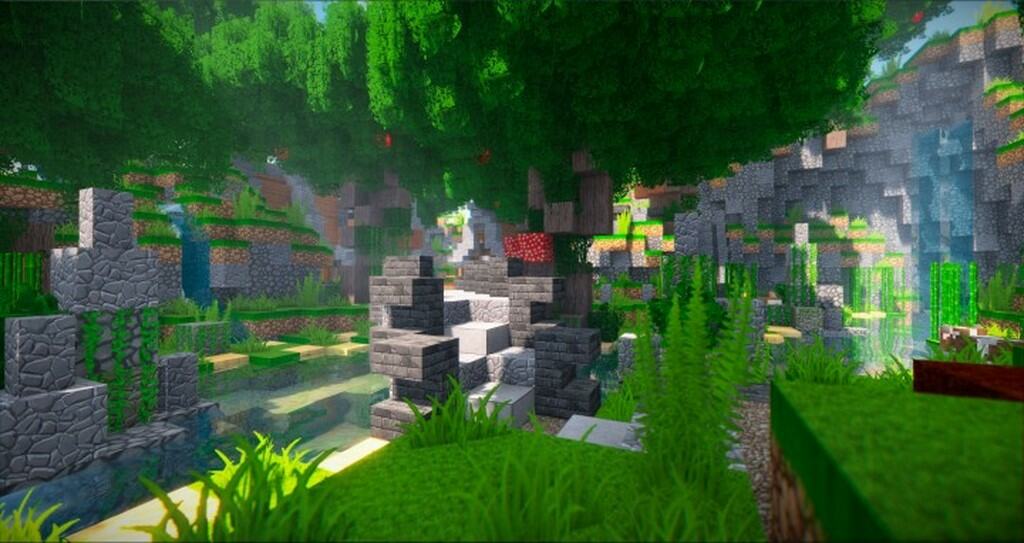
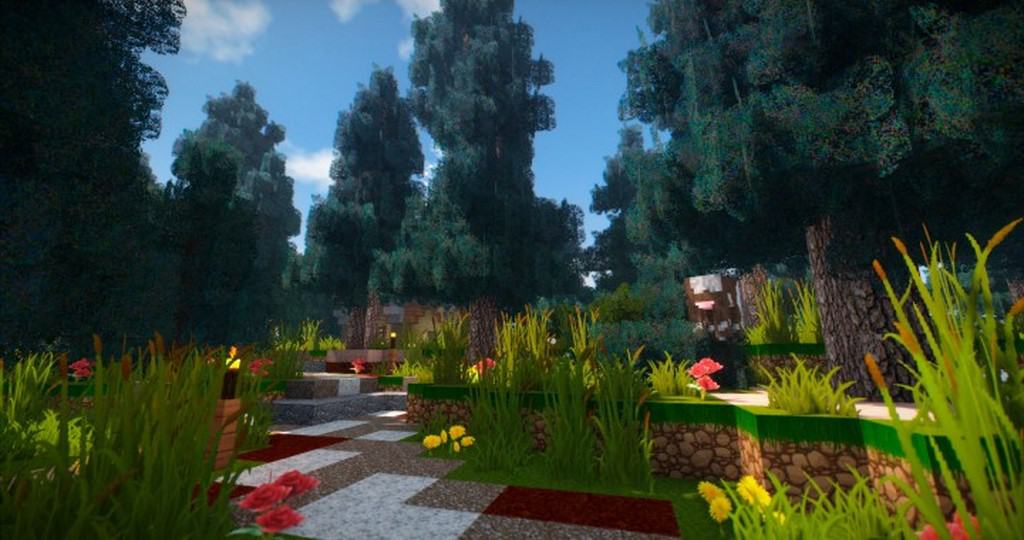
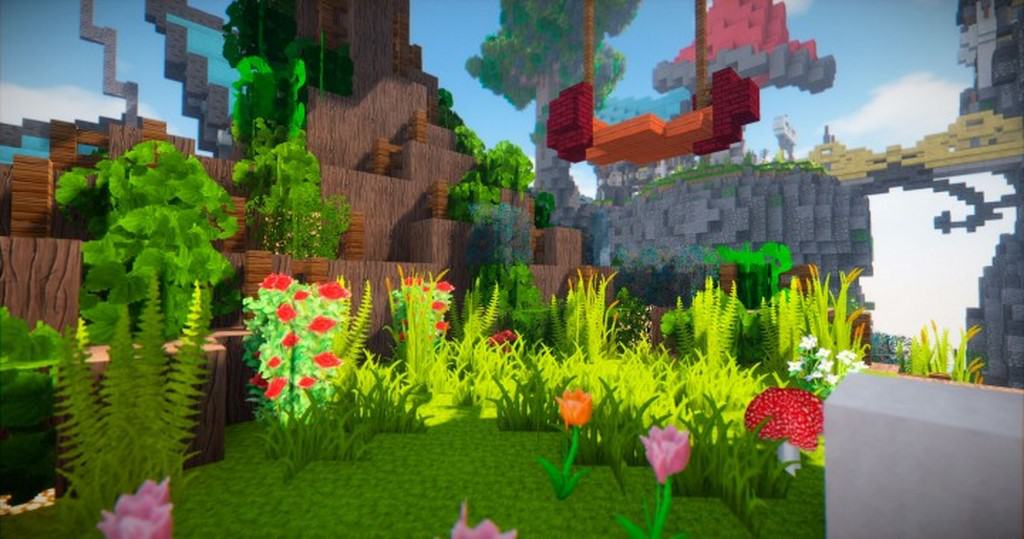
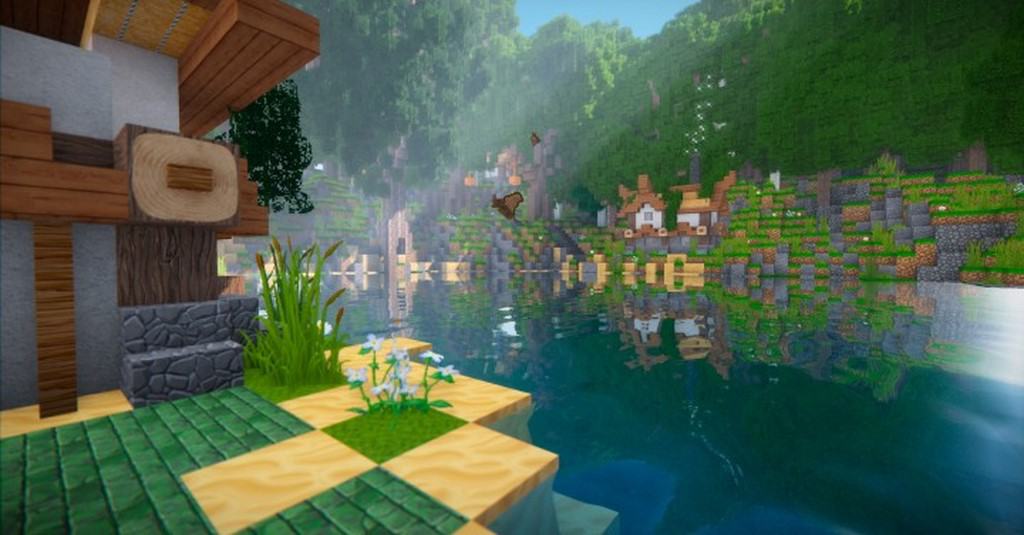
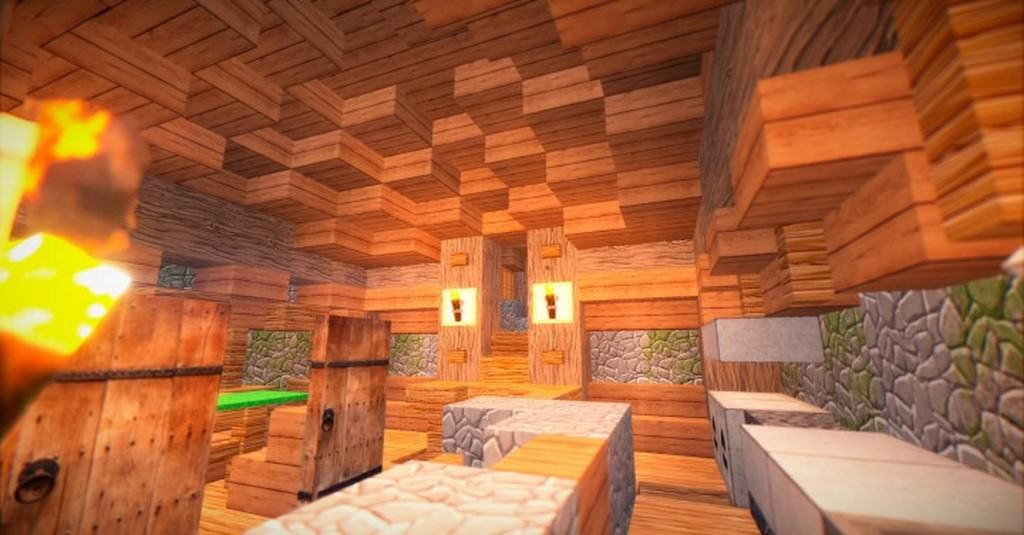
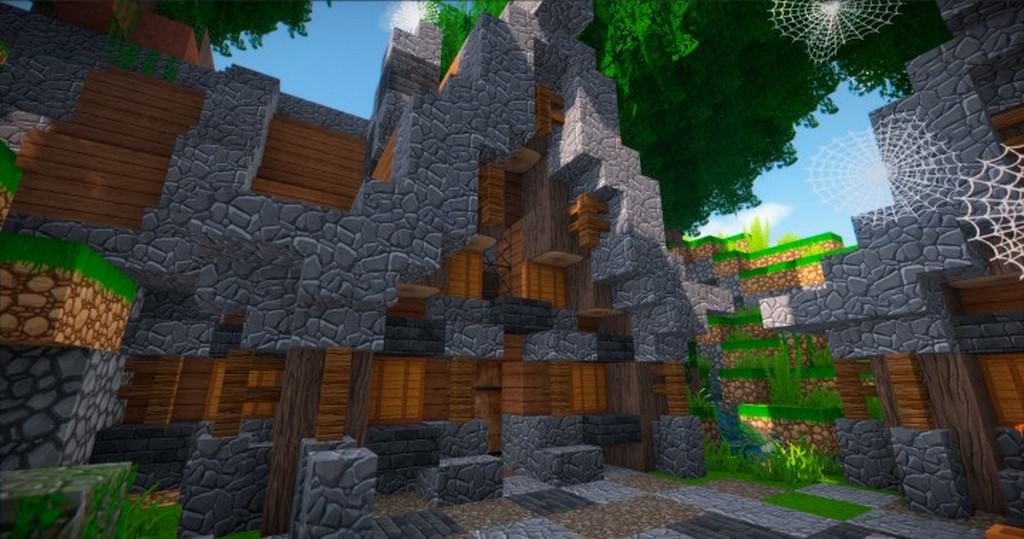
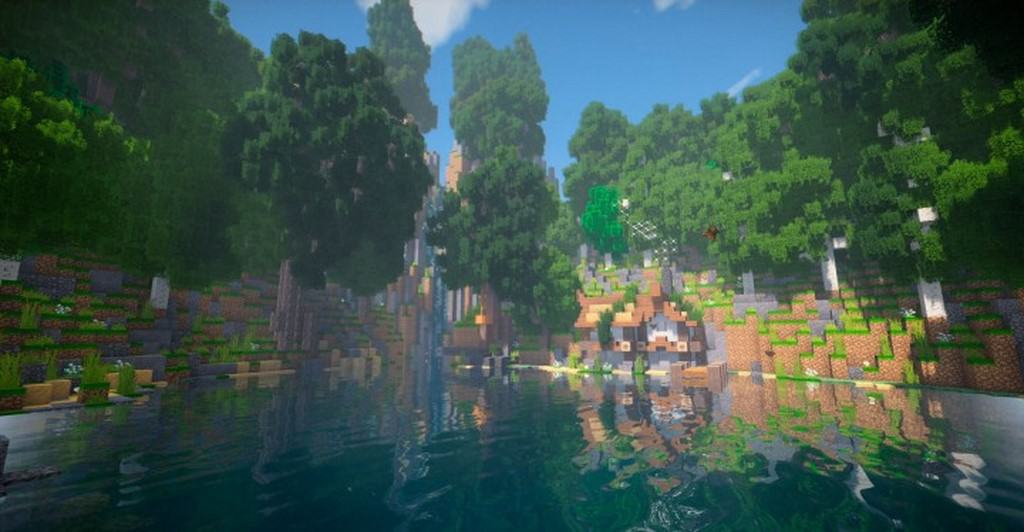
The NatureCraft resource pack was launched barely a few days ago, yet this unique pack has already managed to win the hearts of many players who eagerly awaited its release. Honestly, NatureCraft has already attained a milestone of over a thousand downloads in a remarkably short time, which is truly incredible. This resource pack is growing more popular each day for one main reason: its incomparable quality, which completely justifies its rapid fame. A unique pack like this genuinely has what it takes to elevate your Minecraft experience to a whole new level beyond your expectations. Therefore, if you need an outstanding resource pack with impeccable quality, look no further because NatureCraft is definitely the way to go. Beyond its standard features, NatureCraft has been identified for giving a remarkably realistic and authentic impression to your Minecraft gameplay. How does it manage to achieve such a lifelike look? The answer is quite simple, as NatureCraft employs exceptional textures in high definition form.
These textures are designed precisely to the point. Over the past few years, various resource packs have received high praise simply for containing comprehensive textures, but NatureCraft truly stands out from the rest in its own way. Besides featuring extremely in-depth textures, it also comes completely packed with no sign of visual noise, which is a massive bonus since such a rare feature is practically unheard of in other packs. NatureCraft consistently lives up to expectations by offering an ultra-high resolution of up to 256×256. Because of this high resolution, it may not run smoothly on computers with low-end hardware specifications. To fully experience everything this pack has to offer, I strongly recommend pairing it with shaders, and KUDA shaders are the absolute best choice to try if you want to get the most out of it.
NatureCraft HD Realism should be compatible with all of these Minecraft versions: 1.12.2 – 1.12 – 1.11.2 – 1.11
Screenshots
How to Install Texture Pack (Simple 10 Steps)
- Download OptiFine: Most of the texture packs and shaders need OptiFine. That’s why, first download and install OptiFine for the version of Minecraft you want to play.
- Download the Texture Pack: Get the texture pack you want from the download section. Choose the version that works with your Minecraft and your PC’s performance.
- Open Minecraft Launcher: Start Minecraft using the official game launcher — or even TLauncher, if you use that.
- Go to Options: From the main menu, click on the “Options” button.
- Open Resource Packs: Inside Options, click on “Resource Packs…”.
- Open the Resource Pack Folder: Click on “Open Resource Pack Folder” — this will open a folder named “resourcepacks”.
- Move the Pack File: Copy or move the .zip file you downloaded into that “resourcepacks” folder. (Don’t unzip the file — Minecraft uses it as-is!)
- Go Back and Refresh: Close the folder and click “Done”, then go back into “Resource Packs…” again.
- Activate the Pack: You’ll see the pack on the left side. Hover over it and click the arrow to move it to the right (active side).
Tip: If you get a message that the pack is for a different version, just click “Yes” — it usually works fine. - Click Done and Enjoy: Click “Done” again. Now your pack is ready to use in-game. It’s that easy!
Credits
Created by CemreK. All rights reserved by the original creator. We do not claim ownership of this content, nor do we modify the original files. We encourage all users to support the creator by downloading from their official links.
Download Instructions
Curseforge: download starts automatically after a few seconds;
Mediafire: click the big blue button with the text “DOWNLOAD”;
Google Drive: in the top right corner you will see a small download icon (down arrow), click it and the download should start;


