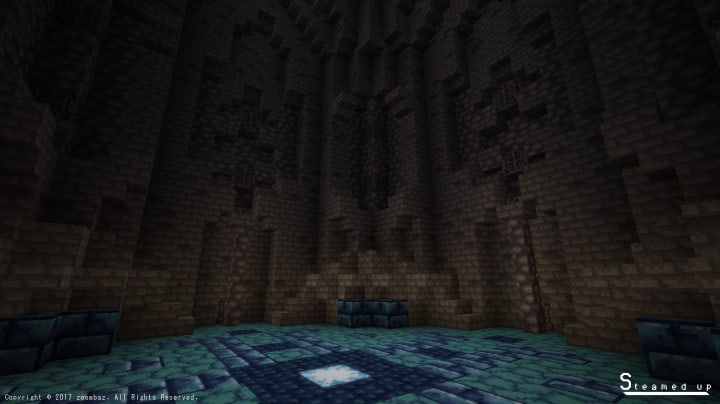
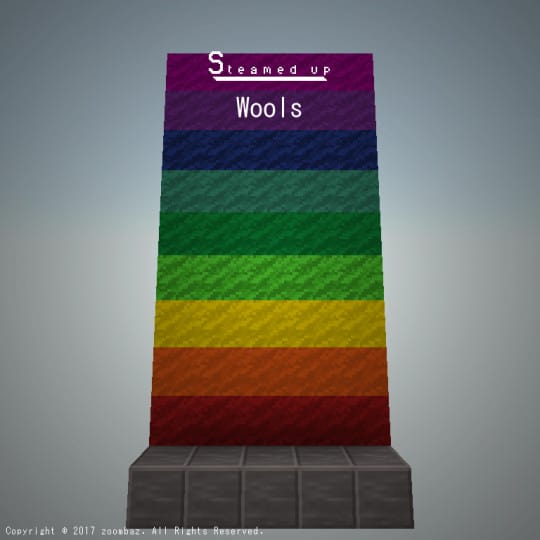
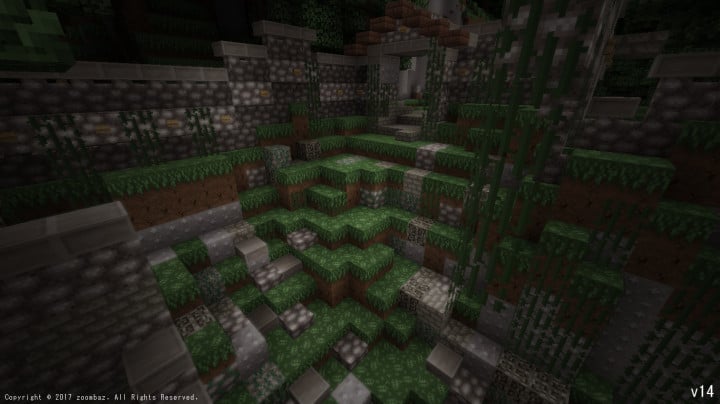
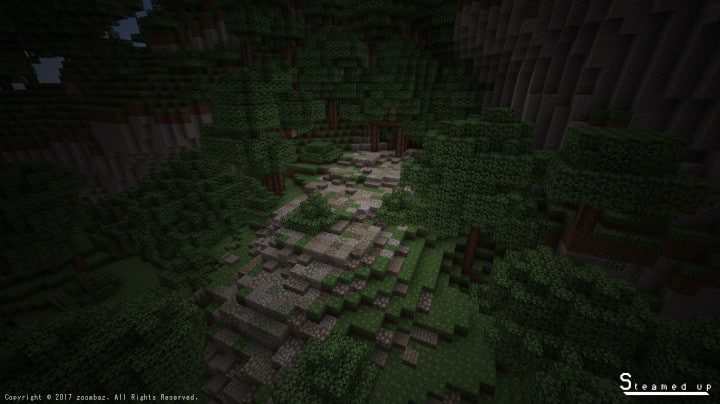
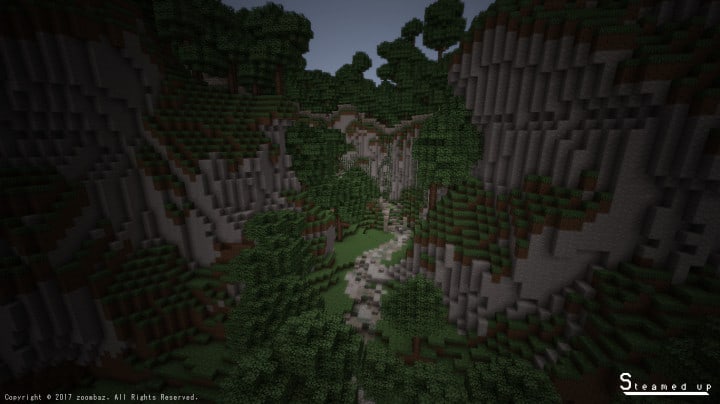
As a resource pack, Steamed Up was developed nearly 4 years ago, and I remember when it was initially launched, it was easily one of the best, most impressively crafted, and high-end resource packs available. This is all thanks to its fantastic set of textures paired with a remarkably glossy design that I simply fell in love with. Unfortunately, after some time, the developer stopped updating the textures, and gradually it became incompatible with Minecraft’s latest versions. Happily, the developer of the Steamed Up Resource Pack has recently decided to rejuvenate it, updating it thoroughly to make it compatible with most modern Minecraft client versions. Because of this massive and welcome improvement, I honestly think you should try it out since its previous compatibility issues are finally gone. The Steamed Up textures boast an innovative realism and an appealing art design that I found quite amazing to examine up close in my world.
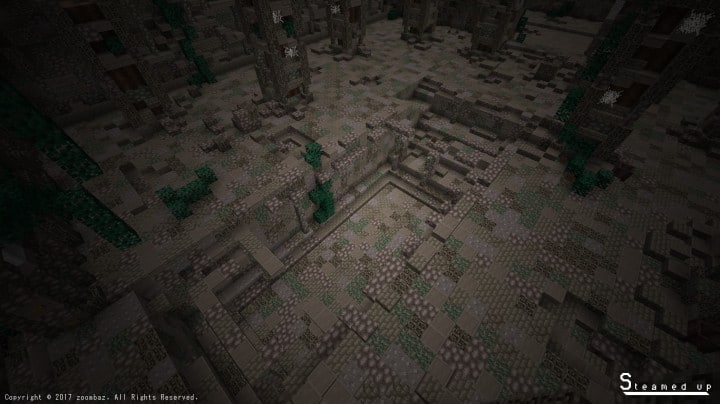
The textures in this resource pack are filled with great detail and completely avoid producing any annoying extra noise, which is probably why they look and feel extremely glossy, clean, and smooth during gameplay. I really appreciate that the color palette used for this particular pack happens to be one of the darkest available, creating a moody atmosphere. These dark colors are fused seamlessly with the pack’s attractive and realistic texture design. What I found even more unique and surprising about this pack is its standard 16x resolution. Even at this modest resolution, the textures manage to pack incredible detail into every single block. It is a fantastic low-resolution set of textures that lets you fully enjoy the game without experiencing any annoying frame-rate problems, running buttery smooth even on modest, low-end PCs. Most importantly, keep in mind that the Steamed Up resource pack was only recently brought back to life after sitting dormant for quite a long time. This simply means that a few of its textures are still actively being worked on and will likely change as the development process continues forward.
Steamed Up should be compatible with all of these Minecraft versions: 1.12.2 – 1.12 – 1.11.2 – 1.11 – 1.10.2 – 1.10
Screenshots
How to Install Texture Pack (Simple 10 Steps)
- Download OptiFine: Most of the texture packs and shaders need OptiFine. That’s why, first download and install OptiFine for the version of Minecraft you want to play.
- Download the Texture Pack: Get the texture pack you want from the download section. Choose the version that works with your Minecraft and your PC’s performance.
- Open Minecraft Launcher: Start Minecraft using the official game launcher — or even TLauncher, if you use that.
- Go to Options: From the main menu, click on the “Options” button.
- Open Resource Packs: Inside Options, click on “Resource Packs…”.
- Open the Resource Pack Folder: Click on “Open Resource Pack Folder” — this will open a folder named “resourcepacks”.
- Move the Pack File: Copy or move the .zip file you downloaded into that “resourcepacks” folder. (Don’t unzip the file — Minecraft uses it as-is!)
- Go Back and Refresh: Close the folder and click “Done”, then go back into “Resource Packs…” again.
- Activate the Pack: You’ll see the pack on the left side. Hover over it and click the arrow to move it to the right (active side).
Tip: If you get a message that the pack is for a different version, just click “Yes” — it usually works fine. - Click Done and Enjoy: Click “Done” again. Now your pack is ready to use in-game. It’s that easy!
Credits
The Steamed Up resource pack was created by zoombaz. We do not claim ownership of this content, and we do not modify or host the original files on our servers. All rights remain with the original creator. We strongly encourage you to support zoombaz by utilizing their official download links and following their ongoing development updates.
Download Instructions
Curseforge: download starts automatically after a few seconds;
Mediafire: click the big blue button with the text “DOWNLOAD”;
Google Drive: in the top right corner you will see a small download icon (down arrow), click it and the download should start;


