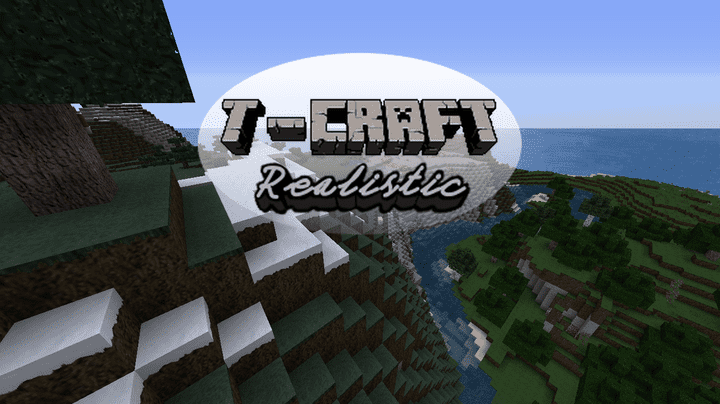
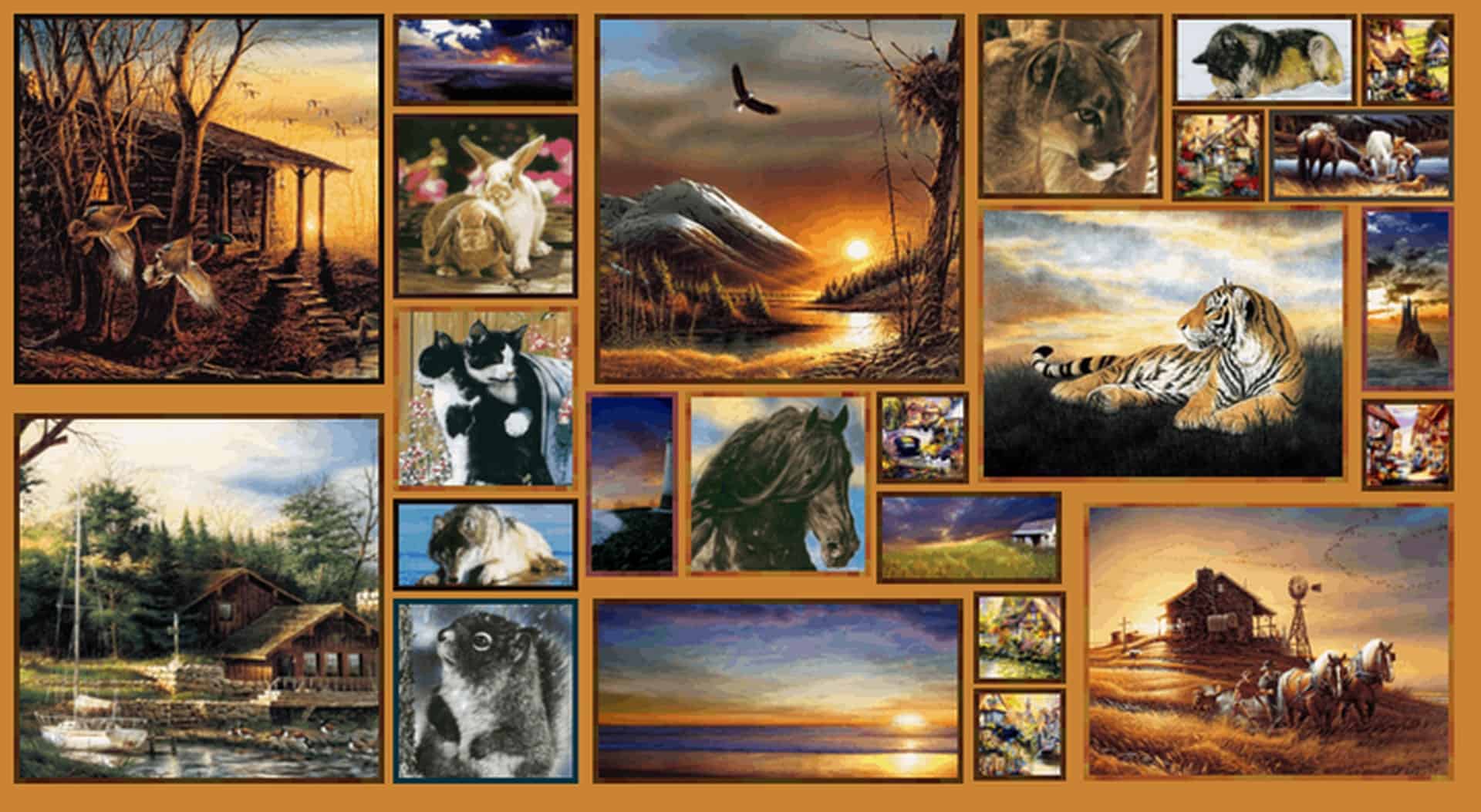
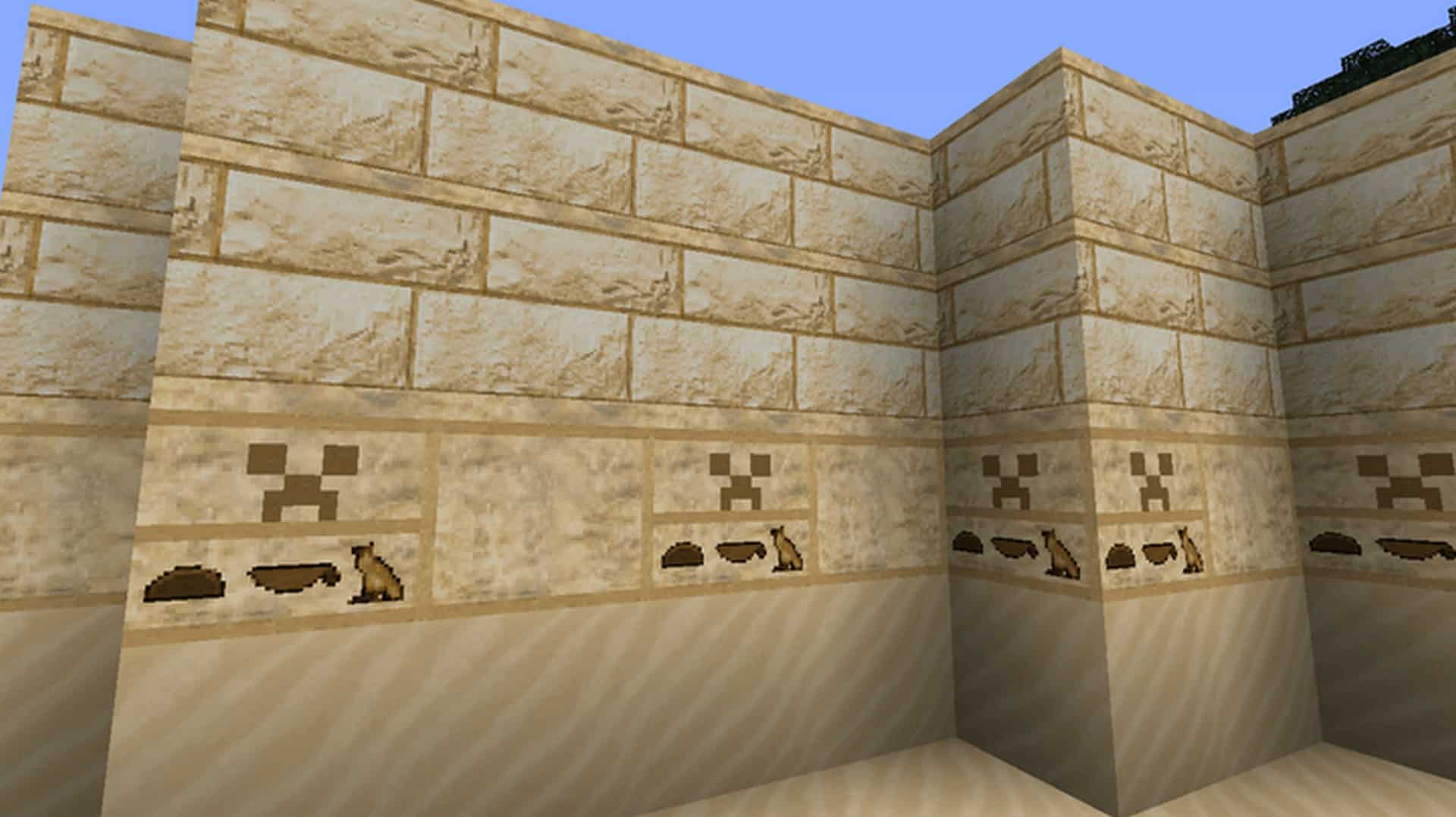
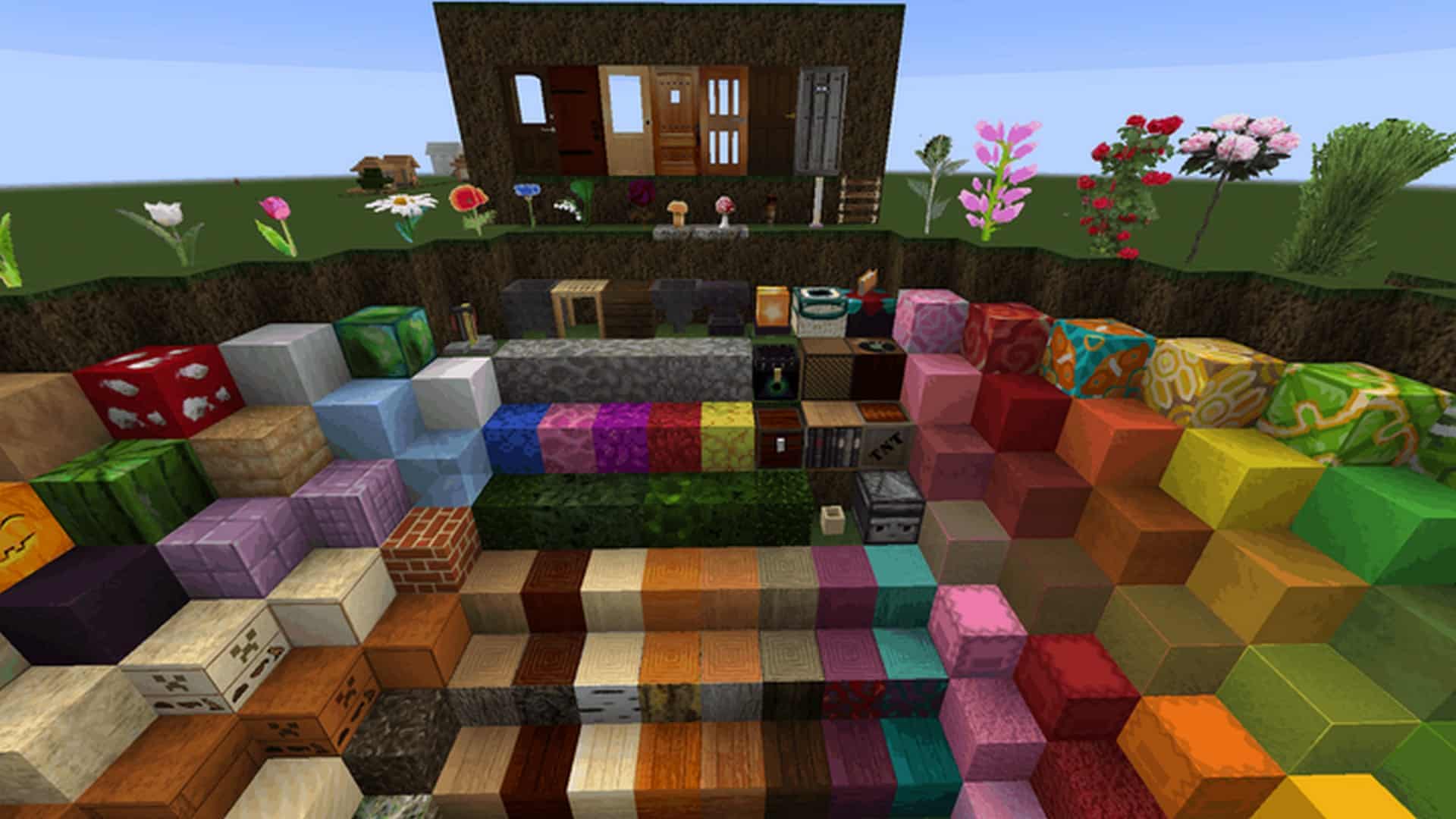
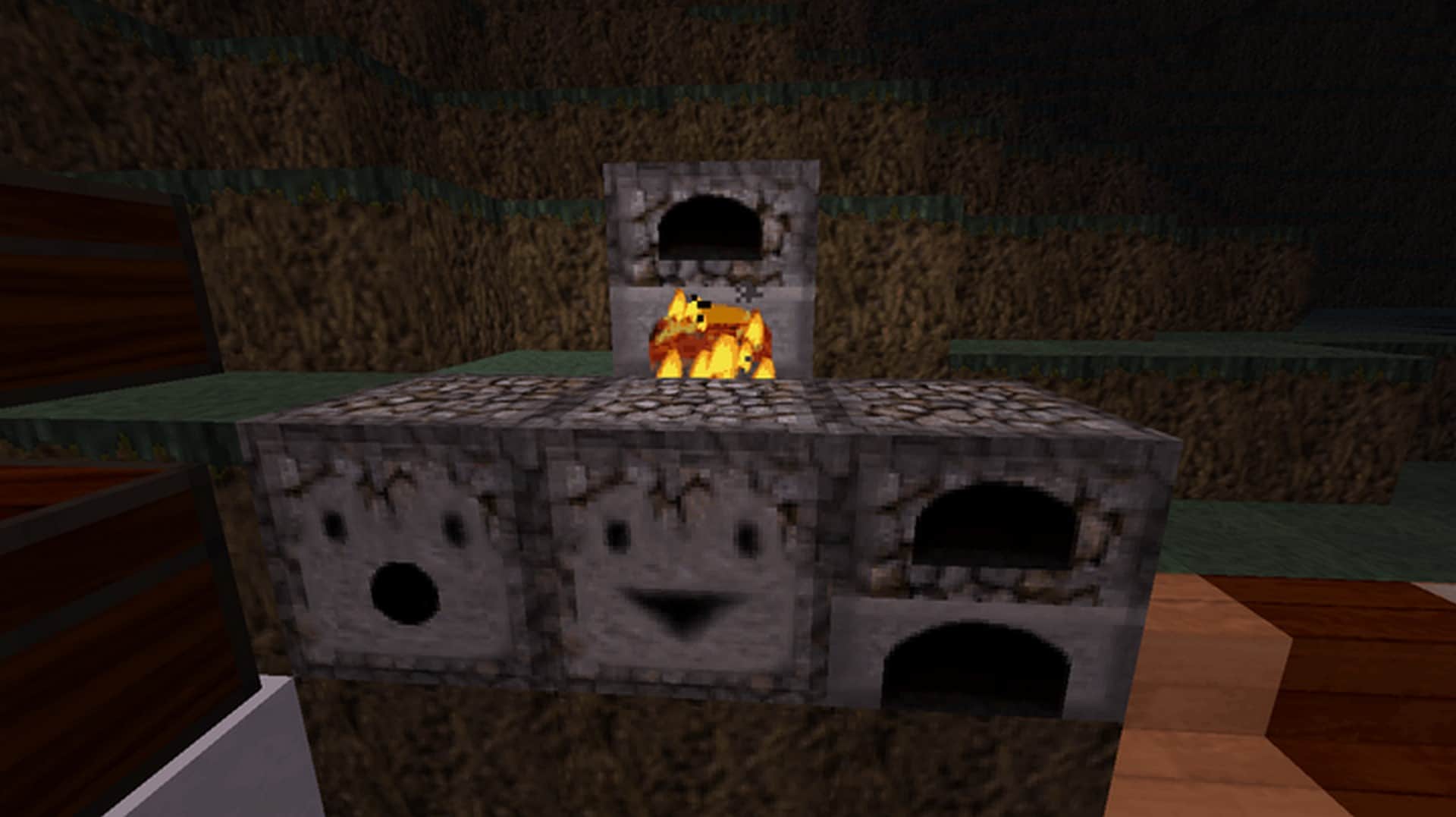
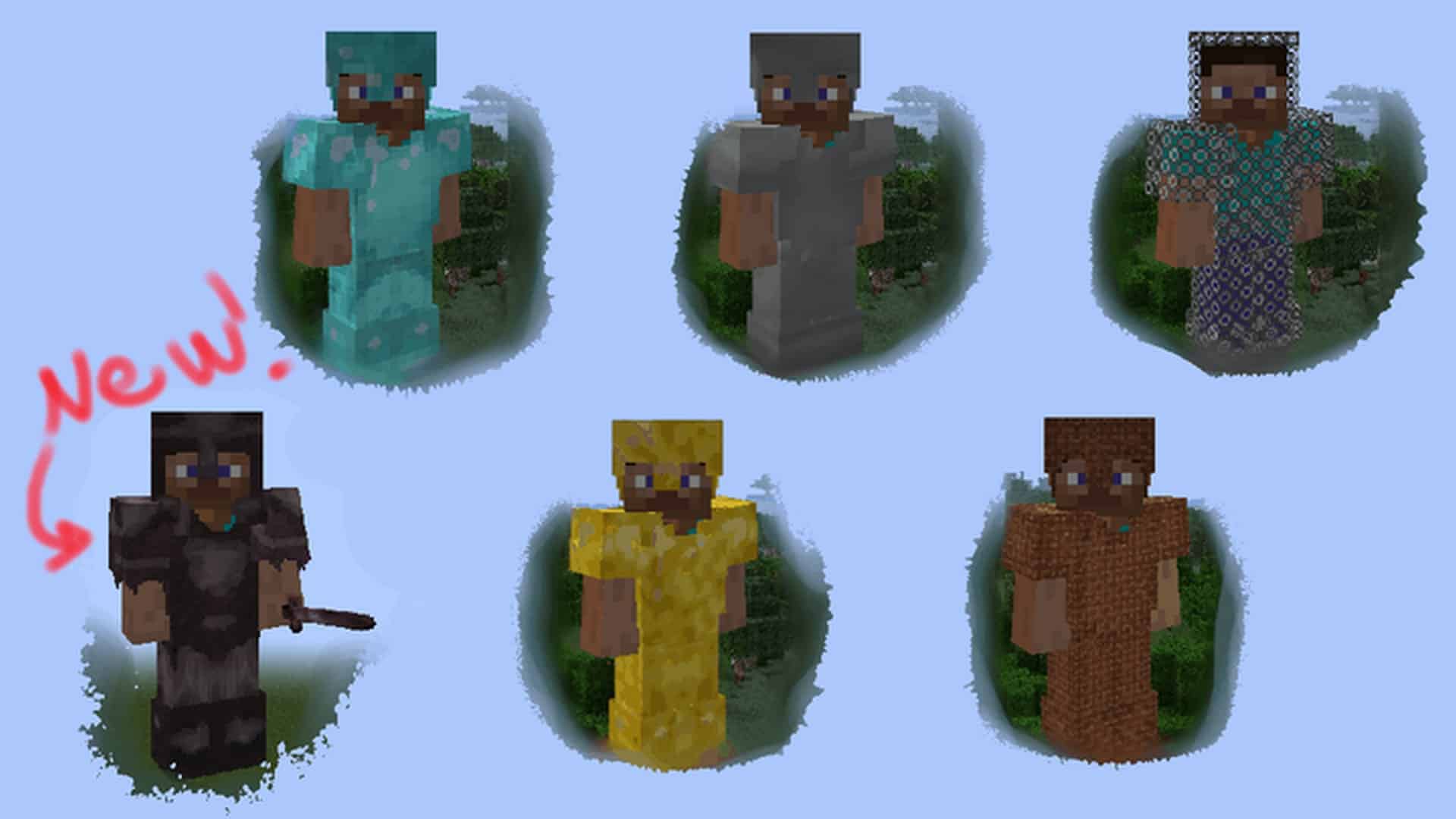
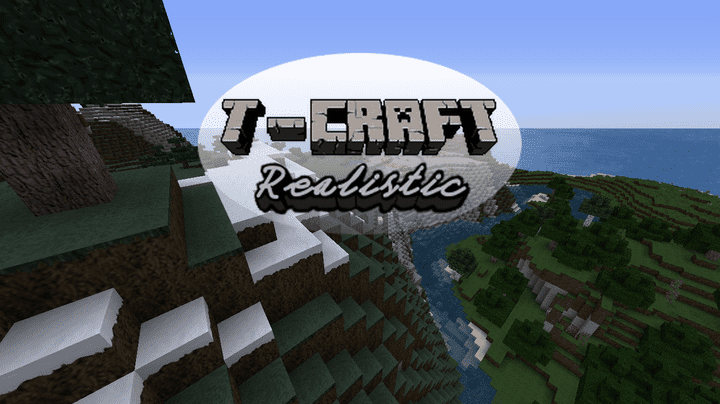
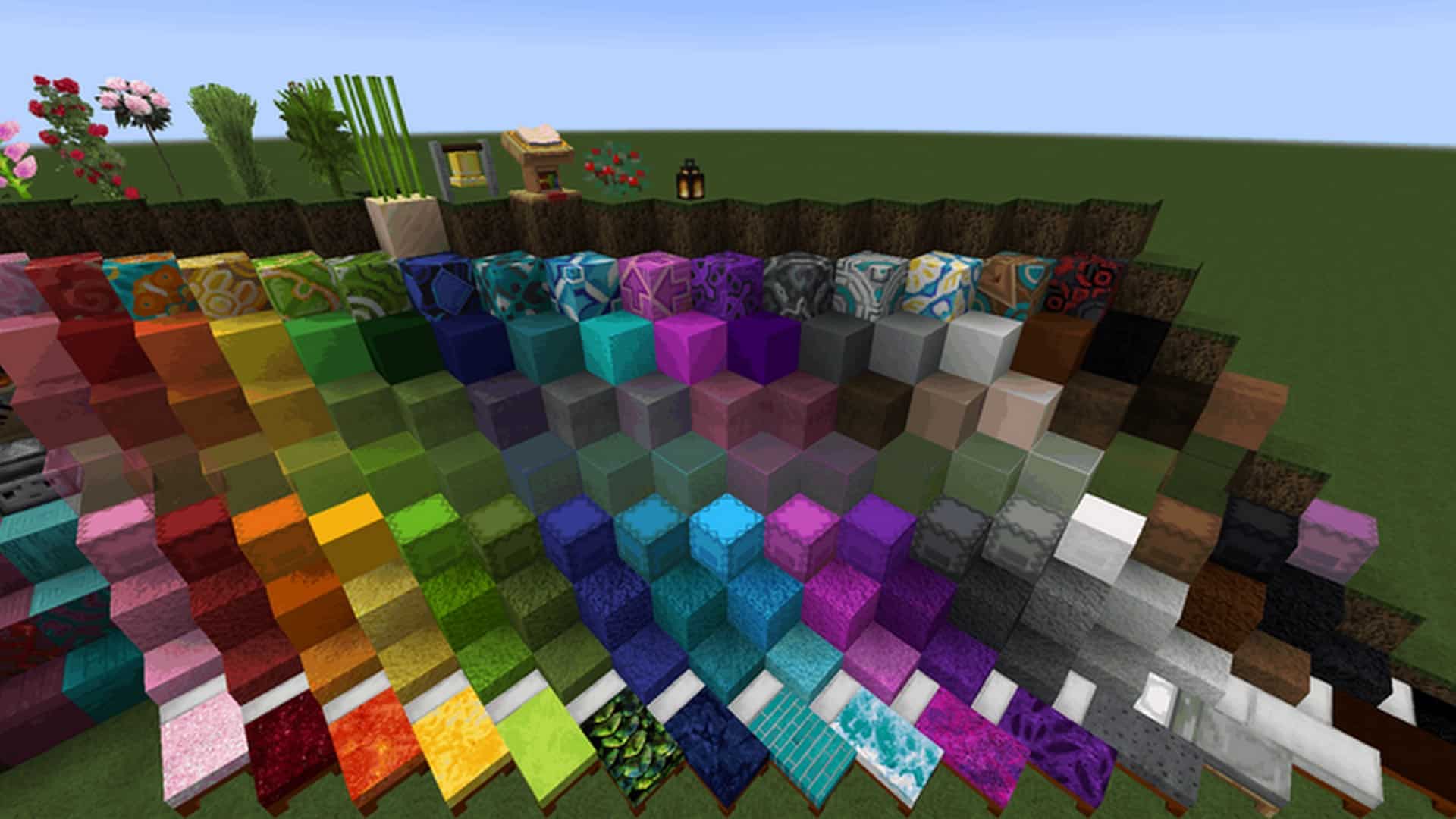
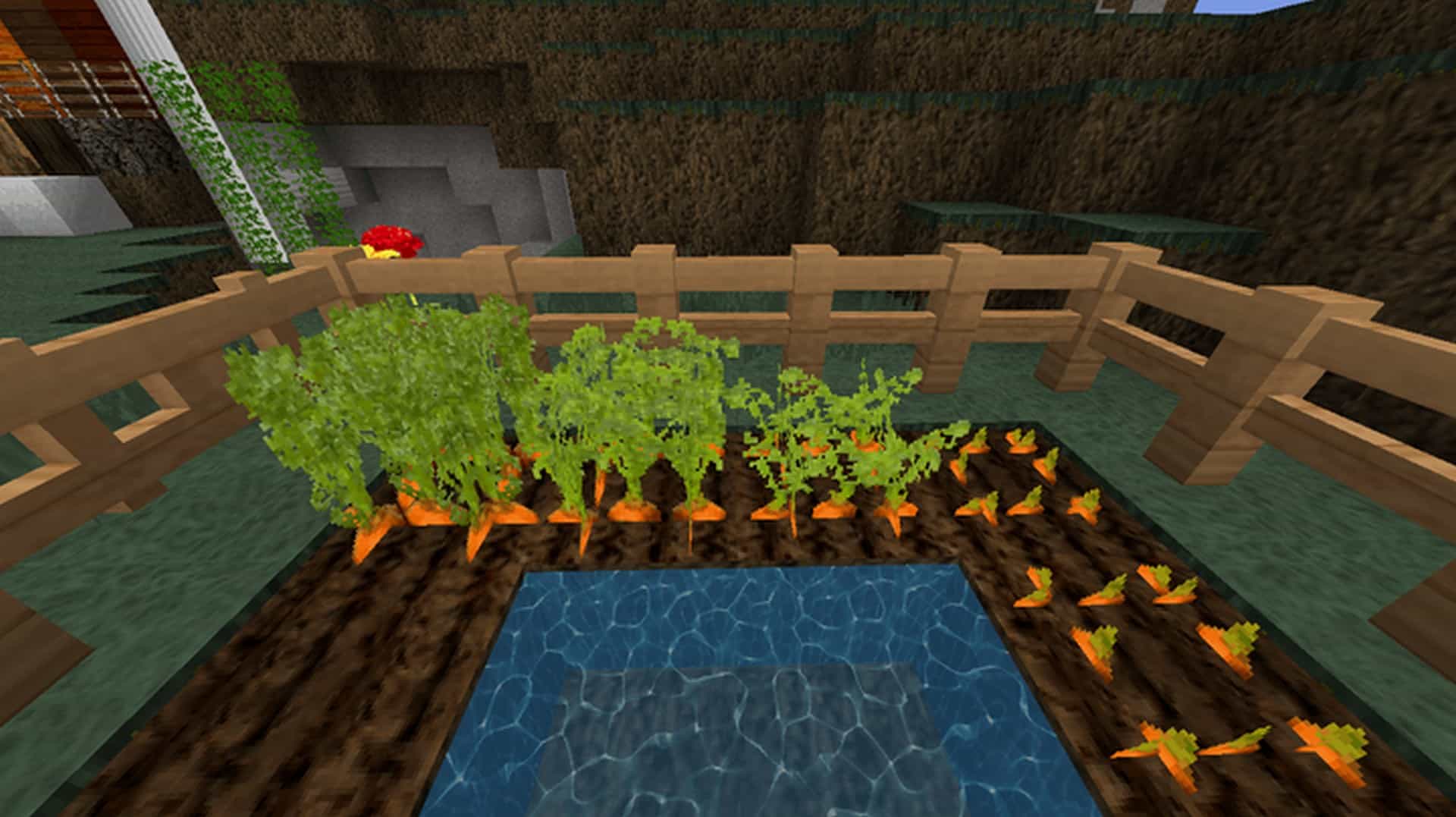
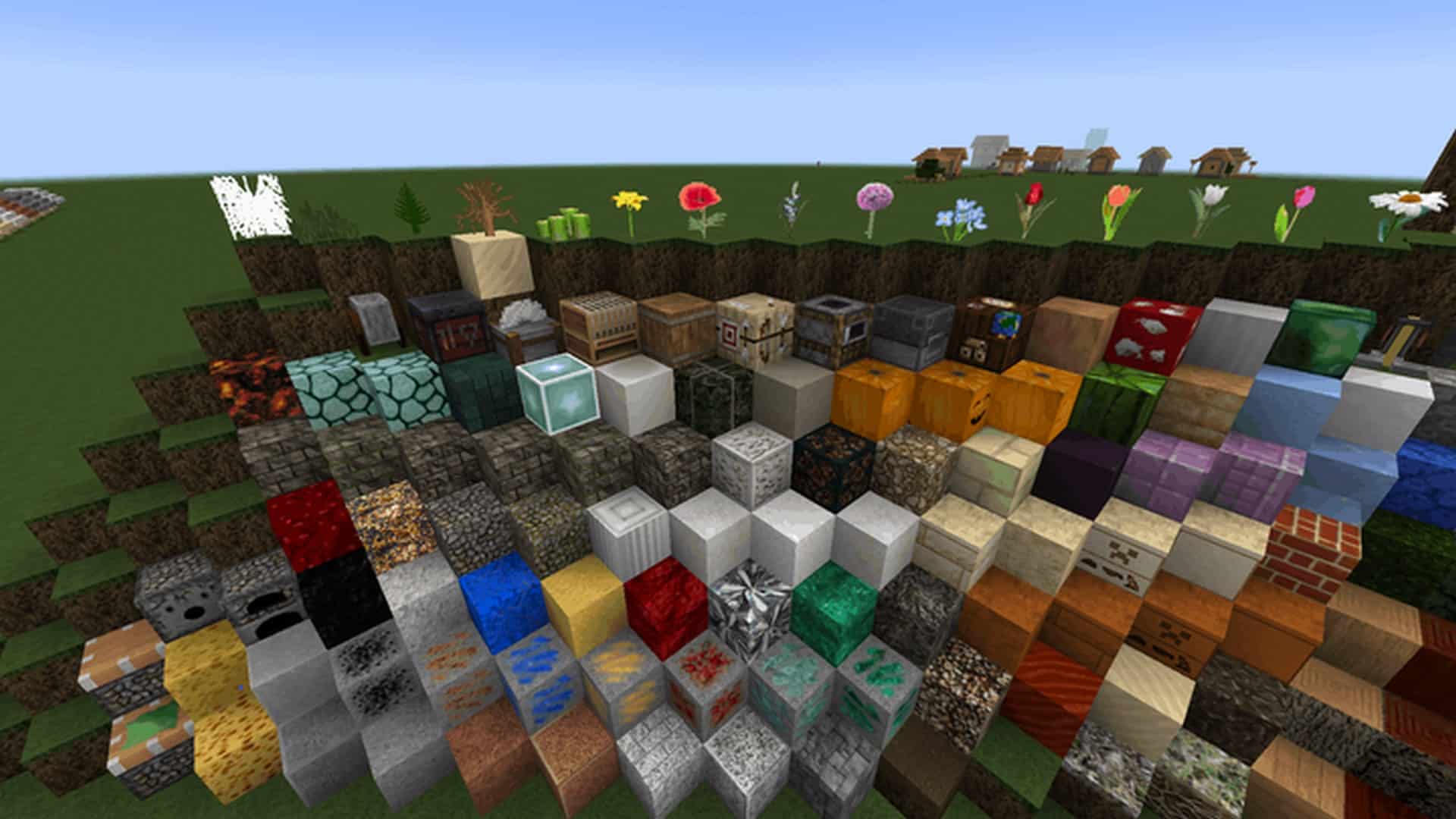
With so many resource packs flooding the Minecraft community, it is easy for incredible hidden gems to slip under the radar, and I can honestly say the T-Craft Realistic Resource pack is a fantastic example of this. When you are constantly bombarded by hyper-realistic resource packs that awkwardly plaster near-photo-quality textures onto jagged, sharp-edged blocks, finding something genuinely balanced feels like an absolute breath of fresh air. T-Craft completely avoids that trap. It serves as a brilliant, lovingly crafted enhancement over the standard textures and detail levels we all know and love from vanilla Minecraft. Despite the slightly misleading name and what certain pack descriptions might suggest, the T-Craft Realistic texture pack cleverly blends high-resolution artwork with subtle textures derived from real-world photography. As the developer notes, these assets were carefully crafted in Gimp using actual photos, and that subtle realism shines through brilliantly on specific surfaces like cobblestone, limestone, tree bark, select flowers, sand, and a few other details. You will even discover some fresh, real-photo paintings scattered around. Even though certain block textures originate from real photographs, they never feel jarringly photorealistic or out of place. Not every single block screams photograph realism; it only peeks through here and there, blending in seamlessly so it never breaks your immersion. Take apples, for instance—they are tiny objects featuring photo-based textures that you might easily overlook unless you are actively searching for them.
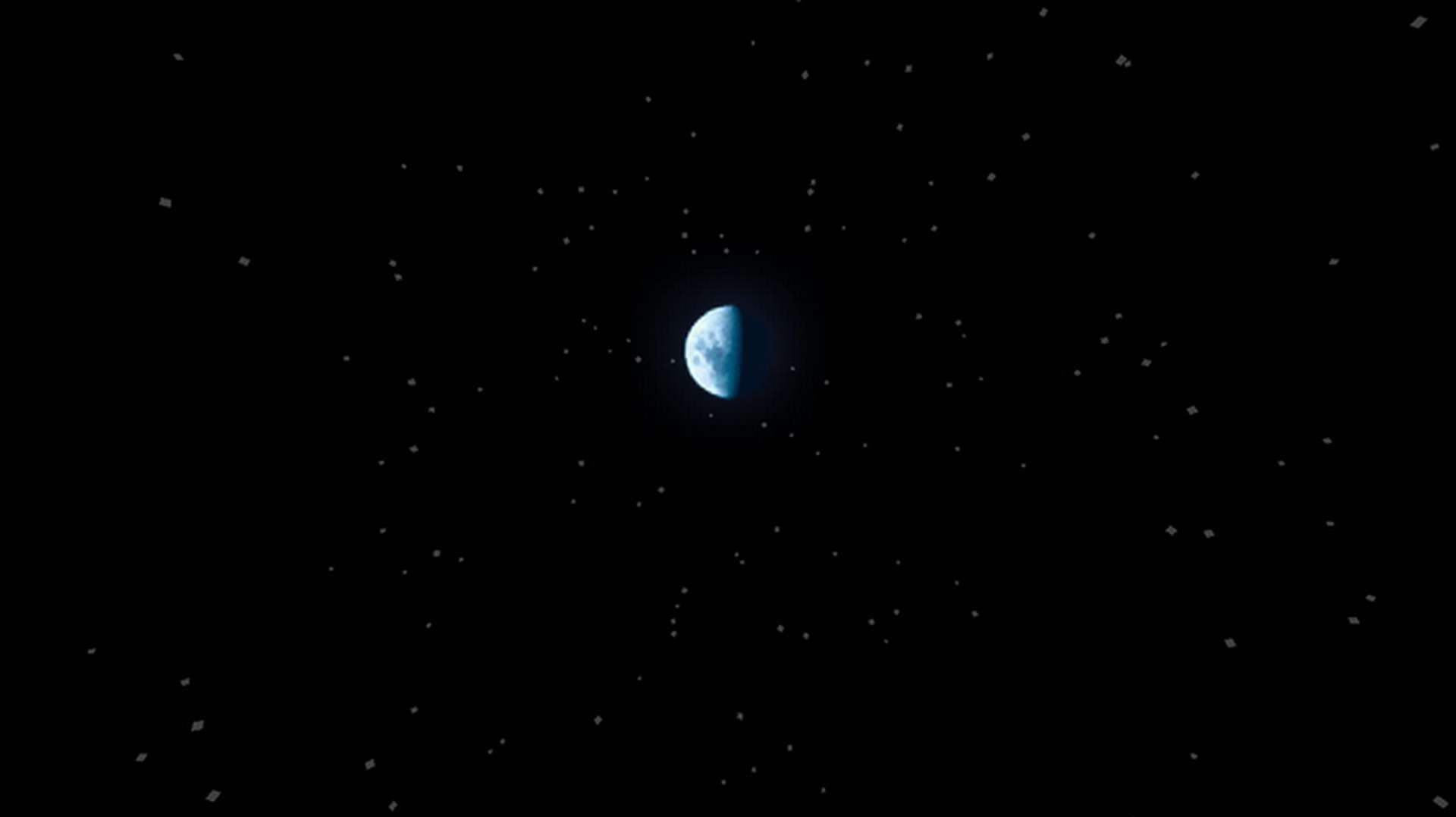
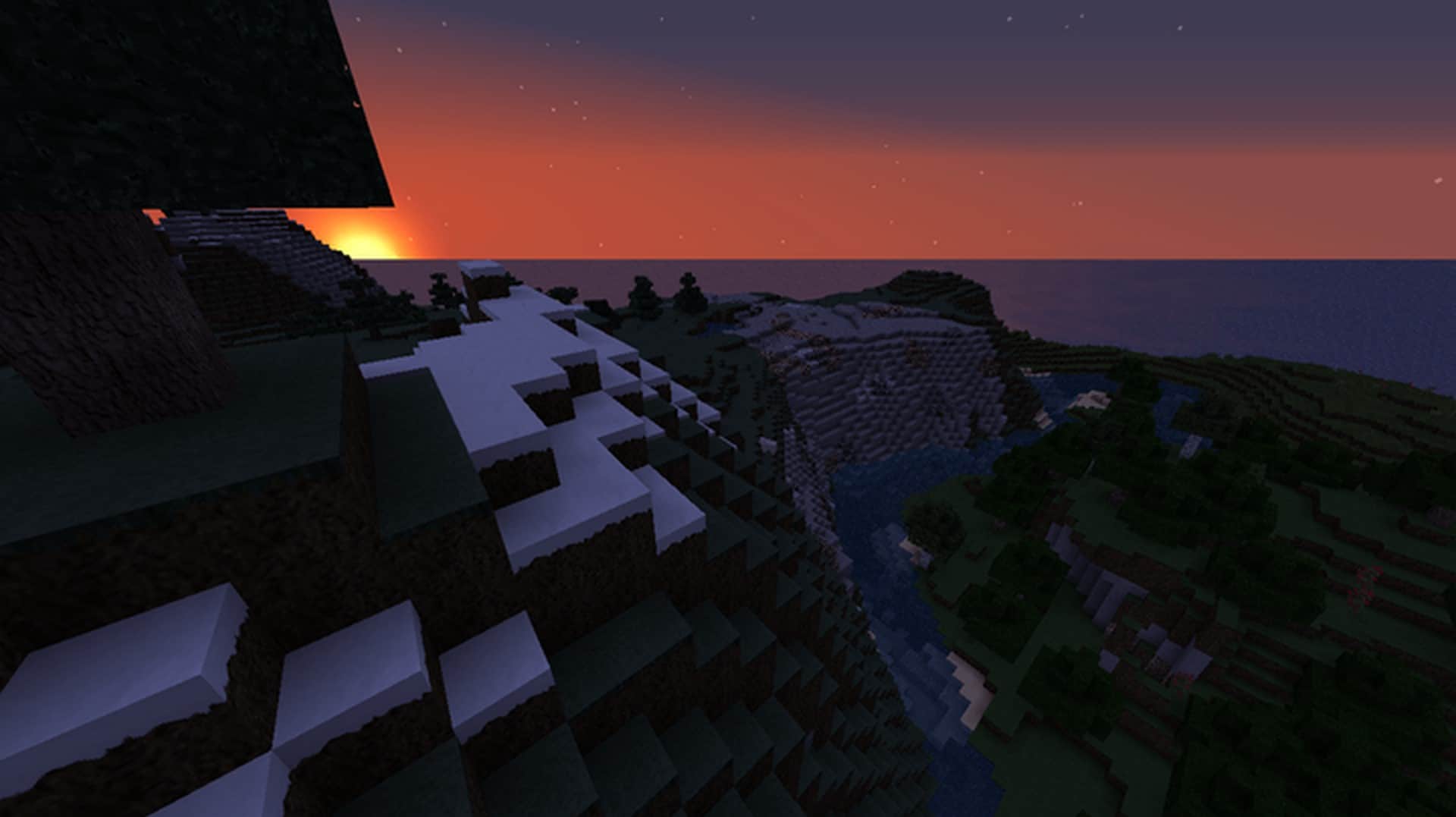
These tiny, thoughtful improvements come together to offer a massive visual upgrade over standard Minecraft. Personally, one of my absolute favorite things making the T-Craft Realistic resource pack so easy to recommend is the resolution choice. Operating at a comfortable 64x resolution, it means you do not need a beast of a PC to experience buttery-smooth gameplay while keeping everything wonderfully familiar. The annoying pixelation on various textures is neatly toned down. While it strips away a bit of the plain cartoonish nature of vanilla Minecraft, it stays remarkably faithful to the original art style, leaving a charmingly familiar vibe intact despite all the texture overhauls and the resolution bump. You can easily tell that a tremendous amount of effort went into elevating the overall atmosphere of the world. The textures appear much more vibrant, ditching dull shades of gray in favor of rich, intense colors. The water textures look genuinely stunning, and the lighting feels significantly enhanced overall. It is simply a joyful resource pack that brightens up your Minecraft world in the most pleasant way possible. Unlike more modern options, T-Craft does not rely on bundled shaders; while you can technically pair it with external shader packs, doing so might cause a heavy performance hit if you are playing on older hardware. Running high-res resource packs alongside intensive shaders usually demands a powerful rig to maintain smooth frames. Thankfully, the T-Craft Realistic resource pack shines brilliantly right out of the box without needing any extra modifications. That said, compared to the native 16x resolution of vanilla Minecraft, moving up to T-Craft’s 64x detail level may introduce a tiny, manageable dip in performance on weaker systems. It is also worth keeping in mind that this pack has been around for quite a few years and remains a work in progress.
T-Craft Realistic should be compatible with all of these Minecraft versions: 1.18.1 – 1.18 – 1.17.1 – 1.17 – 1.16.5 – 1.16.4 – 1.16.3 – 1.16.2 – 1.16.1 – 1.16 – 1.12 – 1.11.2 – 1.11 – 1.8.1 – 1.8.6 – 1.8 – 1.7.10 – 1.7.9 – 1.7.4 – 1.7 – 1.6.4 – 1.6.2
Screenshots




How to Install Texture Pack (Simple 10 Steps)
- Download OptiFine: Most of the texture packs and shaders need OptiFine. That’s why, first download and install OptiFine for the version of Minecraft you want to play.
- Download the Texture Pack: Get the texture pack you want from the download section. Choose the version that works with your Minecraft and your PC’s performance.
- Open Minecraft Launcher: Start Minecraft using the official game launcher — or even TLauncher, if you use that.
- Go to Options: From the main menu, click on the “Options” button.
- Open Resource Packs: Inside Options, click on “Resource Packs…”.
- Open the Resource Pack Folder: Click on “Open Resource Pack Folder” — this will open a folder named “resourcepacks”.
- Move the Pack File: Copy or move the .zip file you downloaded into that “resourcepacks” folder. (Don’t unzip the file — Minecraft uses it as-is!)
- Go Back and Refresh: Close the folder and click “Done”, then go back into “Resource Packs…” again.
- Activate the Pack: You’ll see the pack on the left side. Hover over it and click the arrow to move it to the right (active side).
Tip: If you get a message that the pack is for a different version, just click “Yes” — it usually works fine. - Click Done and Enjoy: Click “Done” again. Now your pack is ready to use in-game. It’s that easy!
Credits
Credits: Developed by tanja012. We do not claim ownership of this resource pack and do not host modified files. We strongly encourage players to support the original creator by downloading through official channels.
Download Links
Java Edition
Download Instructions
Curseforge: download starts automatically after a few seconds;
Mediafire: click the big blue button with the text “DOWNLOAD”;
Google Drive: in the top right corner you will see a small download icon (down arrow), click it and the download should start;


