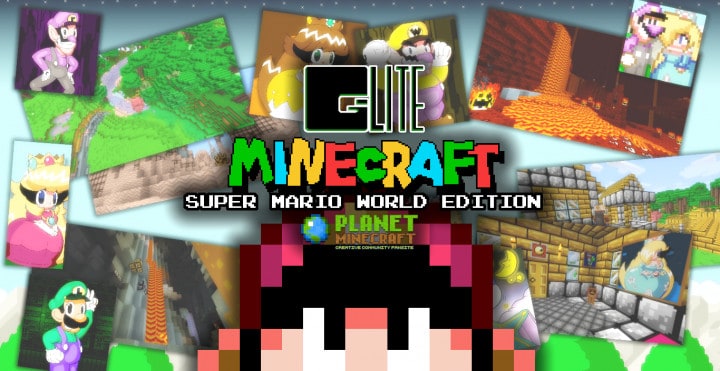
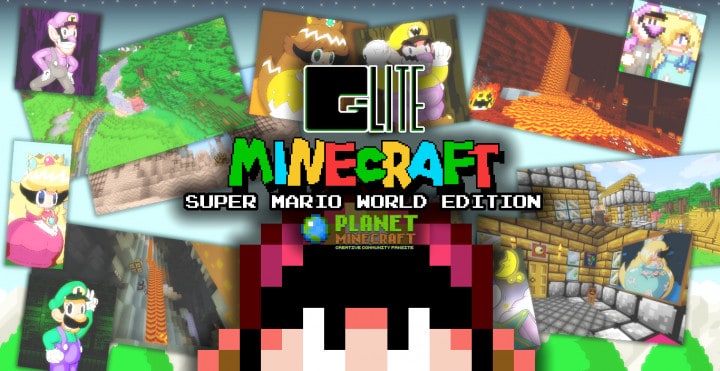
There is truly little doubt that the latest resource pack created by GreenLightningx6 called Super Mario World Edition goes far beyond anything he has released previously. Whether you are completely new to Super Mario or a seasoned veteran who has played the latest editions across all major gaming systems, experiencing this specifically developed Super Mario World themed resource pack inside Minecraft is an absolute treat. As always, this is a resource pack that genuinely makes a noticeable difference to your overall enjoyment. Whether you prefer brighter colors, enriched sounds, or tons of extra features, you will encounter plenty of packs that claim to improve the game for you. However, not all resource packs are created equally, and while there are various packs you can download or purchase for your Minecraft world that offer some nice features, none of them come close to matching the incredible enhancements included in this pack that GreenLightningx6 has crafted for this amazing resource pack.
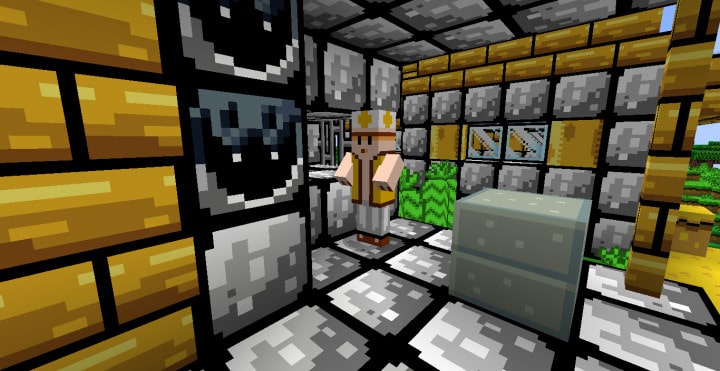
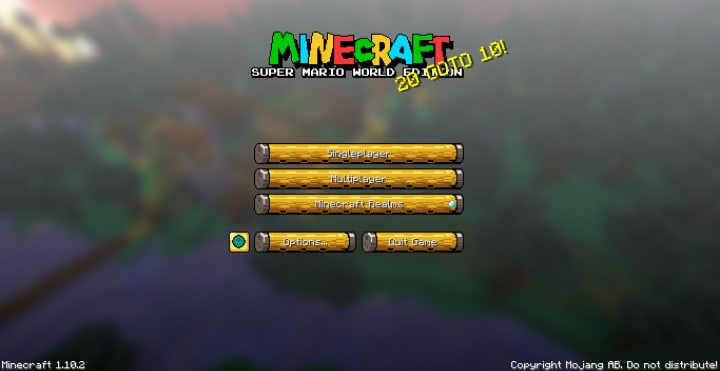
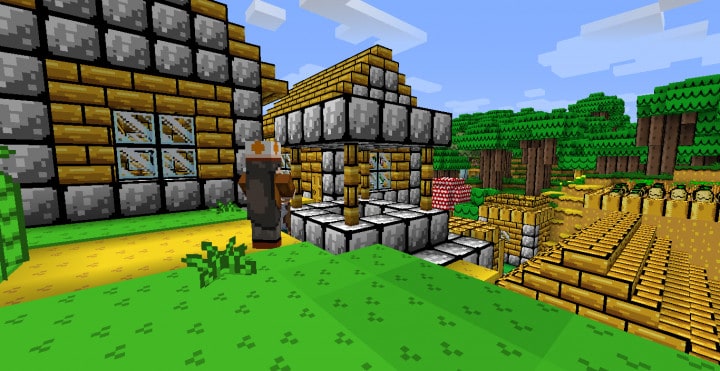
The Super Mario World Edition Resource Pack has everything you need if you love Mario themes, including enhanced sound effects, beautiful graphical textures, and many other custom features that other resource packs simply don’t have. This resource pack takes tepid colors and successfully transforms them into a kaleidoscope of radiant tones which truly bring the game to life. It displays clearer and much more Mario-like colored textures that will dramatically improve your overall gameplay experience. This pack is jammed packed with other great additions such as a refined and upgraded user interface and customized item textures, all meticulously designed to maximize your enjoyment of playing Minecraft with a full Super Mario World Edition theme.
Super Mario World Edition should be compatible with all of these Minecraft versions: 1.12.2 – 1.12 – 1.11.2 – 1.11 – 1.10.2 – 1.10 – 1.9.4 – 1.9
Screenshots
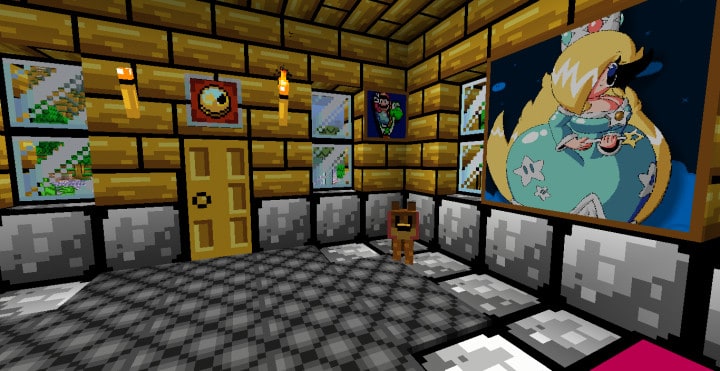
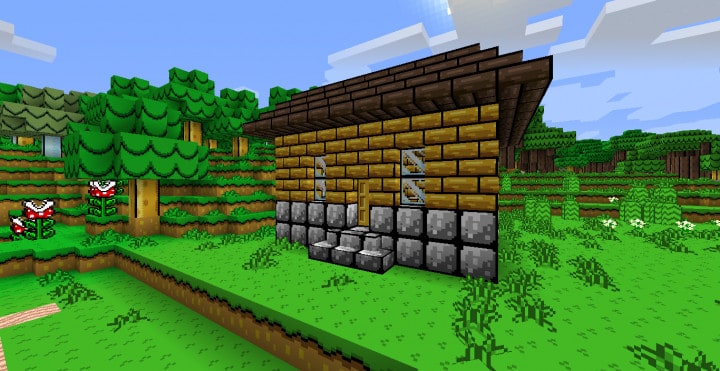
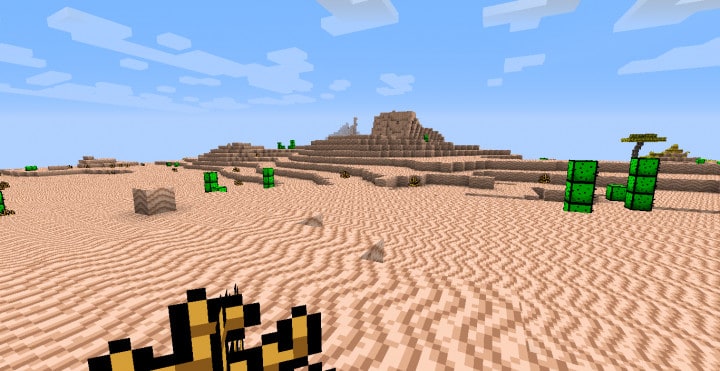
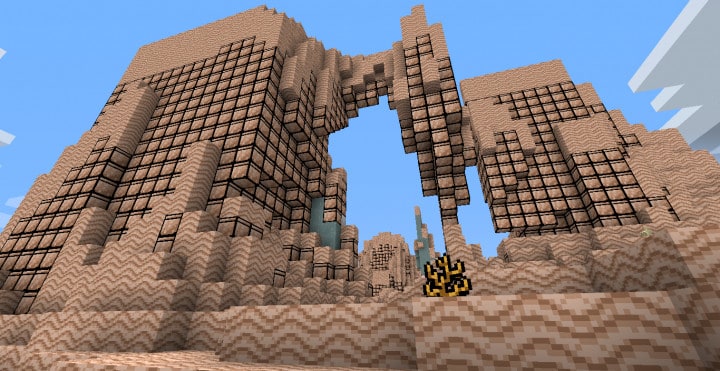
How to Install Texture Pack (Simple 10 Steps)
- Download OptiFine: Most of the texture packs and shaders need OptiFine. That’s why, first download and install OptiFine for the version of Minecraft you want to play.
- Download the Texture Pack: Get the texture pack you want from the download section. Choose the version that works with your Minecraft and your PC’s performance.
- Open Minecraft Launcher: Start Minecraft using the official game launcher — or even TLauncher, if you use that.
- Go to Options: From the main menu, click on the “Options” button.
- Open Resource Packs: Inside Options, click on “Resource Packs…”.
- Open the Resource Pack Folder: Click on “Open Resource Pack Folder” — this will open a folder named “resourcepacks”.
- Move the Pack File: Copy or move the .zip file you downloaded into that “resourcepacks” folder. (Don’t unzip the file — Minecraft uses it as-is!)
- Go Back and Refresh: Close the folder and click “Done”, then go back into “Resource Packs…” again.
- Activate the Pack: You’ll see the pack on the left side. Hover over it and click the arrow to move it to the right (active side).
Tip: If you get a message that the pack is for a different version, just click “Yes” — it usually works fine. - Click Done and Enjoy: Click “Done” again. Now your pack is ready to use in-game. It’s that easy!
Credits
Credits to GreenLightningx6 for the creation of the Super Mario World Edition Resource Pack. We do not claim ownership of this content, nor have we modified the original files. All rights and ownership belong to GreenLightningx6. We strongly encourage you to support the creator by visiting their official download sources and giving feedback.
Download Instructions
Curseforge: download starts automatically after a few seconds;
Mediafire: click the big blue button with the text “DOWNLOAD”;
Google Drive: in the top right corner you will see a small download icon (down arrow), click it and the download should start;


