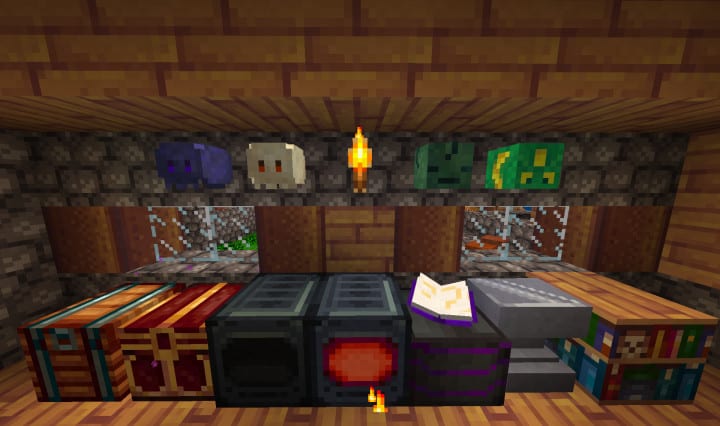
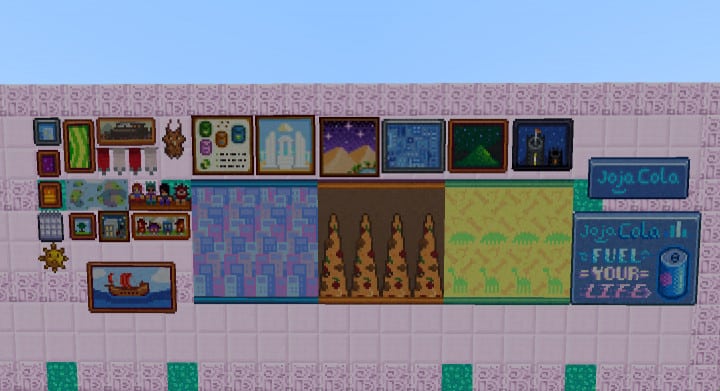
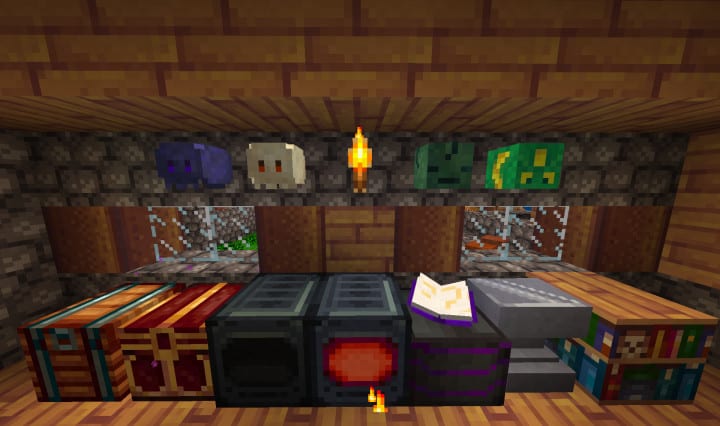
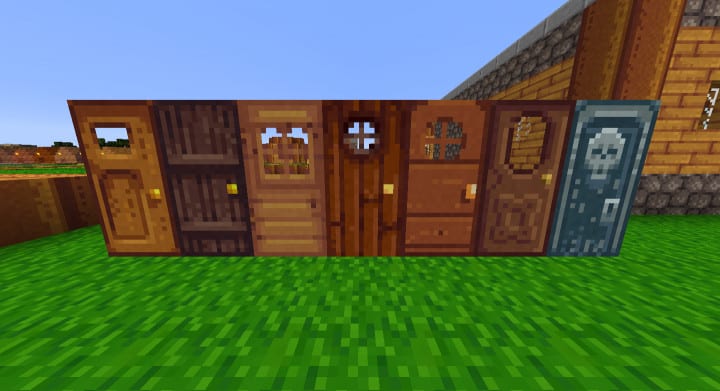
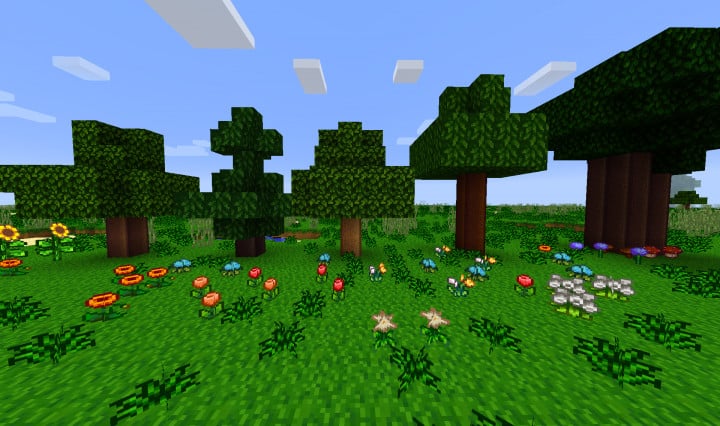
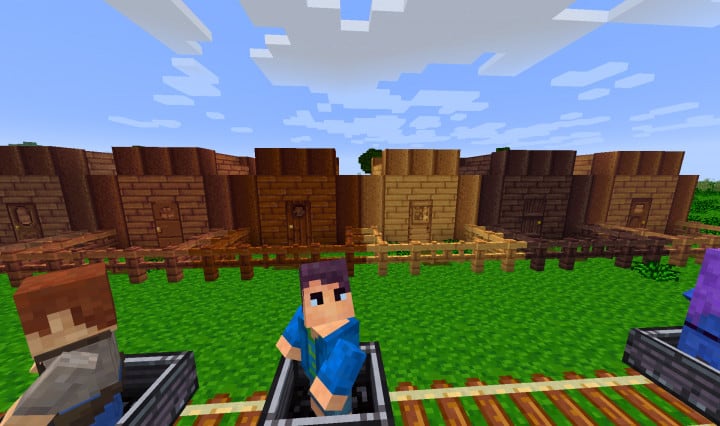
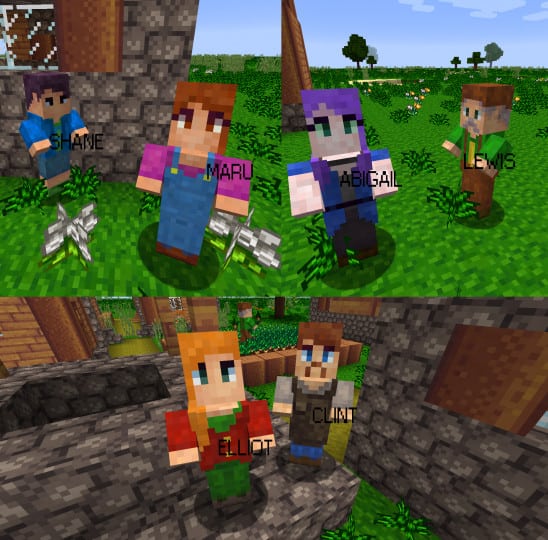
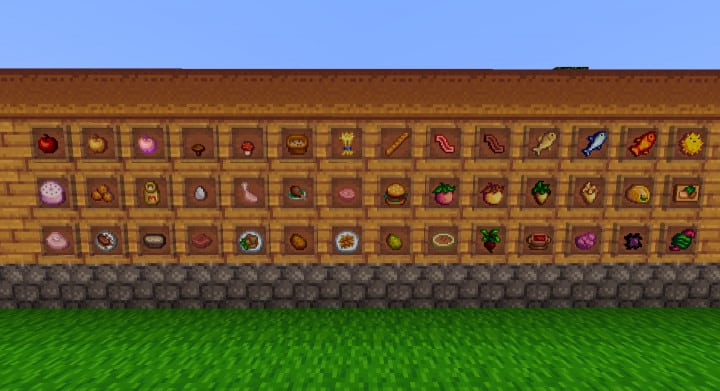
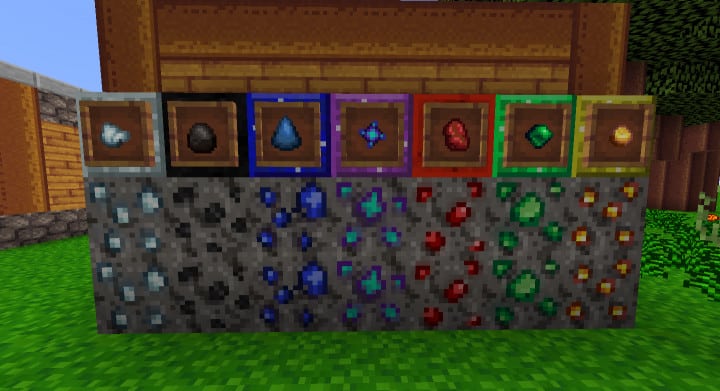
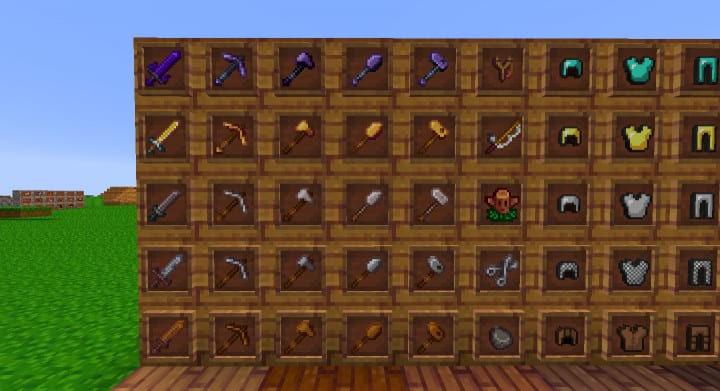
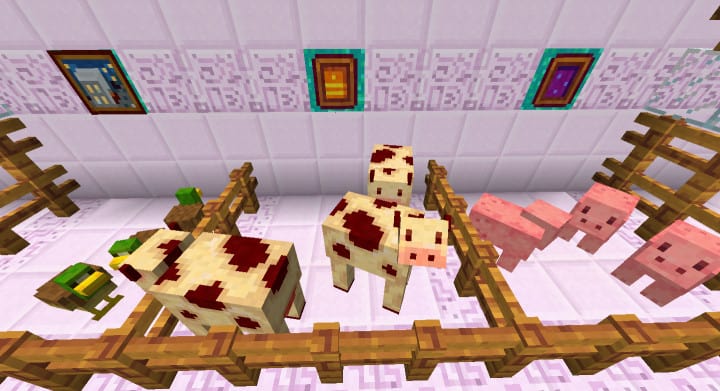
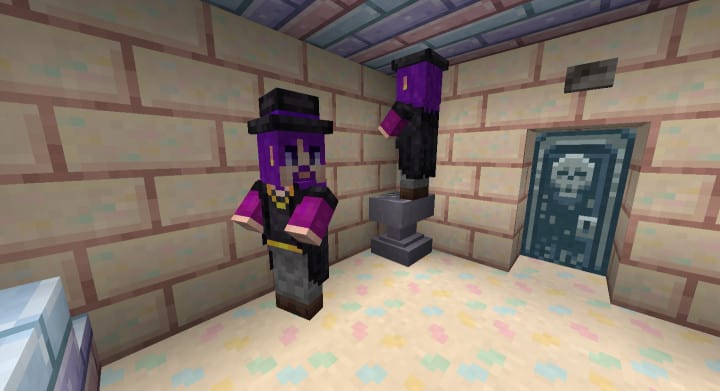
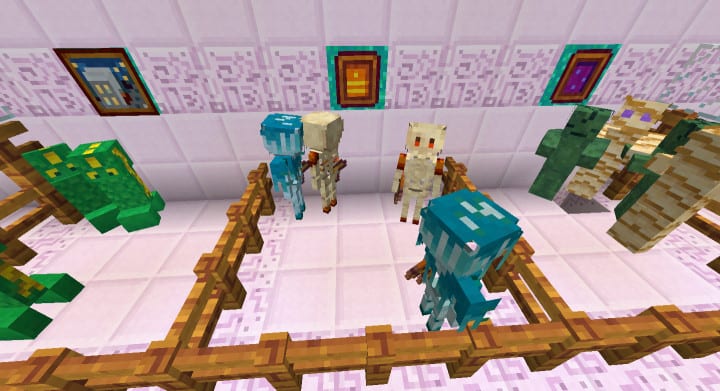
The Stardew Craft is a fantastic resource pack which, just like the name itself suggests, draws its wonderful inspiration from the immensely popular Stardew Valley. Stardew Valley is a charming farming simulation game that has captured the attention of gamers all over the globe due to its high-quality visuals and sheer creativity. This resource pack aims to bring those wonderful visuals directly into the blocky world of Minecraft. While the pack has edges that are somewhat rough—something you might expect from such an ambitious cross-over—it does an absolutely perfect job of capturing the original game’s aesthetic and presenting it right inside Minecraft. The visuals are just as wonderfully colorful and bright as anyone could possibly want them to appear. Standard Minecraft is appealing on its own, but as time goes by, it can easily feel a bit dull since its colors are not always as vibrant as we might hope.
Thankfully, this resource pack remedies that problem perfectly by introducing a vibrant and bright color palette while reworking many of the built-in textures to match the unique art style of the game it is based on. The level of detail on these textures is not overwhelmingly high, but they remain remarkably appealing thanks to their delightful smoothness. Stardew Craft features a regular 16x resolution, meaning you really do not have to worry about frustrating FPS drops, making it run wonderfully even if you are using a computer with low-end hardware. Please keep in mind that the Stardew Craft resource pack is currently at a seventy-five percent completion stage, so it still has a few missing textures, though those are fully expected to be incorporated in upcoming updates.
Stardew Craft should be compatible with all of these Minecraft versions: 1.12.2 – 1.12 – 1.11.2 – 1.11
Screenshots
How to Install Texture Pack (Simple 10 Steps)
- Download OptiFine: Most of the texture packs and shaders need OptiFine. That’s why, first download and install OptiFine for the version of Minecraft you want to play.
- Download the Texture Pack: Get the texture pack you want from the download section. Choose the version that works with your Minecraft and your PC’s performance.
- Open Minecraft Launcher: Start Minecraft using the official game launcher — or even TLauncher, if you use that.
- Go to Options: From the main menu, click on the “Options” button.
- Open Resource Packs: Inside Options, click on “Resource Packs…”.
- Open the Resource Pack Folder: Click on “Open Resource Pack Folder” — this will open a folder named “resourcepacks”.
- Move the Pack File: Copy or move the .zip file you downloaded into that “resourcepacks” folder. (Don’t unzip the file — Minecraft uses it as-is!)
- Go Back and Refresh: Close the folder and click “Done”, then go back into “Resource Packs…” again.
- Activate the Pack: You’ll see the pack on the left side. Hover over it and click the arrow to move it to the right (active side).
Tip: If you get a message that the pack is for a different version, just click “Yes” — it usually works fine. - Click Done and Enjoy: Click “Done” again. Now your pack is ready to use in-game. It’s that easy!
Credits
This resource pack was created by mariiecx. We do not claim ownership of this content, nor do we host or distribute modified versions of these files. All rights and intellectual property belong entirely to the original creator. We strongly encourage you to support mariiecx by downloading the resource pack from the official sources and checking out their other work.
Download Instructions
Curseforge: download starts automatically after a few seconds;
Mediafire: click the big blue button with the text “DOWNLOAD”;
Google Drive: in the top right corner you will see a small download icon (down arrow), click it and the download should start;


