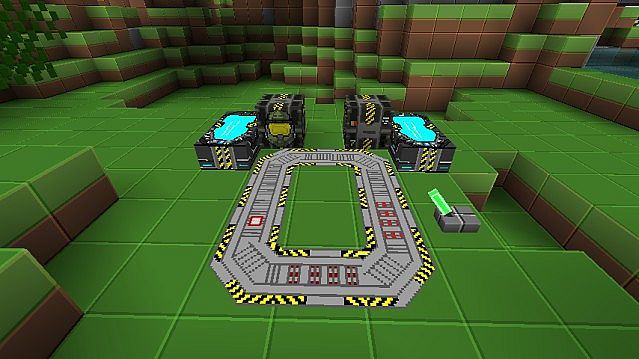
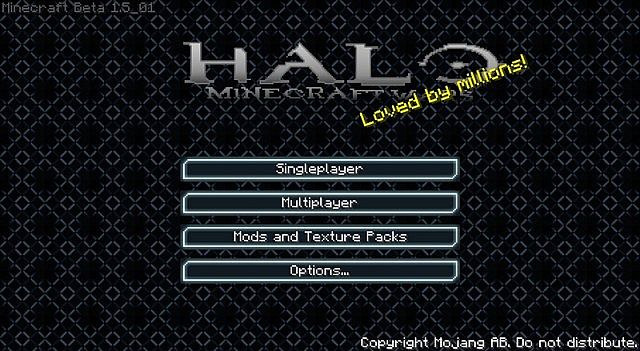
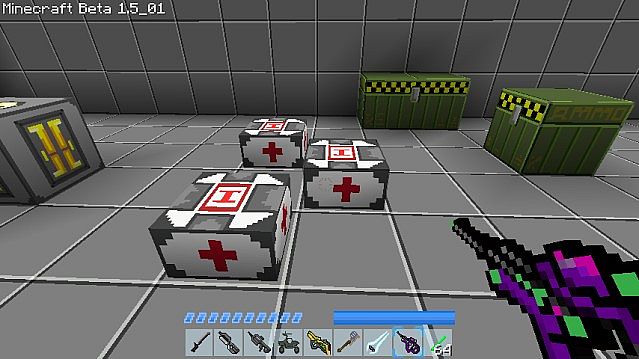
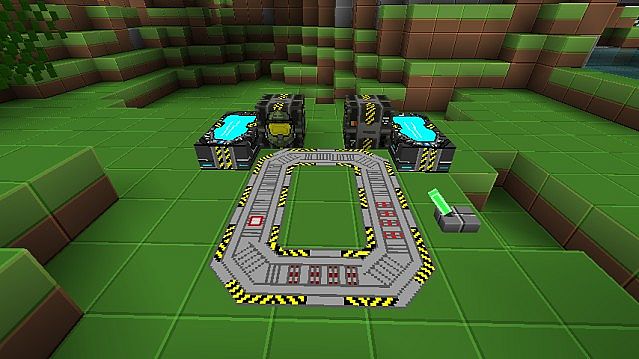
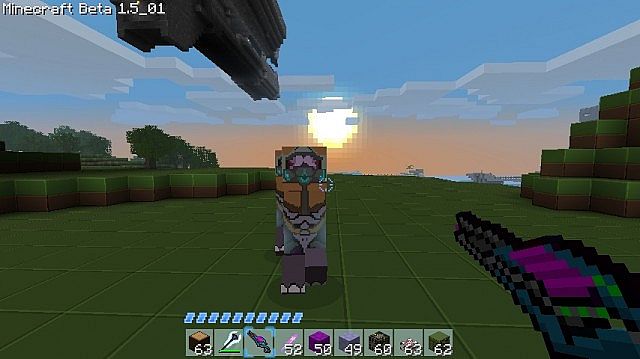
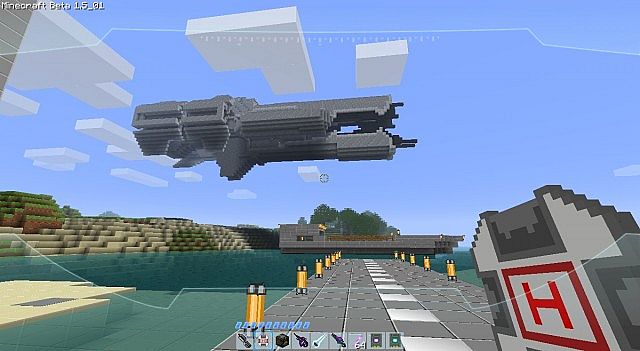
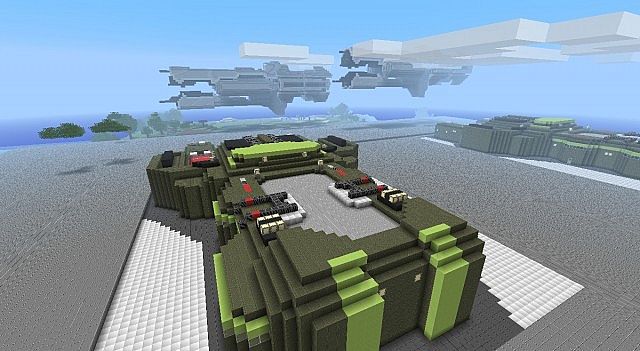
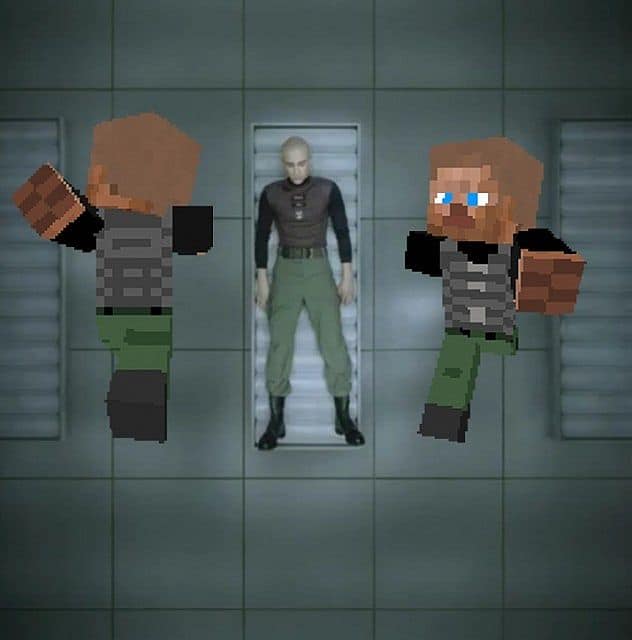
The HALO Minecraft WARS Resource Pack is an absolute must-try texture set if you are a massive fan of the iconic HALO video game series! While it might not reinvent the wheel, it brilliantly transforms your entire Minecraft world to look and feel just like HALO. HALO is an incredible franchise, but mixing it with your favorite sandbox game takes the experience to a whole new level. Do you love HALO, but sometimes want a fresh twist? Do you love Minecraft? Combine both to get the ultimate two-in-one crossover! There are several HALO-themed packs out there, but many are incomplete or lack the rich features the series is known for. In my honest opinion, this stands out as easily the best and most complete HALO-themed Minecraft resource pack available today. It comes packed with custom-designed weapons and armor that make your character look just like a Spartan, maintaining that charmingly blocky, pixelated aesthetic that makes Minecraft so unique. Plus, coming in at a 32×32 resolution, it is optimized to run smoothly on almost any PC, even older or lower-end machines.
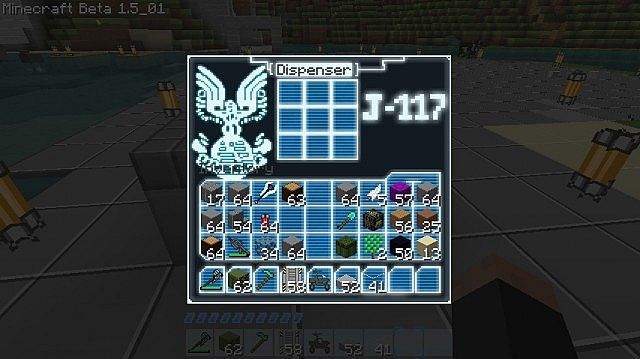
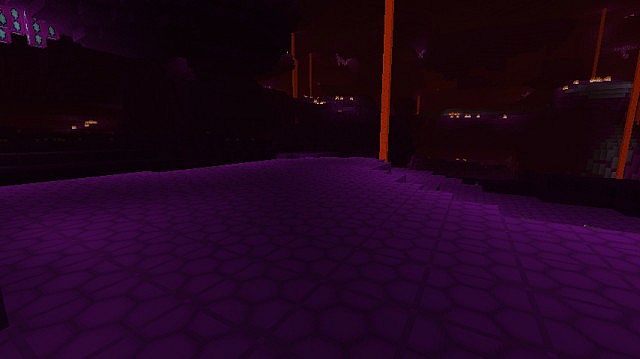
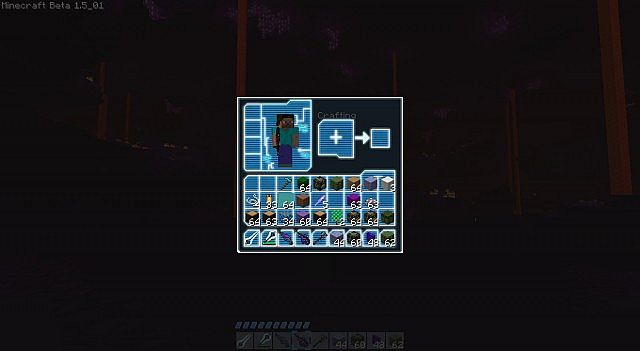
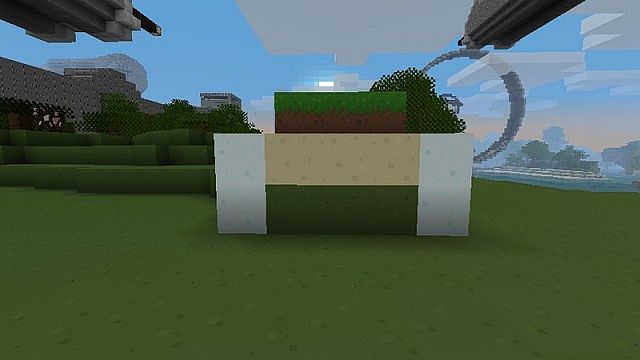
Featuring a 32x resolution, it hits a great sweet spot that allows almost everyone with slower PCs to dive right in and enjoy the makeover without performance drops. Most of the textures introduce substantial changes that have a remarkably positive impact on the overall atmosphere of the game. Your character will instantly look cooler, sleeker, and far more modernized, capturing that signature sci-fi aesthetic. Almost everything in the game is overhauled, including weapons, paintings, villagers, armor sets, furnaces, and the surrounding environment. Who should check out the Halo Minecraft Wars Resource pack? As mentioned before, die-hard HALO fans need to experience this, but even newcomers will find plenty to love. From absolute beginners to veteran gamers, this pack brings a fresh touch that makes exploring and building much more engaging. If you have been playing Minecraft for a long time and need a breath of fresh air, this is a fantastic way to experience your favorite game in a completely new light!
HALO Minecraft WARS should be compatible with all of these Minecraft versions: 1.6.4 – 1.6.2
Screenshots

How to Install Texture Pack (Simple 10 Steps)
- Download OptiFine: Most of the texture packs and shaders need OptiFine. That’s why, first download and install OptiFine for the version of Minecraft you want to play.
- Download the Texture Pack: Get the texture pack you want from the download section. Choose the version that works with your Minecraft and your PC’s performance.
- Open Minecraft Launcher: Start Minecraft using the official game launcher — or even TLauncher, if you use that.
- Go to Options: From the main menu, click on the “Options” button.
- Open Resource Packs: Inside Options, click on “Resource Packs…”.
- Open the Resource Pack Folder: Click on “Open Resource Pack Folder” — this will open a folder named “resourcepacks”.
- Move the Pack File: Copy or move the .zip file you downloaded into that “resourcepacks” folder. (Don’t unzip the file — Minecraft uses it as-is!)
- Go Back and Refresh: Close the folder and click “Done”, then go back into “Resource Packs…” again.
- Activate the Pack: You’ll see the pack on the left side. Hover over it and click the arrow to move it to the right (active side).
Tip: If you get a message that the pack is for a different version, just click “Yes” — it usually works fine. - Click Done and Enjoy: Click “Done” again. Now your pack is ready to use in-game. It’s that easy!
Credits
The HALO Minecraft WARS Resource Pack was created by fallenchecho. We do not claim ownership of this modification, nor do we host or modify the original download files. All rights and credits belong entirely to the original creator. We strongly encourage you to support fallenchecho and their work.
Download Instructions
Curseforge: download starts automatically after a few seconds;
Mediafire: click the big blue button with the text “DOWNLOAD”;
Google Drive: in the top right corner you will see a small download icon (down arrow), click it and the download should start;


