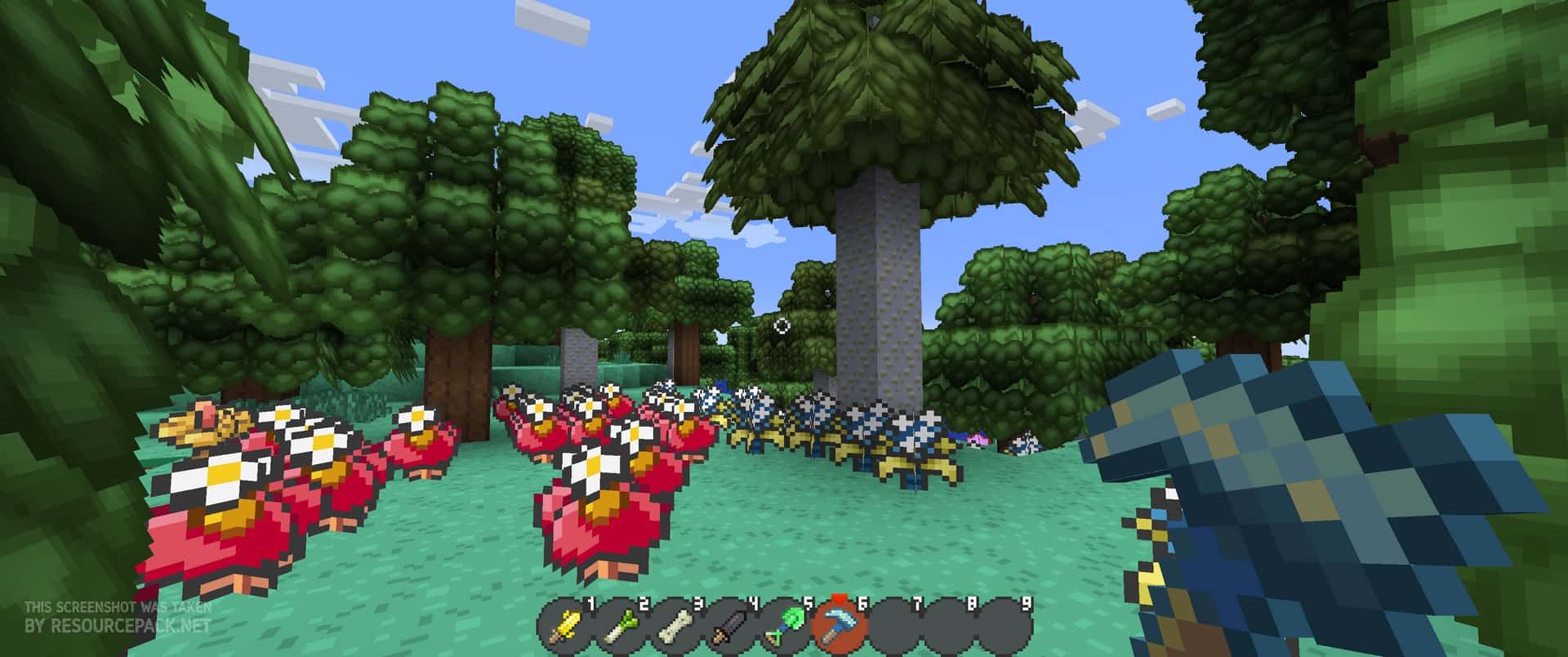
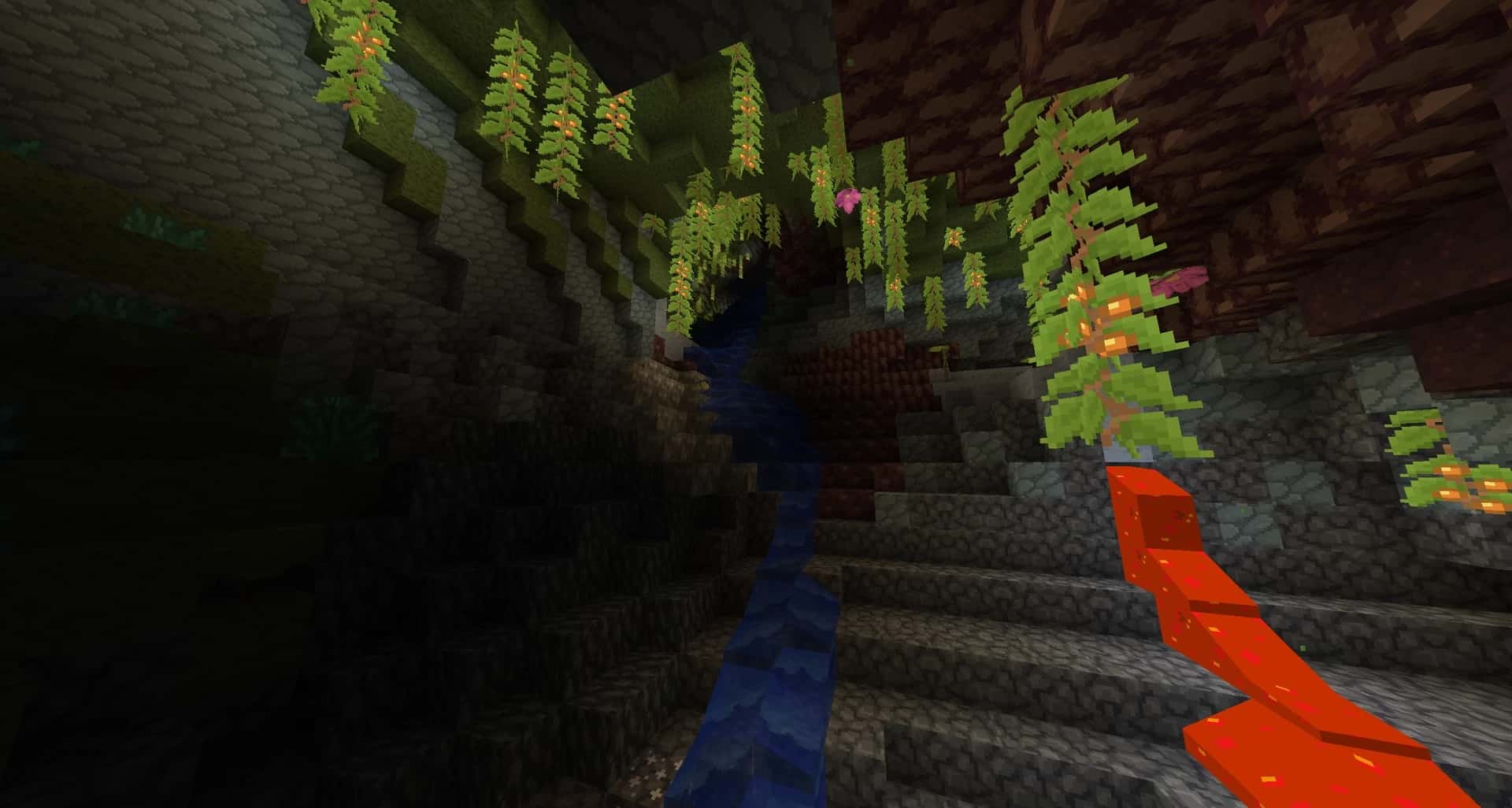
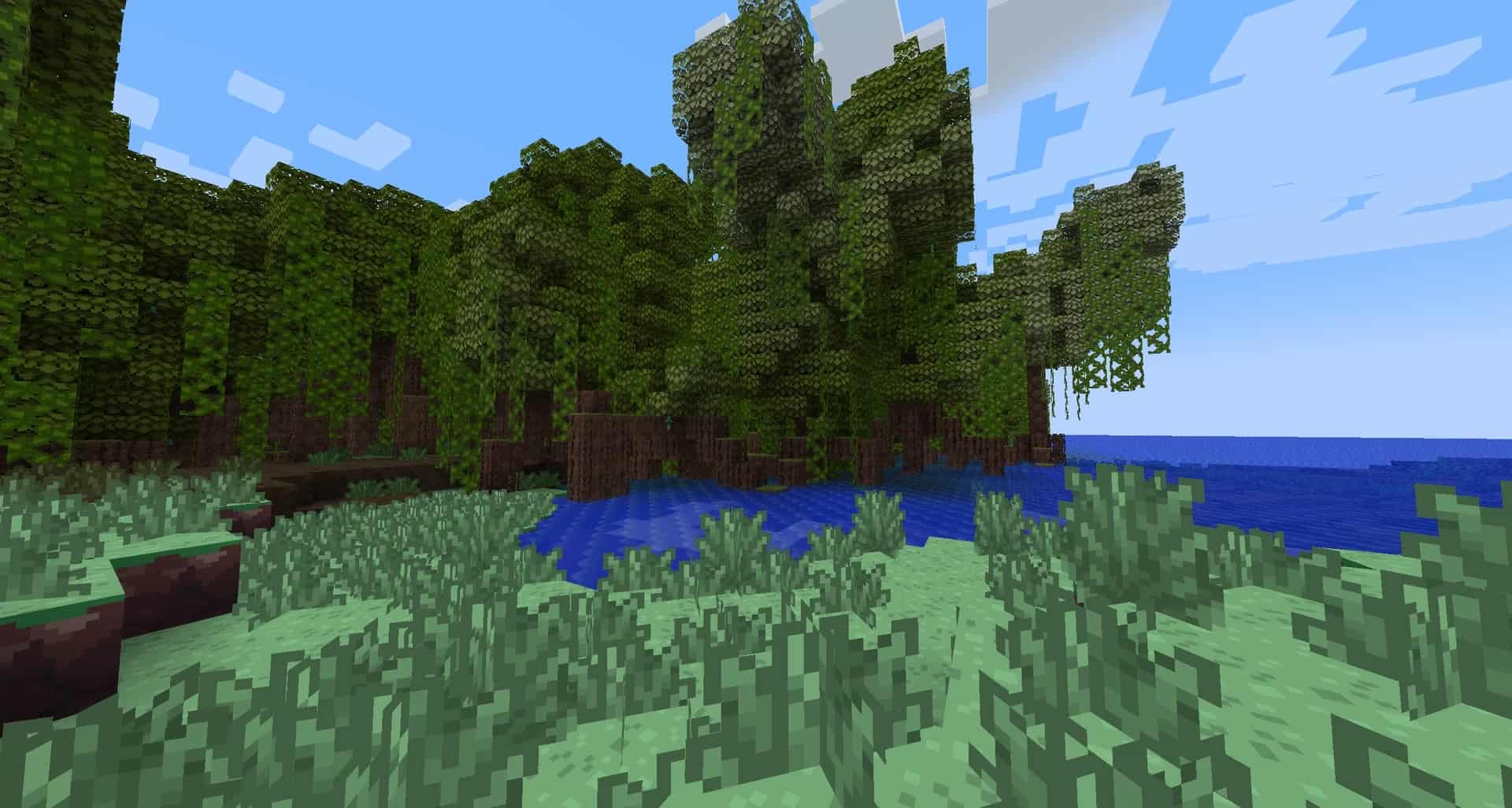
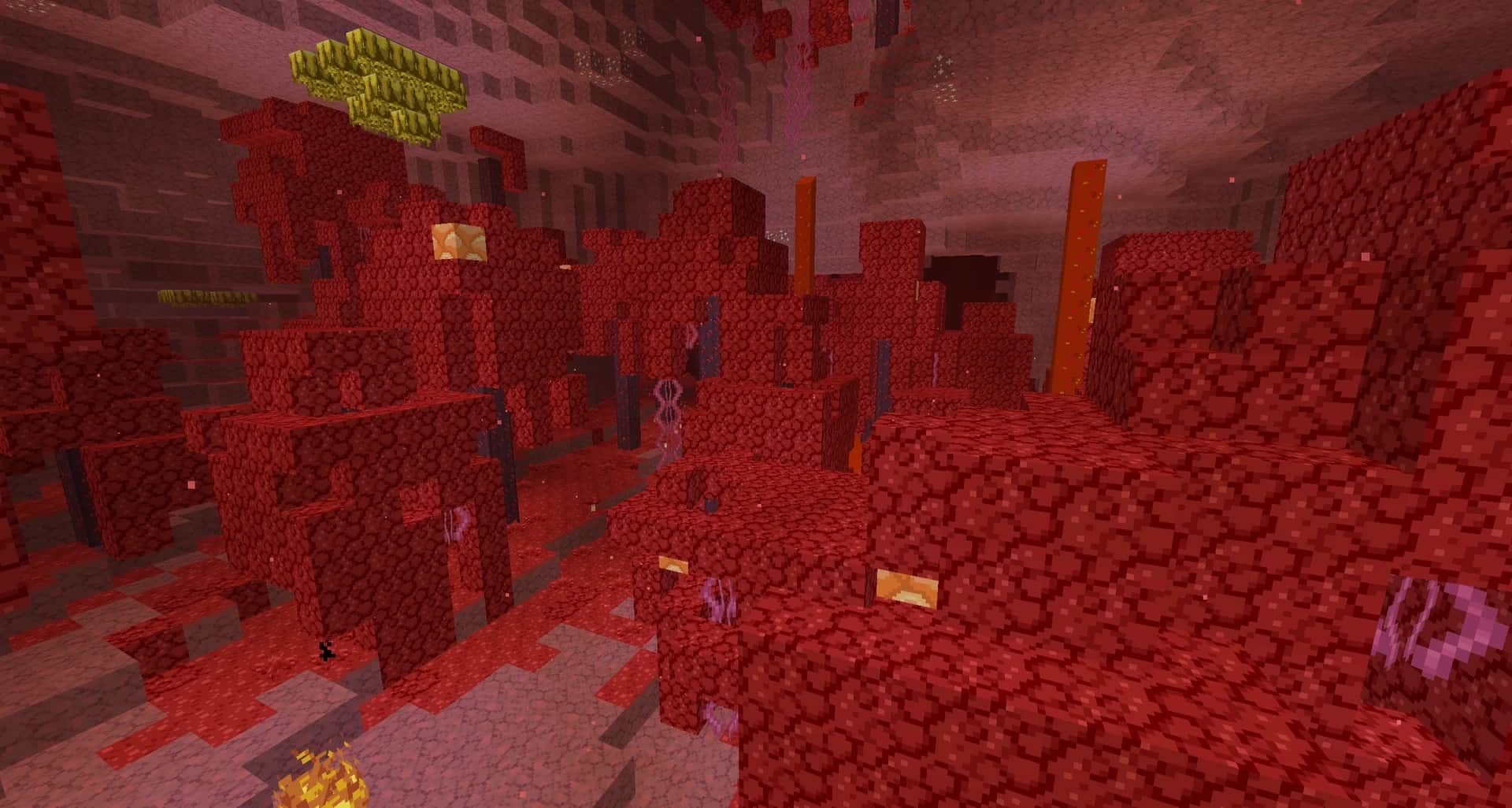
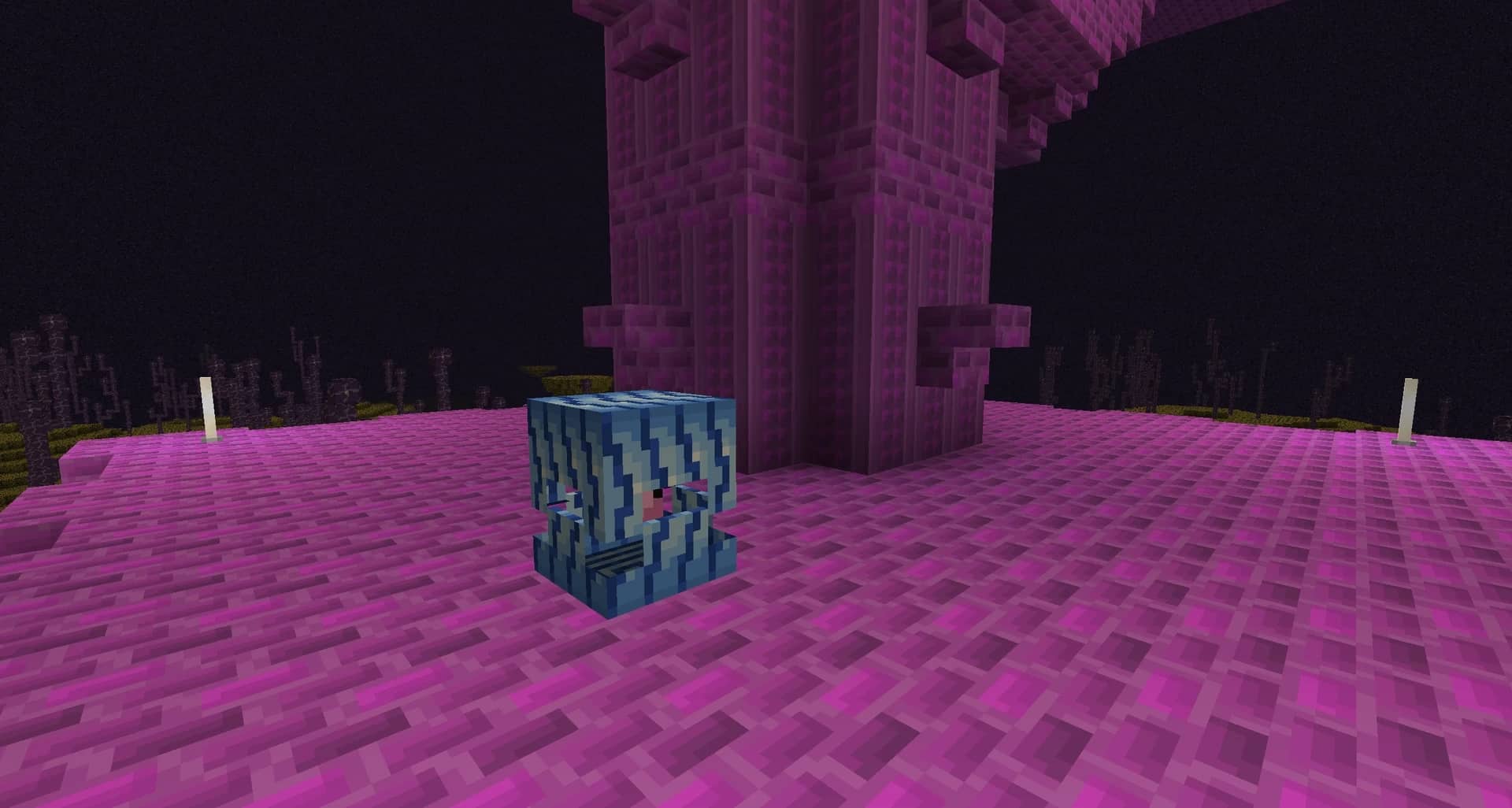
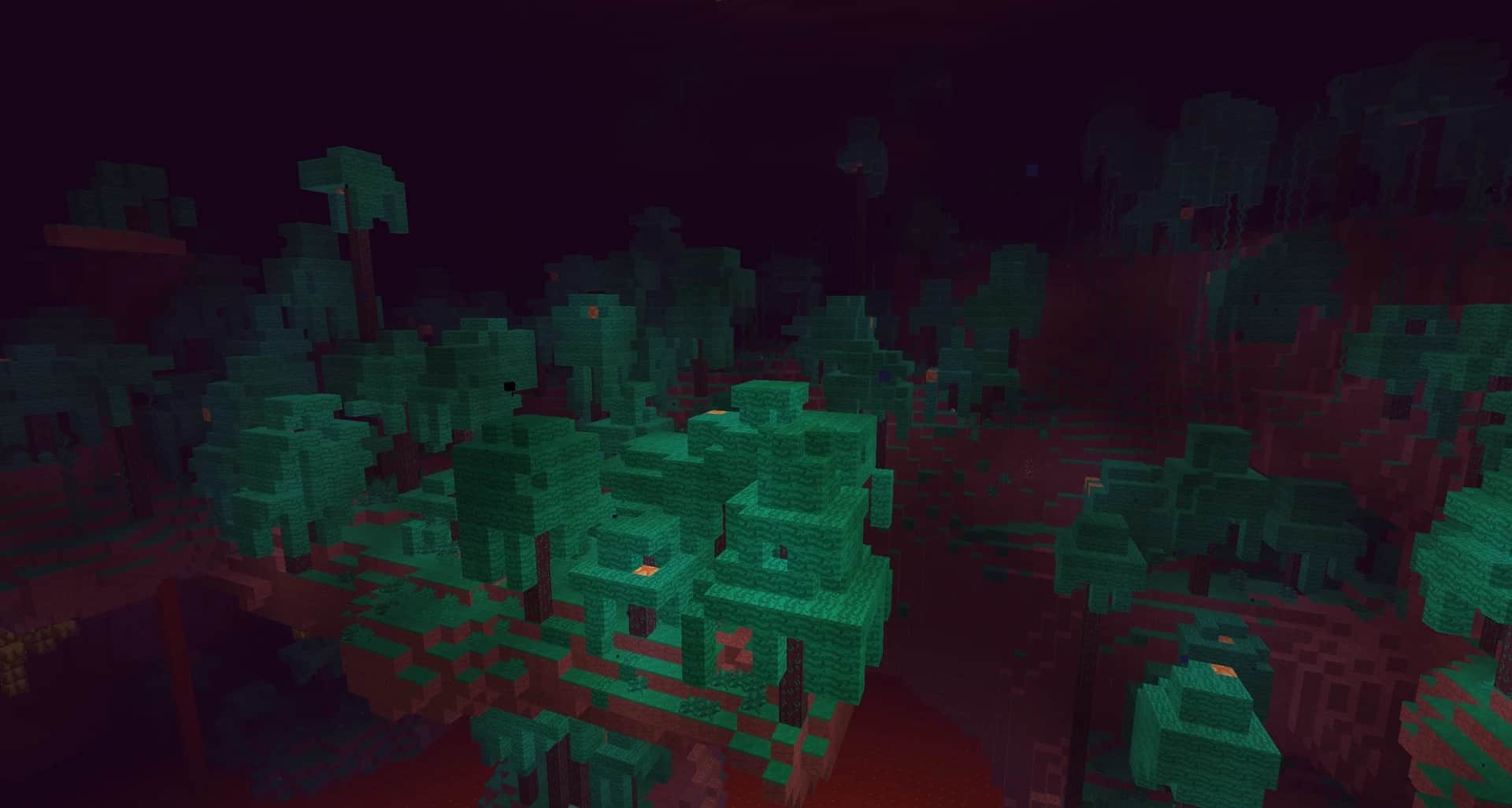
If you run a search for Pokemon resource packs, you will find that there are many available. And all of the ones you come across will claim that their resource pack is the best. However, when it comes to who is actually at the top of the best Pokémon resource pack lists, Diglett’s Mine resource pack comes out first, especially in terms of its digital appeal. This texture pack changes every aspect of the Minecraft experience from the vanilla Minecraft we are all used to. Some of the changes you will notice include the grass looking like it does in the Pokémon games, with changes to the color and the texture. Additionally, the user interface on the inventory and storage screens has changed, with the item icons that have been made to look like Pokémon Heads instead of helmets or icons from the DS games. With all of the changes made by this pack, it cannot be denied that it was very thoroughly planned and executed.
Unlike many resource packs that eventually are forgotten about and stop receiving updates, the author of Diglett Mine resource pack is still adding to and updating this resource pack. These updates have been consistent since the original release. Some of the mob textures that have been changed include some animals looking like Pokémon, such as pigs looking like Piloswine. Some other animals to watch for include bats with the appearance of Zubat and rabbits with a Buneary skin. Unlike many other Pokémon themed packs that are great additions to mods, we don’t recommend using Diglett’s Mine resource pack with mods. Utilizing this pack with Pokémon mods will lead to confusion since so many of the mobs in the Diglett’s Mine resource pack have already been replaced. Once you have used Diglett’s Mine, you will understand why it is so disappointing not to use this resource pack with other Pokémon mods. It is just that good.
Diglett’s Mine should be compatible with all of these Minecraft versions: 1.20.6 – 1.20.5 – 1.20.4 – 1.20.3 – 1.20.2 – 1.20.1 – 1.20 – 1.19.4 – 1.19.3 – 1.19.2 – 1.19.1 – 1.19 – 1.18.2 – 1.18.1 – 1.18 – 1.17.1 – 1.17 – 1.11.2 – 1.11 – 1.10.2 – 1.10 – 1.9.4 – 1.9 – 1.8.9 – 1.8.8 – 1.8.1 – 1.8.6 – 1.8
Screenshots
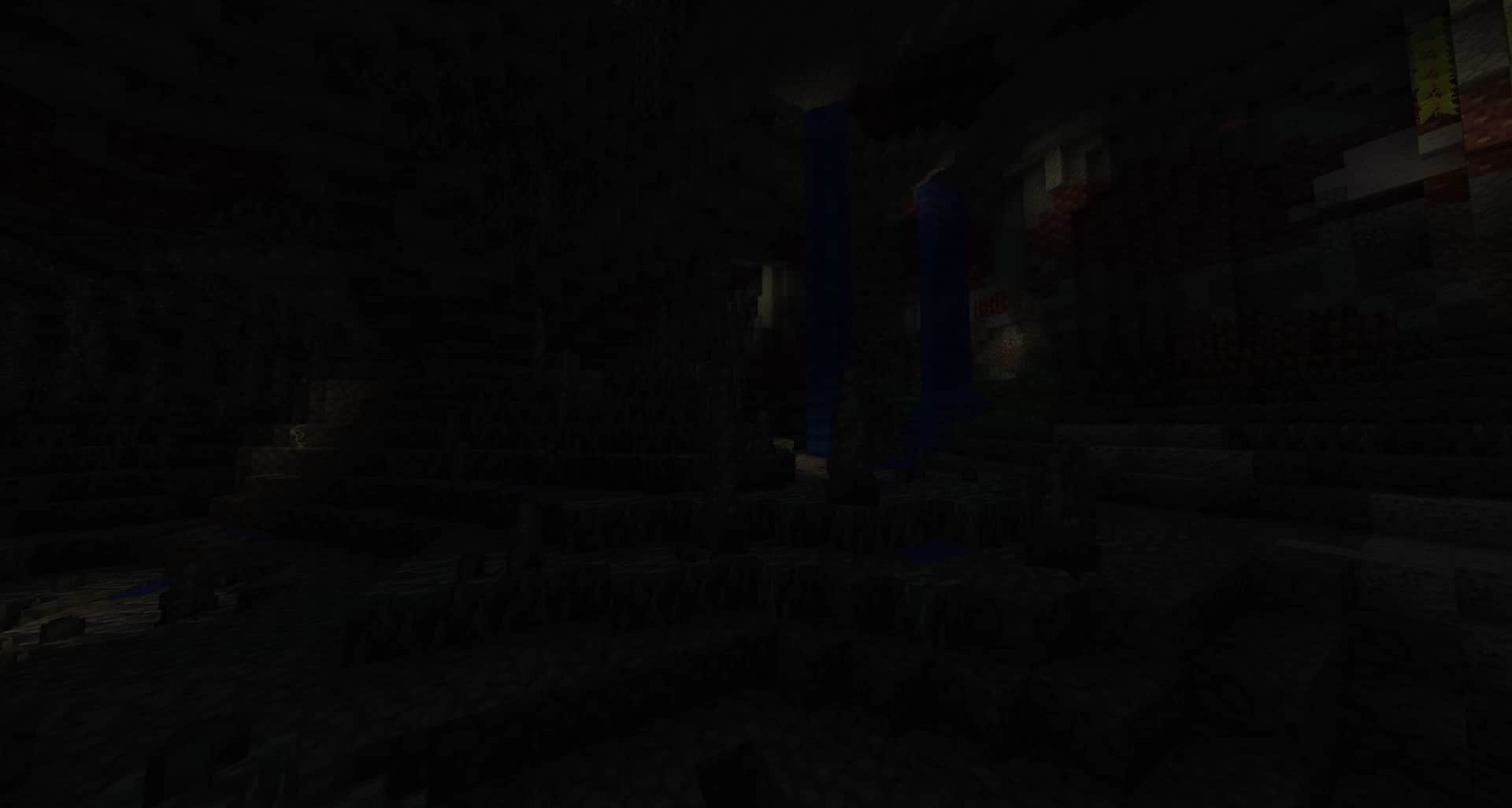
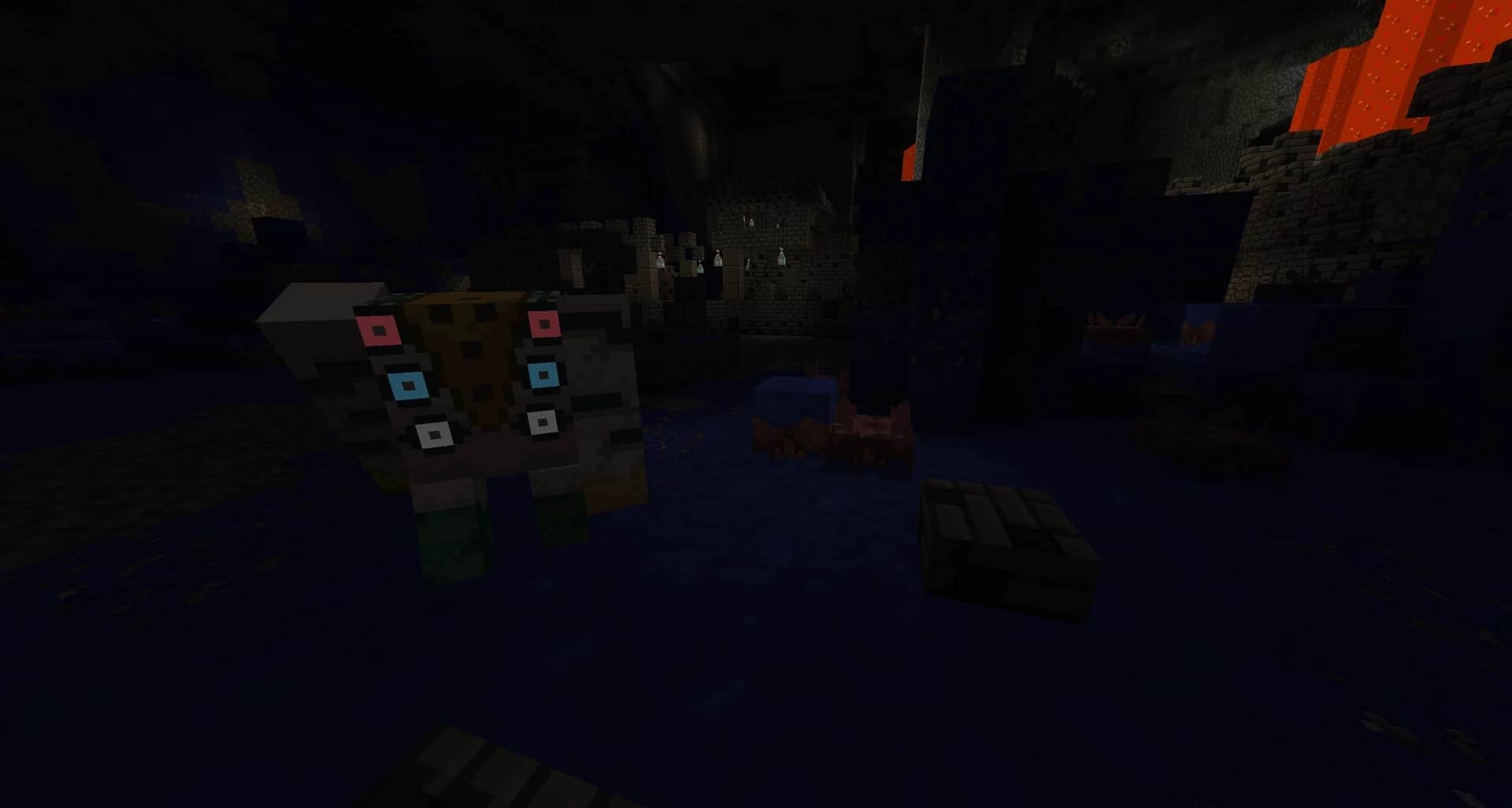
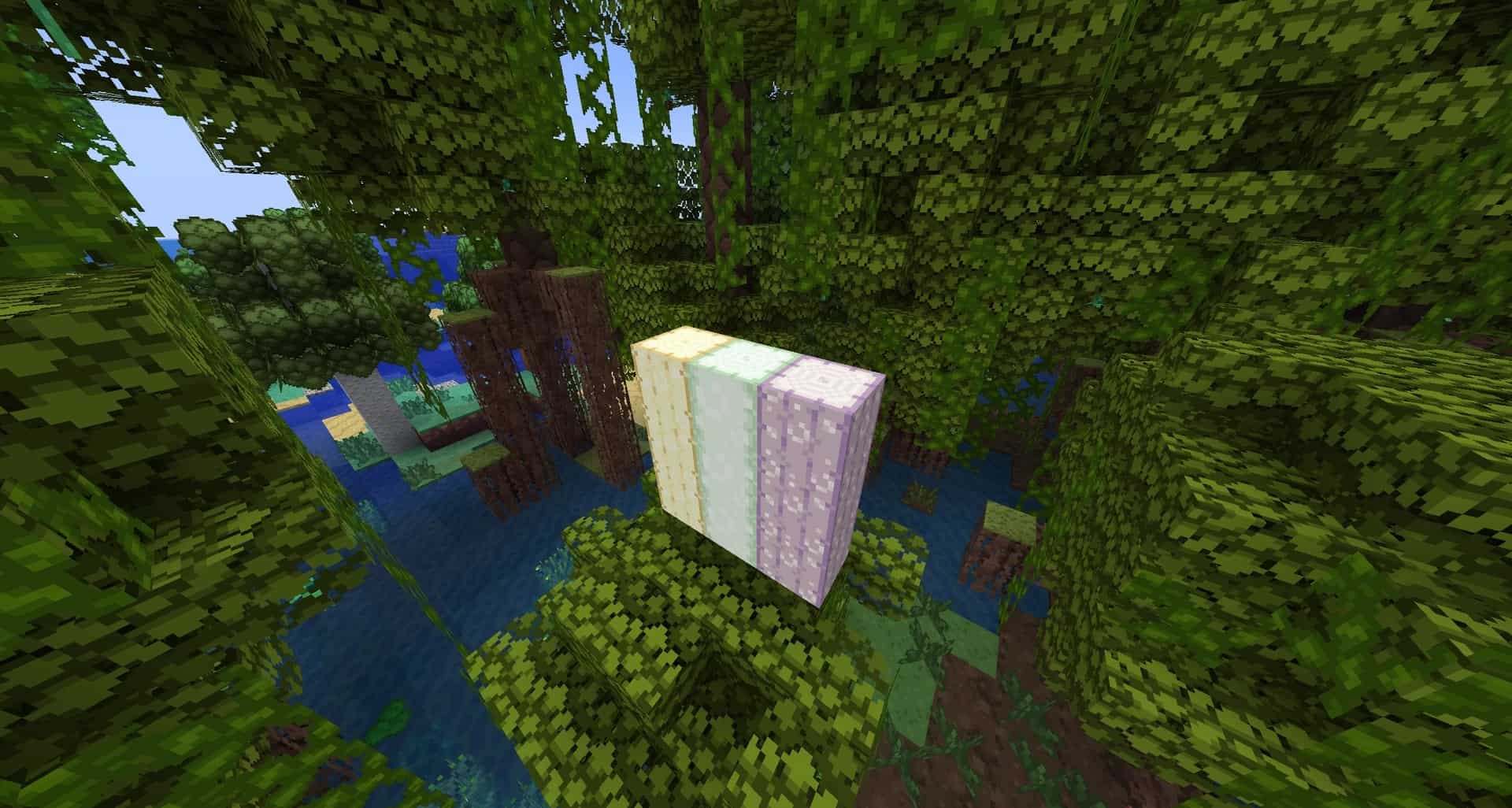
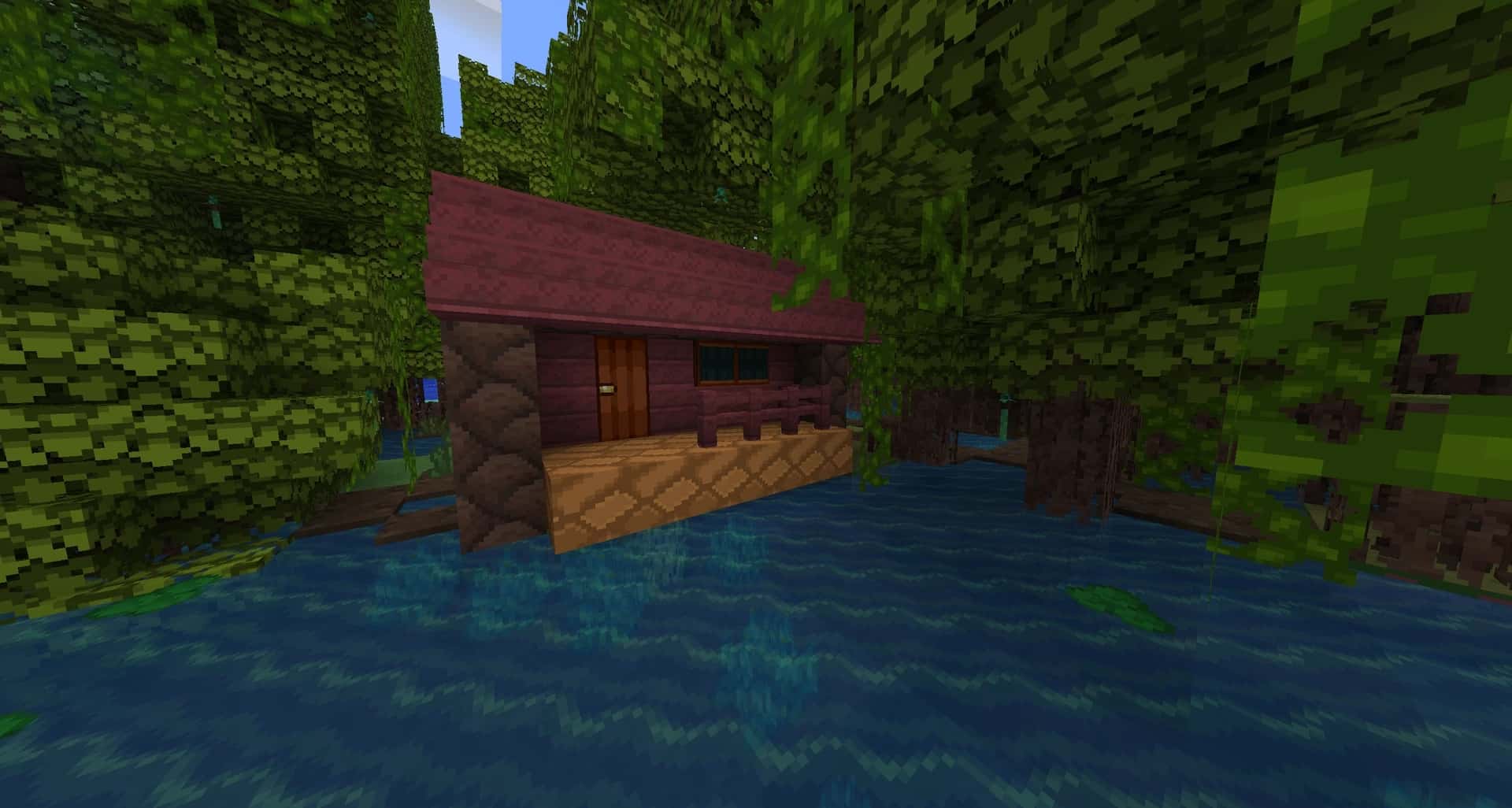


How to Install Texture Pack (Simple 10 Steps)
- Download OptiFine: Most of the texture packs and shaders need OptiFine. That’s why, first download and install OptiFine for the version of Minecraft you want to play.
- Download the Texture Pack: Get the texture pack you want from the download section. Choose the version that works with your Minecraft and your PC’s performance.
- Open Minecraft Launcher: Start Minecraft using the official game launcher — or even TLauncher, if you use that.
- Go to Options: From the main menu, click on the “Options” button.
- Open Resource Packs: Inside Options, click on “Resource Packs…”.
- Open the Resource Pack Folder: Click on “Open Resource Pack Folder” — this will open a folder named “resourcepacks”.
- Move the Pack File: Copy or move the .zip file you downloaded into that “resourcepacks” folder. (Don’t unzip the file — Minecraft uses it as-is!)
- Go Back and Refresh: Close the folder and click “Done”, then go back into “Resource Packs…” again.
- Activate the Pack: You’ll see the pack on the left side. Hover over it and click the arrow to move it to the right (active side).
Tip: If you get a message that the pack is for a different version, just click “Yes” — it usually works fine. - Click Done and Enjoy: Click “Done” again. Now your pack is ready to use in-game. It’s that easy!
Credits
This resource pack was created by Polyesterfield and seska. We do not claim ownership of this content and do not modify the original files. All rights belong to the original creators. We strongly encourage you to support the authors by downloading from their official links.
Download Links
Java Edition
Download Instructions
Curseforge: download starts automatically after a few seconds;
Mediafire: click the big blue button with the text “DOWNLOAD”;
Google Drive: in the top right corner you will see a small download icon (down arrow), click it and the download should start;


