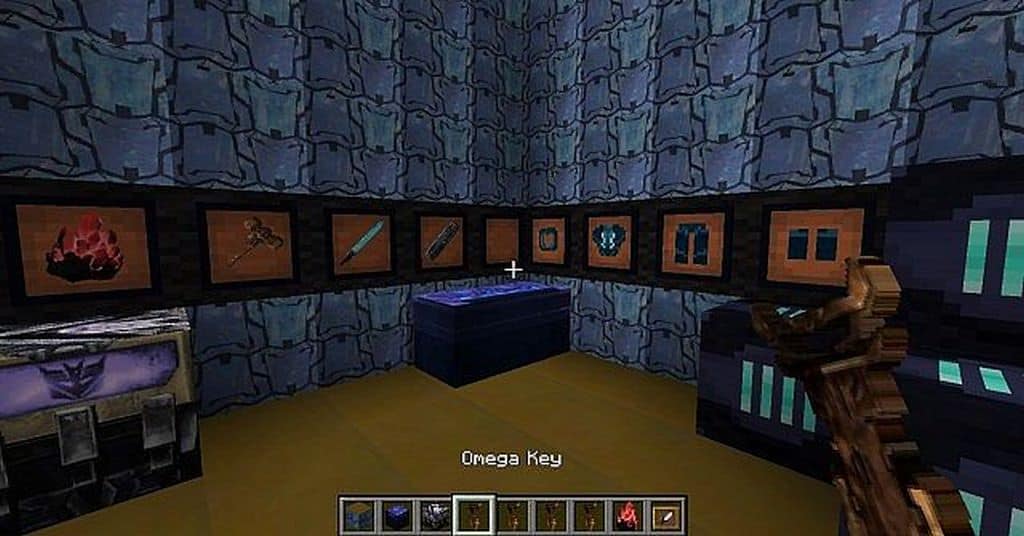
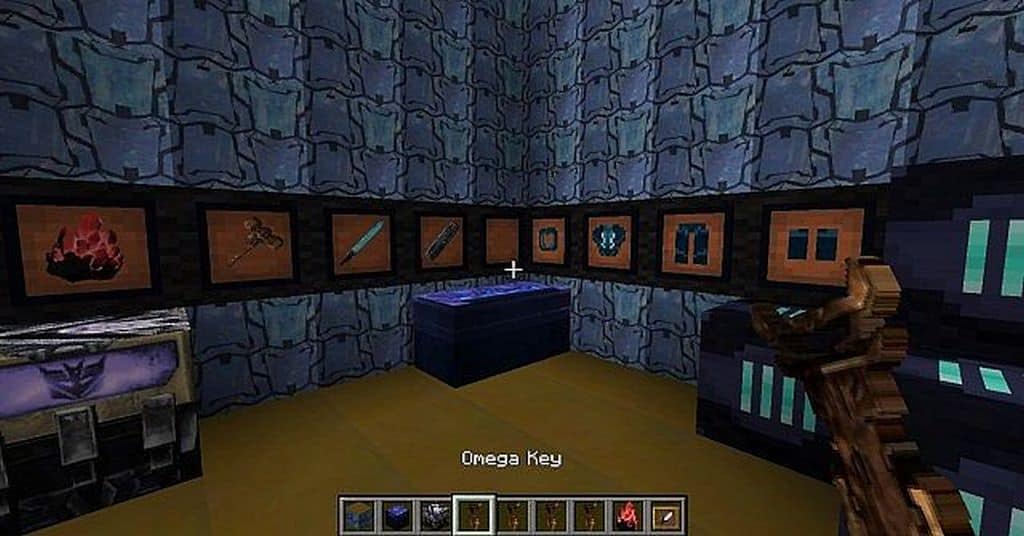
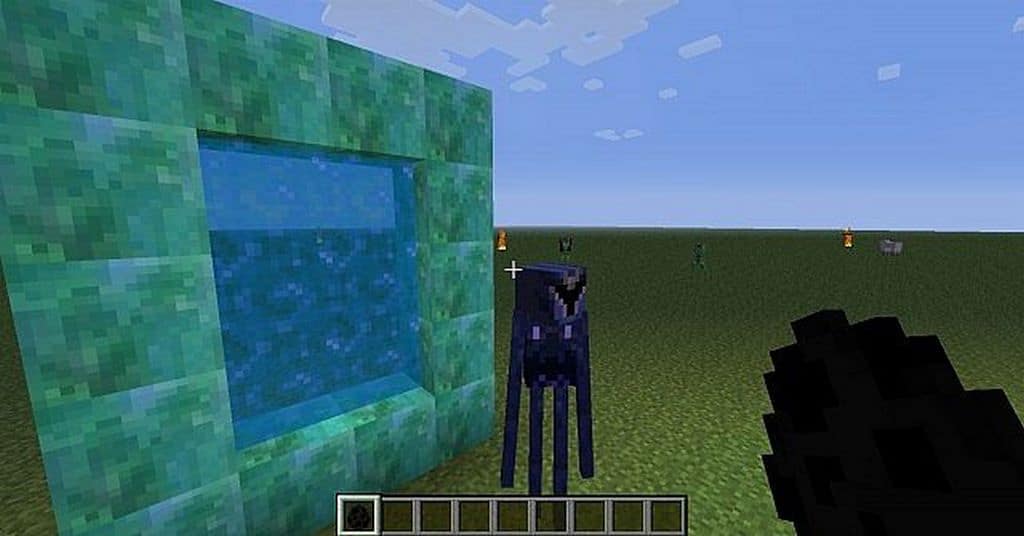
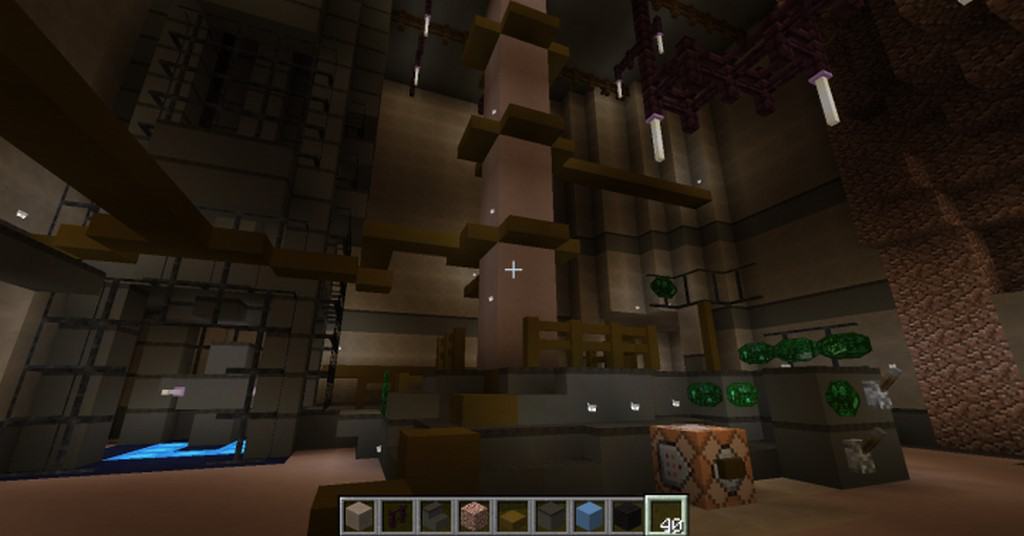
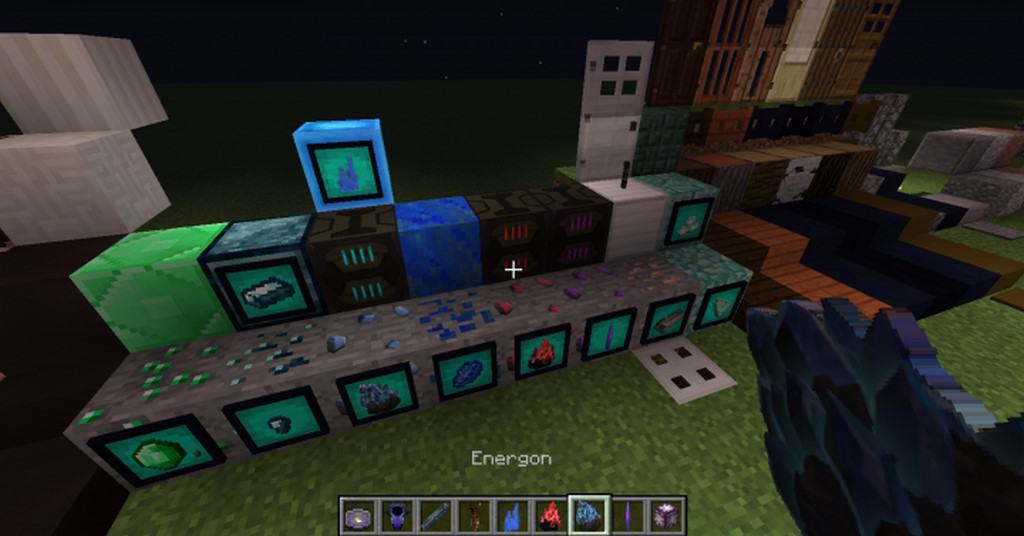
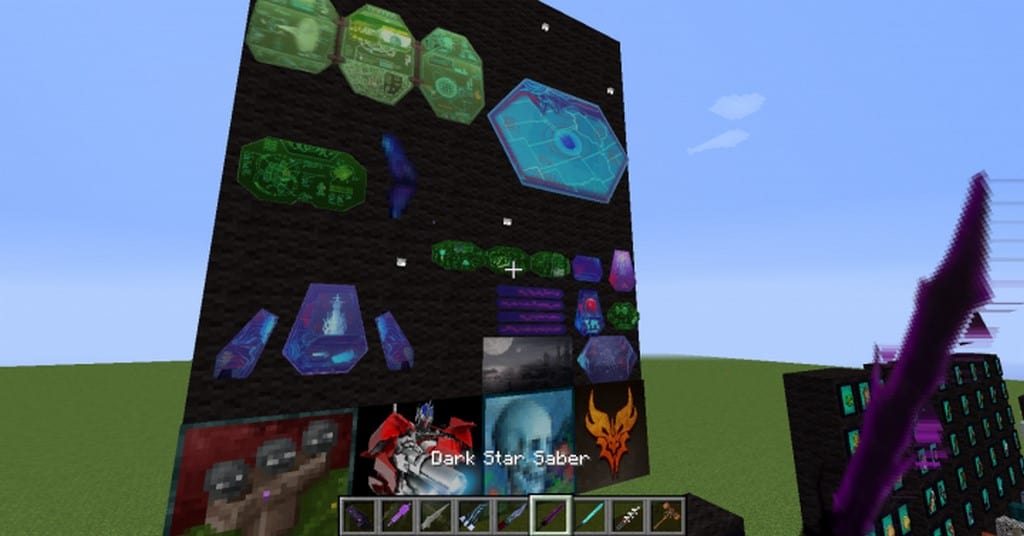
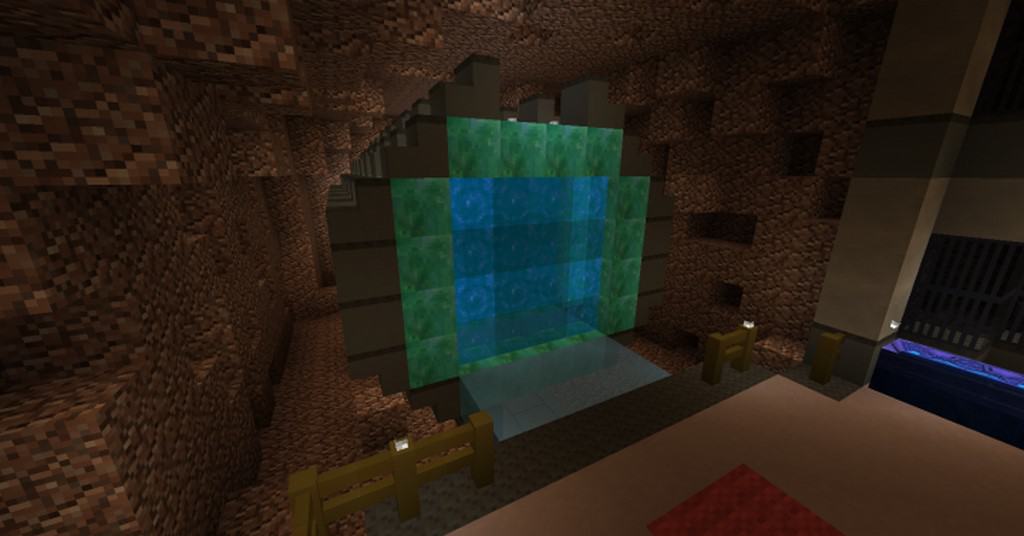
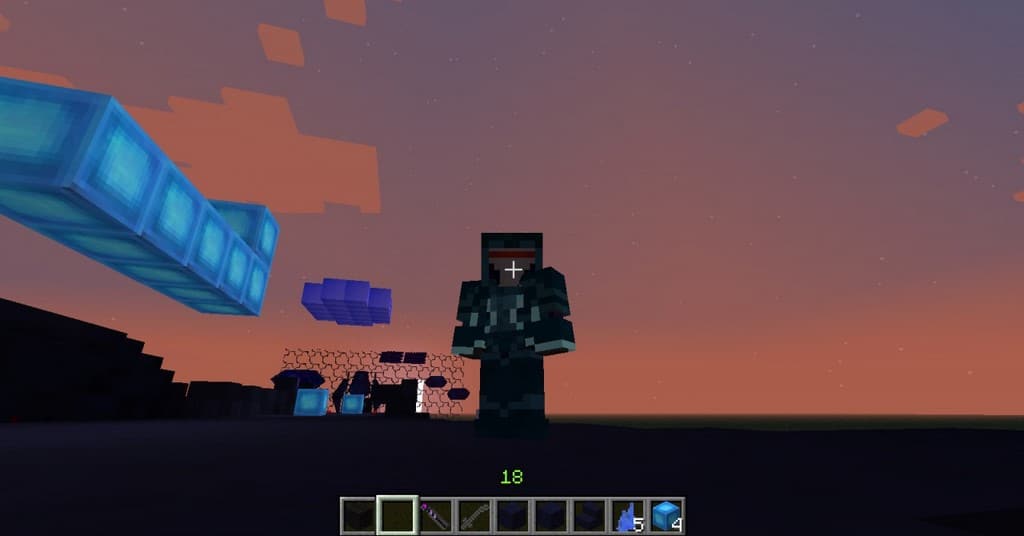
Even though the Transformers franchise is massively popular, you will actually find very few Minecraft resource packs taking inspiration from it. The Transformers Prime resource pack stands out as one of the few gems still around for players to enjoy. While it does not increase the pixel resolution of the textures, it completely transforms the visuals in a fantastic way that stays remarkably true to the source material. I really love how Transformers Prime makes Minecraft feel considerably darker and moodier. It also introduces loads of new elements to the game that give off an amazing technological and mechanical vibe. Among the countless changes this texture pack brings, the redesigned ore blocks are definitely worth highlighting. You can go mining hoping to stumble upon Energon, and there is even a brand new, ultra-rare resource to uncover known as dark Energon. On top of that, the pack implements entirely new minerals and metals that are quintessential to Cybertron.
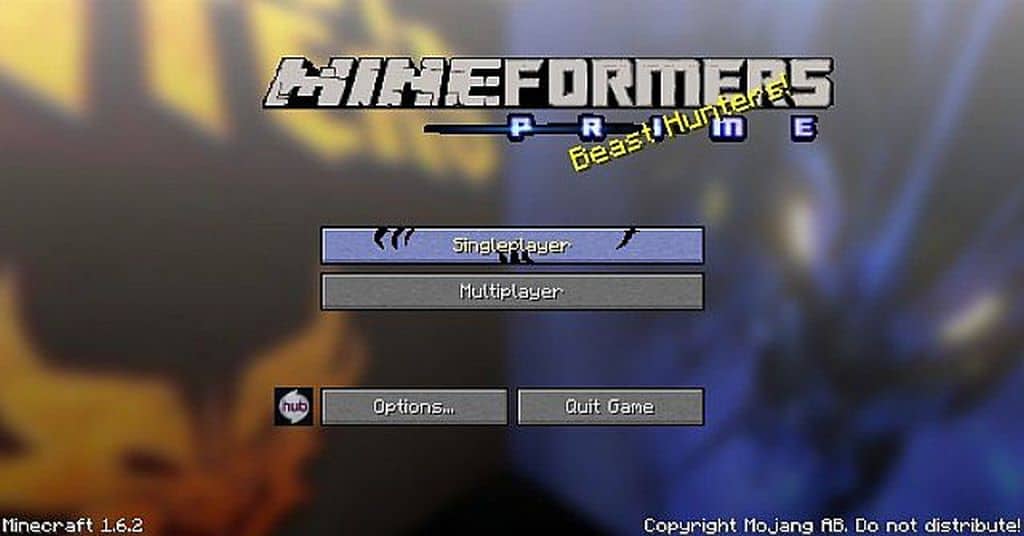
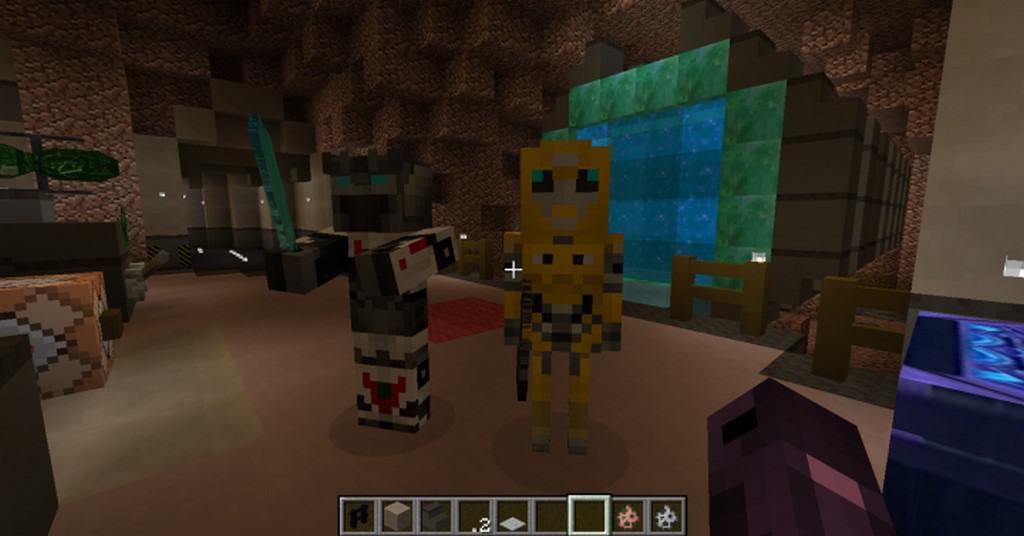
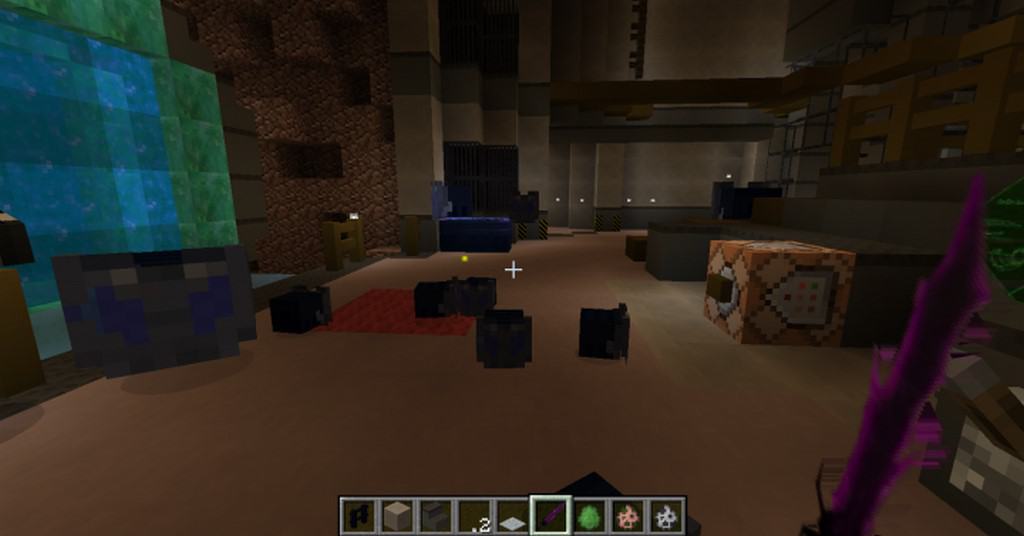
All these newly added elements are fully functional and can be utilized for crafting recipes. You can actually craft both the Dark Star Saber and its legendary counterpart. Moving beyond the fresh metals and ores you can mine, this resource pack completely revamps textures for a vast assortment of items throughout the world. There are striking new textures for windows, fences, torches, fire, stone, sand, rubble, dirt, doors, chests, and so many other blocks. Everything takes on a much darker and grimmer appearance compared to vanilla Minecraft, which I think sets a brilliant atmosphere. To perfectly complement these thematic shifts, the creator thoughtfully tweaked the crafting menu, player inventory, head-up display, and the main menu. You get fresh item icons alongside brand new UI backgrounds. To top it all off, Transformers Prime incorporates custom sound effects that align much better with the overall gritty theme of the pack.
Transformers Prime should be compatible with all of these Minecraft versions: 1.9.4 – 1.9 – 1.8.9 – 1.8.8 – 1.8.1 – 1.8.6 – 1.8 – 1.7.10 – 1.7.9 – 1.7.4 – 1.7 – 1.6.4 – 1.6.2
Screenshots




How to Install Texture Pack (Simple 10 Steps)
- Download OptiFine: Most of the texture packs and shaders need OptiFine. That’s why, first download and install OptiFine for the version of Minecraft you want to play.
- Download the Texture Pack: Get the texture pack you want from the download section. Choose the version that works with your Minecraft and your PC’s performance.
- Open Minecraft Launcher: Start Minecraft using the official game launcher — or even TLauncher, if you use that.
- Go to Options: From the main menu, click on the “Options” button.
- Open Resource Packs: Inside Options, click on “Resource Packs…”.
- Open the Resource Pack Folder: Click on “Open Resource Pack Folder” — this will open a folder named “resourcepacks”.
- Move the Pack File: Copy or move the .zip file you downloaded into that “resourcepacks” folder. (Don’t unzip the file — Minecraft uses it as-is!)
- Go Back and Refresh: Close the folder and click “Done”, then go back into “Resource Packs…” again.
- Activate the Pack: You’ll see the pack on the left side. Hover over it and click the arrow to move it to the right (active side).
Tip: If you get a message that the pack is for a different version, just click “Yes” — it usually works fine. - Click Done and Enjoy: Click “Done” again. Now your pack is ready to use in-game. It’s that easy!
Credits
This resource pack was originally created by quadropl. We claim no ownership or rights to this modification. All intellectual property rights belong to the original author. We encourage users to support the creator by utilizing their official download links and channels.
Download Instructions
Curseforge: download starts automatically after a few seconds;
Mediafire: click the big blue button with the text “DOWNLOAD”;
Google Drive: in the top right corner you will see a small download icon (down arrow), click it and the download should start;


