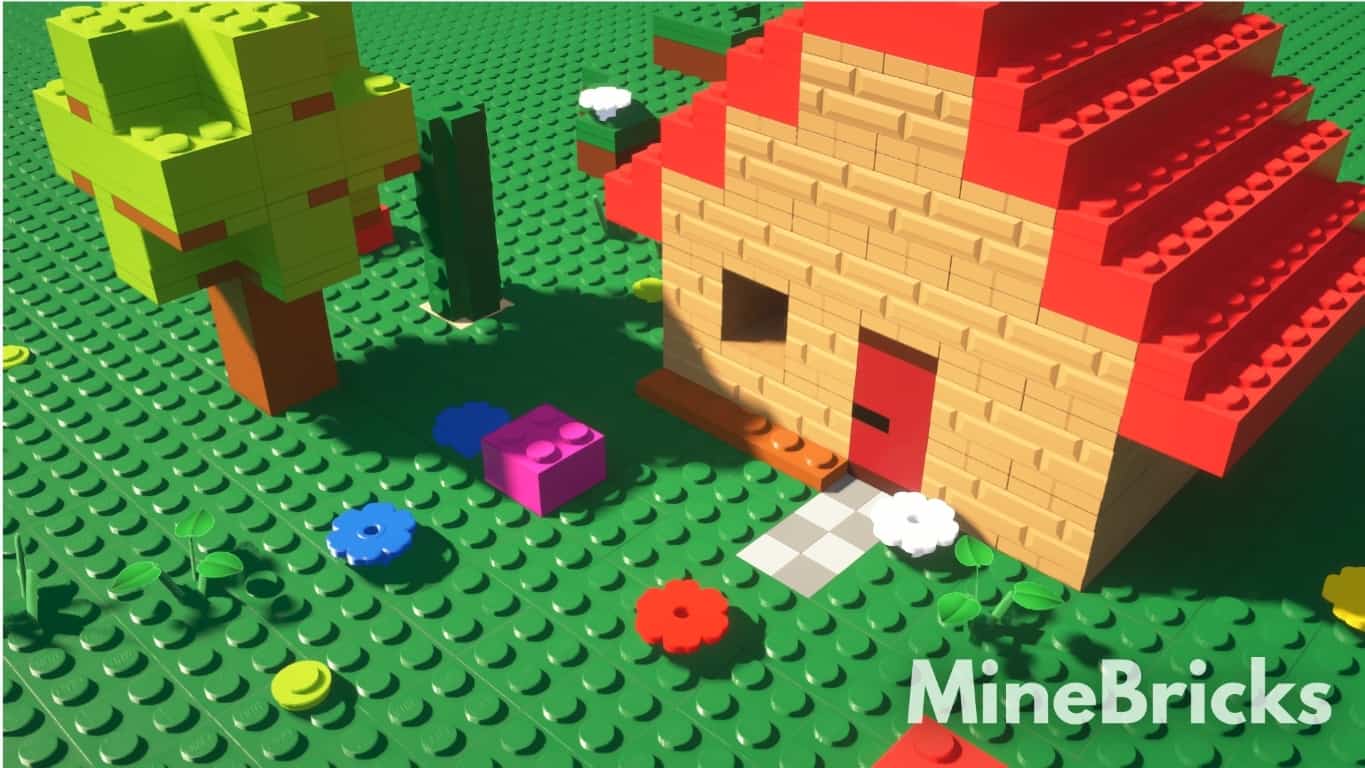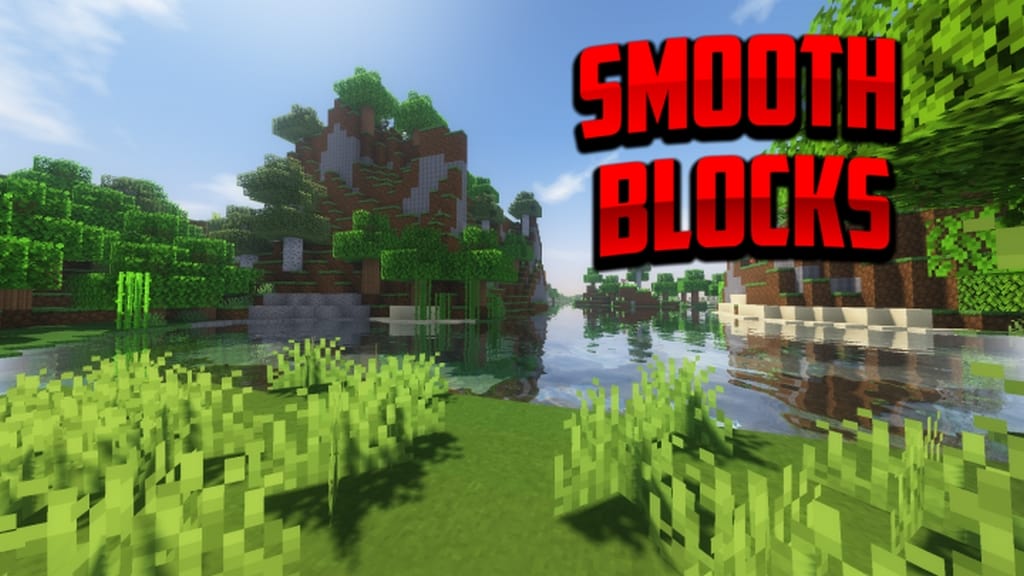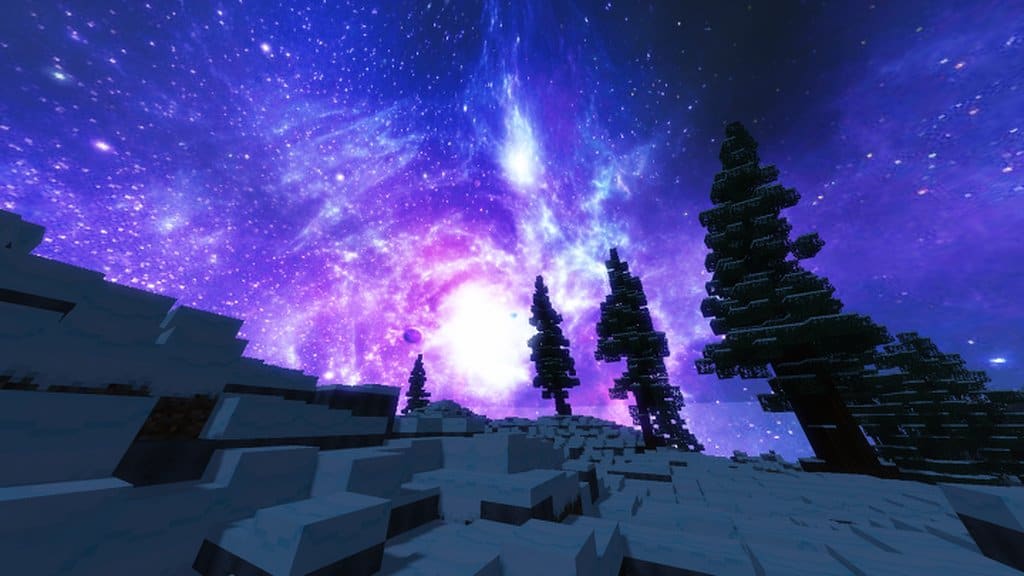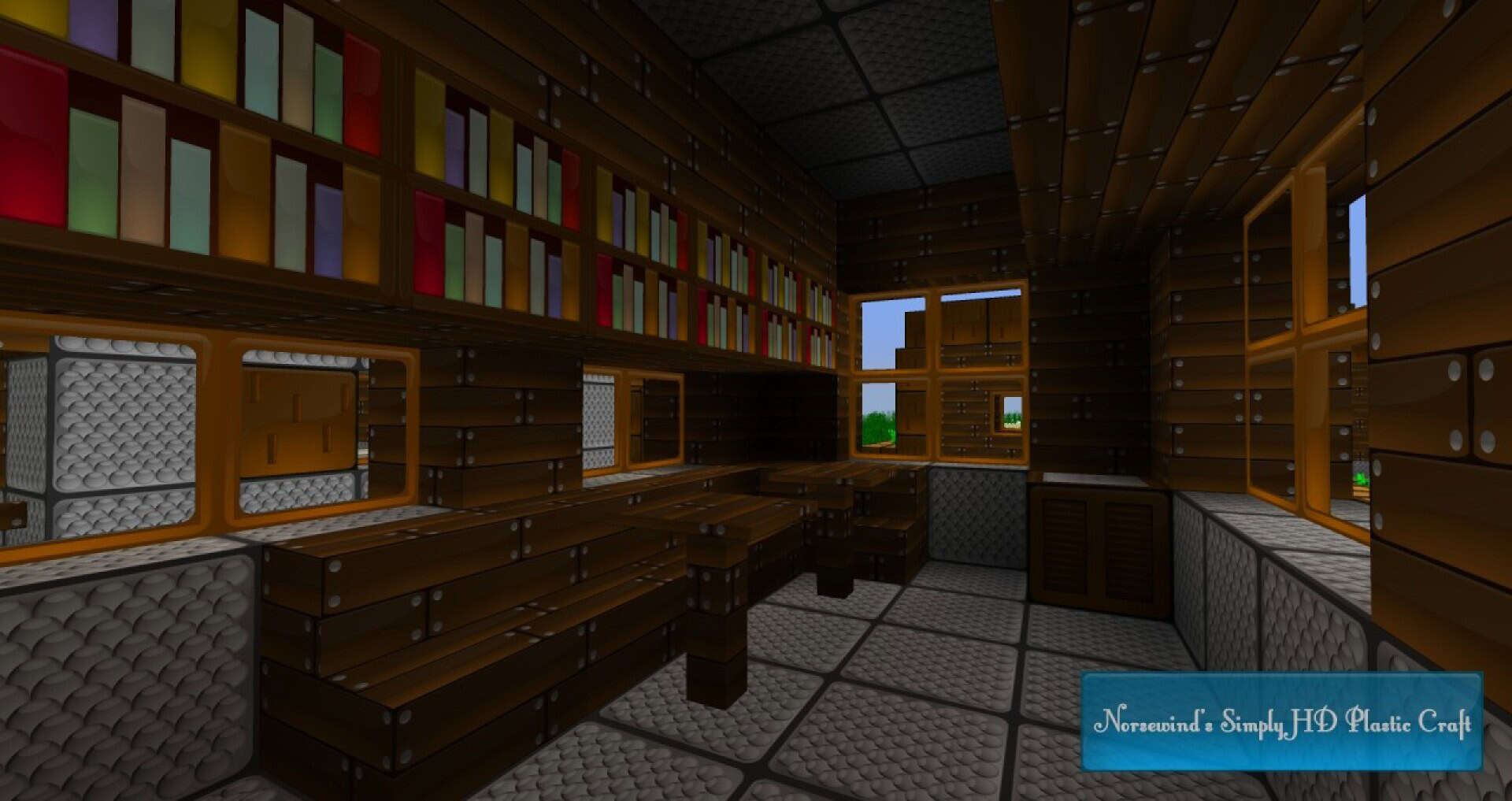
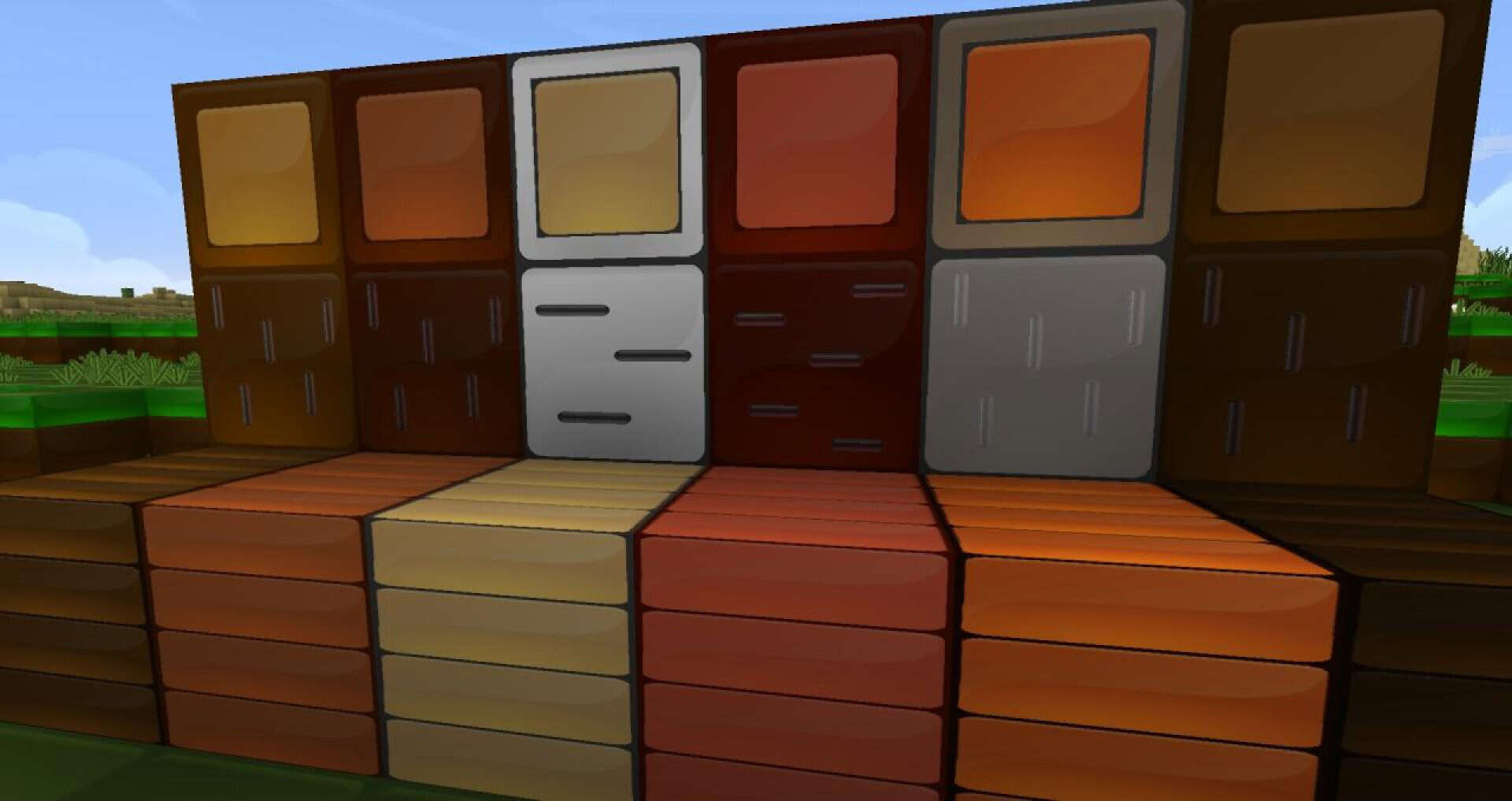
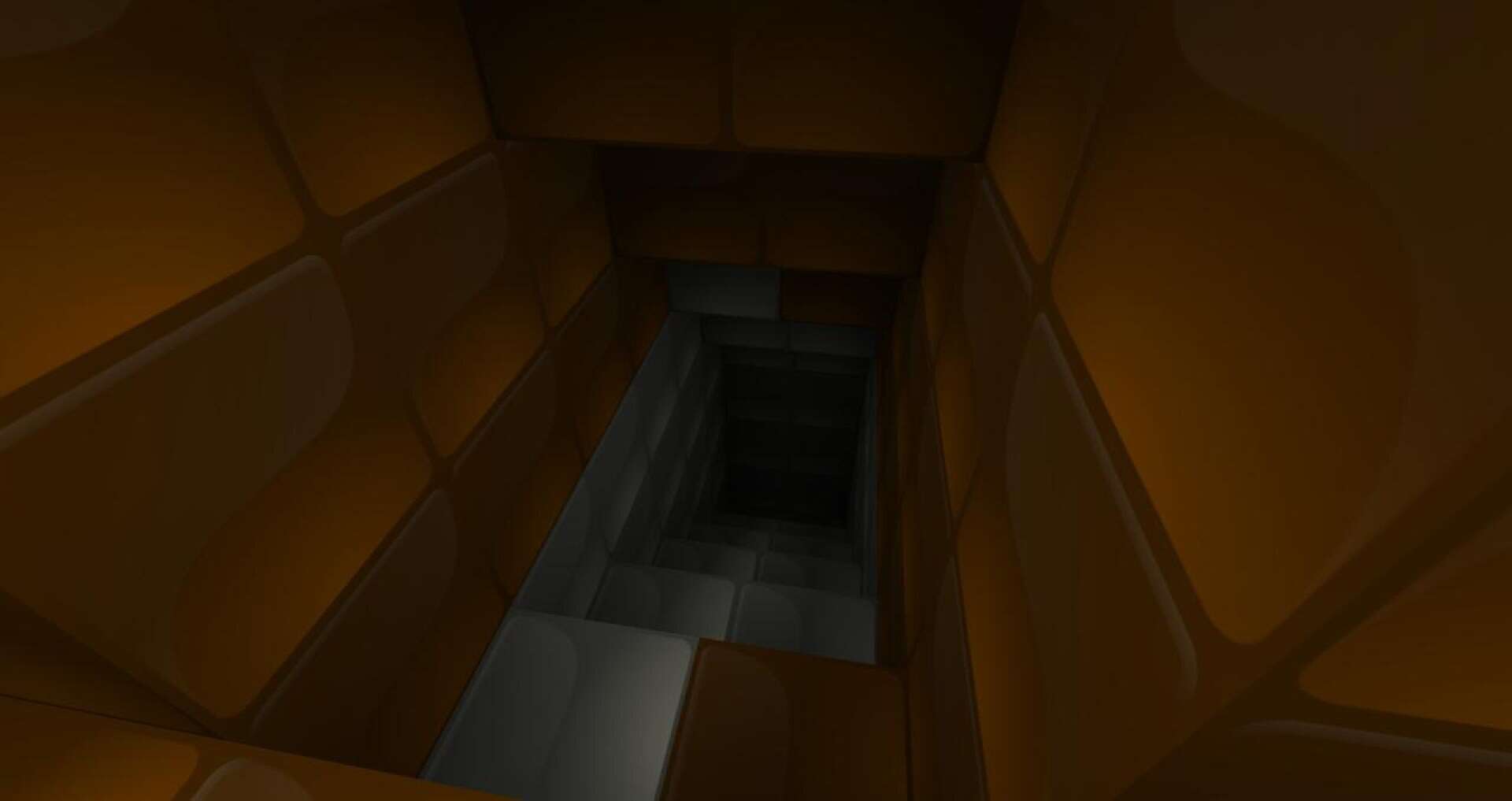
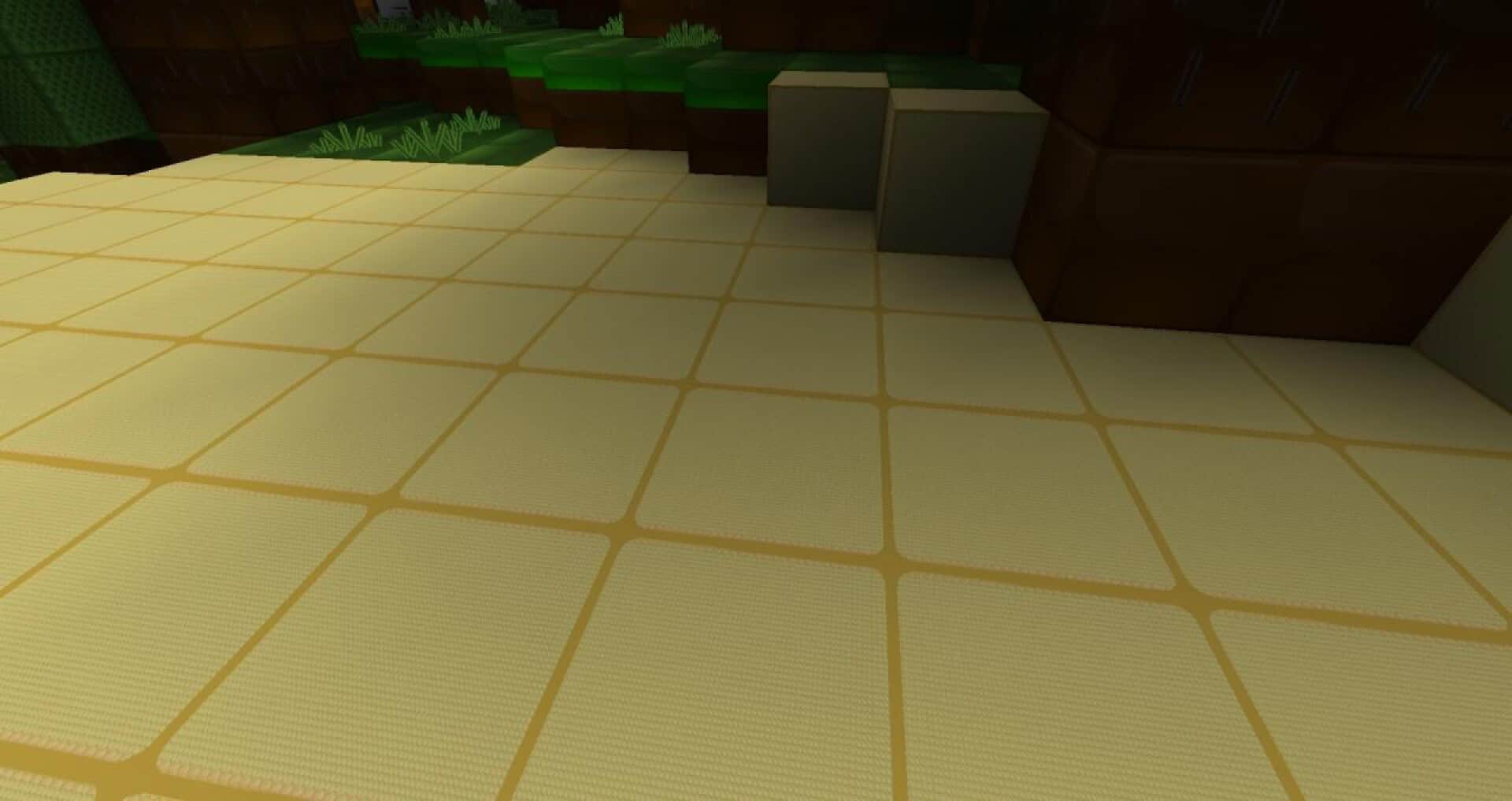
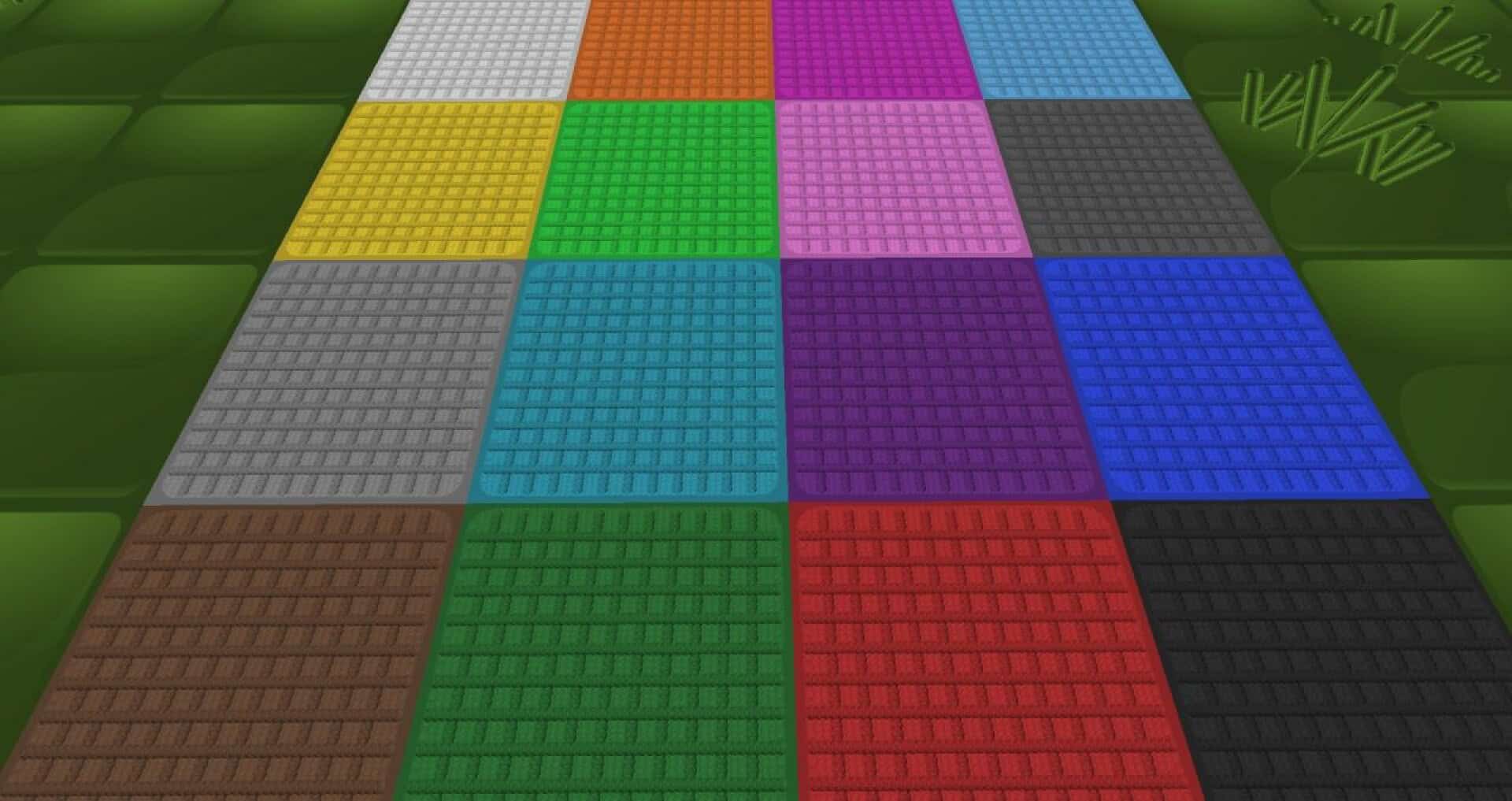
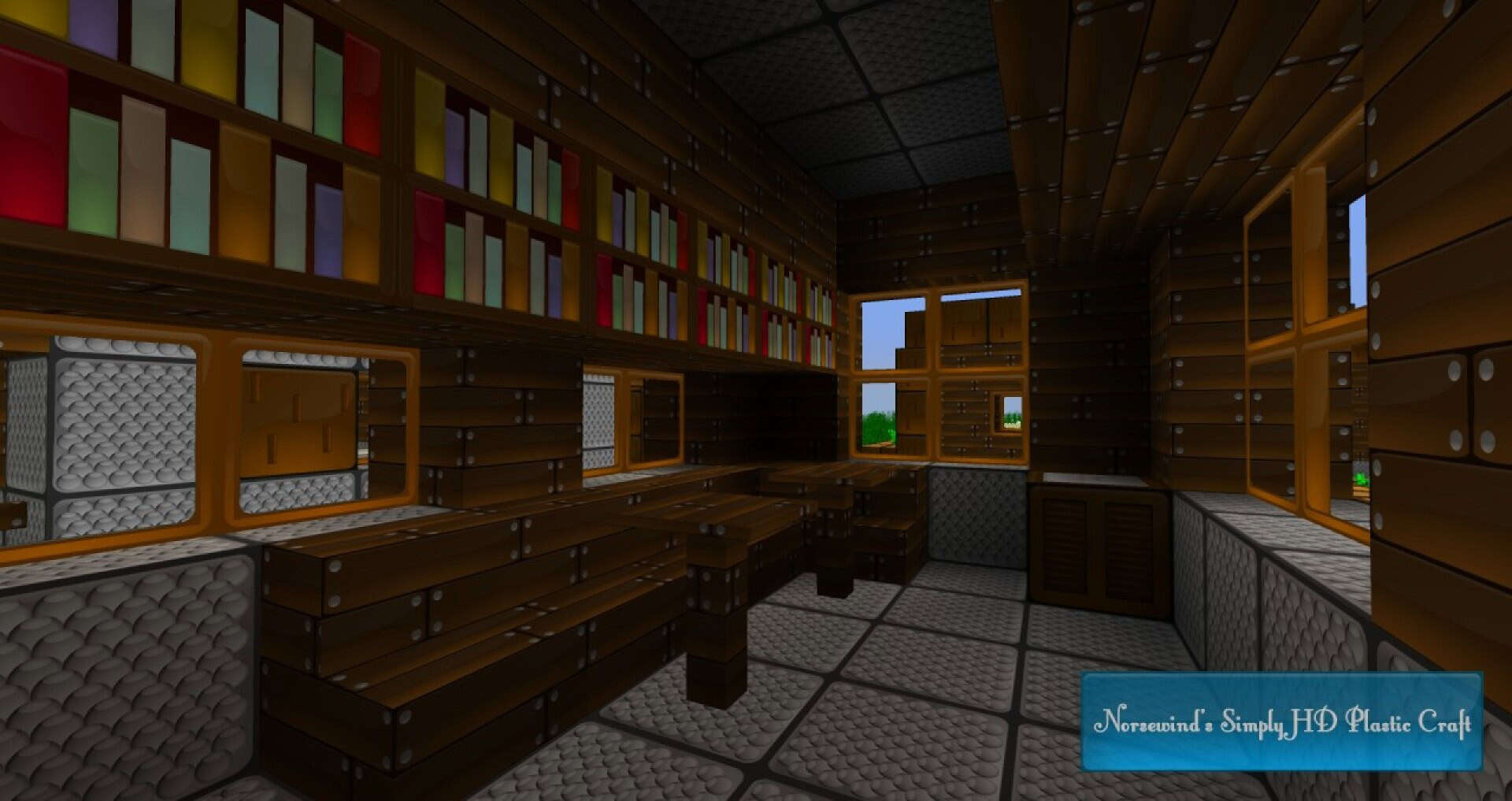
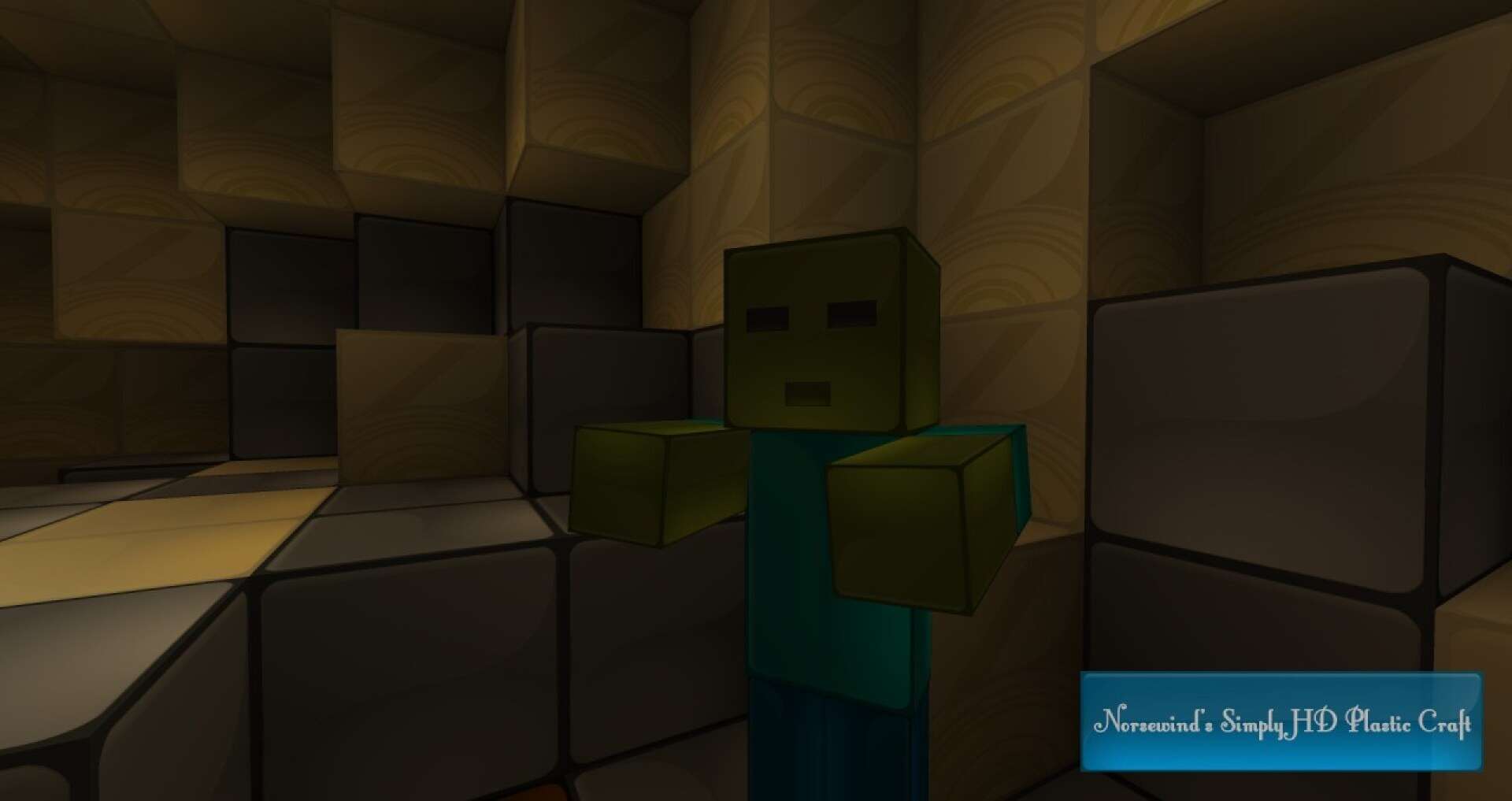
I tested Norsewind’s Simply HD Plastic Craft resource pack, and it completely transforms Minecraft into a clean, toy-like world with a smooth plastic aesthetic. Operating at an extreme 512x resolution far above the vanilla 16x standard, it delivers incredible detail, smooth color changes, and pristine block textures. Be warned that it demands strong hardware, requiring at least 2GB of VRAM and 6GB of RAM as a minimum, and weaker systems may experience slower chunk loads, stutter, or long startup times due to heavy memory and GPU usage. Stacking high render distances or shaders on top of a 512x pack can push your system further, so I recommend testing it in a small creative world first.
The visual style features steady colors, smooth gradients, and a light glossy feel that turns stone and wood into molded panels and clean tiles, reducing gritty noise on screen. It fits modern houses, colorful cities, theme parks, and planned bases wonderfully, though it might look out of place in a rugged medieval fort. If you want a vibrant and artificially crafted world, this pack gives builds a polished finish.
Simply HD Plastic Craft should be compatible with all of these Minecraft versions: 1.8.9 – 1.8.8 – 1.8.1 – 1.8.6 – 1.8 – 1.7.10 – 1.7.9 – 1.7.4 – 1.7 – 1.6.4 – 1.6.2
Screenshots
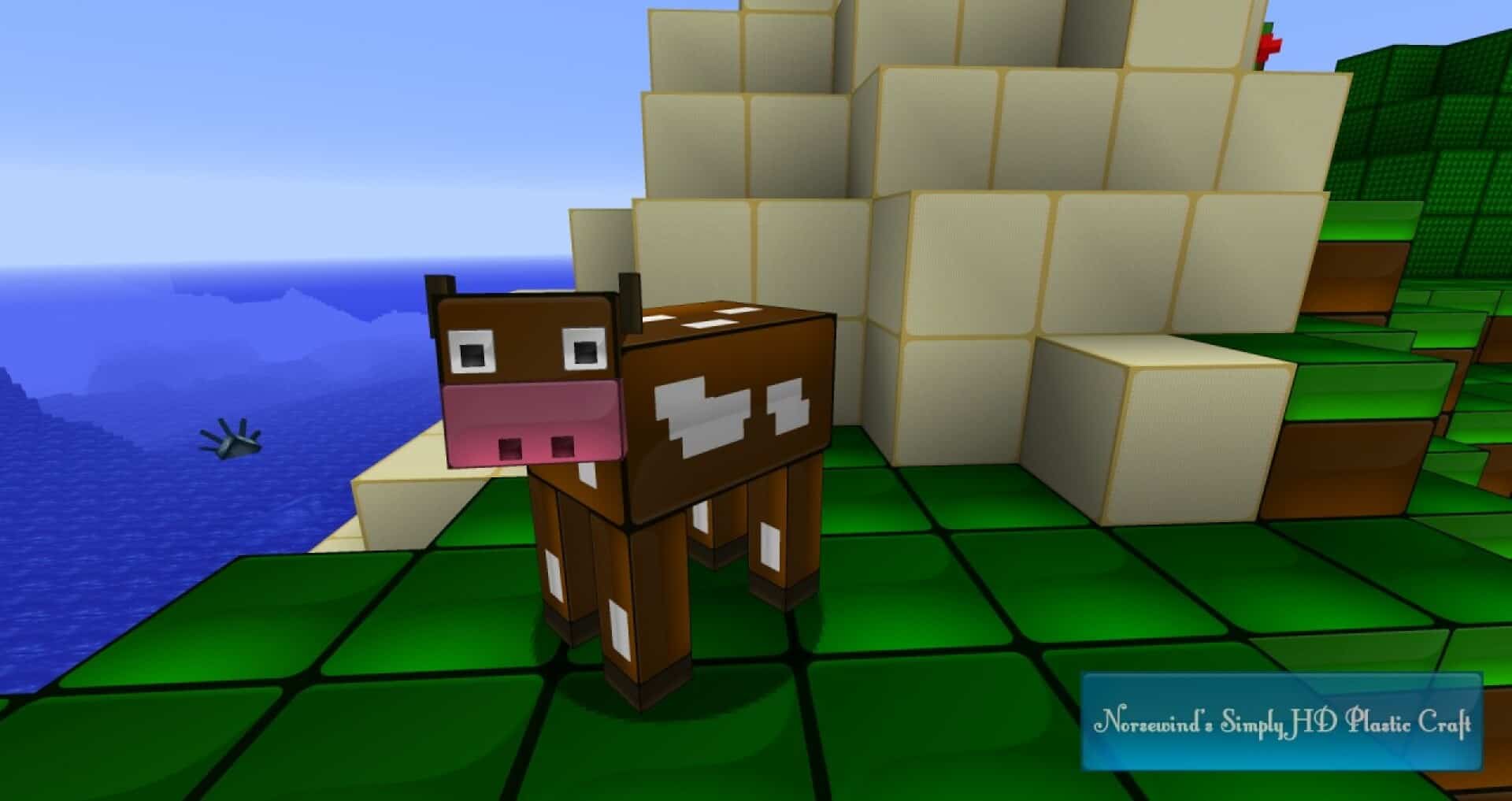
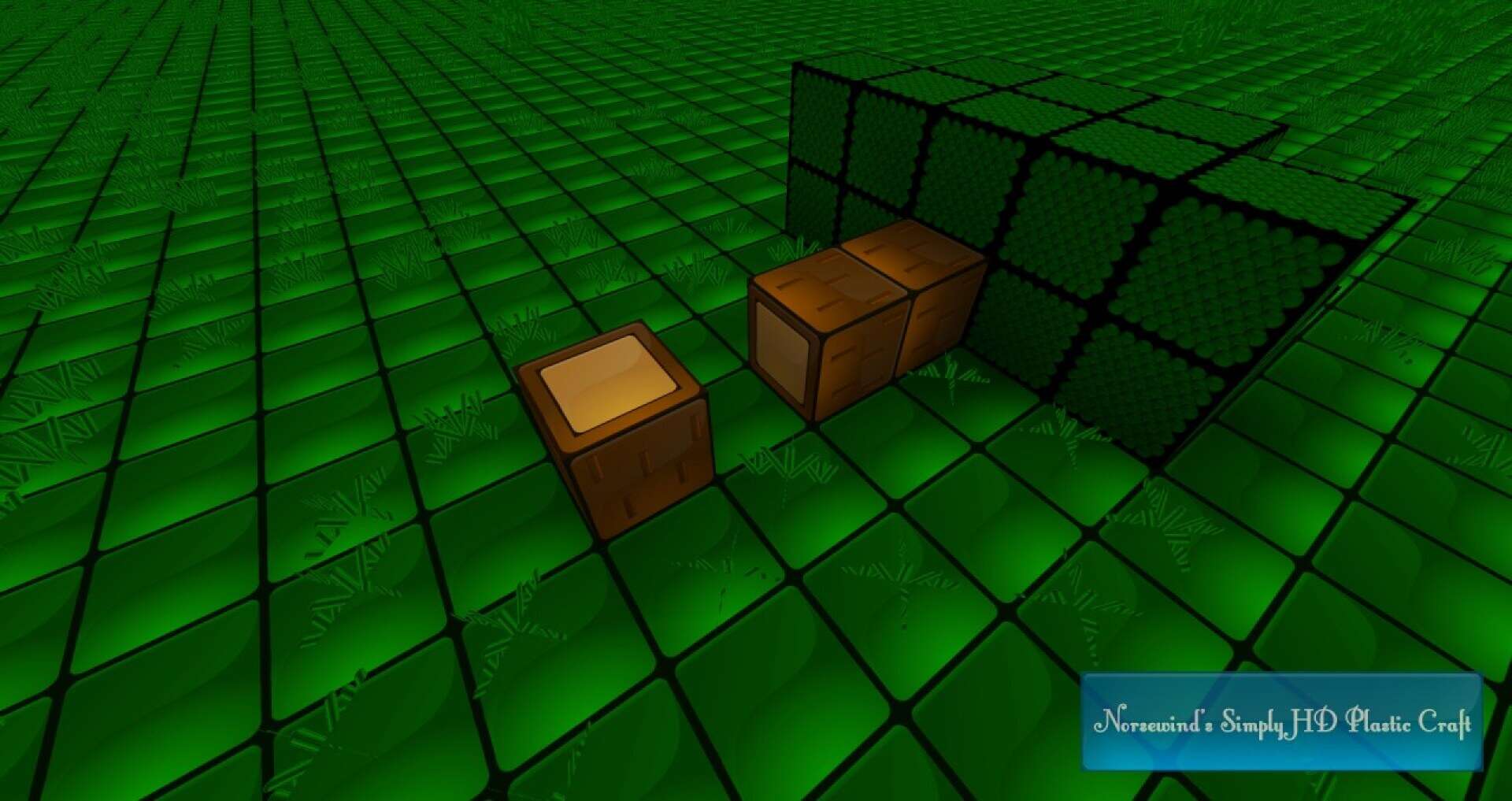
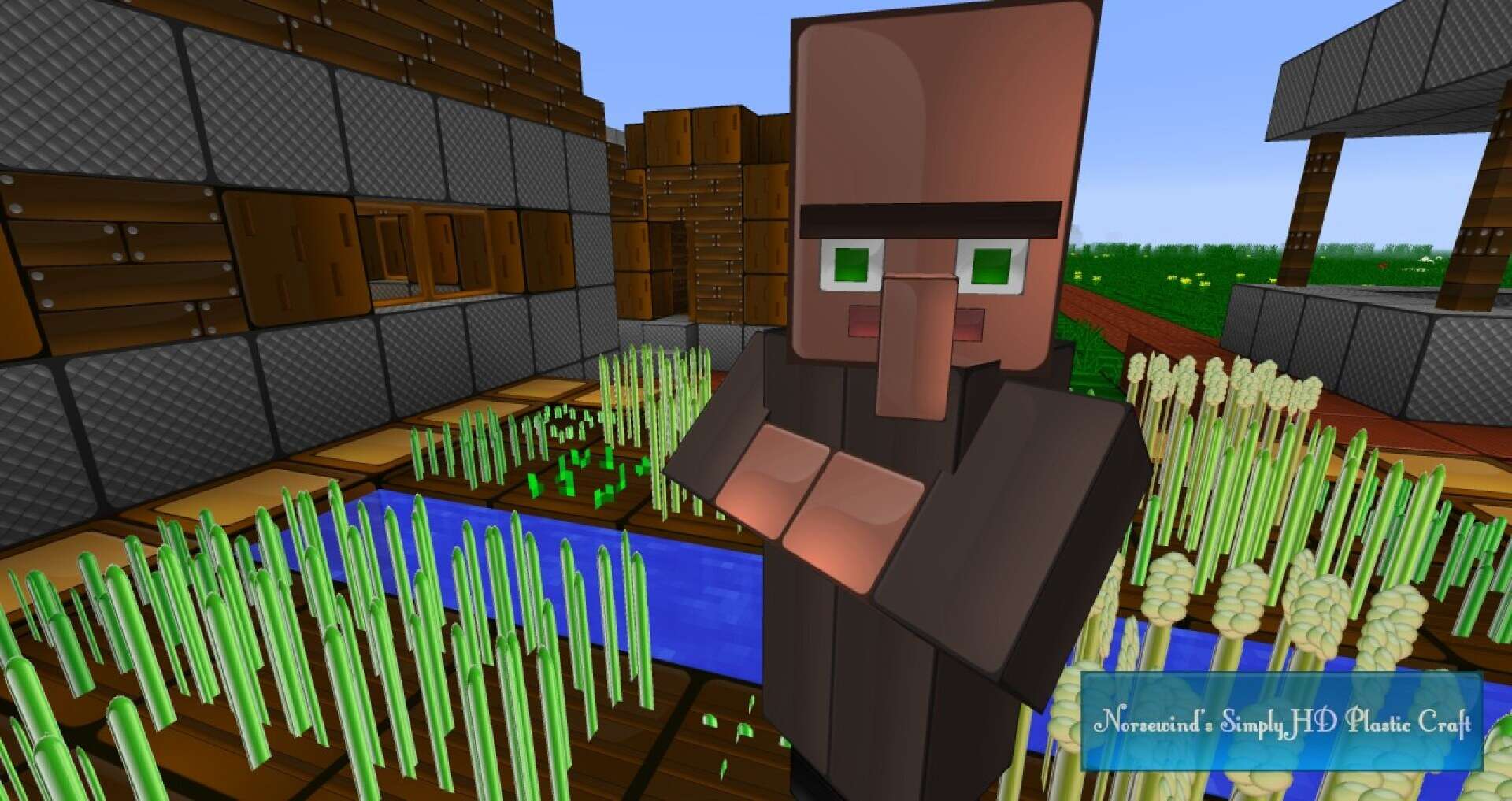
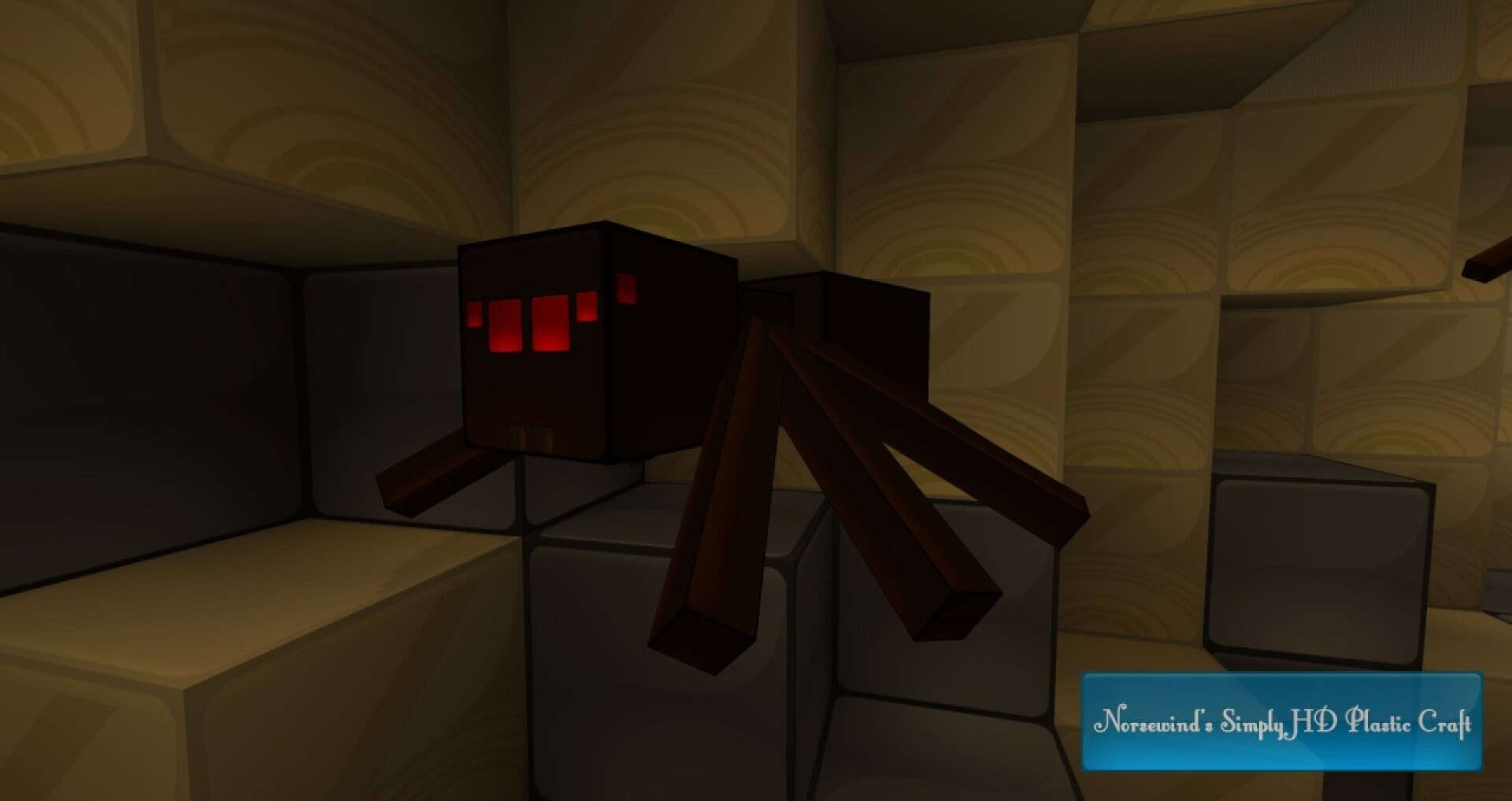
How to Install Texture Pack (Simple 10 Steps)
- Download OptiFine: Most of the texture packs and shaders need OptiFine. That’s why, first download and install OptiFine for the version of Minecraft you want to play.
- Download the Texture Pack: Get the texture pack you want from the download section. Choose the version that works with your Minecraft and your PC’s performance.
- Open Minecraft Launcher: Start Minecraft using the official game launcher — or even TLauncher, if you use that.
- Go to Options: From the main menu, click on the “Options” button.
- Open Resource Packs: Inside Options, click on “Resource Packs…”.
- Open the Resource Pack Folder: Click on “Open Resource Pack Folder” — this will open a folder named “resourcepacks”.
- Move the Pack File: Copy or move the .zip file you downloaded into that “resourcepacks” folder. (Don’t unzip the file — Minecraft uses it as-is!)
- Go Back and Refresh: Close the folder and click “Done”, then go back into “Resource Packs…” again.
- Activate the Pack: You’ll see the pack on the left side. Hover over it and click the arrow to move it to the right (active side).
Tip: If you get a message that the pack is for a different version, just click “Yes” — it usually works fine. - Click Done and Enjoy: Click “Done” again. Now your pack is ready to use in-game. It’s that easy!
Credits
This resource pack was created by Norsewind. We do not own or claim ownership of this content, and we do not host modified versions of the files. All rights remain with the original creator, and we encourage you to support Norsewind by downloading the project from the official link.
Download Instructions
Curseforge: download starts automatically after a few seconds;
Mediafire: click the big blue button with the text “DOWNLOAD”;
Google Drive: in the top right corner you will see a small download icon (down arrow), click it and the download should start;