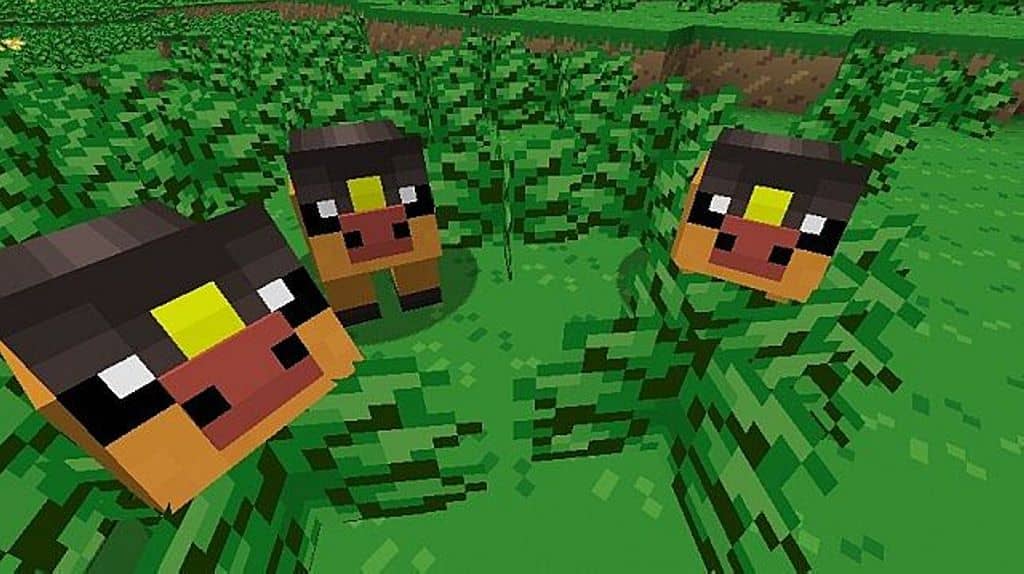
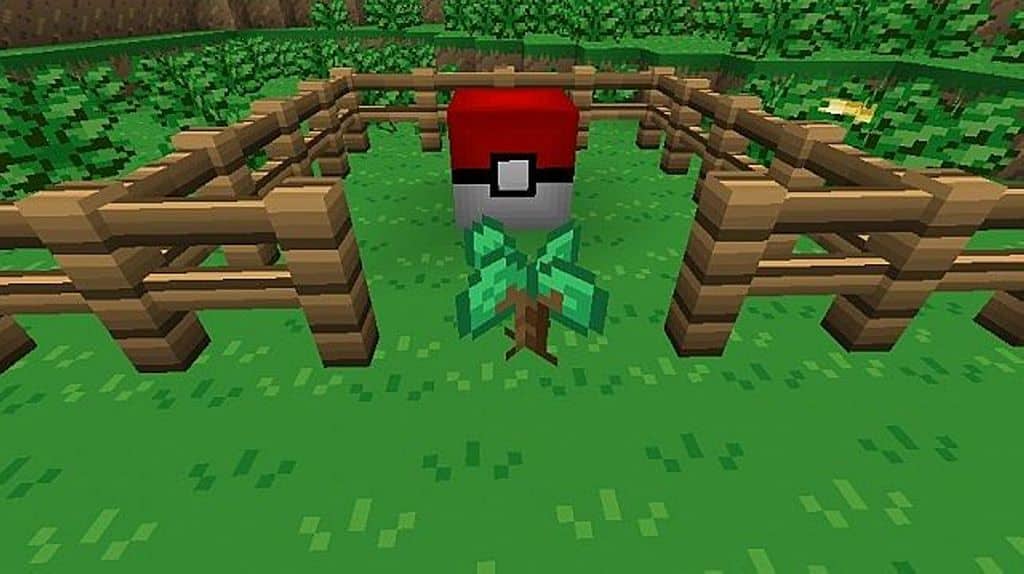
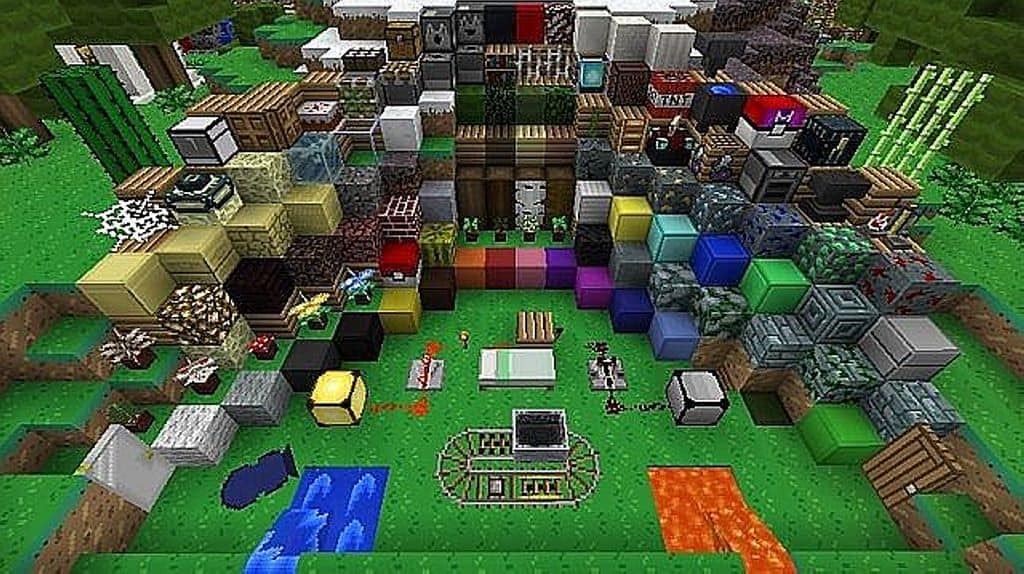
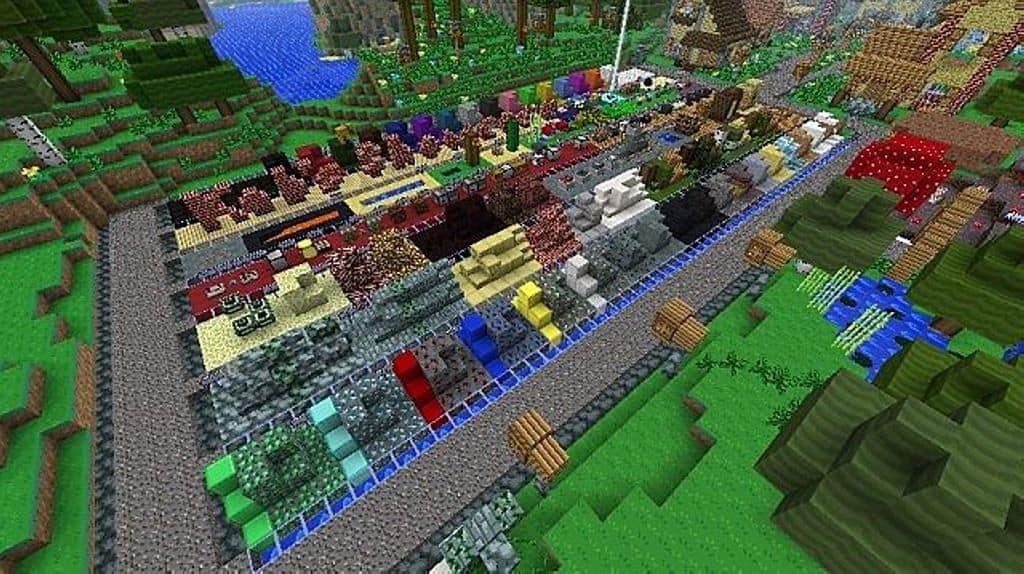
The PokeBlock resource pack for Minecraft has recently gained so much popularity among the players, especially among those who are fans of the Pokemon video game series. So, if you are also one of the admirers or fans of Pokemon video games, then you will definitely love this resource pack. The Pokeblock resource pack is strongly inspired by the looks and feel of the original Pokemon video game series. When you will install this resource pack, you will find a plethora of items that are brought directly from the game franchise, such as chests are replaced with the Pokeballs effects and much more too. In all, the resource pack brings a lot of changes to the game which are really well-detailed and thorough enough.
However, some of the original textures from the vanilla Minecraft game will still persist too. Therefore, the resource pack will bring a set of Pokemon inspired iconic items to the game. For example, some of the mobs will be replaced with monsters that look very much similar to the original Pokemon game. Now, what are you waiting for? If you prefer the Pokemon inspired themes and gaming characters, then this resource pack is something that you surely want to install today! Let’s now find out if this resource pack has any compatibility related issues or not. Well, you can easily install the Pokeblock resource pack on Minecraft 1.8.x and its below versions. Since the resource pack is just a bunch of textures, it does not introduce and add any new or unique characters but at the same time it usually does not have compatibility issues with mods.
PokeBlock! should be compatible with all of these Minecraft versions: 1.8.9 – 1.8.8 – 1.8.1 – 1.8.6 – 1.8 – 1.7.10 – 1.7.9 – 1.7.4 – 1.7 – 1.6.4 – 1.6.2
Screenshots
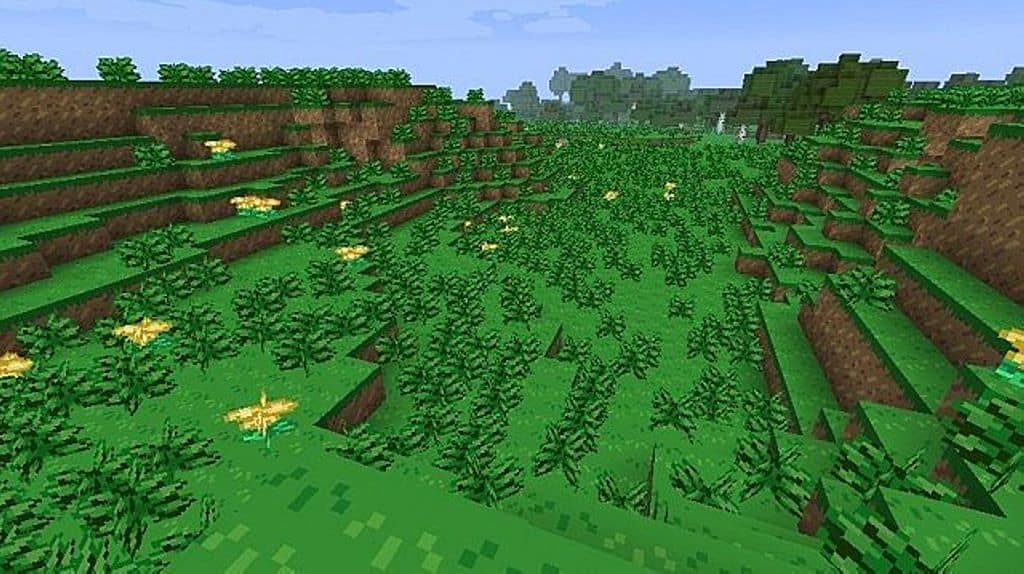
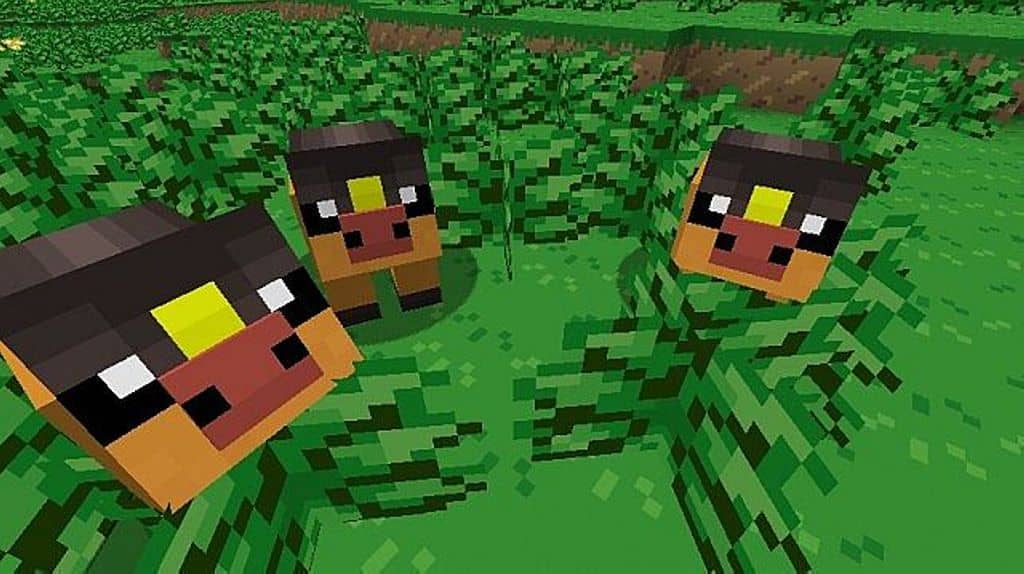
How to Install Texture Pack (Simple 10 Steps)
- Download OptiFine: Most of the texture packs and shaders need OptiFine. That’s why, first download and install OptiFine for the version of Minecraft you want to play.
- Download the Texture Pack: Get the texture pack you want from the download section. Choose the version that works with your Minecraft and your PC’s performance.
- Open Minecraft Launcher: Start Minecraft using the official game launcher — or even TLauncher, if you use that.
- Go to Options: From the main menu, click on the “Options” button.
- Open Resource Packs: Inside Options, click on “Resource Packs…”.
- Open the Resource Pack Folder: Click on “Open Resource Pack Folder” — this will open a folder named “resourcepacks”.
- Move the Pack File: Copy or move the .zip file you downloaded into that “resourcepacks” folder. (Don’t unzip the file — Minecraft uses it as-is!)
- Go Back and Refresh: Close the folder and click “Done”, then go back into “Resource Packs…” again.
- Activate the Pack: You’ll see the pack on the left side. Hover over it and click the arrow to move it to the right (active side).
Tip: If you get a message that the pack is for a different version, just click “Yes” — it usually works fine. - Click Done and Enjoy: Click “Done” again. Now your pack is ready to use in-game. It’s that easy!
Credits
This resource pack was created by the gravity block. We do not own or modify this resource pack, and all rights remain with the original author. We strongly recommend visiting the official sources to download and support the creator.
Download Instructions
Curseforge: download starts automatically after a few seconds;
Mediafire: click the big blue button with the text “DOWNLOAD”;
Google Drive: in the top right corner you will see a small download icon (down arrow), click it and the download should start;


