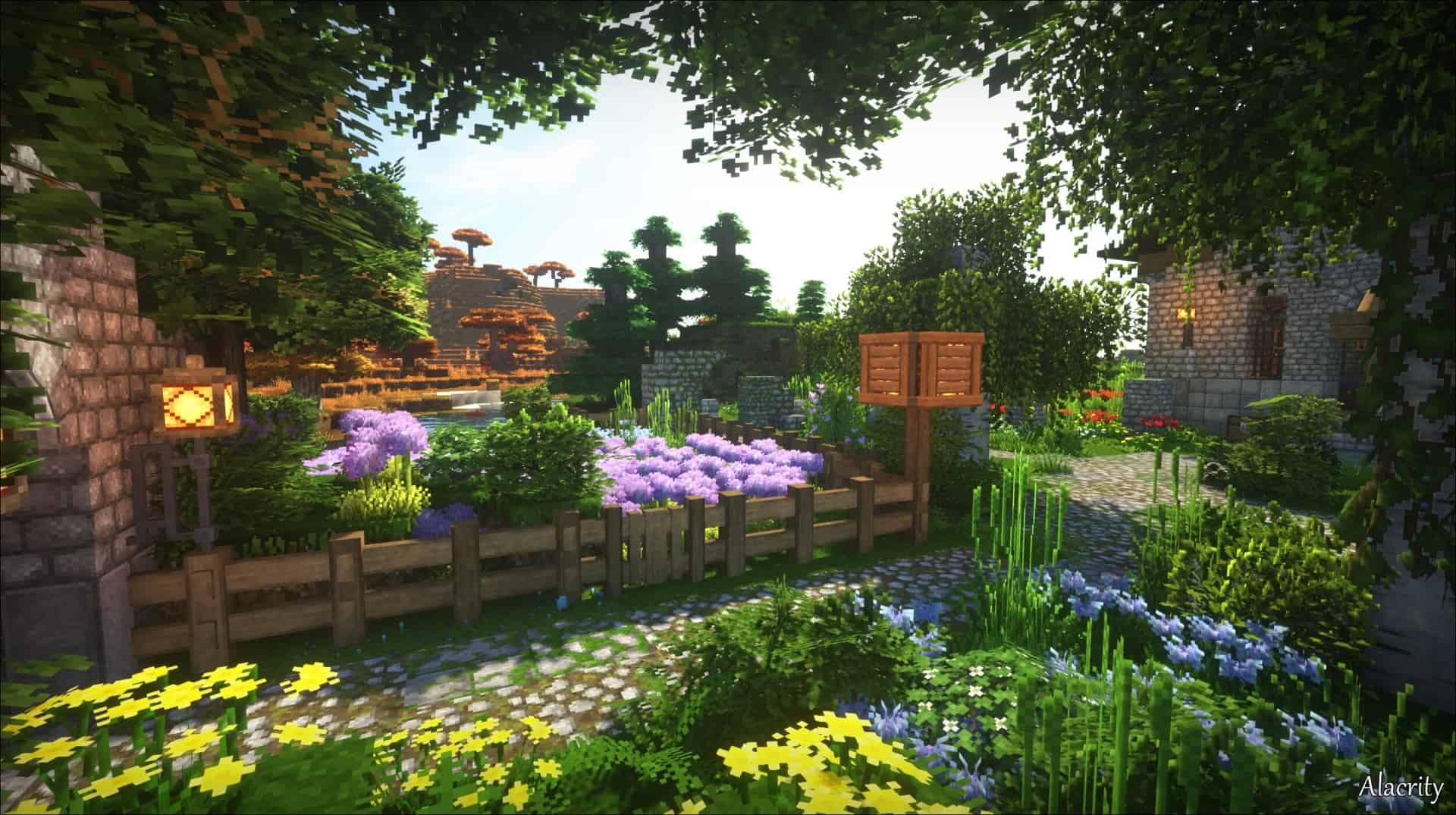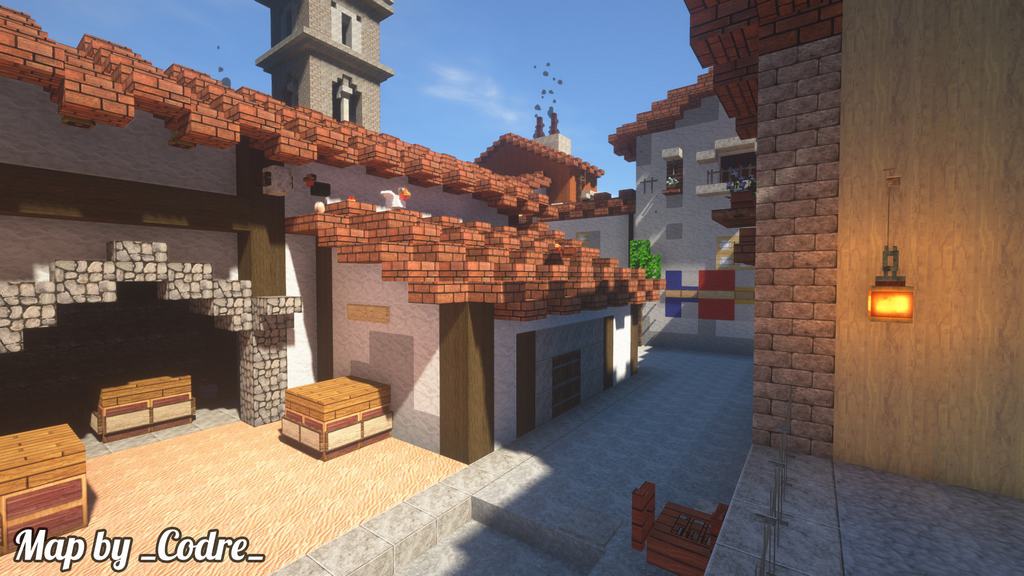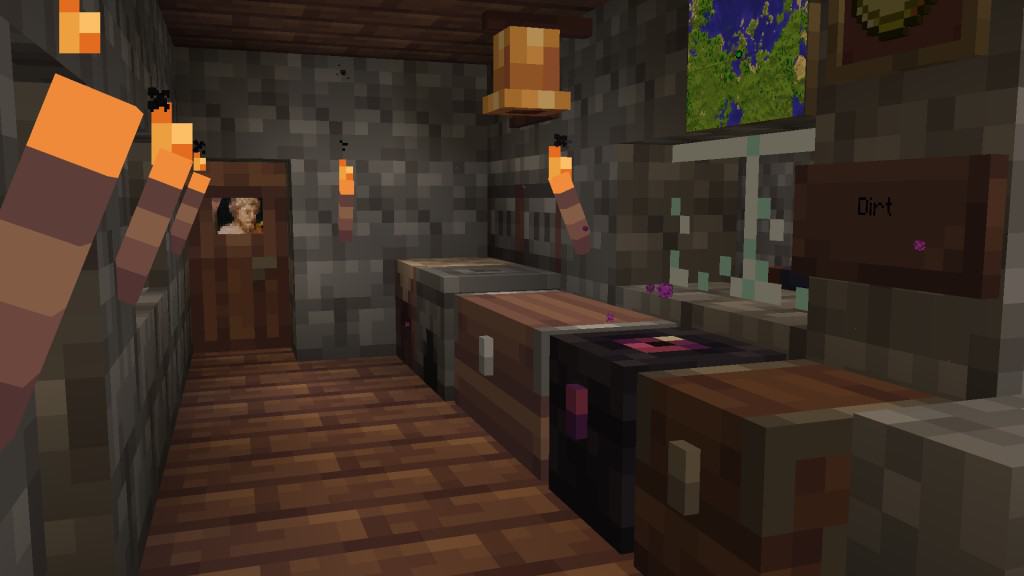
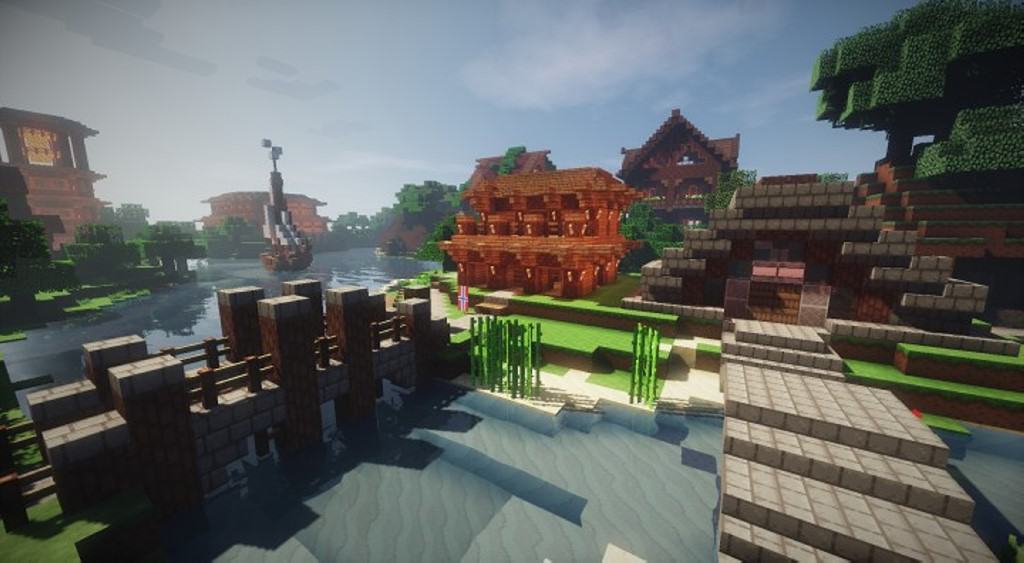
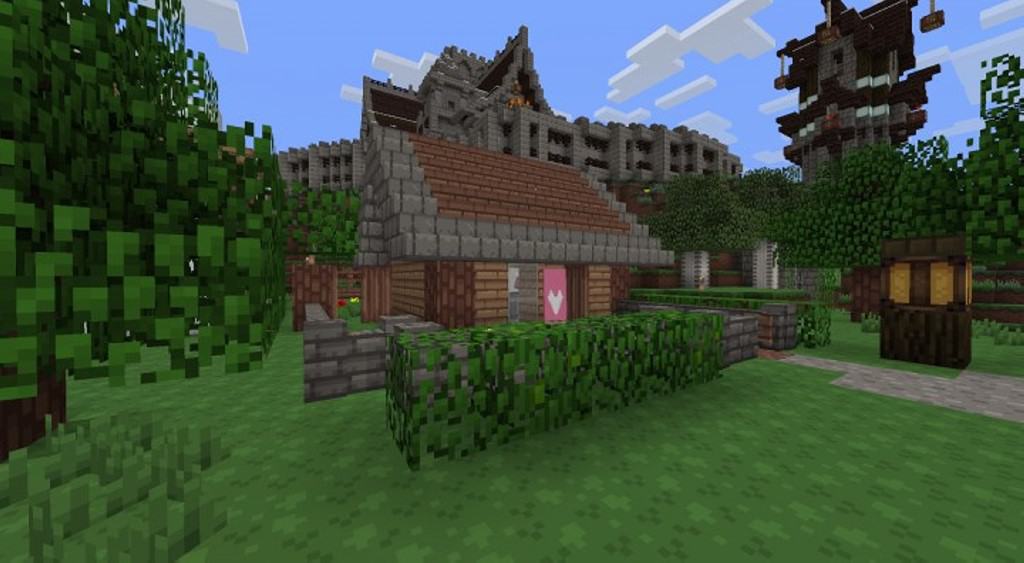
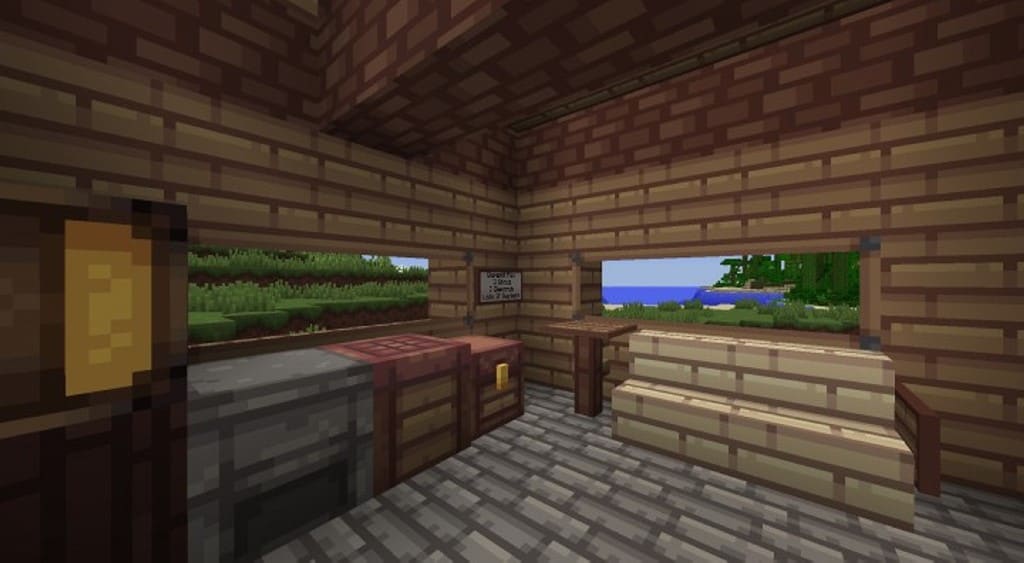
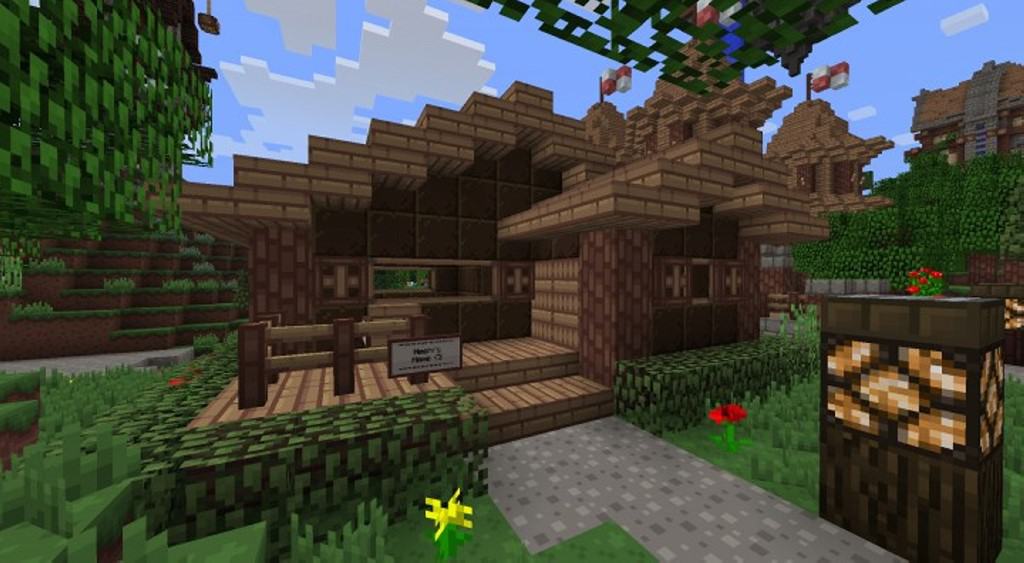
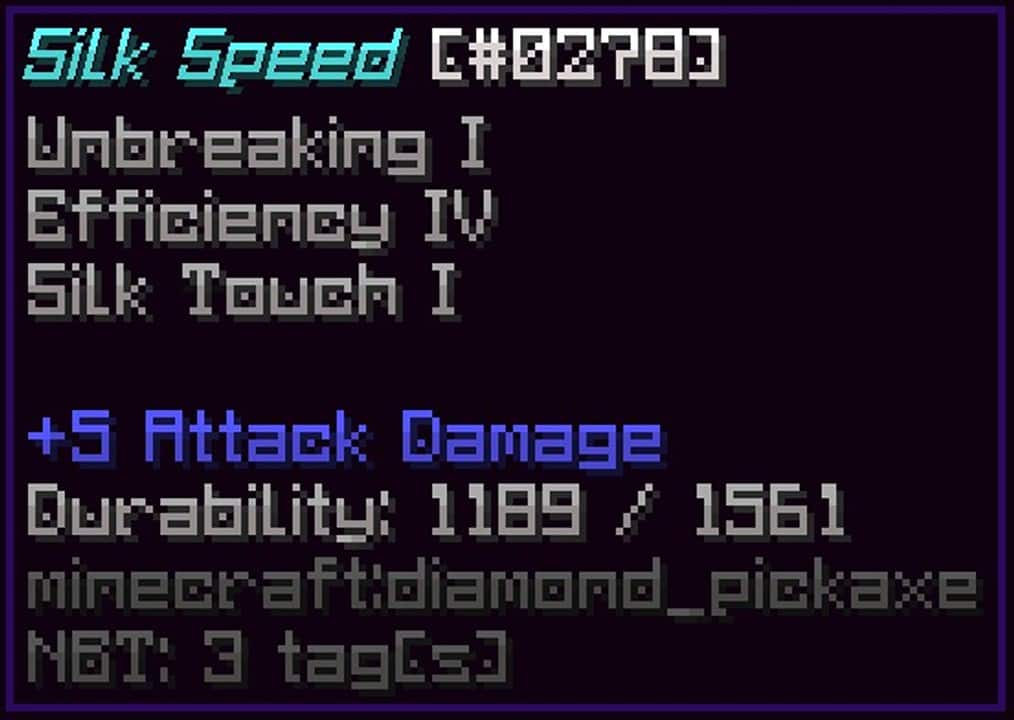
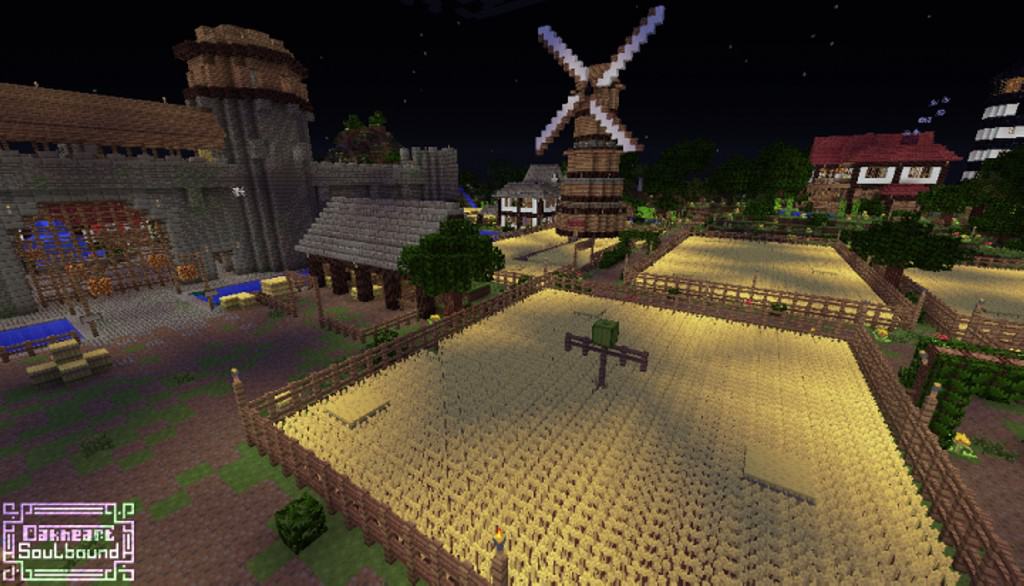
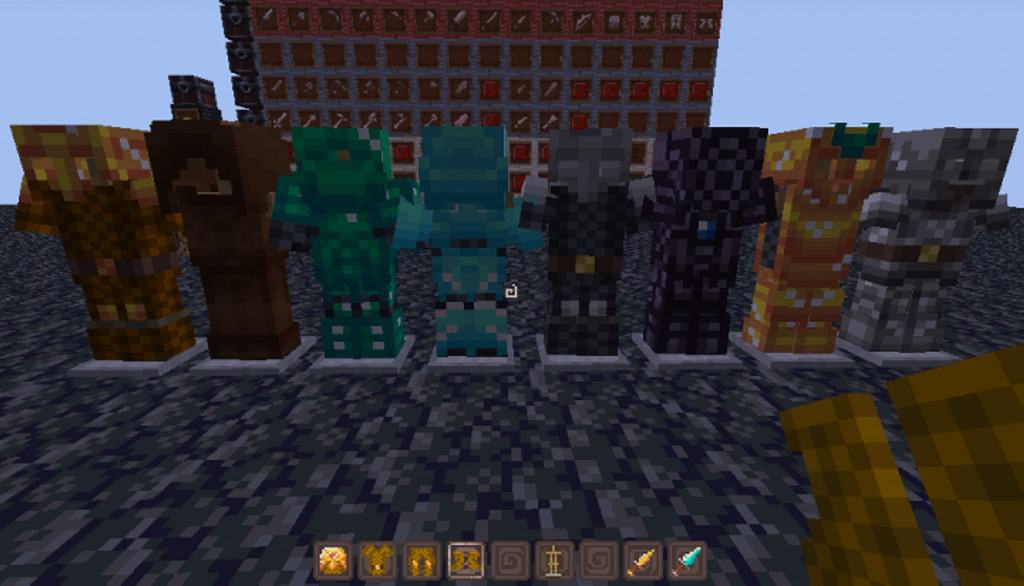
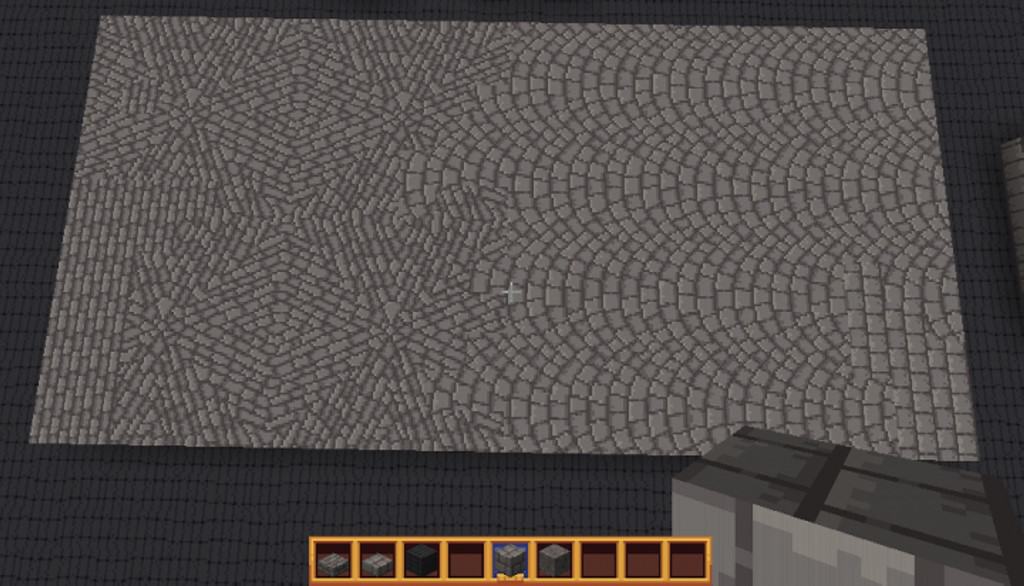
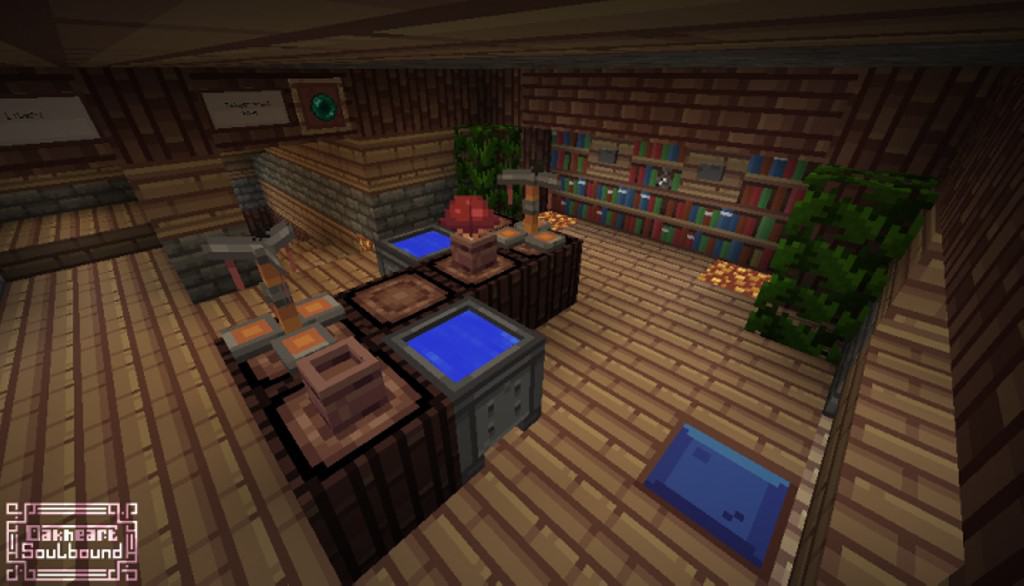
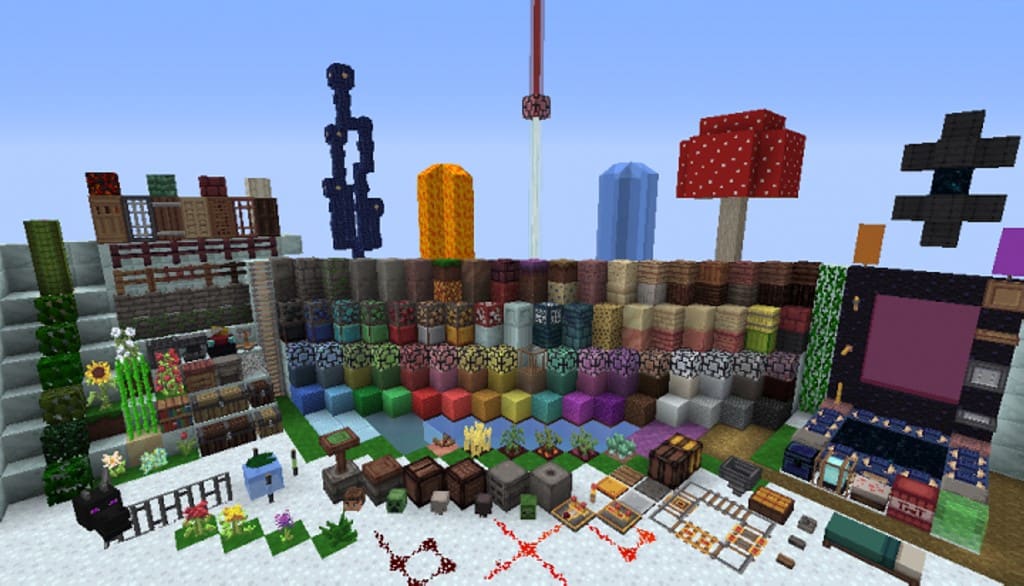
From textures themselves to the GUI and fonts, I found that the Soulbound resource pack covers every aspect of Minecraft and transforms it into a complete, unique experience. Even though you might initially be discouraged by the seemingly low resolution of just 16×16, don’t be fooled—the Soulbound texture pack brings quite a few exclusive things to the table. It’s quite obvious from the start that this resource pack embraces simplicity while adding a fair bit of grittiness to the overall atmosphere of the game. The font that Soulbound introduces closely resembles that of old-school RPG games, which goes along wonderfully with the grim-looking textures. Upon first entering the game, I noticed the world might look a little bit odd. That’s because the Soulbound resource pack doesn’t have its own color palette. This means that one color can have a variety of different hues, saturation, and more.
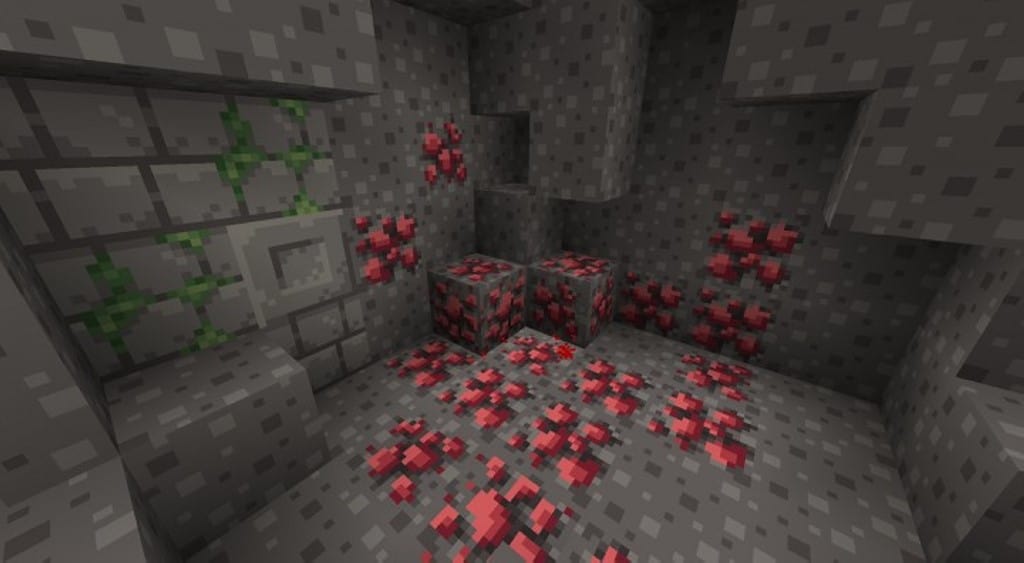
This does cause a slight divergence between blocks in the beginning, but once you get used to it, it’s going to be the one thing that makes this resource pack truly one-of-a-kind. Also, the ore and stone textures are completely revamped to build a completely different atmosphere while you’re down caving, but this will definitely grow on you over time. The massive upside of Soulbound is that it keeps the original resolution of Minecraft’s textures. This means that no matter how low-end your PC is, you won’t notice any change in the game’s performance. This becomes even important once you realize that there aren’t many low-res resource packs that introduce a whole new GUI and fonts. For a better experience, I definitely recommend using the connected textures feature of Optifine in order to get rid of any annoying lines and discrepancies between blocks.
SoulBound should be compatible with all of these Minecraft versions: 1.11.2 – 1.11 – 1.10.2 – 1.10 – 1.9.4 – 1.9 – 1.8.9 – 1.8.8 – 1.8.1 – 1.8.6 – 1.8 – 1.7.10 – 1.7.9 – 1.7.4 – 1.7
Screenshots
How to Install Texture Pack (Simple 10 Steps)
- Download OptiFine: Most of the texture packs and shaders need OptiFine. That’s why, first download and install OptiFine for the version of Minecraft you want to play.
- Download the Texture Pack: Get the texture pack you want from the download section. Choose the version that works with your Minecraft and your PC’s performance.
- Open Minecraft Launcher: Start Minecraft using the official game launcher — or even TLauncher, if you use that.
- Go to Options: From the main menu, click on the “Options” button.
- Open Resource Packs: Inside Options, click on “Resource Packs…”.
- Open the Resource Pack Folder: Click on “Open Resource Pack Folder” — this will open a folder named “resourcepacks”.
- Move the Pack File: Copy or move the .zip file you downloaded into that “resourcepacks” folder. (Don’t unzip the file — Minecraft uses it as-is!)
- Go Back and Refresh: Close the folder and click “Done”, then go back into “Resource Packs…” again.
- Activate the Pack: You’ll see the pack on the left side. Hover over it and click the arrow to move it to the right (active side).
Tip: If you get a message that the pack is for a different version, just click “Yes” — it usually works fine. - Click Done and Enjoy: Click “Done” again. Now your pack is ready to use in-game. It’s that easy!
Credits
This resource pack was created by Irish and CalamityGreen. We do not own or claim ownership of this content, and we do not host modified versions of these files. We strongly encourage players to support the original creators by downloading from their official links.
Download Links
Java Edition
Download Instructions
Curseforge: download starts automatically after a few seconds;
Mediafire: click the big blue button with the text “DOWNLOAD”;
Google Drive: in the top right corner you will see a small download icon (down arrow), click it and the download should start;