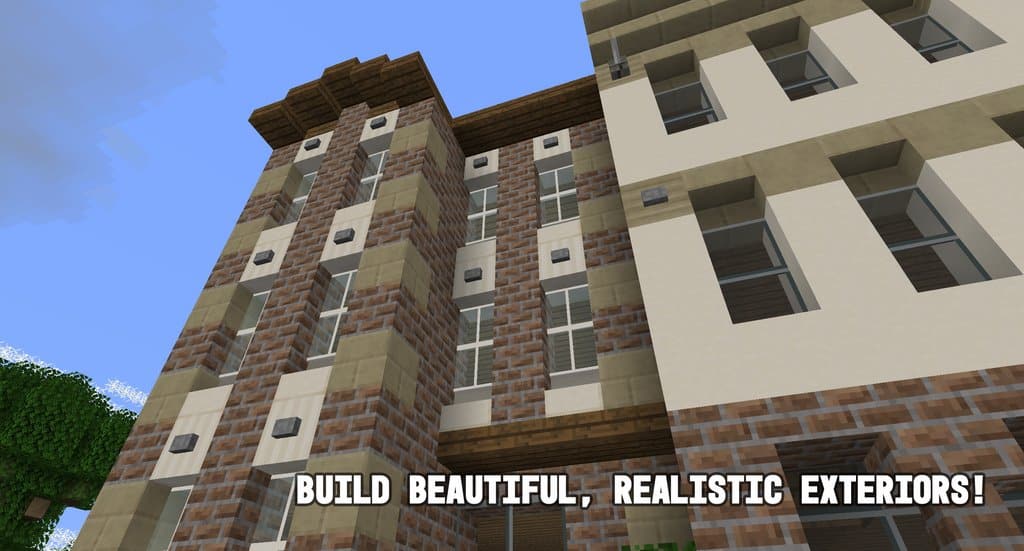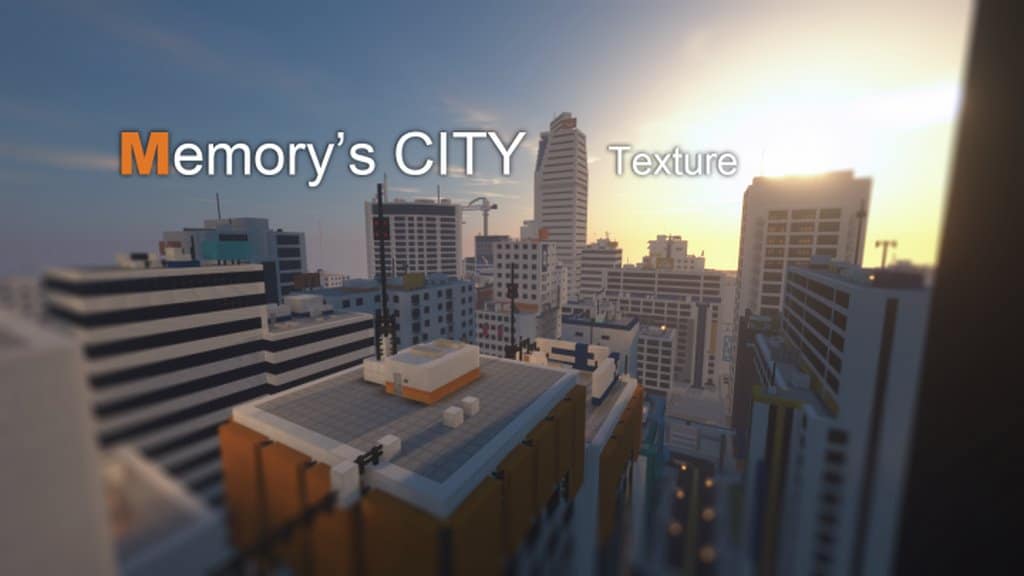
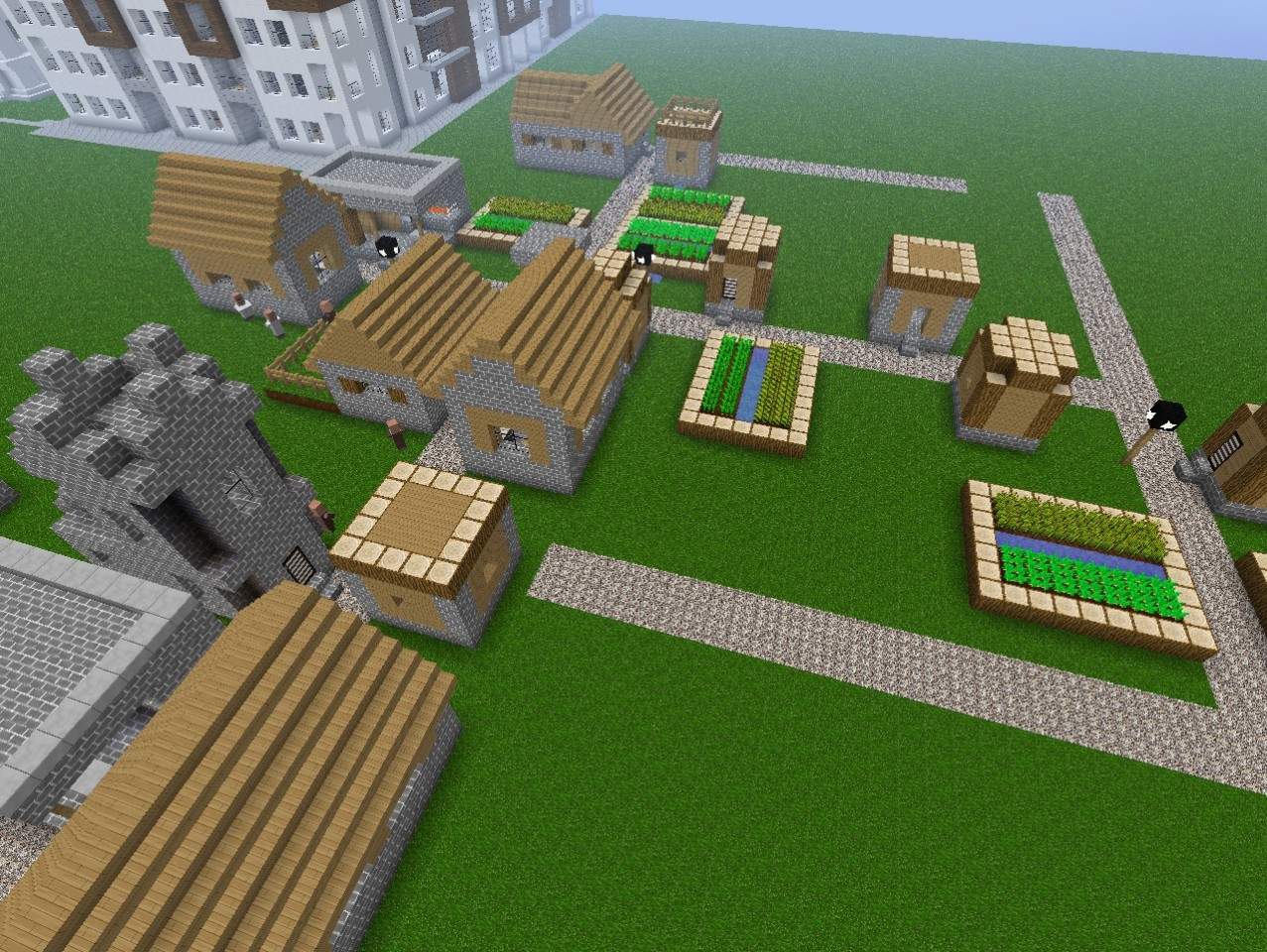
Minecraft resource packs typically focus on boosting texture resolutions and tweaking items to fit a medieval or fantasy aesthetic, which naturally stems from Minecraft feeling so well-suited for RPG-style gameplay. Still, every once in a while, we stumble upon a resource pack that completely breaks the mold and offers something entirely different from what we are used to seeing. Hokomoko’s Modern resource pack delivers a truly refreshing proposition. Rather than rolling out medieval or fantasy-themed textures and items, it hones in on modern elements that fill our everyday lives. This certainly does not mean it is a hyper-realistic resource pack; instead, it provides an entirely different vibe that proves to be just as fun as any traditional pack. While the exact start of its development remains a bit unclear, this resource pack was first released and made playable back in February 2013. Information about the original developer is scarce, as he used several accounts with name variations for his projects, though he is best known as DaHokomoko or Hokomoko2332. Several iterations of his Modern Texture pack exist, but the original edition continues to hold the most downloads. He has launched several other resource packs over time, but regarding Hokomoko’s Modern resource pack, major updates have not rolled out in quite a while. Nevertheless, the creator states the pack is 100% complete, indicating no plans for further significant updates. Hokomoko’s Modern texture pack skips overly complex or astonishing levels of detail, relying instead on a clean 32x texture resolution. The developer focused his efforts on keeping the game as wonderfully blocky as the familiar vanilla style, but with a clever modern twist. At its core, Hokomoko’s Modern resource pack keeps things pleasantly simple and basic by swapping out existing textures for fresh, modern alternatives.
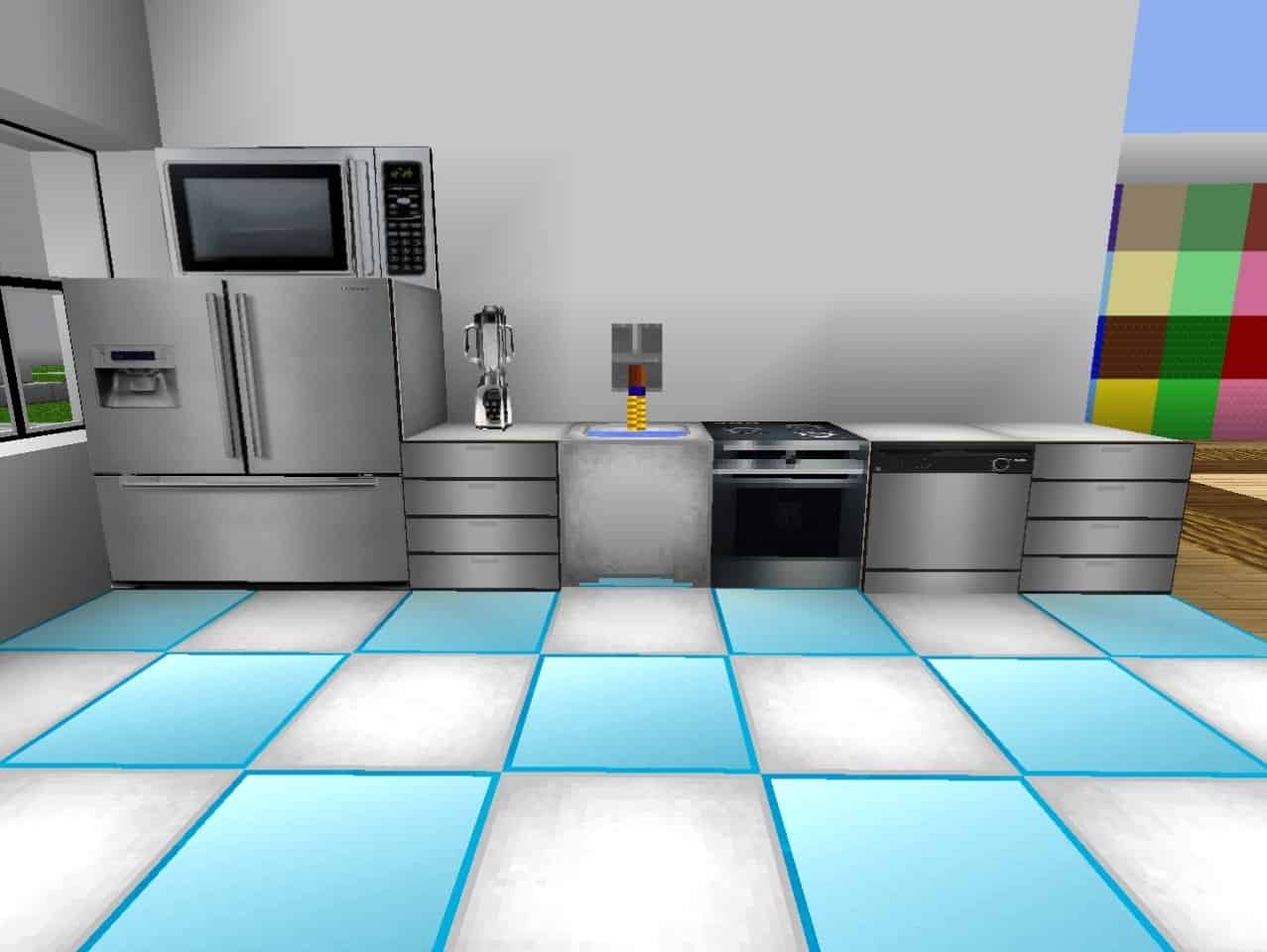
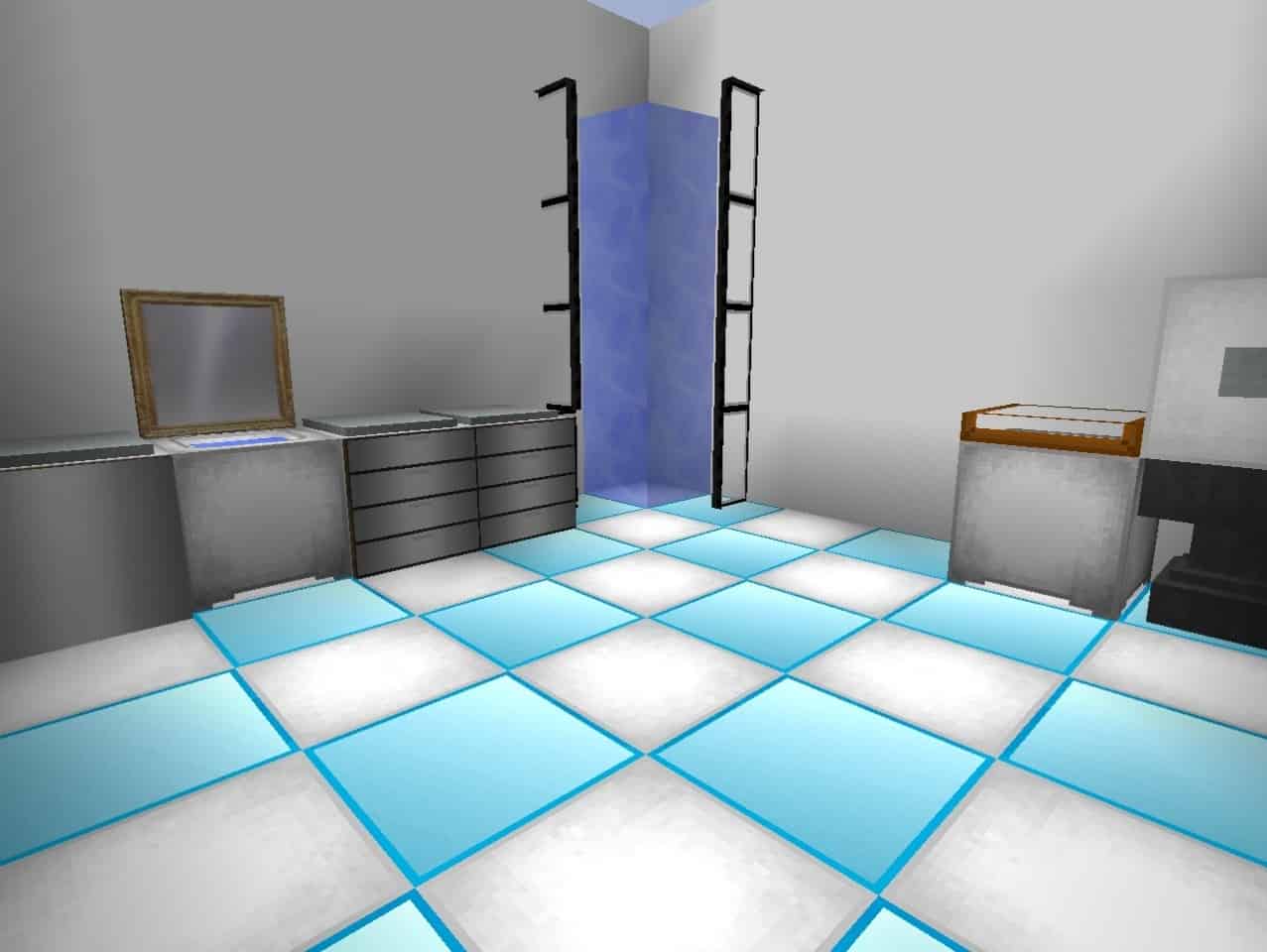
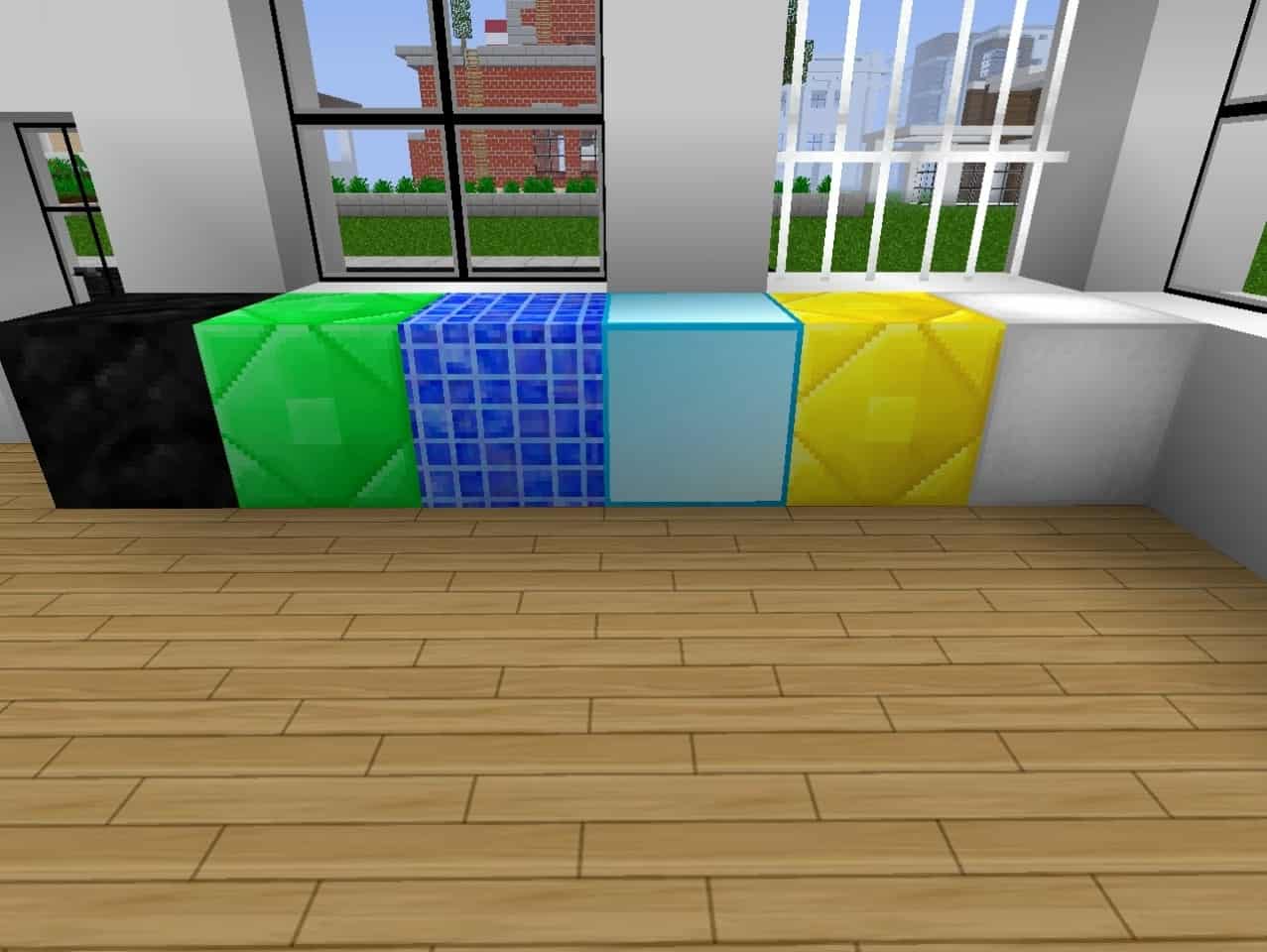
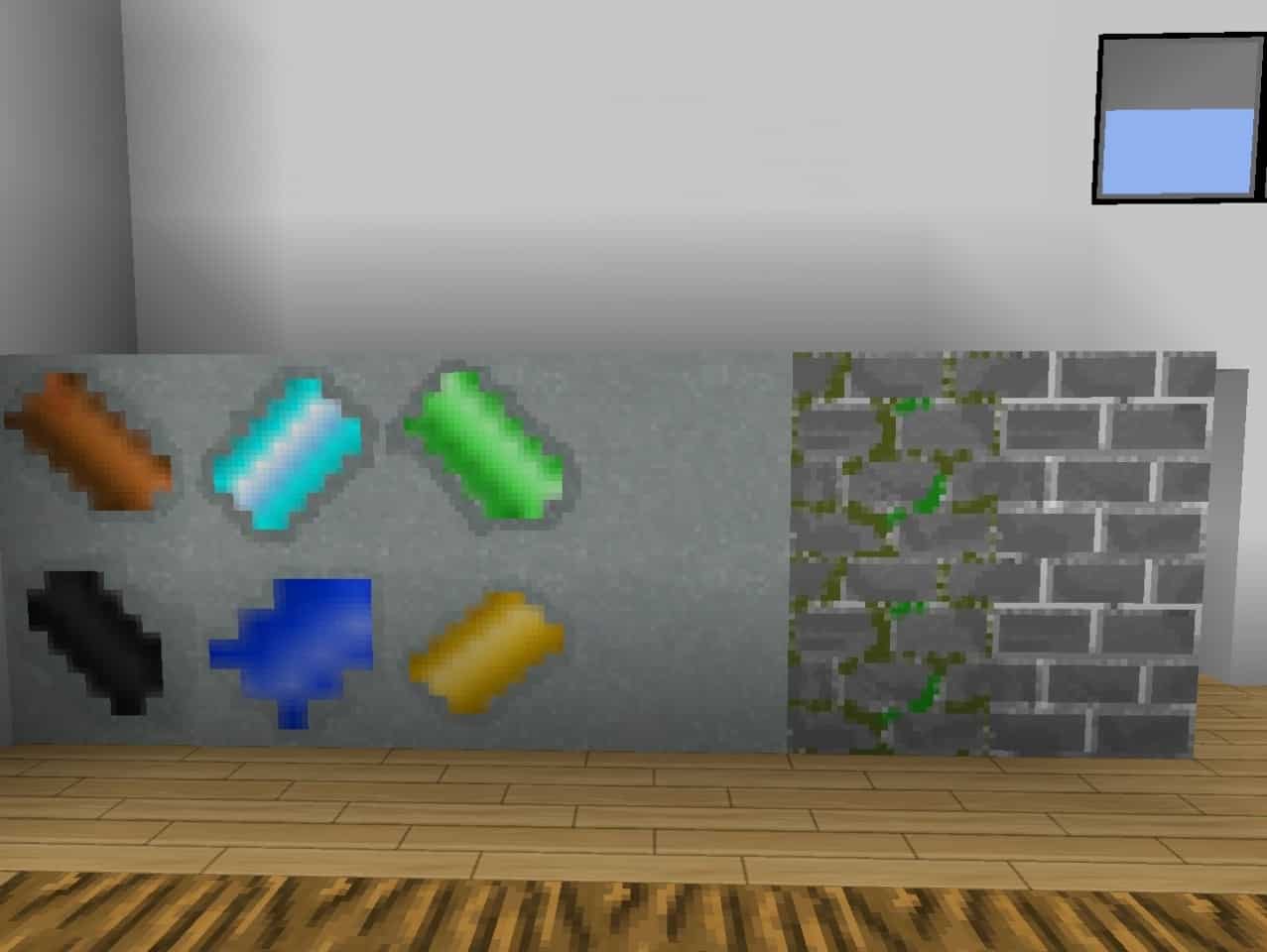
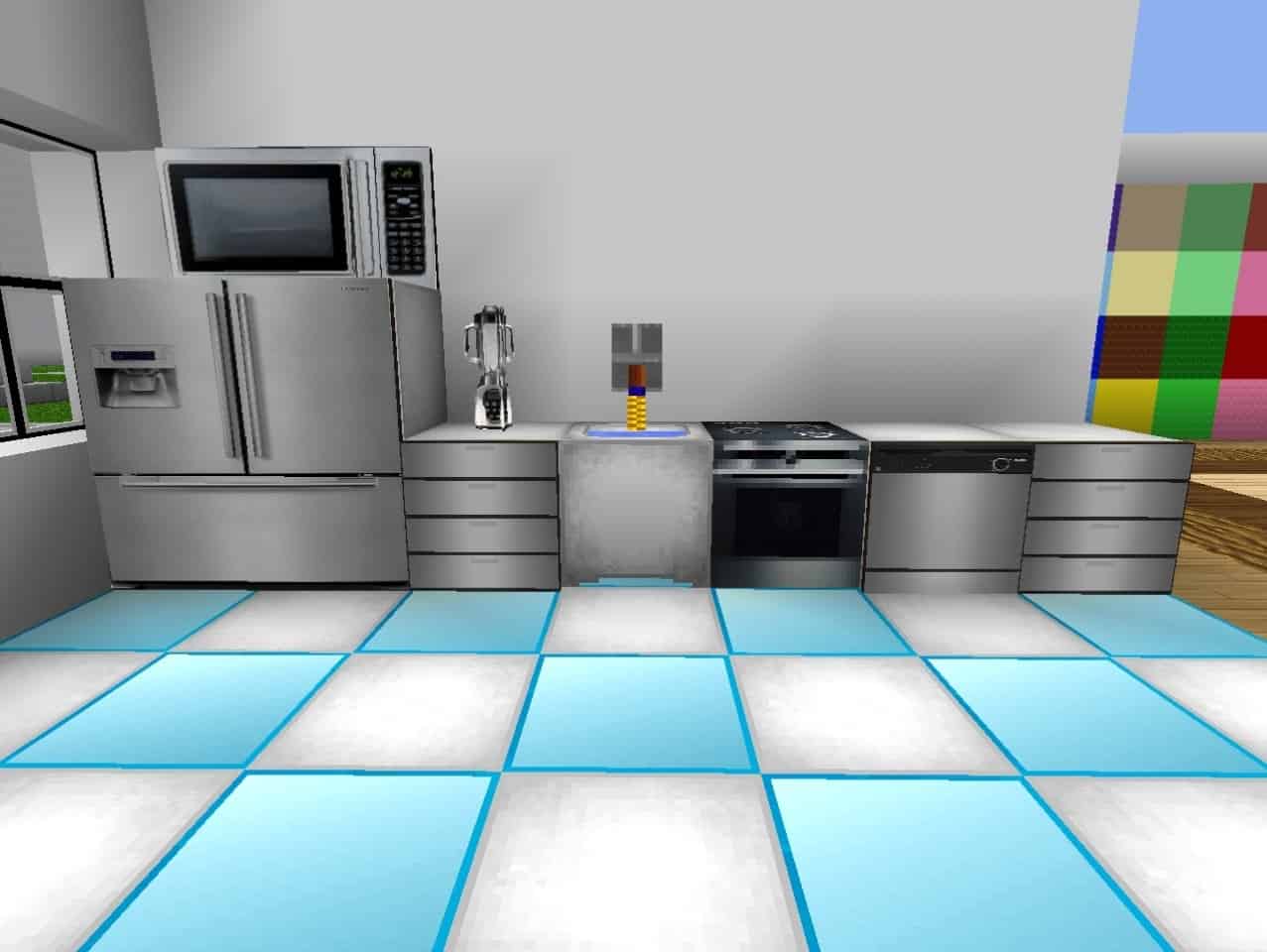
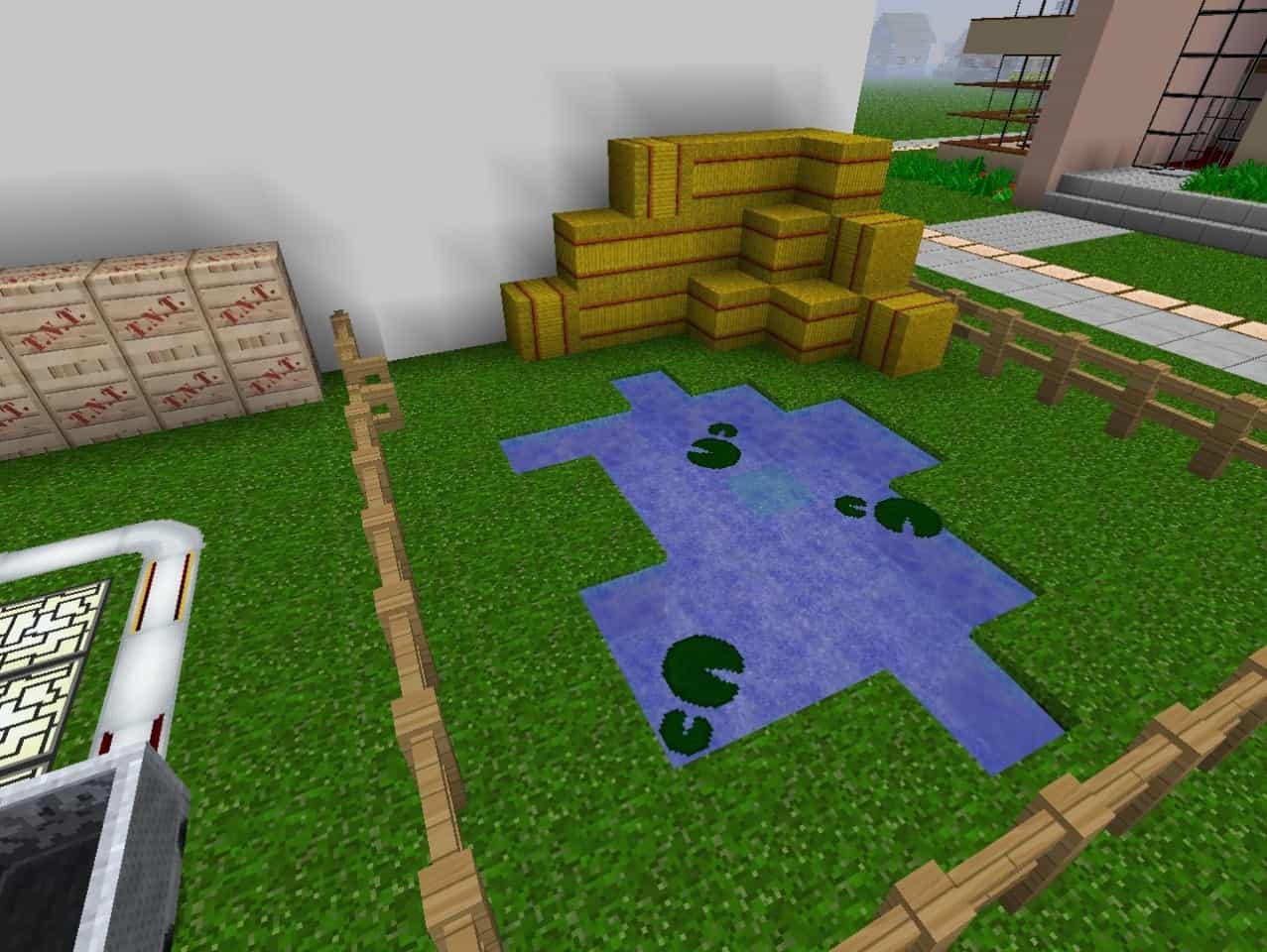
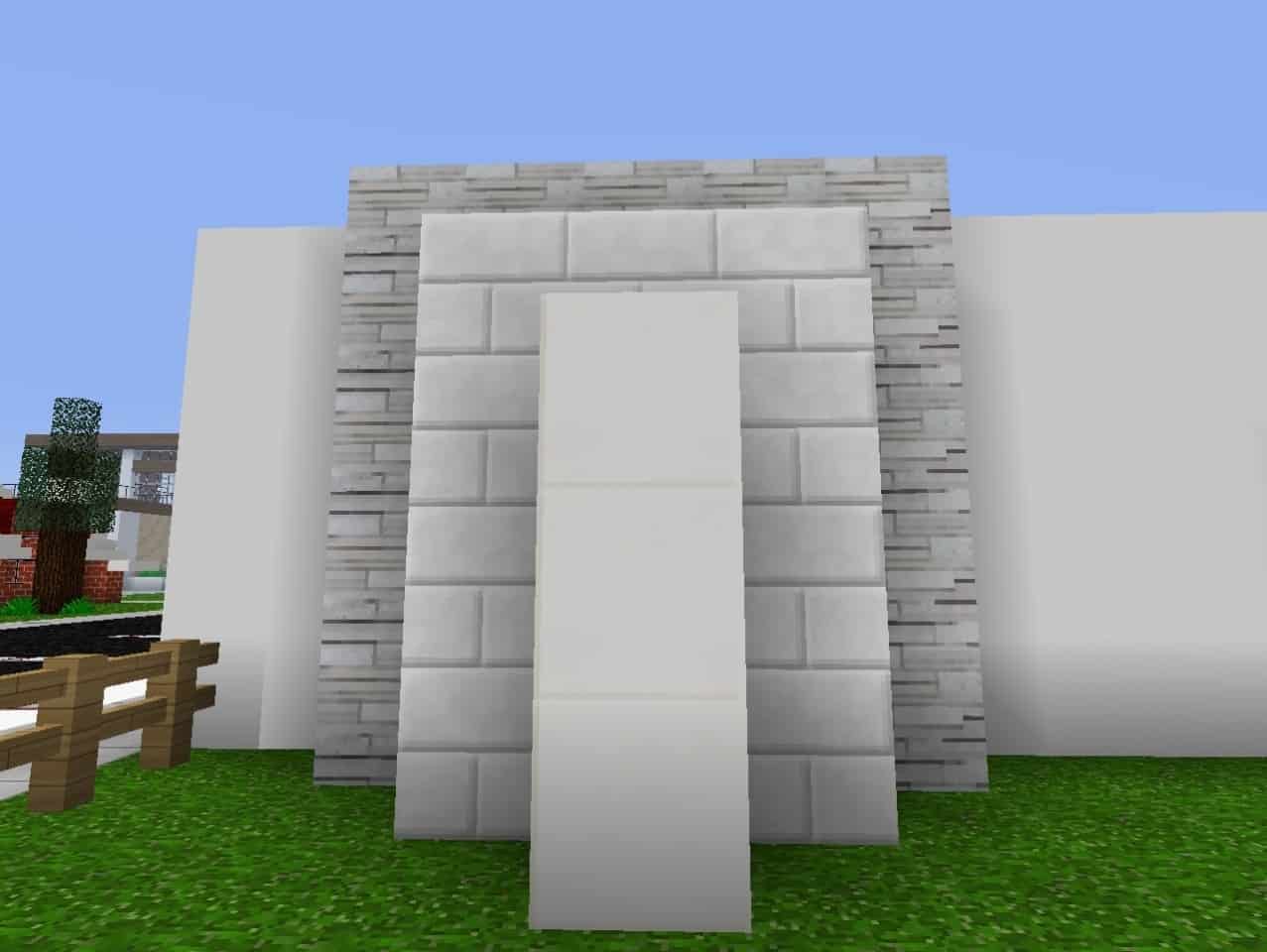
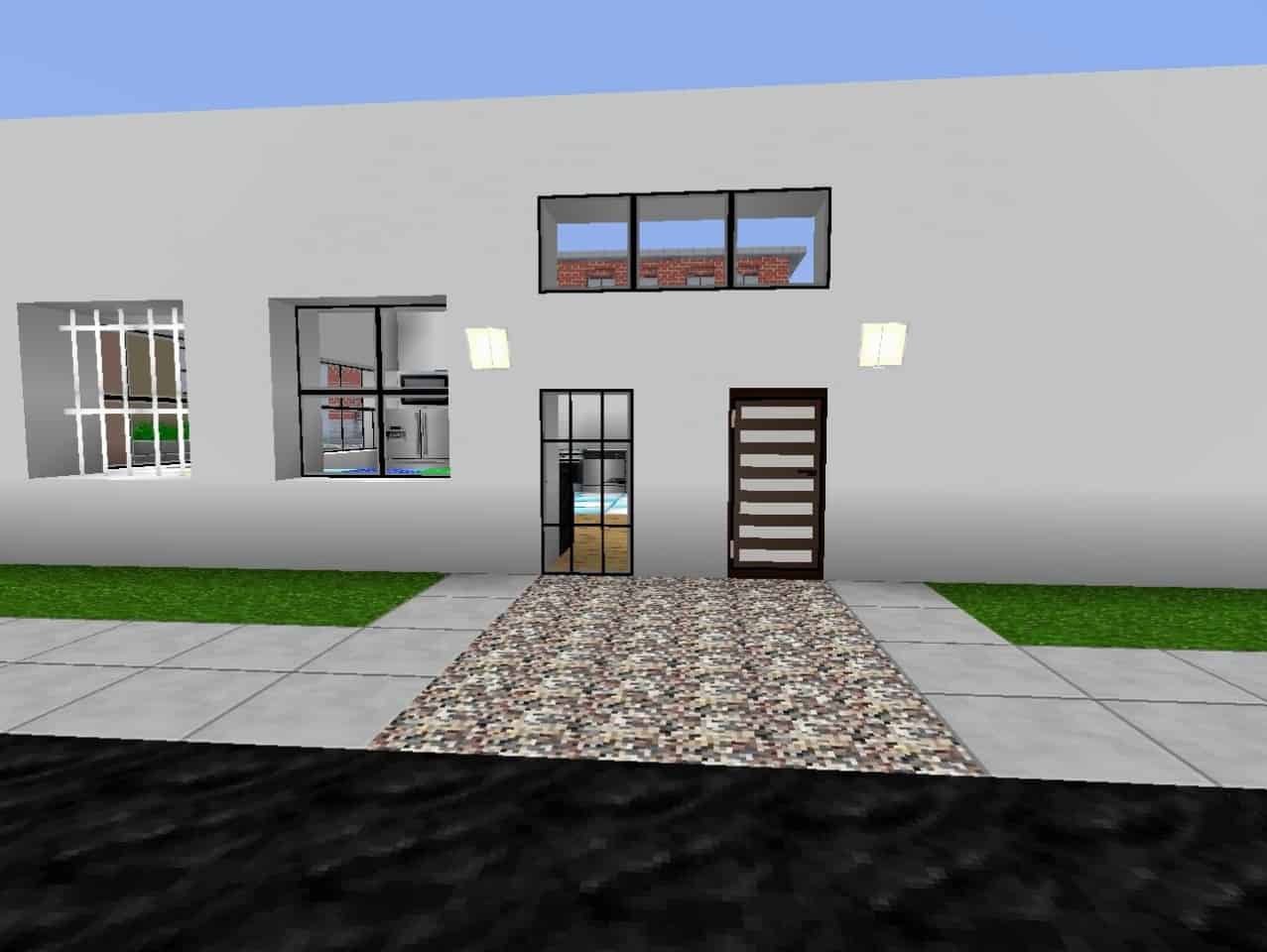
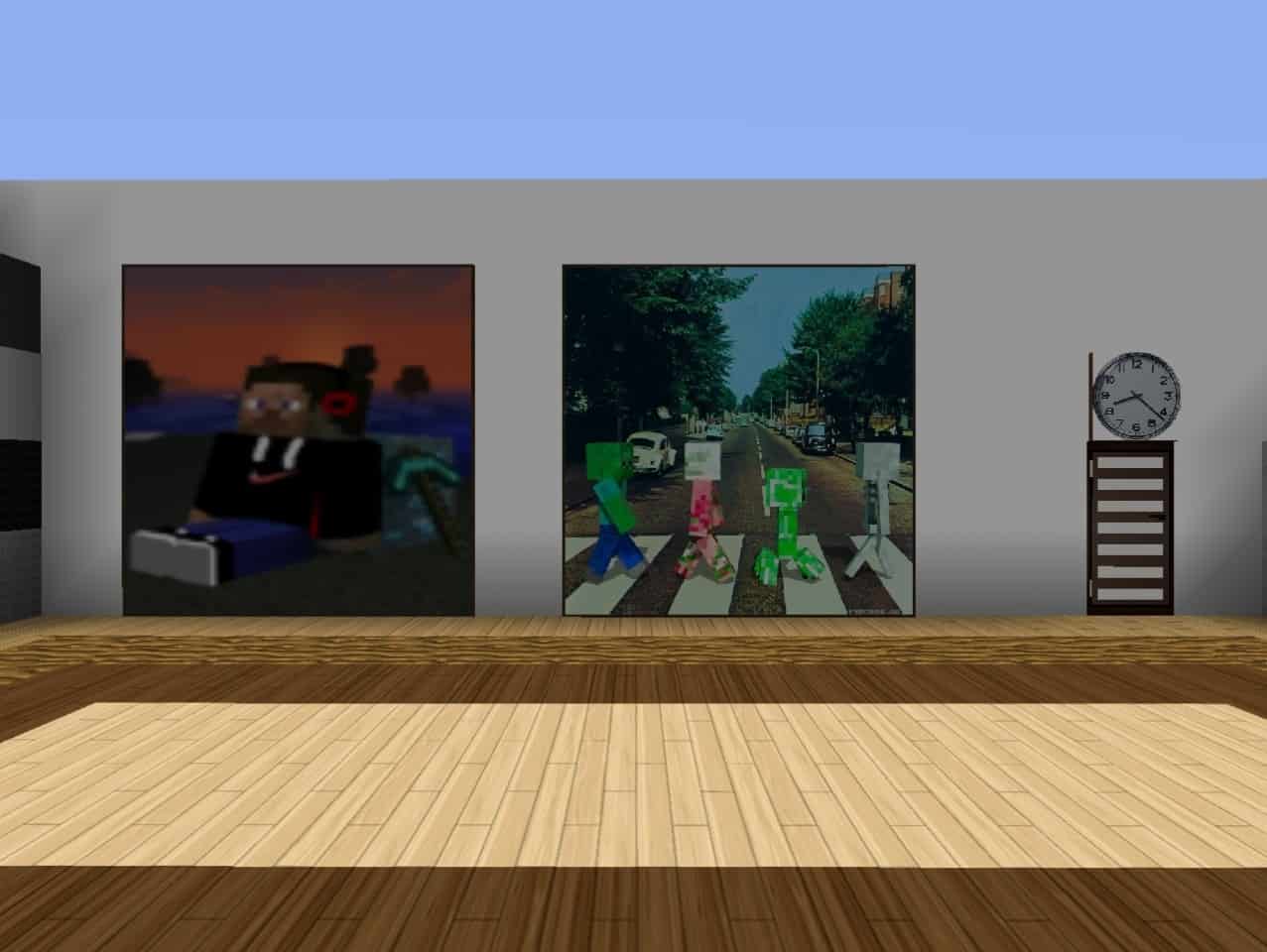
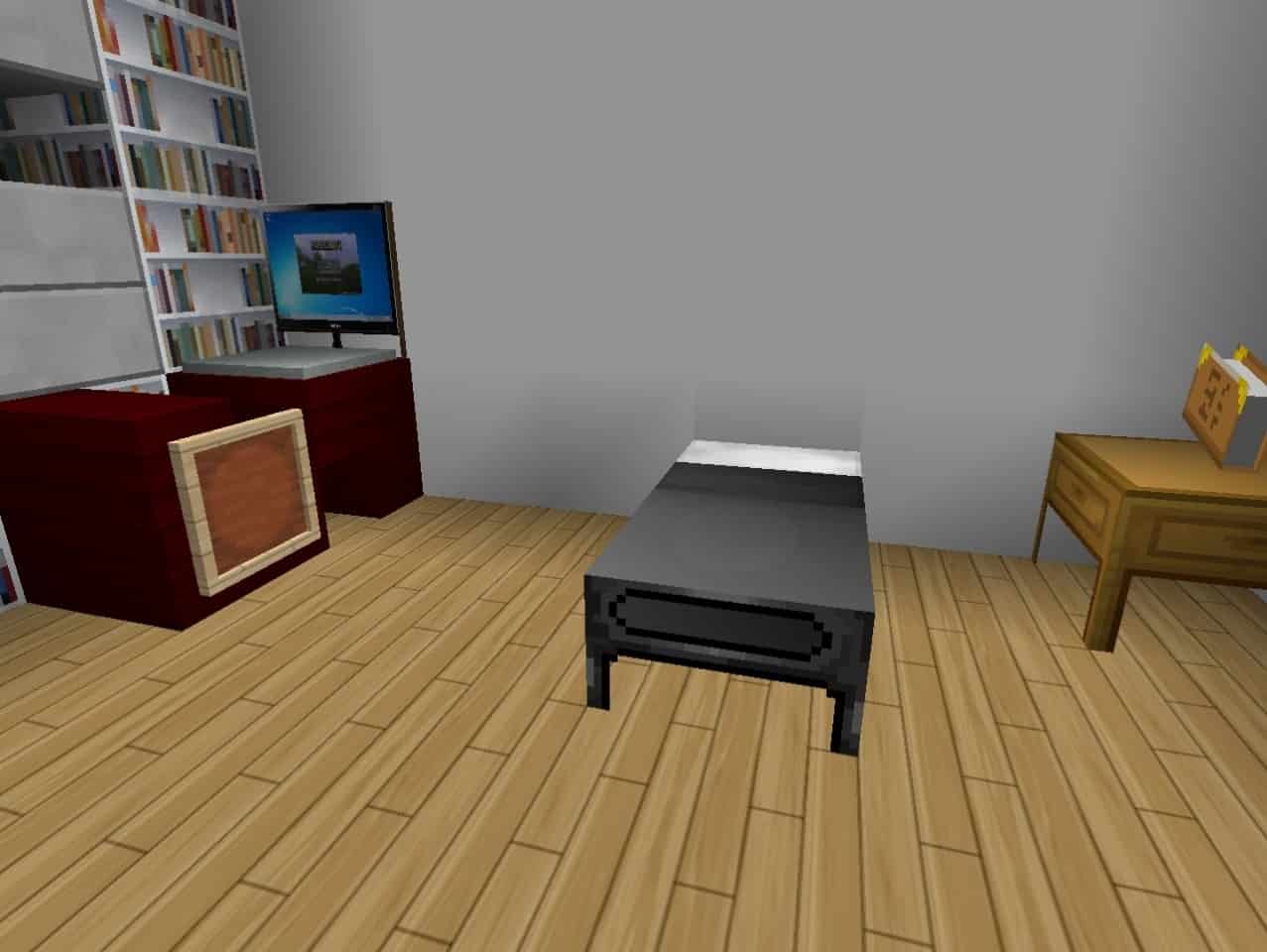
It also brings in a handful of cool new blocks and items that really liven up building. Some of the most notable things you will encounter when installing Hokomoko’s Modern resource pack include electronics like TVs, speakers, and lamps, along with kitchen appliances, vending machines, modern furniture, contemporary flooring, stylish carpets, comfortable sofas, updated bookshelves, modern beds, and brand-new doors and windows. All these brilliant new items let you construct modern houses and spaces inspired by real-world architecture. At the same time, the resource pack leaves everything else untouched. You won’t find altered sky or water textures, the clouds stay the same, and the sun and moon remain as blocky as they have always been. Mobs, flowers, and crops are also completely untouched, while trees, leaves, and most terrain types stick to their vanilla looks. The vast majority of changes center squarely on blocks you can use to build and furnish a modern home, which completely matches the spirit of the title. The game menu and player HUD were left alone as well; tweaking those to match the modern theme might have been nice, but even without them, Hokomoko’s Modern resource pack feels like a breath of fresh air. Considering it dropped over a decade ago when resource packs were much simpler, it holds up nicely. You can easily install Hokomoko’s Modern resource pack with or without Optifine since it avoids special features, letting you use the classic manual method of dropping the zip file into your folder. Performance-wise, this pack runs smoothly without impacting your frame rate thanks to its lightweight 32x resolution, making it nicely PVP-friendly. Just keep in mind that because it hasn’t been updated in a long time, it might not run smoothly on the absolute latest versions of Minecraft.
Hokomoko’s Modern should be compatible with all of these Minecraft versions: 1.8.9 – 1.8.8 – 1.8.1 – 1.8.6 – 1.8 – 1.7.10 – 1.7.9 – 1.7.4 – 1.7
Screenshots




How to Install Texture Pack (Simple 10 Steps)
- Download OptiFine: Most of the texture packs and shaders need OptiFine. That’s why, first download and install OptiFine for the version of Minecraft you want to play.
- Download the Texture Pack: Get the texture pack you want from the download section. Choose the version that works with your Minecraft and your PC’s performance.
- Open Minecraft Launcher: Start Minecraft using the official game launcher — or even TLauncher, if you use that.
- Go to Options: From the main menu, click on the “Options” button.
- Open Resource Packs: Inside Options, click on “Resource Packs…”.
- Open the Resource Pack Folder: Click on “Open Resource Pack Folder” — this will open a folder named “resourcepacks”.
- Move the Pack File: Copy or move the .zip file you downloaded into that “resourcepacks” folder. (Don’t unzip the file — Minecraft uses it as-is!)
- Go Back and Refresh: Close the folder and click “Done”, then go back into “Resource Packs…” again.
- Activate the Pack: You’ll see the pack on the left side. Hover over it and click the arrow to move it to the right (active side).
Tip: If you get a message that the pack is for a different version, just click “Yes” — it usually works fine. - Click Done and Enjoy: Click “Done” again. Now your pack is ready to use in-game. It’s that easy!
Credits
This resource pack was originally created by DaHokomoko. We do not claim ownership of this content, nor have we modified the original files. All rights and credits belong to the original creator. We encourage players to support DaHokomoko and their work.
Download Instructions
Curseforge: download starts automatically after a few seconds;
Mediafire: click the big blue button with the text “DOWNLOAD”;
Google Drive: in the top right corner you will see a small download icon (down arrow), click it and the download should start;