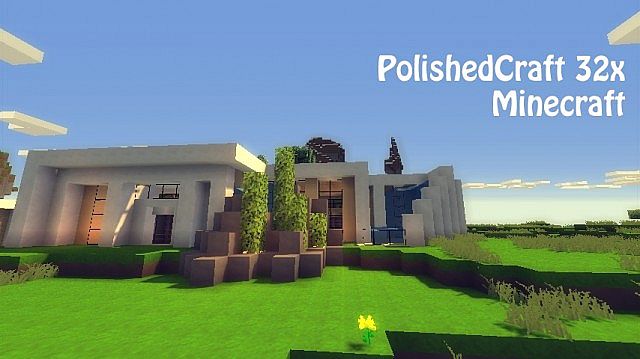
If you are searching for a significantly better, cleaner, smoother, and vastly more polished aesthetic for your Minecraft adventures, I truly think you will find the Polishedcraft resource pack to be a fantastic fit. By simply installing this wonderful resource pack, you can effortlessly transform your overall world to look noticeably more beautiful and modern. I found that the Polishedcraft resource pack is wonderfully suited for both contemporary mega-builds and charming medieval villages alike. For instance, whenever your gameplay focuses on a modern style featuring towering skyscrapers and bustling cities, this pack guarantees a much cleaner and more refined visual presentation. In the exact same manner, you can easily apply this pack to classic themes like medieval towns and rustic farmhouses with stunning results. Overall, I love how the Polishedcraft resource pack successfully eliminates those harsh, jagged, and overly pixelated textures found in the vanilla Minecraft experience. On top of that, it introduces a completely fresh, brilliantly retextured, and thoughtfully redesigned visual overhaul since the pack practically reimagines nearly every existing NPC, mob, block, and graphical user interface element from the standard game.
Furthermore, I am happy to report that all the included textures in this pack are exceptionally well-crafted and visually pleasing, complemented by a gorgeous and vibrant color palette. It is also great to know that this pack is fully available in both 32×32 and 64×64 resolutions to suit your hardware. You can easily install and enjoy the 32×32 version without having to stress about your computer’s performance at all, as I noticed it runs smoothly and never negatively impacts your frame rate. Naturally, the higher-fidelity 64×64 version does require a slightly more capable gaming rig, though you definitely do not need a high-end supercomputer to run it smoothly. As long as you are not playing on a severely outdated or underpowered PC, you should be able to experience it without running into any performance issues. To wrap it all up, the Polishedcraft resource pack genuinely elevates your Minecraft visuals by making everything feel smoother, cleaner, and far more seamless, with the added bonus of flexible 32x and 64x resolution options.
Polishedcraft should be compatible with all of these Minecraft versions: 1.7.10 – 1.7.9 – 1.7.4 – 1.7 – 1.6.4 – 1.6.2
Screenshots
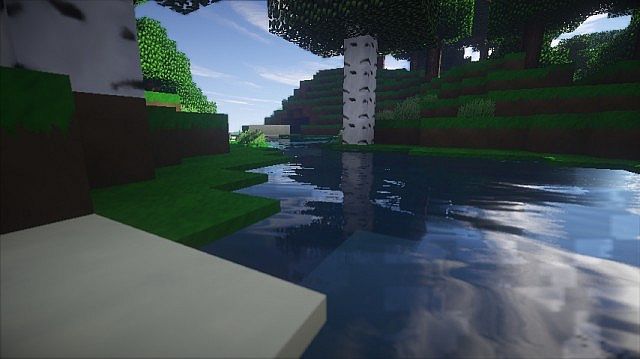
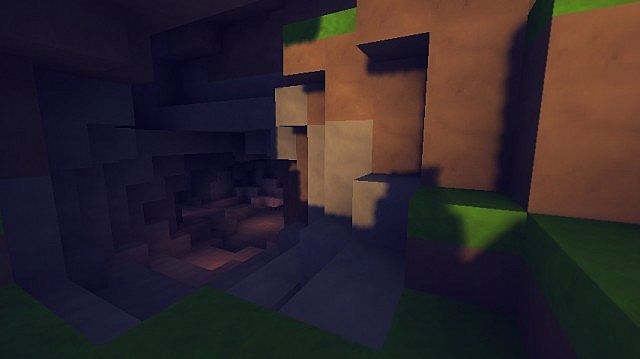
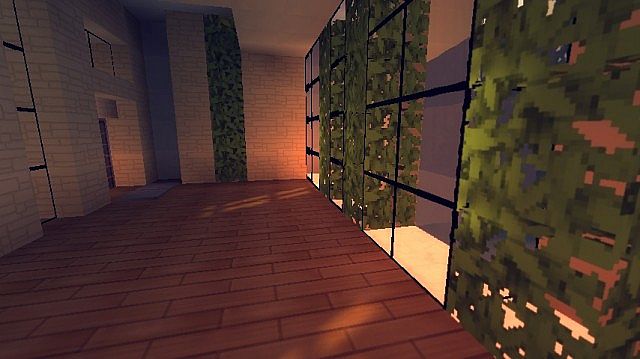
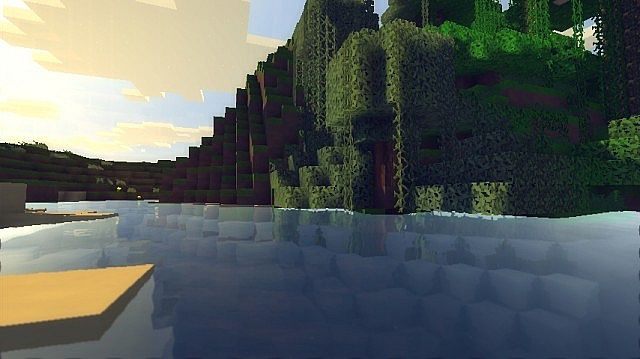
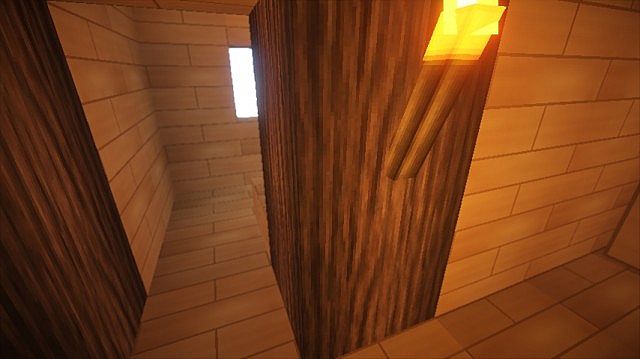
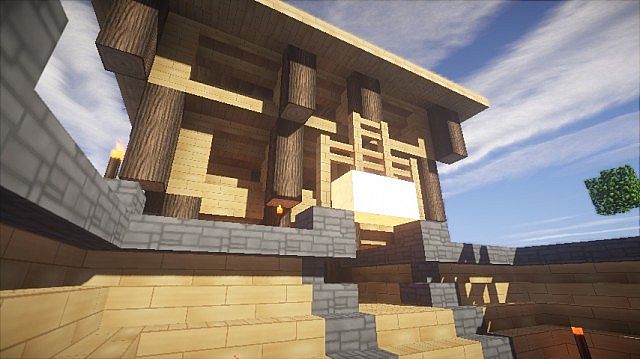
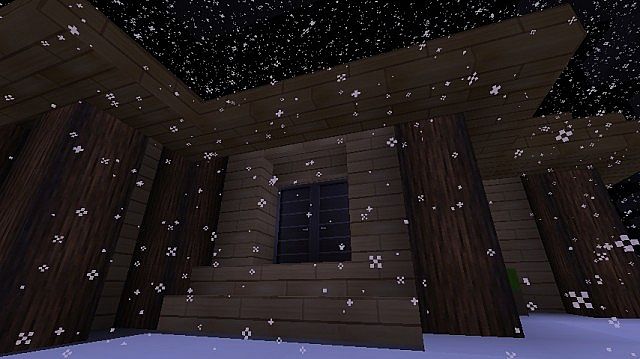
How to Install Texture Pack (Simple 10 Steps)
- Download OptiFine: Most of the texture packs and shaders need OptiFine. That’s why, first download and install OptiFine for the version of Minecraft you want to play.
- Download the Texture Pack: Get the texture pack you want from the download section. Choose the version that works with your Minecraft and your PC’s performance.
- Open Minecraft Launcher: Start Minecraft using the official game launcher — or even TLauncher, if you use that.
- Go to Options: From the main menu, click on the “Options” button.
- Open Resource Packs: Inside Options, click on “Resource Packs…”.
- Open the Resource Pack Folder: Click on “Open Resource Pack Folder” — this will open a folder named “resourcepacks”.
- Move the Pack File: Copy or move the .zip file you downloaded into that “resourcepacks” folder. (Don’t unzip the file — Minecraft uses it as-is!)
- Go Back and Refresh: Close the folder and click “Done”, then go back into “Resource Packs…” again.
- Activate the Pack: You’ll see the pack on the left side. Hover over it and click the arrow to move it to the right (active side).
Tip: If you get a message that the pack is for a different version, just click “Yes” — it usually works fine. - Click Done and Enjoy: Click “Done” again. Now your pack is ready to use in-game. It’s that easy!
Credits
Credits to tombi101112 for creating the Polishedcraft resource pack. All rights to the original assets belong to the original author. We do not claim ownership of this content and do not host modified versions of these files. We encourage users to support the creator by downloading directly from the official sources.
Download Instructions
Curseforge: download starts automatically after a few seconds;
Mediafire: click the big blue button with the text “DOWNLOAD”;
Google Drive: in the top right corner you will see a small download icon (down arrow), click it and the download should start;