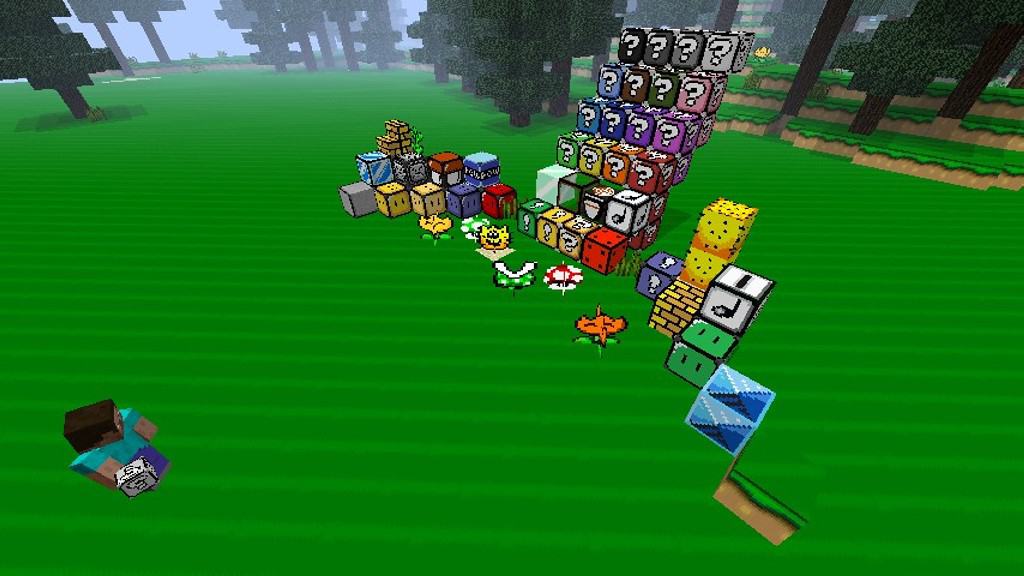
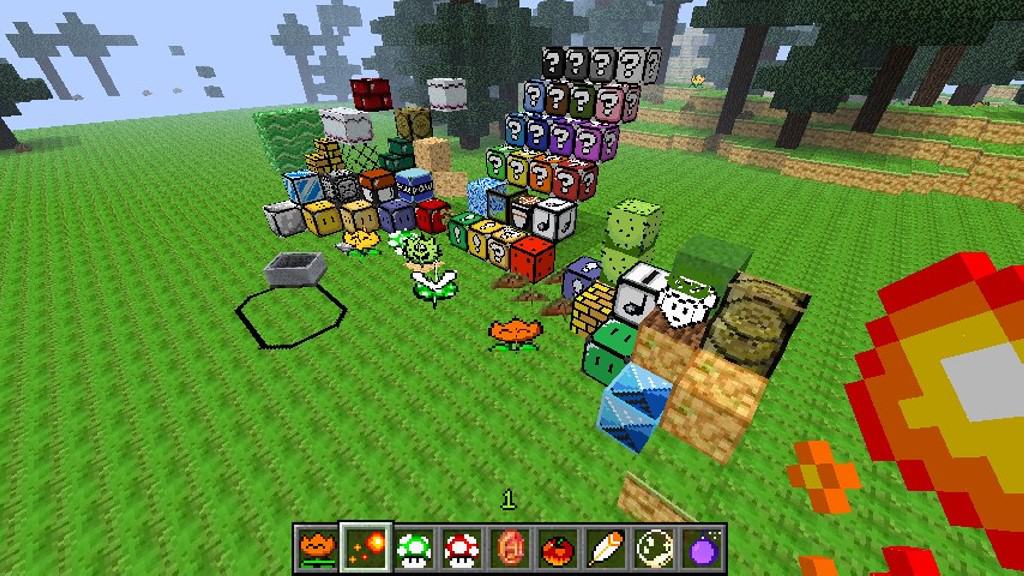
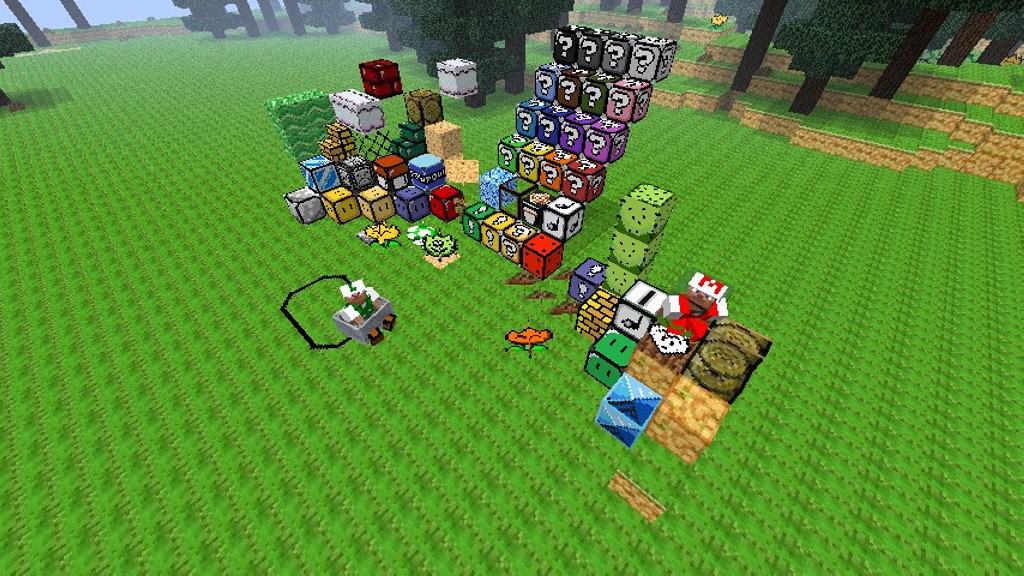
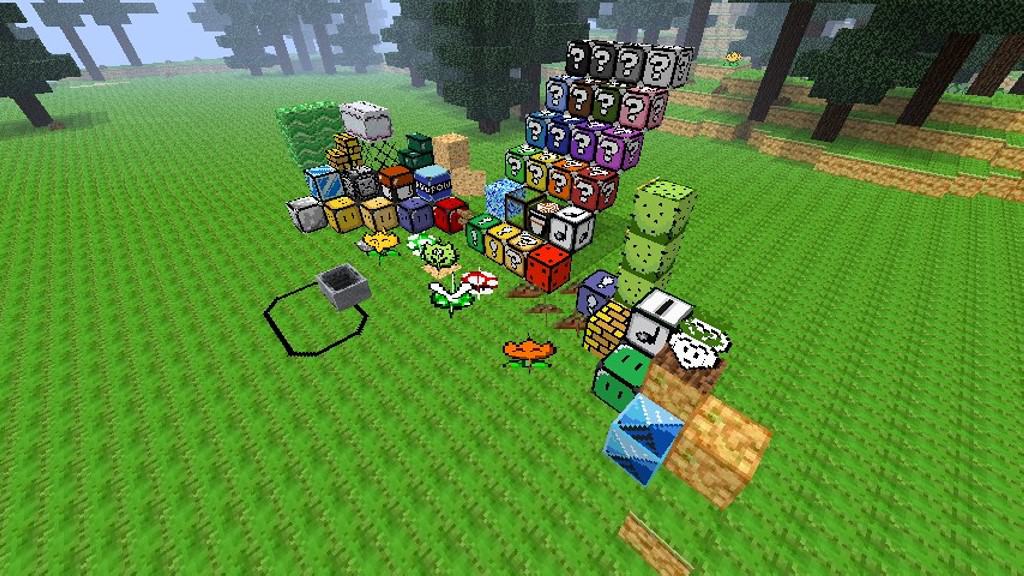
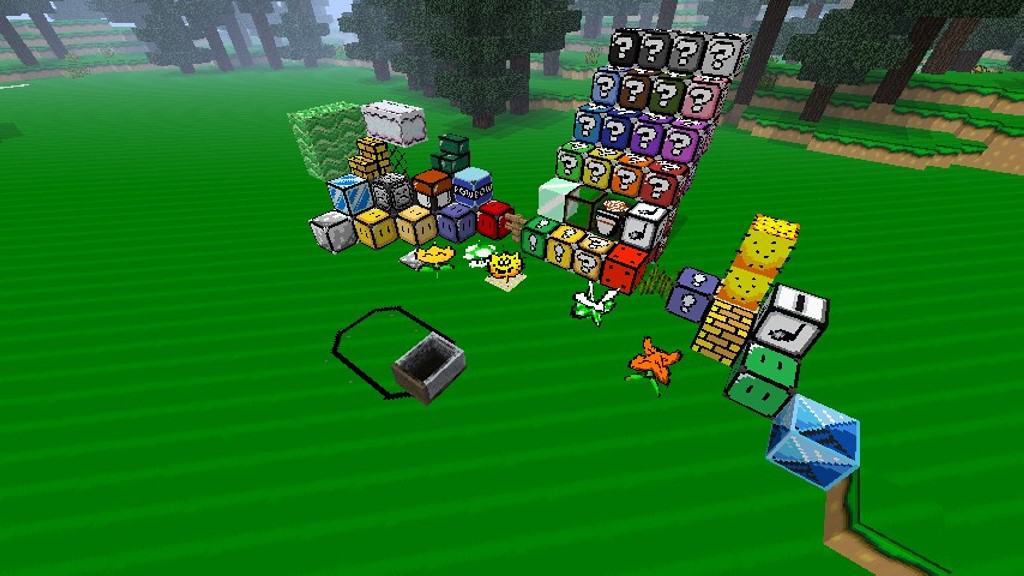
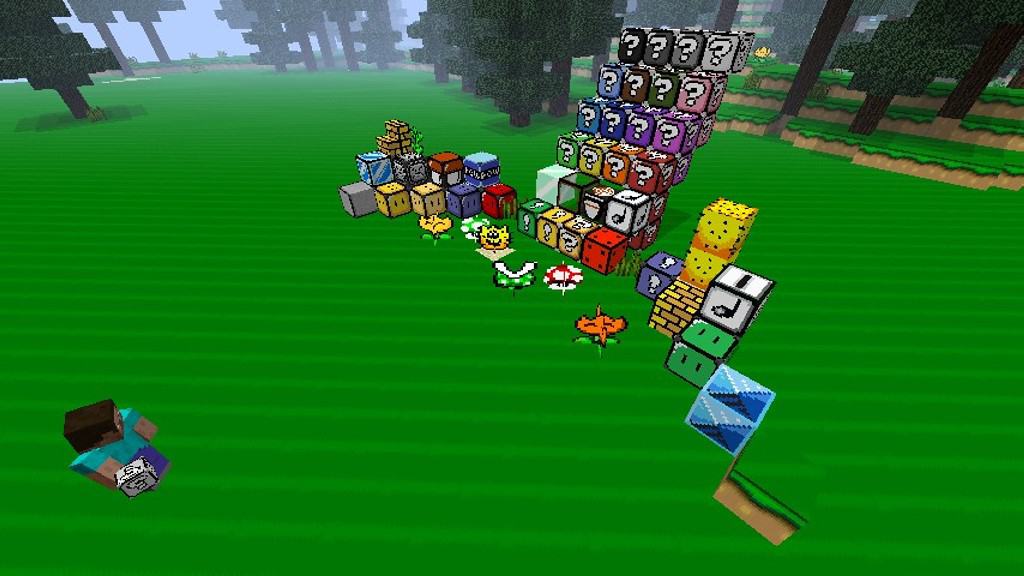
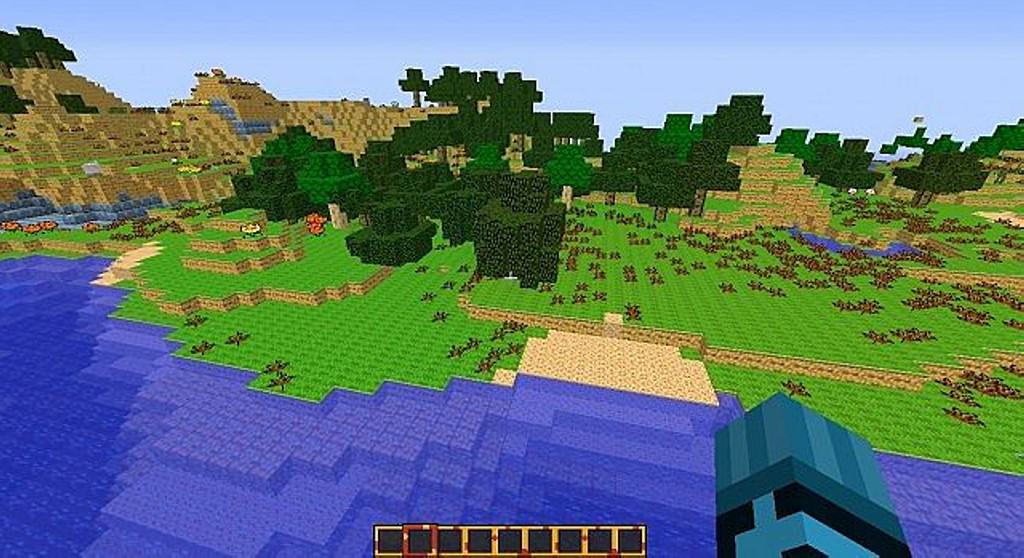
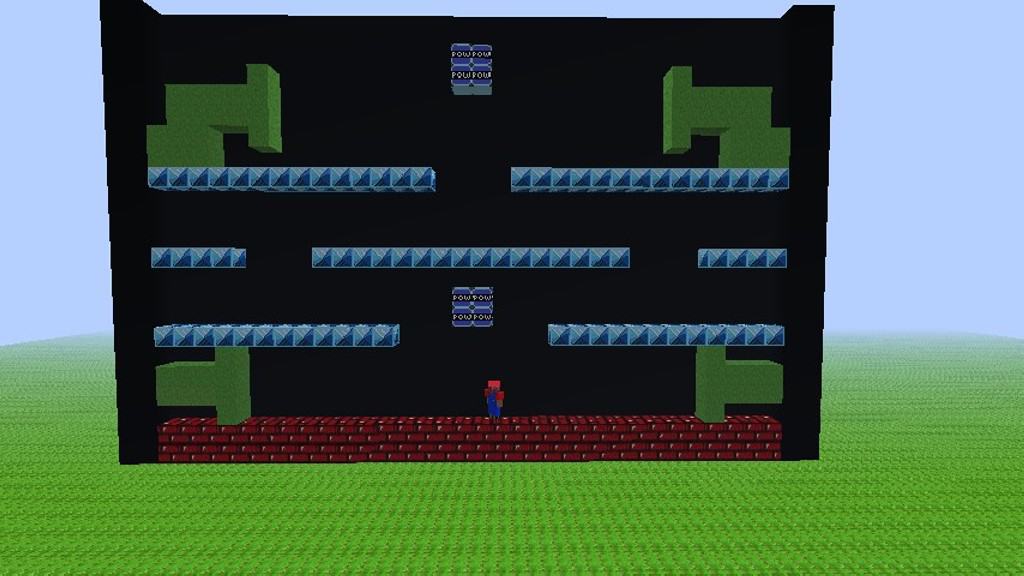
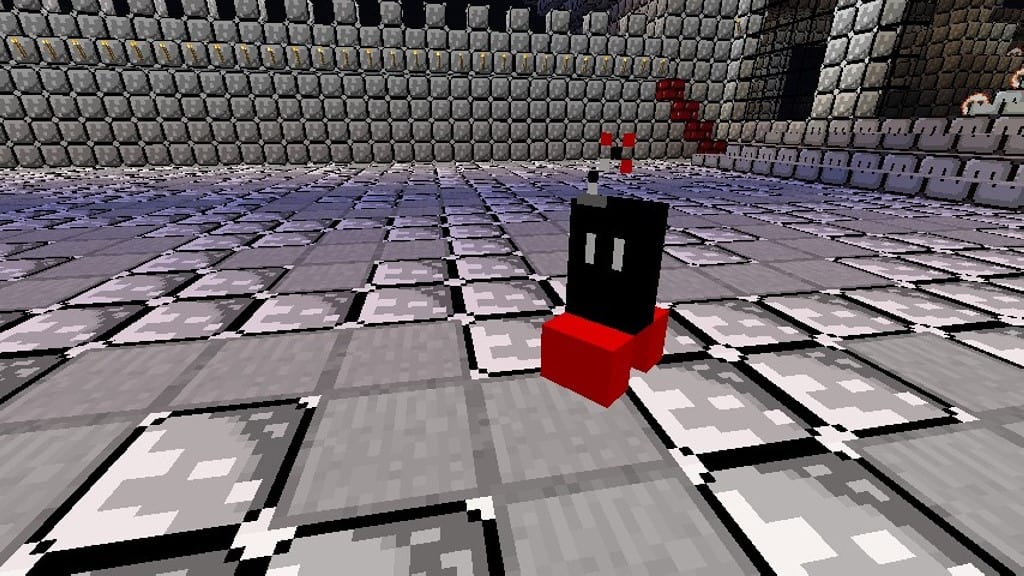
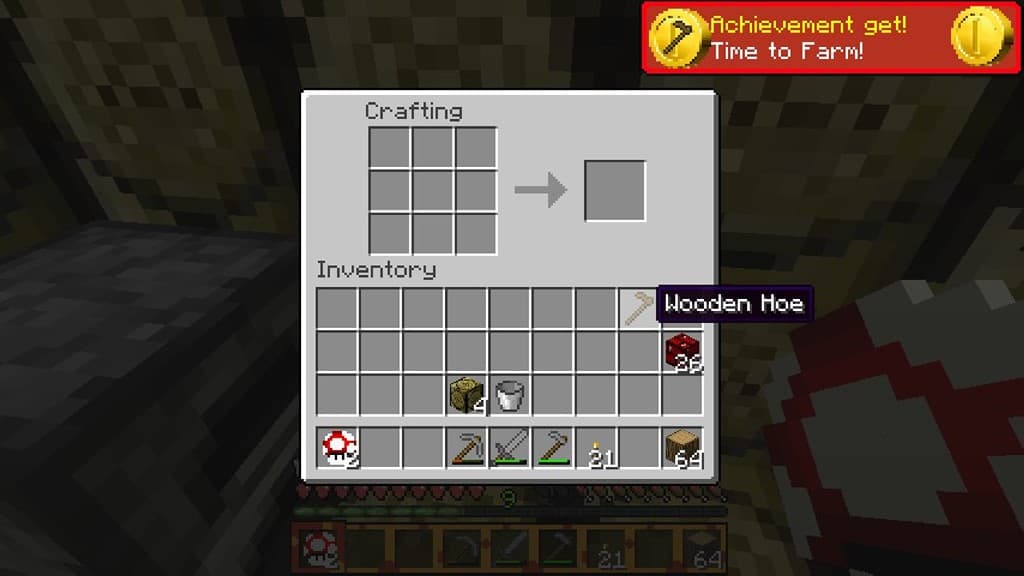
Creating a Mario-inspired resource pack is not considered very creative, and it is certainly not something that has not been done before. Many resource packs were made around the same theme, but I found that the Project Mario Hand-Drawn resource pack is genuinely one of the first ones to really nail it. Released close to a decade ago, I had so much fun testing it, and it still offers a wonderfully nostalgic twist to vanilla Minecraft. As the name states, the resource pack adds textures that are drawn manually by the creator, which I think is nothing short of impressive considering how many textures were actually changed. There are amazing new textures for paintings featuring characters from the game, completely redesigned textures for trees, plants, floor tiles, brand new water textures, and so much more. You will find a lot of new blocks that are made to be exactly like the ones in the iconic game, and there are even new blocks that cleverly mimic the clouds from various Mario titles.
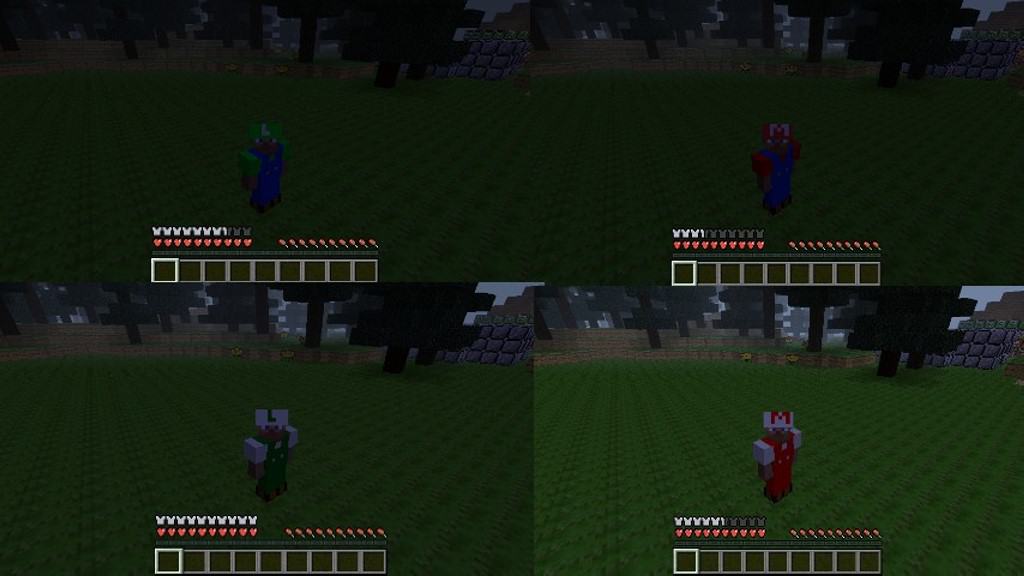
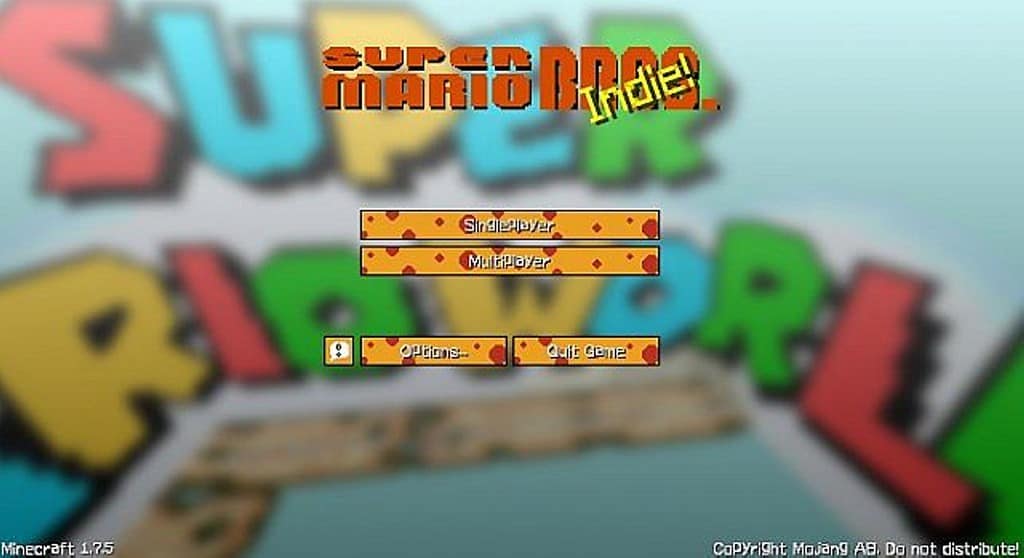
All these new textures and blocks truly make it possible to create custom worlds that resemble actual levels from Mario, which blew my mind when I built my first themed stage. Even the mobs were changed to match the game, and now you can easily find them roaming around in Minecraft using the Project Mario Hand-Drawn resource pack. I really love how the main menu and player GUI have also been updated to feel much more joyful. The main menu now greets you with vibrant yellow buttons featuring red spots, while the crafting screen now sports a neat light gray color. Lastly, another important change was done to player textures, allowing you to select a model that is inspired by Mario games or even play as Mario himself. I noticed that the models are not overwhelmingly detailed since the textures are rendered in a crisp 16x resolution, which is the exact default resolution of vanilla Minecraft. In my experience, this translates into exceptionally smooth game performance with absolutely zero noticeable framerate drops.
Project Mario-Hand Drawn should be compatible with all of these Minecraft versions: 1.7.10 – 1.7.9 – 1.7.4 – 1.7 – 1.6.4 – 1.6.2
Screenshots
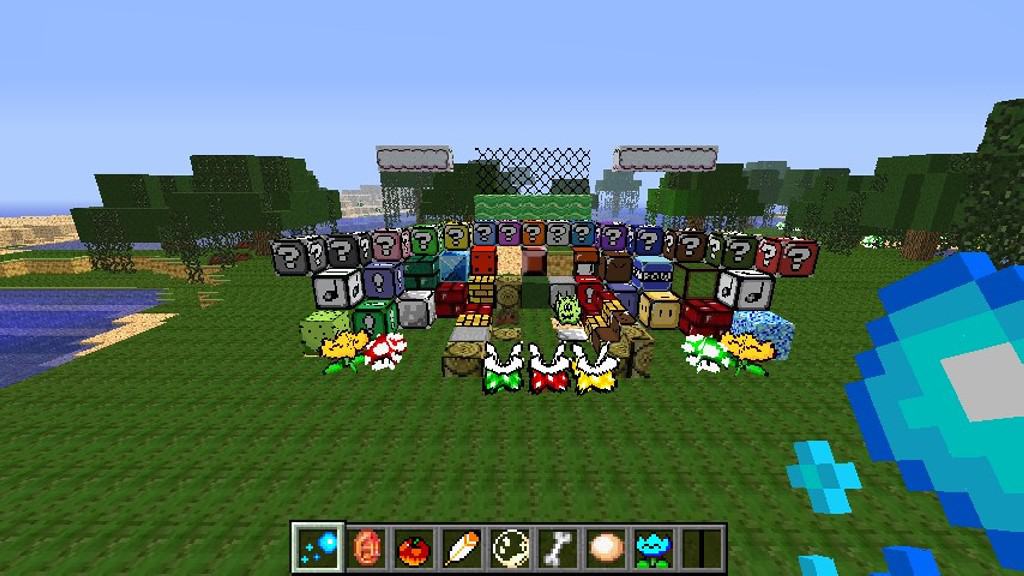
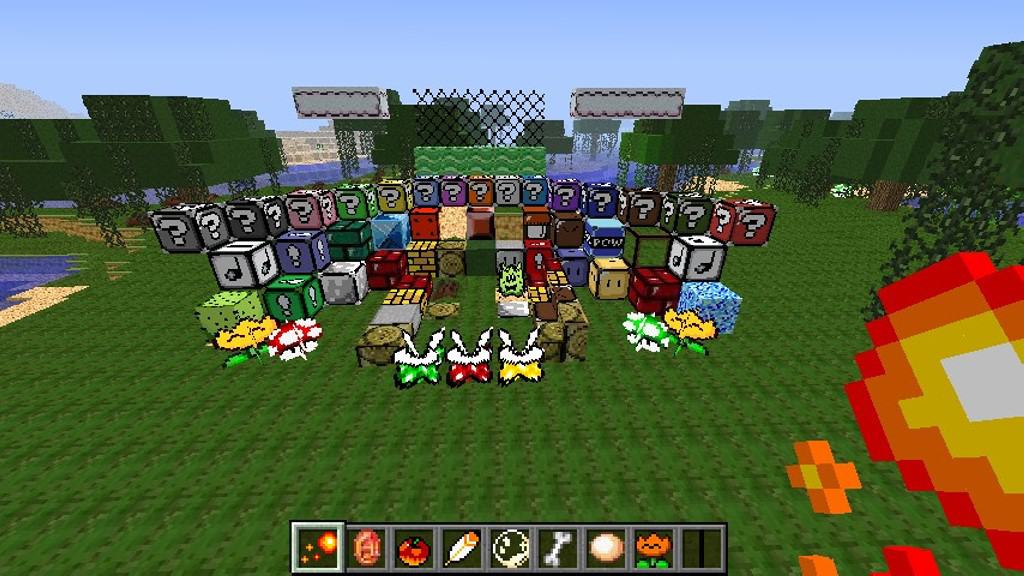
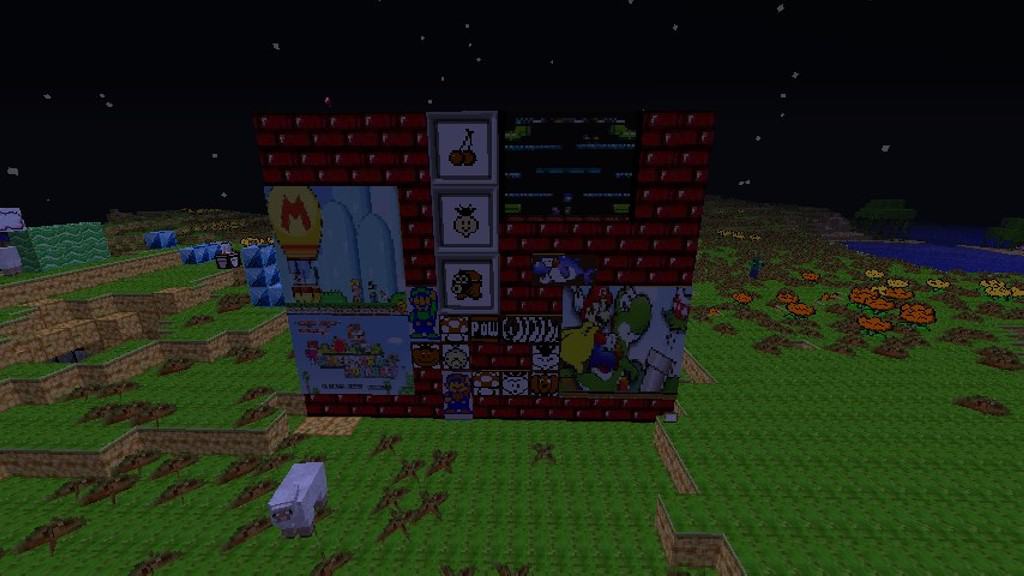
How to Install Texture Pack (Simple 10 Steps)
- Download OptiFine: Most of the texture packs and shaders need OptiFine. That’s why, first download and install OptiFine for the version of Minecraft you want to play.
- Download the Texture Pack: Get the texture pack you want from the download section. Choose the version that works with your Minecraft and your PC’s performance.
- Open Minecraft Launcher: Start Minecraft using the official game launcher — or even TLauncher, if you use that.
- Go to Options: From the main menu, click on the “Options” button.
- Open Resource Packs: Inside Options, click on “Resource Packs…”.
- Open the Resource Pack Folder: Click on “Open Resource Pack Folder” — this will open a folder named “resourcepacks”.
- Move the Pack File: Copy or move the .zip file you downloaded into that “resourcepacks” folder. (Don’t unzip the file — Minecraft uses it as-is!)
- Go Back and Refresh: Close the folder and click “Done”, then go back into “Resource Packs…” again.
- Activate the Pack: You’ll see the pack on the left side. Hover over it and click the arrow to move it to the right (active side).
Tip: If you get a message that the pack is for a different version, just click “Yes” — it usually works fine. - Click Done and Enjoy: Click “Done” again. Now your pack is ready to use in-game. It’s that easy!
Credits
Project Mario-Hand Drawn Resource Pack was originally developed and created by UF-Ezio. We do not claim ownership of this content, nor do we host modified versions of the files. We fully respect the original creator and encourage the community to support UF-Ezio by visiting their official release channels and download links.
Download Instructions
Curseforge: download starts automatically after a few seconds;
Mediafire: click the big blue button with the text “DOWNLOAD”;
Google Drive: in the top right corner you will see a small download icon (down arrow), click it and the download should start;


