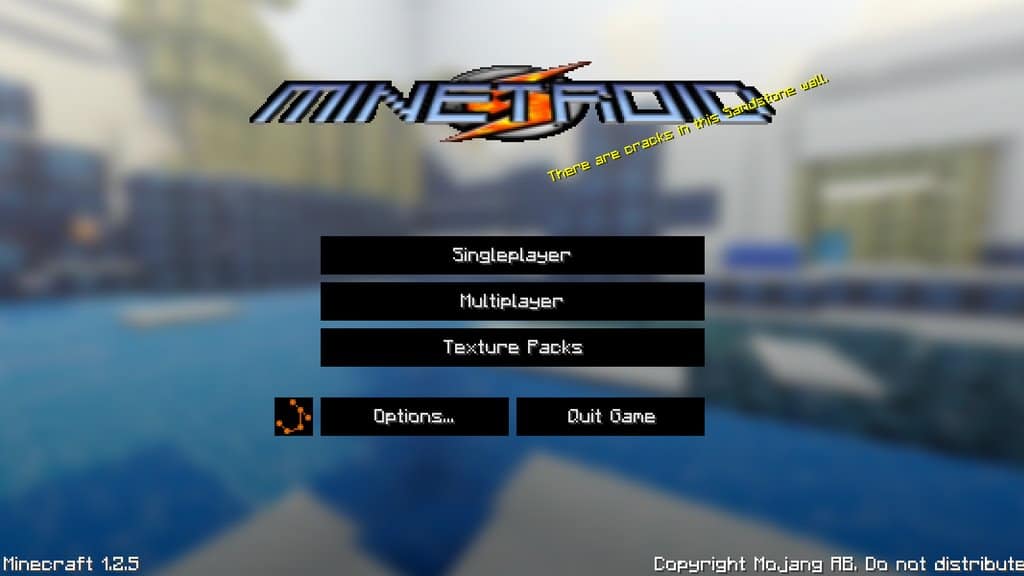
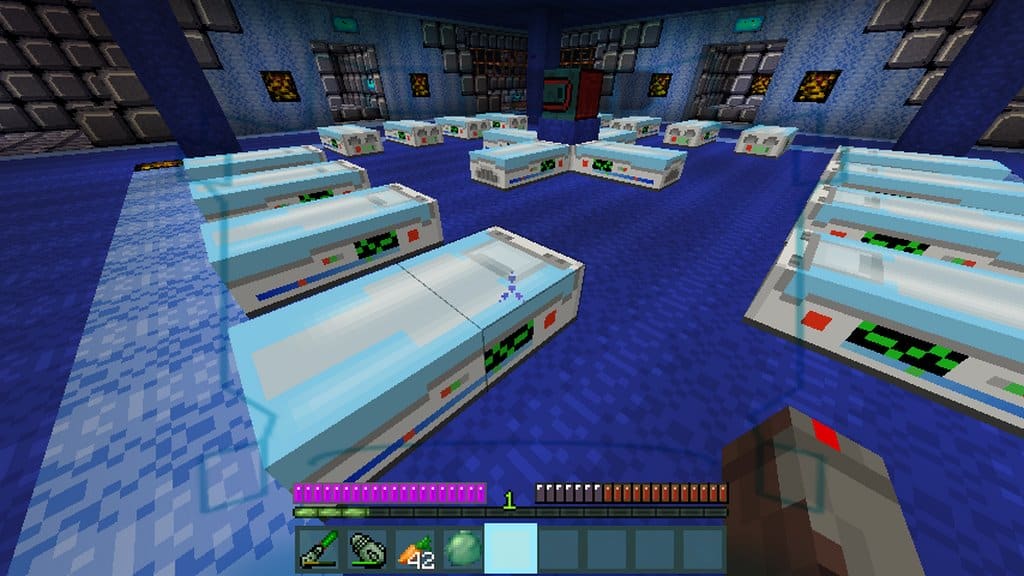
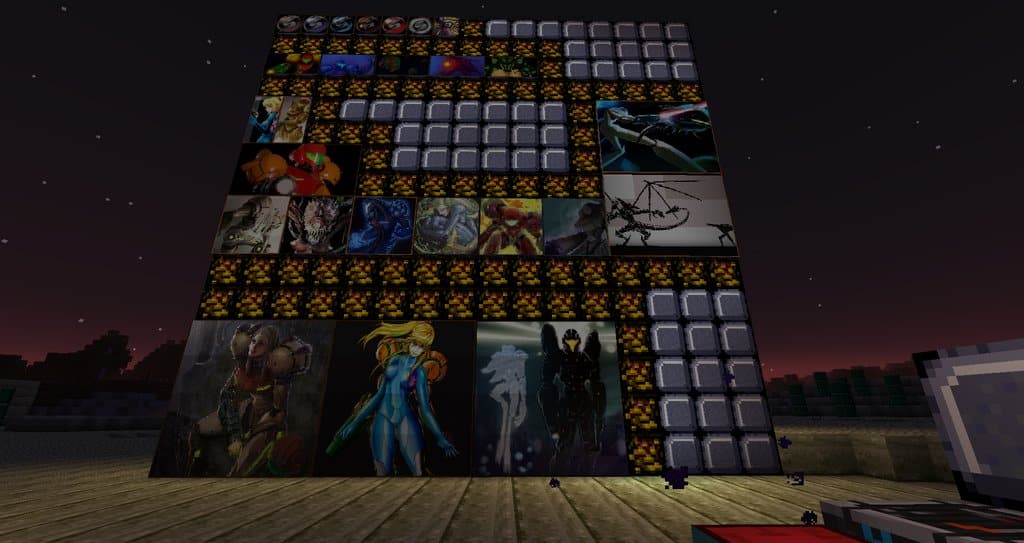
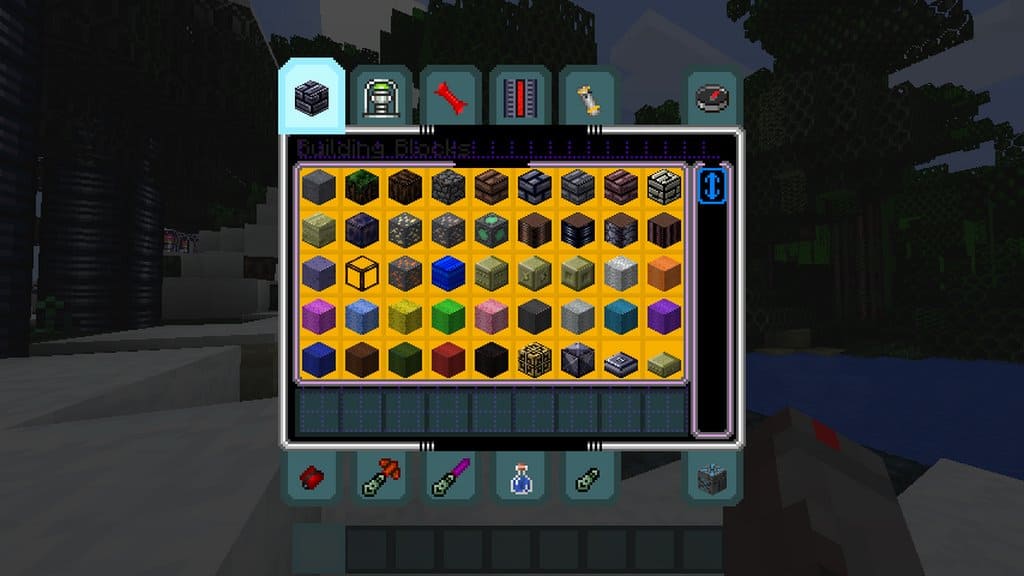
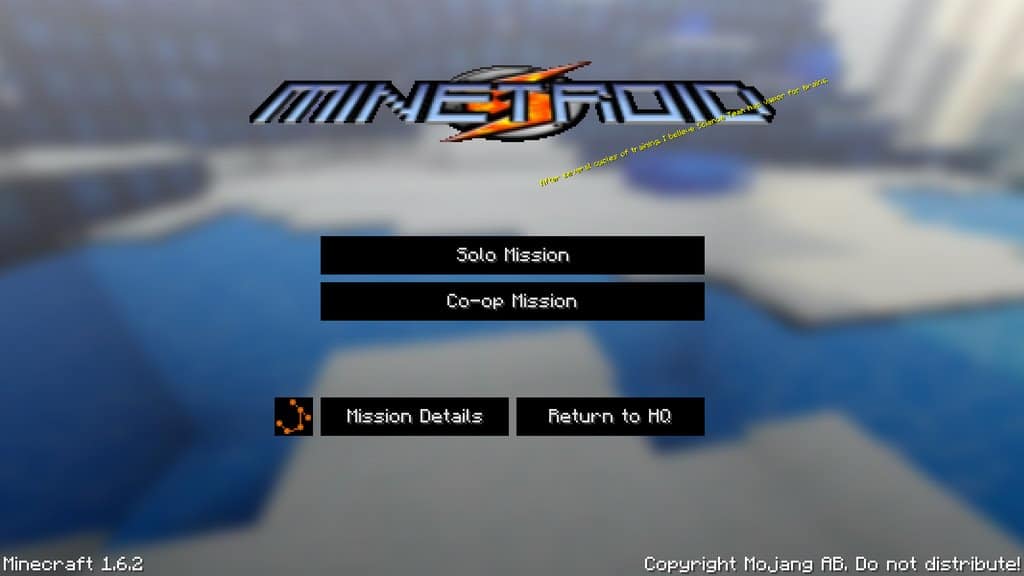
As you can probably guess by its name, the Minetroid resource pack brilliantly tries to implement some of the elements of the Metroid games—a wildly popular franchise made by Nintendo—and bring them directly into the Minecraft world. The highly acclaimed series, whose main protagonist is a space bounty hunter by the name of Samus Aran, has reached worldwide fame and gained the affection of millions of fans. With more than 11 installments and various character models, the prerequisites for a high-end resource pack are more than favorable. Similarly to Minecraft, the franchise is adventure-based with a heavy focus on exploration. There have been numerous different attempts to bring Metroid’s atmosphere and overall feel to Minecraft, but I think none of them come close to the level of detail that Minetroid is able to provide. The space-themed textures have a grainy, almost futuristic feel and give off an incredible robotic vibe.
It manages to replicate a duller ambiance perfectly, which is exactly what a resource pack of this caliber should strive towards. I found it hard to imagine that the old-fashioned feel of Metroid would fit Minecraft, but Minetroid manages to pull it off flawlessly. You’d be hard-pressed to find any element of the game that isn’t overhauled by some aspect of this timeless classic, including mobs, weapons, tools, armor, items, and more. A surprisingly neat addition is the recreation of Visor’s HUD from Metroid Prime—it activates as soon as you put a pumpkin on your helmet slot. However, since Minetroid is only a resource pack, the HUD is simply a visual attraction. Best of all, I noticed that all these features won’t cost you a single frame drop; believe it or not, the textures of Minetroid come at the exact same dimensions as that of the original resource pack at 16×16. As long as your PC can handle the vanilla game, you’ll have no trouble battling Golems, Space Pirates, Ings, and other baddies that come your way.
Minetroid should be compatible with all of these Minecraft versions: 1.8.9 – 1.8.8 – 1.8.1 – 1.8.6 – 1.8 – 1.7.10 – 1.7.9 – 1.7.4 – 1.7 – 1.5.2
Screenshots
How to Install Texture Pack (Simple 10 Steps)
- Download OptiFine: Most of the texture packs and shaders need OptiFine. That’s why, first download and install OptiFine for the version of Minecraft you want to play.
- Download the Texture Pack: Get the texture pack you want from the download section. Choose the version that works with your Minecraft and your PC’s performance.
- Open Minecraft Launcher: Start Minecraft using the official game launcher — or even TLauncher, if you use that.
- Go to Options: From the main menu, click on the “Options” button.
- Open Resource Packs: Inside Options, click on “Resource Packs…”.
- Open the Resource Pack Folder: Click on “Open Resource Pack Folder” — this will open a folder named “resourcepacks”.
- Move the Pack File: Copy or move the .zip file you downloaded into that “resourcepacks” folder. (Don’t unzip the file — Minecraft uses it as-is!)
- Go Back and Refresh: Close the folder and click “Done”, then go back into “Resource Packs…” again.
- Activate the Pack: You’ll see the pack on the left side. Hover over it and click the arrow to move it to the right (active side).
Tip: If you get a message that the pack is for a different version, just click “Yes” — it usually works fine. - Click Done and Enjoy: Click “Done” again. Now your pack is ready to use in-game. It’s that easy!
Credits
This resource pack was created by Dr_Tizzle. We do not claim ownership of this content, nor have we modified the original files. All rights belong to the original author, and we strongly encourage you to support Dr_Tizzle by downloading the pack from the official channels.
Download Links
Java Edition
Download Instructions
Curseforge: download starts automatically after a few seconds;
Mediafire: click the big blue button with the text “DOWNLOAD”;
Google Drive: in the top right corner you will see a small download icon (down arrow), click it and the download should start;


