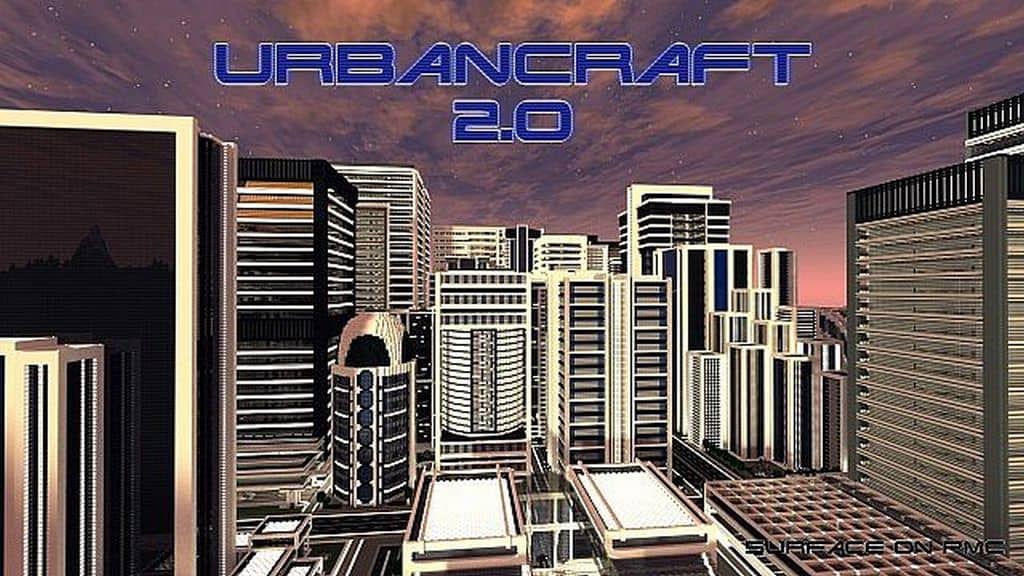
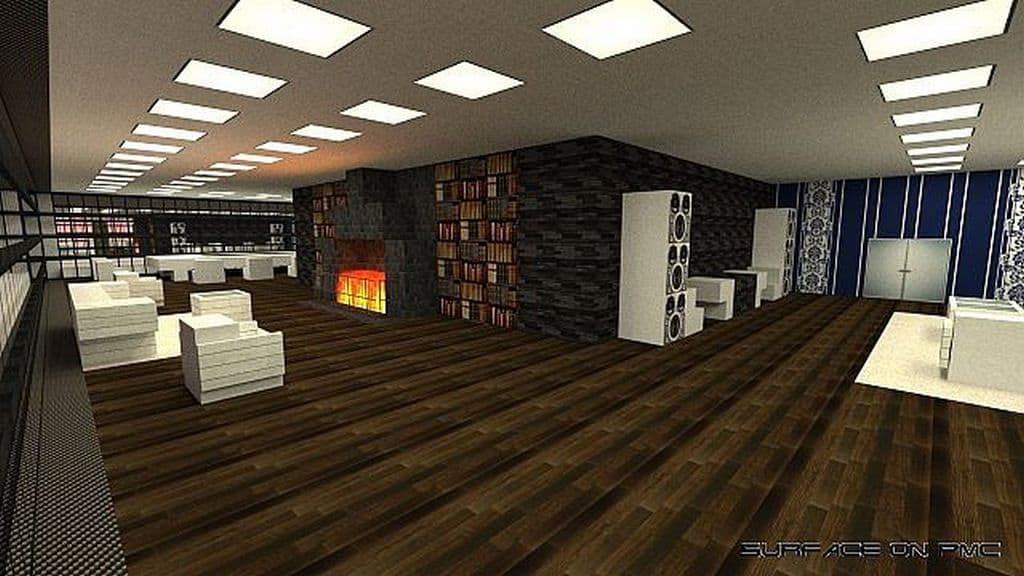
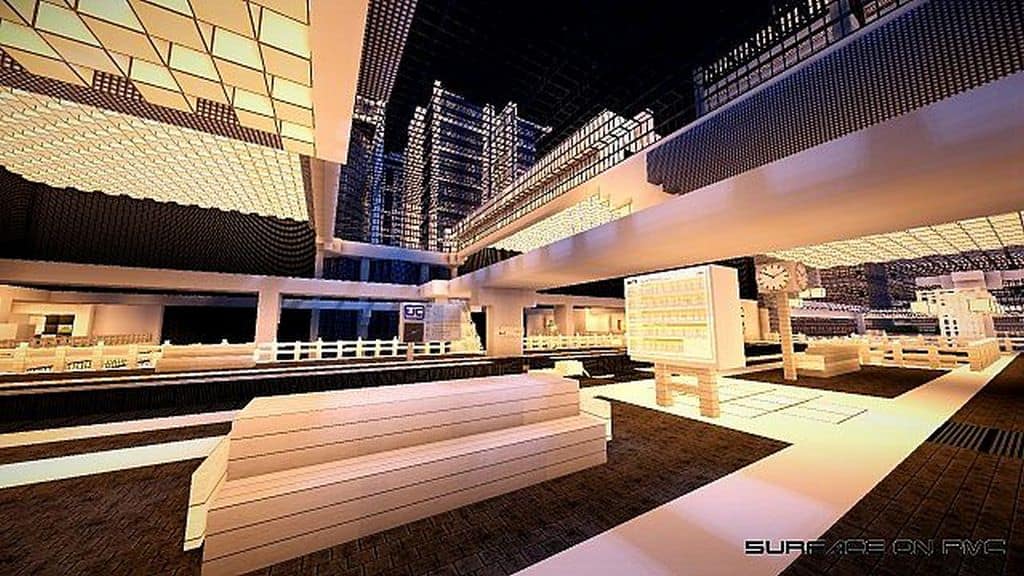
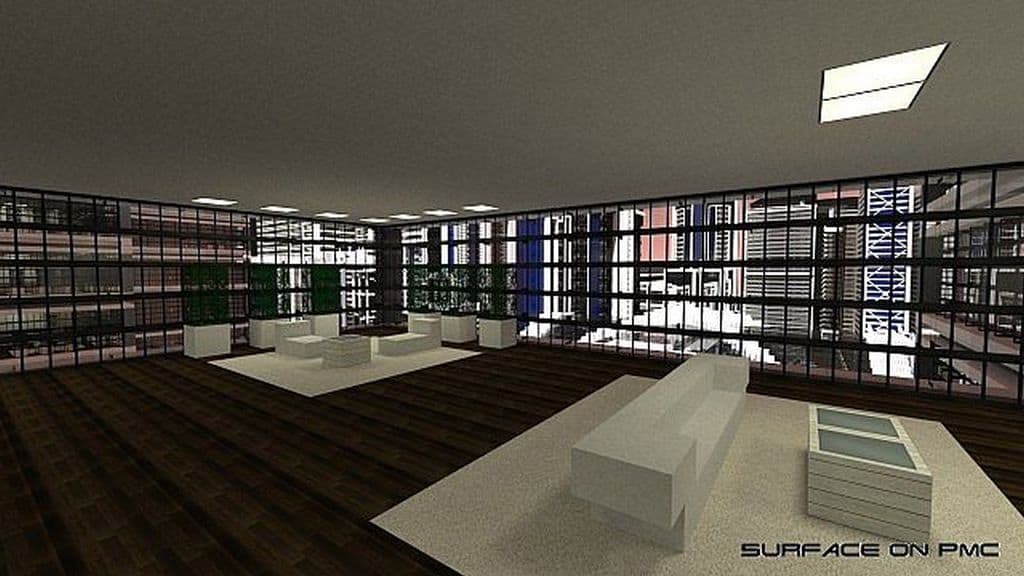
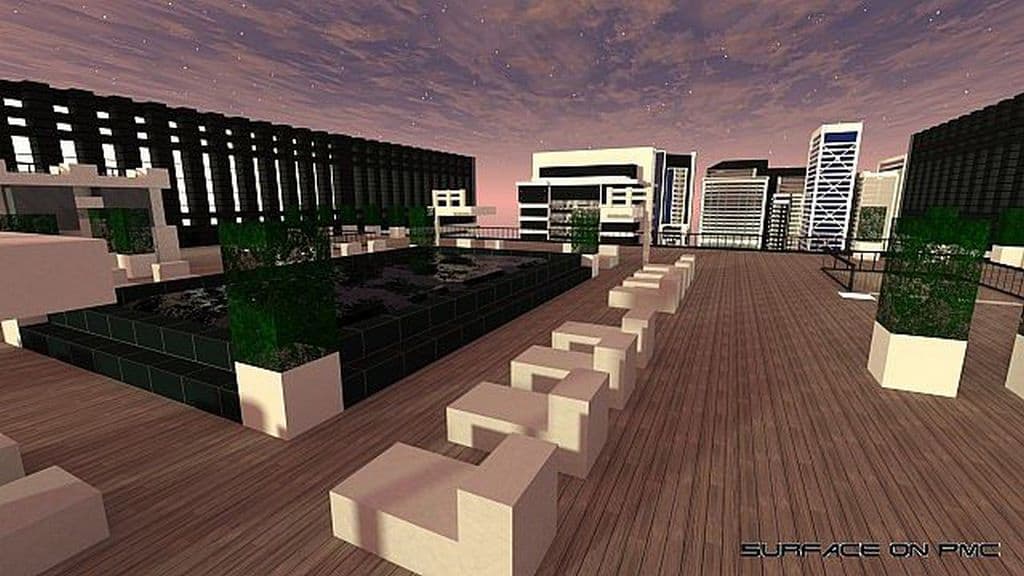
Designing a resource pack for Minecraft is certainly not just for experts, as anyone armed with graphic design or pixel editor software truly has the potential to craft something amazing. But why bother putting in all those hours when you have incredible access to something like the Urbancraft 2.0 resource pack? Urbancraft 2.0 is a remarkably high-resolution resource pack that genuinely makes urban landscapes come to life. Boasting an astonishing resolution of 256x, it sits heads and shoulders far above the competition. Most other resource packs out there are 128x or lower, with plenty of standard ones coming in at a humble 16x. While a lighter 128x version of Urbancraft is also available, I honestly found the 256x variant to be by far the absolute best choice. The staggering level of detail combined with the sharp, clean lines are truly an urban planner’s absolute dream come true. Even though Urbancraft 2.0 is simply awesome to look at, it does have a few unique quirks to keep in mind. Unlike most typical resource packs, Urbancraft 2.0 was specifically designed for a competitive contest where the main challenge was simply to create the most modern-looking resource pack possible.
Because of its competitive origins, the primary development focus was squarely placed on aesthetics for creative gameplay rather than practical usability in survival mode. Urbancraft 2.0 generates ultra-realistic visuals during creative play, but it definitely won’t be the best set of textures if you are trying to tackle a traditional survival gameplay session. Let’s be completely honest, there are not many modern-day resource packs that can genuinely compare to Urbancraft 2.0. The vibrant urban landscape is vividly and incredibly life-like, and I really love how the contrast between interior and exterior lighting works so exceptionally well. The harsh, artificial glow of an office space contrasts brilliantly with the bright, natural light streaming through the windows. That incredible attention to detail is what this pack is truly all about and what makes it so undeniably good to experience firsthand. Even so, despite the remarkably high-quality resolution and excellent graphics, Urbancraft 2.0 shouldn’t really be considered a universal resource pack for everyone. Of course, it allows you to build and create some astounding modern architecture in creative mode, but it does not offer much else beyond that. If you want to do anything more than design a realistic urban landscape, then this particular resource pack might simply not be for you.
Urbancraft 2.0 should be compatible with all of these Minecraft versions: 1.7.10 – 1.7.9 – 1.7.4 – 1.7 – 1.6.4 – 1.6.2
Screenshots

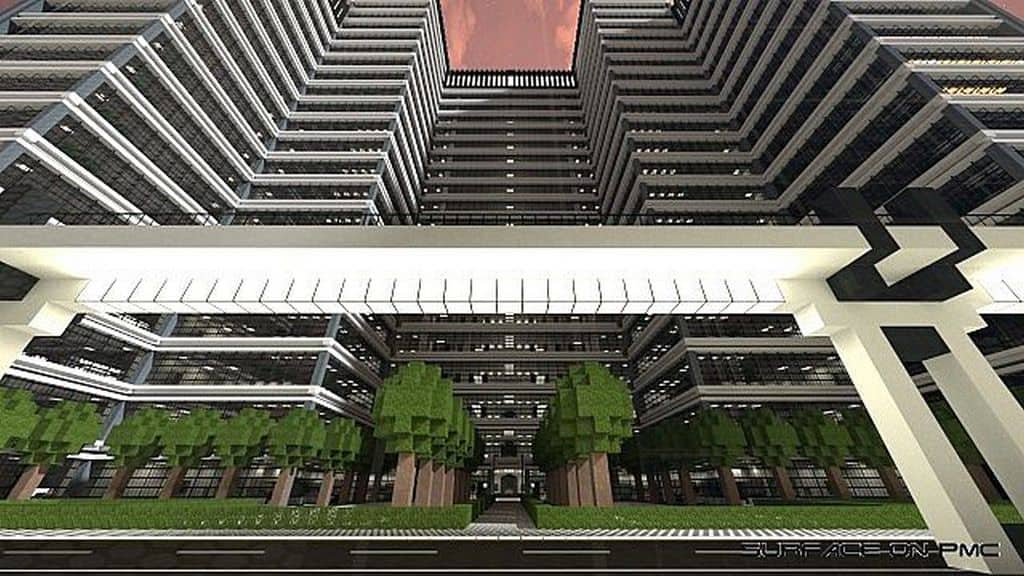
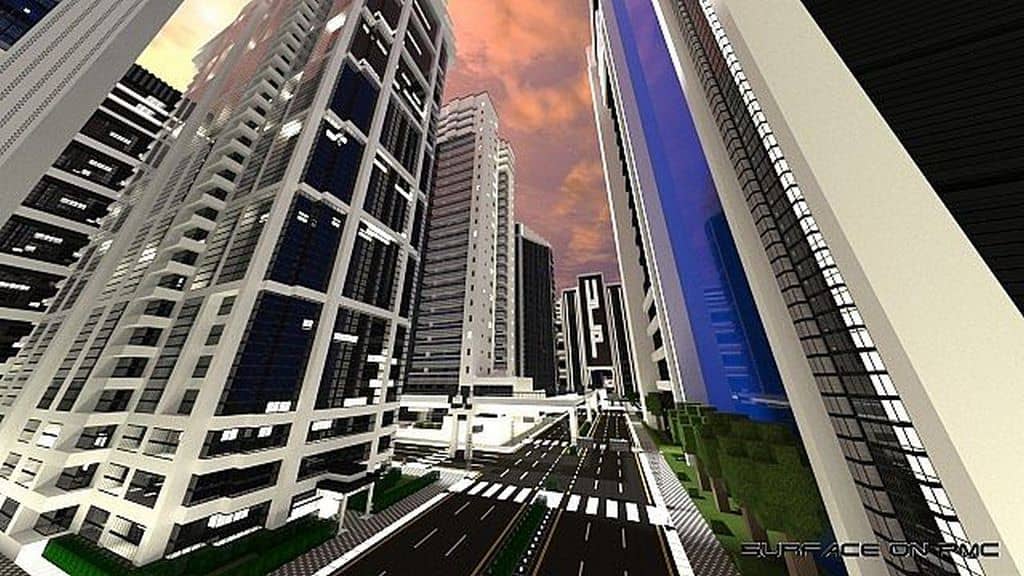
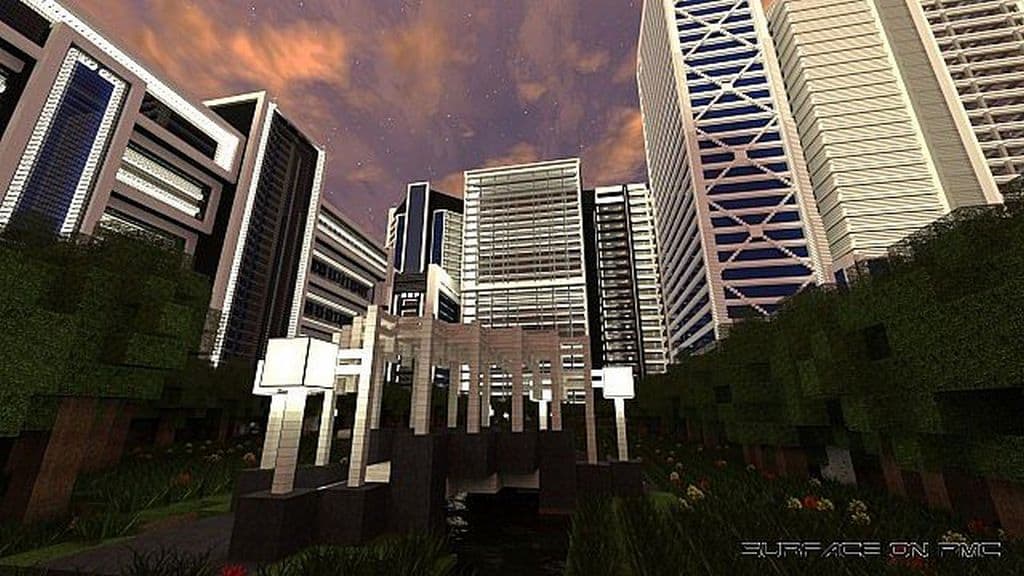
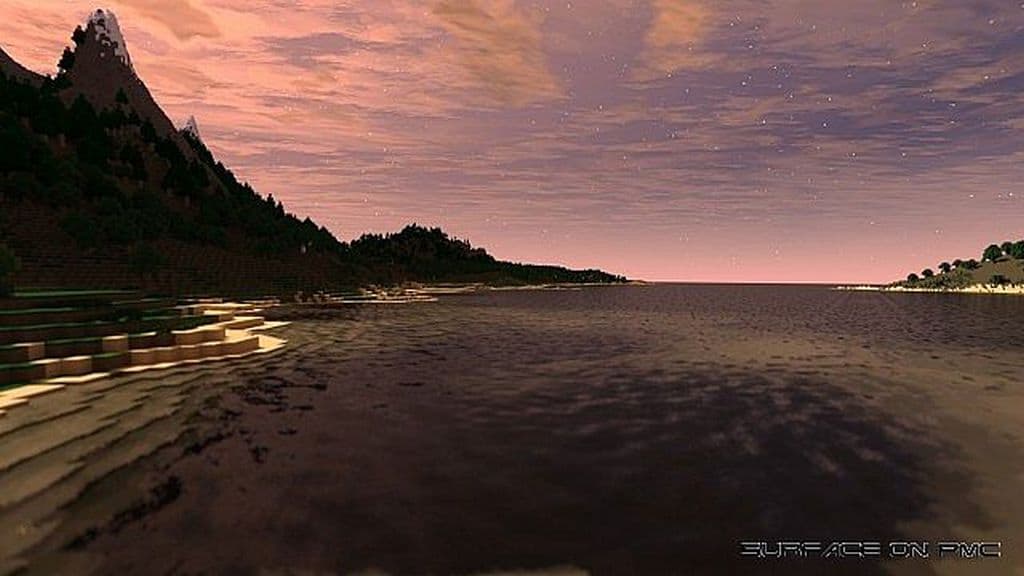
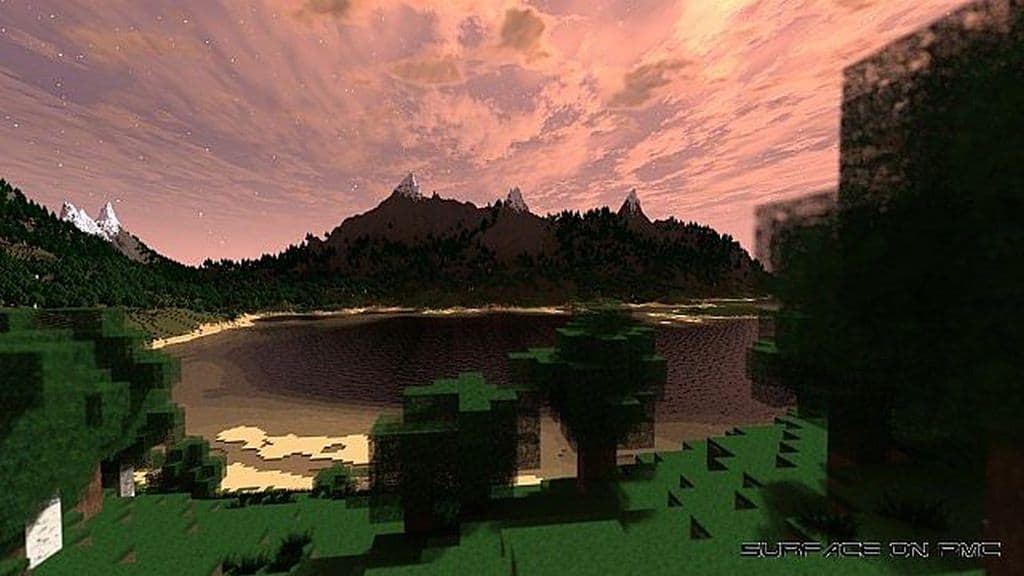

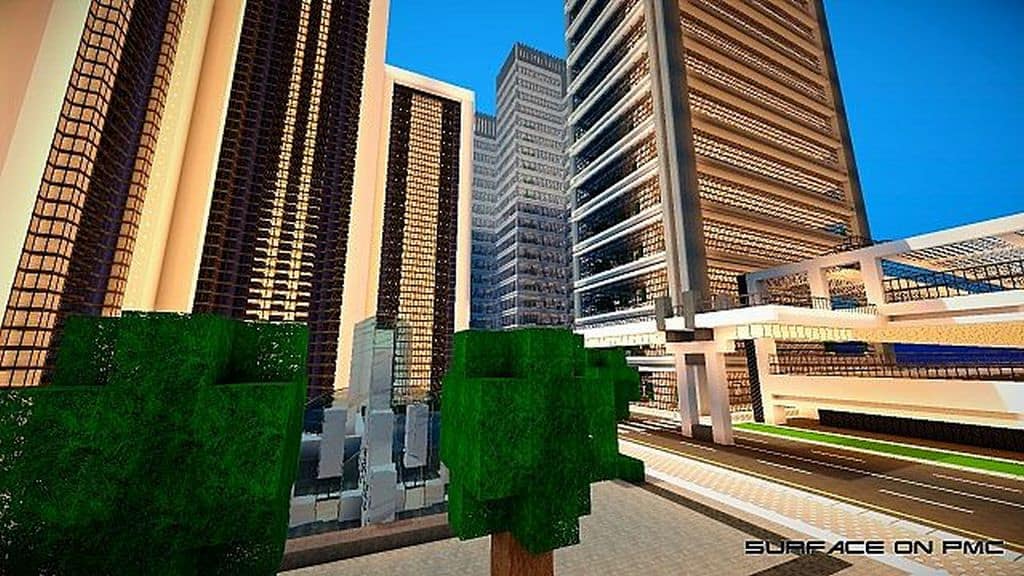

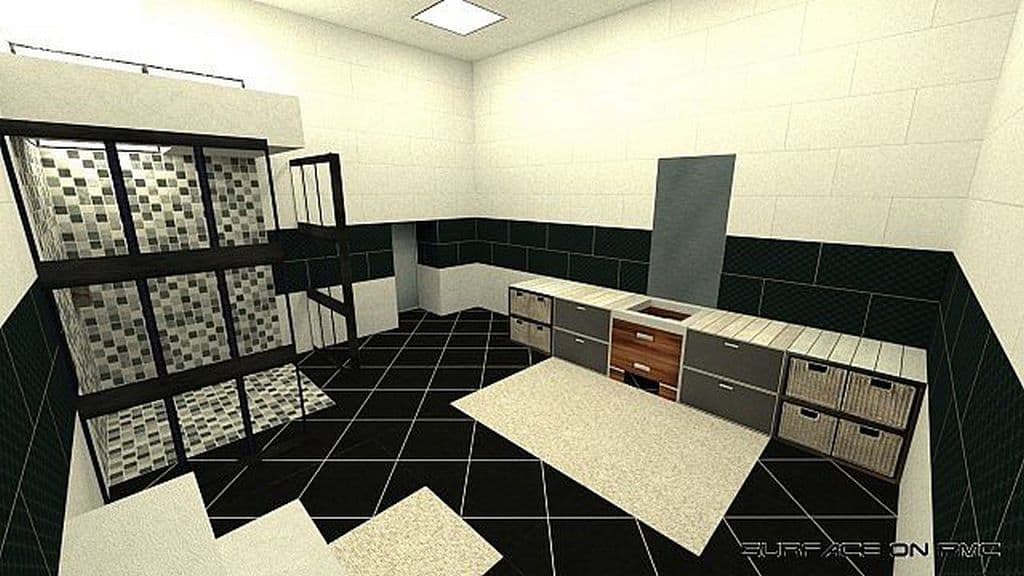
How to Install Texture Pack (Simple 10 Steps)
- Download OptiFine: Most of the texture packs and shaders need OptiFine. That’s why, first download and install OptiFine for the version of Minecraft you want to play.
- Download the Texture Pack: Get the texture pack you want from the download section. Choose the version that works with your Minecraft and your PC’s performance.
- Open Minecraft Launcher: Start Minecraft using the official game launcher — or even TLauncher, if you use that.
- Go to Options: From the main menu, click on the “Options” button.
- Open Resource Packs: Inside Options, click on “Resource Packs…”.
- Open the Resource Pack Folder: Click on “Open Resource Pack Folder” — this will open a folder named “resourcepacks”.
- Move the Pack File: Copy or move the .zip file you downloaded into that “resourcepacks” folder. (Don’t unzip the file — Minecraft uses it as-is!)
- Go Back and Refresh: Close the folder and click “Done”, then go back into “Resource Packs…” again.
- Activate the Pack: You’ll see the pack on the left side. Hover over it and click the arrow to move it to the right (active side).
Tip: If you get a message that the pack is for a different version, just click “Yes” — it usually works fine. - Click Done and Enjoy: Click “Done” again. Now your pack is ready to use in-game. It’s that easy!
Credits
This resource pack was originally created by 5urface. We do not claim ownership of this content, nor have we modified the original files. All rights remain with the original author, and we strongly encourage supporting their work.
Download Instructions
Curseforge: download starts automatically after a few seconds;
Mediafire: click the big blue button with the text “DOWNLOAD”;
Google Drive: in the top right corner you will see a small download icon (down arrow), click it and the download should start;