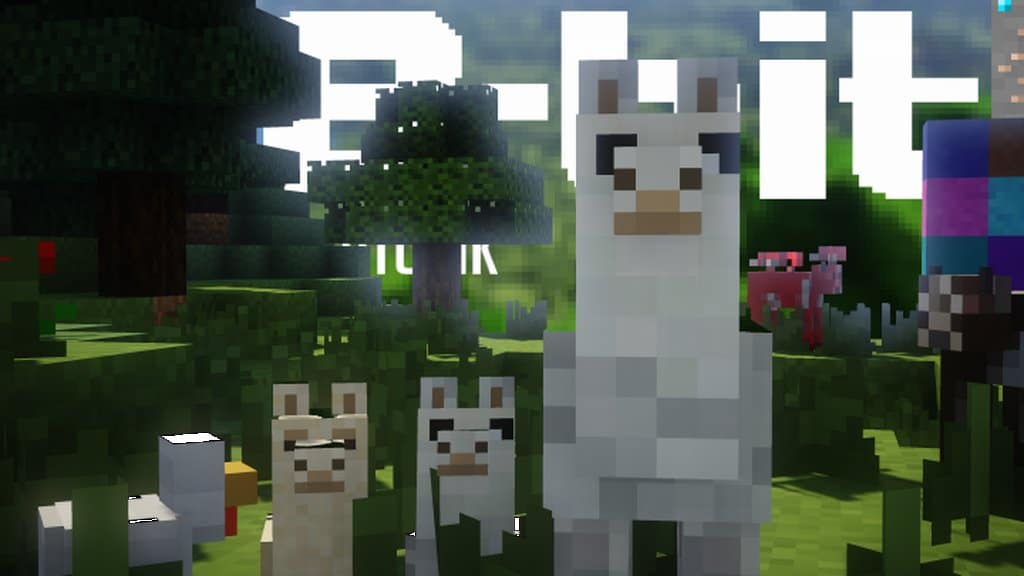
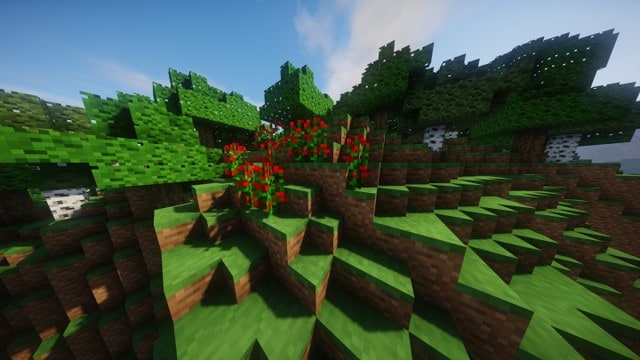
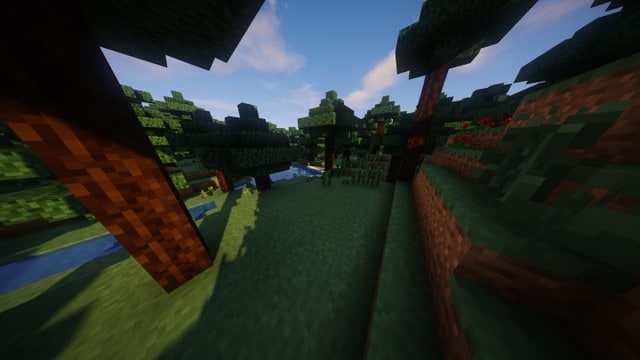
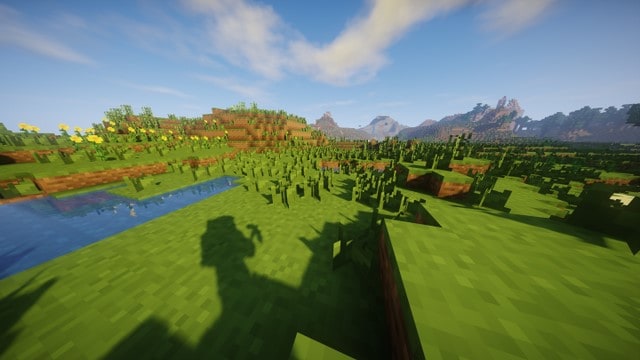
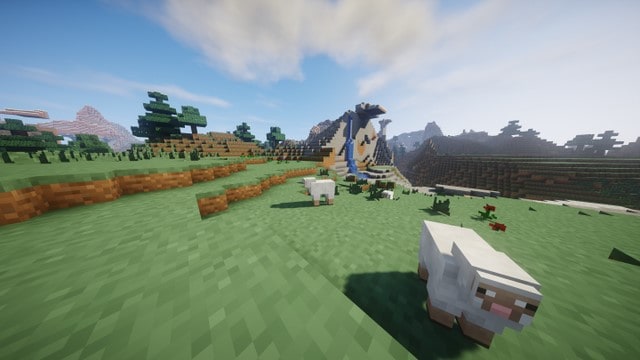
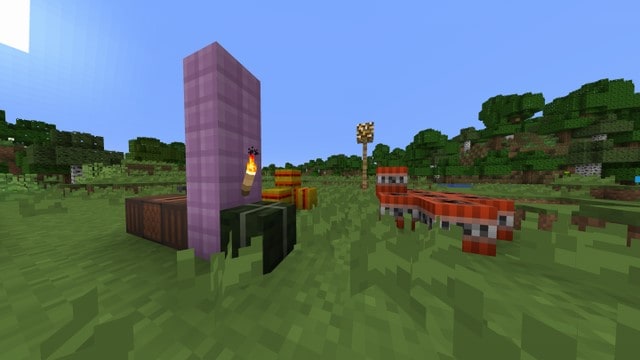
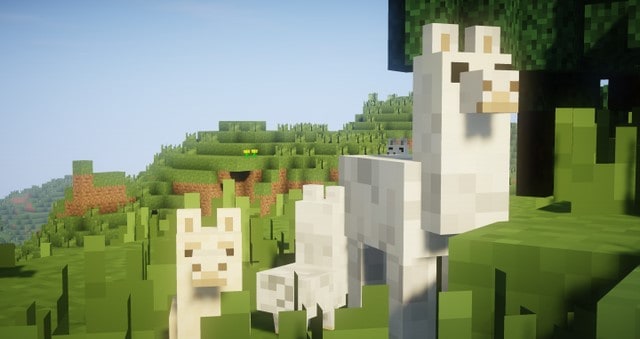
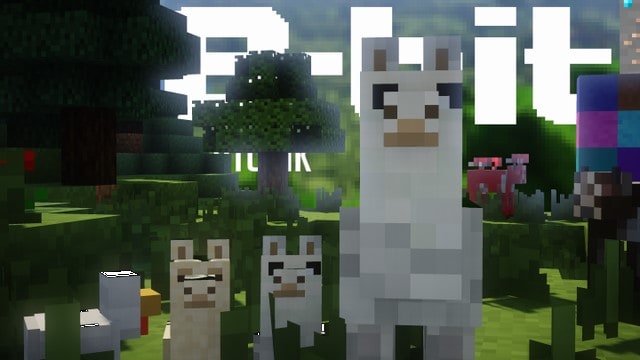
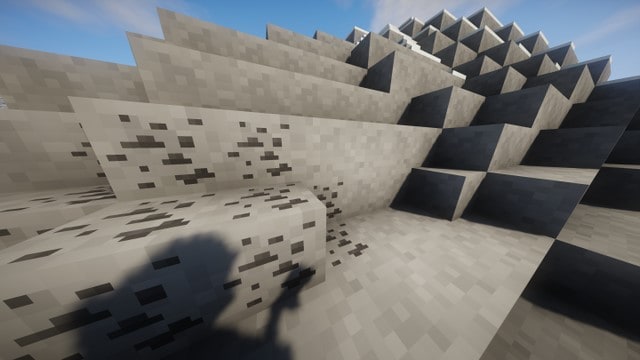
We recently tested 8-bitCraft, a fantastic resource pack that has quickly become a beloved addition to the Minecraft community since its recent release. What truly surprised us during our gameplay session is how rapidly it has accumulated praise, glowing reviews, and impressive download numbers—a rare feat for newer packs unless they deliver something truly exceptional. Based on everything we have experienced so far, the 8-bitCraft resource pack is genuinely outstanding. We love how it is developed with pure simplicity in mind, carefully designed to preserve the iconic art style that originally made the game so popular while giving Minecraft a brilliantly fresh look and stunning visuals that will instantly charm both newcomers and veteran players alike. It completely blew us away on launch day with its stellar reception, and we were equally impressed by how cleverly it manages its overall design without overcomplicating texture details.
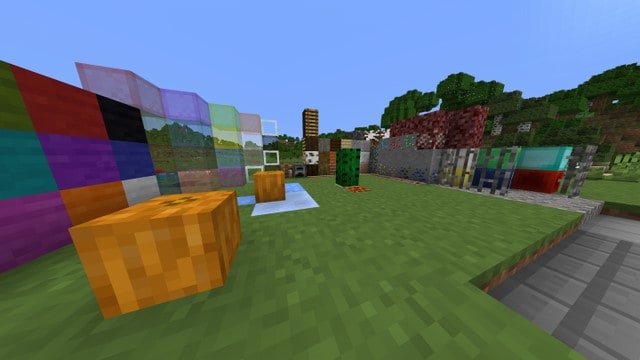
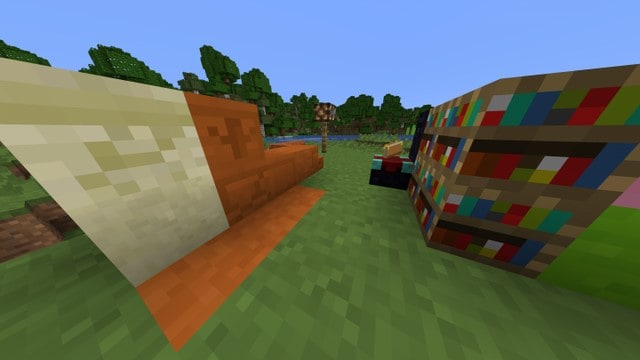
Instead of the usual approach, the developers cleverly set intricate textures aside to craft a breathtaking game world that is an absolute treat for the eyes, avoiding the trap of feeling cluttered or trying too hard like many low-quality alternatives. If you follow our reviews, you know we frequently highlight packs that dare to innovate, but 8-bitCraft stands out because the creators successfully minimized visual noise to the point where it is practically unnoticeable across their textures. To make your adventures even better, all of these incredible visuals are brilliantly tied together by a dynamic color palette that elevates the entire experience to a whole new level. Best of all, 8-bitCraft features a lightweight 8x resolution compared to standard 16x packs, which is fantastic news for players with low-end machines, letting us enjoy smooth gameplay and stunning aesthetics completely free of lag and frame-rate drops.
8-bitCraft should be compatible with all of these Minecraft versions: 1.14.4 – 1.14.3 – 1.14.2 – 1.14 – 1.13.2 – 1.13.1 – 1.13
Screenshots
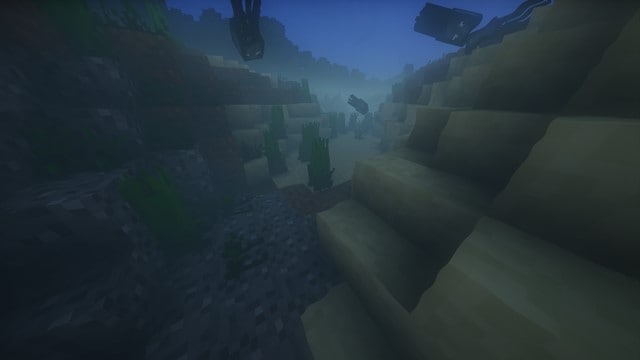
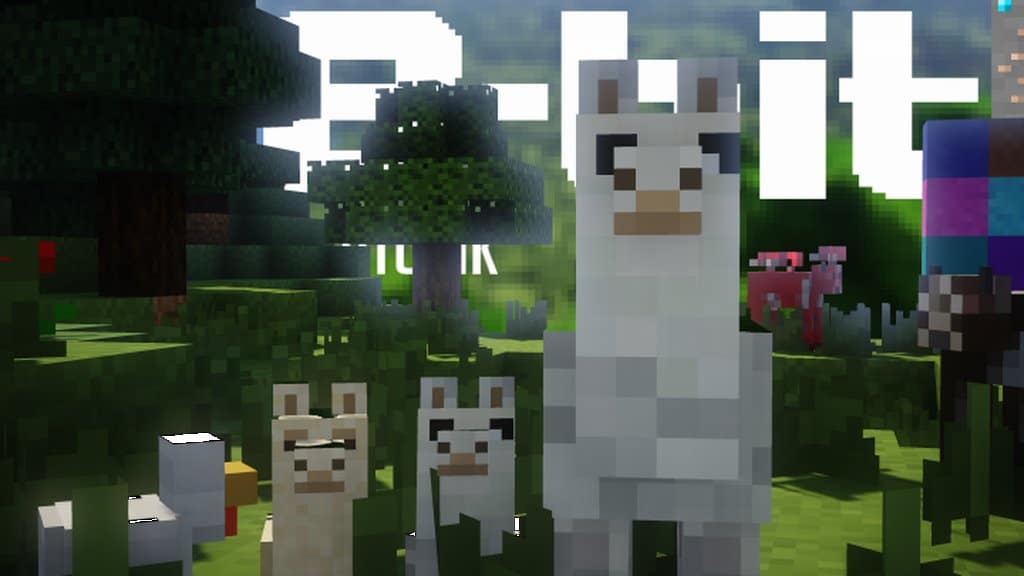
How to Install Texture Pack (Simple 10 Steps)
- Download OptiFine: Most of the texture packs and shaders need OptiFine. That’s why, first download and install OptiFine for the version of Minecraft you want to play.
- Download the Texture Pack: Get the texture pack you want from the download section. Choose the version that works with your Minecraft and your PC’s performance.
- Open Minecraft Launcher: Start Minecraft using the official game launcher — or even TLauncher, if you use that.
- Go to Options: From the main menu, click on the “Options” button.
- Open Resource Packs: Inside Options, click on “Resource Packs…”.
- Open the Resource Pack Folder: Click on “Open Resource Pack Folder” — this will open a folder named “resourcepacks”.
- Move the Pack File: Copy or move the .zip file you downloaded into that “resourcepacks” folder. (Don’t unzip the file — Minecraft uses it as-is!)
- Go Back and Refresh: Close the folder and click “Done”, then go back into “Resource Packs…” again.
- Activate the Pack: You’ll see the pack on the left side. Hover over it and click the arrow to move it to the right (active side).
Tip: If you get a message that the pack is for a different version, just click “Yes” — it usually works fine. - Click Done and Enjoy: Click “Done” again. Now your pack is ready to use in-game. It’s that easy!
Credits
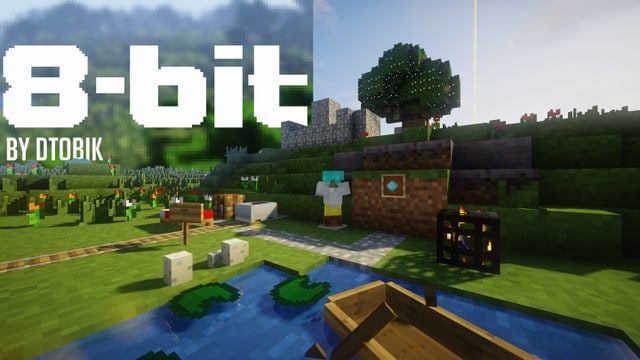
This resource pack was created by DTobik. We are not the original owners of this modification, nor do we host any files on our servers. All rights and credits belong entirely to DTobik. We strongly encourage you to support the original creator by downloading the pack from their official links.
Download Instructions
Curseforge: download starts automatically after a few seconds;
Mediafire: click the big blue button with the text “DOWNLOAD”;
Google Drive: in the top right corner you will see a small download icon (down arrow), click it and the download should start;


