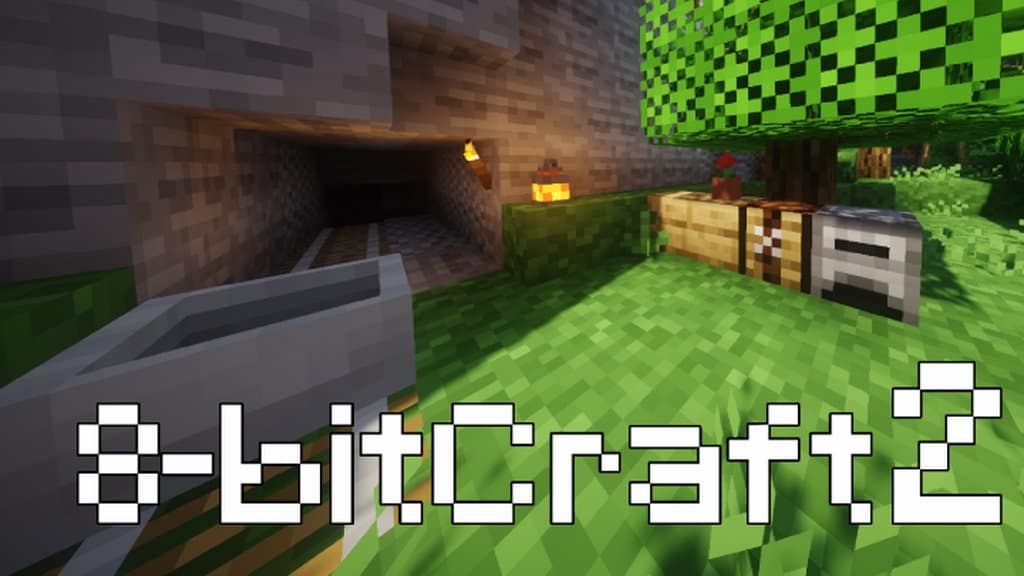
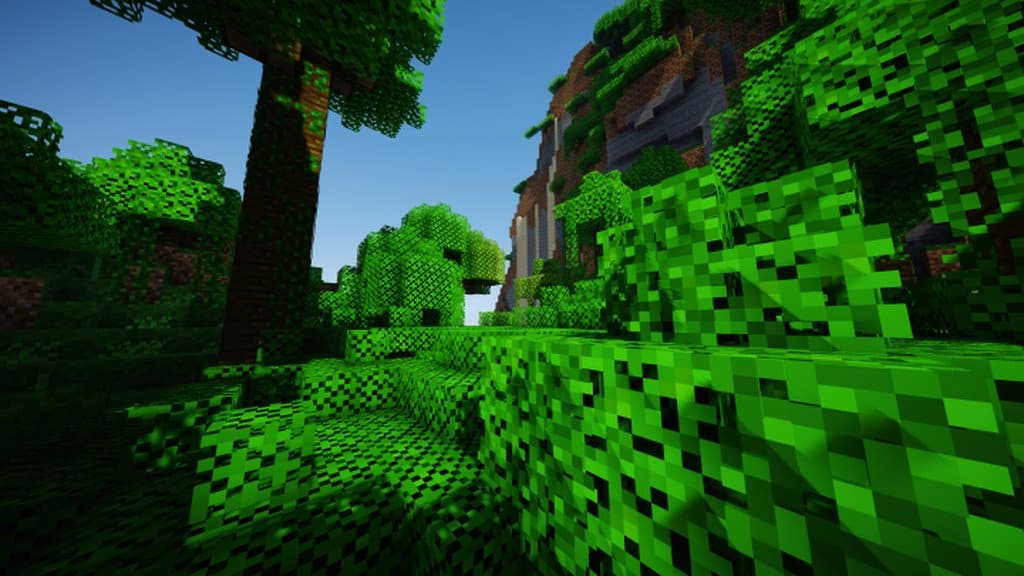
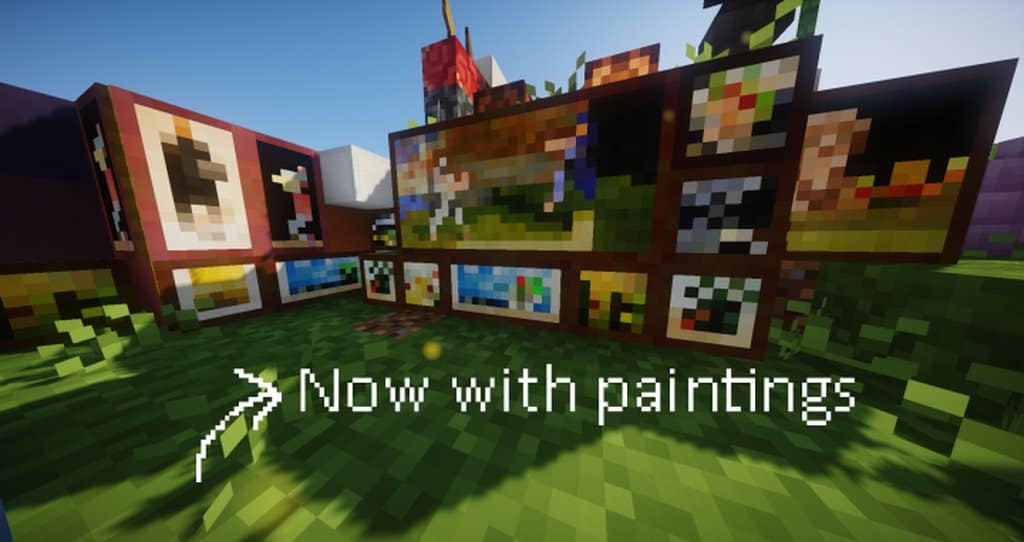
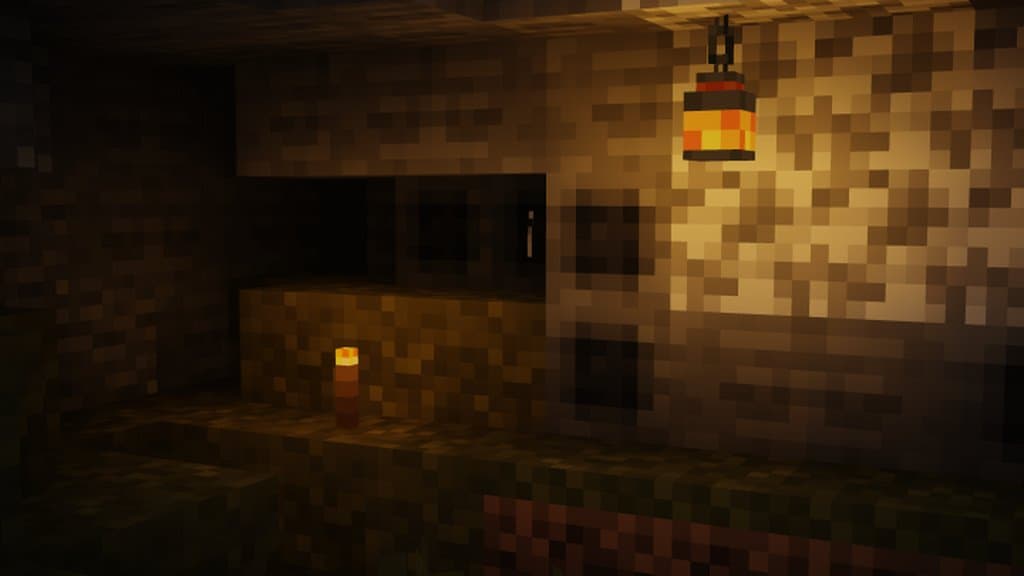
As the name suggests, the incredible 8-bitCraft 2 resource pack is a remastered version of the original 8-bitCraft that first hit the market back at the end of 2018. The classic Minecraft 8-bitCraft was already a stellar-looking pack that successfully transformed the world environment into an authentic, deeply immersive 8-bit experience. However, that initial version was a bit rough around the edges and definitely left some room for advancement; thankfully, 8-bitCraft 2 works wonders to remedy those minor concerns while delivering stellar visual features for the best possible experience, allowing players to become totally immersed in their Minecraft worlds. I personally love how this resource pack manages to offer some of the cleanest and most aesthetically appealing visuals, making you want to take a closer look at everything twice!
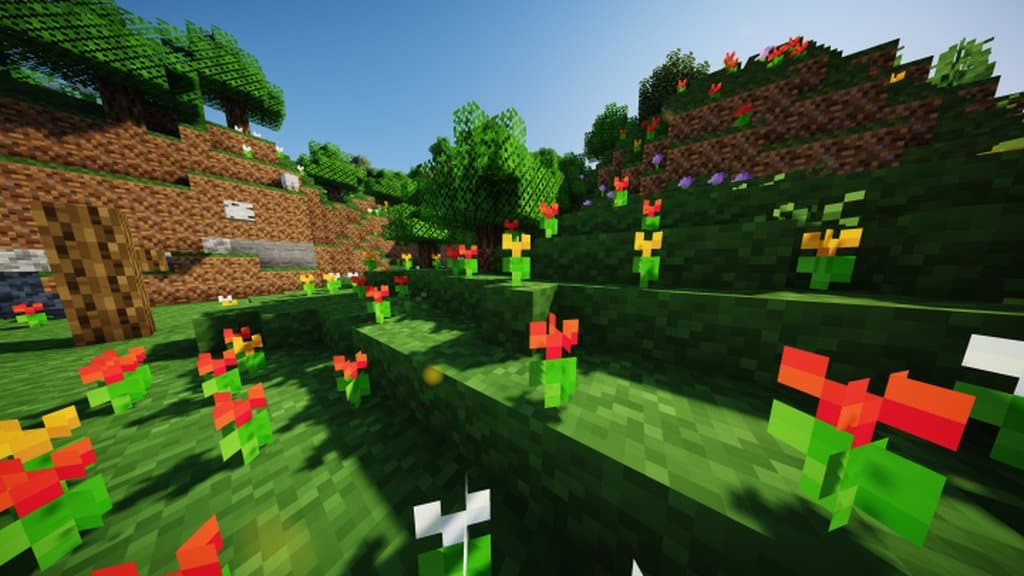
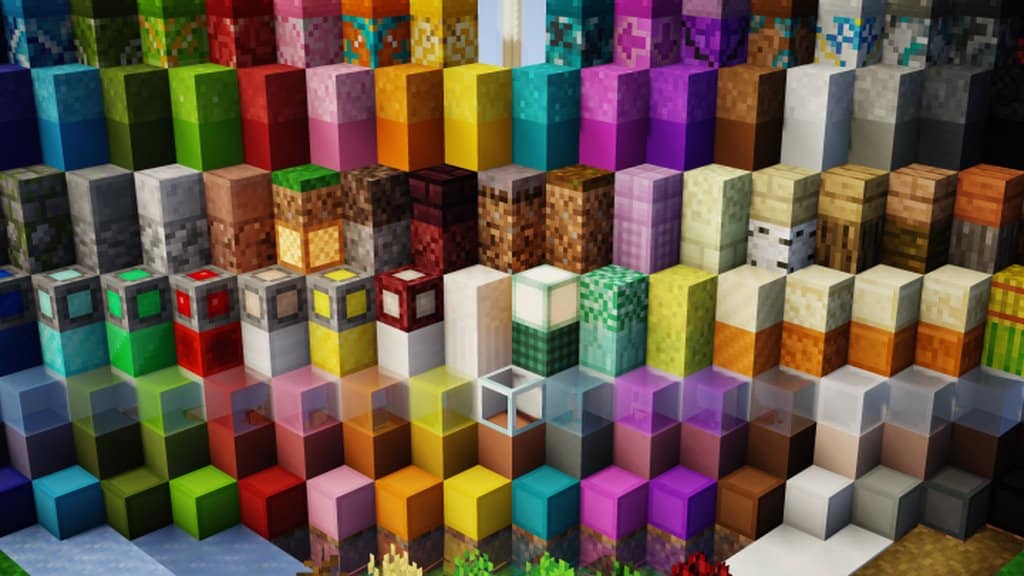
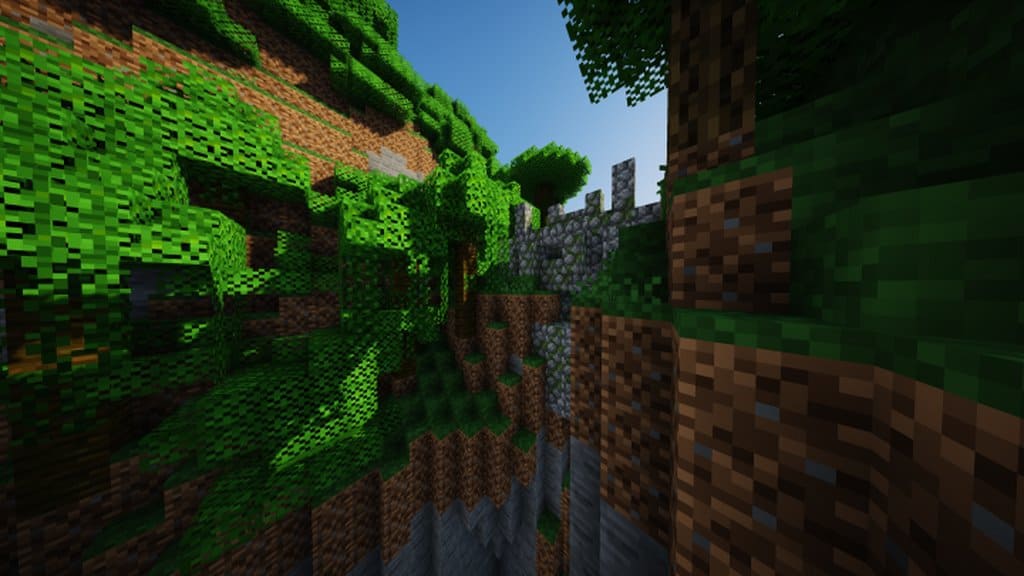
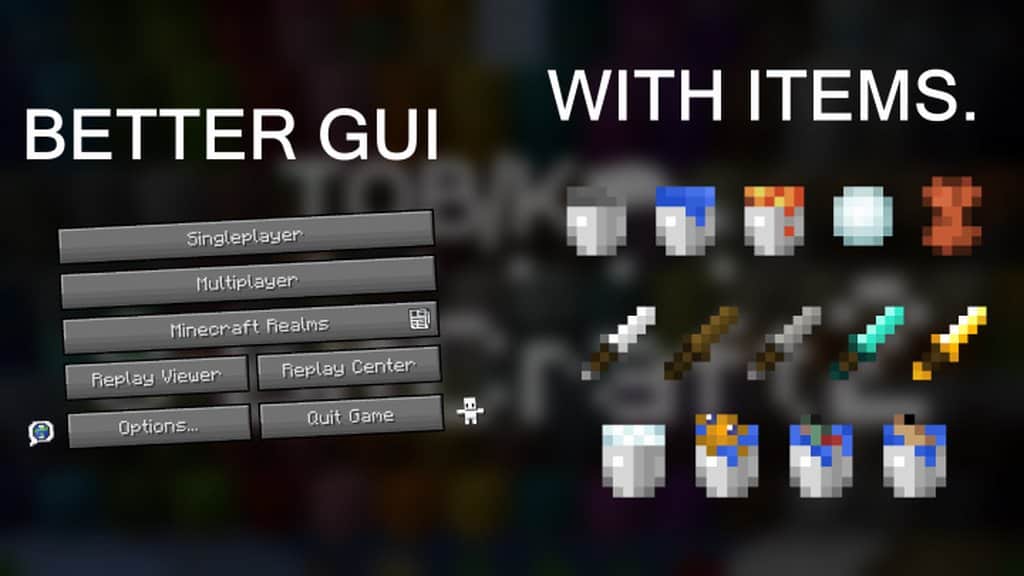
Unlike many conventional packs, 8-bitCraft 2 doesn’t overload you with excessive details and textures, opting instead for a smoother appearance that is remarkably easy on the eyes. The resource pack complements this approach with smoother textures and a lively color palette, which brilliantly brings out lifelike colors and textures all around. One of my absolute favorite features in the 8-bitCraft 2 texture pack is how it completely revamps all the essential Minecraft visual aspects, ranging from various mobs to every item and block. This stunning combination of lifelike visual features creates a truly perfect and immersive experience. Best of all, the resource pack uses an 8×8 texture resolution, which is even more toned down compared to the lower 16×16 default resolution found in most other packs. Because of this wonderfully low resolution, you will undoubtedly enjoy significantly better gameplay performance whenever you decide to try out this fantastic pack.
8-bitCraft 2 should be compatible with all of these Minecraft versions: 1.18.2 – 1.18.1 – 1.18 – 1.17.1 – 1.17 – 1.16.5 – 1.16.4 – 1.16.3 – 1.16.2 – 1.16.1 – 1.16 – 1.15.2 – 1.15.1 – 1.15 – Bedrock Edition – PE
Screenshots
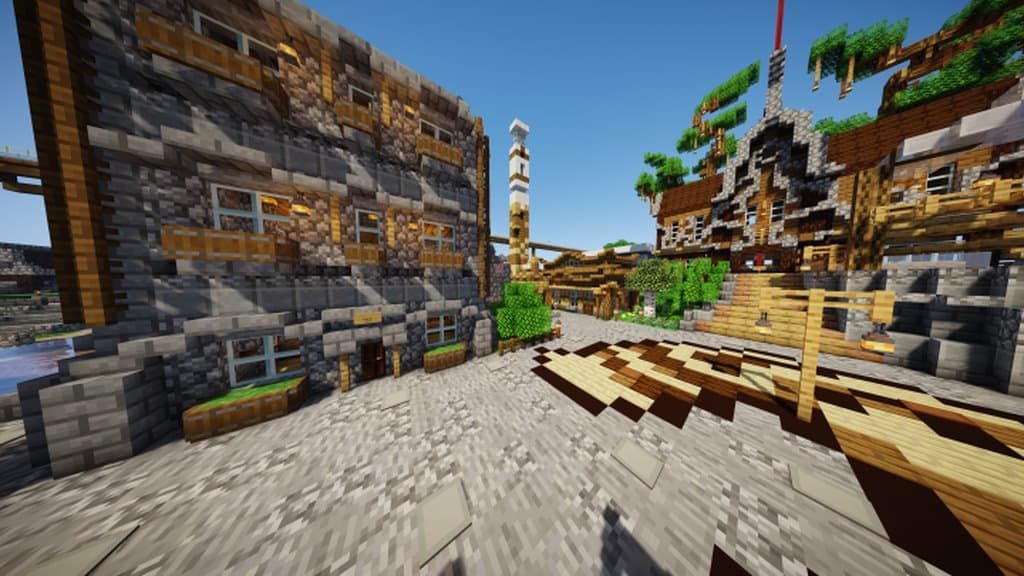
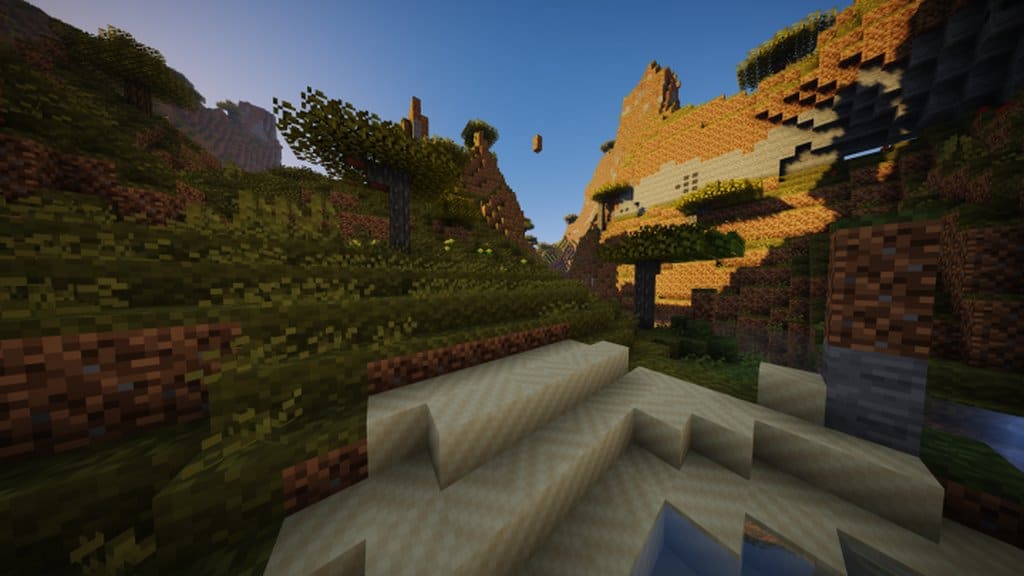
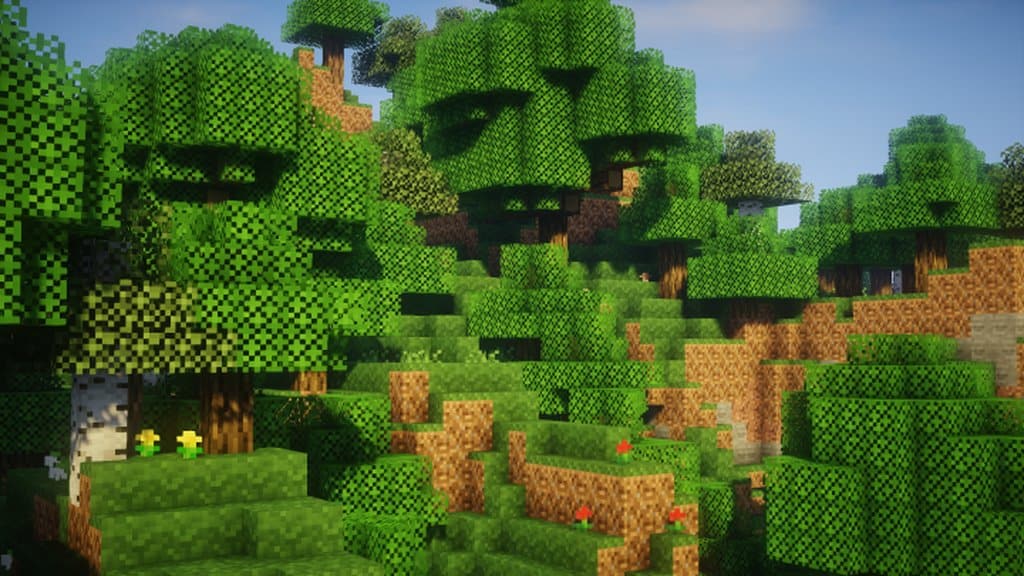
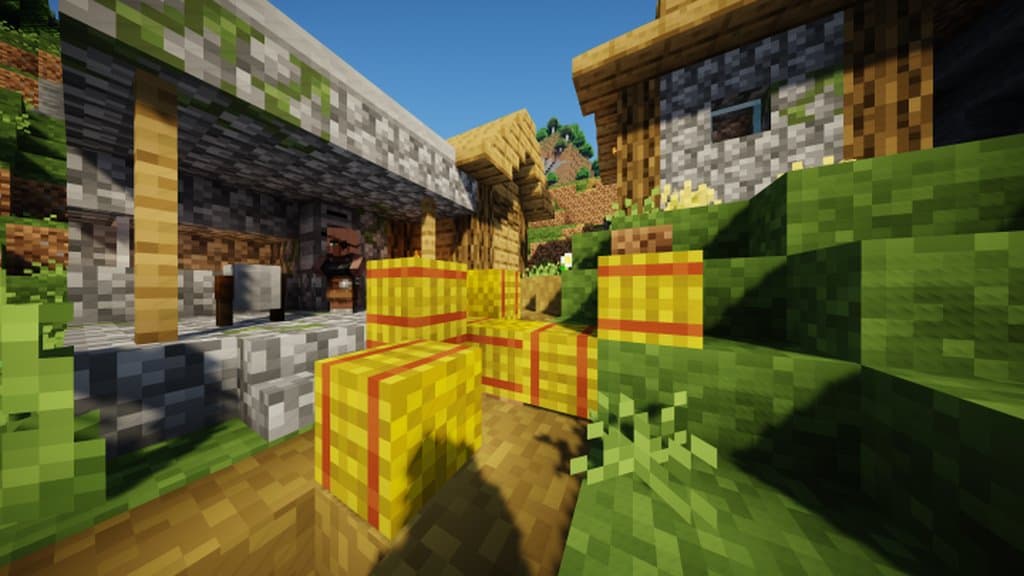
How to Install Texture Pack (Simple 10 Steps)
- Download OptiFine: Most of the texture packs and shaders need OptiFine. That’s why, first download and install OptiFine for the version of Minecraft you want to play.
- Download the Texture Pack: Get the texture pack you want from the download section. Choose the version that works with your Minecraft and your PC’s performance.
- Open Minecraft Launcher: Start Minecraft using the official game launcher — or even TLauncher, if you use that.
- Go to Options: From the main menu, click on the “Options” button.
- Open Resource Packs: Inside Options, click on “Resource Packs…”.
- Open the Resource Pack Folder: Click on “Open Resource Pack Folder” — this will open a folder named “resourcepacks”.
- Move the Pack File: Copy or move the .zip file you downloaded into that “resourcepacks” folder. (Don’t unzip the file — Minecraft uses it as-is!)
- Go Back and Refresh: Close the folder and click “Done”, then go back into “Resource Packs…” again.
- Activate the Pack: You’ll see the pack on the left side. Hover over it and click the arrow to move it to the right (active side).
Tip: If you get a message that the pack is for a different version, just click “Yes” — it usually works fine. - Click Done and Enjoy: Click “Done” again. Now your pack is ready to use in-game. It’s that easy!
Credits
This resource pack was created by DTobik. We do not claim ownership of this content, and all rights remain with the original creator. We encourage you to support DTobik by downloading the pack from the official links provided.
Download Links
Java Edition
Bedrock Edition
Download Instructions
Curseforge: download starts automatically after a few seconds;
Mediafire: click the big blue button with the text “DOWNLOAD”;
Google Drive: in the top right corner you will see a small download icon (down arrow), click it and the download should start;


