Have you ever heard the heartwarming story about a dedicated father who designed a resource pack solely for his son? Arlee was a wonderful dad who originally released the Minecraft 4Kids resource pack for his child, who was unfortunately afraid of playing the game whenever he encountered standard mobs. From this personal observation, he was inspired to create a customized resource pack for his son. However, as Minecraft continued to introduce new versions, Arlee eventually lost his interest in developing continuous updates. He somehow managed to release a version update for Minecraft 1.8, but sadly, no further updates followed after that. Through an incredible collaborative effort, Ethiokera444 and TheGamerTrials jointly attempted to revive this beloved resource pack, dedicating approximately two years of hard work to the project. They were ultimately successful in bringing it back with fully up-to-date content. According to the authors, it felt like a true rebirth of the 4Kids resource pack, which is precisely why they titled it ‘The Genesis.’ Both authors did their absolute best to recapture the cherished sentiments associated with the beta version of the old resource pack. They thoughtfully included the classic BETA sounds for players to enjoy, even featuring the iconic Steve ‘hurt’ grunt to deliver that powerful sense of nostalgia.
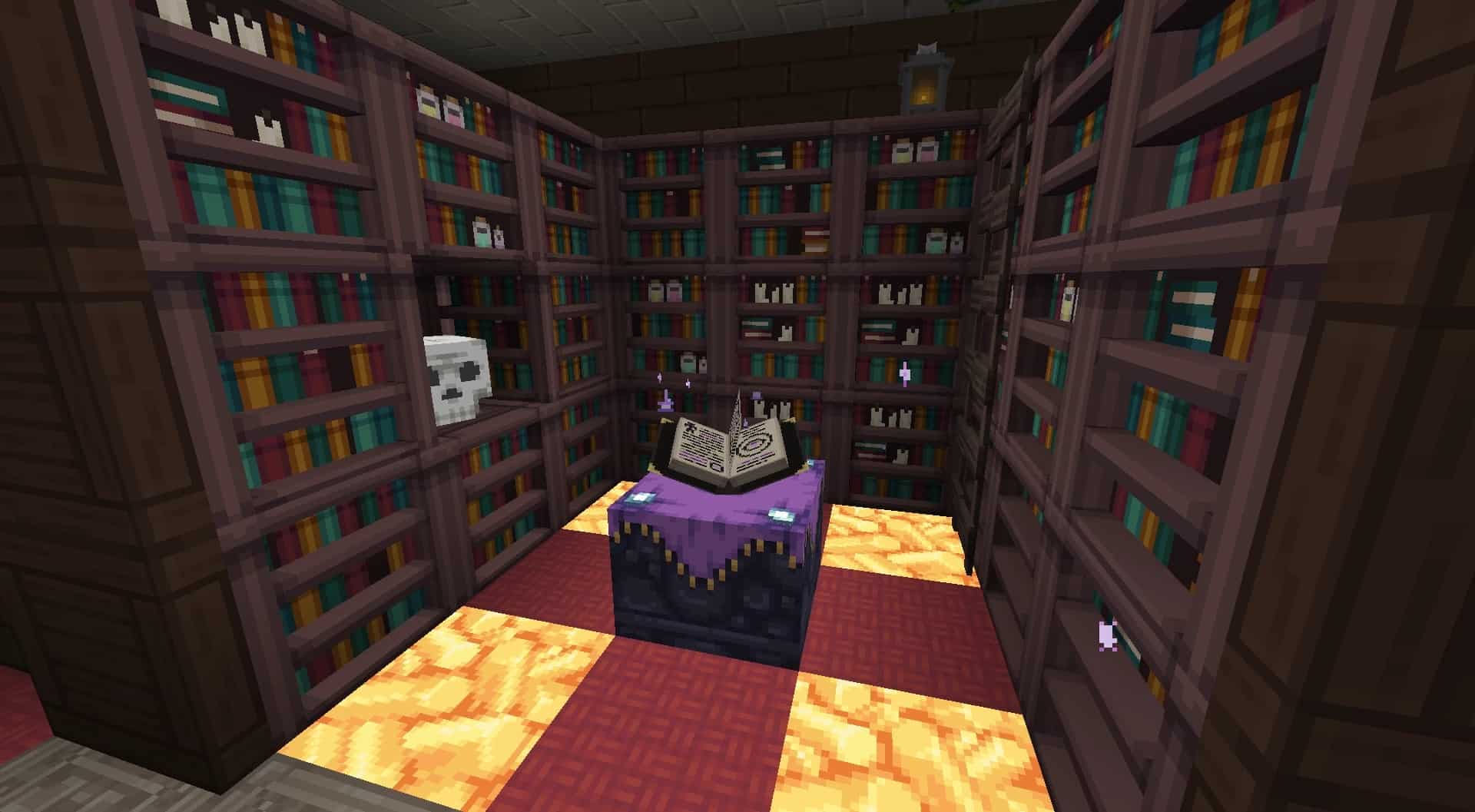
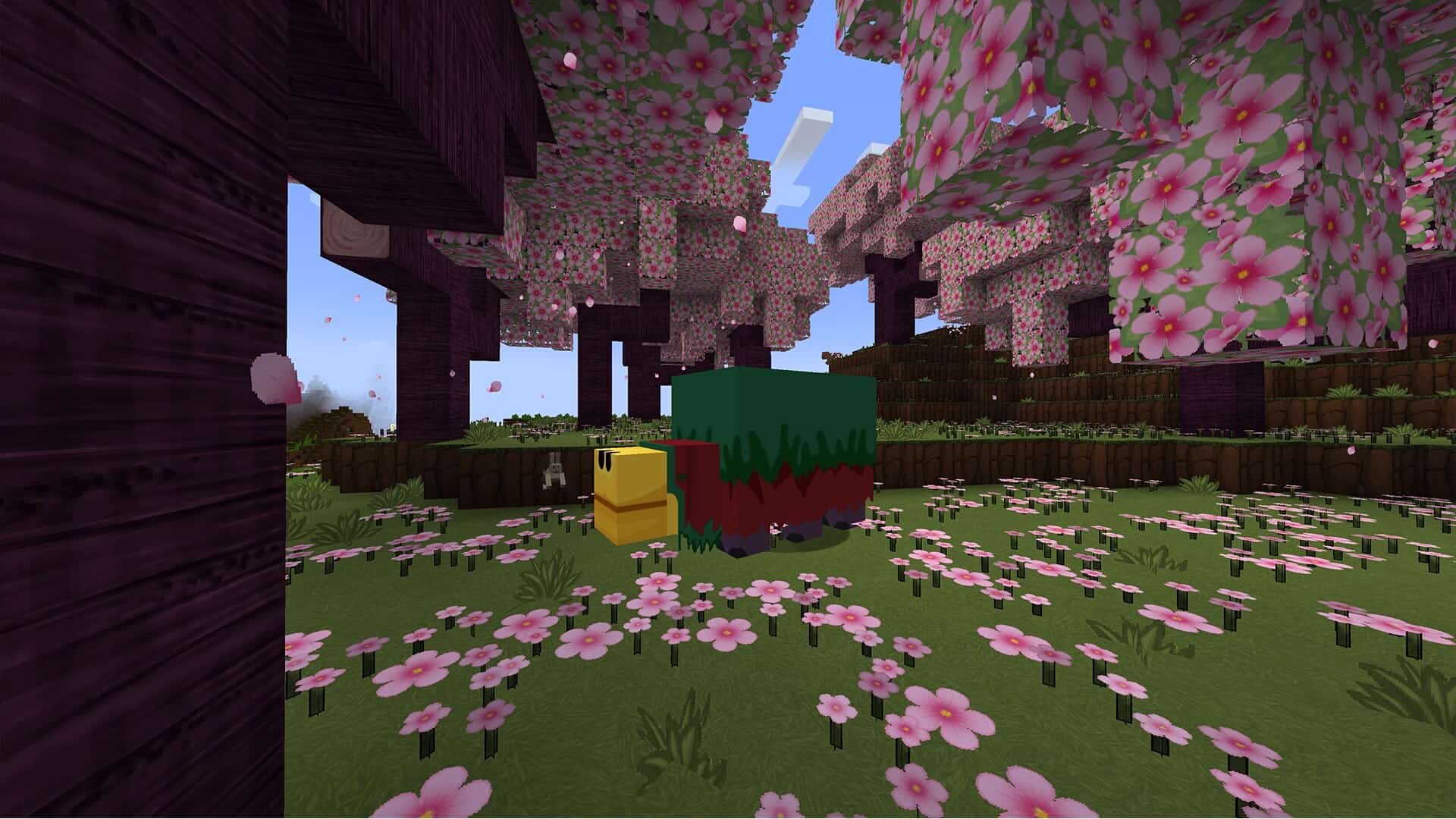
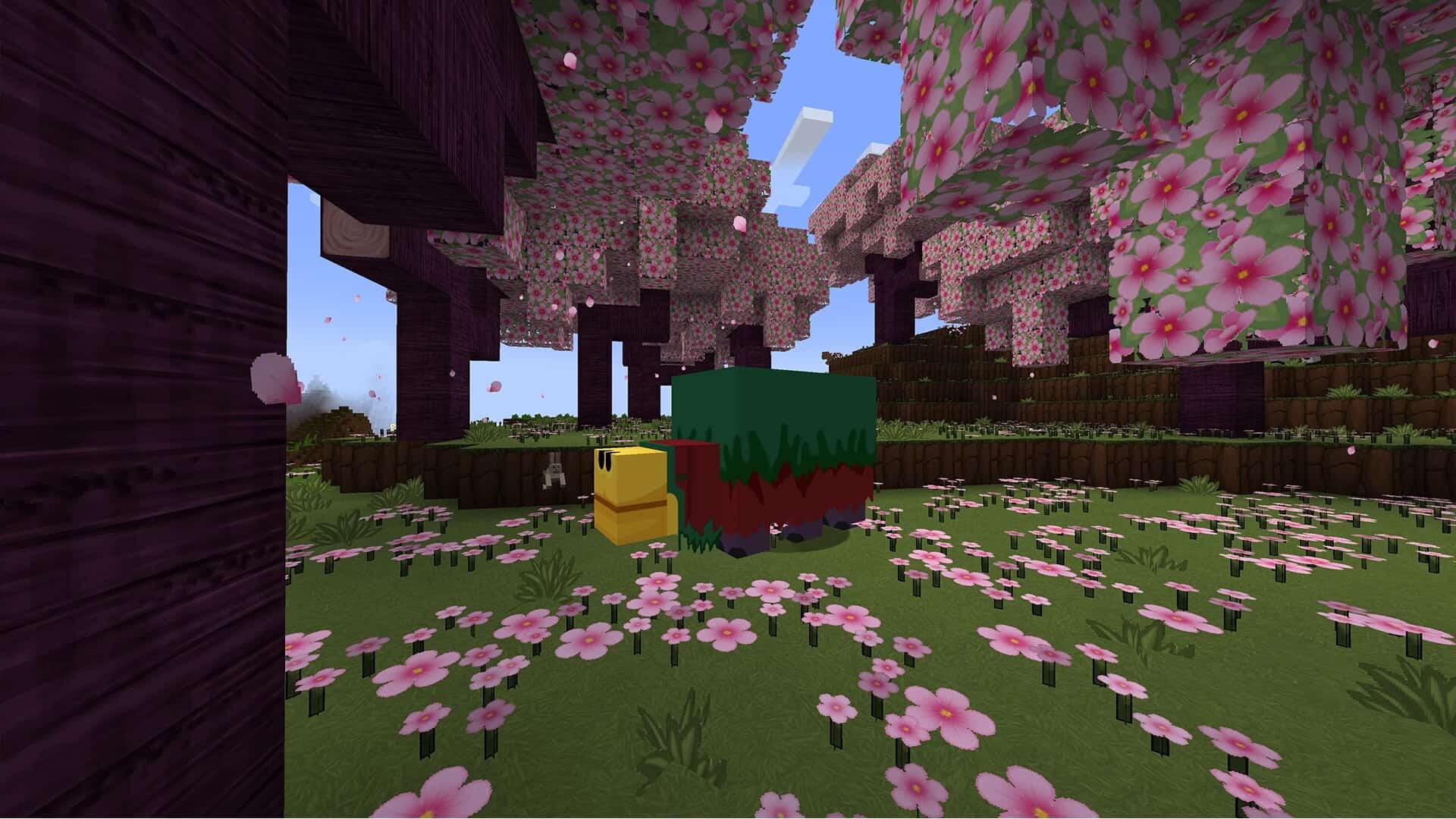
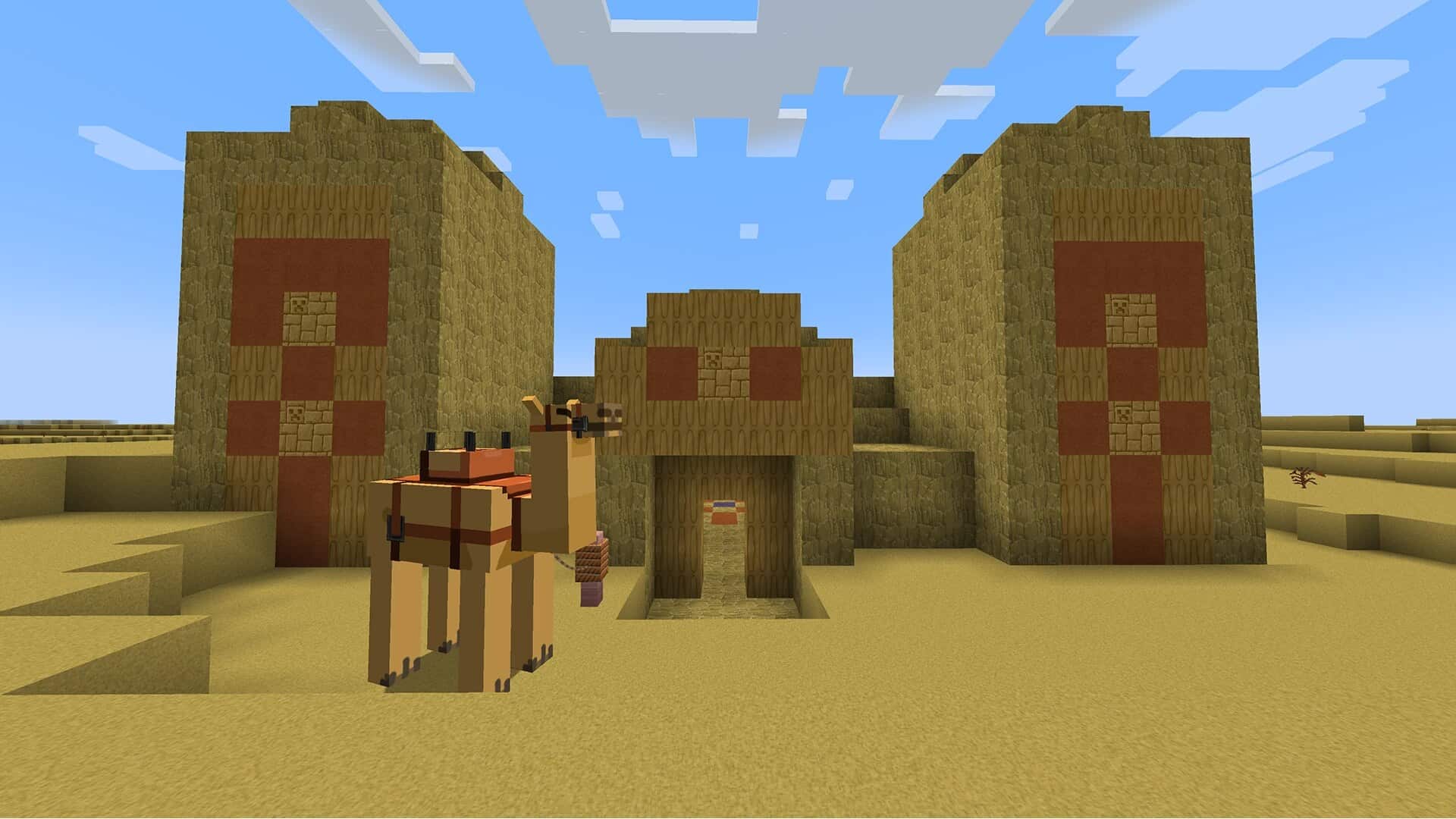
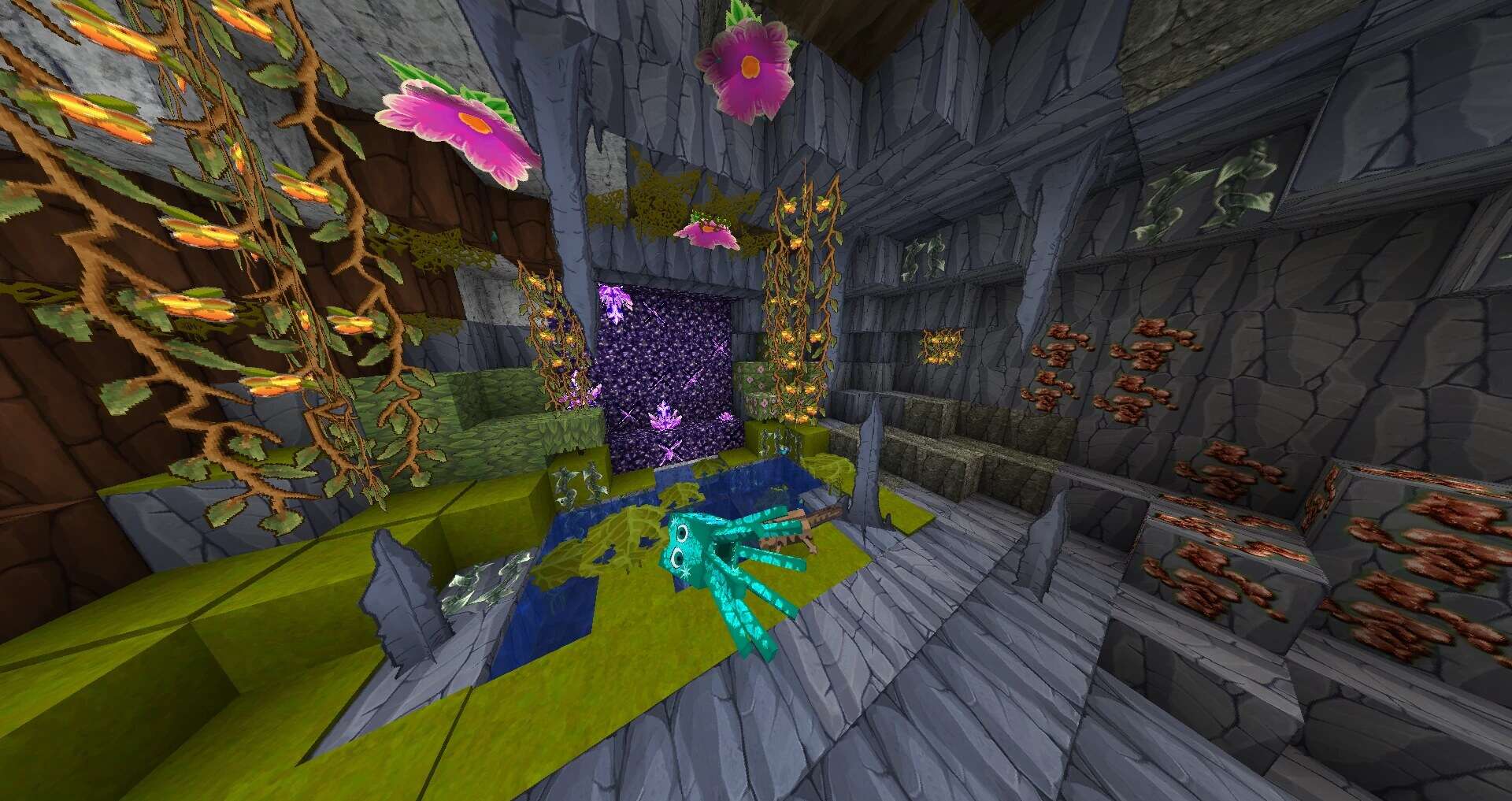
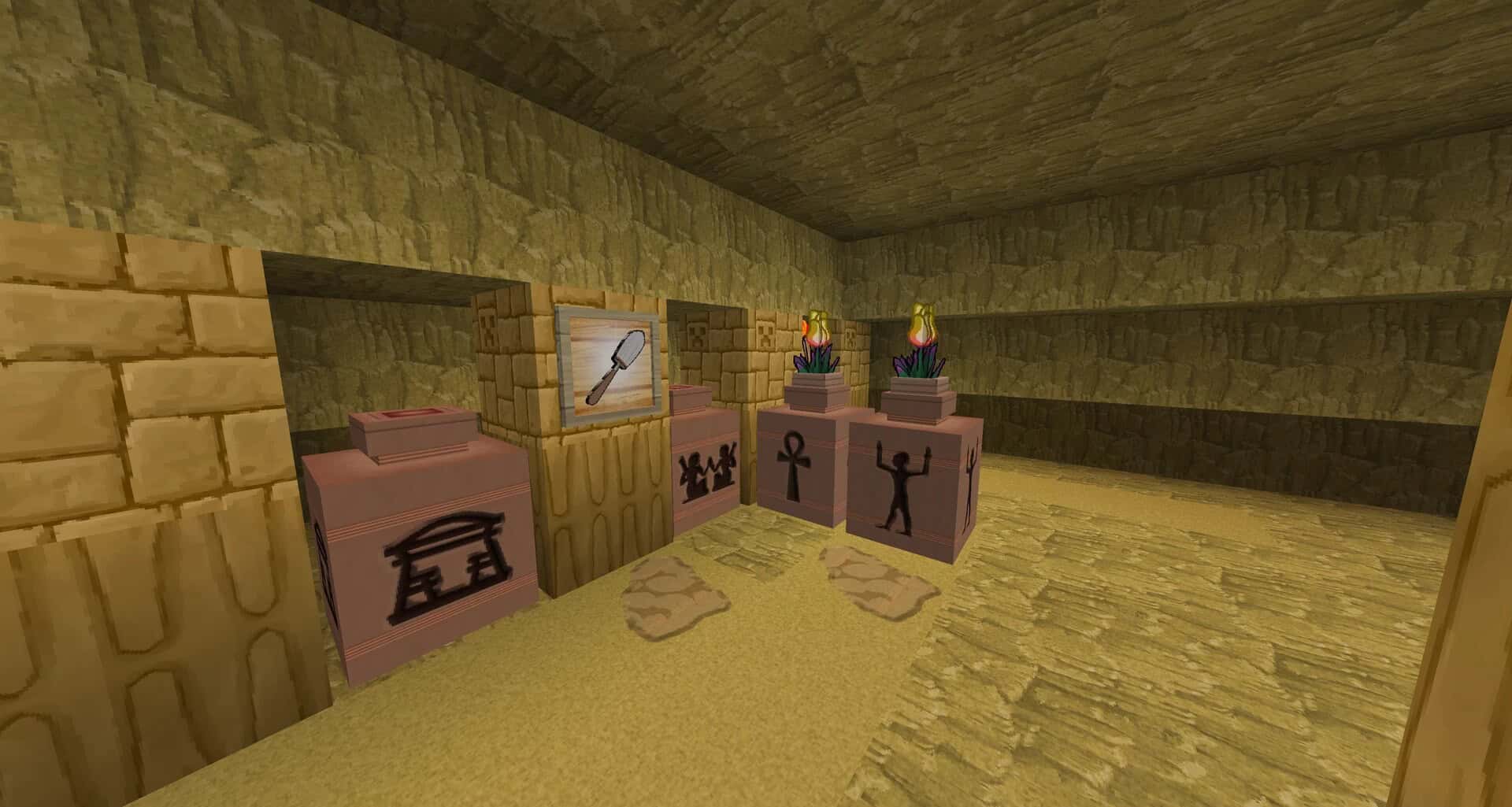
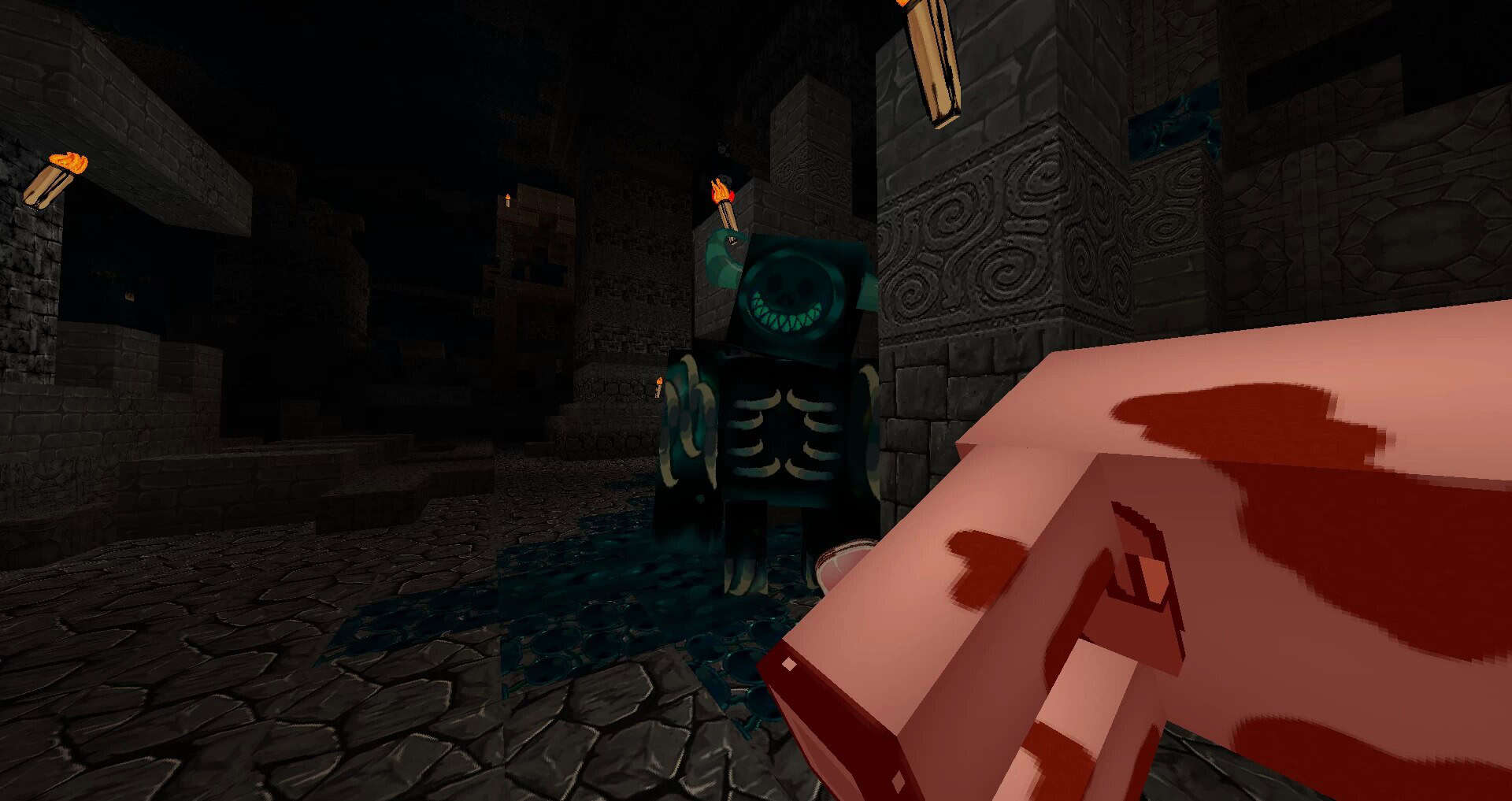
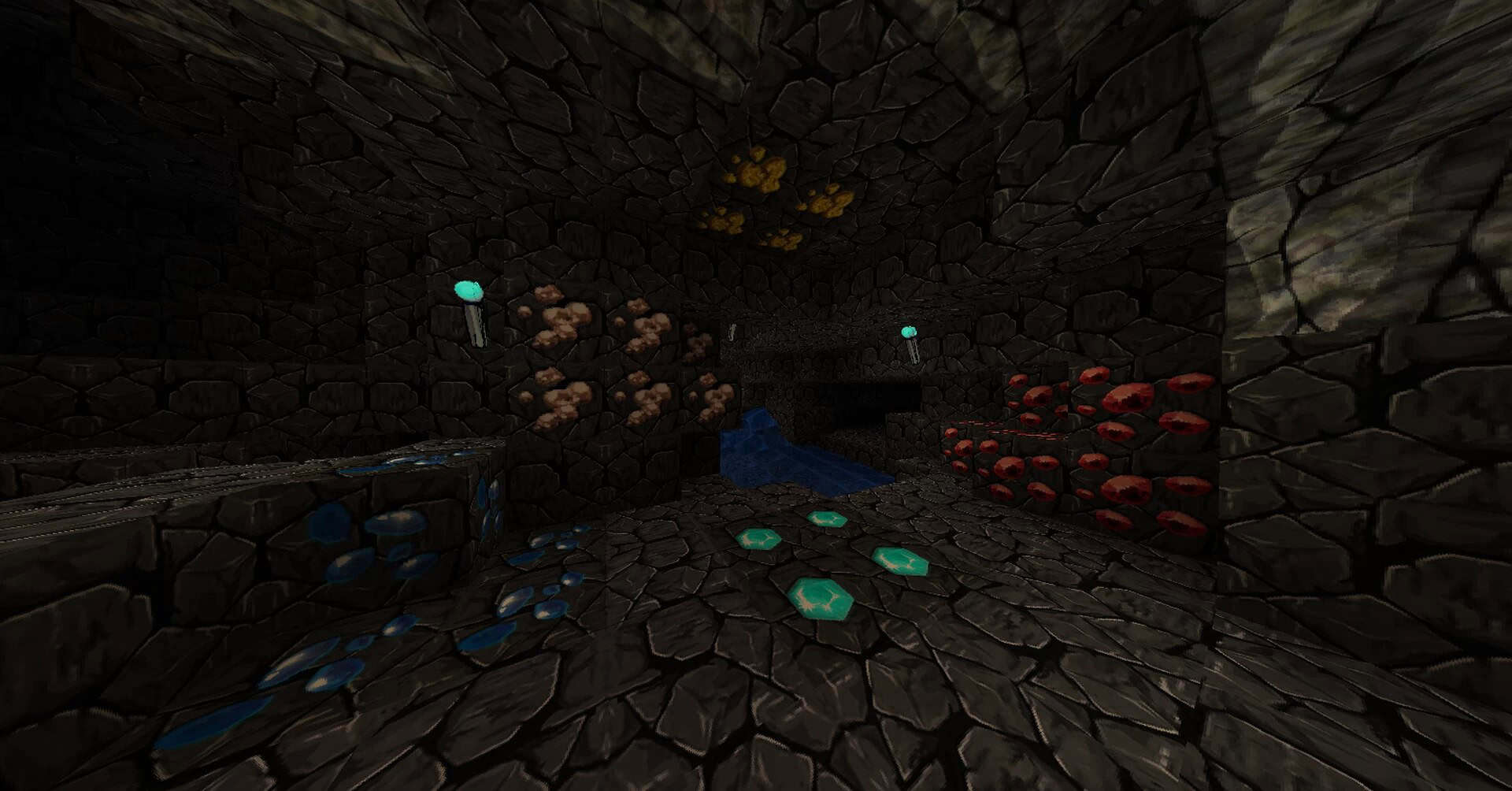
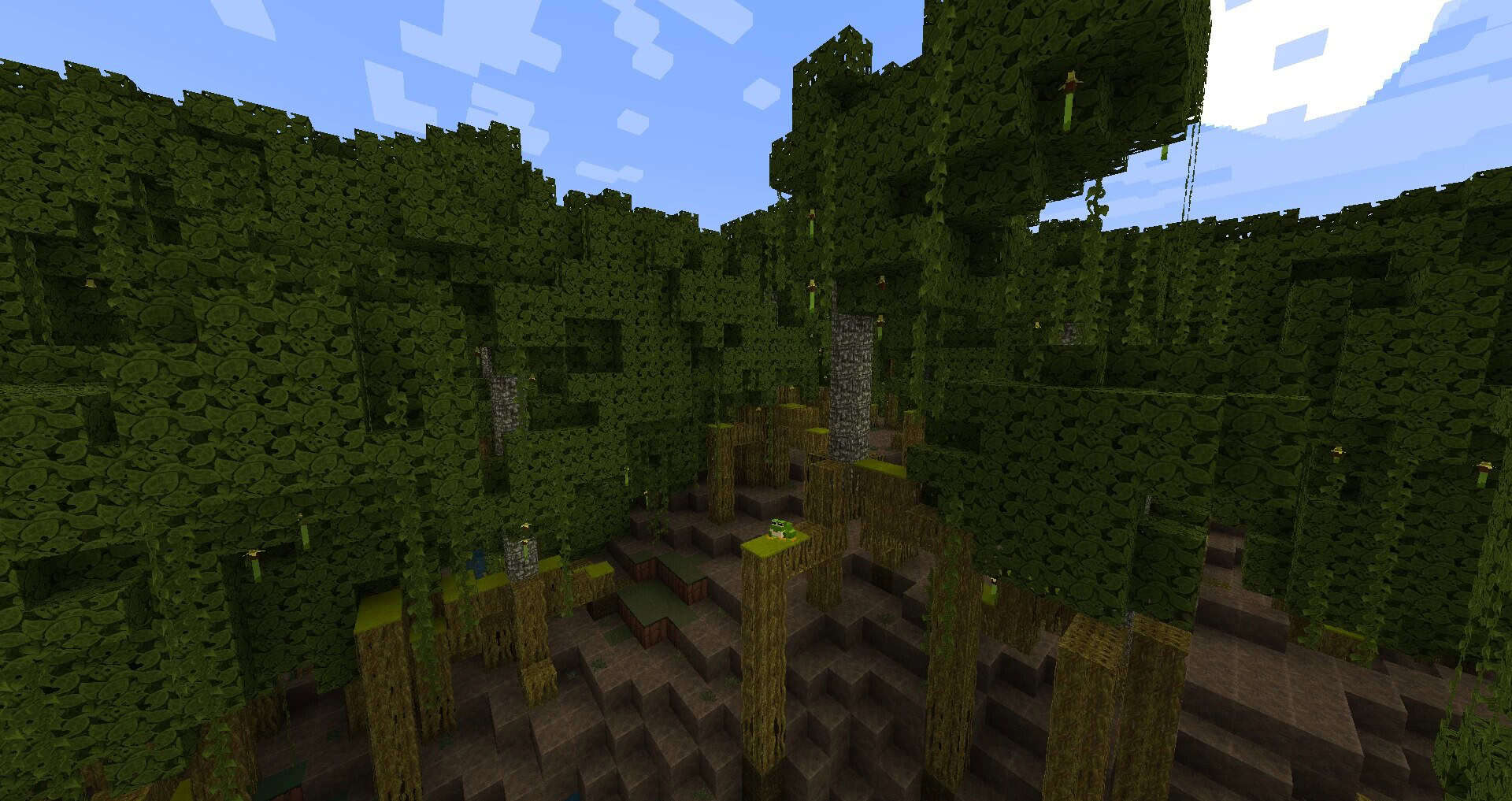
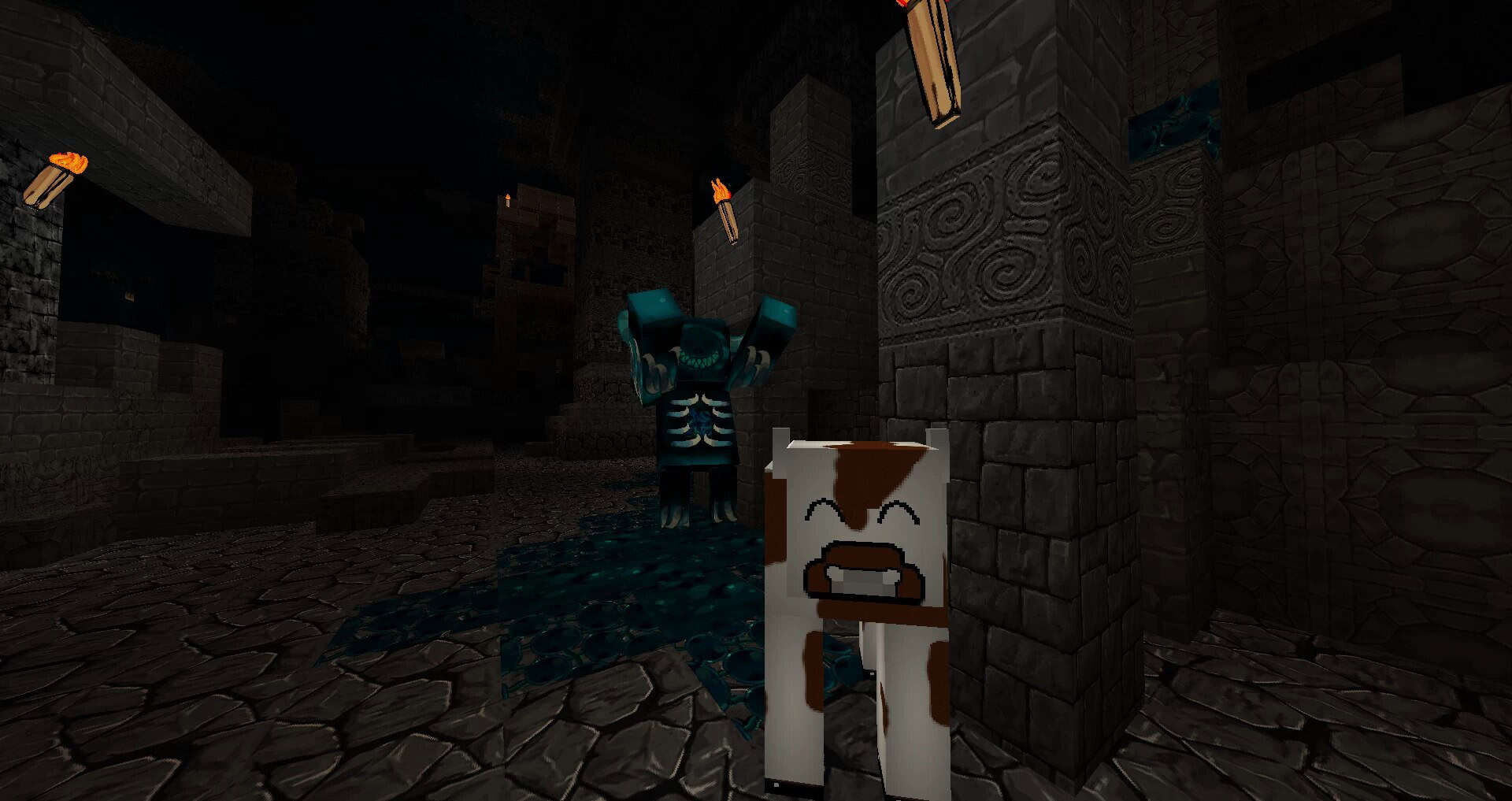
The authors are understandably proud of reviving this resource pack through their two-year-long project, and diving into it is an absolute blast. Let us talk about the salient features of the revived Minecraft 4Kids Genesis resource pack. While this texture pack carries a name reminiscent of famous cartoon production, it does not mean you will suddenly see well-known cartoon characters like Dragon Ball Z wandering around in your game. Instead, you get something far more significant and visually striking. Boasting an impressive 128x resolution, the resource pack presents everything as big, bold, and brilliantly bright. This high resolution genuinely helps you easily identify several ores, even when you are mining deep down in pitch-darkness. The author added plenty of intricate details across all the textures, leaning heavily into a cell-shading method and distinct art style. The 4Kids resource pack certainly embraces a charming cartoon theme, making it feel wonderfully as though you have just woken up on a fine Saturday morning to watch Saturday morning cartoons just like when you were a small kid. Yet, do not let that fool you into thinking this pack is meant exclusively for children; while its kid-oriented aesthetics, vibrant colors, and simple styles naturally appeal to younger audiences, they are equally engaging and delightful for players of all age groups, including veterans like you. Ultimately, you get a simplistic texture design and gentle stroke style in this pack that successfully transports you straight into a vibrant world of animation.
Minecraft 4Kids Genesis should be compatible with all of these Minecraft versions: 1.21.10 – 1.21.9 – 1.21.8 – 1.21.7 – 1.21.6 – 1.21.5 – 1.21.4 – 1.21.3 – 1.21.2 – 1.21.1 – 1.21 – 1.20.6 – 1.20.5 – 1.20.4 – 1.20.3 – 1.20.2 – 1.20.1 – 1.20 – 1.19.4 – 1.19.3 – 1.19.2 – 1.19.1 – 1.19 – 1.18.2 – 1.18.1 – 1.18 – 1.17.1 – 1.17 – 1.16.5 – 1.16.4 – 1.16.3 – 1.16.2 – 1.16.1 – 1.16
Screenshots
How to Install Texture Pack (Simple 10 Steps)
- Download OptiFine: Most of the texture packs and shaders need OptiFine. That’s why, first download and install OptiFine for the version of Minecraft you want to play.
- Download the Texture Pack: Get the texture pack you want from the download section. Choose the version that works with your Minecraft and your PC’s performance.
- Open Minecraft Launcher: Start Minecraft using the official game launcher — or even TLauncher, if you use that.
- Go to Options: From the main menu, click on the “Options” button.
- Open Resource Packs: Inside Options, click on “Resource Packs…”.
- Open the Resource Pack Folder: Click on “Open Resource Pack Folder” — this will open a folder named “resourcepacks”.
- Move the Pack File: Copy or move the .zip file you downloaded into that “resourcepacks” folder. (Don’t unzip the file — Minecraft uses it as-is!)
- Go Back and Refresh: Close the folder and click “Done”, then go back into “Resource Packs…” again.
- Activate the Pack: You’ll see the pack on the left side. Hover over it and click the arrow to move it to the right (active side).
Tip: If you get a message that the pack is for a different version, just click “Yes” — it usually works fine. - Click Done and Enjoy: Click “Done” again. Now your pack is ready to use in-game. It’s that easy!
Credits
This Resource Pack was originally created by Alree and later revived and updated by Ethiokera444 and TheGamerTrials. We do not claim ownership of this content, nor have we modified the original download files. All rights belong to the original creators. We strongly encourage you to support the authors by downloading from their official links and visiting their community pages.
Download Links
Java Edition
Download Instructions
Curseforge: download starts automatically after a few seconds;
Mediafire: click the big blue button with the text “DOWNLOAD”;
Google Drive: in the top right corner you will see a small download icon (down arrow), click it and the download should start;