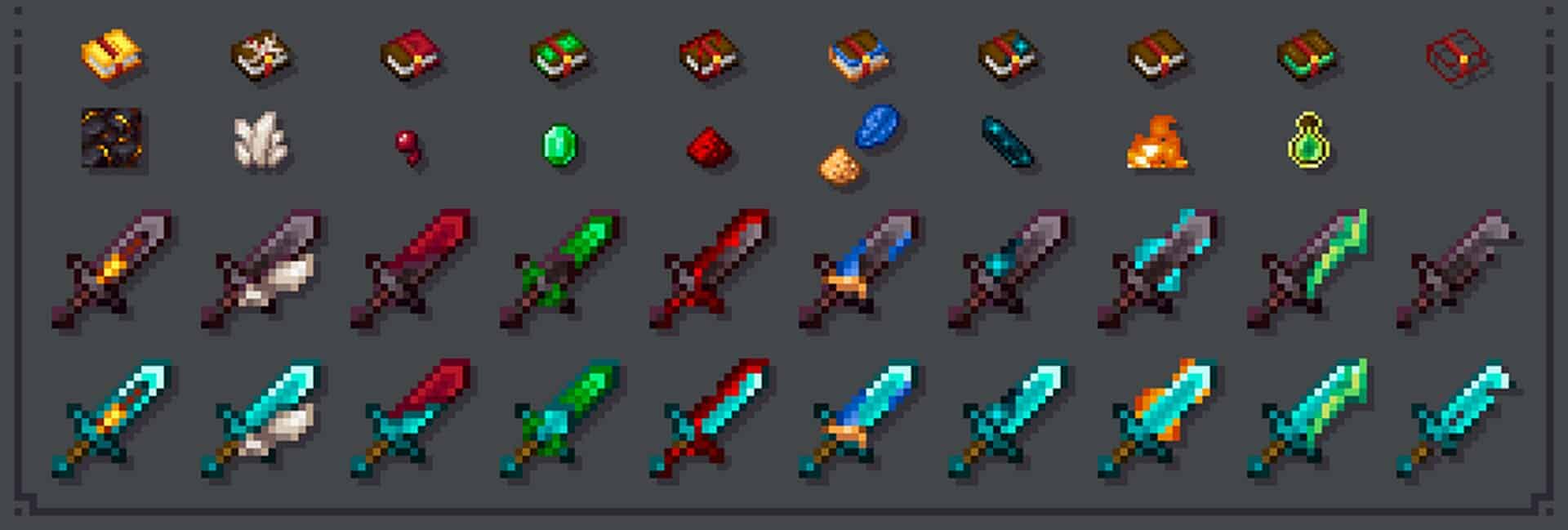
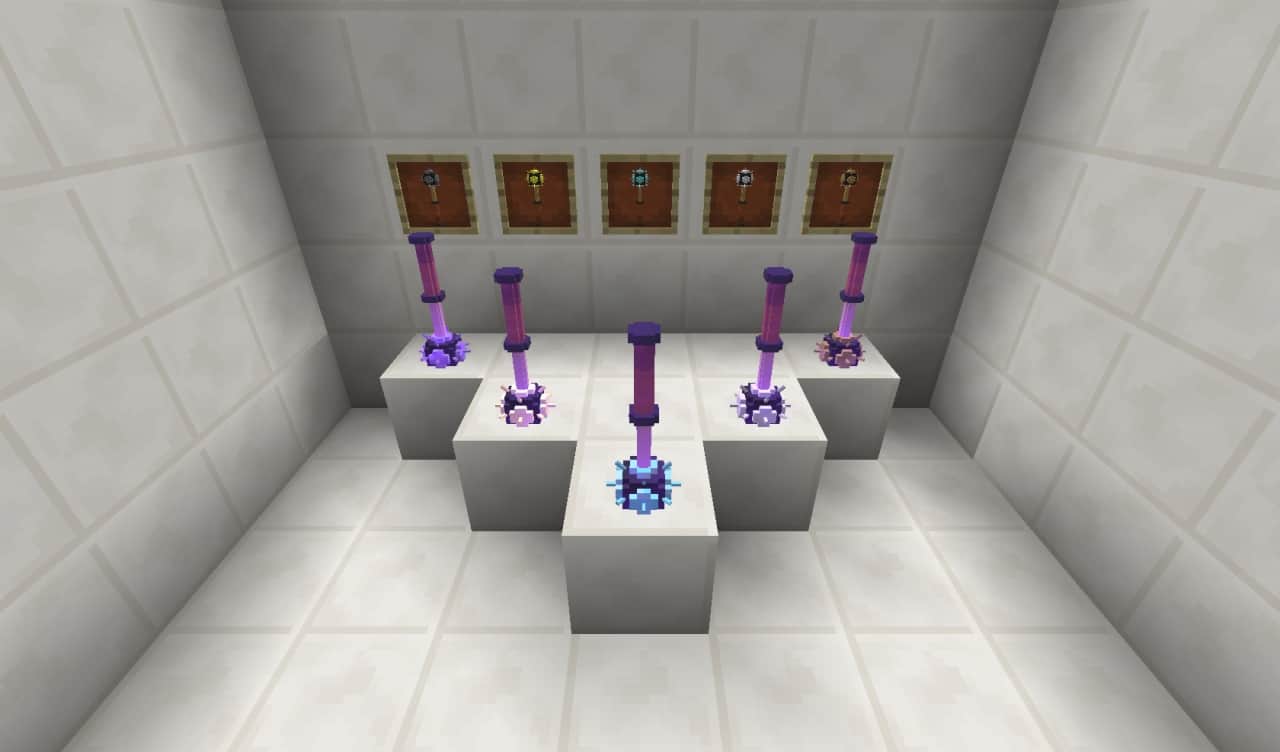
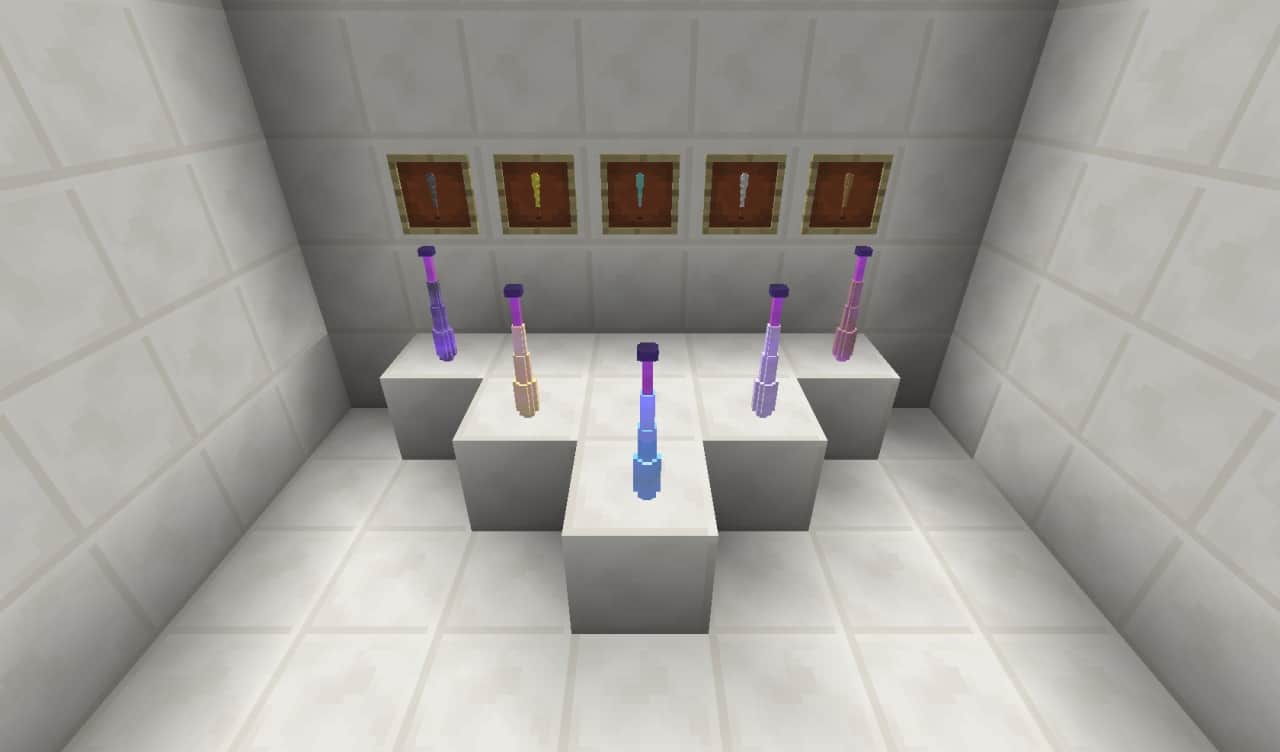
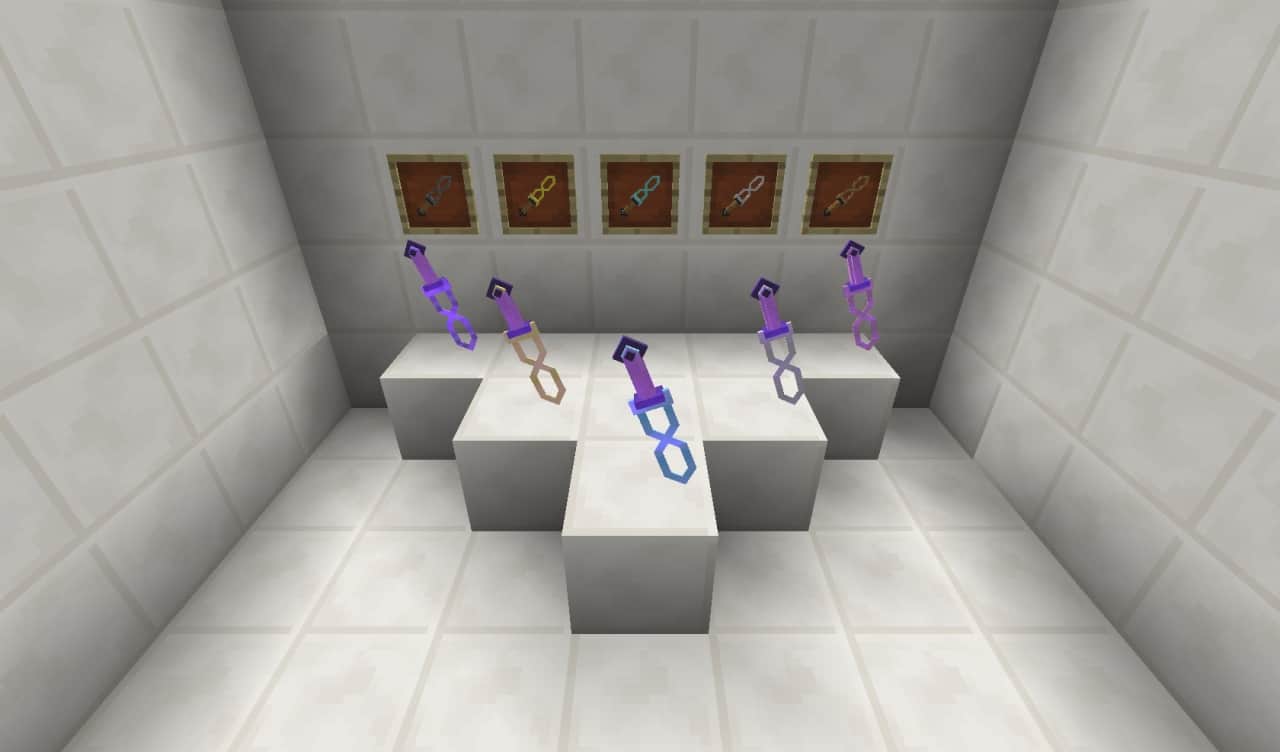
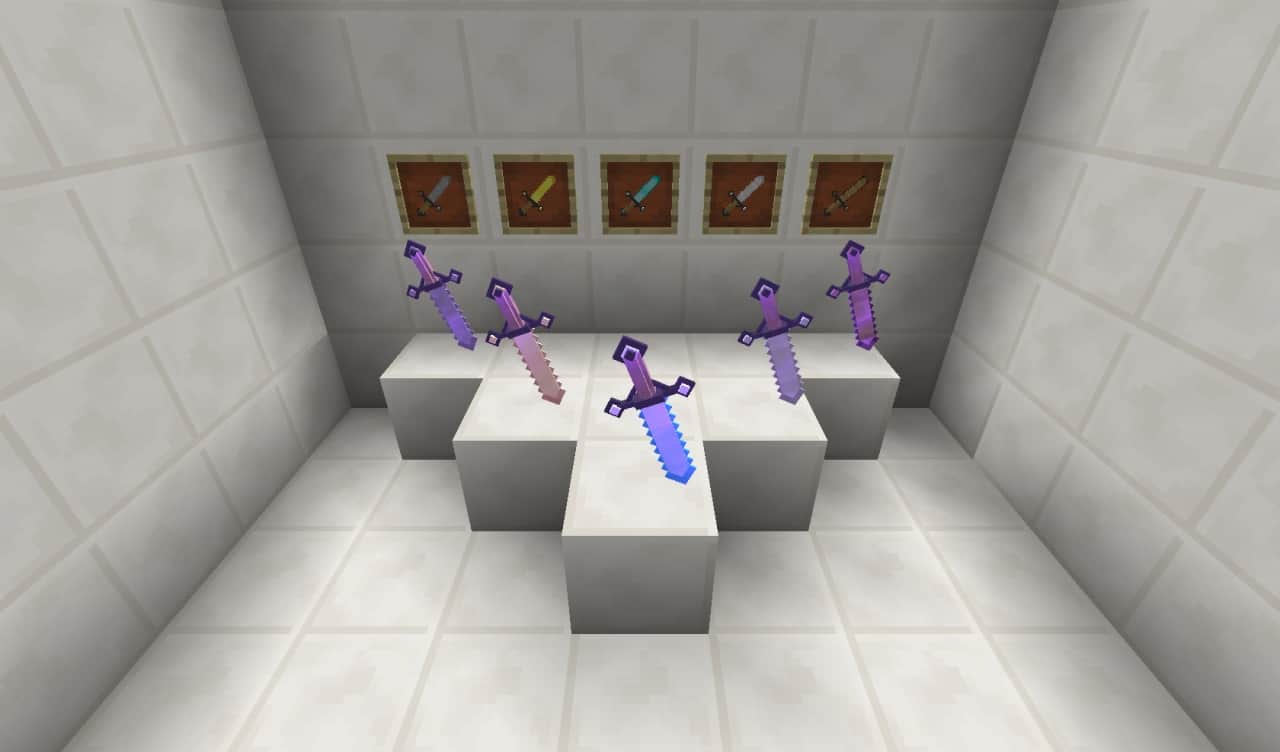
If you are looking to improve your player versus environment, like fighting monsters, or your player versus player abilities, you might really want to check your weapon of choice. A lot of players decide to pick up an enchanted bow, as additional damage can seem more alluring than any other alternative. The problem with this strategy is that unless you are out in the open or separated by a big body of water, you are probably going to miss more arrows than the ones you are going to land. That is why the better choice is, more often than not, the sword. And if you decided to use the better option and wield a sword in your adventures you simply have to improve your experience using the incredible 3D sword pack. This will not only merely improve the look of your sword, but it will give it an amazing 3D remodeling. After you use it, your new looking sword will not even look close to your old-fashioned weapon. As of right now, the 3D Sword resource pack only works with vanilla minecraft swords, but the people that created the pack are already working to develop an expansion to include even more models of custom weapons.
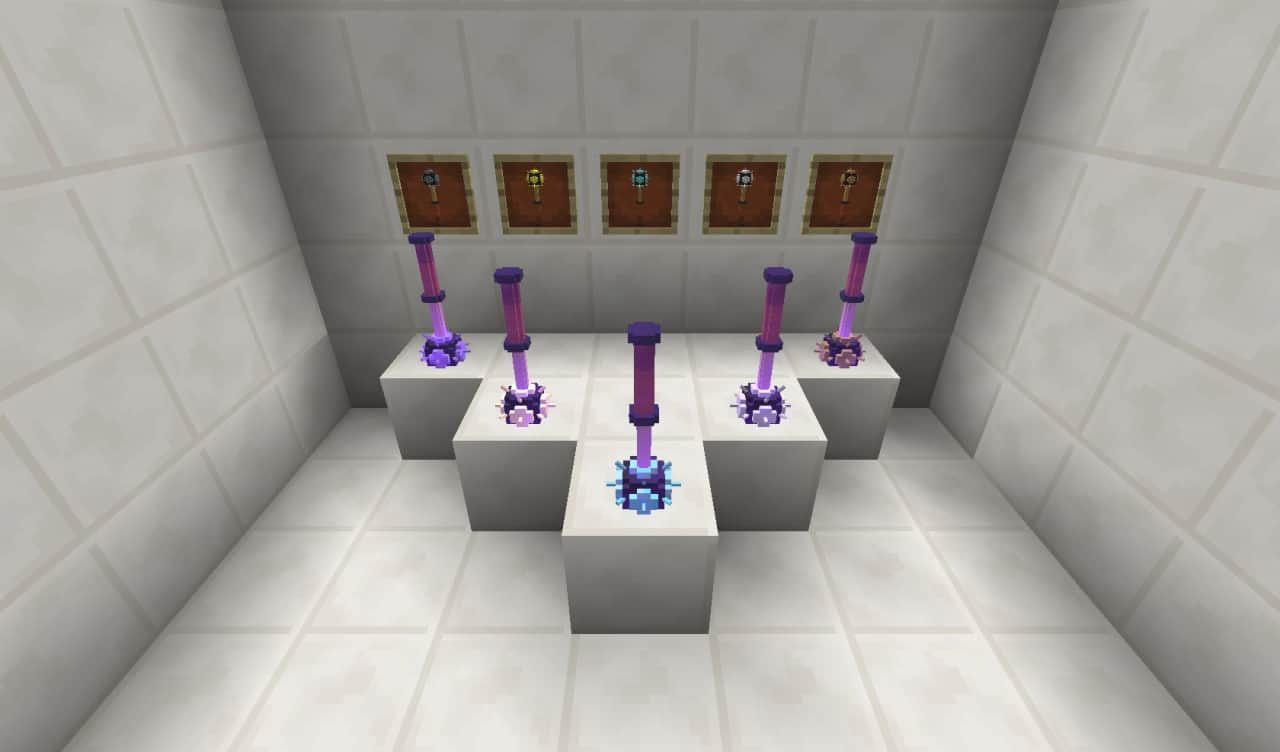
And, truth be told, there is more than one version of the 3D Sword Pack, which I found super exciting. There are ten different packs, and each one of them remodels minecraft swords to look like a bunch of different weaponry. That means that even though right now you can only model your minecraft sword, you have a wide variety of options to make it look different, from hammers to maces, and from wands to lightsabers, plus more! Bear in mind, this is only a resource pack and changes are merely cosmetic. If you want to change the whole weapon, including how it acts when you use it, then the mod section of your favorite minecraft website would be your best bet. The developers have decided to stick with only a graphics change and maintain the classic 16x resolution. Thanks to this decision everything else in the game stays the same, except the sword’s look, ensuring a wonderfully smooth gameplay. If you are looking for a change in your sword’s in-game look, this is definitely what you want to use, though if you want to change combat mechanics, you will have to check for another mod instead.
3D Sword Packs should be compatible with all of these Minecraft versions: 1.19.2 – 1.19.1 – 1.19 – 1.18.2 – 1.18.1 – 1.18 – 1.17.1 – 1.17 – 1.16.5 – 1.16.4 – 1.16.3 – 1.16.2 – 1.16.1 – 1.16 – 1.15.2 – 1.15.1 – 1.15 – 1.14.4 – 1.14.3 – 1.14.2 – 1.14 – 1.13.2 – 1.13.1 – 1.13 – 1.12.2 – 1.12 – 1.11.2 – 1.11 – 1.10.2 – 1.10 – 1.9.4 – 1.9 – 1.8.9 – 1.8.8 – 1.8.1 – 1.8.6 – 1.8
Screenshots

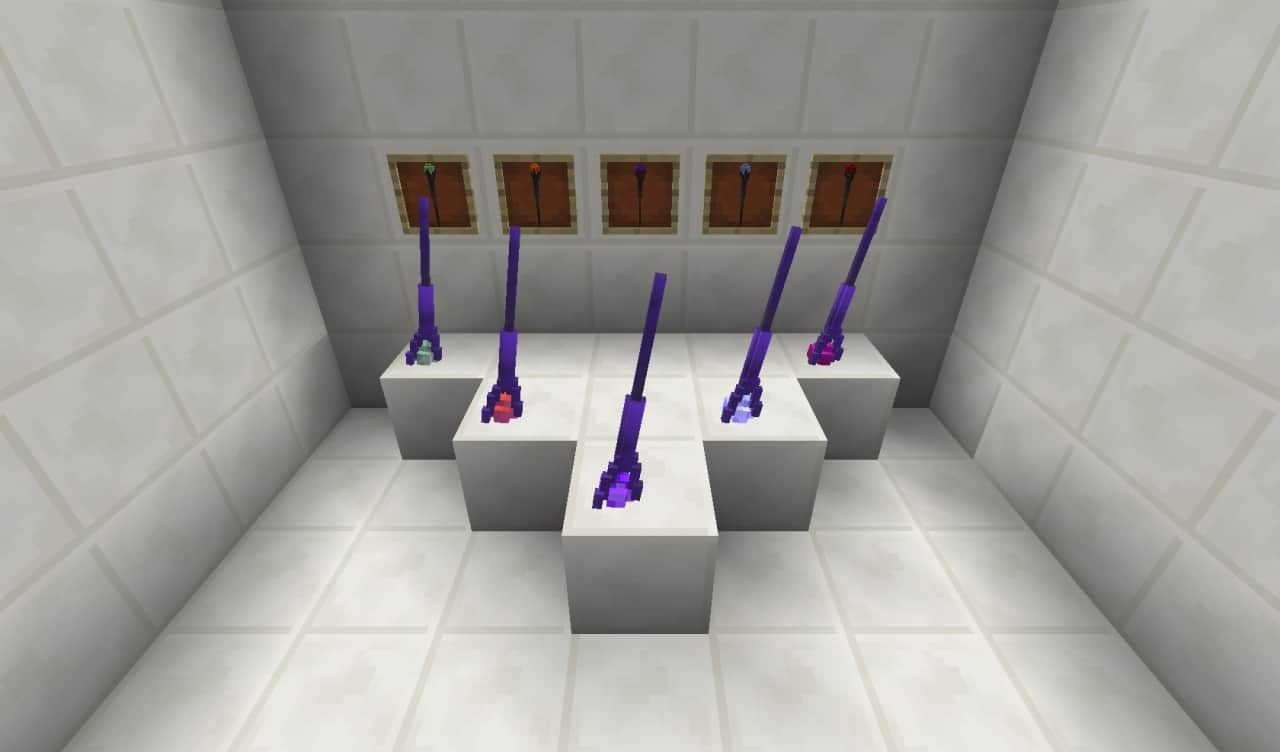
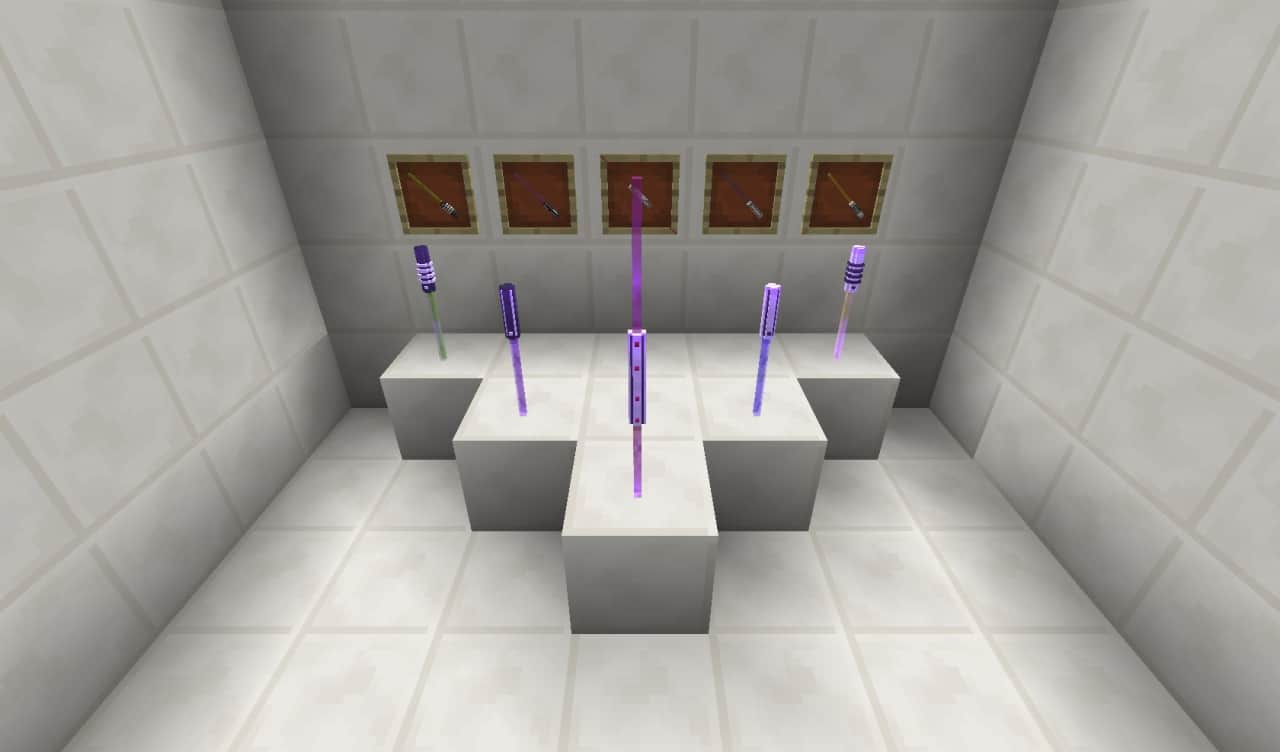
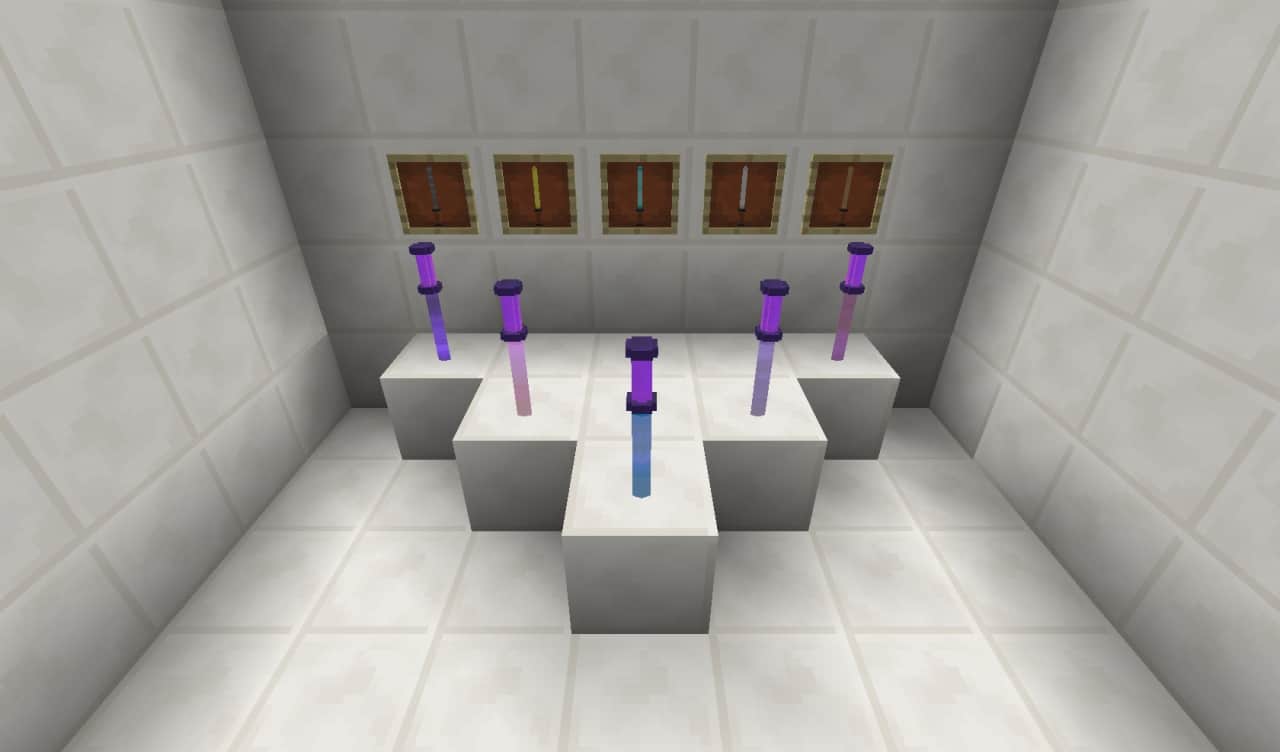

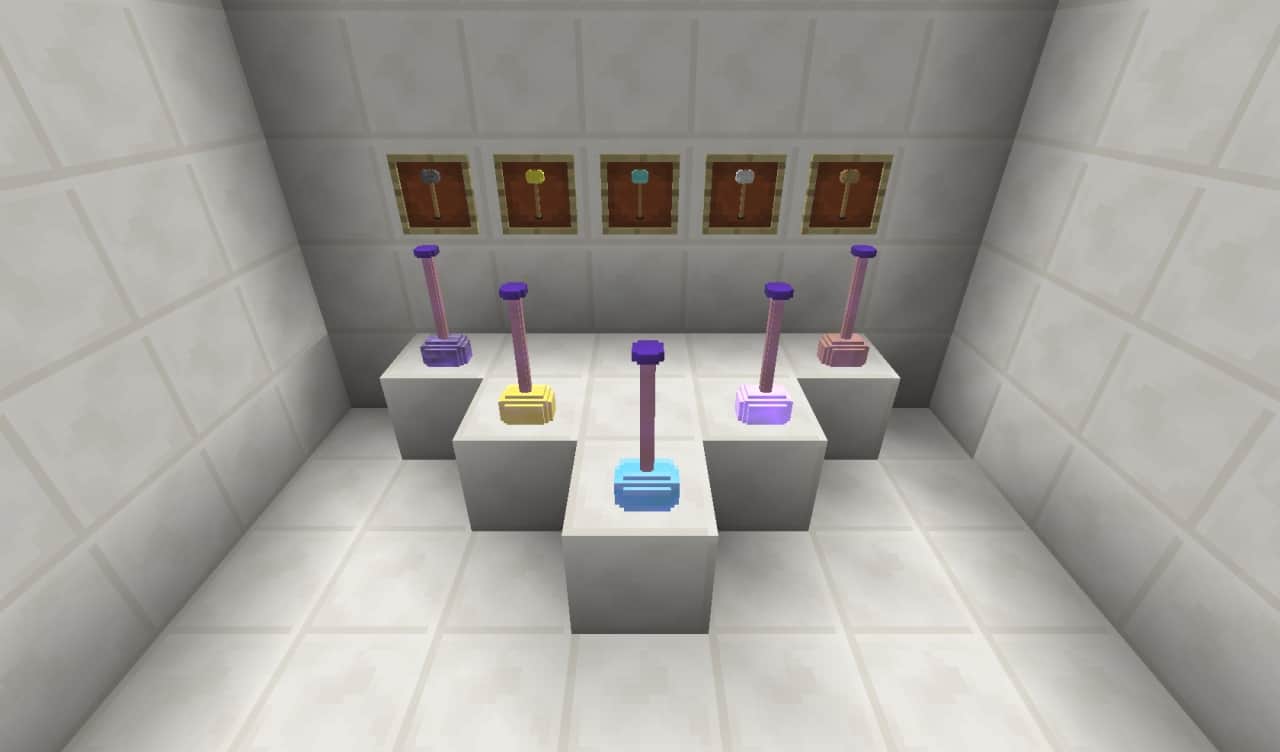
How to Install Texture Pack (Simple 10 Steps)
- Download OptiFine: Most of the texture packs and shaders need OptiFine. That’s why, first download and install OptiFine for the version of Minecraft you want to play.
- Download the Texture Pack: Get the texture pack you want from the download section. Choose the version that works with your Minecraft and your PC’s performance.
- Open Minecraft Launcher: Start Minecraft using the official game launcher — or even TLauncher, if you use that.
- Go to Options: From the main menu, click on the “Options” button.
- Open Resource Packs: Inside Options, click on “Resource Packs…”.
- Open the Resource Pack Folder: Click on “Open Resource Pack Folder” — this will open a folder named “resourcepacks”.
- Move the Pack File: Copy or move the .zip file you downloaded into that “resourcepacks” folder. (Don’t unzip the file — Minecraft uses it as-is!)
- Go Back and Refresh: Close the folder and click “Done”, then go back into “Resource Packs…” again.
- Activate the Pack: You’ll see the pack on the left side. Hover over it and click the arrow to move it to the right (active side).
Tip: If you get a message that the pack is for a different version, just click “Yes” — it usually works fine. - Click Done and Enjoy: Click “Done” again. Now your pack is ready to use in-game. It’s that easy!
Credits
This resource pack was created by Sibsib92. We do not own or claim ownership of this content. All rights belong to the original creator. We encourage you to support Sibsib92 by downloading and using the pack through their official links.
Download Links
Java Edition
Download Instructions
Curseforge: download starts automatically after a few seconds;
Mediafire: click the big blue button with the text “DOWNLOAD”;
Google Drive: in the top right corner you will see a small download icon (down arrow), click it and the download should start;