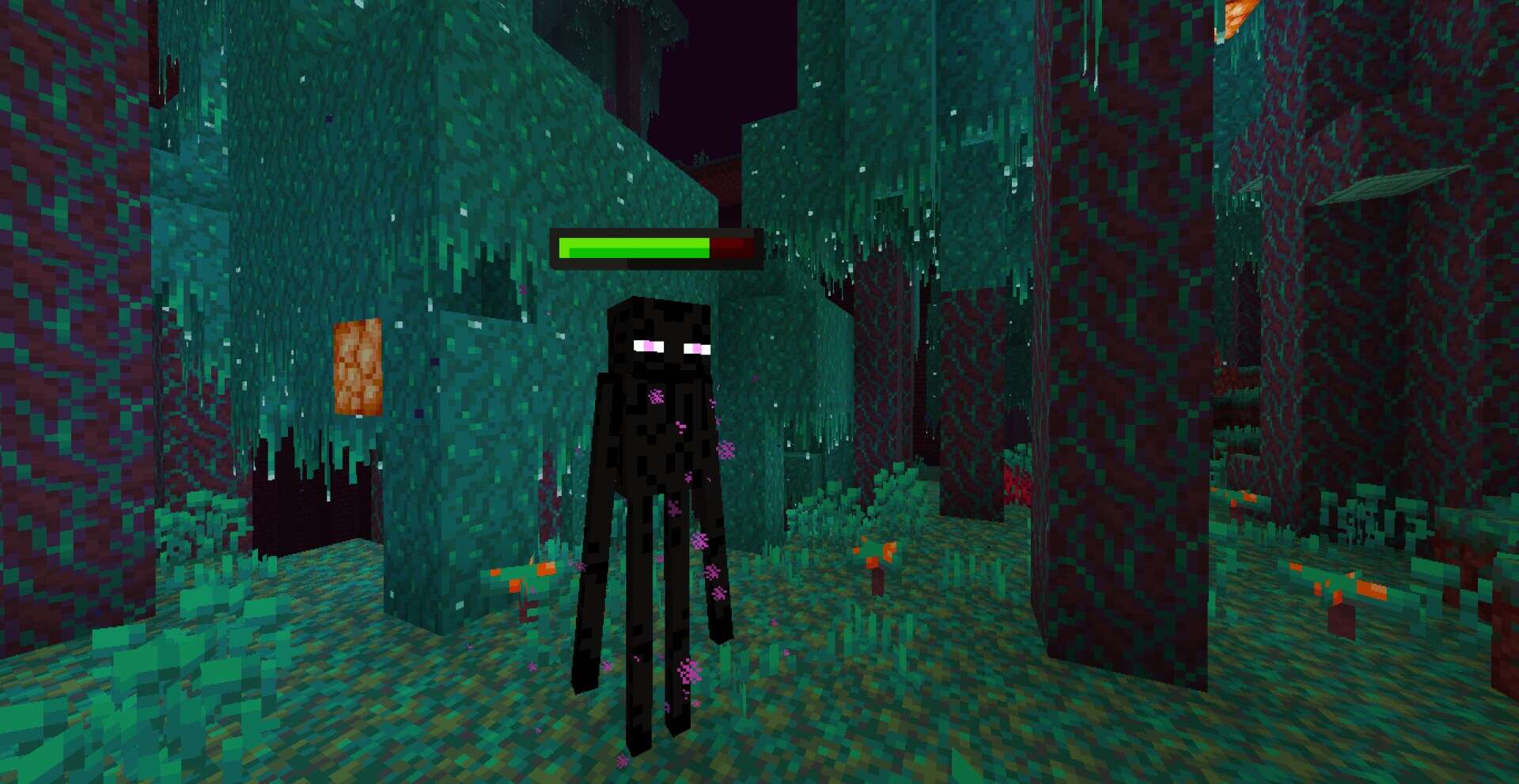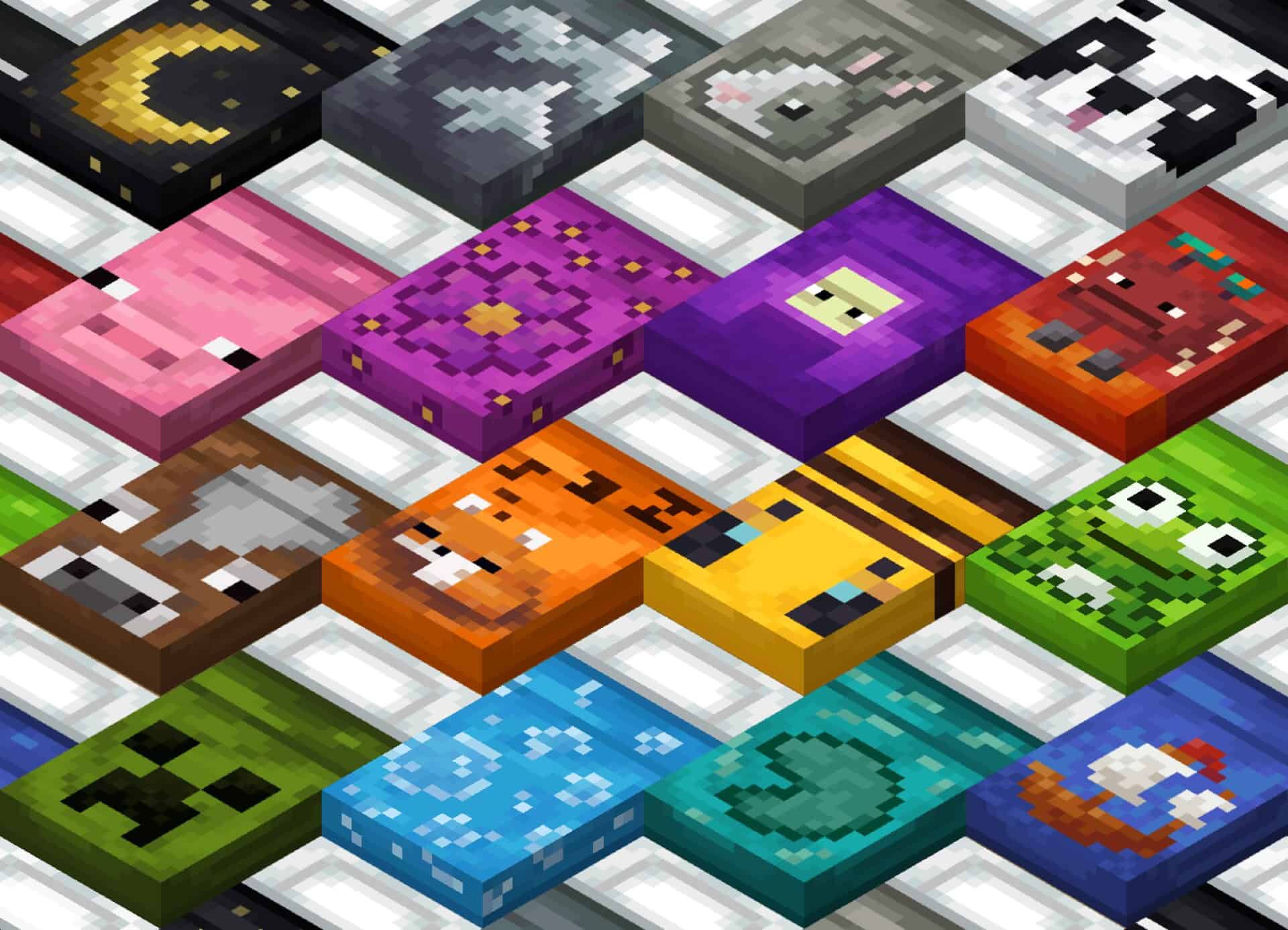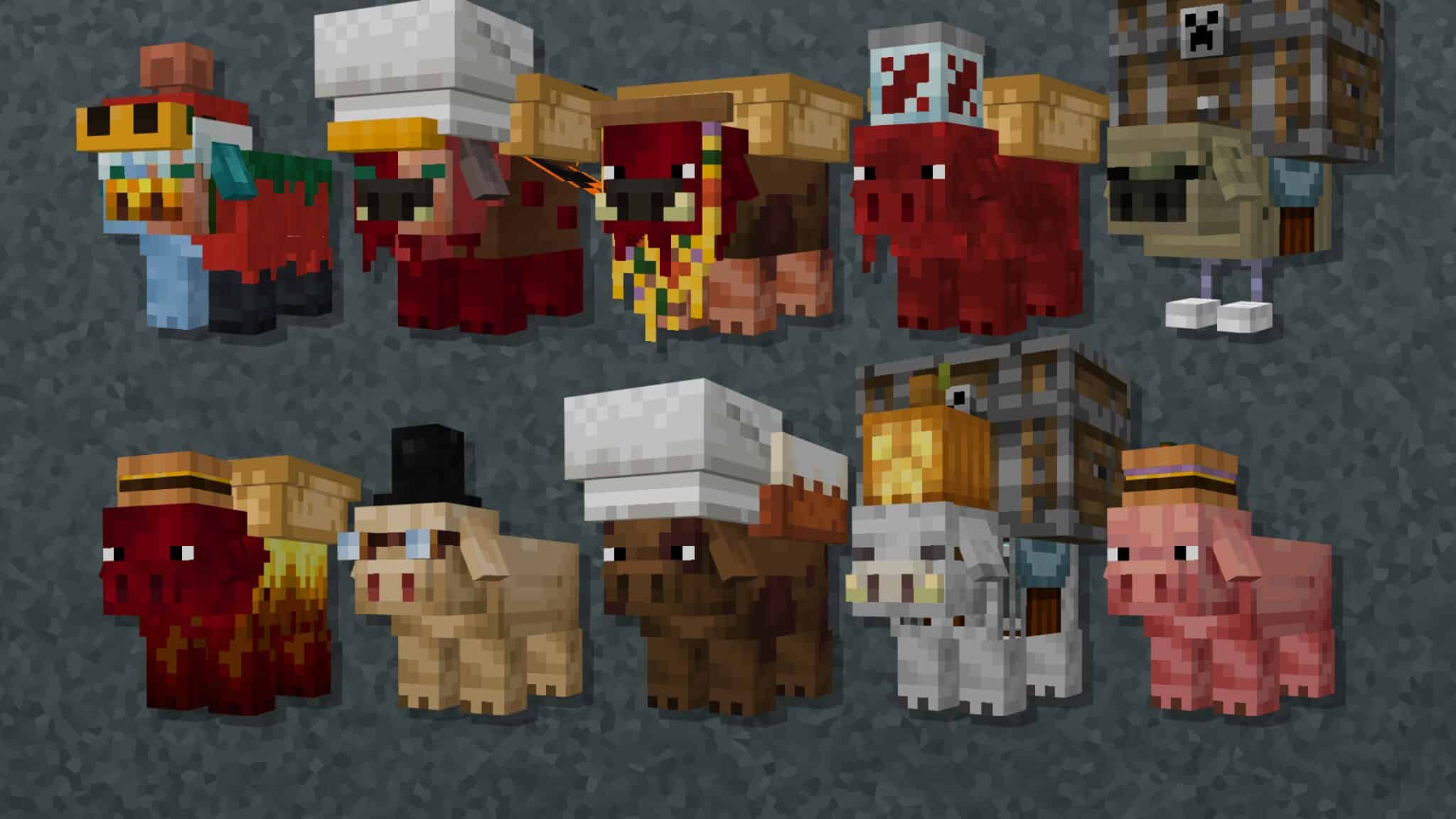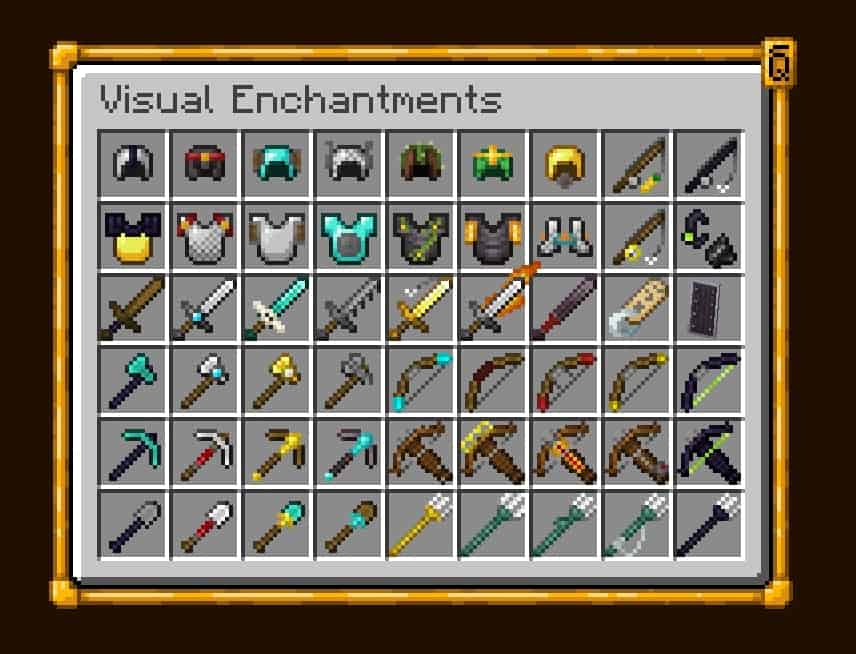
Visual Enchantments is easily one of the absolute most popular Minecraft resource packs out there! You probably already know that one of the absolute best features in a game titled Minecraft is the ability to enchant most items, including swords, bows, and armor. The frustrating problem with enchantments in vanilla Minecraft is that you cannot visually see what kind of enchantment is actually being applied to that particular item. The only way to know it for sure is to constantly read the item’s tooltip info, which is definitely not always comfortable or convenient. Most of us really want to have a much better, seamless solution for this exact issue.
Thankfully, this is totally possible and it is not a problem anymore after the incredible Visual Enchantments resource pack release. Download and install this pack, and you will instantly notice that all your enchanted items are now displaying enchantments not just in the description as boring text, but they also look like genuinely visually different items right in your hands! For example, enchantments with extra protection will look like additional sheets of iron layered neatly on your armor, while an enchantment like respiration will make your helmet look like an old-school vintage swim suit mask. In general, this is hands down one of the most useful Minecraft additions of all time, and we truly and highly recommend it for any active player looking to upgrade their survival experience.
Visual Enchantments should be compatible with all of these Minecraft versions: 26.2 – 26.1.2 – 26.1.1 – 26.1 – 1.21.11 – 1.21.10 – 1.21.9 – 1.21.8 – 1.21.7 – 1.21.6 – 1.21.5 – 1.21.4 – 1.21.3 – 1.21.2 – 1.21.1 – 1.21 – 1.20.6 – 1.20.5 – 1.20.4 – 1.20.3 – 1.20.2 – 1.20.1 – 1.20 – 1.19.4 – 1.19.3 – 1.19.2 – 1.19.1 – 1.19 – 1.18.2 – 1.18.1 – 1.18 – 1.17.1 – 1.17 – 1.16.5 – 1.16.4 – 1.16.3 – 1.16.2 – 1.16.1 – 1.16 – 1.15.2 – 1.15.1 – 1.15 – 1.14.4 – 1.14.3 – 1.14.2 – 1.14 – 1.13.2 – 1.13.1 – 1.13 – 1.12.2 – 1.12 – 1.11.2 – 1.11 – 1.10.2 – 1.10 – 1.9.4 – 1.9 – 1.8.9 – 1.8.8 – 1.8.1 – 1.8.6 – 1.8
Screenshots
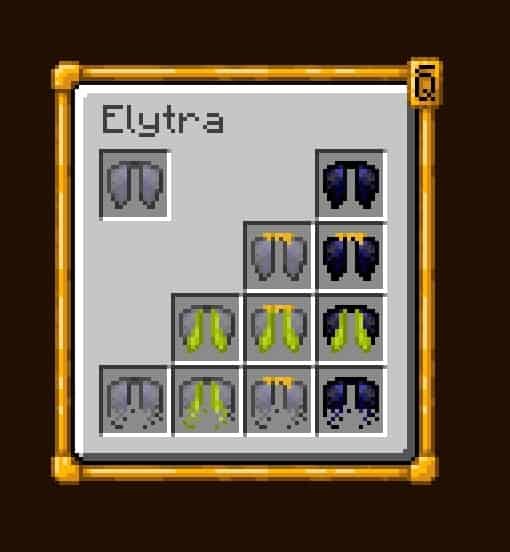
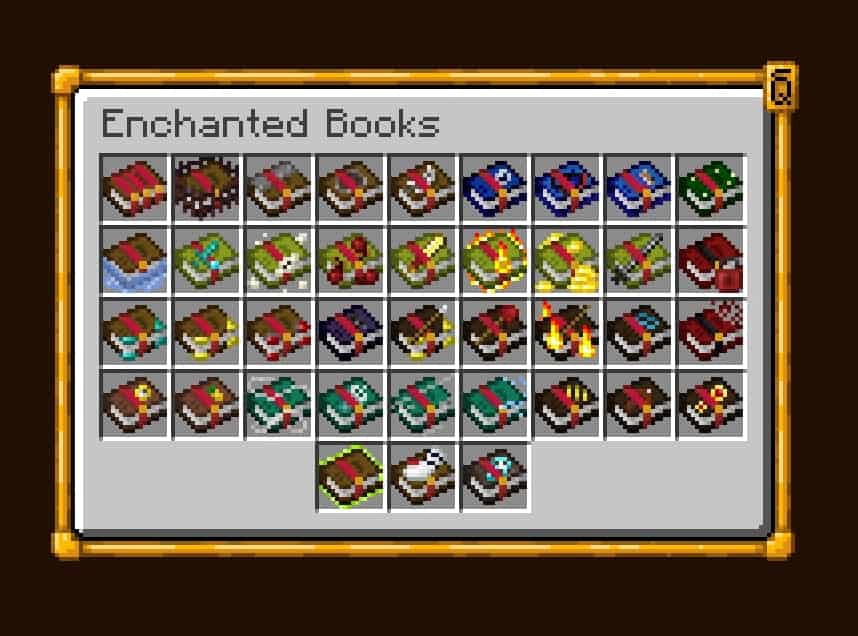
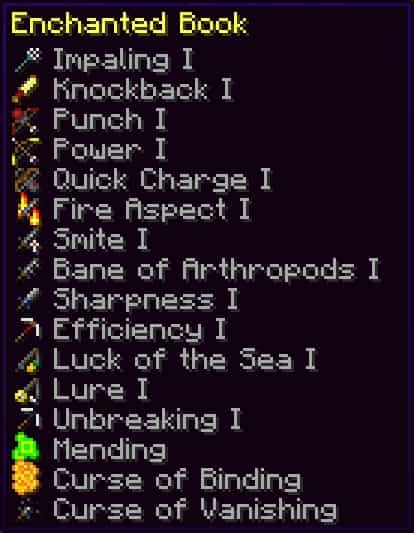
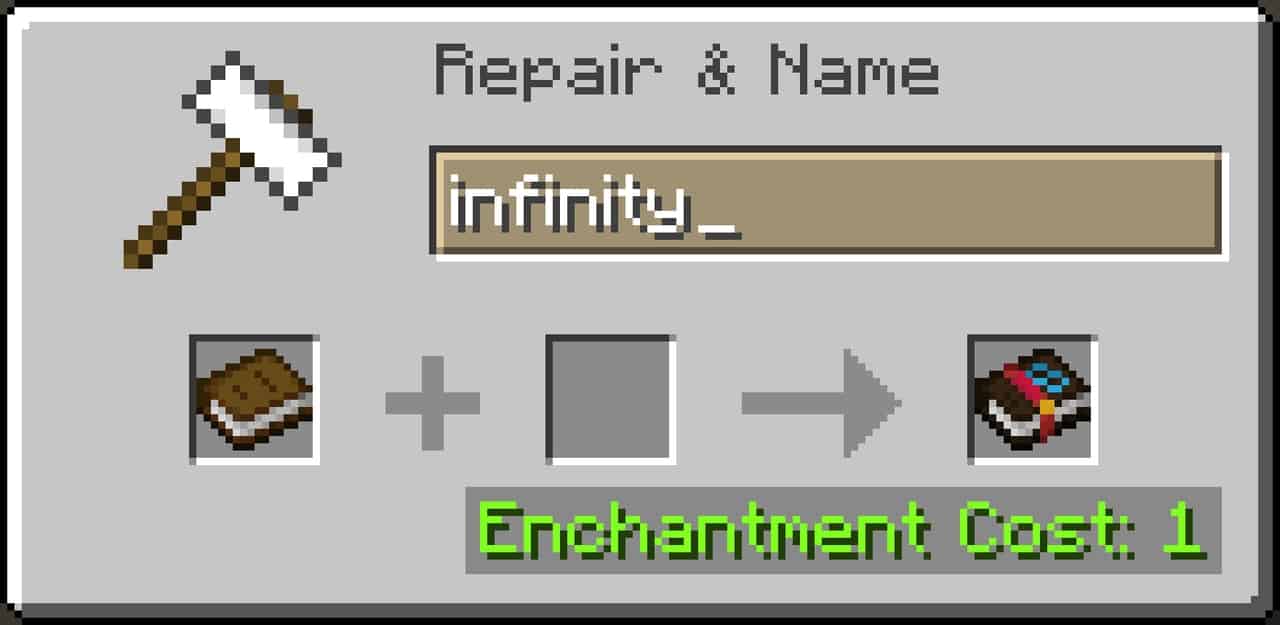
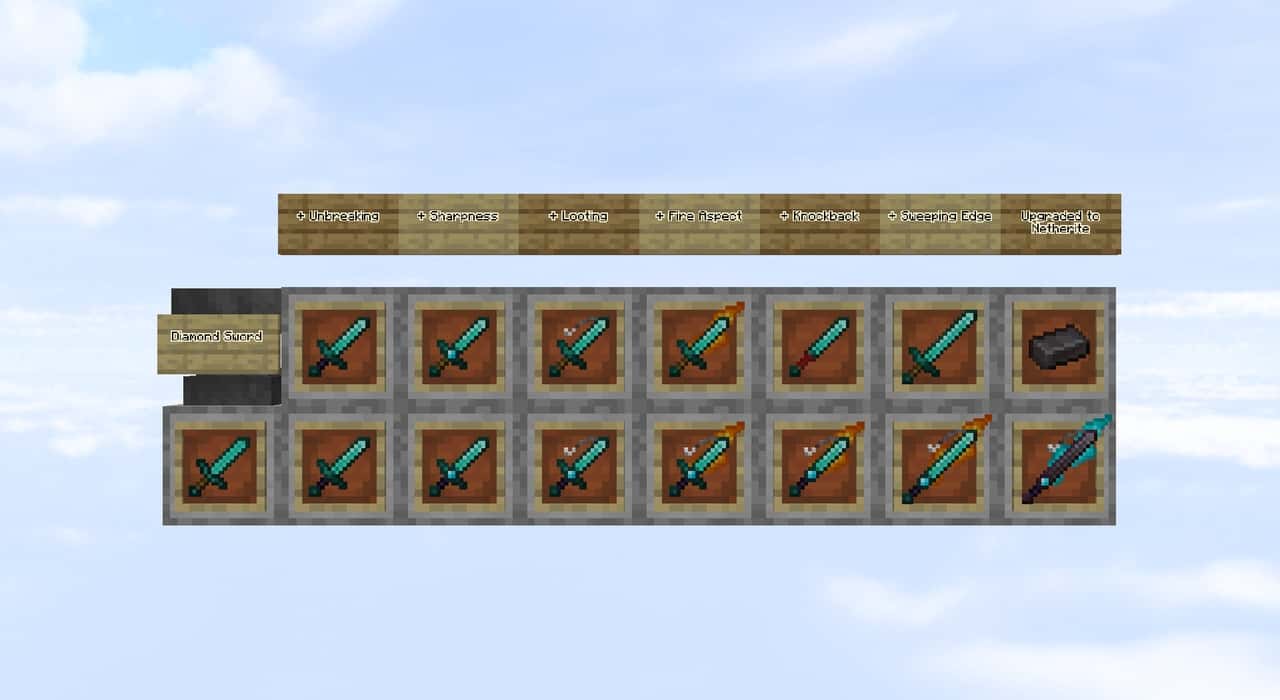
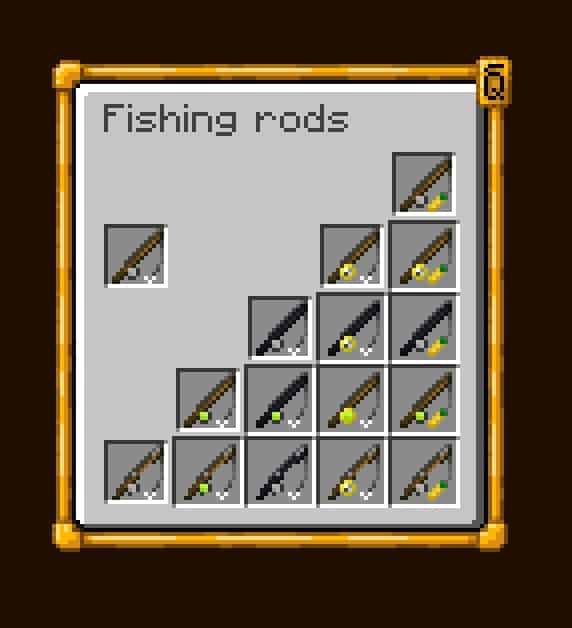
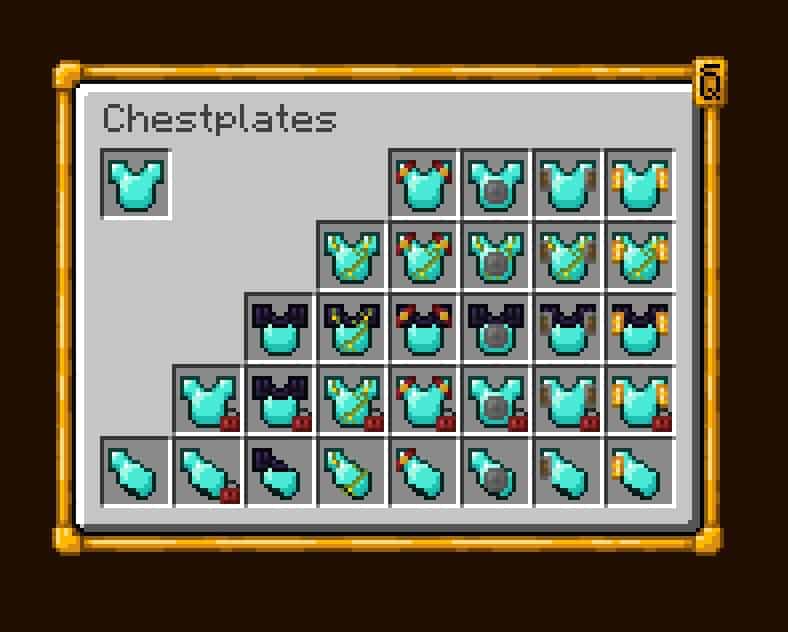
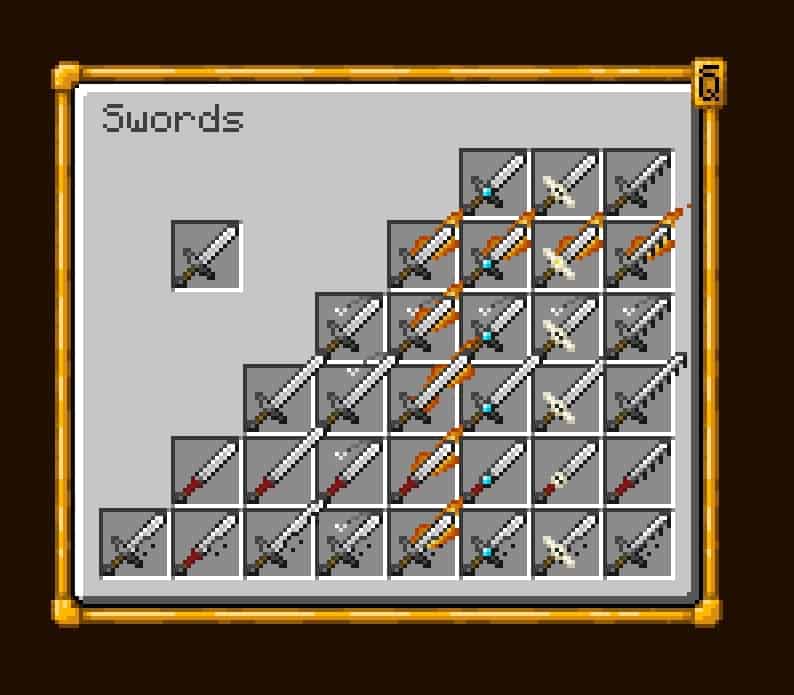
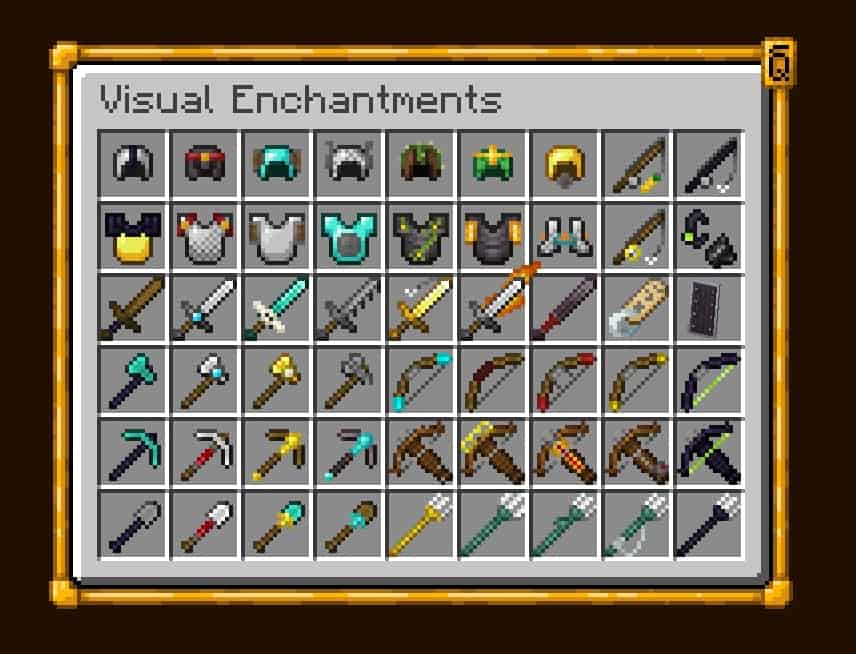
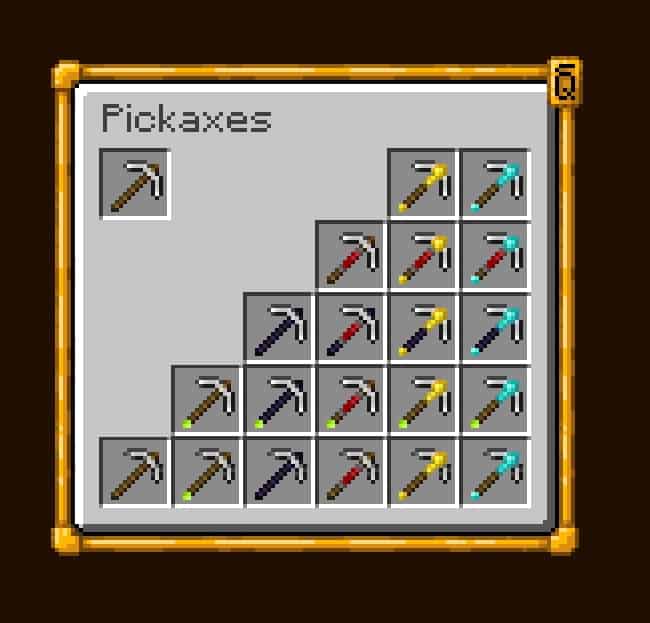
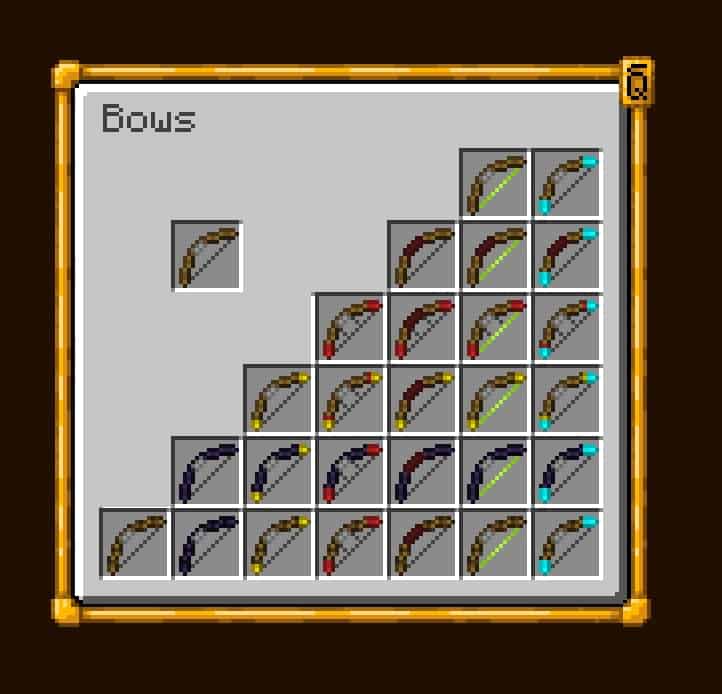
How to Install Texture Pack (Simple 10 Steps)
- Download OptiFine: Most of the texture packs and shaders need OptiFine. That’s why, first download and install OptiFine for the version of Minecraft you want to play.
- Download the Texture Pack: Get the texture pack you want from the download section. Choose the version that works with your Minecraft and your PC’s performance.
- Open Minecraft Launcher: Start Minecraft using the official game launcher — or even TLauncher, if you use that.
- Go to Options: From the main menu, click on the “Options” button.
- Open Resource Packs: Inside Options, click on “Resource Packs…”.
- Open the Resource Pack Folder: Click on “Open Resource Pack Folder” — this will open a folder named “resourcepacks”.
- Move the Pack File: Copy or move the .zip file you downloaded into that “resourcepacks” folder. (Don’t unzip the file — Minecraft uses it as-is!)
- Go Back and Refresh: Close the folder and click “Done”, then go back into “Resource Packs…” again.
- Activate the Pack: You’ll see the pack on the left side. Hover over it and click the arrow to move it to the right (active side).
Tip: If you get a message that the pack is for a different version, just click “Yes” — it usually works fine. - Click Done and Enjoy: Click “Done” again. Now your pack is ready to use in-game. It’s that easy!
Credits
Visual Enchantments was created by CiscuLog. We do not claim ownership of this content, nor do we host modified versions of the resource pack. All rights, intellectual property, and updates belong entirely to the original author. Please support CiscuLog by downloading the pack from their official channels and following their creator pages.
Download Links
Java Edition
Download Instructions
Curseforge: download starts automatically after a few seconds;
Mediafire: click the big blue button with the text “DOWNLOAD”;
Google Drive: in the top right corner you will see a small download icon (down arrow), click it and the download should start;