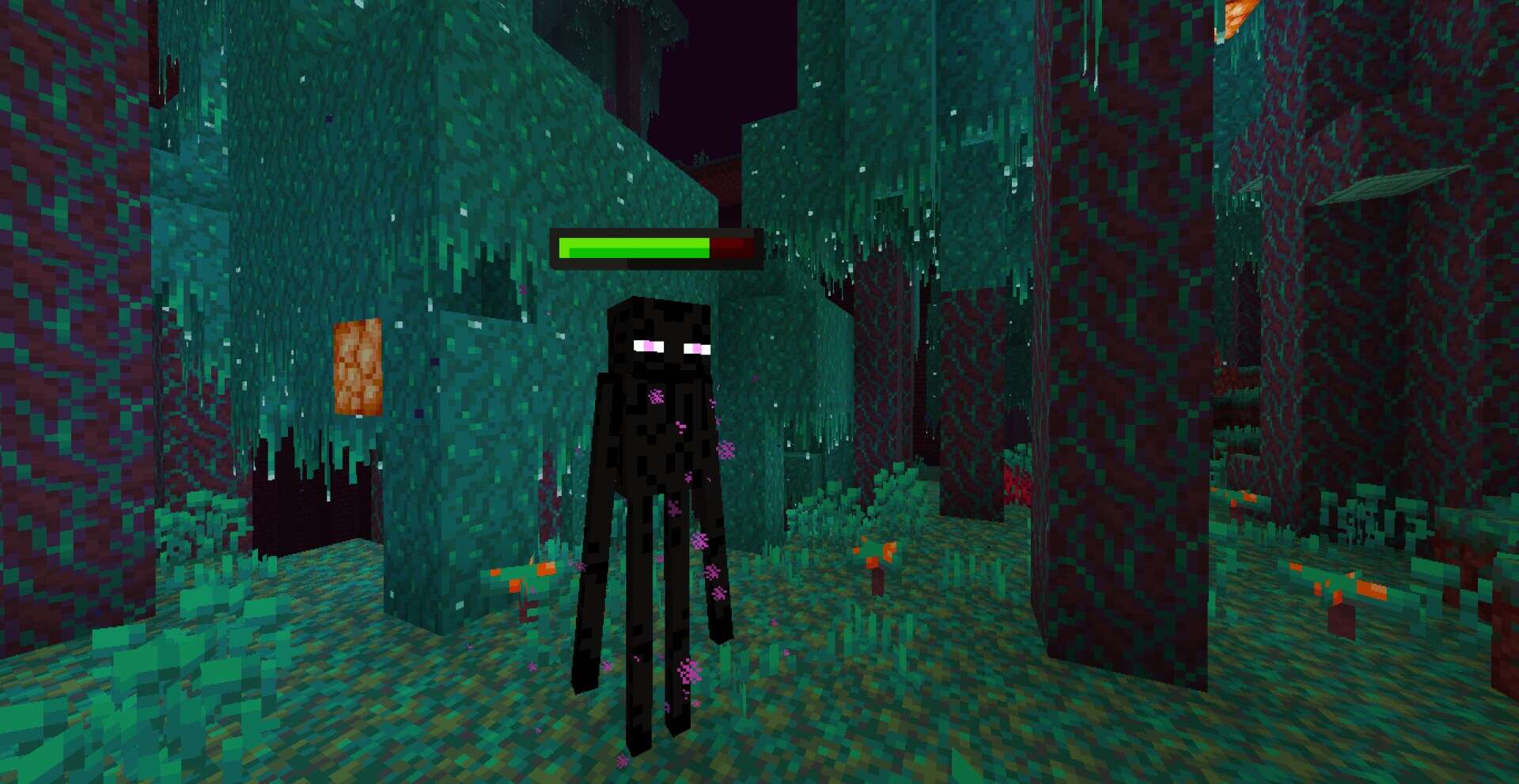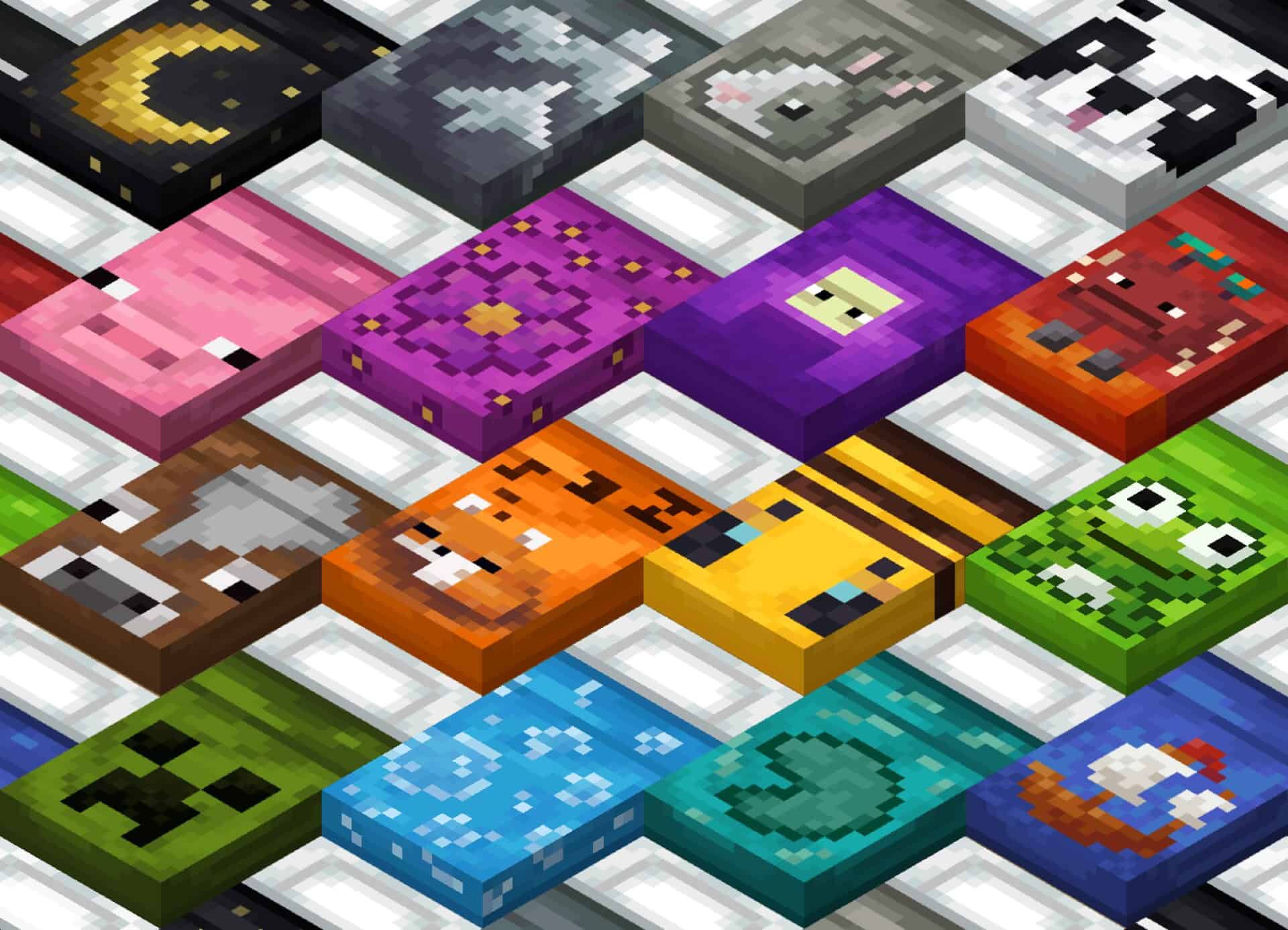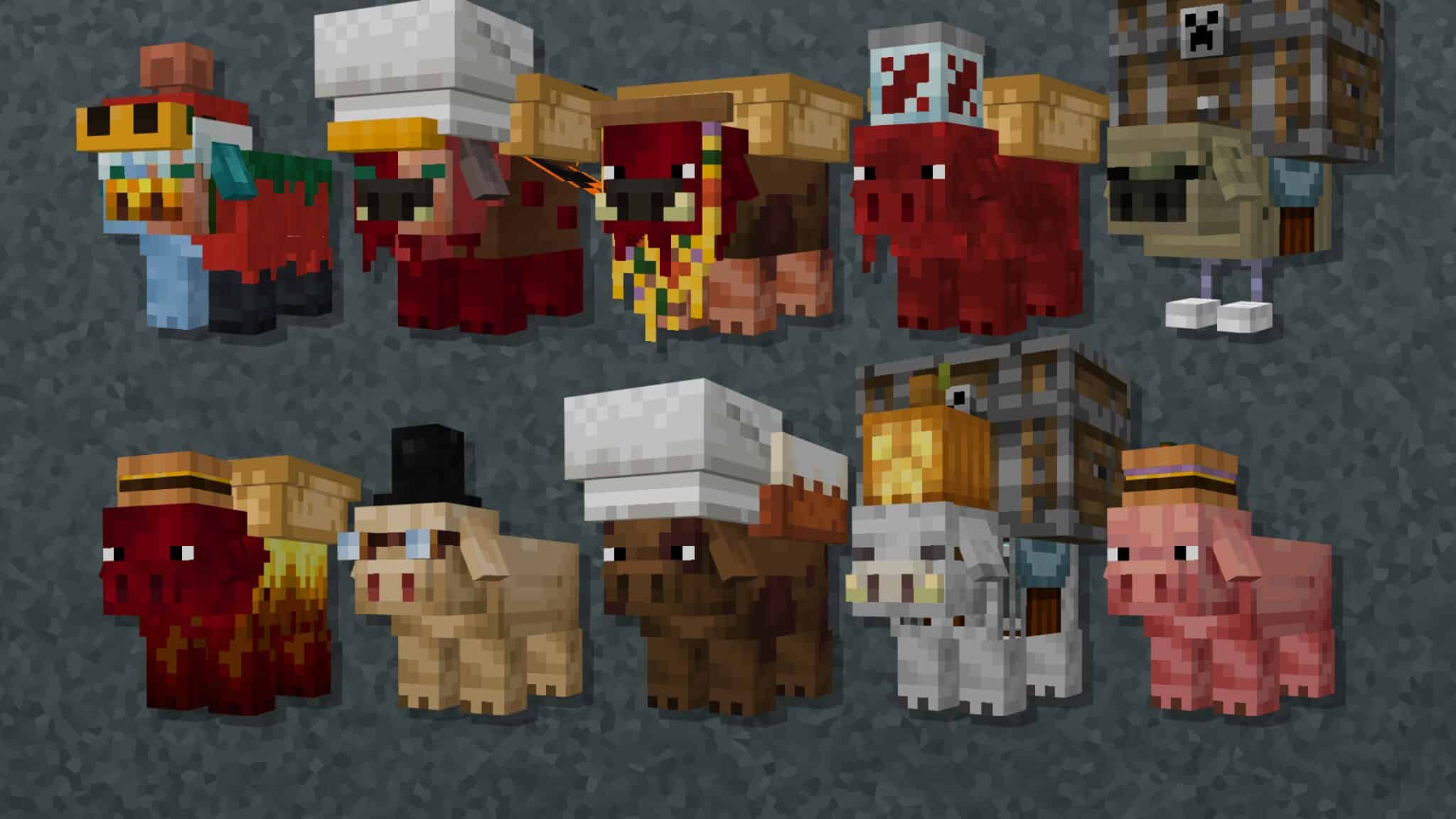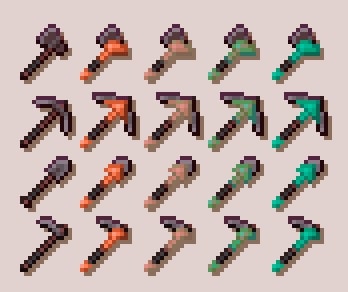
The creator behind the Enchanted Tools resource pack is the exact same talented mind who brought us the incredible Enchanted Swords texture pack! However, that previous pack focused exclusively on swords and other weapons, leaving standard utility tools like pickaxes and axes untouched. If you are entirely new to the concept of enchanted swords or tools, let me fill you in. Typically, most resource packs overhaul the entire default look of Minecraft, with developers attempting to modify practically every visual asset ranging from hostile mobs to building blocks. But AccidBurn, the brilliant author of the Enchanted Tools texture pack, cleverly chose to focus solely on revamping the icon textures of your everyday tools. It is honestly a fantastic design choice that elevates the Minecraft experience to a whole new level. As you likely already know, Minecraft is famous for its enchanting system, allowing you to imbue almost any item—including tools, weapons, and armor—with magical properties. The frustrating issue in vanilla Minecraft, though, is that enchanted tools look virtually identical to their non-enchanted counterparts, save for a slight, barely noticeable hue shift in their inventory icons. You simply cannot tell what specific enchantment a tool holds just by glancing at it; instead, you are forced to painstakingly hover your cursor over each item to read the tooltip details, something that many players including myself find quite tedious.
Every single one of us has been searching for a practical solution to this immersion-breaking limitation. If you strongly dislike how standard enchanted tools look in-game, then the Enchanted Tools resource pack is custom-made for your exact needs. On the flip side, if you are hunting for an overhaul that alters every single block like grass, snow, and trees, you might want to keep looking because this pack strictly focuses on tool textures alone. The absolute best part of Enchanted Tools is the incredible level of detailing and uniqueness poured into every single texture, instantly injecting a fresh wave of liveliness into your gameplay. Every design aspect genuinely enhances the survival atmosphere, adding a delightful layer of vibrancy, immersion, and visual freshness that truly makes this one of the most imaginative resource packs currently available. If you want the ability to check your tools’ enchantments instantly through both their rich text descriptions and their distinct visual appearances, you seriously need to install this pack today. You will immediately notice a striking, satisfying visual transformation in nearly every tool you craft. At the end of the day, I wholeheartedly encourage all fellow Minecraft players to check out this wonderfully unique resource pack, as it easily stands out as one of the most beneficial and visually alluring additions you can bring to your game.
Enchanted Tools should be compatible with all of these Minecraft versions: 1.20.4 – 1.20.3 – 1.20.2 – 1.20.1 – 1.20 – 1.19.4 – 1.19.3 – 1.19.2 – 1.19.1 – 1.19 – 1.18.2 – 1.18.1 – 1.18
Screenshots
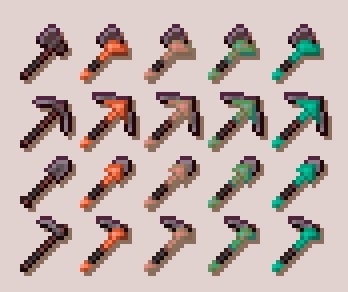
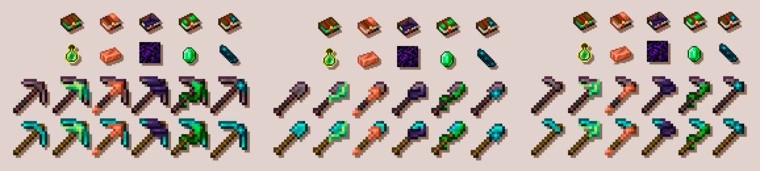
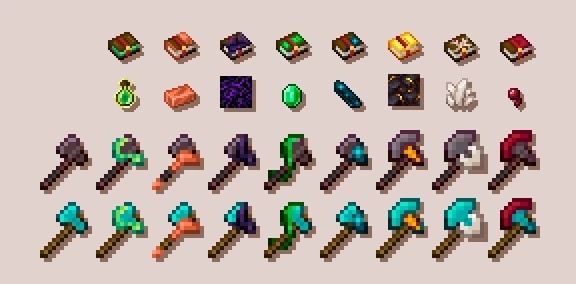
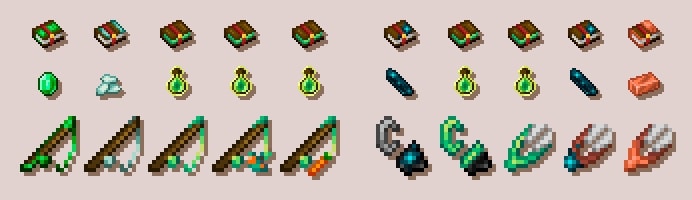
How to Install Texture Pack (Simple 10 Steps)
- Download OptiFine: Most of the texture packs and shaders need OptiFine. That’s why, first download and install OptiFine for the version of Minecraft you want to play.
- Download the Texture Pack: Get the texture pack you want from the download section. Choose the version that works with your Minecraft and your PC’s performance.
- Open Minecraft Launcher: Start Minecraft using the official game launcher — or even TLauncher, if you use that.
- Go to Options: From the main menu, click on the “Options” button.
- Open Resource Packs: Inside Options, click on “Resource Packs…”.
- Open the Resource Pack Folder: Click on “Open Resource Pack Folder” — this will open a folder named “resourcepacks”.
- Move the Pack File: Copy or move the .zip file you downloaded into that “resourcepacks” folder. (Don’t unzip the file — Minecraft uses it as-is!)
- Go Back and Refresh: Close the folder and click “Done”, then go back into “Resource Packs…” again.
- Activate the Pack: You’ll see the pack on the left side. Hover over it and click the arrow to move it to the right (active side).
Tip: If you get a message that the pack is for a different version, just click “Yes” — it usually works fine. - Click Done and Enjoy: Click “Done” again. Now your pack is ready to use in-game. It’s that easy!
Credits
This resource pack was created by milesdemillas (AccidBurn). We do not claim ownership of this content, nor have we modified the original files. All rights belong to the original author. We strongly encourage you to support the creator by downloading the pack through their official distribution channels.
Download Instructions
Curseforge: download starts automatically after a few seconds;
Mediafire: click the big blue button with the text “DOWNLOAD”;
Google Drive: in the top right corner you will see a small download icon (down arrow), click it and the download should start;