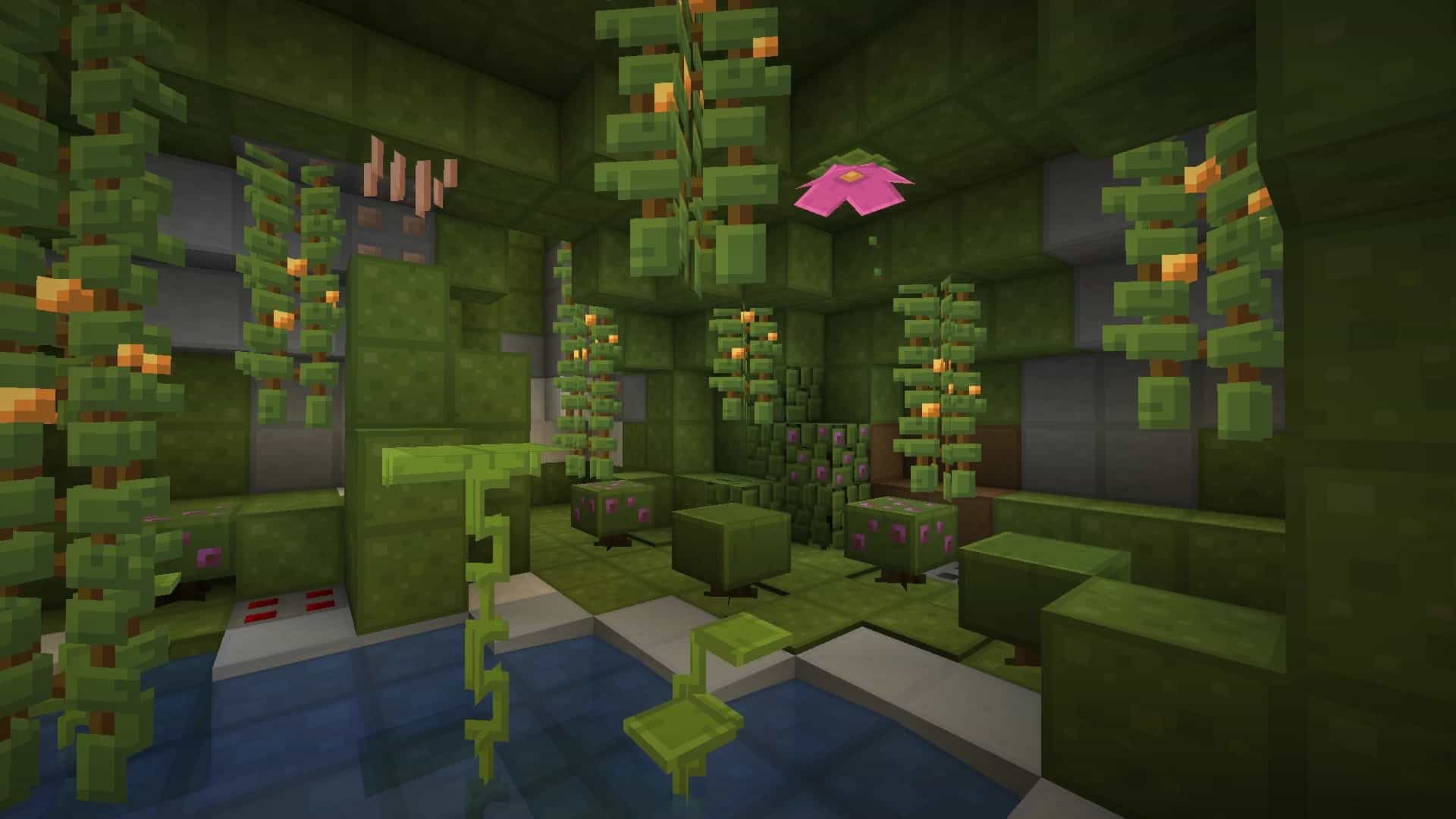
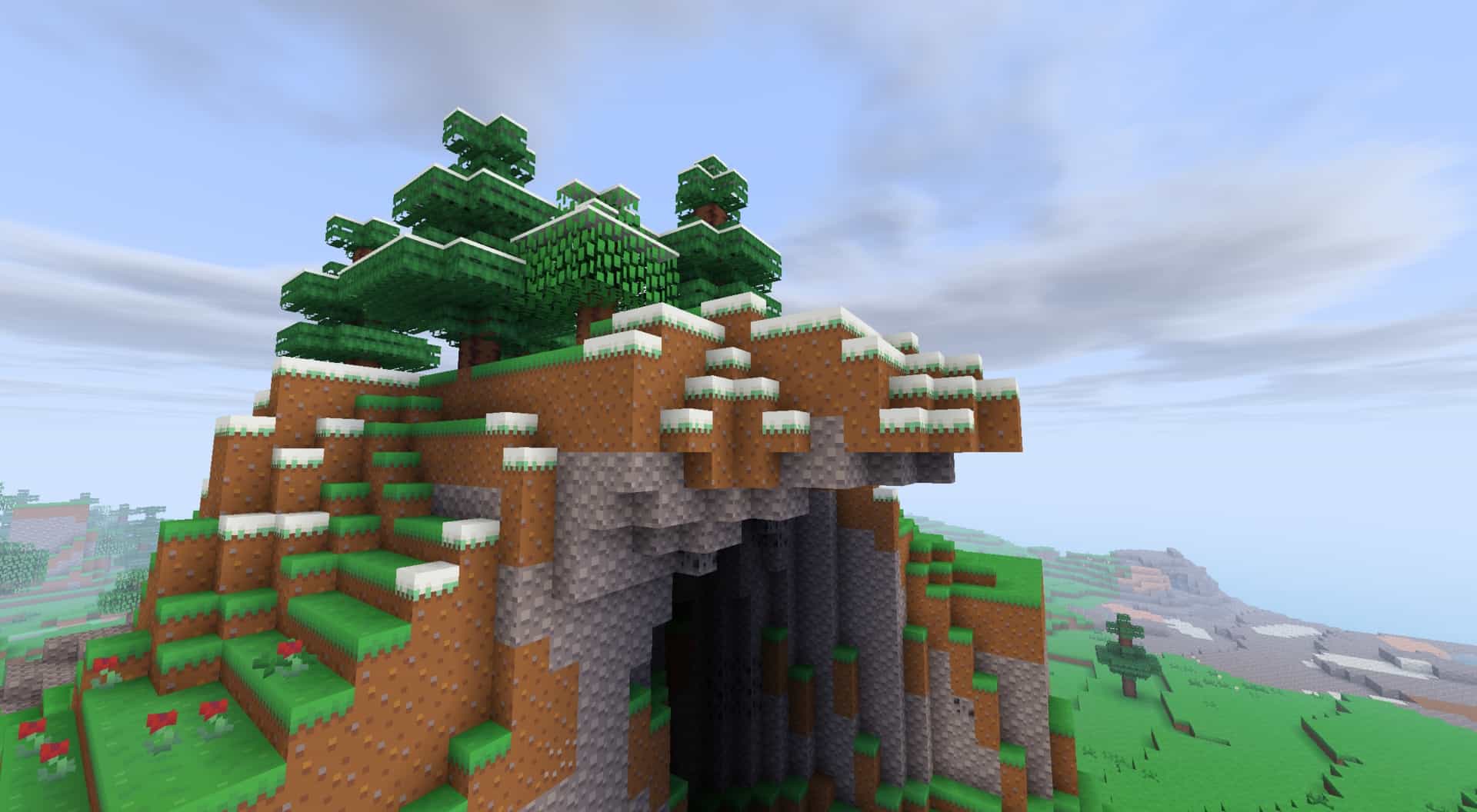
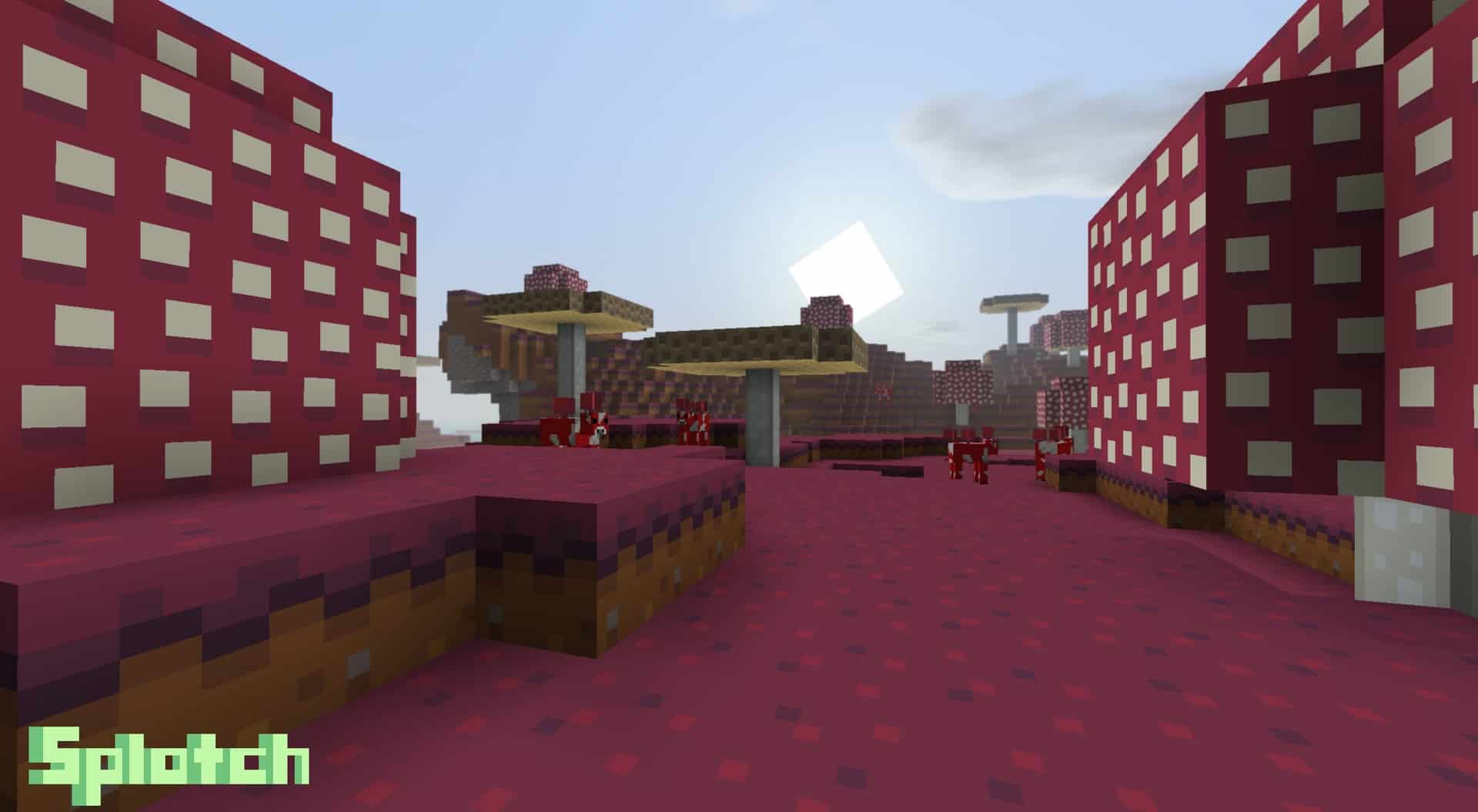
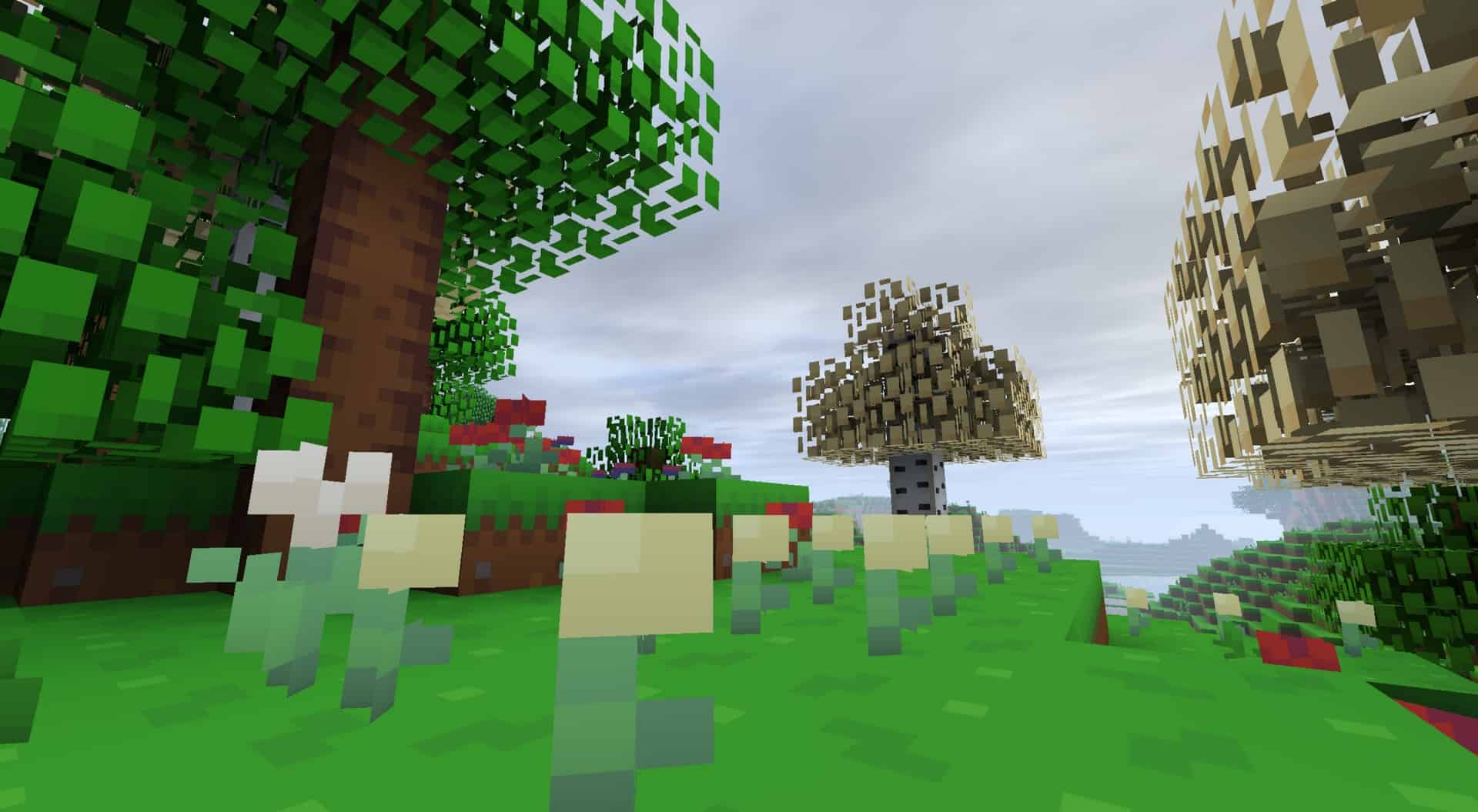
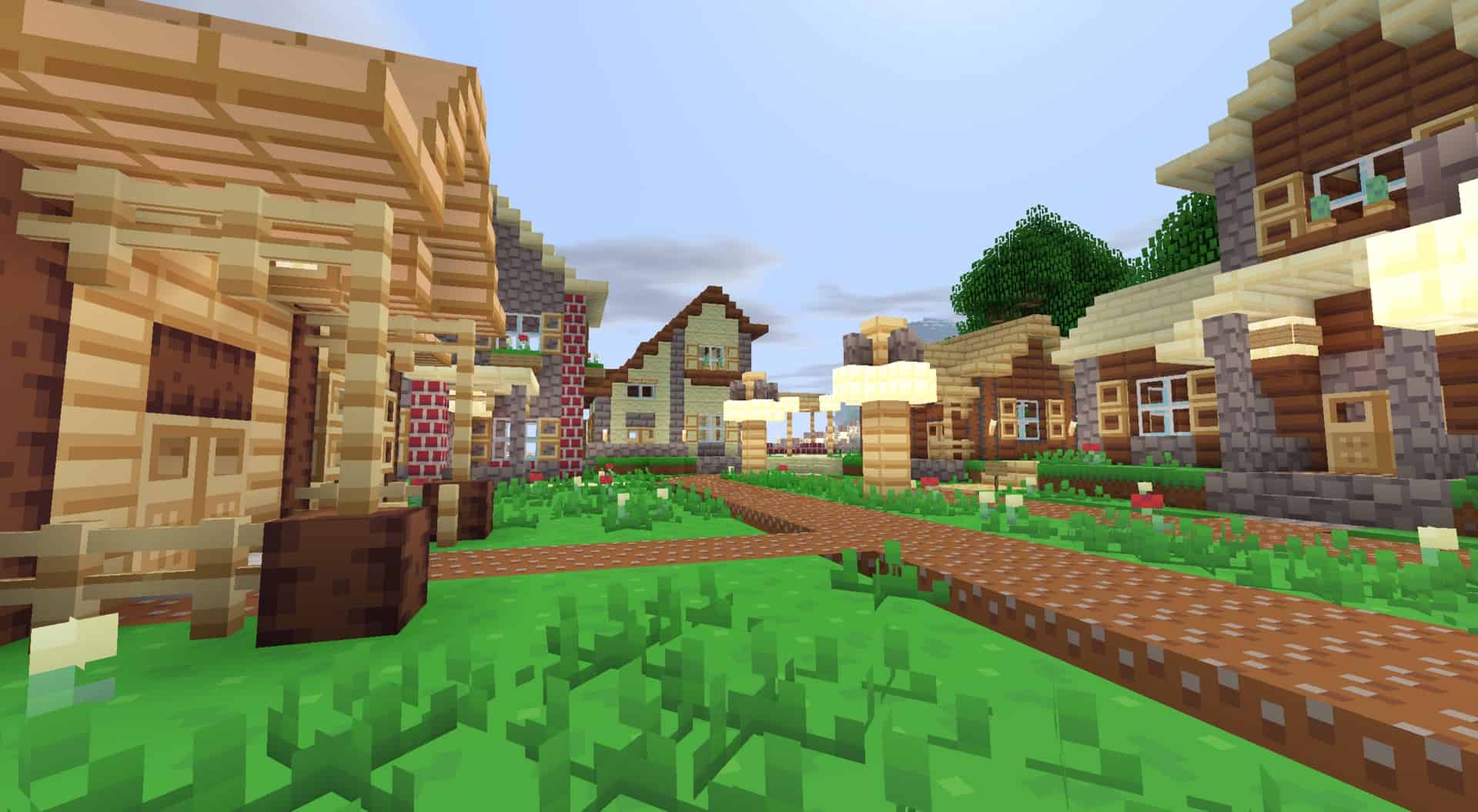
Embrace all the beauty of a minimalistic approach with the Splotch resource pack. As Minecraft becomes increasingly more advanced, the heavy-duty packs with ridiculously high resolutions demand a lot of resources that only players with expensive PCs can afford to run. Nowadays, it’s hard to find a resource pack that tries to leave out unnecessary details while still being pleasant to the eye. The true allure of Minecraft is its visual simplicity, and Splotch refines this approach to improve the experience and allow everyone to enjoy it thoroughly. When you boot up your world with this resource pack installed, you’re welcomed by a bright and upbeat blocky environment that you’re so familiar with. However, there are quite a few changes. First of all, the color palette is new, and it features higher contrast and brightness to liven up the nature. Bright green grass blocks are a perfect complement to darker trees, which is an added benefit if you like to build complicated structures. Although the leaves still have their transparency feature when you’re playing on high graphics settings, they fit the overall theme much better when they’re uniform. Deserts, mountains, and icy territories are a complete joy with the simpler textures, especially if you like brighter biomes. Once you decide to venture into the mines, ensure that you have plenty of torches. The deeper areas are as dark as the surface is bright, which follows the increased contrast of the color palette. Ores are easily distinguishable – their base has a cobblestone texture, with appropriately colored specks on top that vary according to the material. Other dimensions bring different experiences – the Nether and the End had their own characteristic blocks changed, and they’ll be much scarier than they were. You’re in for a surprise when you find yourself going toe to toe with different mobs since their textures have been modified as well. Splotch is a complete resource pack, so it’s no surprise that textures aren’t the only visual elements that have been modified. The whole GUI has been transformed according to the other adjustments. The hotbar has exchanged the usual health, armor, and hunger bars for different colored squares that monitor your overall status.
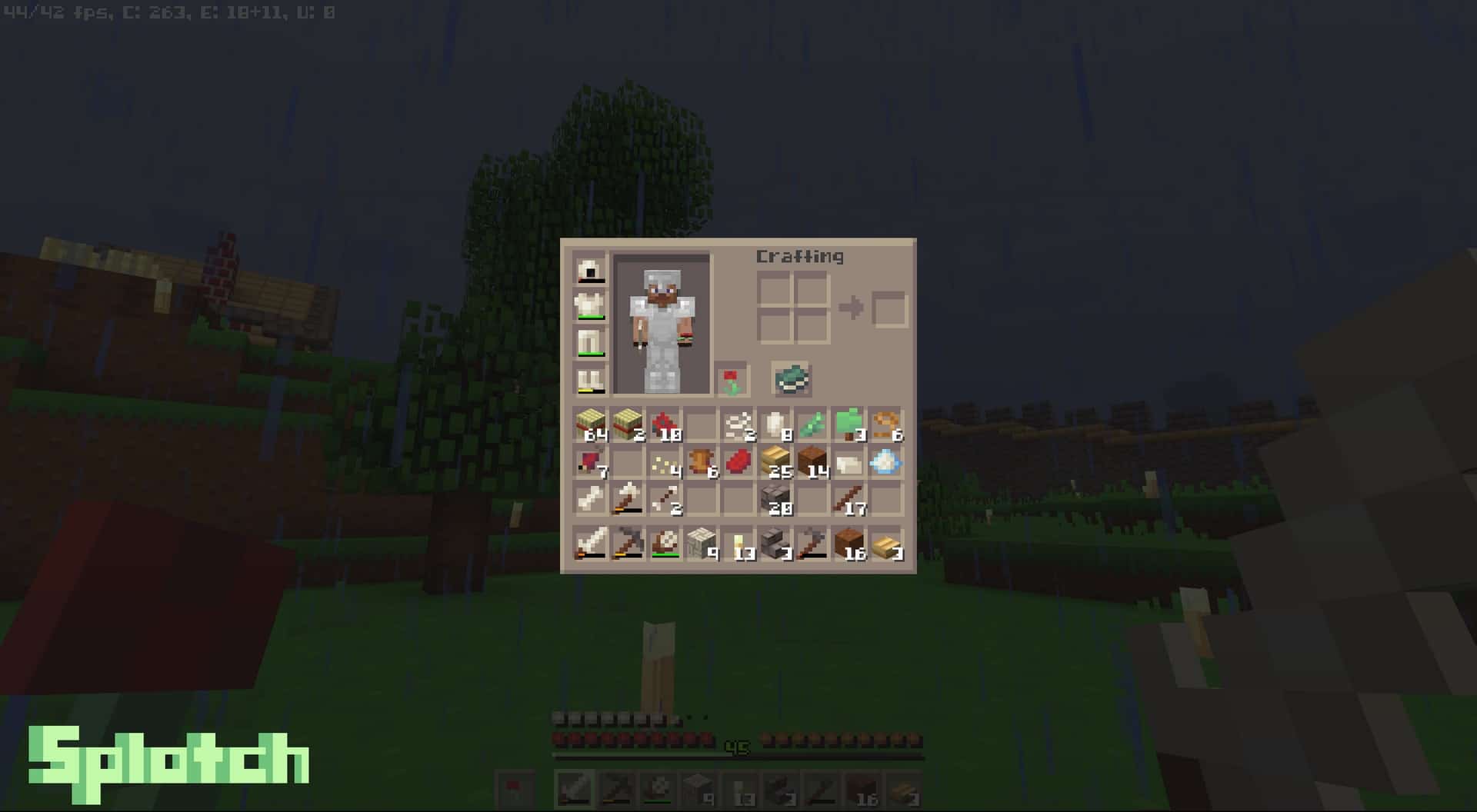
Going inside the crafting menu, you’ll see that everything stayed relatively the same, except that it’s now colored in a slightly different shade of brown/cream. A new font has been added to all of the elements in the menu and GUI with an appearance that resembles 8-bit fonts that are trademarks of older consoles such as Sega. From swords and armor to food, almost all items went through an overhaul. Although Splotch works with fewer pixels, the weapons themselves have a more premium feel to them. They have been slightly reshaped to accurately resemble their real-life variants which is especially noticeable in the blades of both weapons and tools. Food items such as apples, fish, meat, and others are very similar to the original textures, albeit with slightly fewer pixels. While this may seem slightly unfavorable, you’ll be able to differentiate between the items more easily. All of the item icons are updated according to the textures themselves. By now, you’ve noticed that the Splotch texture pack utilizes much fewer resources and space for all of the changes. While Minecraft’s original resolution is 16×16, Splotch halves that and works with just 8×8. This means that each texture has only 64 pixels compared to the 256 of the vanilla game. With this short explanation, it’s easy to understand why Splotch is a perfect pack for all of those players on a low-end PC. Installing the pack can give you a significant boost in performance, and there are no prerequisites to use it – not even Optifine. However, you can try out different combinations to squeeze out as much FPS as possible. The developer himself claims that the pack is 95% percent done. This means that you can use it without any issues and almost no missing textures, although there are a few that are still a work in progress. The pack runs just fine even if you’re playing modded Minecraft. All things considered, it’s a welcome change in the very saturated resource pack market and it’s well worth a download.
Splotch should be compatible with all of these Minecraft versions: 26.2 – 26.1.2 – 26.1.1 – 26.1 – 1.21.11 – 1.21.10 – 1.21.9 – 1.21.8 – 1.21.7 – 1.21.6 – 1.21.5 – 1.21.4 – 1.21.3 – 1.21.2 – 1.21.1 – 1.21 – 1.20.6 – 1.20.5 – 1.20.4 – 1.20.3 – 1.20.2 – 1.20.1 – 1.20 – 1.19.4 – 1.19.3 – 1.19.2 – 1.19.1 – 1.19 – 1.18.2 – 1.18.1 – 1.18 – 1.17.1 – 1.17 – 1.8.9 – 1.8.8 – 1.8.1 – 1.8.6 – 1.8
Screenshots

How to Install Texture Pack (Simple 10 Steps)
- Download OptiFine: Most of the texture packs and shaders need OptiFine. That’s why, first download and install OptiFine for the version of Minecraft you want to play.
- Download the Texture Pack: Get the texture pack you want from the download section. Choose the version that works with your Minecraft and your PC’s performance.
- Open Minecraft Launcher: Start Minecraft using the official game launcher — or even TLauncher, if you use that.
- Go to Options: From the main menu, click on the “Options” button.
- Open Resource Packs: Inside Options, click on “Resource Packs…”.
- Open the Resource Pack Folder: Click on “Open Resource Pack Folder” — this will open a folder named “resourcepacks”.
- Move the Pack File: Copy or move the .zip file you downloaded into that “resourcepacks” folder. (Don’t unzip the file — Minecraft uses it as-is!)
- Go Back and Refresh: Close the folder and click “Done”, then go back into “Resource Packs…” again.
- Activate the Pack: You’ll see the pack on the left side. Hover over it and click the arrow to move it to the right (active side).
Tip: If you get a message that the pack is for a different version, just click “Yes” — it usually works fine. - Click Done and Enjoy: Click “Done” again. Now your pack is ready to use in-game. It’s that easy!
Credits
This resource pack was originally created by cheezlordy. We do not claim ownership of this content, nor do we host modified files on our servers. All rights and intellectual property remain with the original author. We strongly encourage you to support cheezlordy by downloading the resource pack exclusively from their official sources.
Download Links
Java Edition
Download Instructions
Curseforge: download starts automatically after a few seconds;
Mediafire: click the big blue button with the text “DOWNLOAD”;
Google Drive: in the top right corner you will see a small download icon (down arrow), click it and the download should start;