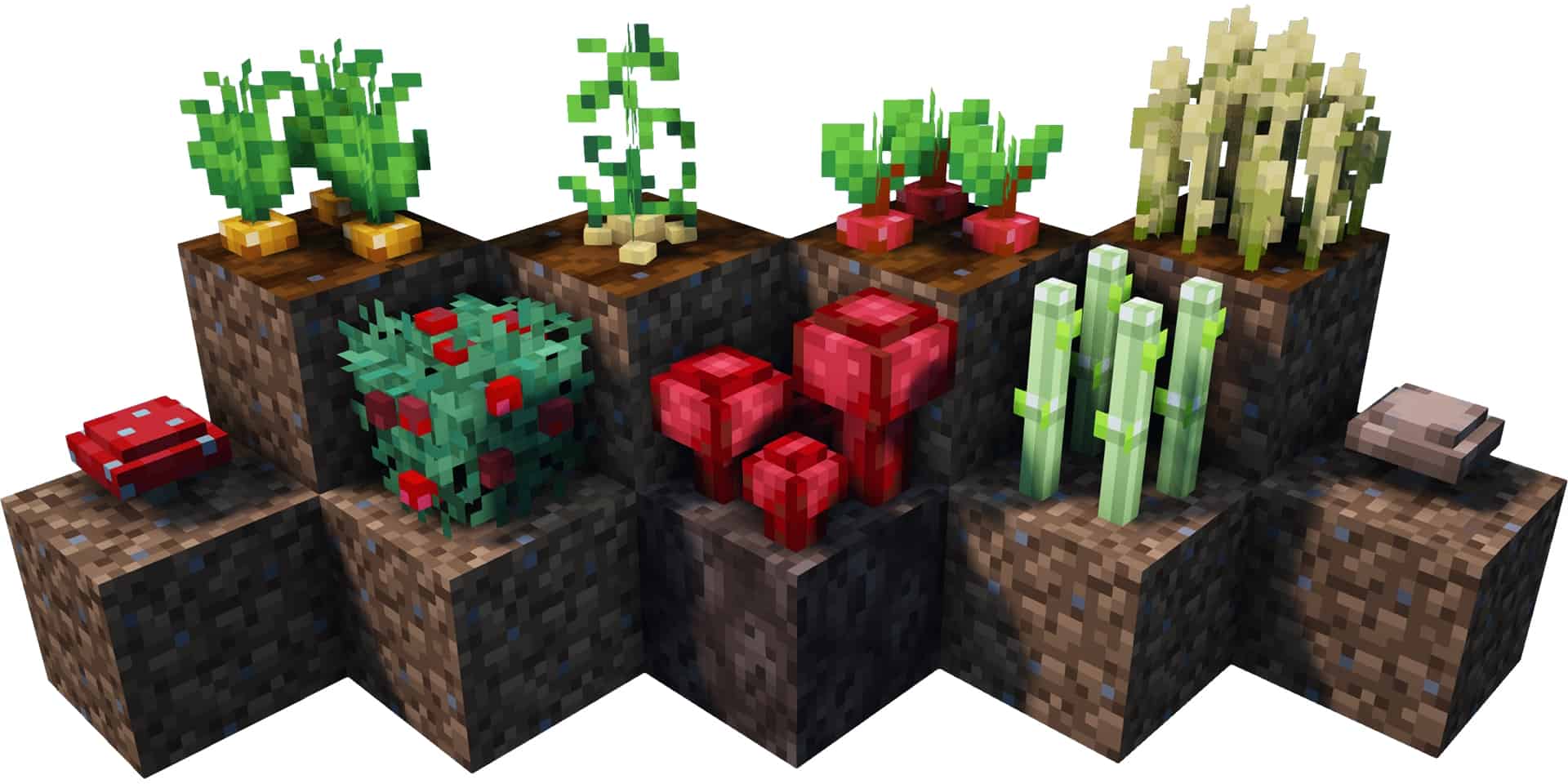
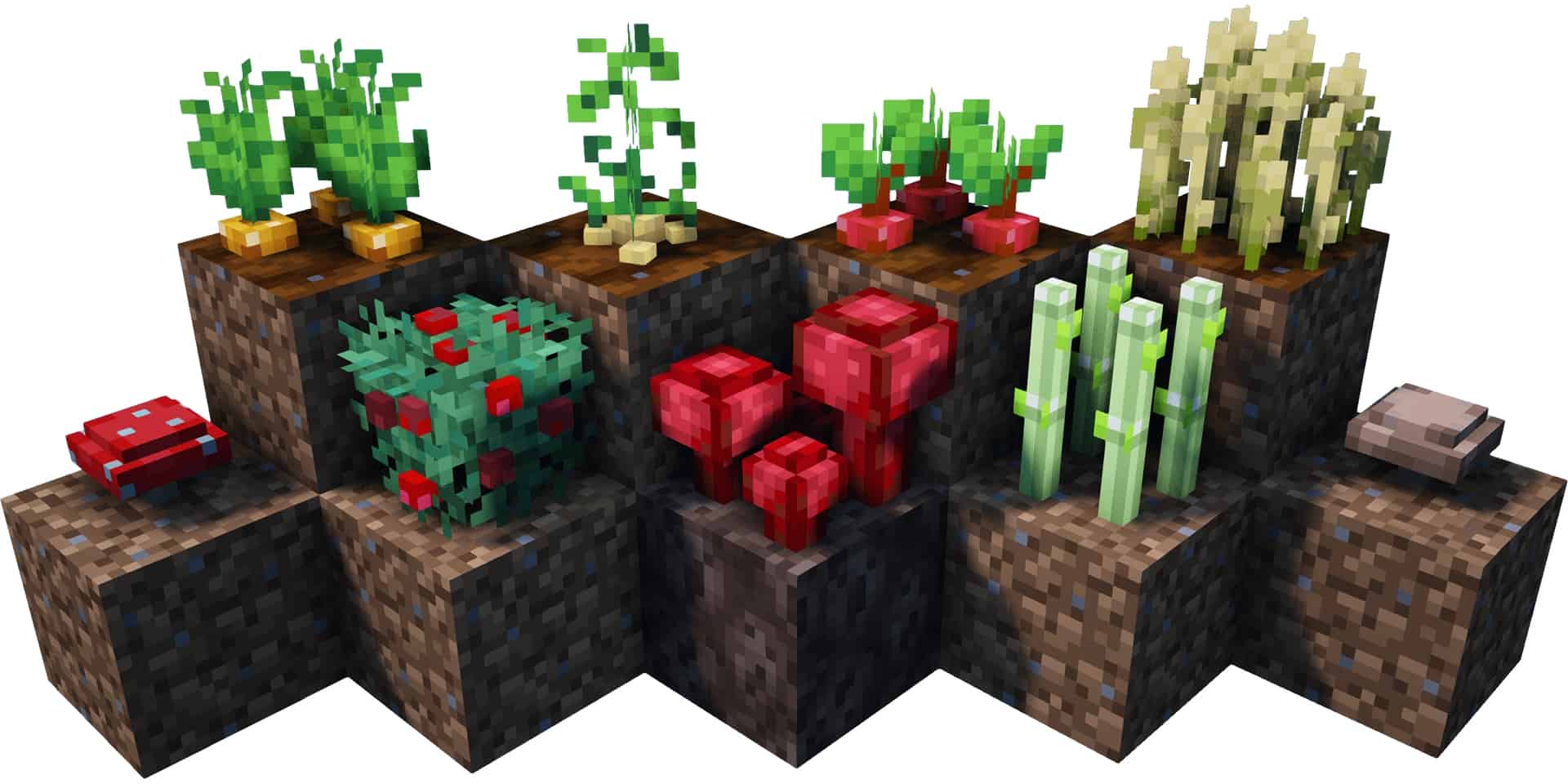
The Crops 3D resource pack should definitely sound familiar to a lot of Minecraft players. This popular resource pack comes with a fantastic twist in terms of the visual changes it introduces which truly sets it apart from most other resource packs out there. Minecraft has thousands of different resource packs, and while some of them are great, the vast majority are simply reshuffled textures that look bad or make the game way too different. Not everyone wants a resource pack that alters Minecraft so much that it does not even look like the same game anymore. Crops 3D is wonderfully different from this perspective because it only changes a tiny bit of the game, yet does so in an exceptional manner. The sheer simplicity of this resource pack has made it immensely popular amongst purists or players who simply do not like how the standard crops look in vanilla Minecraft. While it may not be the absolute only resource pack that changes 3D models for crops, it is without a doubt one of the better ones. The Crops 3D texture pack was thoughtfully developed by community user NinthWorld. This is his only Minecraft project, but he did brilliantly create two additional variations for the resource pack, including one developed for the Faithful x32 resource pack. The original Crops 3D resource pack was released back in early 2020 and has since received over 300,000 downloads across several publishing sites. NinthWorld consistently keeps Crops 3D updated and has never abandoned the project, continuing to release crucial bug fixes and fresh versions of the resource pack that seamlessly work with newer updates of Minecraft. According to the developer, his work was heavily inspired by the 3D Crops! resource pack, prompting him to craft his own distinct version. Starting completely from scratch and utilizing original textures as a solid base, NinthWorld skillfully used Blockbench to build brand-new 3D models for the crops in the game.
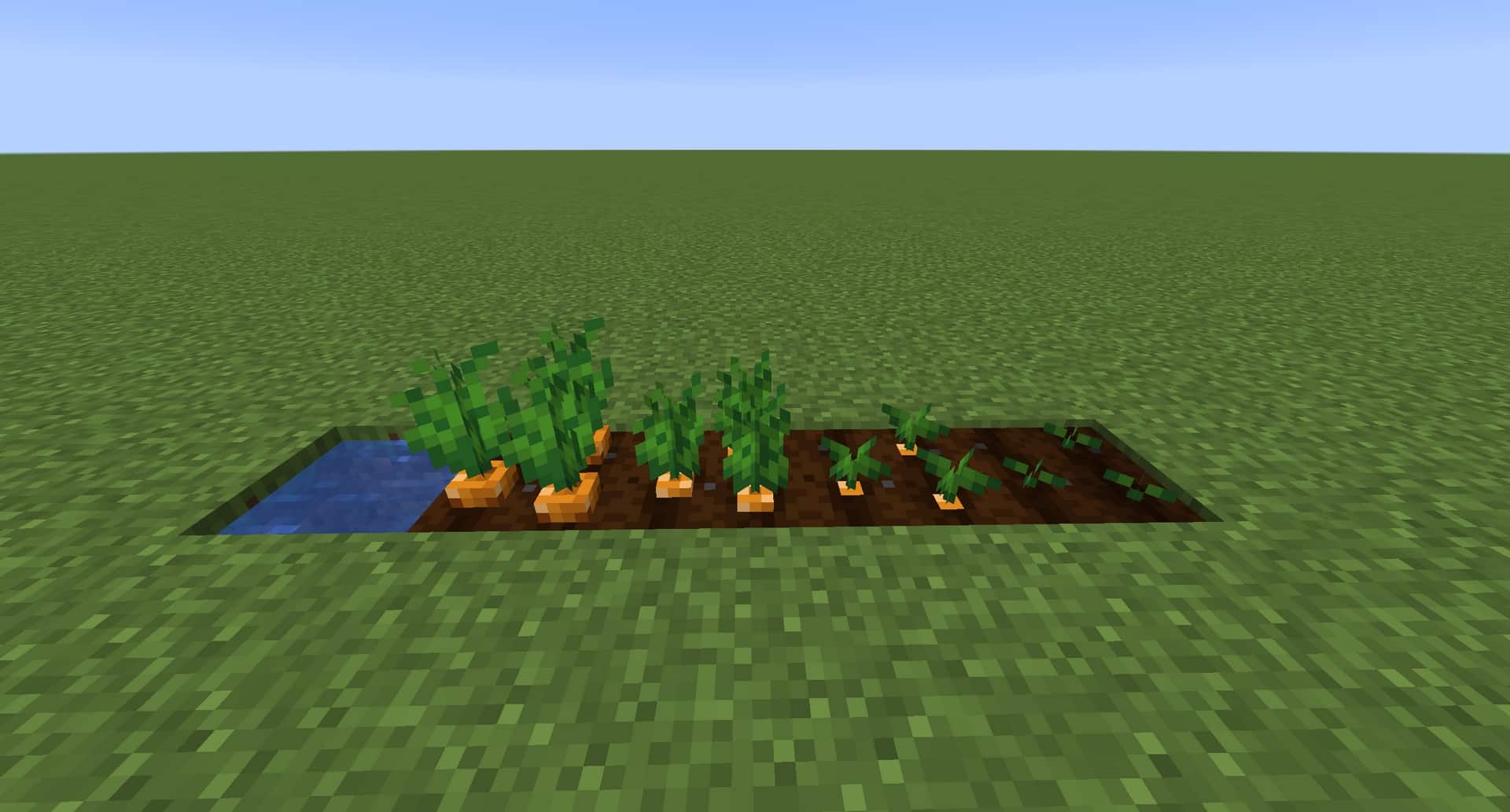
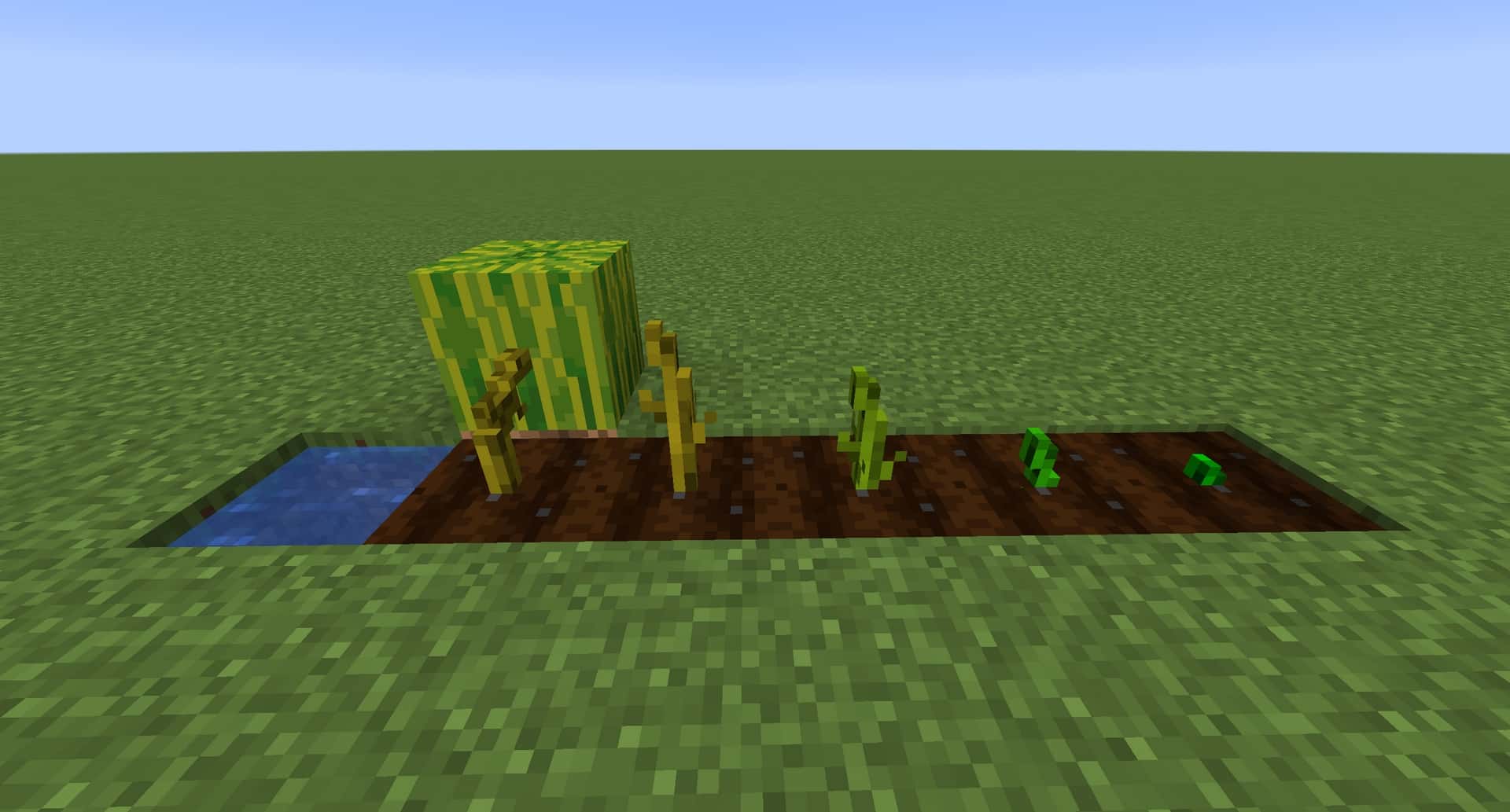
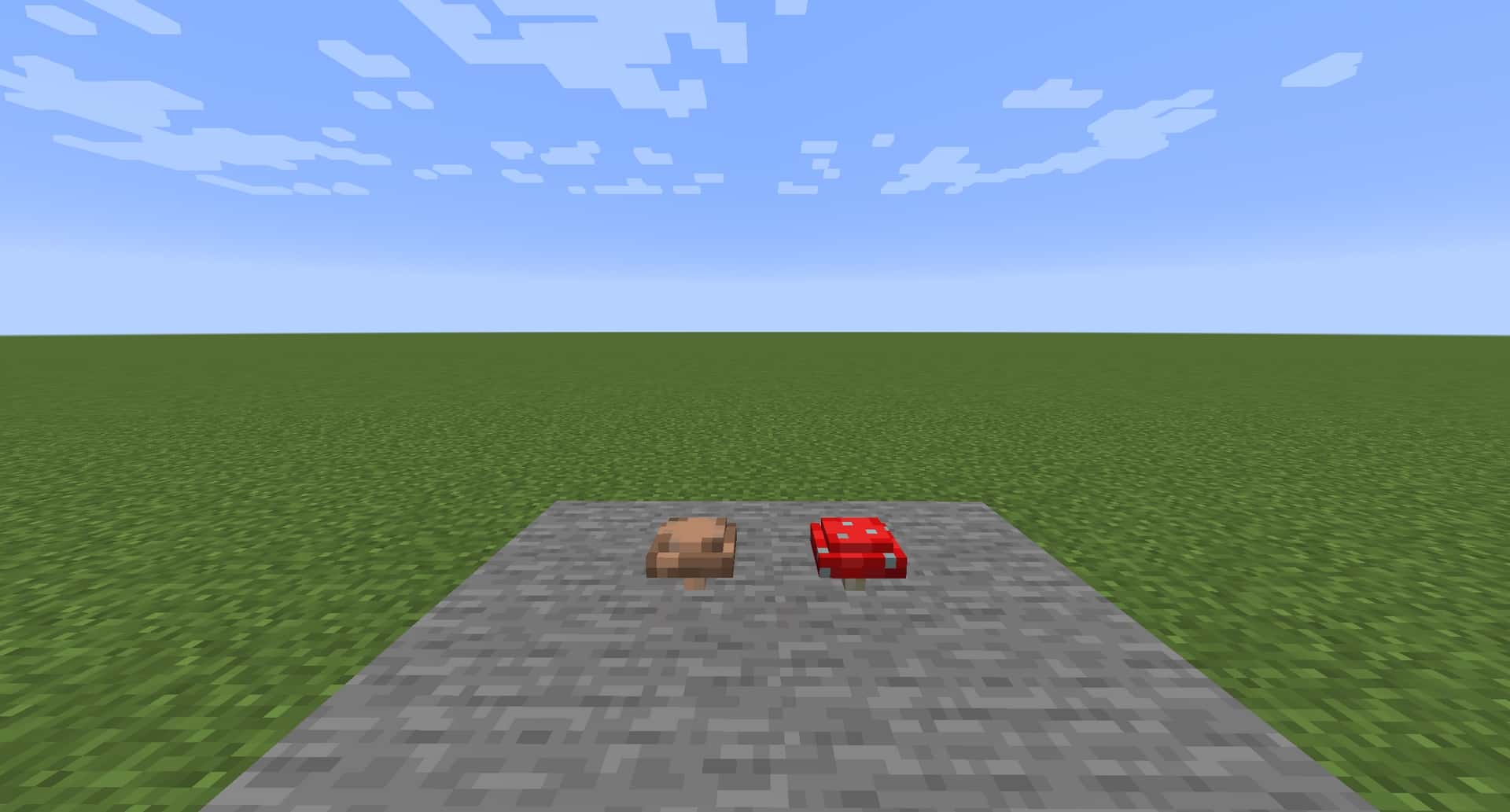
The original textures were carefully edited and altered to perfectly fit the new 3D models instead of being awkwardly layered over flat 2D models. These incredible changes were made possible by investing a lot of time and effort while having the right tools on hand. The name of the resource pack is rather suggestive of what you should genuinely expect from Crops 3D. As the name implies, the resource pack focuses exclusively on the textures of the crops in the game. However, unlike most other resource packs that focus purely on flat textures, NinthWorld went an extra mile. He used Blockbench to fundamentally change the 3D models for the crops and plants in Minecraft, replacing those old, simple rotating 2D images. With these stunning 3D models, all the crops look considerably better while still fitting vanilla Minecraft extremely well without changing the overall vibe of the game in any way. It still feels completely like Minecraft, except that harvesting crops is now a visually rewarding experience. The crops that were expertly worked on in Crops 3D include carrots, potatoes, wheat, beetroots, melons, pumpkins, red mushrooms, brown mushrooms, sugarcanes, crimson and warped fungus, nether wart, and the sweet berry bush. All of these crops now look amazing, and thanks to their distinctive 3D models, they are exceptionally easy to distinguish from one another. The models look even more breathtaking with a shader pack installed, though keep in mind that some shader packs might cause minor artifacts. The compatible ones can further elevate how these new 3D models look by making colors much more vibrant and improving shadow details. Since the main goal of Crops 3D was to fiercely preserve the classic visuals of vanilla Minecraft, the developer wisely did not focus on increasing texture resolutions, meaning the pack happily retains its clean 16x textures. Because of this, it does not affect your game performance in any shape or form, was made to work smoothly with vanilla Minecraft, and refuses to fiddle with heavy special features. This makes it an extraordinarily PvP-friendly resource pack and a phenomenal pick for players who happen to have older computers with limited processing power.
Crops 3D should be compatible with all of these Minecraft versions: 26.2 – 26.1.2 – 26.1.1 – 26.1 – 1.21.11 – 1.21.10 – 1.21.9 – 1.21.8 – 1.21.7 – 1.21.6 – 1.21.5 – 1.21.4 – 1.21.3 – 1.21.2 – 1.21.1 – 1.21 – 1.20.6 – 1.20.5 – 1.20.4 – 1.20.3 – 1.20.2 – 1.20.1 – 1.20 – 1.19.4 – 1.19.3 – 1.19.2 – 1.19.1 – 1.19 – 1.18.2 – 1.18.1 – 1.18 – 1.17.1 – 1.17 – 1.16.5 – 1.16.4 – 1.16.3 – 1.16.2 – 1.16.1 – 1.16 – 1.15.2 – 1.15.1 – 1.15 – 1.14.4 – 1.14.3 – 1.14.2 – 1.14 – 1.13.2 – 1.13.1 – 1.13
Screenshots

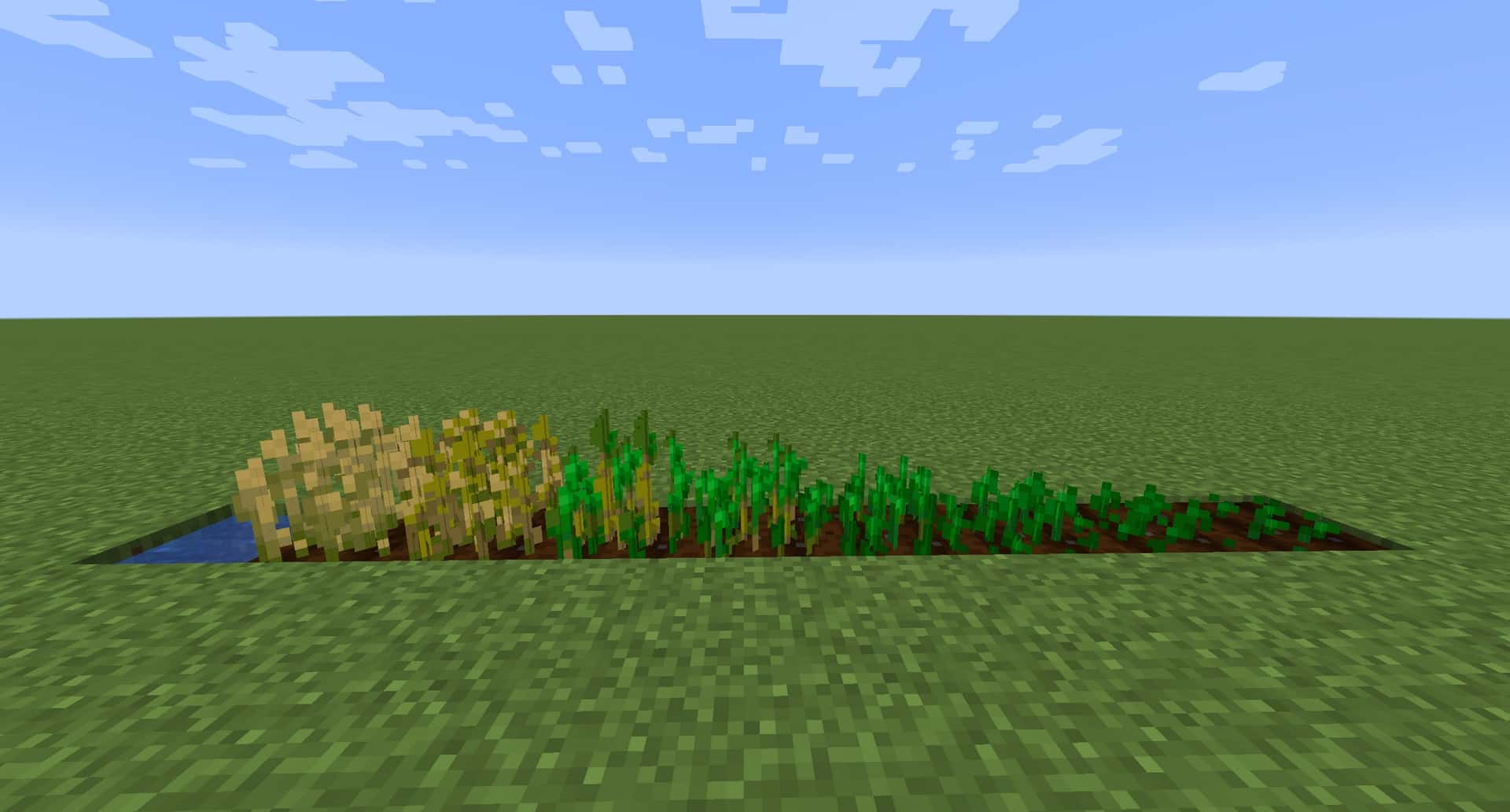

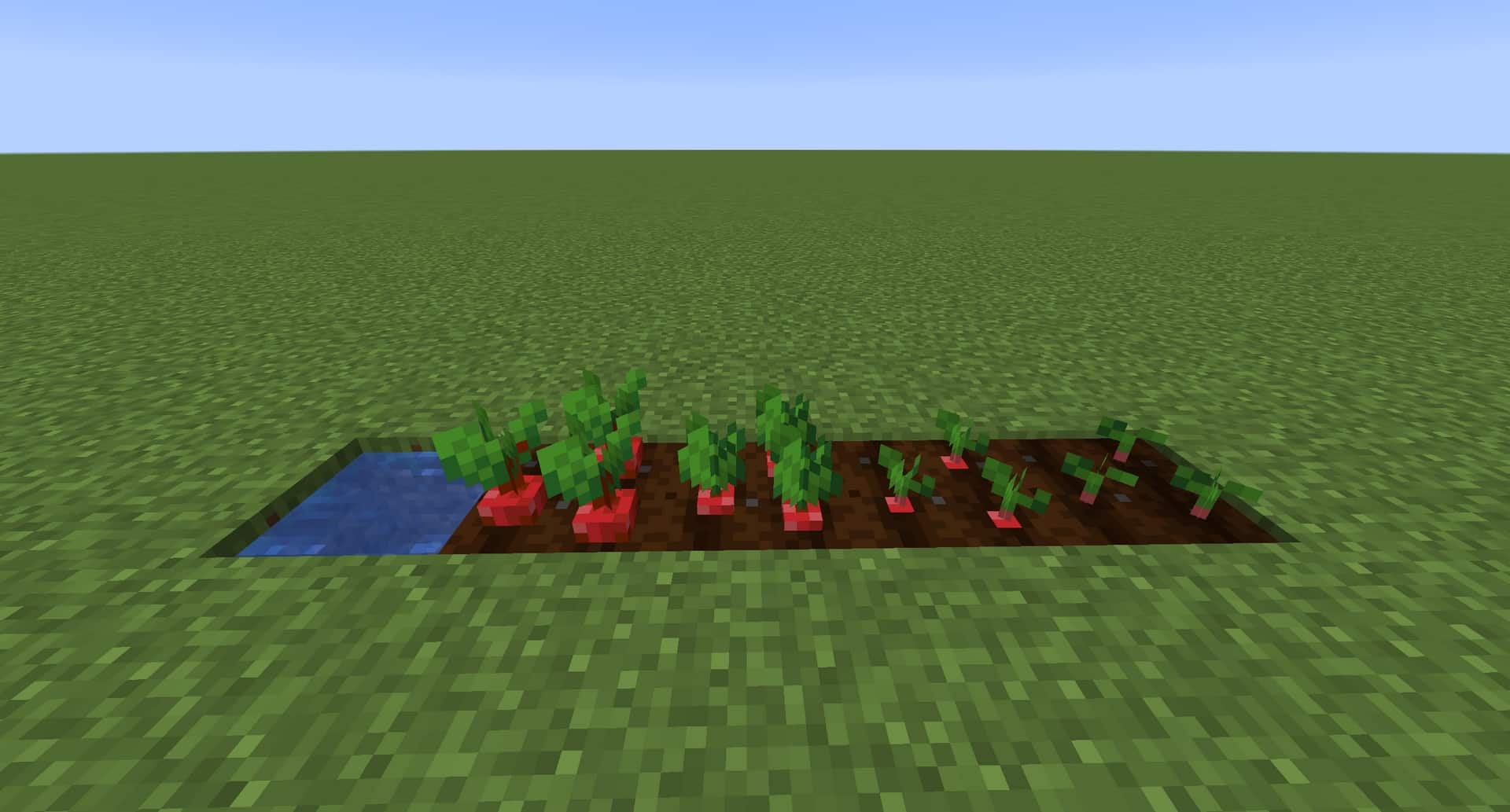
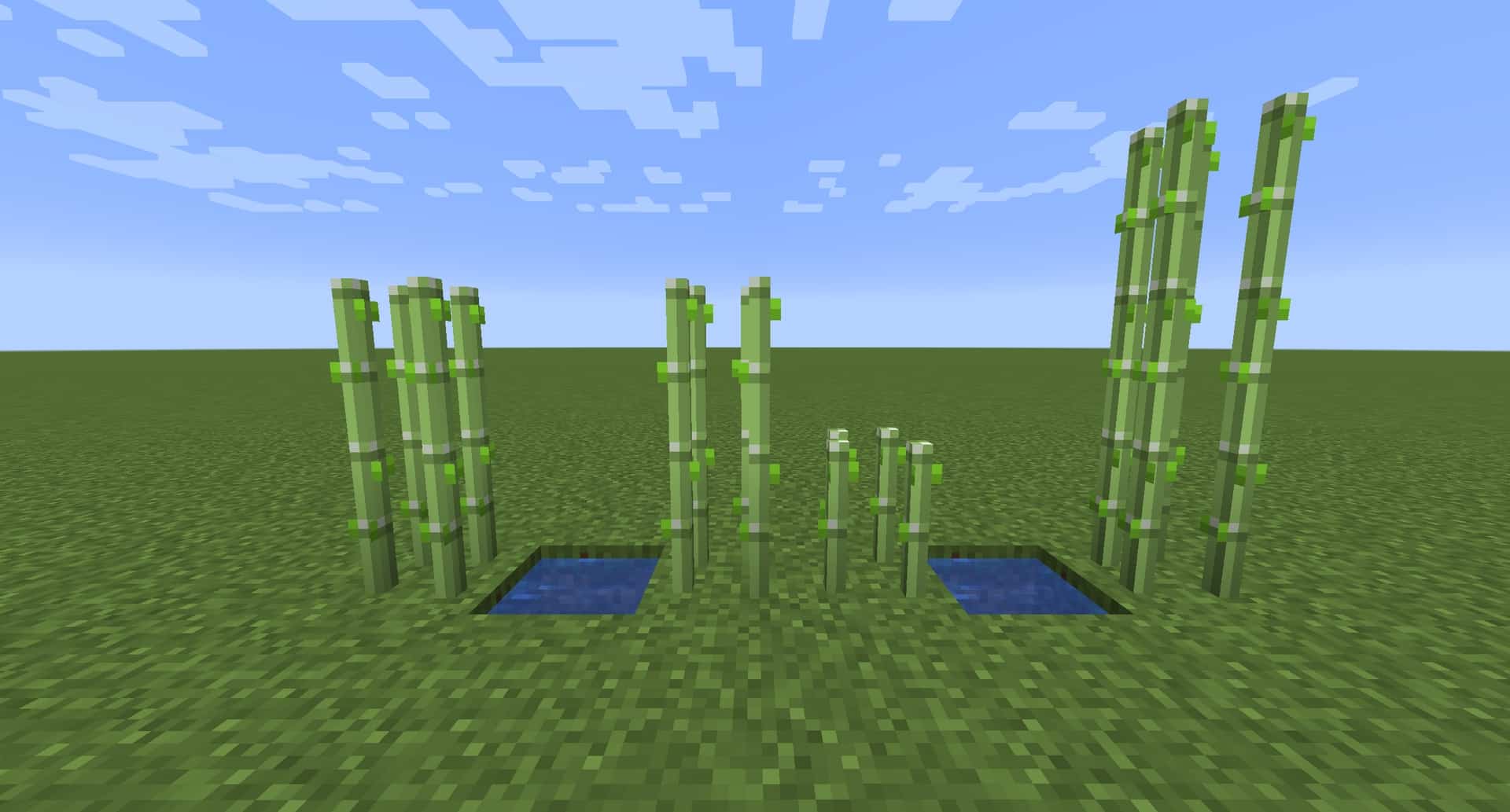
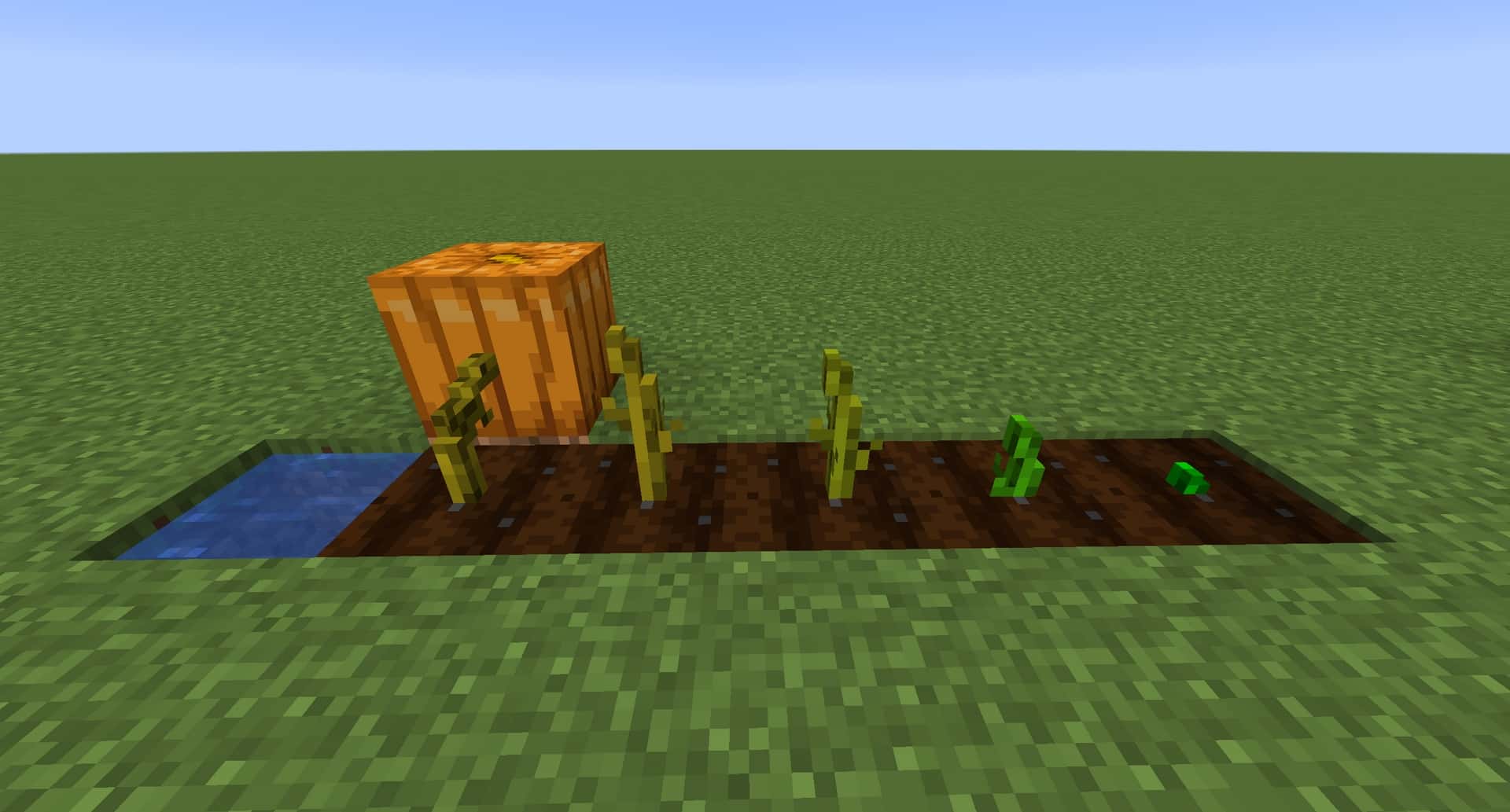

How to Install Texture Pack (Simple 10 Steps)
- Download OptiFine: Most of the texture packs and shaders need OptiFine. That’s why, first download and install OptiFine for the version of Minecraft you want to play.
- Download the Texture Pack: Get the texture pack you want from the download section. Choose the version that works with your Minecraft and your PC’s performance.
- Open Minecraft Launcher: Start Minecraft using the official game launcher — or even TLauncher, if you use that.
- Go to Options: From the main menu, click on the “Options” button.
- Open Resource Packs: Inside Options, click on “Resource Packs…”.
- Open the Resource Pack Folder: Click on “Open Resource Pack Folder” — this will open a folder named “resourcepacks”.
- Move the Pack File: Copy or move the .zip file you downloaded into that “resourcepacks” folder. (Don’t unzip the file — Minecraft uses it as-is!)
- Go Back and Refresh: Close the folder and click “Done”, then go back into “Resource Packs…” again.
- Activate the Pack: You’ll see the pack on the left side. Hover over it and click the arrow to move it to the right (active side).
Tip: If you get a message that the pack is for a different version, just click “Yes” — it usually works fine. - Click Done and Enjoy: Click “Done” again. Now your pack is ready to use in-game. It’s that easy!
Credits
The Crops 3D resource pack was created by NinthWorld. All rights to the original assets and modifications belong to the original author. We do not claim ownership of this content and do not host modified files. We strongly encourage players to support the creator by downloading the pack through the official links provided below.
Download Links
Java Edition
- [16x] Minecraft 26.2.x – 26.1.x
- [16x] Minecraft 1.21.x
- [16x] Minecraft 1.20.x
- [16x] Minecraft 1.19.x
- [16x] Minecraft 1.18.x
- [16x] Minecraft 1.17.x
- [16x] Minecraft 1.16.x
- [16x] Minecraft 1.15.x
- [16x] Minecraft 1.14.x – 1.13.x
- [16x] Minecraft 1.16.x (Alternative)
- [16x] Minecraft 1.15.x (Alternative)
- [16x] Minecraft 1.14.x (Alternative)
Download Instructions
Curseforge: download starts automatically after a few seconds;
Mediafire: click the big blue button with the text “DOWNLOAD”;
Google Drive: in the top right corner you will see a small download icon (down arrow), click it and the download should start;


