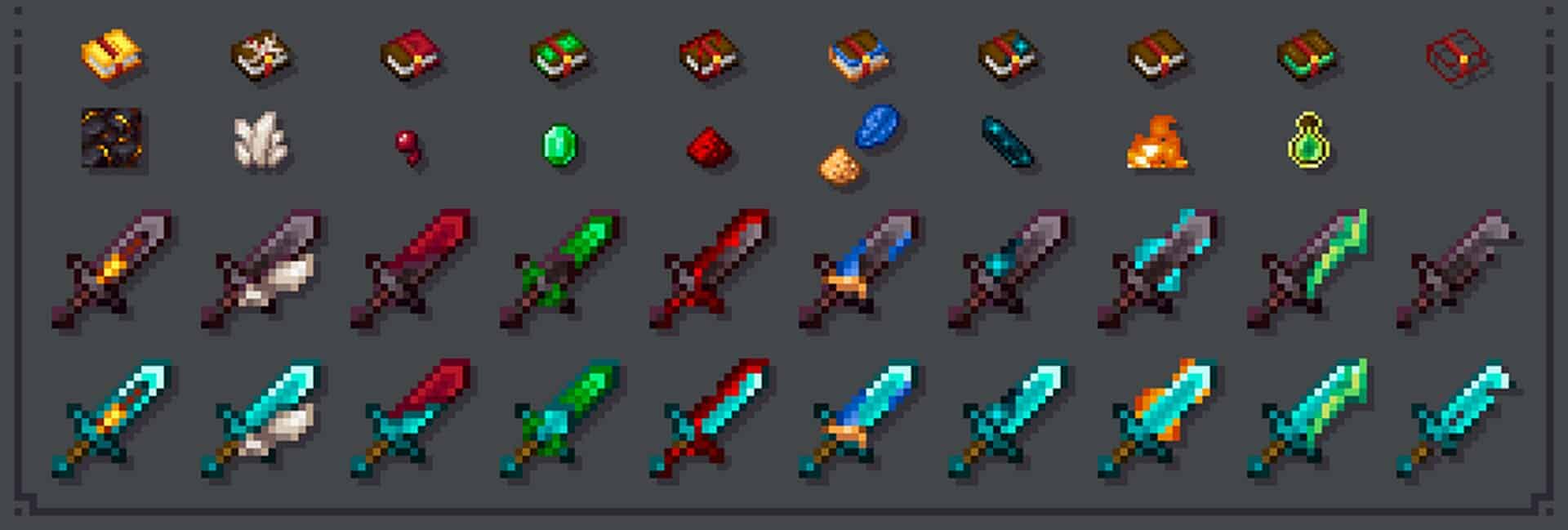
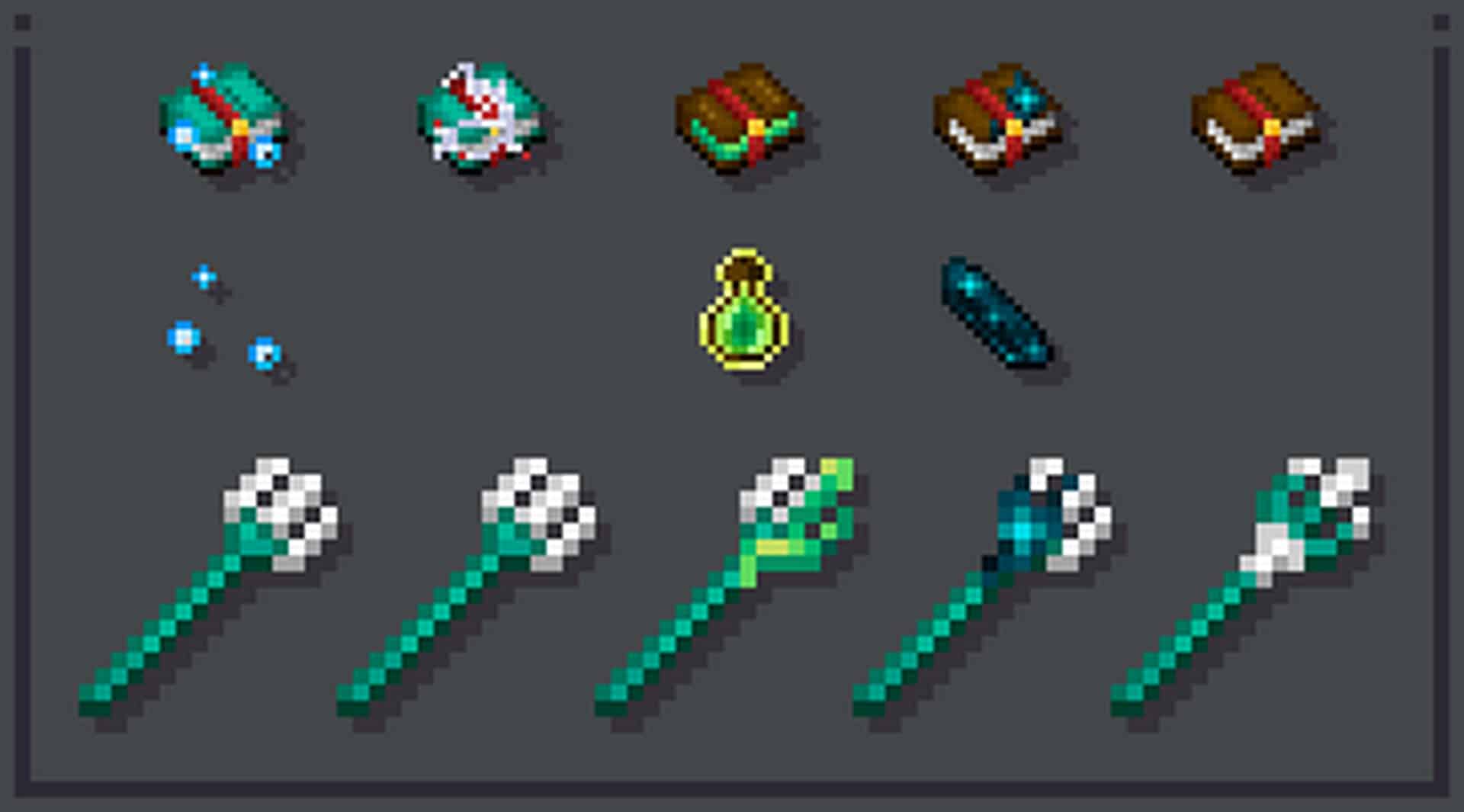
The Enchanted Swords resource pack truly stands out as one of the most exceptional and valuable resource packs I have ever tested! While typical packs completely overhaul Minecraft’s classic look by redesigning every single visual element ranging from blocks and mobs to items and other graphic elements, the Enchanted Swords Resource Pack takes a wonderfully focused approach. As you might easily guess from its name, the creator has exclusively redesigned the weapon elements. The creator milesdemillas has done an absolutely fantastic job improving the weapon icon textures, particularly the swords. For other tools like the axe and pickaxe, I definitely recommend checking out the Enchanted Tools resource pack by the same author. As we all know, one of Minecraft’s best features is weapon enchantment for items like swords, armor, and bows. However, the frustrating part is that enchanted weapons normally do not look much different from non-enchanted ones. The icon designs only differ slightly in color, making it impossible to actually see the creator’s visual changes to those item enchantments at a glance. Instead, you always have to hover over the item information to learn about its enchantments, which I honestly find quite annoying during gameplay.
Thankfully, we finally have a much better solution for this exact issue! If you are not happy with the standard appearance of weapons in Minecraft, I can wholeheartedly say the Enchanted Weapons resource pack is the absolute best option for you. Just keep in mind that if you are hunting for a pack that changes every texture including trees, blocks, and grass, you will want a different resource pack, because this one strictly focuses on weapon textures alone. Beyond the incredible texture detailing, the Enchanted Swords pack also introduces some amazing sword animations that add so much liveliness to the game! These animations take the entire visual experience to a completely new level by adding dynamic effects to most of the swords, which is especially awesome during intense PvP sessions. All these animations come together to create a survival atmosphere that feels genuinely refreshing, deeply immersive, and full of life. Honestly, this has got to be one of the most creative packs out there. If you want to visually see your sword enchantments right in your hand, you simply must download and install this resource pack today. You will instantly notice these stunning visual upgrades across all the swords. I sincerely suggest that every single Minecraft player tries out this pack, as it is hands down one of the most valuable and appealing collections available!
Enchanted Weapons (Swords) should be compatible with all of these Minecraft versions: 1.19.1 – 1.19 – 1.18.2 – 1.18.1 – 1.18 – 1.17.1 – 1.17 – 1.16.5 – 1.16.4 – 1.16.3 – 1.16.2 – 1.16.1 – 1.16 – 1.15.2 – 1.15.1 – 1.15
Screenshots
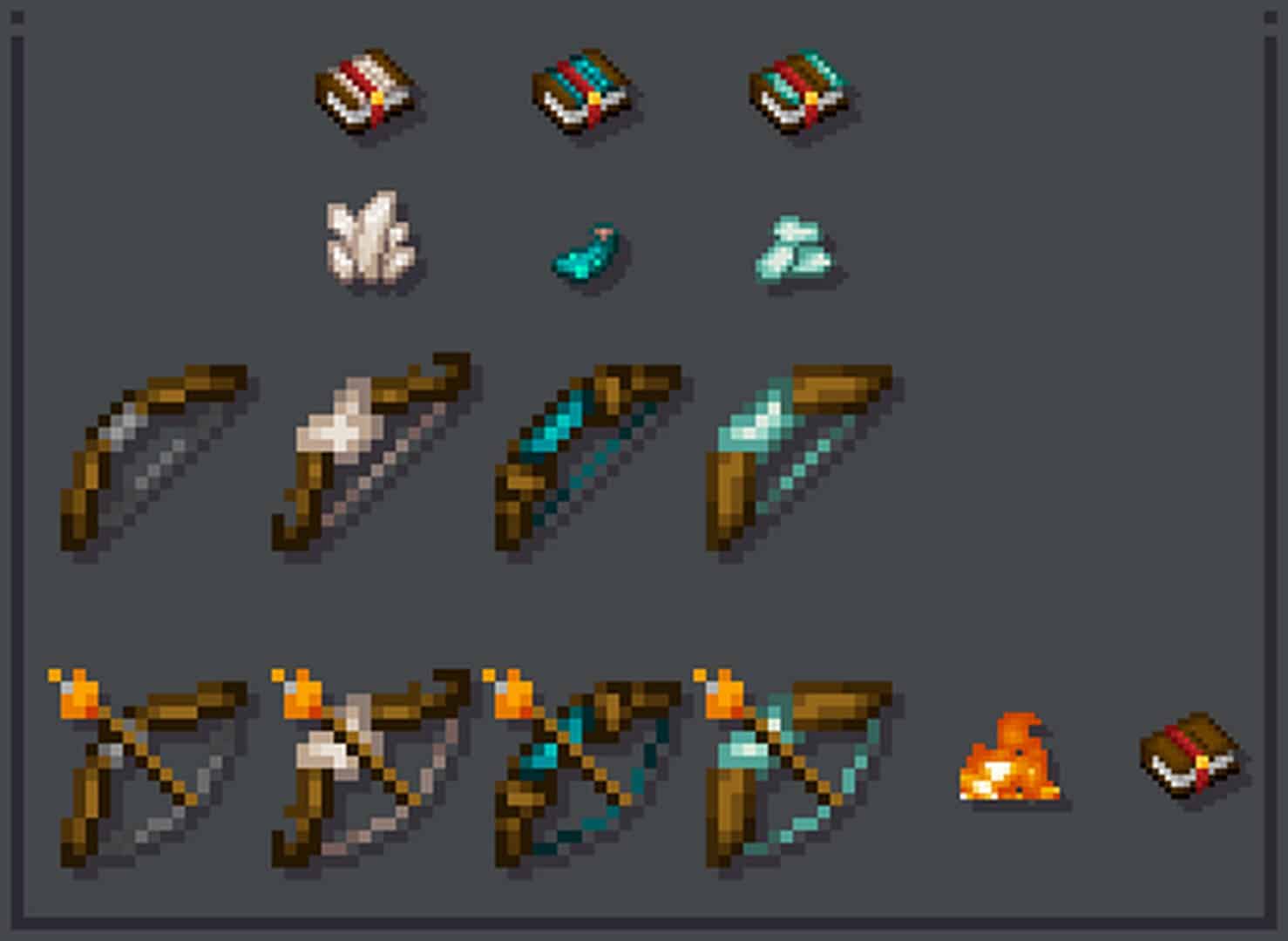
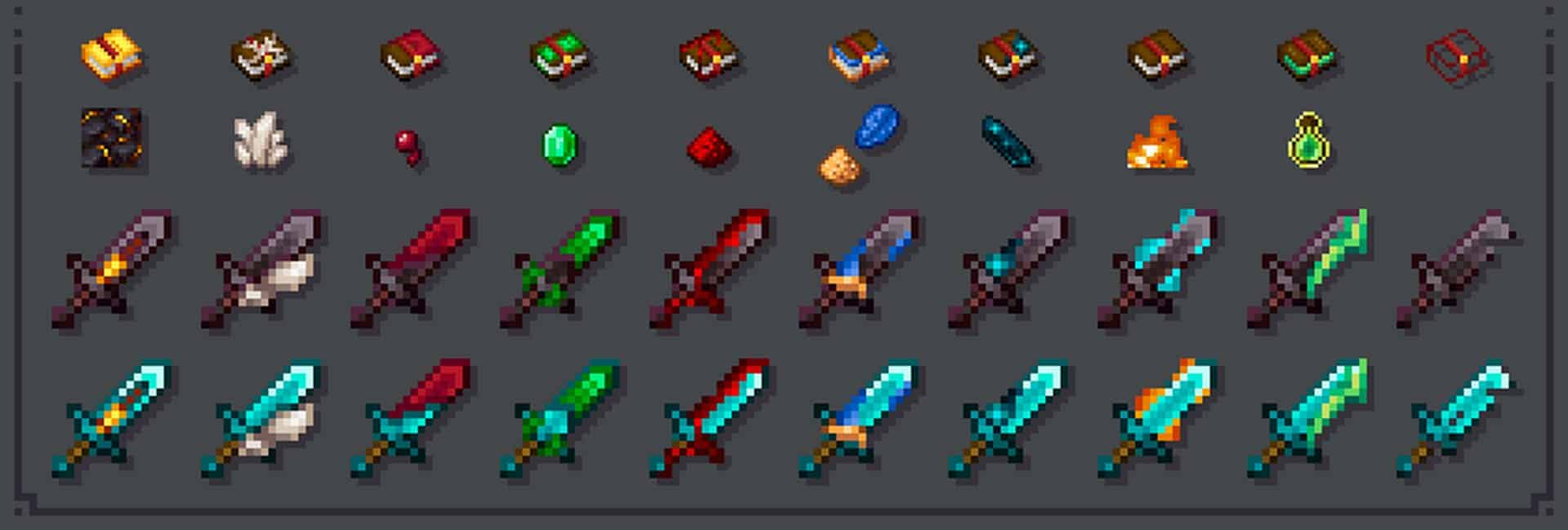
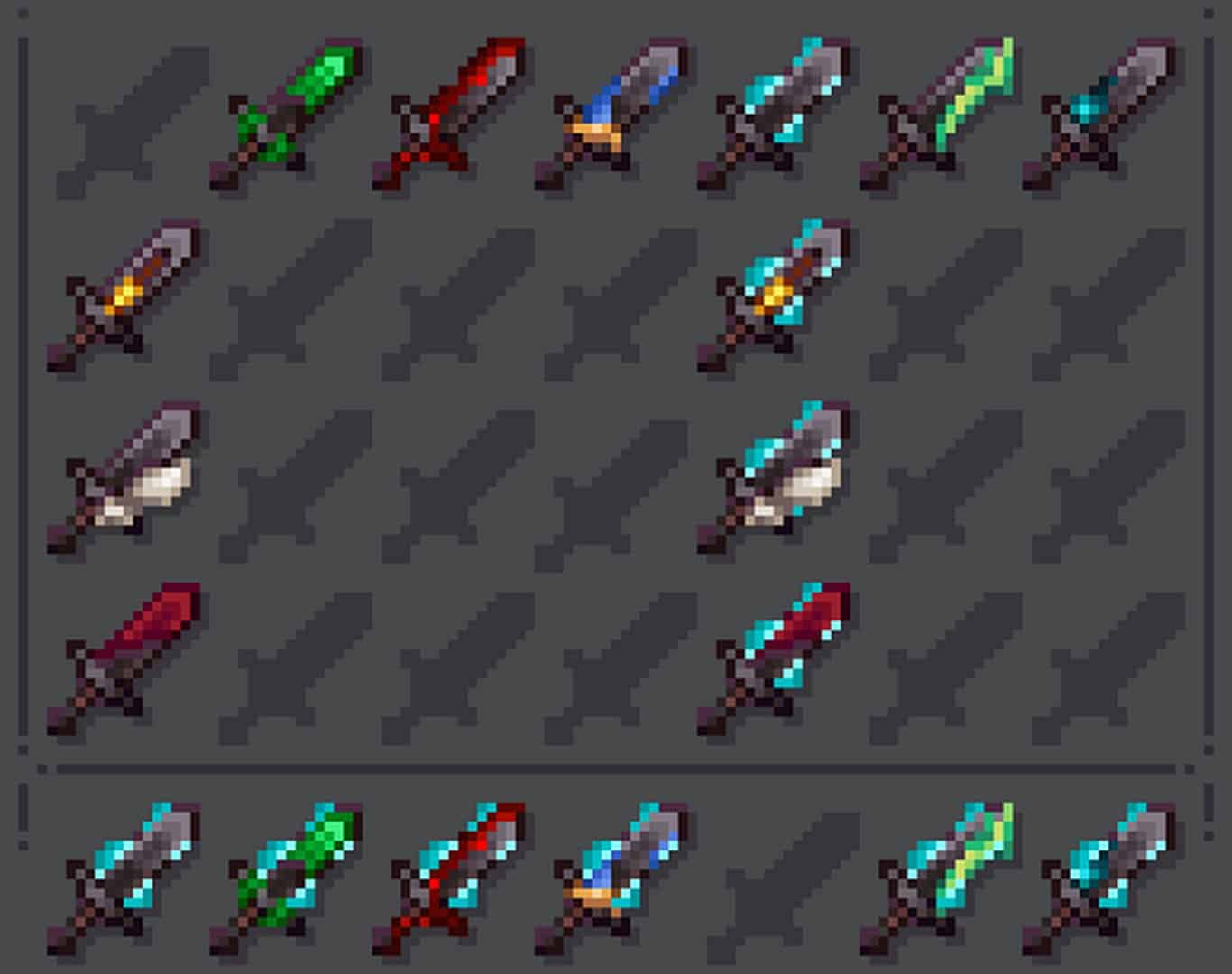
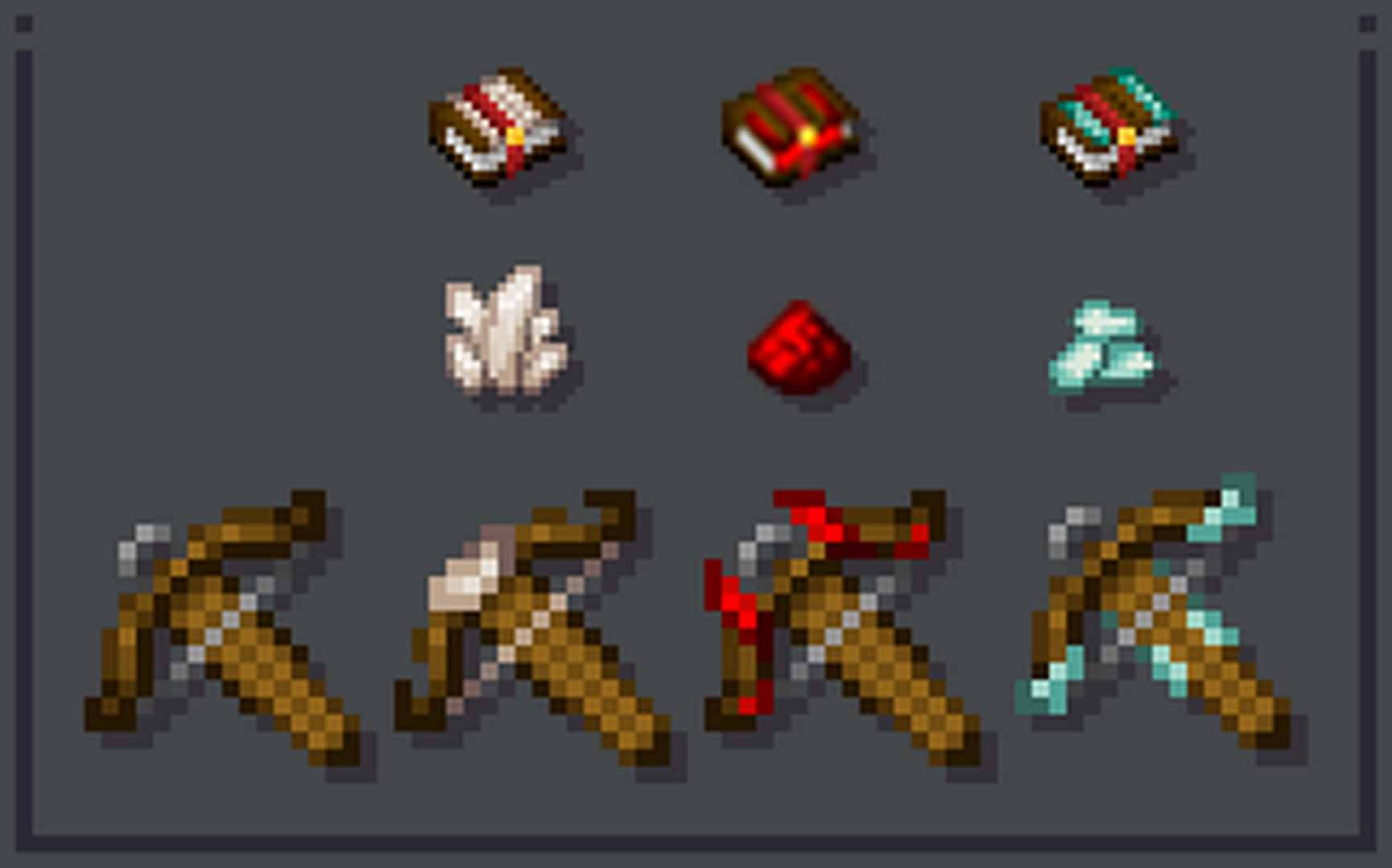
How to Install Texture Pack (Simple 10 Steps)
- Download OptiFine: Most of the texture packs and shaders need OptiFine. That’s why, first download and install OptiFine for the version of Minecraft you want to play.
- Download the Texture Pack: Get the texture pack you want from the download section. Choose the version that works with your Minecraft and your PC’s performance.
- Open Minecraft Launcher: Start Minecraft using the official game launcher — or even TLauncher, if you use that.
- Go to Options: From the main menu, click on the “Options” button.
- Open Resource Packs: Inside Options, click on “Resource Packs…”.
- Open the Resource Pack Folder: Click on “Open Resource Pack Folder” — this will open a folder named “resourcepacks”.
- Move the Pack File: Copy or move the .zip file you downloaded into that “resourcepacks” folder. (Don’t unzip the file — Minecraft uses it as-is!)
- Go Back and Refresh: Close the folder and click “Done”, then go back into “Resource Packs…” again.
- Activate the Pack: You’ll see the pack on the left side. Hover over it and click the arrow to move it to the right (active side).
Tip: If you get a message that the pack is for a different version, just click “Yes” — it usually works fine. - Click Done and Enjoy: Click “Done” again. Now your pack is ready to use in-game. It’s that easy!
Credits
This resource pack was created by milesdemillas. We do not own, host, or modify this resource pack. All rights and original ownership remain with milesdemillas. We encourage you to support the creator by visiting their official download pages.
Download Links
Java Edition
Download Instructions
Curseforge: download starts automatically after a few seconds;
Mediafire: click the big blue button with the text “DOWNLOAD”;
Google Drive: in the top right corner you will see a small download icon (down arrow), click it and the download should start;