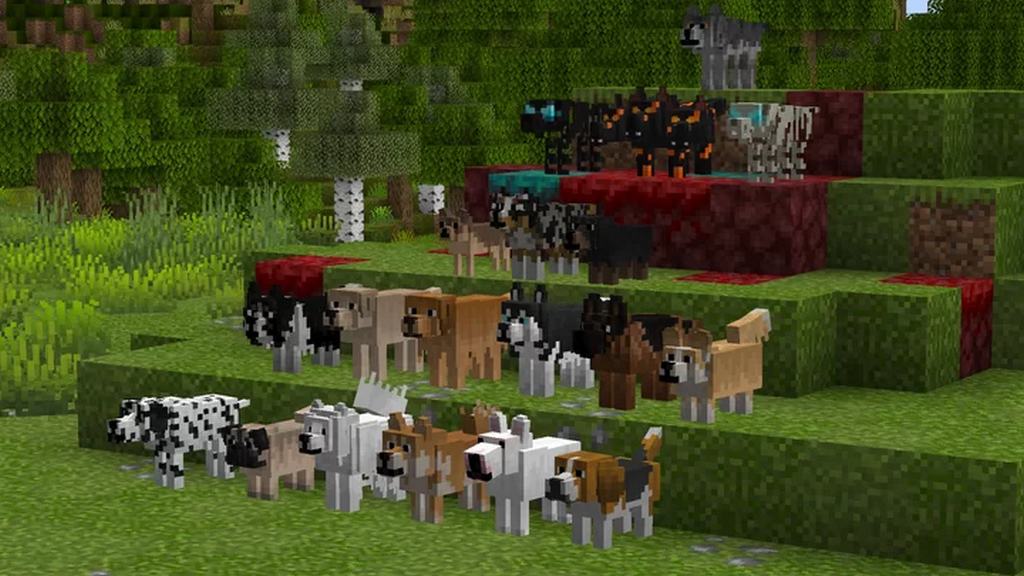
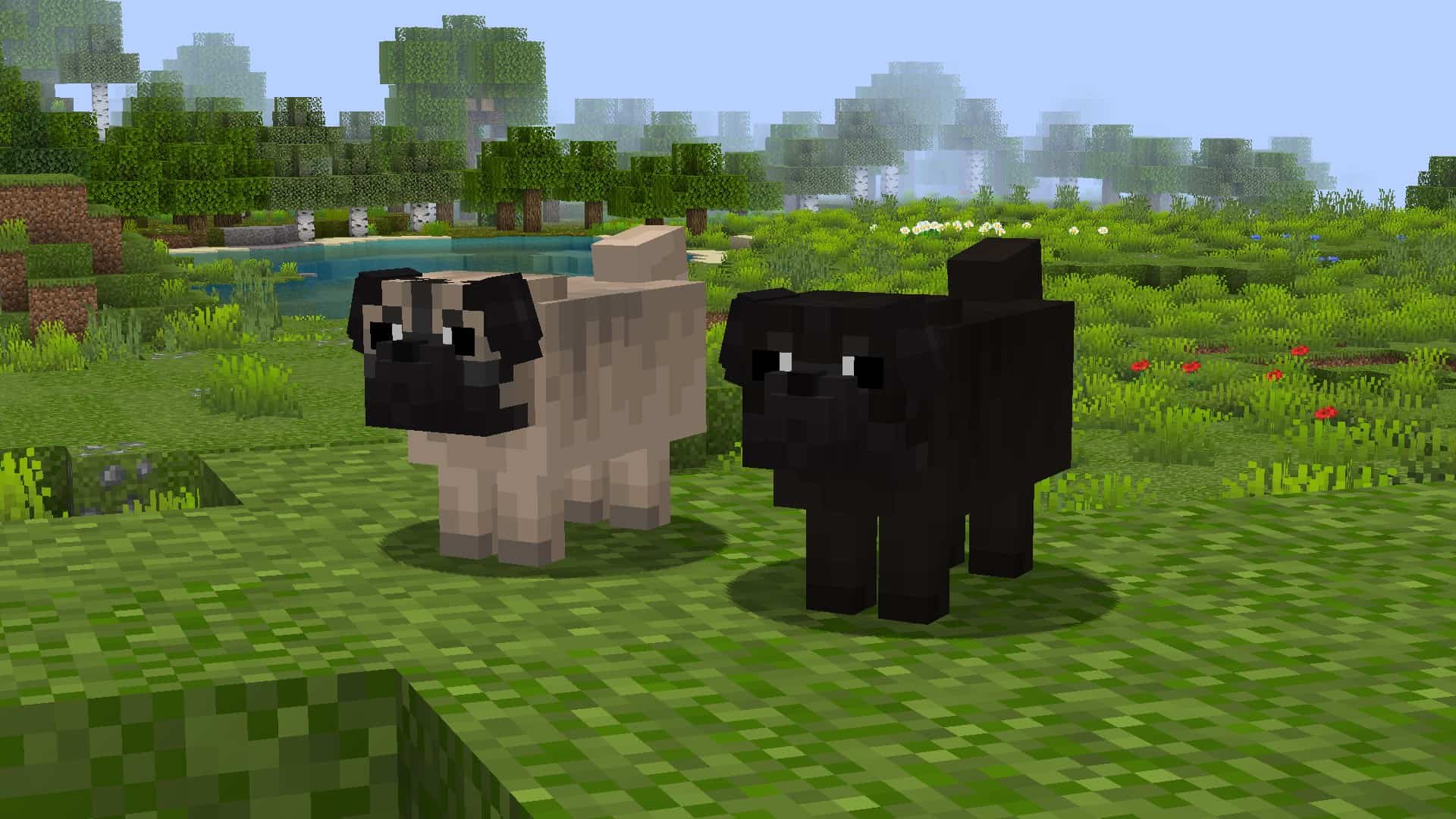
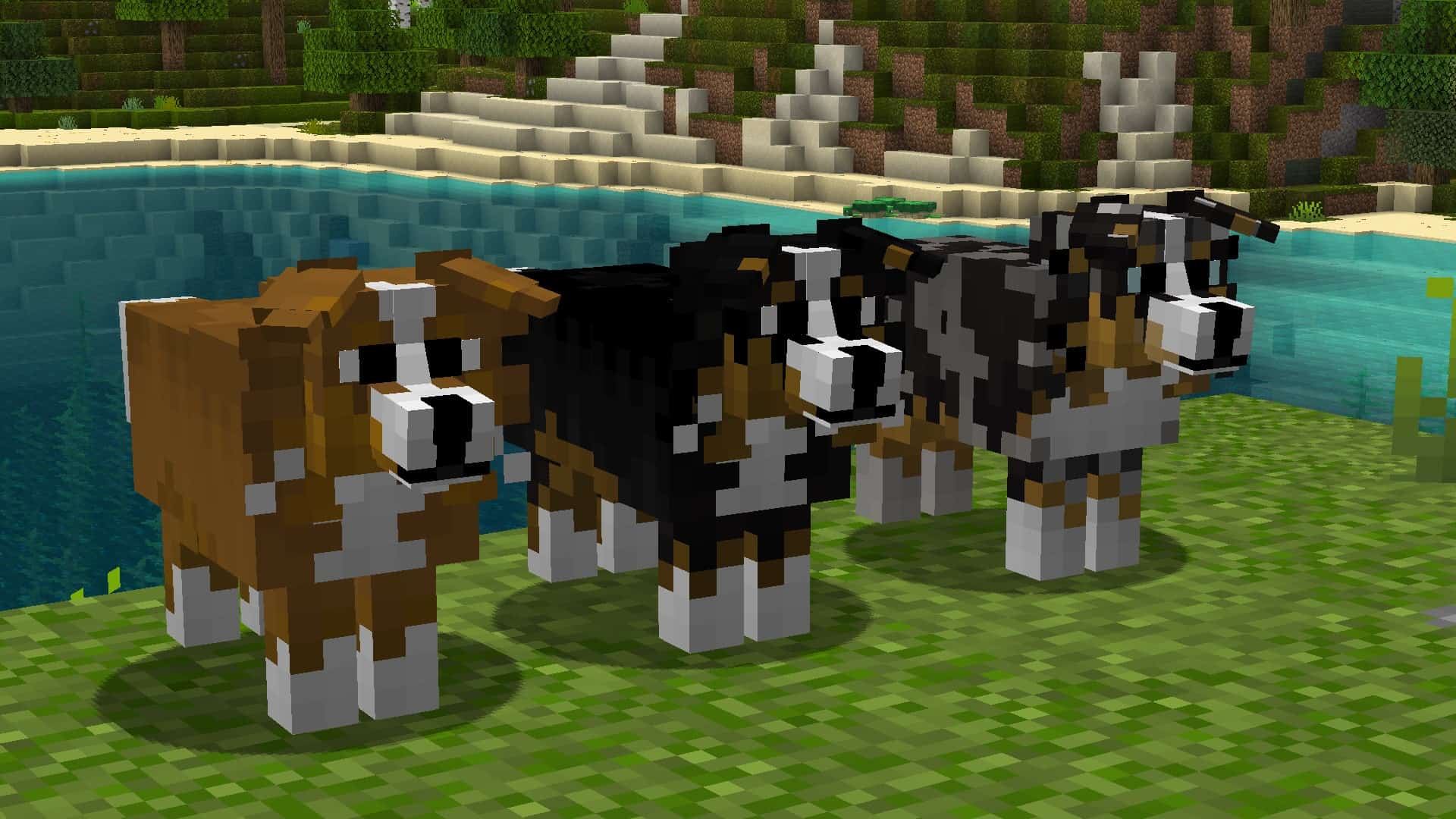
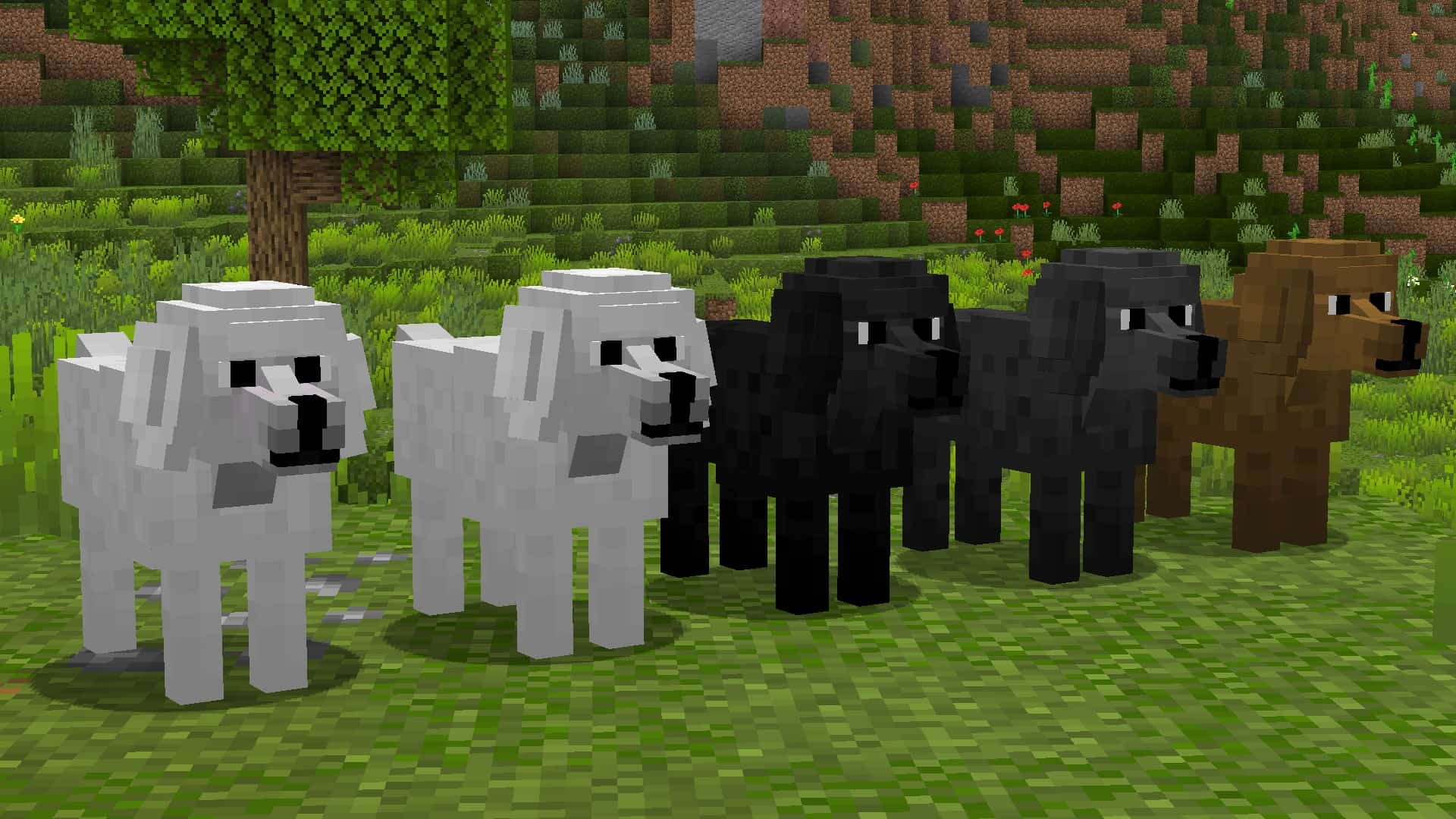
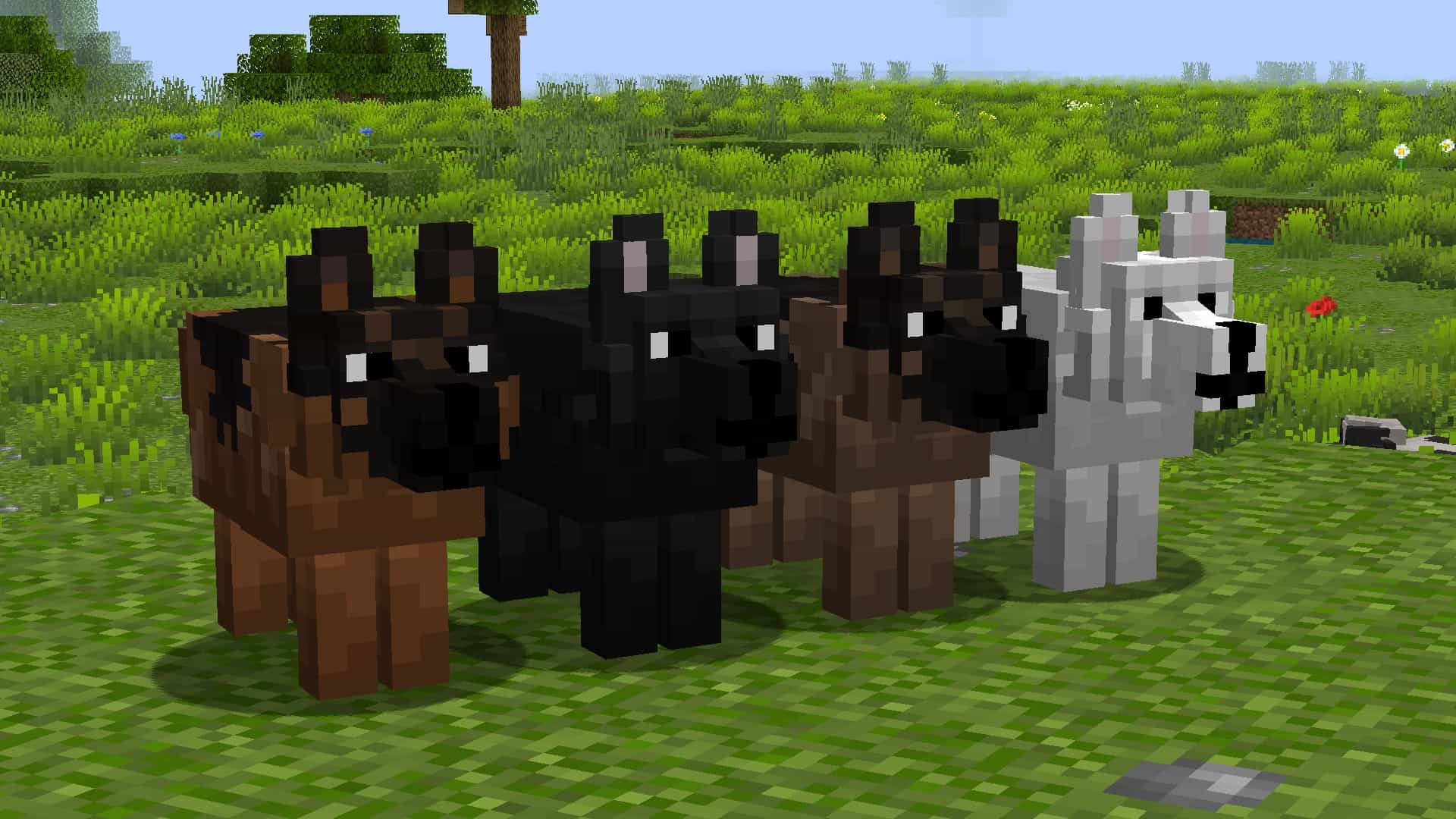
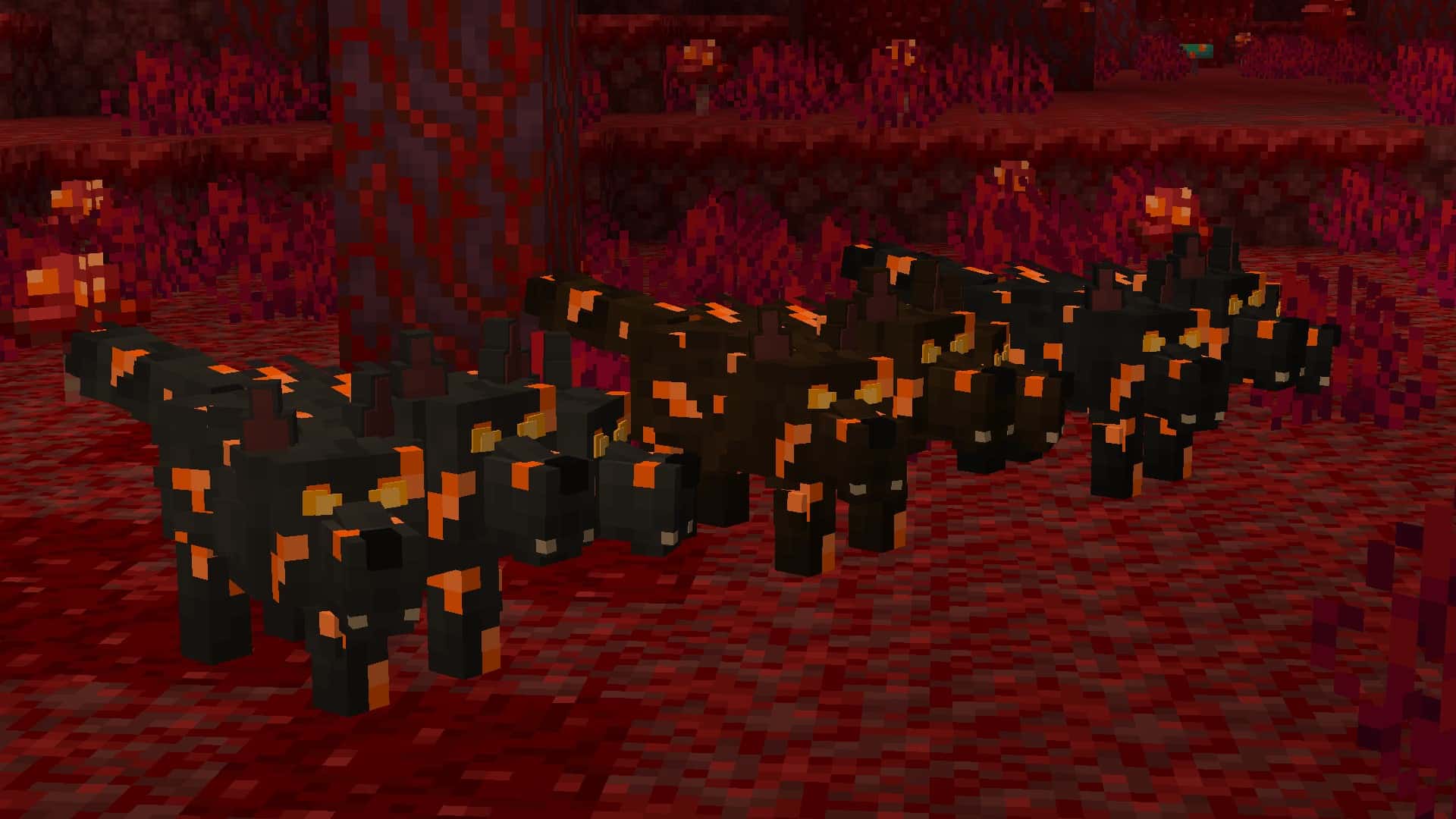
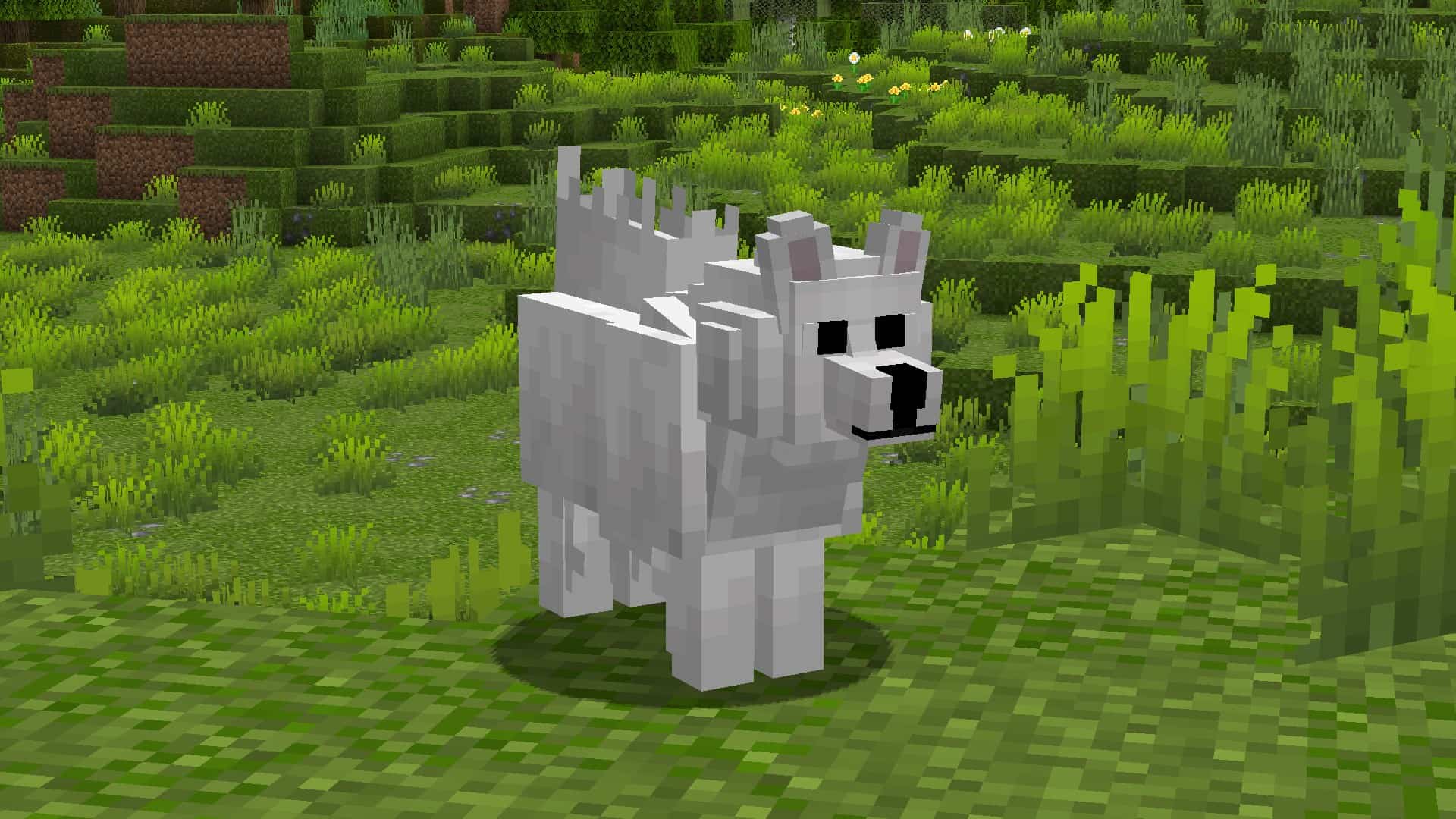
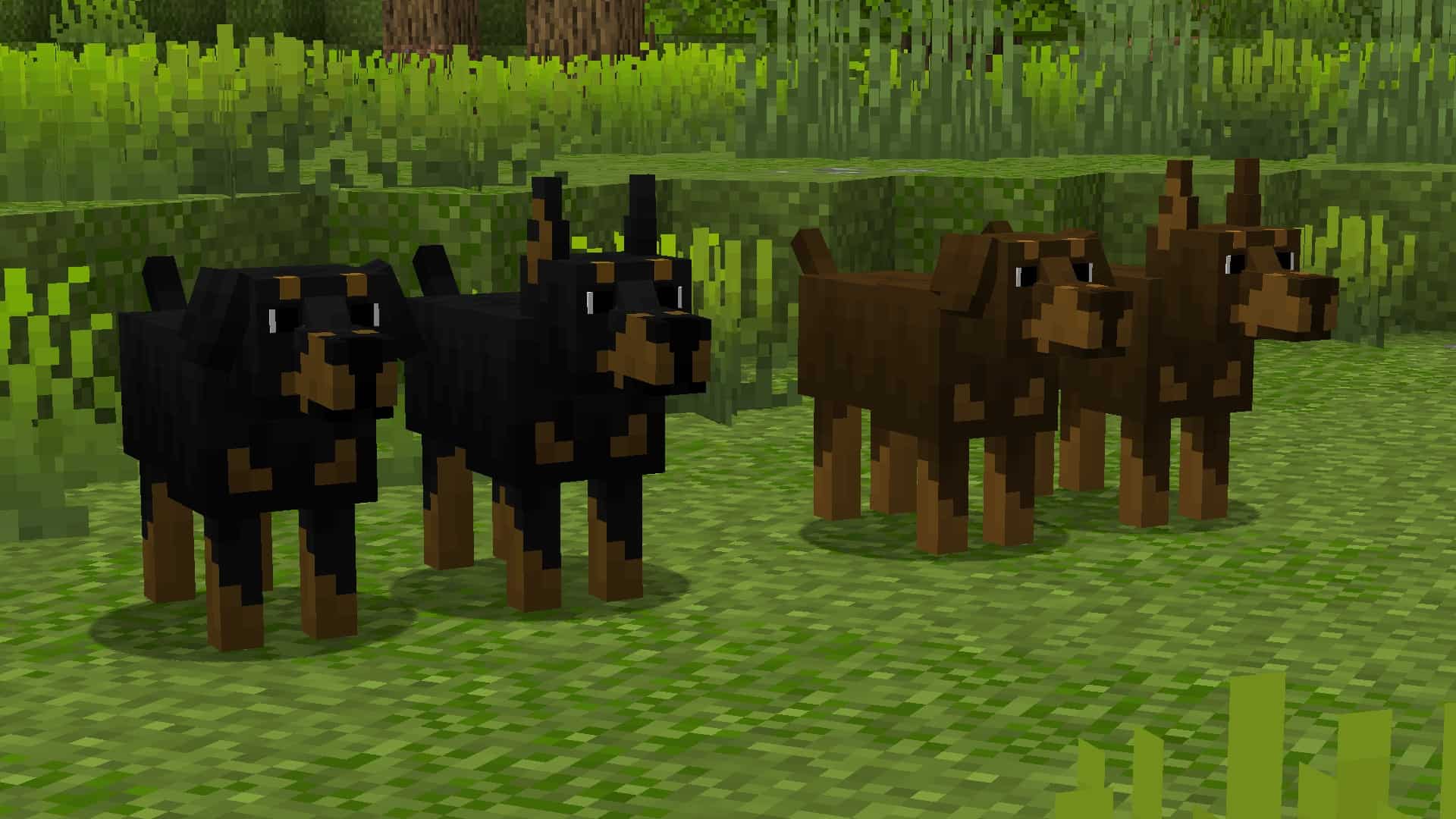
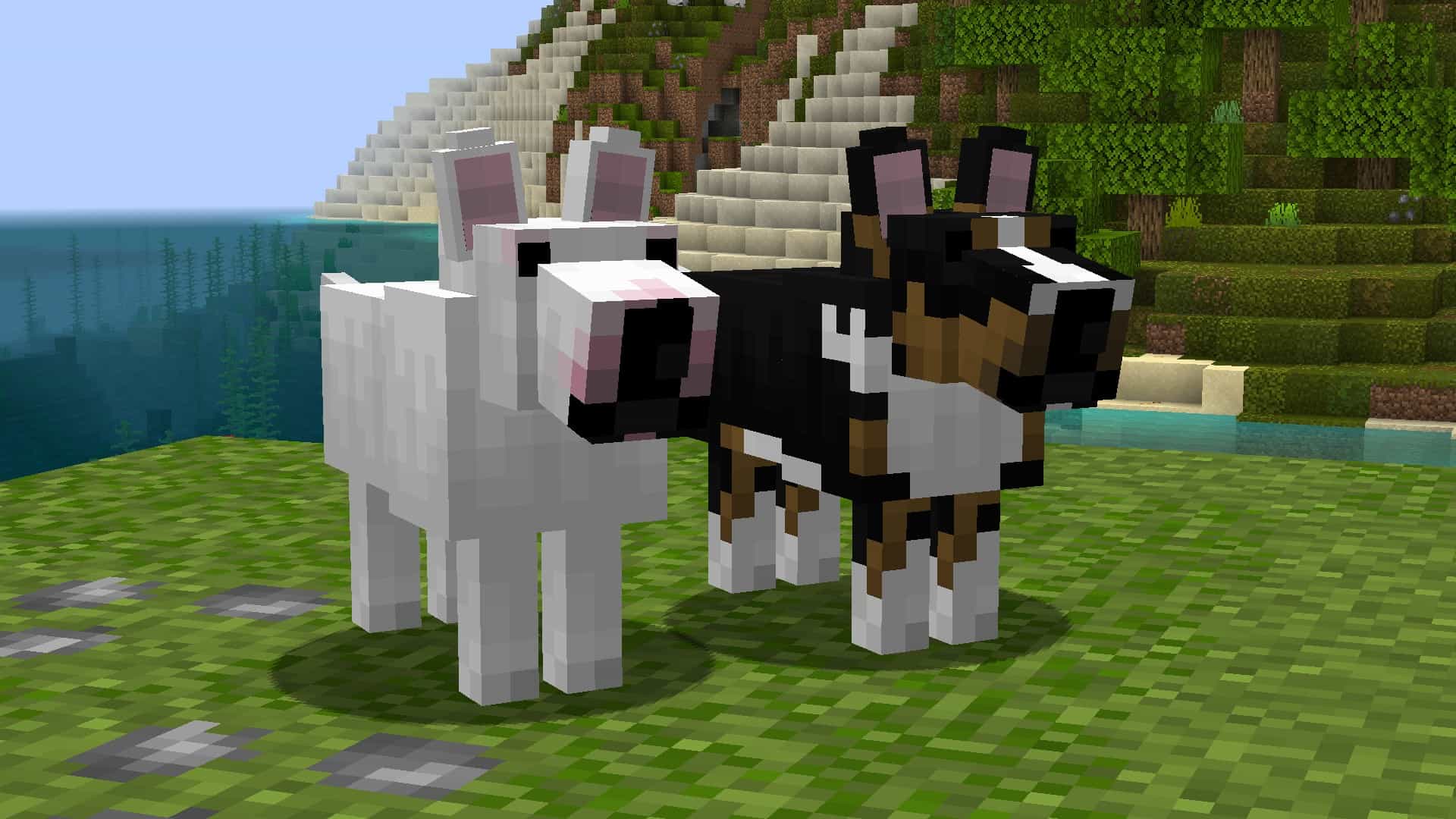
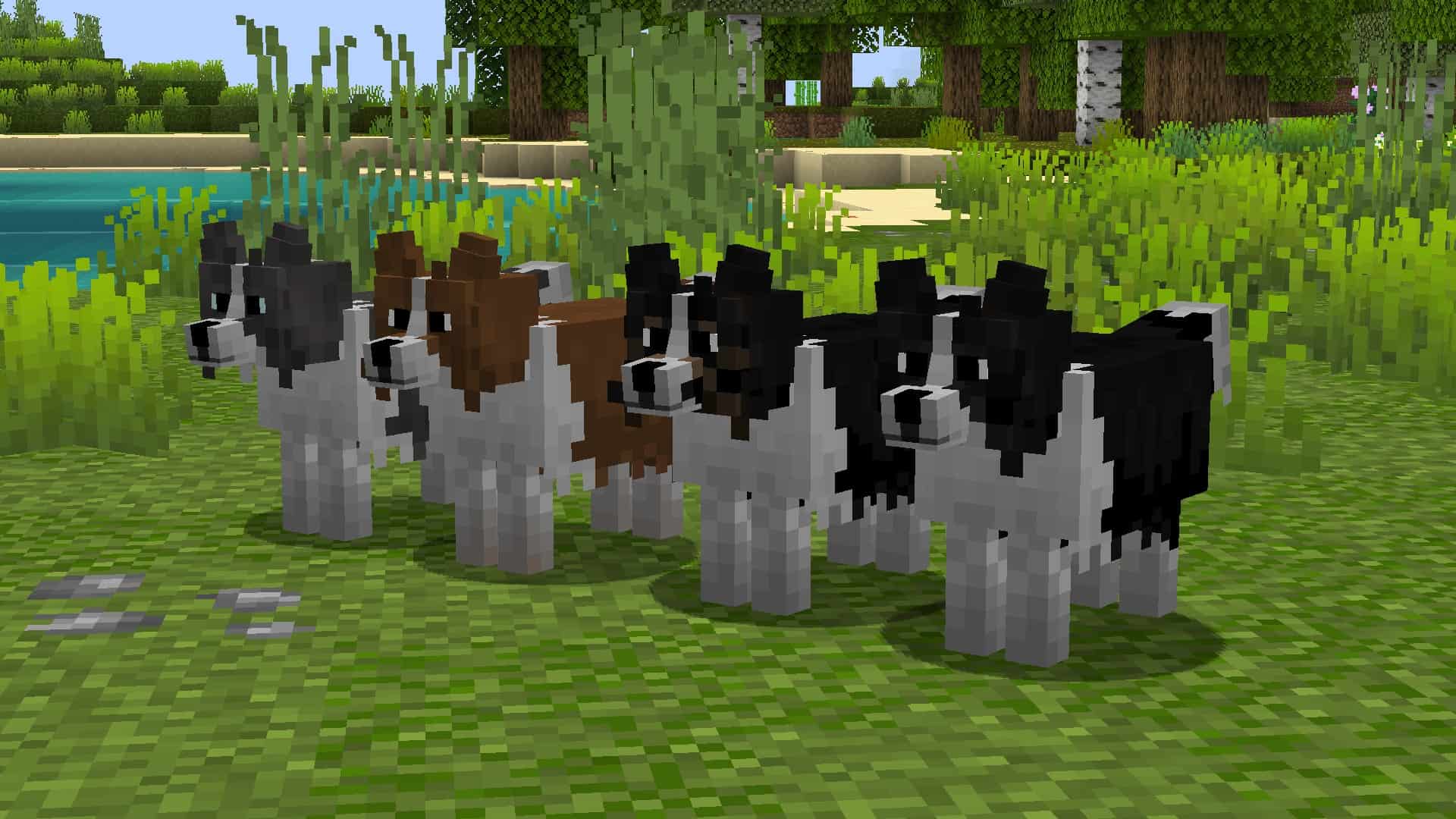
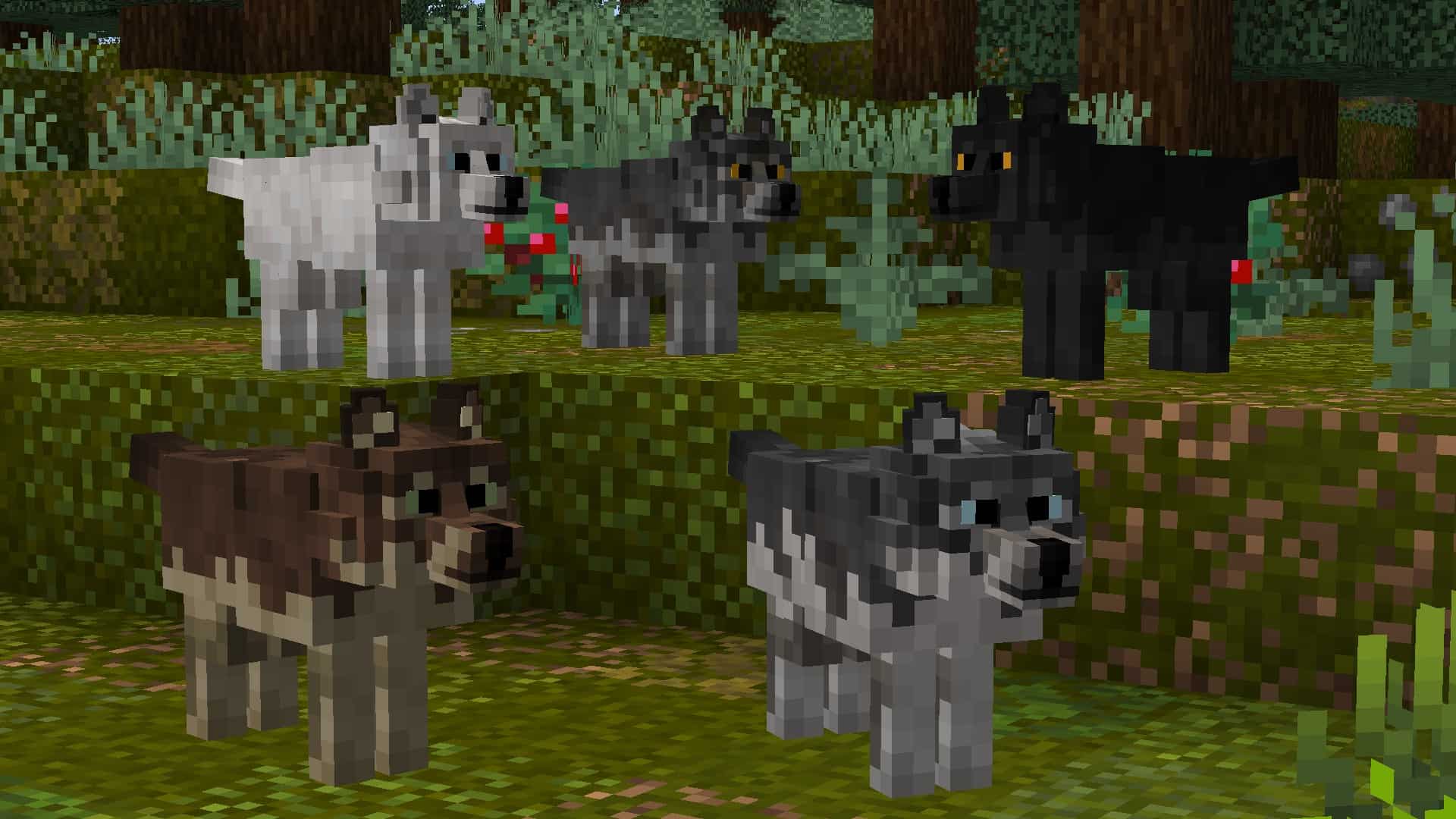
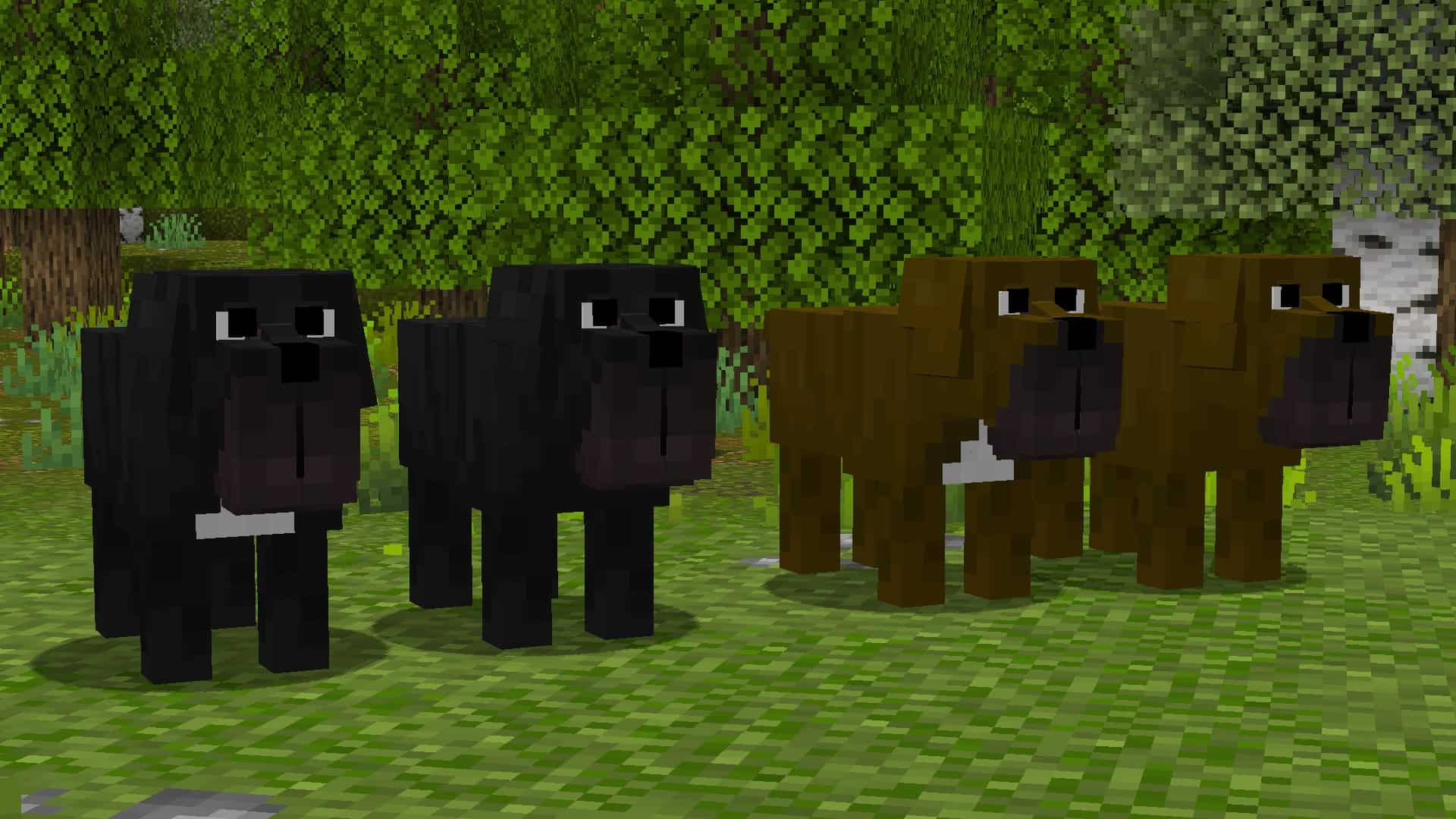
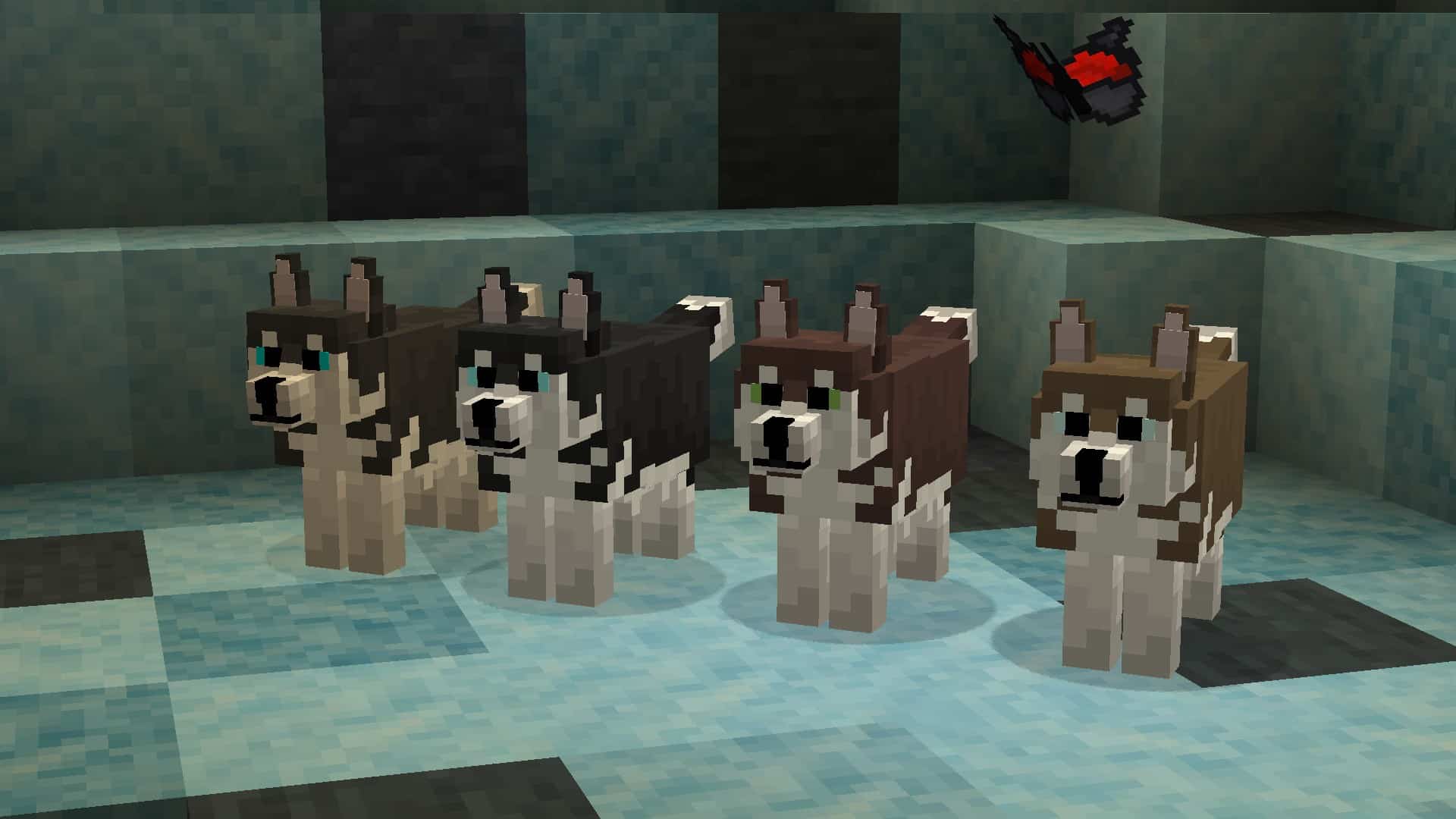
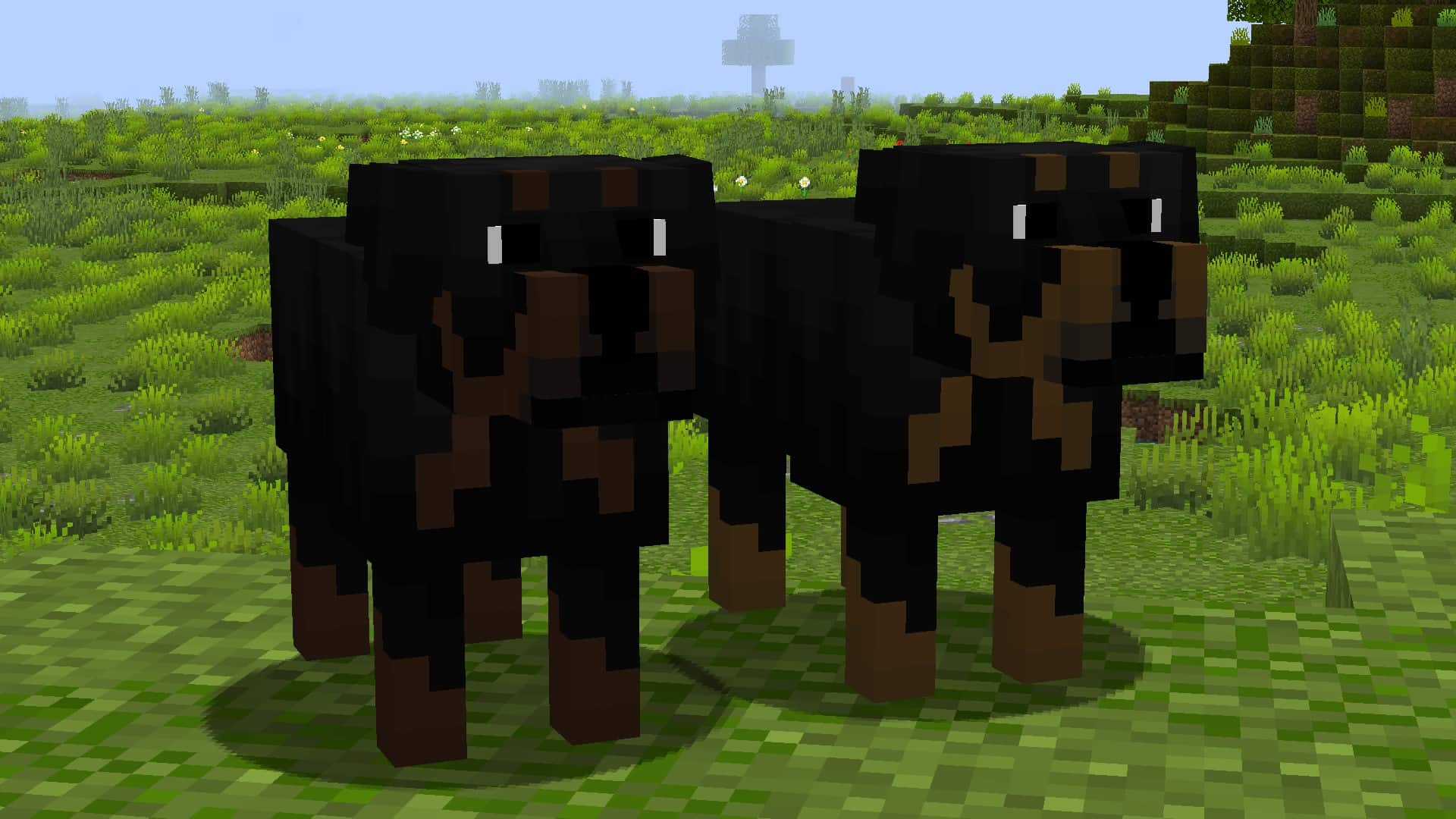
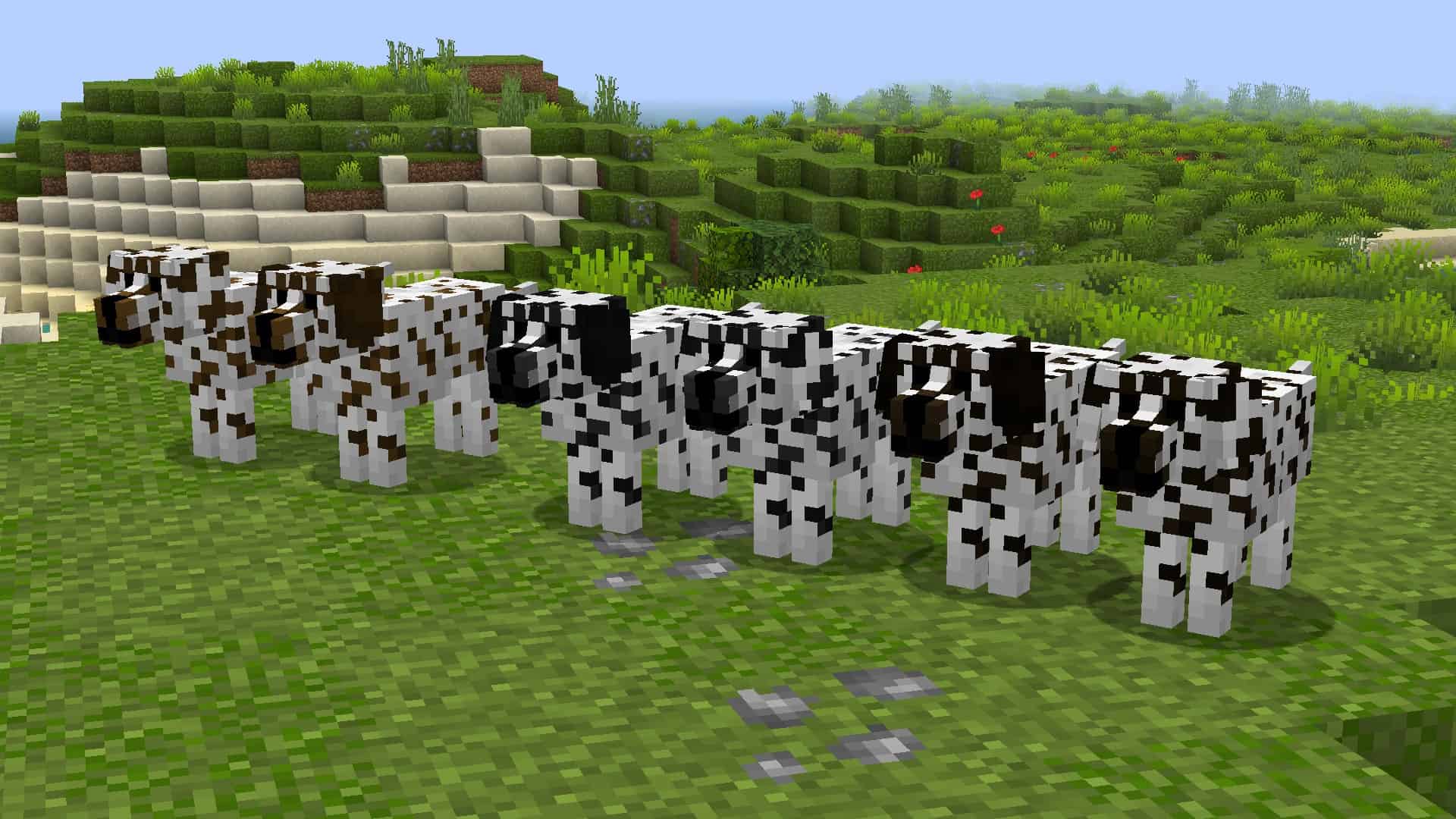
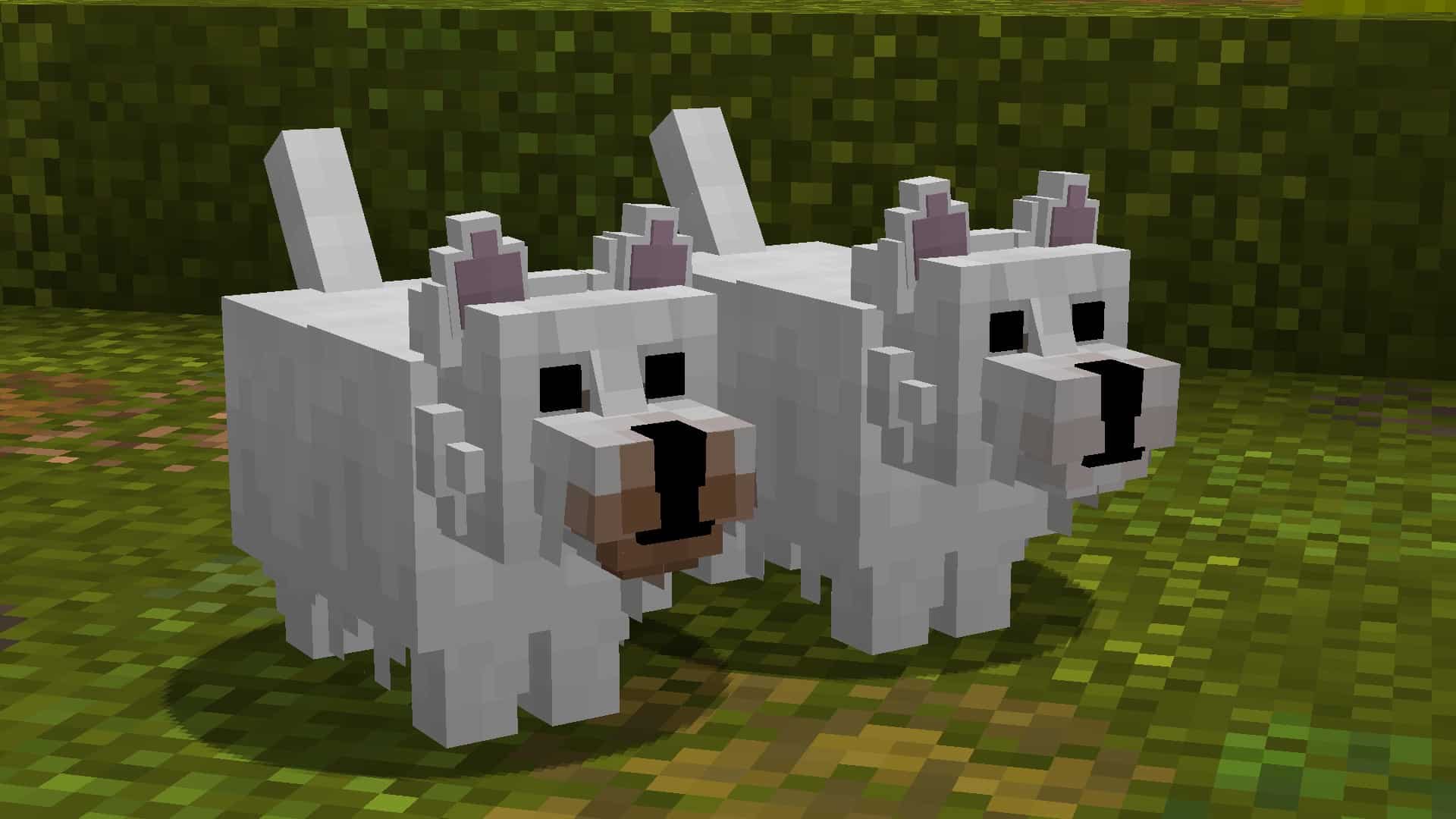
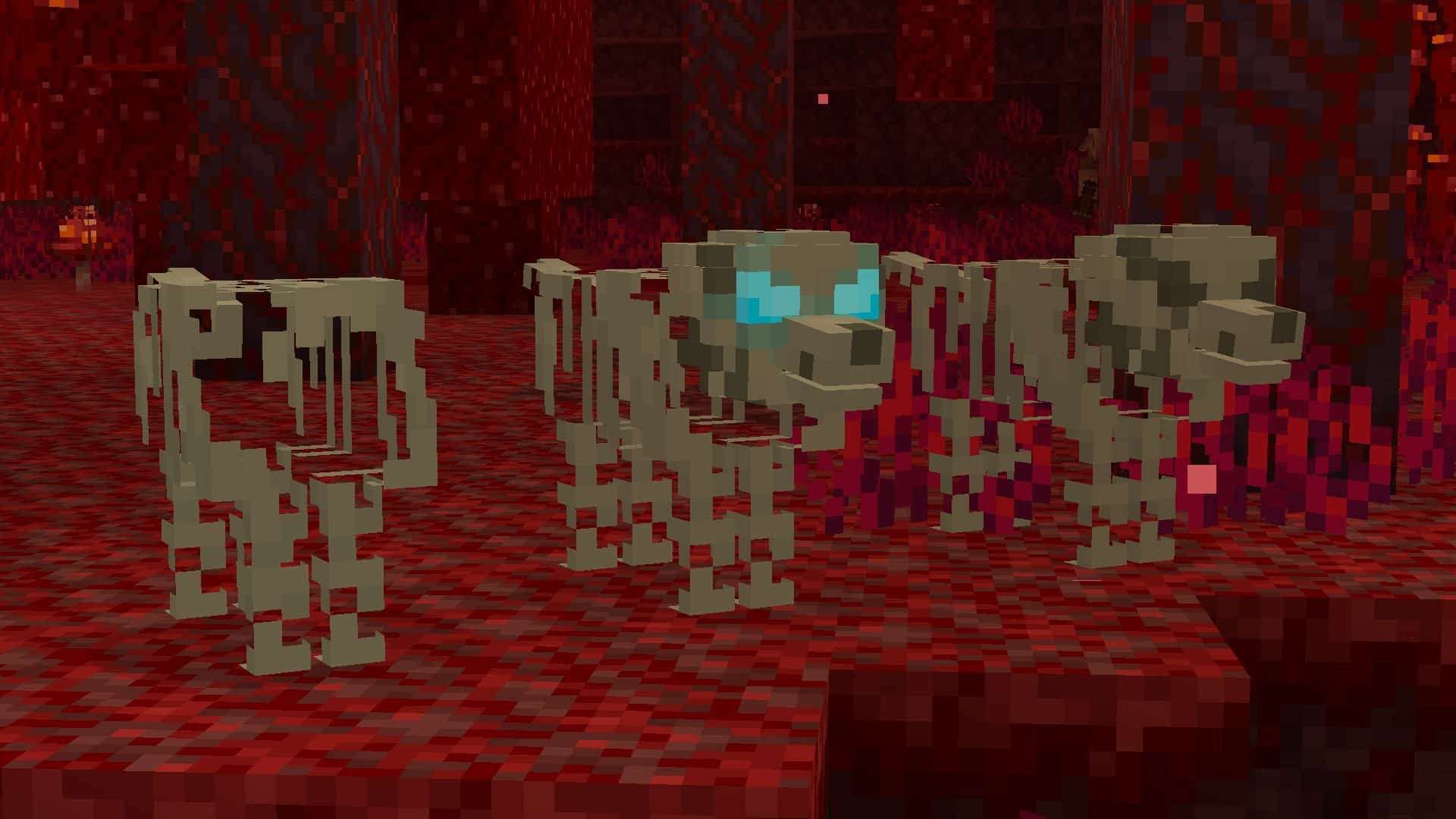
When I first checked out the Better Dogs resource pack, I was blown away by how quickly it gained traction, pulling in over 18,000 downloads in just under a month. Once you see it in action, it is easy to understand why the community loves it so much, and that download count is bound to skyrocket even further. Unlike standard resource packs that simply tweak existing blocks and items, this one completely revolutionizes the experience by overhauling the game’s wolves into an incredible variety of distinct dog breeds featuring stunning color variations. Best of all, it operates purely as a resource pack rather than a complicated mod, making the setup process wonderfully straightforward just like any other texture pack, giving you the exact canine companion you have always wanted in your world.
The process of getting your new furry friend is amazingly simple. When you tame a standard wolf, it will randomly transform into one of the amazing new dog breeds, though it might occasionally remain a regular wolf. If you are hunting for a specific breed, you can easily force the change by renaming the dog with a name tag, provided you use one of the approved words from the supported name tags list found further down the page. Running at a clean 16×16 resolution, you will not have to worry about any performance drops, meaning it works buttery smooth on virtually any device. Do keep in mind that you will need OptiFine installed for everything to render correctly, and if you get a version compatibility warning upon loading, just click yes and you are good to go. To make sure everything looks pristine, just double-check that custom entity models and random entities are enabled in your Minecraft video settings!
Better Dogs should be compatible with all of these Minecraft versions: 1.21.7 – 1.21.6 – 1.21.5 – 1.21.4 – 1.21.3 – 1.21.2 – 1.21.1 – 1.21 – 1.20.6 – 1.20.5 – 1.20.4 – 1.20.3 – 1.20.2 – 1.20.1 – 1.20 – 1.19.4 – 1.19.3 – 1.19.2 – 1.19.1 – 1.19 – 1.18.2 – 1.18.1 – 1.18 – 1.17.1 – 1.17 – 1.16.5 – 1.16.4 – 1.16.3 – 1.16.2 – 1.16.1 – 1.16 – 1.15.2 – 1.15.1 – 1.15 – 1.14.4 – 1.14.3 – 1.14.2 – 1.14 – 1.13.2 – 1.13.1 – 1.13 – 1.12.2 – 1.12 – 1.11.2 – 1.11 – 1.10.2 – 1.10 – 1.9.4 – 1.9 – 1.8.9 – 1.8.8 – 1.8.1 – 1.8.6 – 1.8
Screenshots

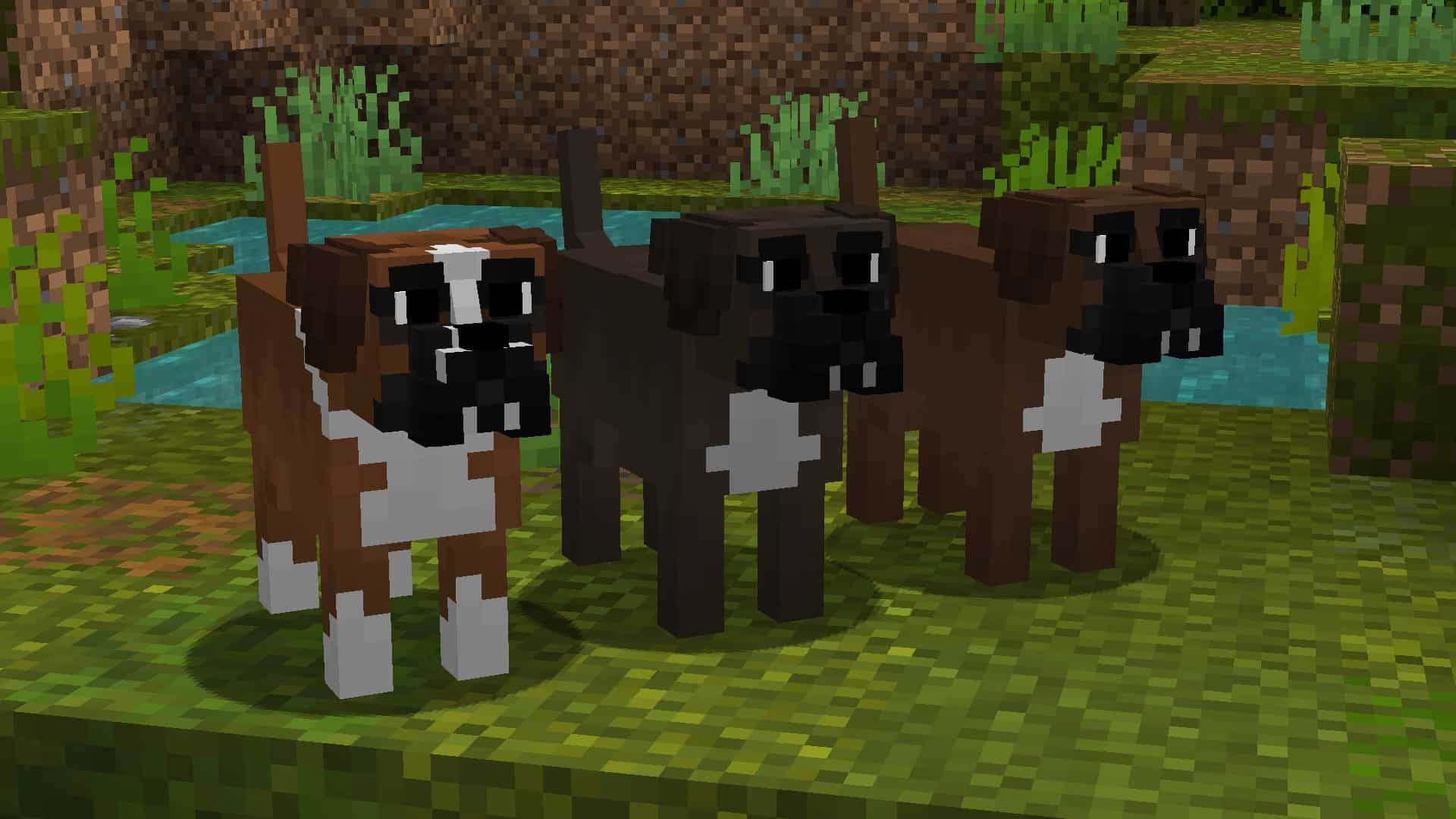

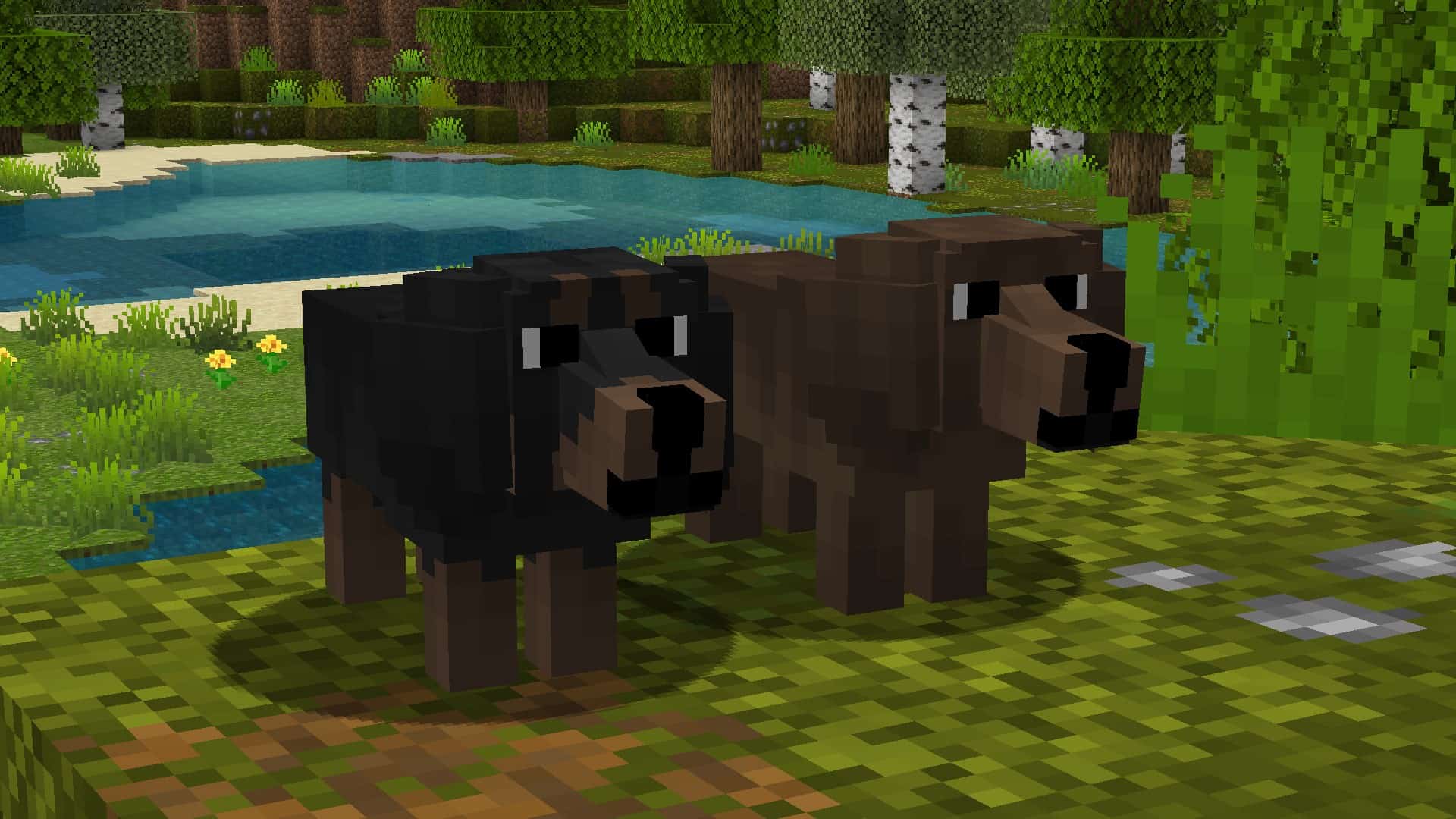
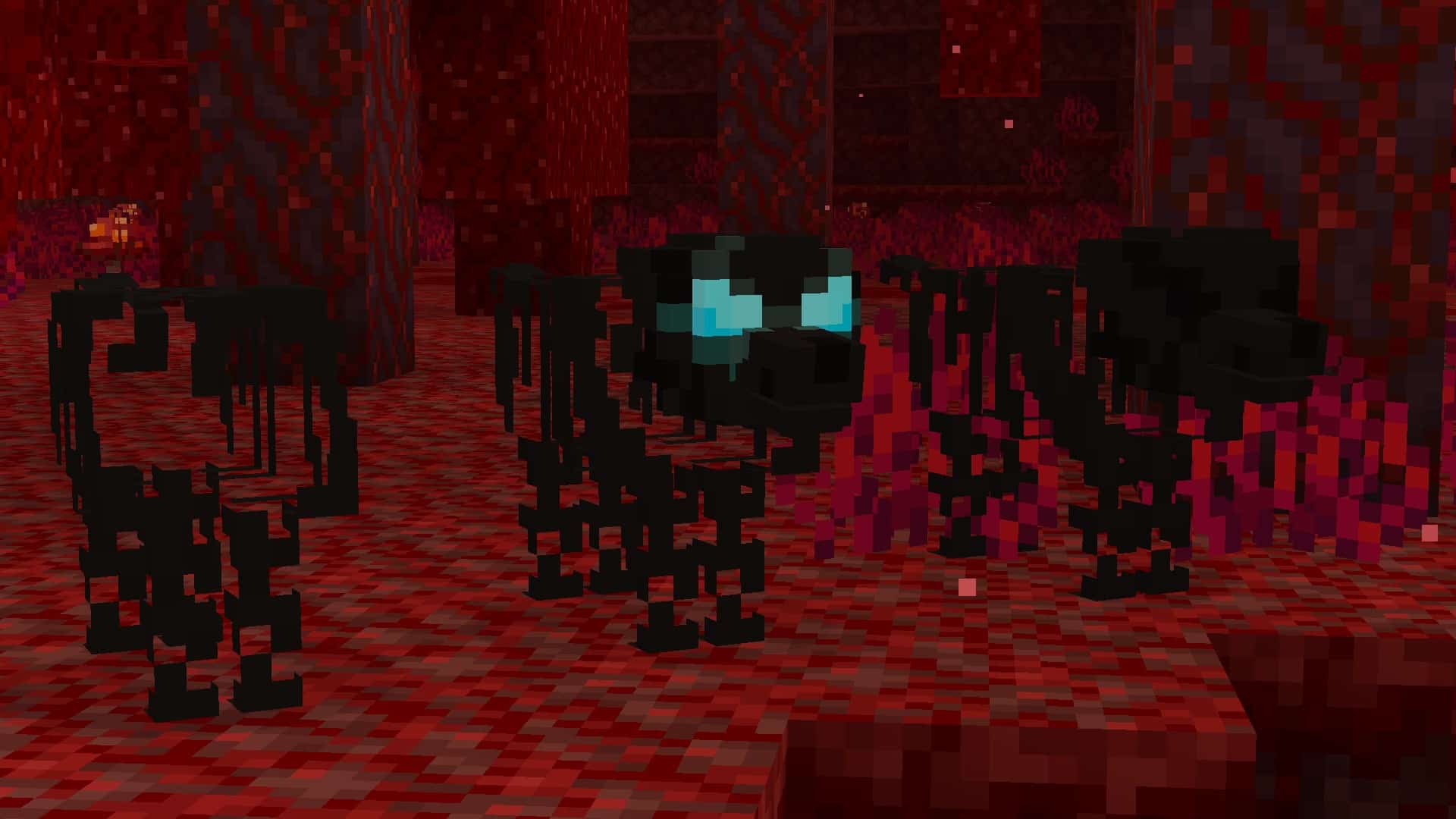
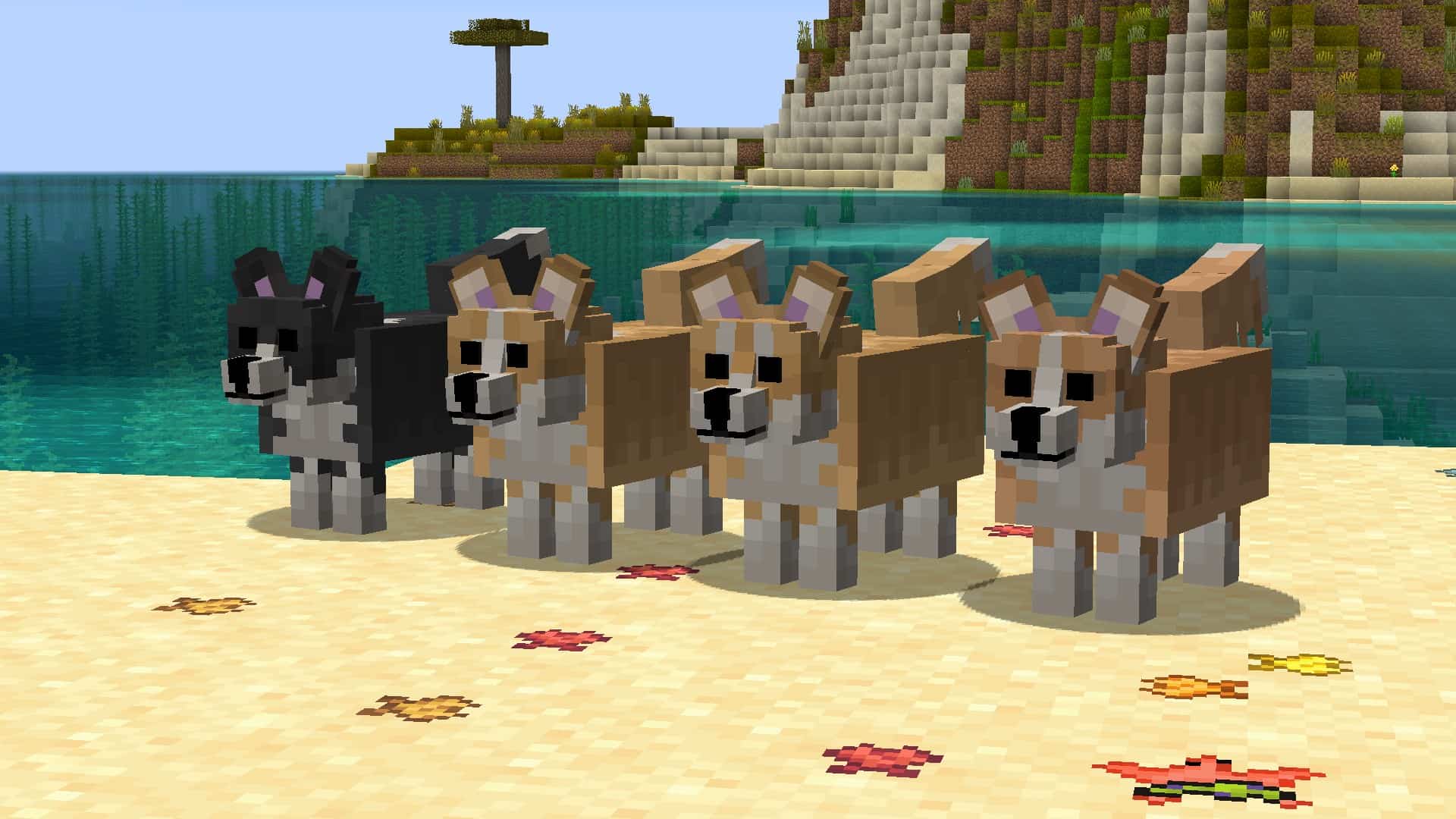
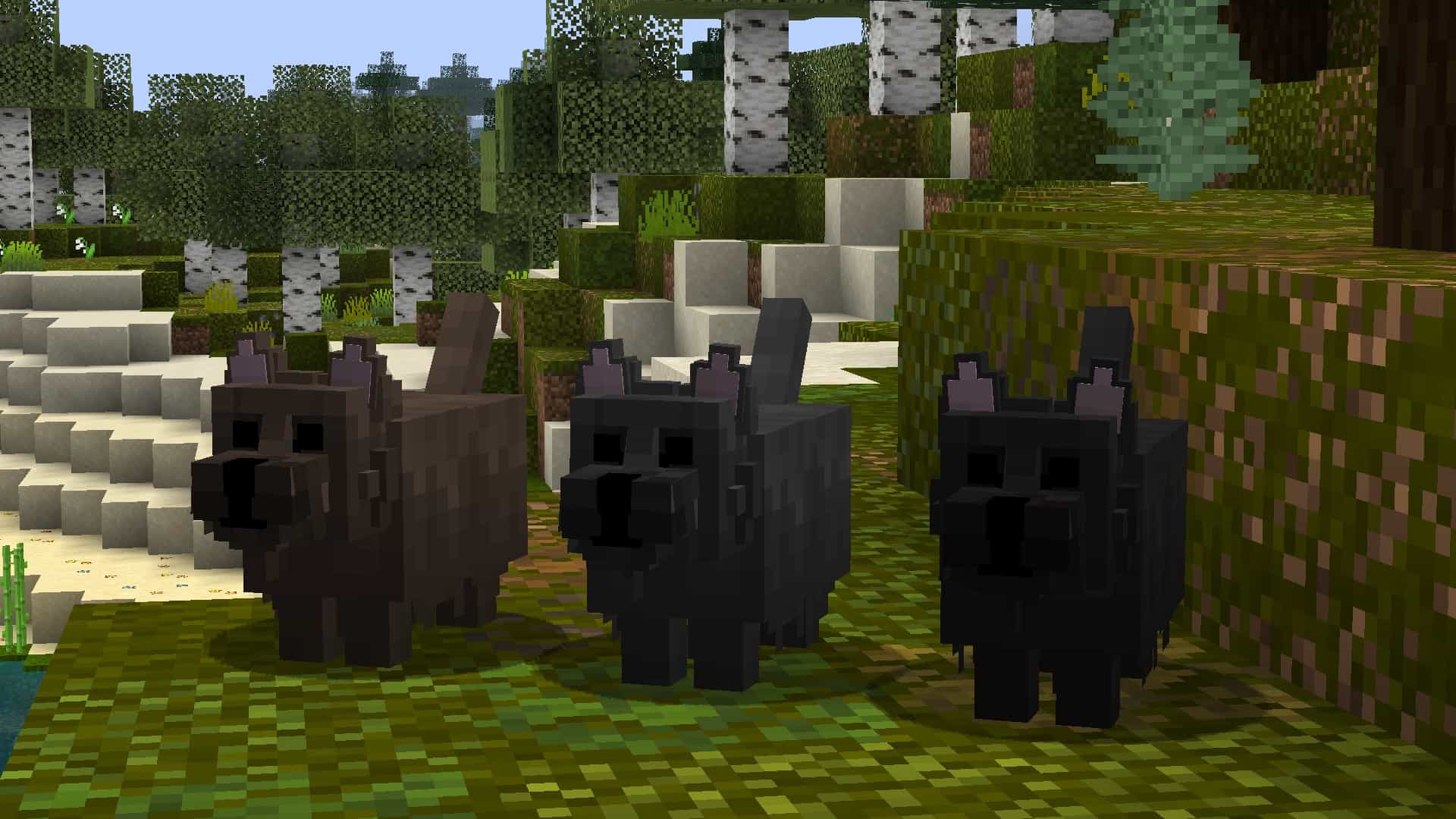
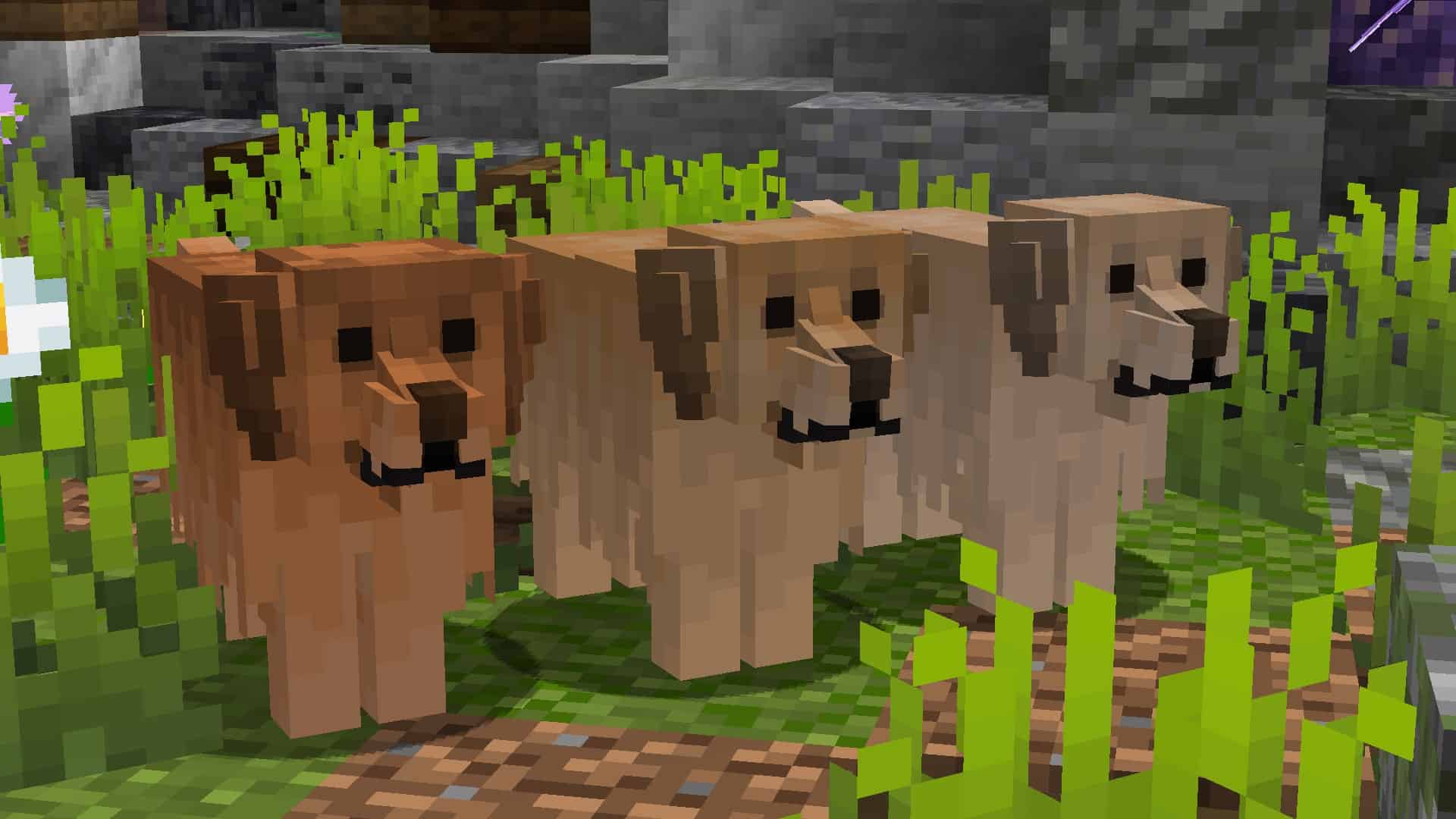

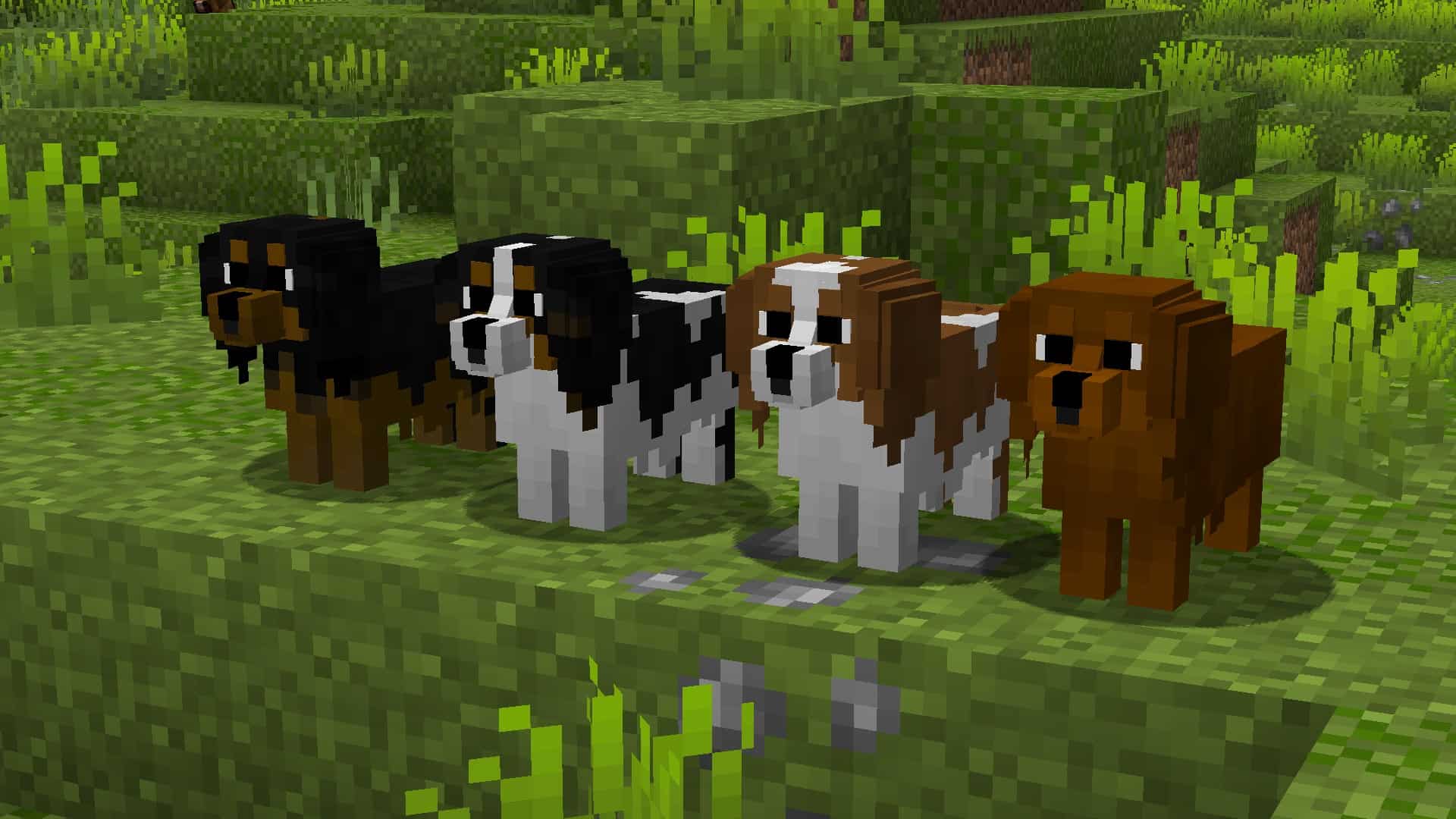
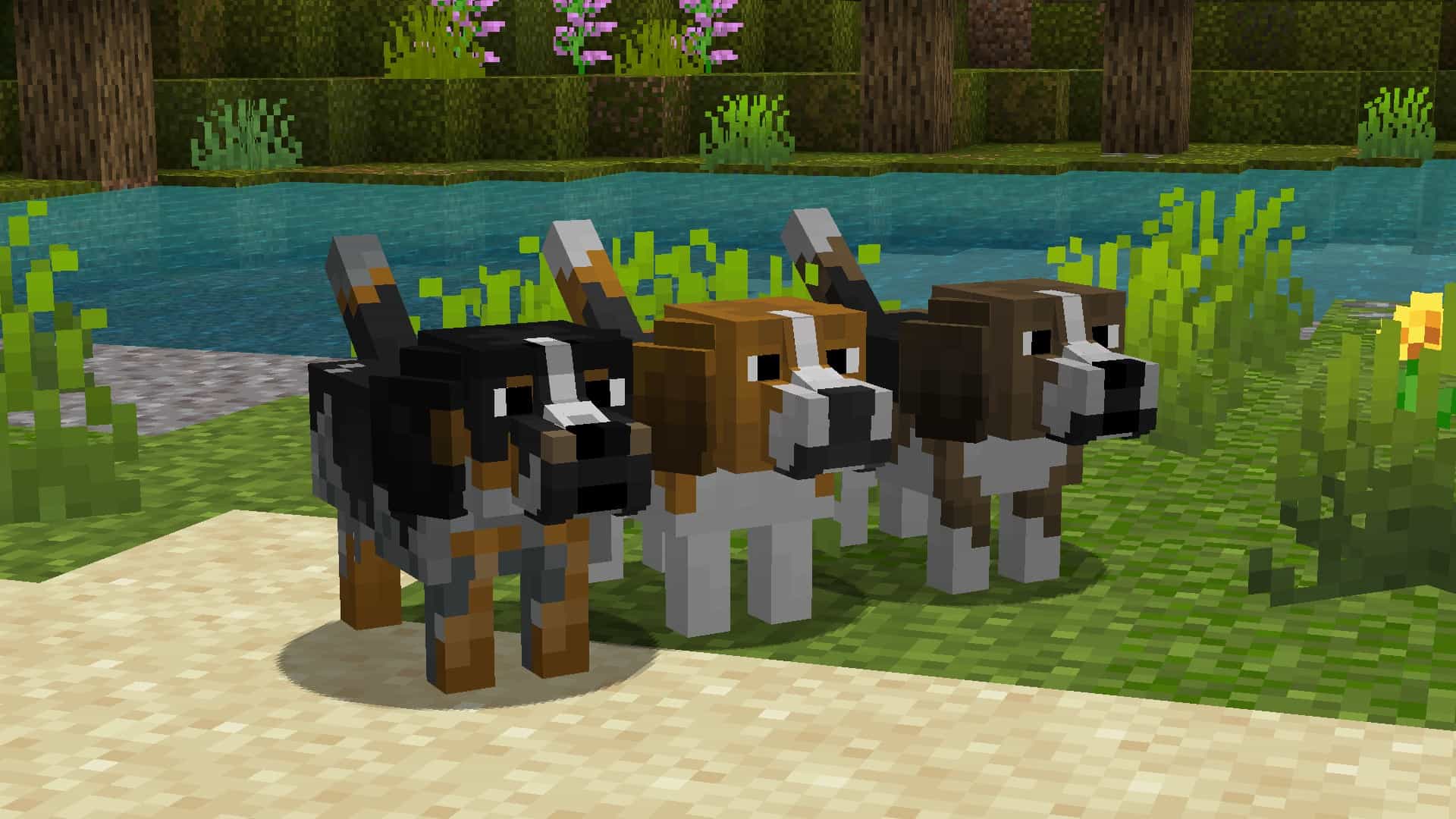
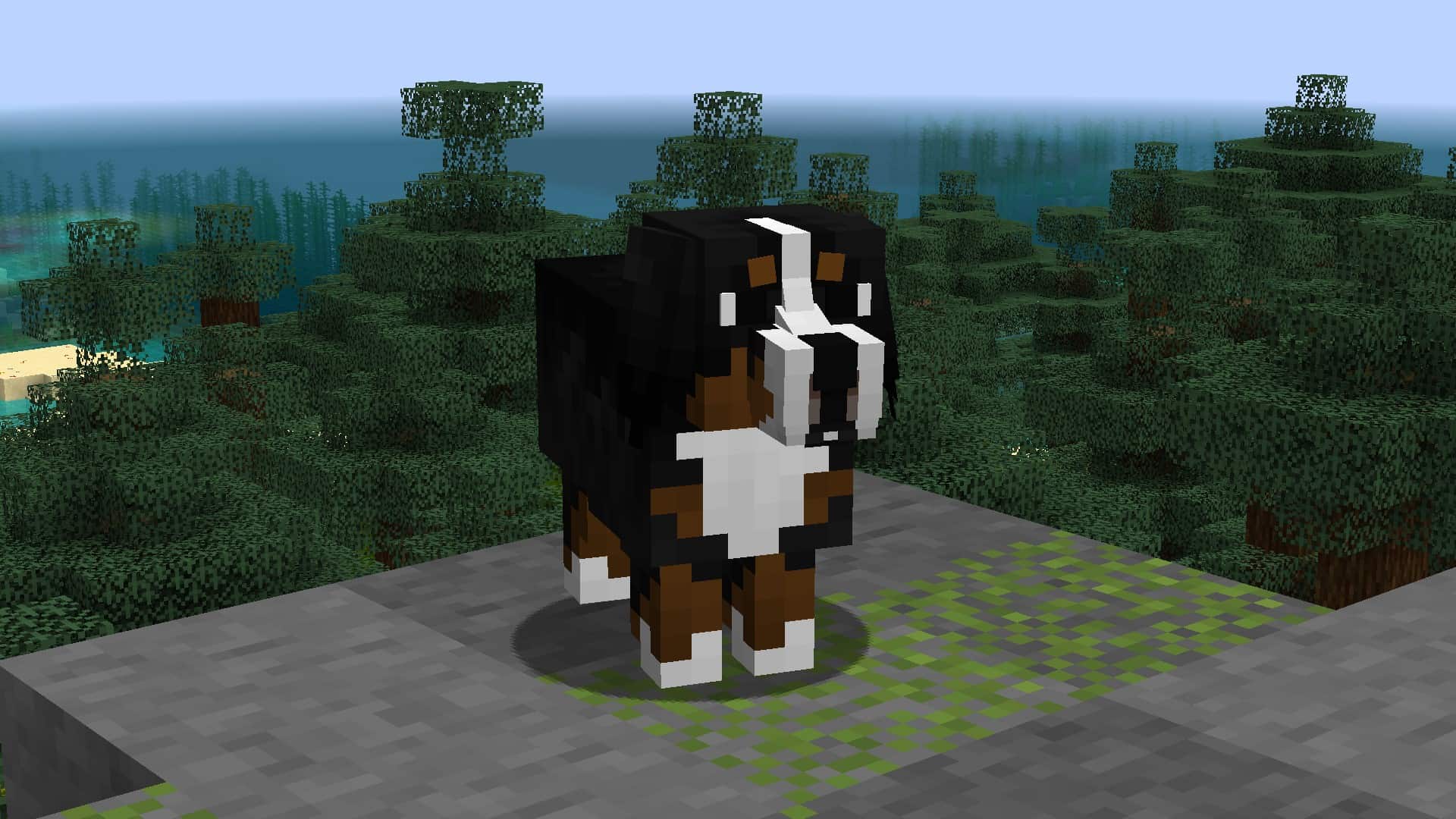
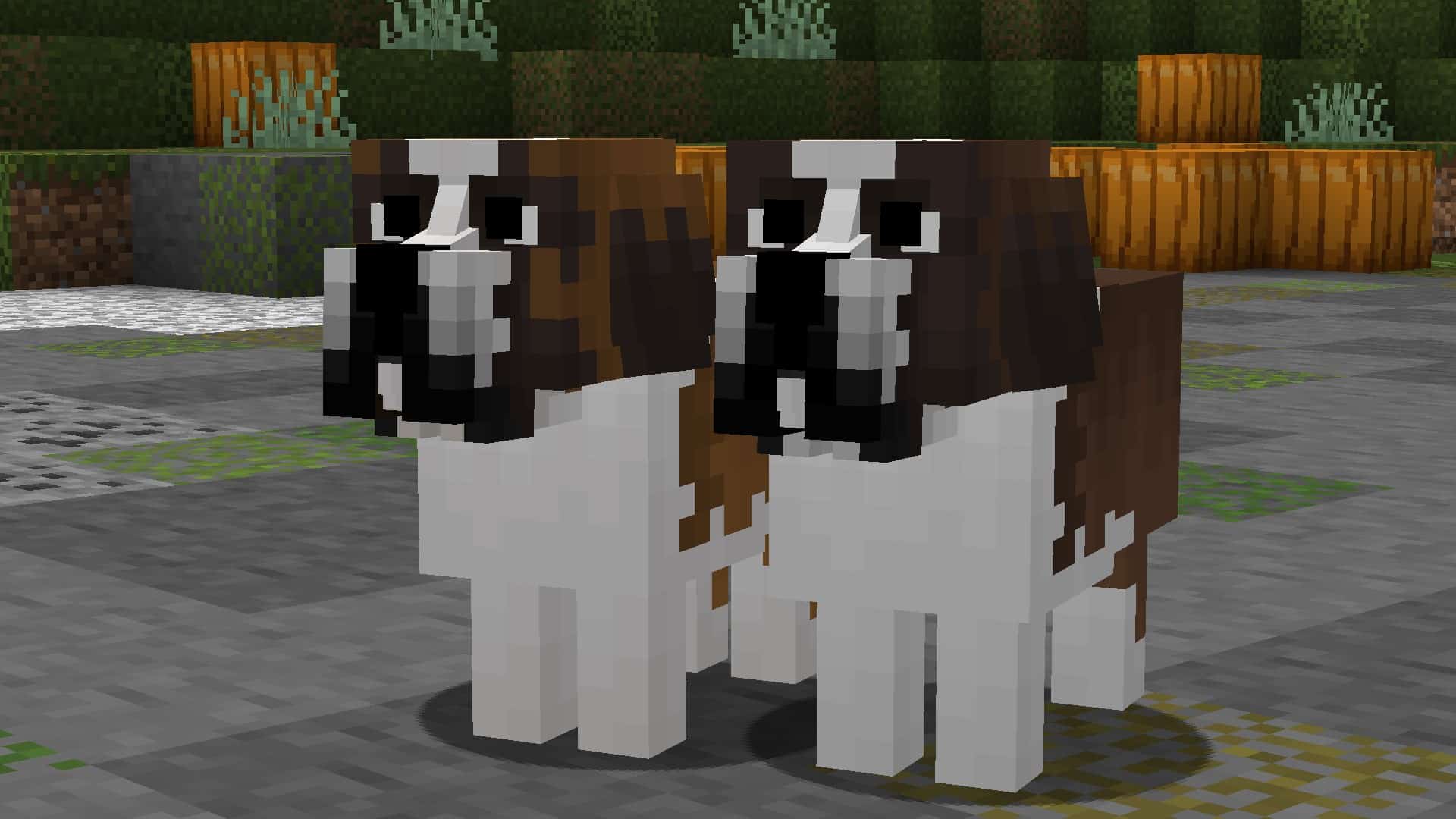
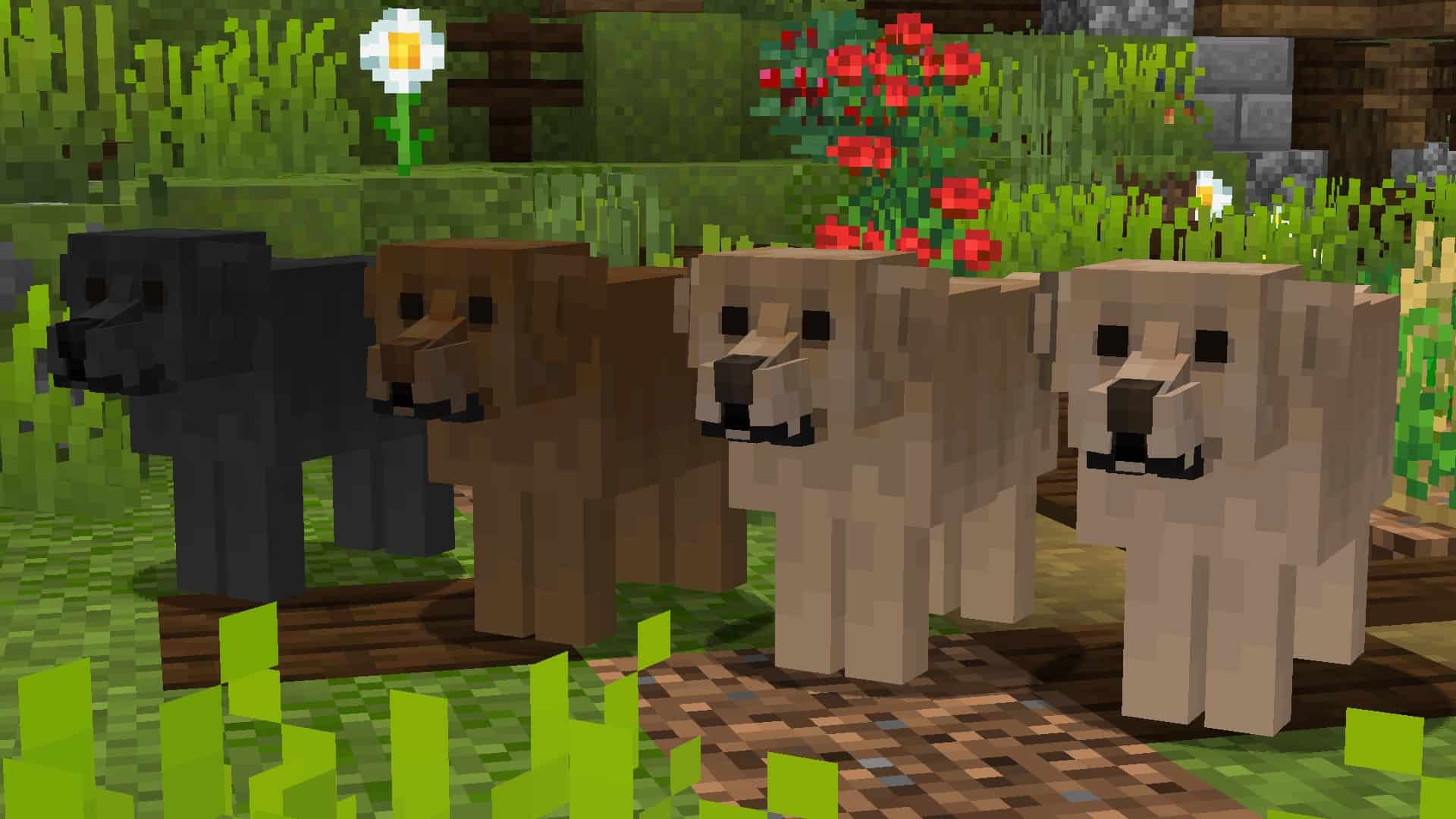

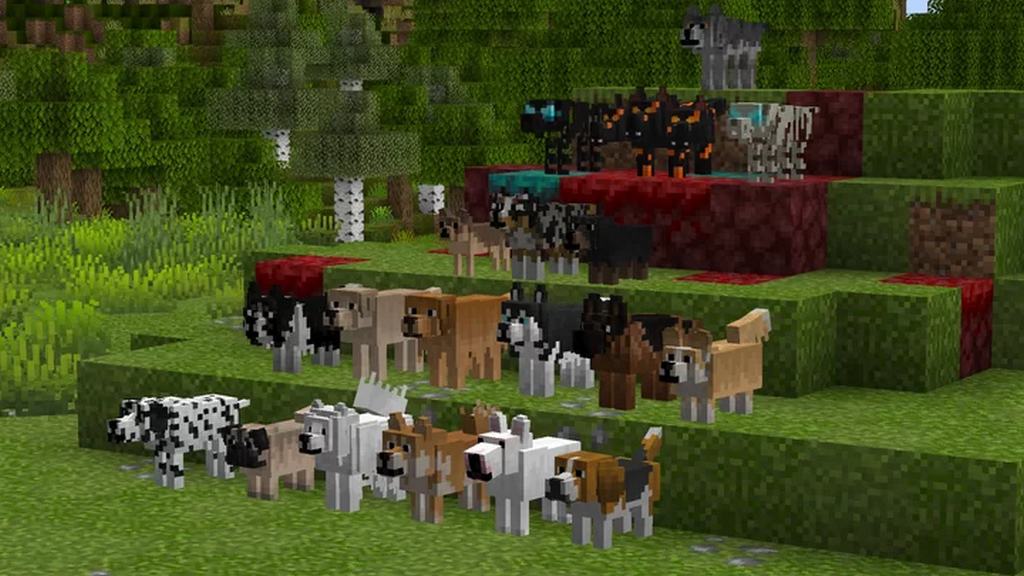
How to Install Texture Pack (Simple 10 Steps)
- Download OptiFine: Most of the texture packs and shaders need OptiFine. That’s why, first download and install OptiFine for the version of Minecraft you want to play.
- Download the Texture Pack: Get the texture pack you want from the download section. Choose the version that works with your Minecraft and your PC’s performance.
- Open Minecraft Launcher: Start Minecraft using the official game launcher — or even TLauncher, if you use that.
- Go to Options: From the main menu, click on the “Options” button.
- Open Resource Packs: Inside Options, click on “Resource Packs…”.
- Open the Resource Pack Folder: Click on “Open Resource Pack Folder” — this will open a folder named “resourcepacks”.
- Move the Pack File: Copy or move the .zip file you downloaded into that “resourcepacks” folder. (Don’t unzip the file — Minecraft uses it as-is!)
- Go Back and Refresh: Close the folder and click “Done”, then go back into “Resource Packs…” again.
- Activate the Pack: You’ll see the pack on the left side. Hover over it and click the arrow to move it to the right (active side).
Tip: If you get a message that the pack is for a different version, just click “Yes” — it usually works fine. - Click Done and Enjoy: Click “Done” again. Now your pack is ready to use in-game. It’s that easy!
Credits
This resource pack was created by MrBlueYeti. We do not own or modify the files hosted here. All rights and ownership belong to the original creator. We strongly encourage you to support MrBlueYeti by downloading the pack from the official links and checking out their other work.
Download Links
Java Edition
Download Instructions
Curseforge: download starts automatically after a few seconds;
Mediafire: click the big blue button with the text “DOWNLOAD”;
Google Drive: in the top right corner you will see a small download icon (down arrow), click it and the download should start;