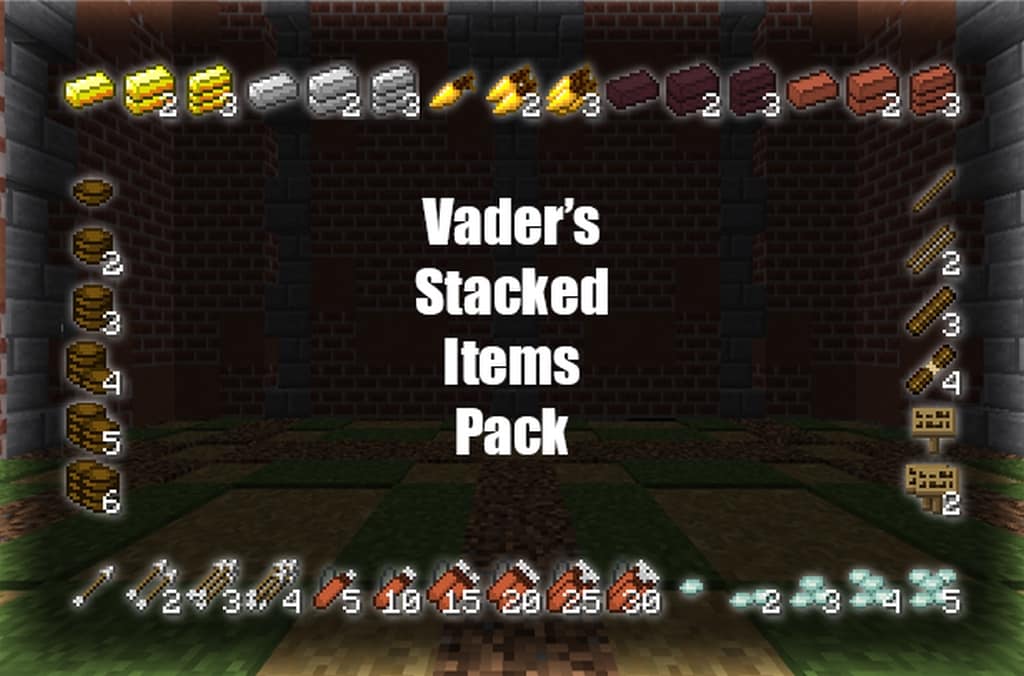
We were pretty excited when we found out about Vader’s Stacked Items resource pack due to the neat thing which it changes in Minecraft. There are many resource packs available online, some are more popular than others, depending on how they mix up the game. Some resource packs rework the whole game, overhauling textures of items and blocks, essentially giving you a brand new game – at least that’s what it feels like once you first boot the game up after installing this resource pack. Vader Stacked Items pack is different in the sense that it focuses specifically on the items in-game, making stacked items look far more real than they do with the vanilla texture pack enabled (or even in other resource packs that are available online.) A lot of people love the charm of the original designs of the items, and the resource pack creator knew this when they created it, so all they wanted to fix was how stacked items look as they aren’t true to what should be happening. Items do not look stacked at all, without this resource pack, you just see one single item with a figure beside it to display how many of them you have in your inventory. Which is very uninspiring and lazy in our opinion. Vader Stacked Items changes it so the items look stacked up, which gives it a far more convincing look making a little neat addition to the game that long time fans can appreciate. Beyond gimmicks, it’s also pretty useful, since you’ll be able to visually see how many you have with a quick look. The items you can now be excited about in your inventory are things like, diamonds, emeralds, iron ingots, bread, and plenty more of your favorite items. Minecraft players have a worry when installing texture packs that they could slow down the experience, but thankfully Vader Stacked Items is a 16x resolution resource pack, meaning that you will not notice any performance changes whilst using the resource pack. Please note: You will need to download and install Optifine alongside Vader Stacked Items resource pack to ensure it works properly.
Vader’s Stacked Items should be compatible with all of these Minecraft versions: 1.12.2 – 1.12 – 1.11.2 – 1.11
Screenshots
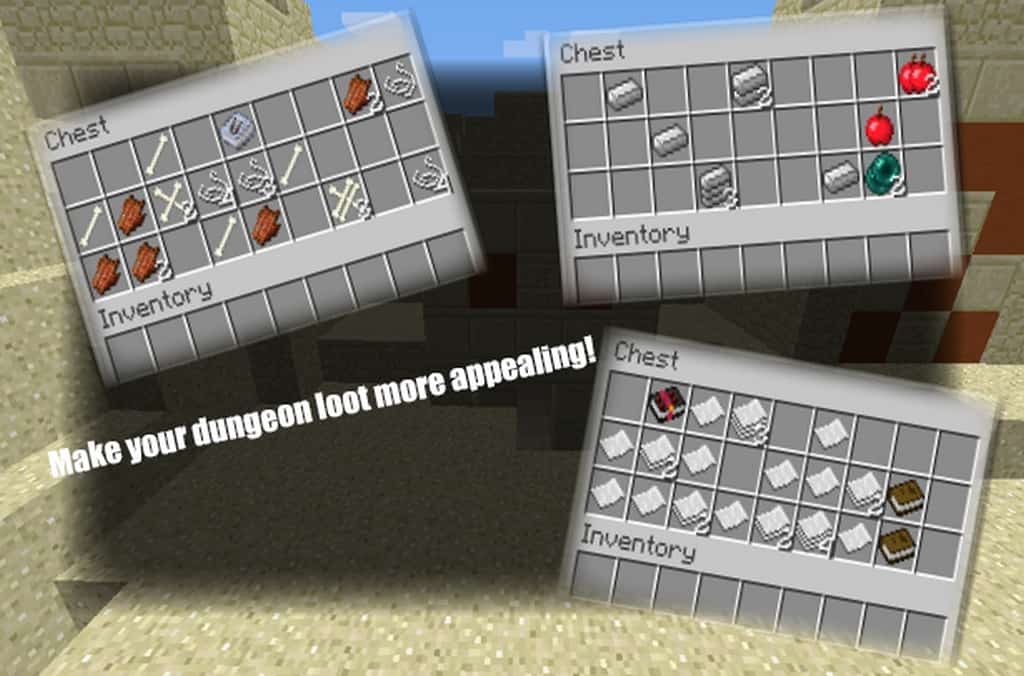
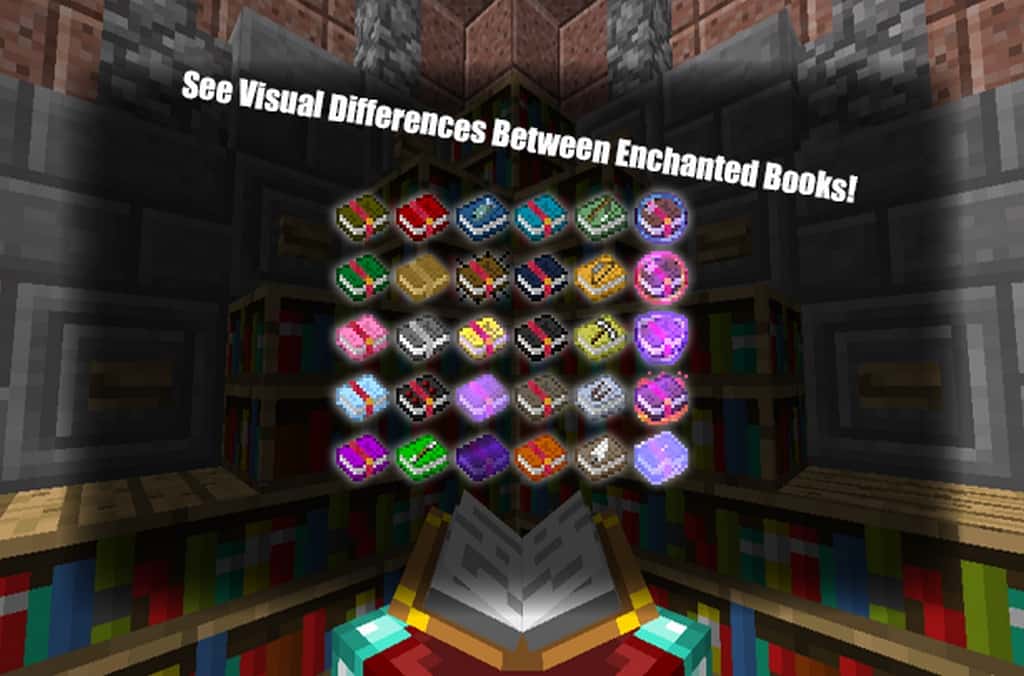
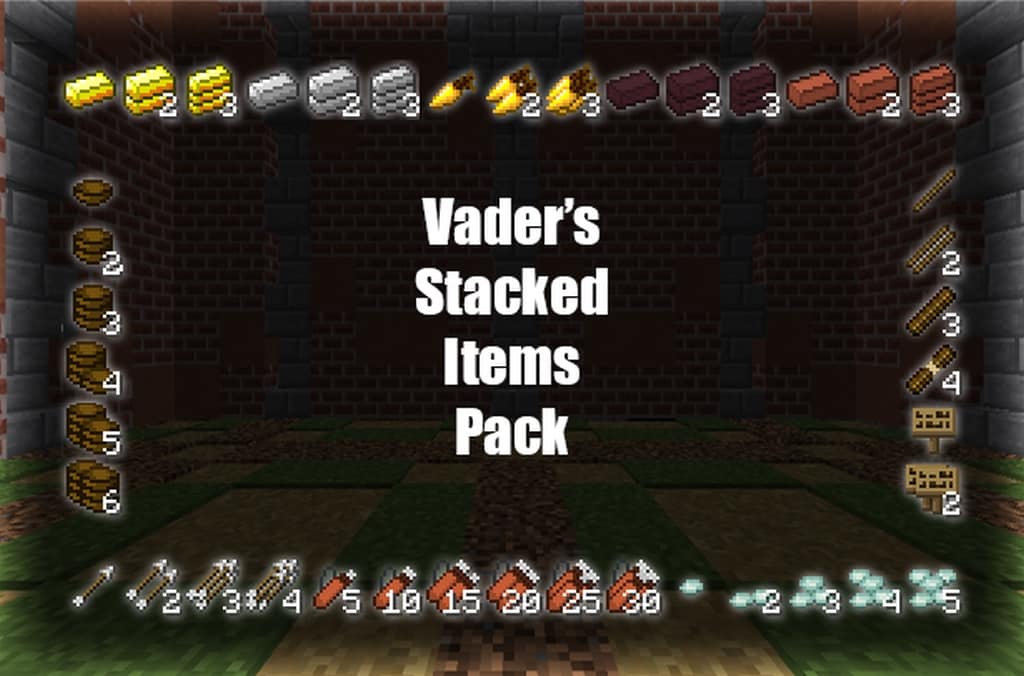
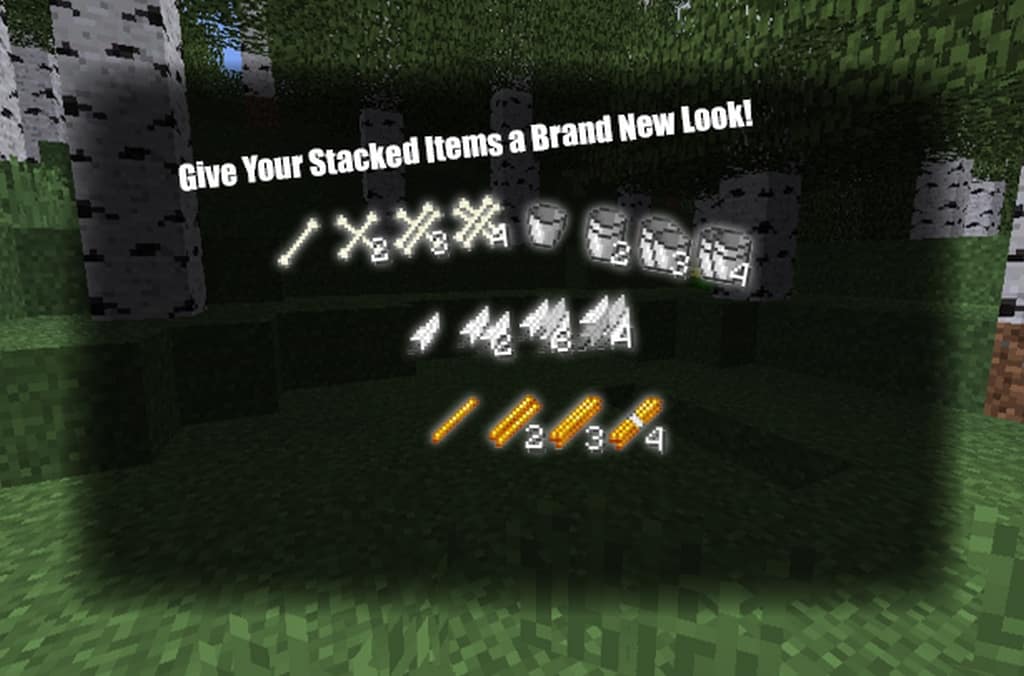
How to Install Texture Pack (Simple 10 Steps)
- Download OptiFine: Most of the texture packs and shaders need OptiFine. That’s why, first download and install OptiFine for the version of Minecraft you want to play.
- Download the Texture Pack: Get the texture pack you want from the download section. Choose the version that works with your Minecraft and your PC’s performance.
- Open Minecraft Launcher: Start Minecraft using the official game launcher — or even TLauncher, if you use that.
- Go to Options: From the main menu, click on the “Options” button.
- Open Resource Packs: Inside Options, click on “Resource Packs…”.
- Open the Resource Pack Folder: Click on “Open Resource Pack Folder” — this will open a folder named “resourcepacks”.
- Move the Pack File: Copy or move the .zip file you downloaded into that “resourcepacks” folder. (Don’t unzip the file — Minecraft uses it as-is!)
- Go Back and Refresh: Close the folder and click “Done”, then go back into “Resource Packs…” again.
- Activate the Pack: You’ll see the pack on the left side. Hover over it and click the arrow to move it to the right (active side).
Tip: If you get a message that the pack is for a different version, just click “Yes” — it usually works fine. - Click Done and Enjoy: Click “Done” again. Now your pack is ready to use in-game. It’s that easy!
Credits
This content was created by Vaderman24. We are not the original owners of this resource pack and do not claim ownership or perform any modifications to the files. All rights belong to the original creator. We highly recommend visiting and supporting the creator via their official links.
Download Links
Java Edition
Download Instructions
Curseforge: download starts automatically after a few seconds;
Mediafire: click the big blue button with the text “DOWNLOAD”;
Google Drive: in the top right corner you will see a small download icon (down arrow), click it and the download should start;