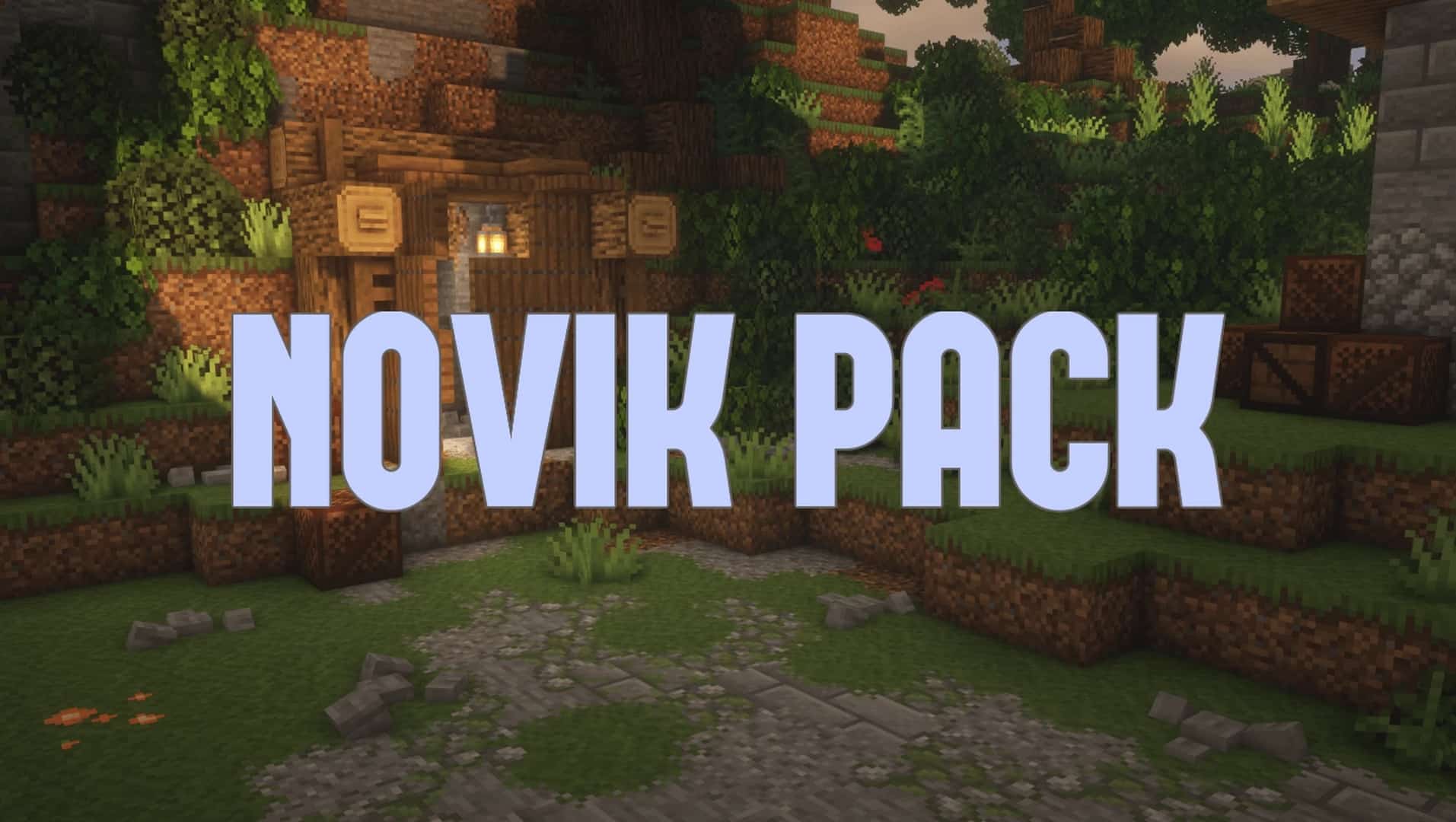
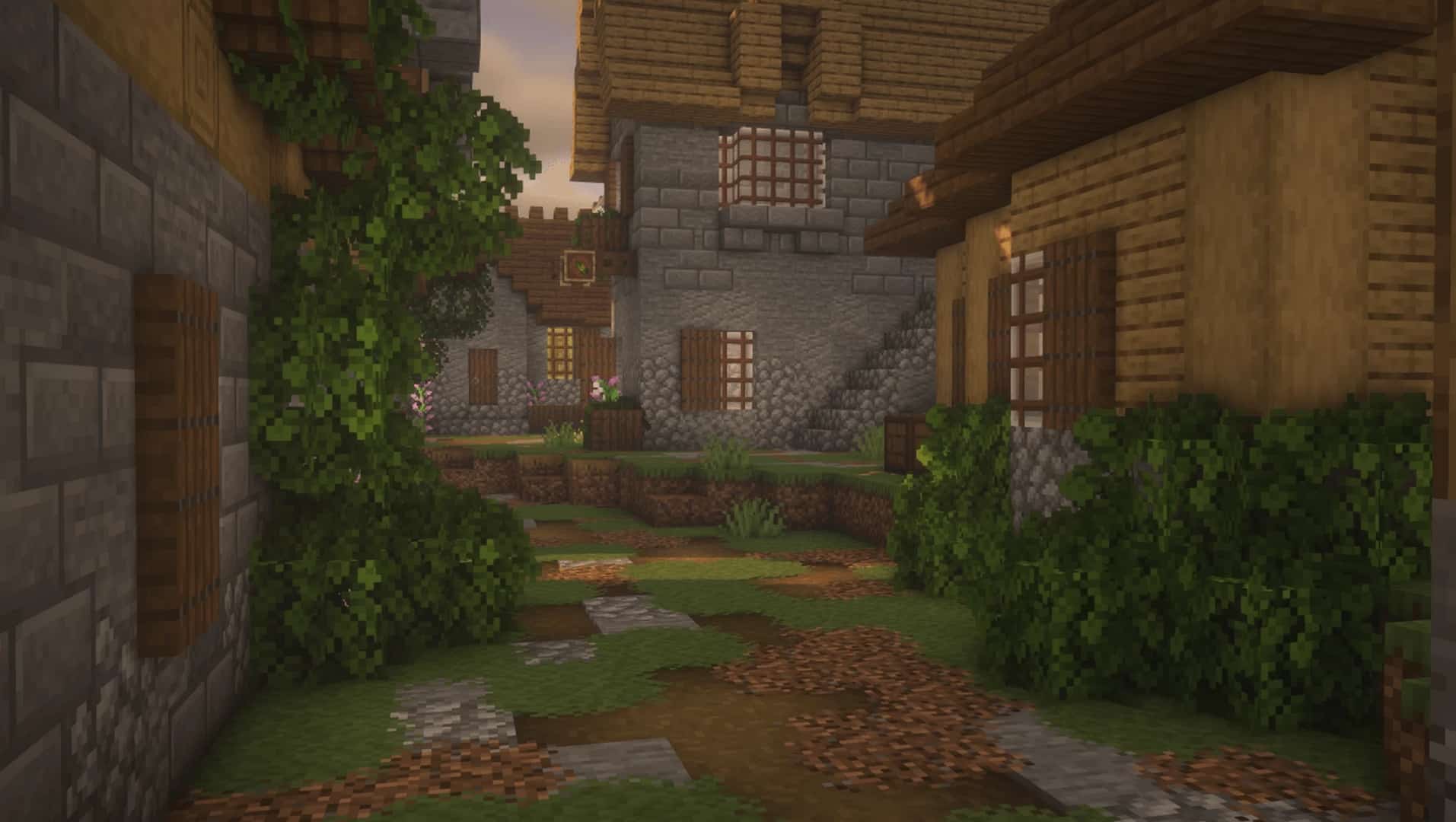
The Novik resource pack is an absolute thrill to test out, being relatively new and still actively in development while already proving to be one of the most interesting choices for Minecraft enthusiasts to note! We found that the Novik Pack is a fantastic 16×16 vanilla texture pack that heavily focuses on building activities, and it genuinely delivers. The pack includes unique textures that work wonderfully for construction purposes, featuring clever adjustments to blocks and items to make them much better for building. Among the pieces that the Novik pack has updated the most, you will thoroughly appreciate the crates, brick walls, stone walls, tiles, and other building-related items. People who produce large builds in Minecraft will definitely appreciate the Novik Pack the most, as the wood crates are among the most heavily impacted blocks in this resource pack, featuring natural wood appearances without being overly complicated while the dirt blocks also appear nicely refined.
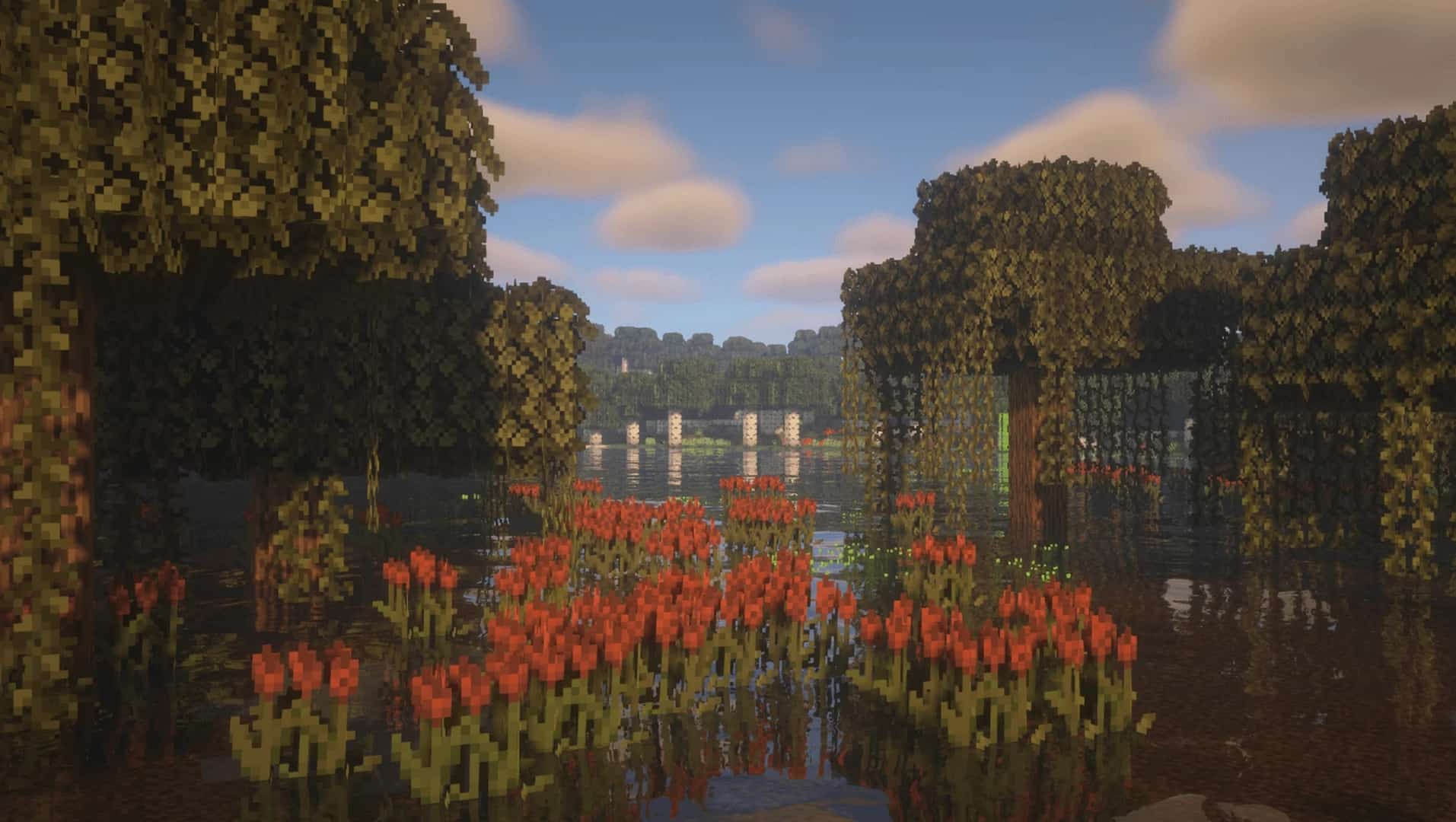
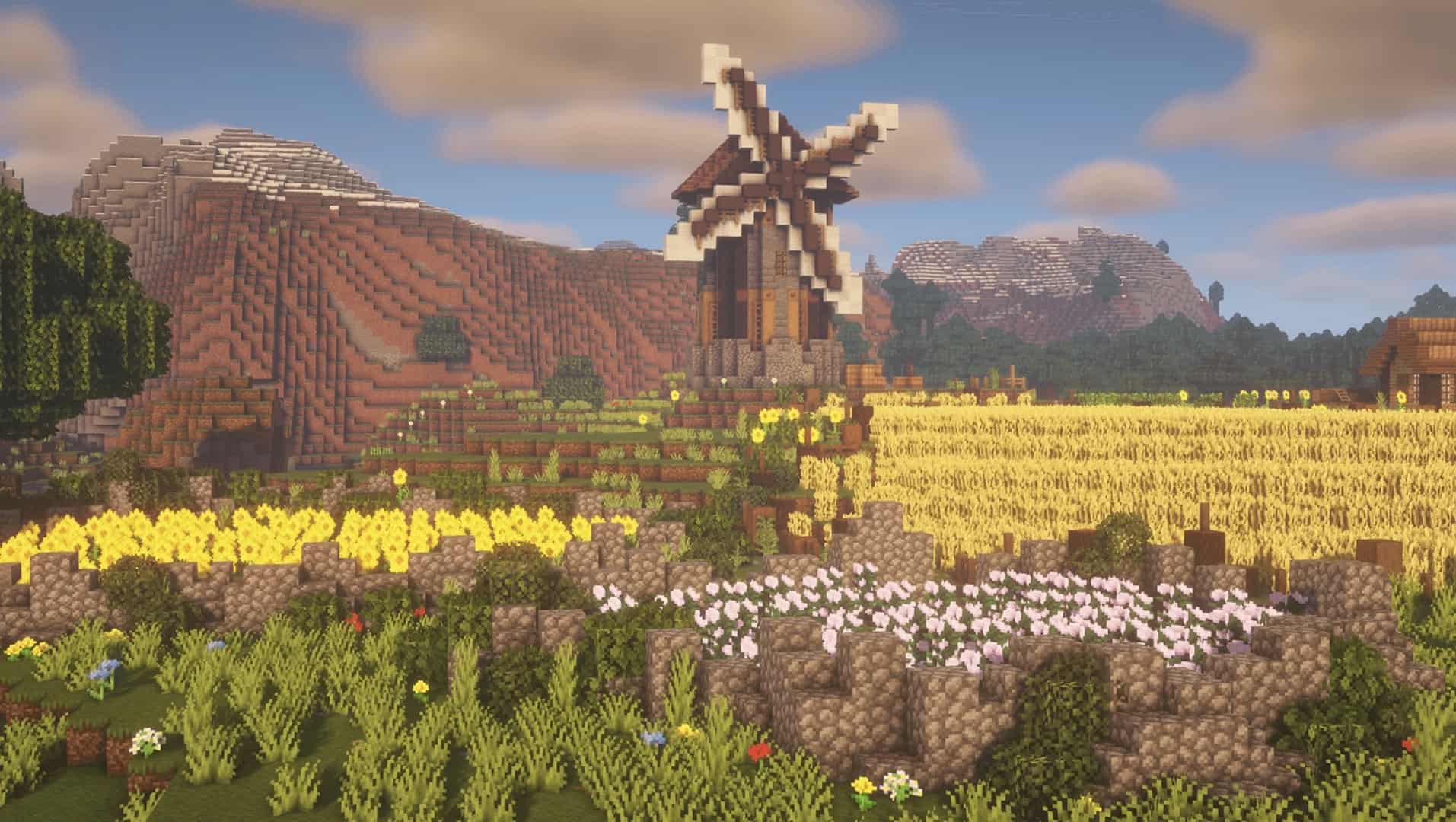
It becomes so much easier to distinguish between building blocks and other items in your surroundings when the Novik texture pack comes into play during your projects. The tiles are remarkably detailed and thankfully do not include lots of visual noise. Even though this is a classic 16×16 pack, we love how the textures are significantly more thorough than what a user might find in most other x16 packs. Maintaining that 16×16 resolution is still essential because it ensures the Novik Pack remains wonderfully accessible to players with low-end computers. You will also notice some delightful slight changes to the grass textures and other plants, including a few great changes to sunflowers, bushes, and various plants you can place around a massive build. These changes produce a better all-around style that makes every building in the Minecraft universe look far more distinct. The Novik Pack works exceptionally well for various buildings, including houses and castles, allowing you to use a combination of wood and stone materials together to produce a much more realistic or detailed build.
Novik Pack should be compatible with all of these Minecraft versions: 26.2 – 26.1.2 – 26.1.1 – 26.1 – 1.19.4 – 1.19.3 – 1.19.2 – 1.19.1 – 1.19 – 1.18.2 – 1.18.1 – 1.18 – 1.17.1 – 1.17 – 1.16.5 – 1.16.4 – 1.16.3 – 1.16.2 – 1.16.1 – 1.16 – 1.15.2 – 1.15.1 – 1.15 – 1.14.4 – 1.14.3 – 1.14.2 – 1.14
Screenshots
How to Install Texture Pack (Simple 10 Steps)
- Download OptiFine: Most of the texture packs and shaders need OptiFine. That’s why, first download and install OptiFine for the version of Minecraft you want to play.
- Download the Texture Pack: Get the texture pack you want from the download section. Choose the version that works with your Minecraft and your PC’s performance.
- Open Minecraft Launcher: Start Minecraft using the official game launcher — or even TLauncher, if you use that.
- Go to Options: From the main menu, click on the “Options” button.
- Open Resource Packs: Inside Options, click on “Resource Packs…”.
- Open the Resource Pack Folder: Click on “Open Resource Pack Folder” — this will open a folder named “resourcepacks”.
- Move the Pack File: Copy or move the .zip file you downloaded into that “resourcepacks” folder. (Don’t unzip the file — Minecraft uses it as-is!)
- Go Back and Refresh: Close the folder and click “Done”, then go back into “Resource Packs…” again.
- Activate the Pack: You’ll see the pack on the left side. Hover over it and click the arrow to move it to the right (active side).
Tip: If you get a message that the pack is for a different version, just click “Yes” — it usually works fine. - Click Done and Enjoy: Click “Done” again. Now your pack is ready to use in-game. It’s that easy!
Credits
This resource pack was created by Max_Novik. We do not own, host, or modify this resource pack, and all rights remain with the original creator. Please consider supporting Max_Novik by downloading the pack from the official sources.
Download Links
Java Edition
Download Instructions
Curseforge: download starts automatically after a few seconds;
Mediafire: click the big blue button with the text “DOWNLOAD”;
Google Drive: in the top right corner you will see a small download icon (down arrow), click it and the download should start;


