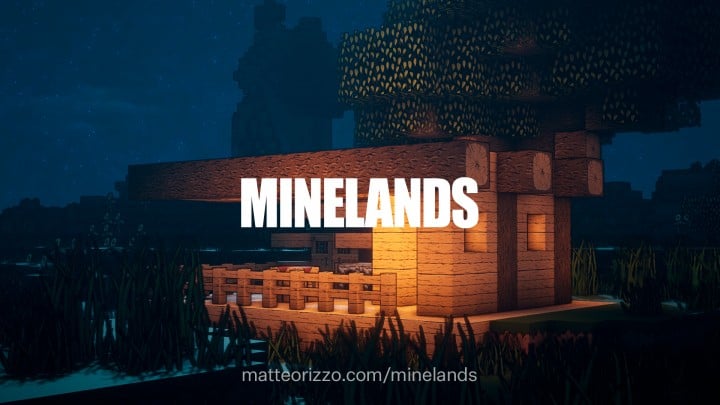
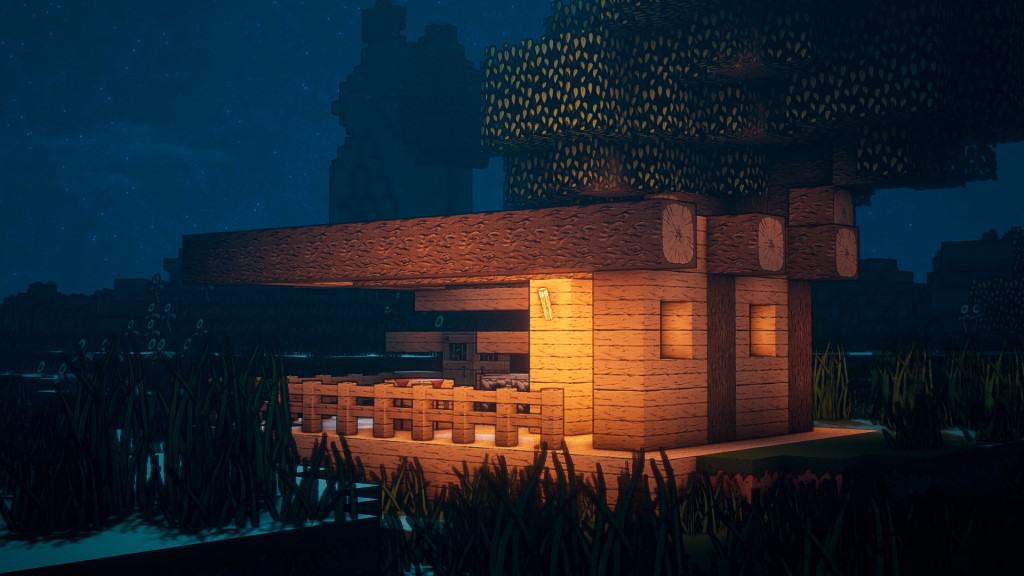
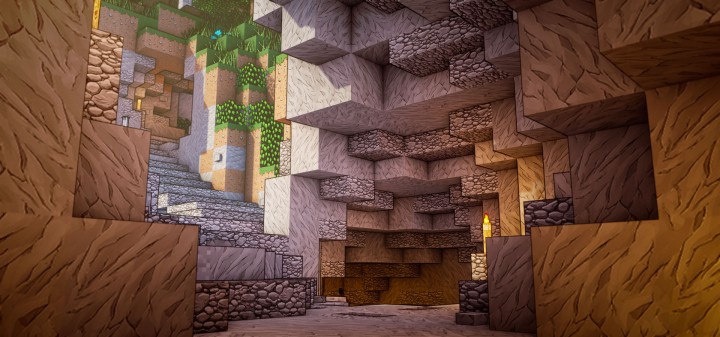
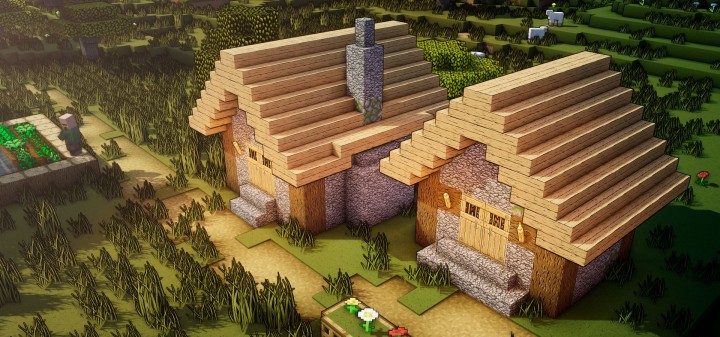
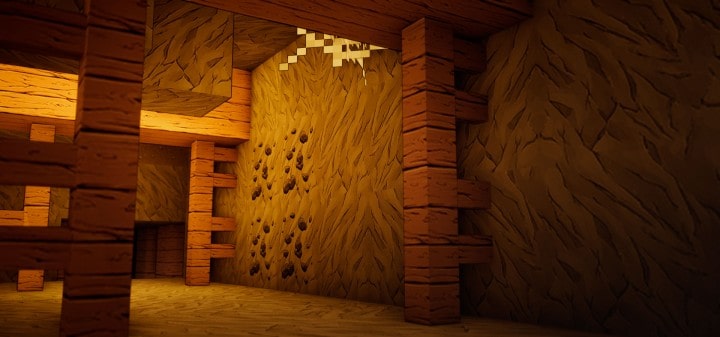
If you are a massive Minecraft fan and also happen to love Gearbox’s hit game Borderlands, you are certainly going to adore the Minelands resource pack. One of the most admired and downloaded alternative packs inspired by the classic Bordercraft style, Minelands has received tons of accolades from fans and critics all around the world. Featuring top-notch visual effects, it truly gives you the feeling of being right inside the game and more than fills the void left by older packs. Its high-quality Borderlands-themed visuals leave a great and long-lasting impact on the overall gaming experience, which has me totally hooked on for more exploration.
This resource pack beautifully maintains the original charm of traditional Minecraft while combining it with the trademark superior visual standards of the Borderlands series. The Minelands resource pack takes the game’s appearance to the next level by providing more depth to your screen and streamlining the textures by removing unwanted noise inherently present in vanilla Minecraft. To brilliantly fill in any gaps created by removing those extra details, Minelands uses an assortment of exceptionally dynamic and vibrant colors. Once you download and install the Minelands resource pack, your world is transformed into a much richer 128x resolution masterpiece that is an absolute treat to play. Please note that this is still a work-in-progress resource pack, but it is already fantastic.
Minelands should be compatible with all of these Minecraft versions: 1.14.4 – 1.14.3 – 1.14.2 – 1.14 – 1.13.2 – 1.13.1 – 1.13
Screenshots
How to Install Texture Pack (Simple 10 Steps)
- Download OptiFine: Most of the texture packs and shaders need OptiFine. That’s why, first download and install OptiFine for the version of Minecraft you want to play.
- Download the Texture Pack: Get the texture pack you want from the download section. Choose the version that works with your Minecraft and your PC’s performance.
- Open Minecraft Launcher: Start Minecraft using the official game launcher — or even TLauncher, if you use that.
- Go to Options: From the main menu, click on the “Options” button.
- Open Resource Packs: Inside Options, click on “Resource Packs…”.
- Open the Resource Pack Folder: Click on “Open Resource Pack Folder” — this will open a folder named “resourcepacks”.
- Move the Pack File: Copy or move the .zip file you downloaded into that “resourcepacks” folder. (Don’t unzip the file — Minecraft uses it as-is!)
- Go Back and Refresh: Close the folder and click “Done”, then go back into “Resource Packs…” again.
- Activate the Pack: You’ll see the pack on the left side. Hover over it and click the arrow to move it to the right (active side).
Tip: If you get a message that the pack is for a different version, just click “Yes” — it usually works fine. - Click Done and Enjoy: Click “Done” again. Now your pack is ready to use in-game. It’s that easy!
Credits
This resource pack was originally created by matteorizzo. We do not claim ownership of this content and do not modify the files. We highly recommend supporting the original creator by visiting their official download pages and showing your appreciation for their hard work.
Download Instructions
Curseforge: download starts automatically after a few seconds;
Mediafire: click the big blue button with the text “DOWNLOAD”;
Google Drive: in the top right corner you will see a small download icon (down arrow), click it and the download should start;