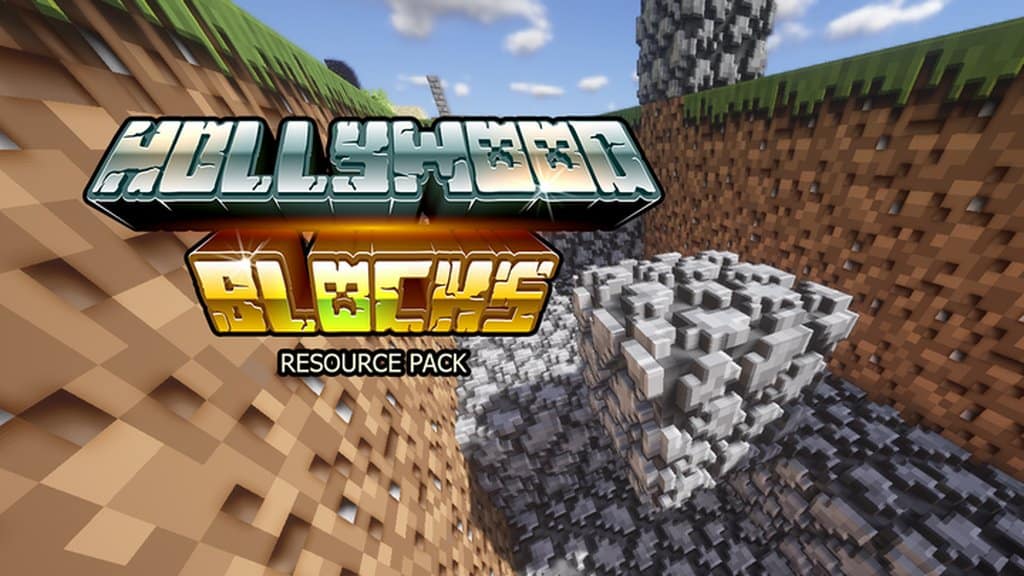
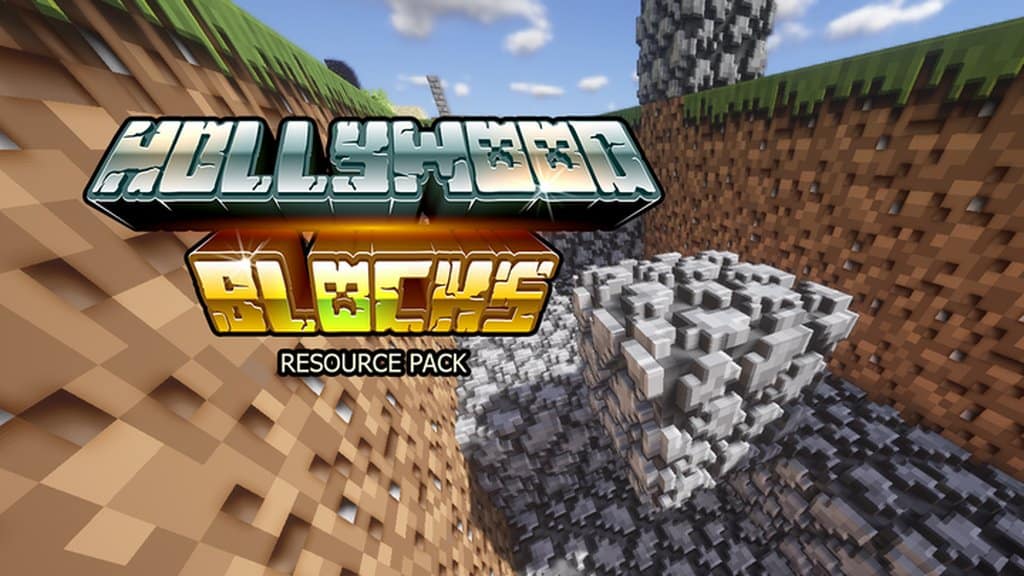
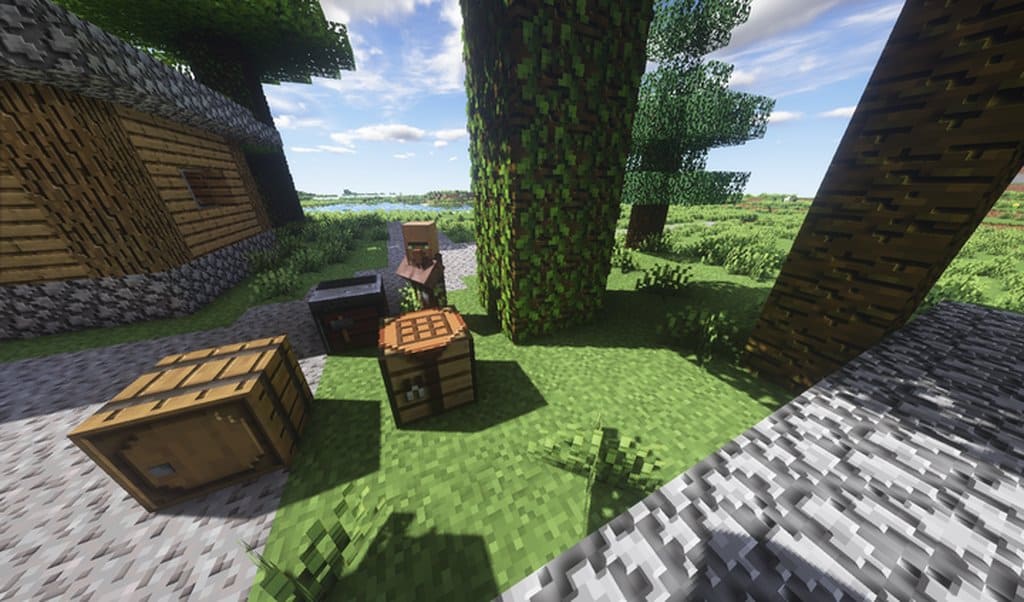
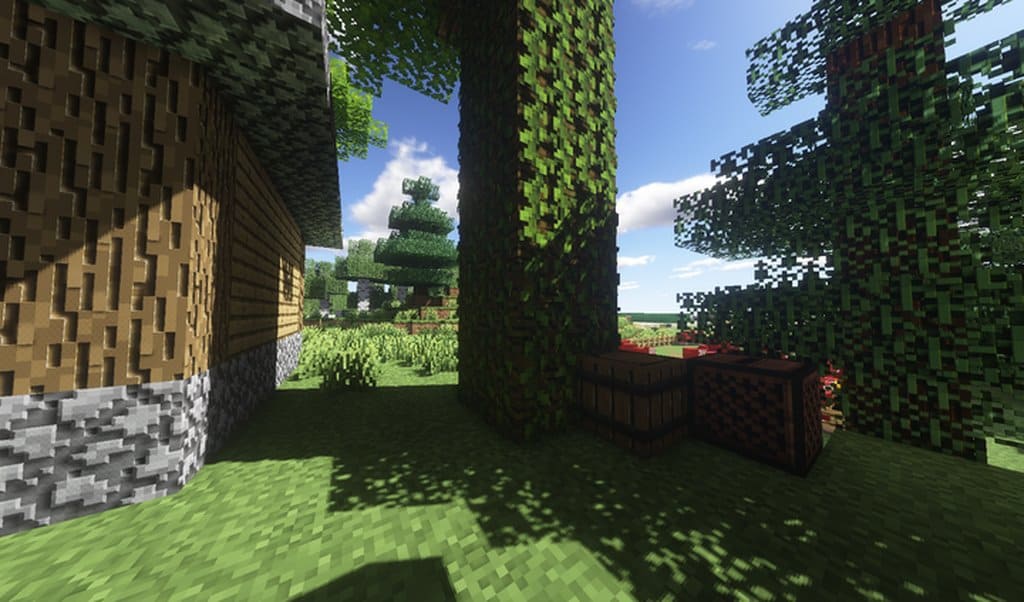
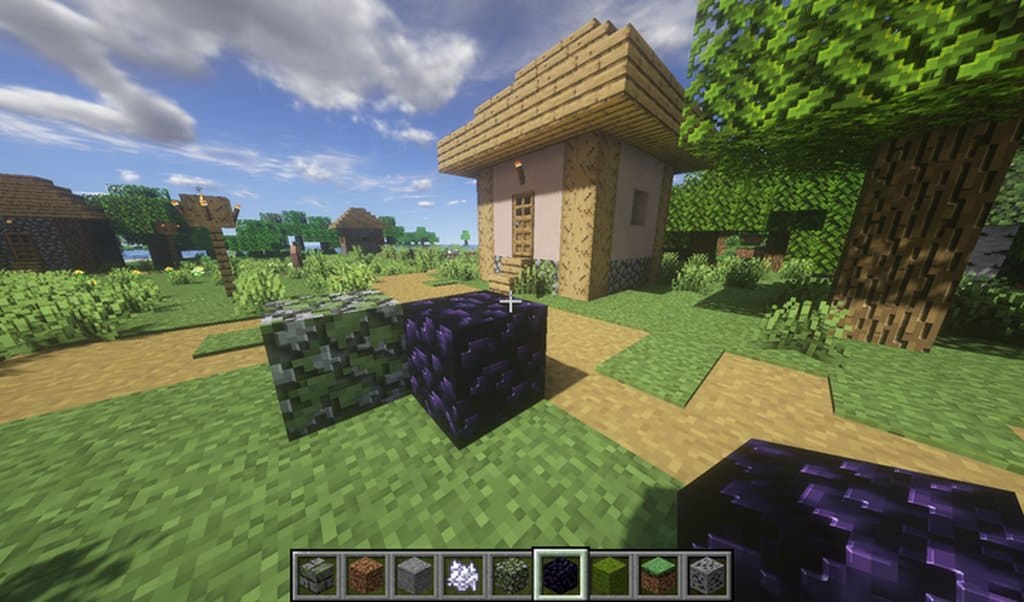
Until very recently, I found that the Hollywood Blocks resource pack had not been updated even though it was created over seven years ago, meaning that this pack did not work with the newer versions of Minecraft. The original 128x project was started in mid 2013, but it was abandoned with the author citing personal issues, including equipment shortages and RAW file loss. However, there is now some wonderful news for us fans! This pack has finally been updated and is now fully compatible with the latest version of Minecraft, version 1.15. The pack was brilliantly crafted by Fernando M.S., also known as FiMiS, and was made in such a way as to make the blocks look better without removing the flavor and taste of plain vanilla Minecraft. Turning to the details of the pack itself, I really appreciate how it is a simplistic and default looking pack which replaces the textures of all blocks and makes them considerably sharper and much more detailed.
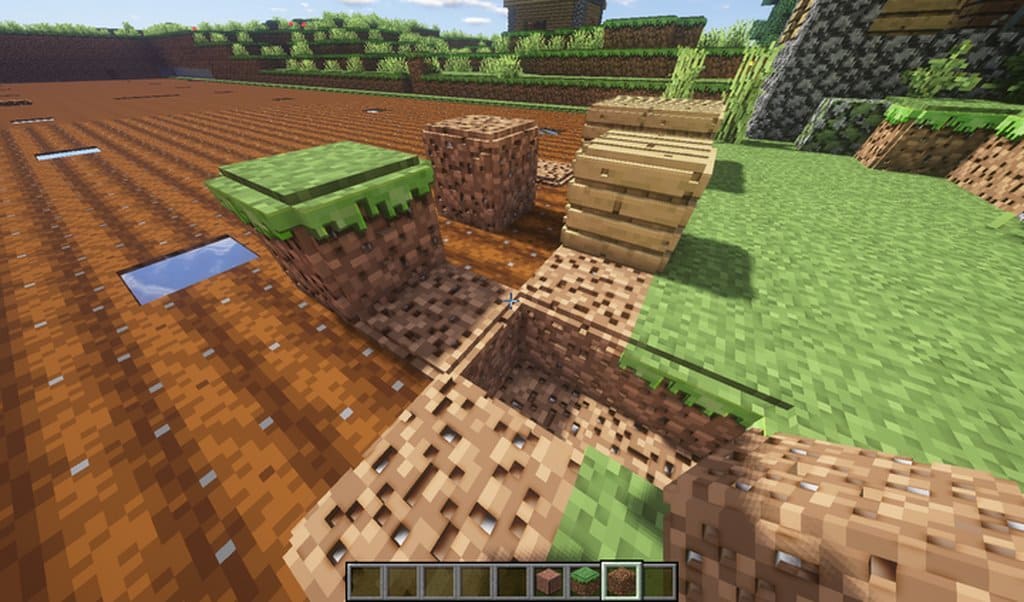
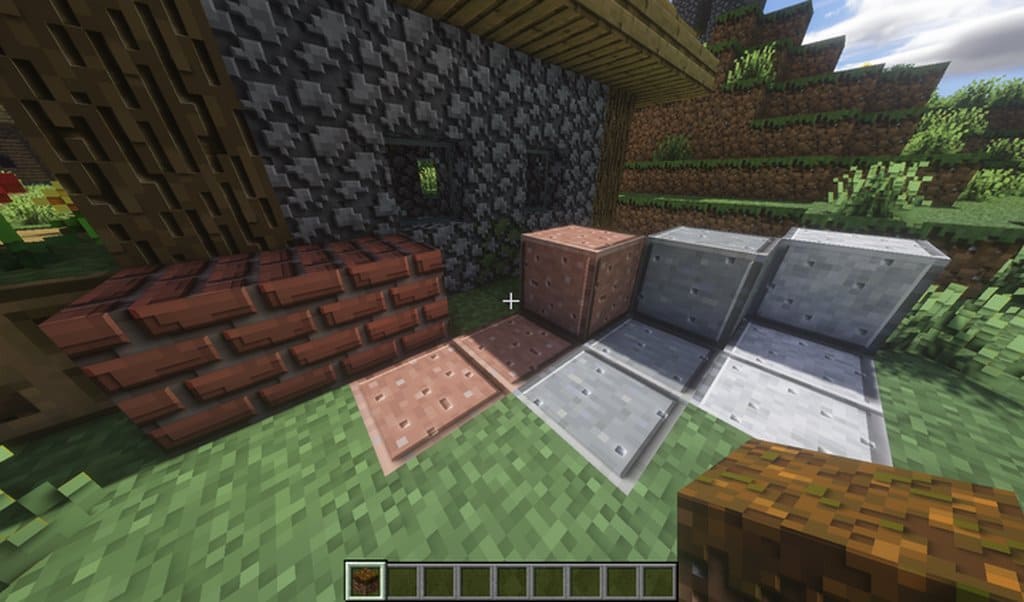
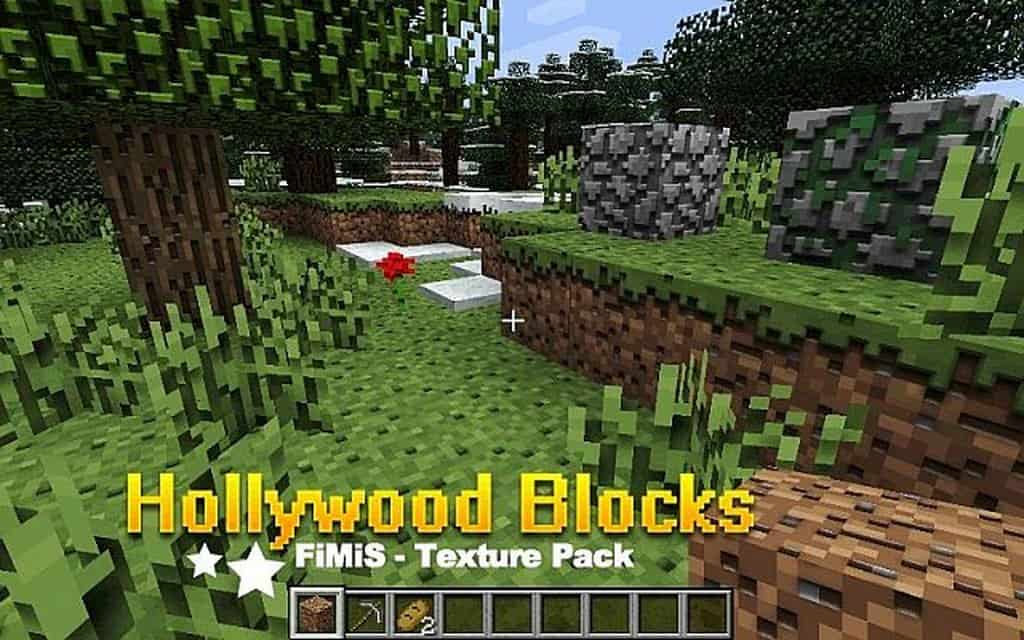
It removes the default looking 16x textures and replaces them with stunning high definition ones with a resolution of 256x. The pack also creates textures in a genuinely unique way. Its focus is on maximizing the default design, exposing only subtle details when viewed in high definition. All the techniques used in this feature pack are gray scale variant color overlays, this being a procedure modelled upon primitive texturing schemes used in classic video games such as Quake 1996. In essence, the shadows, reliefs, color tests and illusory ambient occlusion are created using only textures. In summary, I think this pack works extremely well in three dimensions, without needing ray tracing or mappings. It is definitely something fresh and unique, and not something that has been done before. If you love to live in a more fabulous Minecraft world without the other aspects of the game being changed, then I believe this might well be an ideal pack for you.
Hollywood Blocks should be compatible with all of these Minecraft versions: 1.16.5 – 1.16.4 – 1.16.3 – 1.16.2 – 1.16.1 – 1.16 – 1.15.2 – 1.15.1 – 1.15 – 1.14.4 – 1.14.3 – 1.14.2 – 1.14 – 1.7.10 – 1.7.9 – 1.7.4 – 1.7 – 1.6.4 – 1.6.2
Screenshots
How to Install Texture Pack (Simple 10 Steps)
- Download OptiFine: Most of the texture packs and shaders need OptiFine. That’s why, first download and install OptiFine for the version of Minecraft you want to play.
- Download the Texture Pack: Get the texture pack you want from the download section. Choose the version that works with your Minecraft and your PC’s performance.
- Open Minecraft Launcher: Start Minecraft using the official game launcher — or even TLauncher, if you use that.
- Go to Options: From the main menu, click on the “Options” button.
- Open Resource Packs: Inside Options, click on “Resource Packs…”.
- Open the Resource Pack Folder: Click on “Open Resource Pack Folder” — this will open a folder named “resourcepacks”.
- Move the Pack File: Copy or move the .zip file you downloaded into that “resourcepacks” folder. (Don’t unzip the file — Minecraft uses it as-is!)
- Go Back and Refresh: Close the folder and click “Done”, then go back into “Resource Packs…” again.
- Activate the Pack: You’ll see the pack on the left side. Hover over it and click the arrow to move it to the right (active side).
Tip: If you get a message that the pack is for a different version, just click “Yes” — it usually works fine. - Click Done and Enjoy: Click “Done” again. Now your pack is ready to use in-game. It’s that easy!
Credits
This resource pack was created by FiMiS (Fernando M.S.). We are not the original owners of this creation, and we do not host or modify these files on our servers. All rights belong entirely to the original creator. We strongly encourage you to support FiMiS by downloading the pack from the official sources.
Download Links
Java Edition
Download Instructions
Curseforge: download starts automatically after a few seconds;
Mediafire: click the big blue button with the text “DOWNLOAD”;
Google Drive: in the top right corner you will see a small download icon (down arrow), click it and the download should start;


