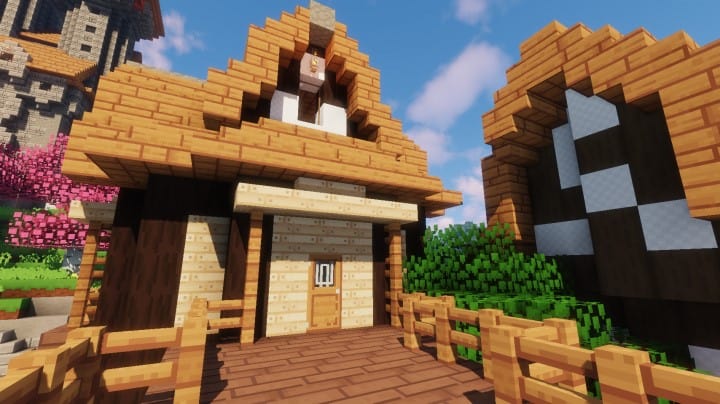
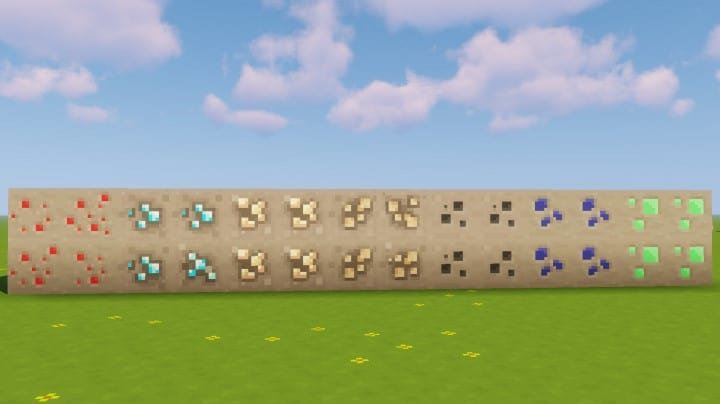
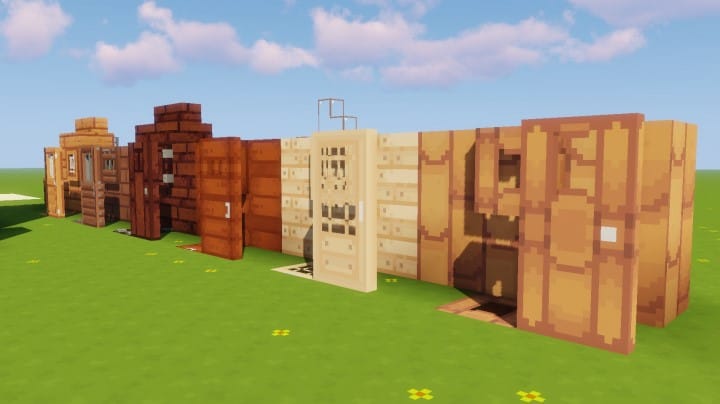
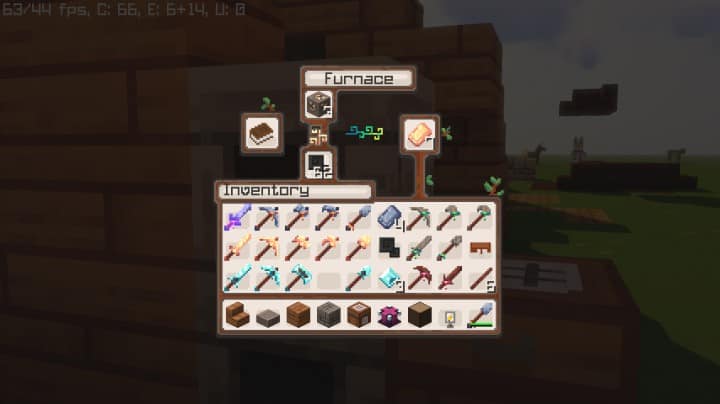
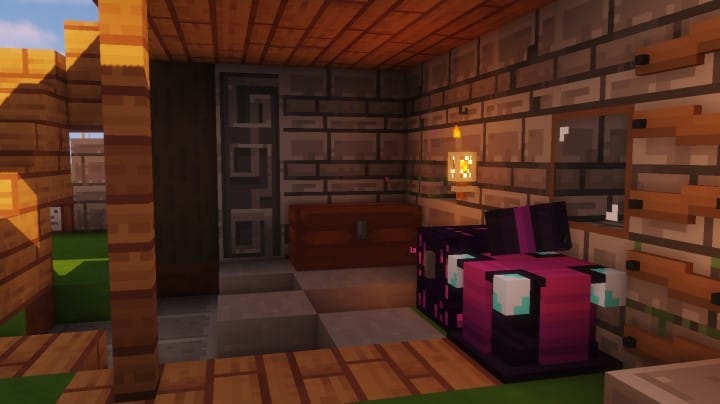
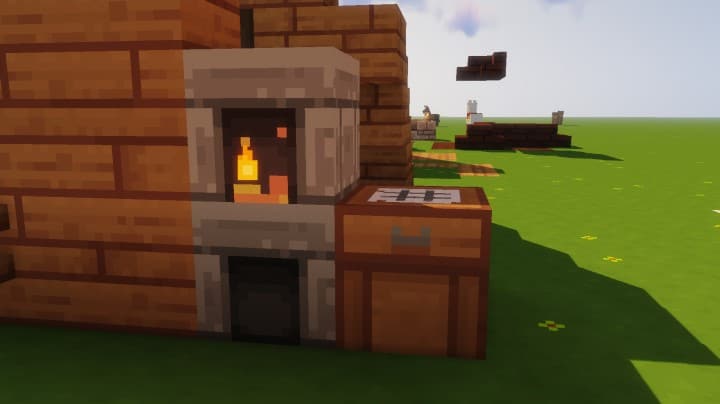
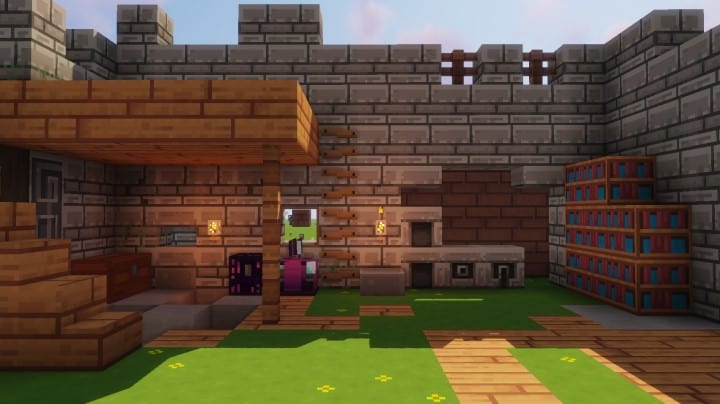
Minecraft is an incredible sandbox game that gives us absolute freedom to create, destroy, and rebuild. Add-on packs, commonly called resource packs, genuinely elevate our gaming experience by dramatically enhancing colors, textures, and visual clarity. One such wonderful creation is the original Find resource pack, which launched a few years ago and quickly became a favorite among many Minecraft fans. The Find pack provided an extremely smooth look to the game, as the textures and colors of the blocks were made wonderfully easy on the eyes, leading to a great reduction in eye fatigue during long and continuous play sessions. Its users gave it a massive thumbs up, and it almost became an inseparable part of the game for many. Now, The Find Overgrown resource pack is here as a fantastic alternative edition of the classic Find pack. It successfully maintains the clarity and calmness of its predecessor while introducing a little bit of rustic messiness to the textures, giving everything a delightfully overgrown and rustic look.
While this pack might not be meant for everyone, it will definitely appeal to most players who love the smoothness of Find but also crave a dash of grunginess. If you have tried the original Find resource pack and loved the tranquility it brought to the game, but were hoping for some extra fun, Find Overgrown will completely suit your taste. This Overgrown version combines the signature serenity of the first pack with a distinct detailing of its own that adds a great amount of visual quality to the game. If you are a true fan of survival and adventure modes, this is definitely the right texture pack for you. By limiting the noise in the textures to an optimum level, the pack offers a brand-new user interface that seamlessly matches its immaculate design and artistic looks. Best of all, Find Overgrown comes in a lightweight 16×16 resolution and therefore easily integrates with Minecraft. I tested it and noticed zero stability or frame-rate issues, even when playing smoothly on a slower PC.
The Find Overgrown should be compatible with all of these Minecraft versions: 1.17. – 1.17.1 – 1.17 – 1.16.5 – 1.16.4 – 1.16.3 – 1.16.2 – 1.16.1 – 1.16 – 1.15.2 – 1.15.1 – 1.15 – 1.14.4 – 1.14.3 – 1.14.2 – 1.14 – 1.13.2 – 1.13.1 – 1.13
Screenshots
How to Install Texture Pack (Simple 10 Steps)
- Download OptiFine: Most of the texture packs and shaders need OptiFine. That’s why, first download and install OptiFine for the version of Minecraft you want to play.
- Download the Texture Pack: Get the texture pack you want from the download section. Choose the version that works with your Minecraft and your PC’s performance.
- Open Minecraft Launcher: Start Minecraft using the official game launcher — or even TLauncher, if you use that.
- Go to Options: From the main menu, click on the “Options” button.
- Open Resource Packs: Inside Options, click on “Resource Packs…”.
- Open the Resource Pack Folder: Click on “Open Resource Pack Folder” — this will open a folder named “resourcepacks”.
- Move the Pack File: Copy or move the .zip file you downloaded into that “resourcepacks” folder. (Don’t unzip the file — Minecraft uses it as-is!)
- Go Back and Refresh: Close the folder and click “Done”, then go back into “Resource Packs…” again.
- Activate the Pack: You’ll see the pack on the left side. Hover over it and click the arrow to move it to the right (active side).
Tip: If you get a message that the pack is for a different version, just click “Yes” — it usually works fine. - Click Done and Enjoy: Click “Done” again. Now your pack is ready to use in-game. It’s that easy!
Credits
This resource pack was created by Spiffyj. We do not claim ownership of this content, nor have we modified the files. All rights remain with the original creator. We encourage you to support Spiffyj by visiting the official source link for future updates and appreciation of their hard work.
Download Links
Java Edition
Download Instructions
Curseforge: download starts automatically after a few seconds;
Mediafire: click the big blue button with the text “DOWNLOAD”;
Google Drive: in the top right corner you will see a small download icon (down arrow), click it and the download should start;