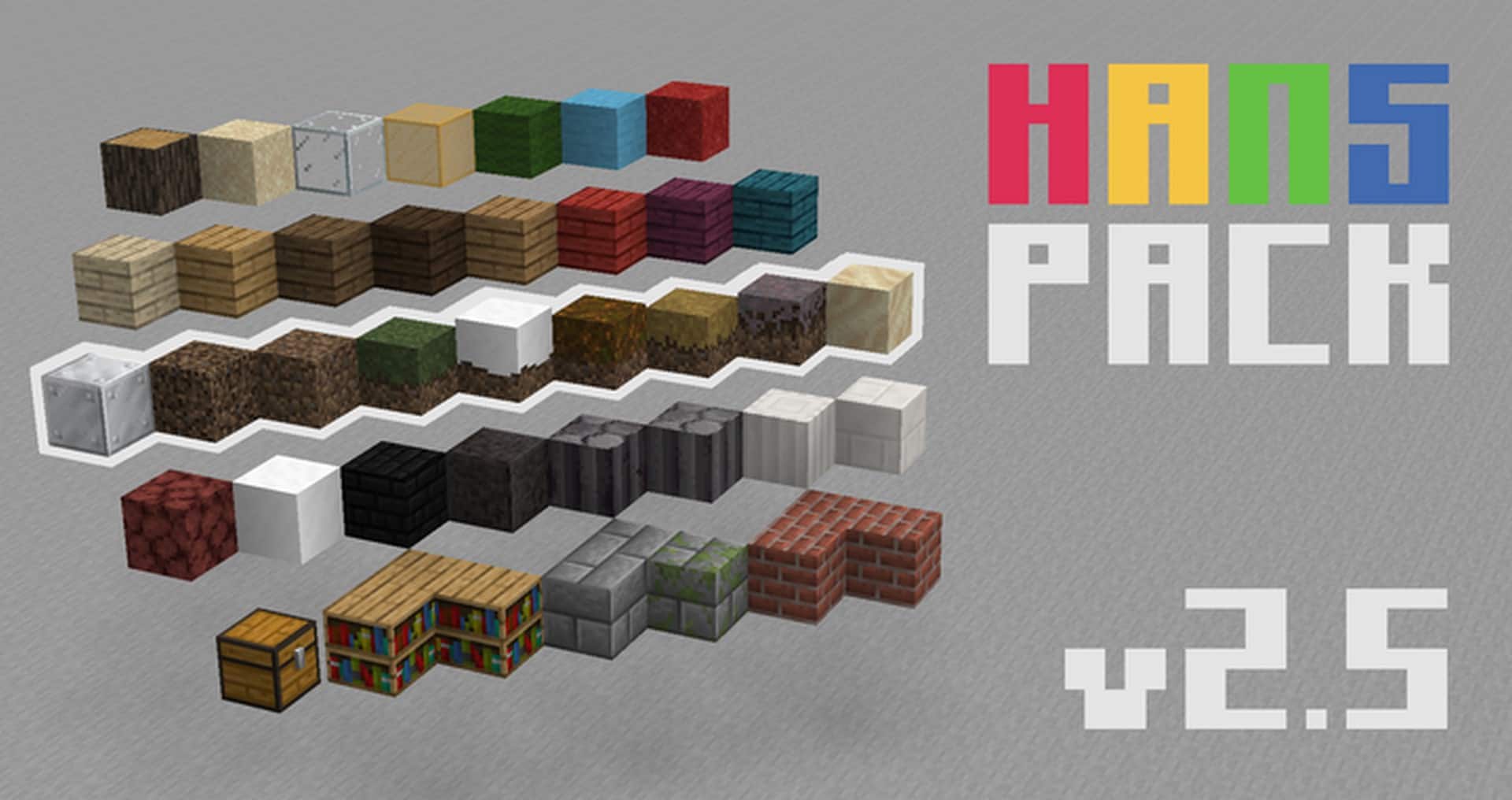
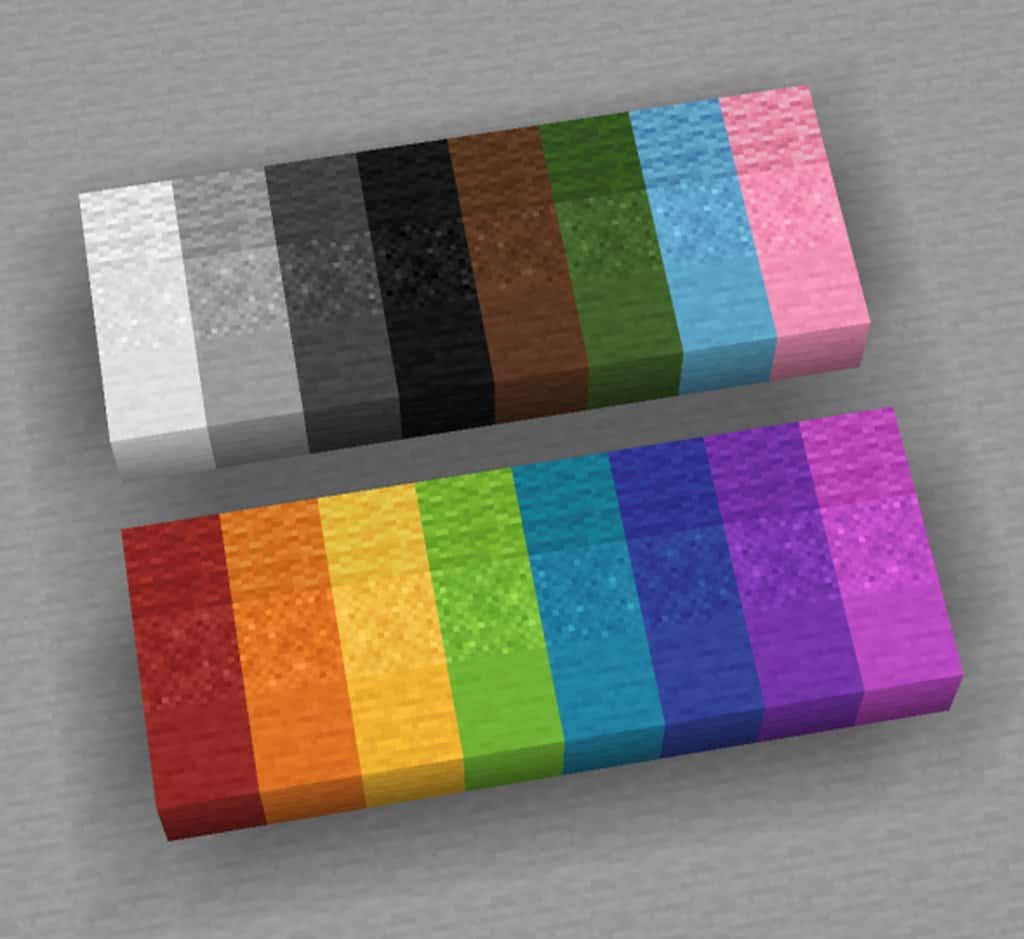
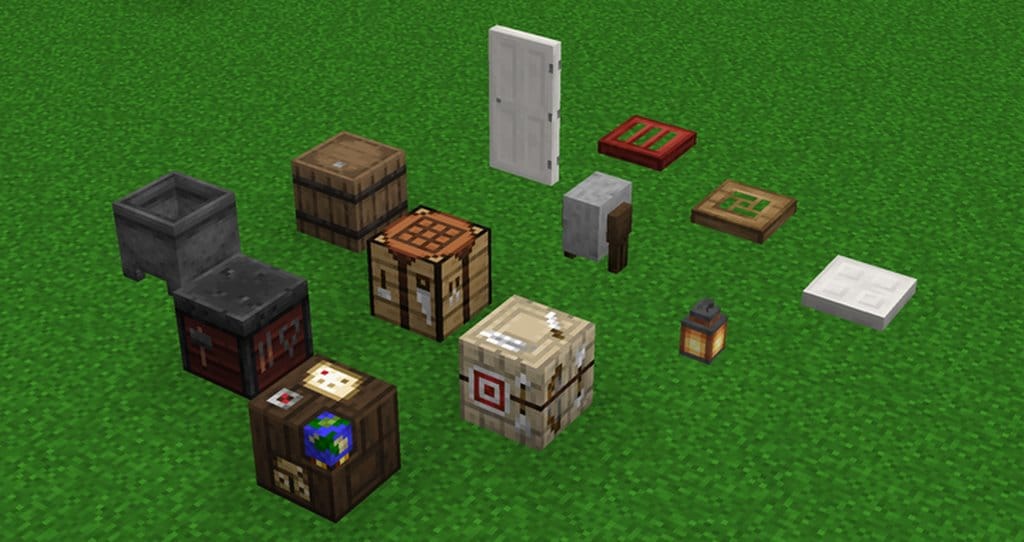
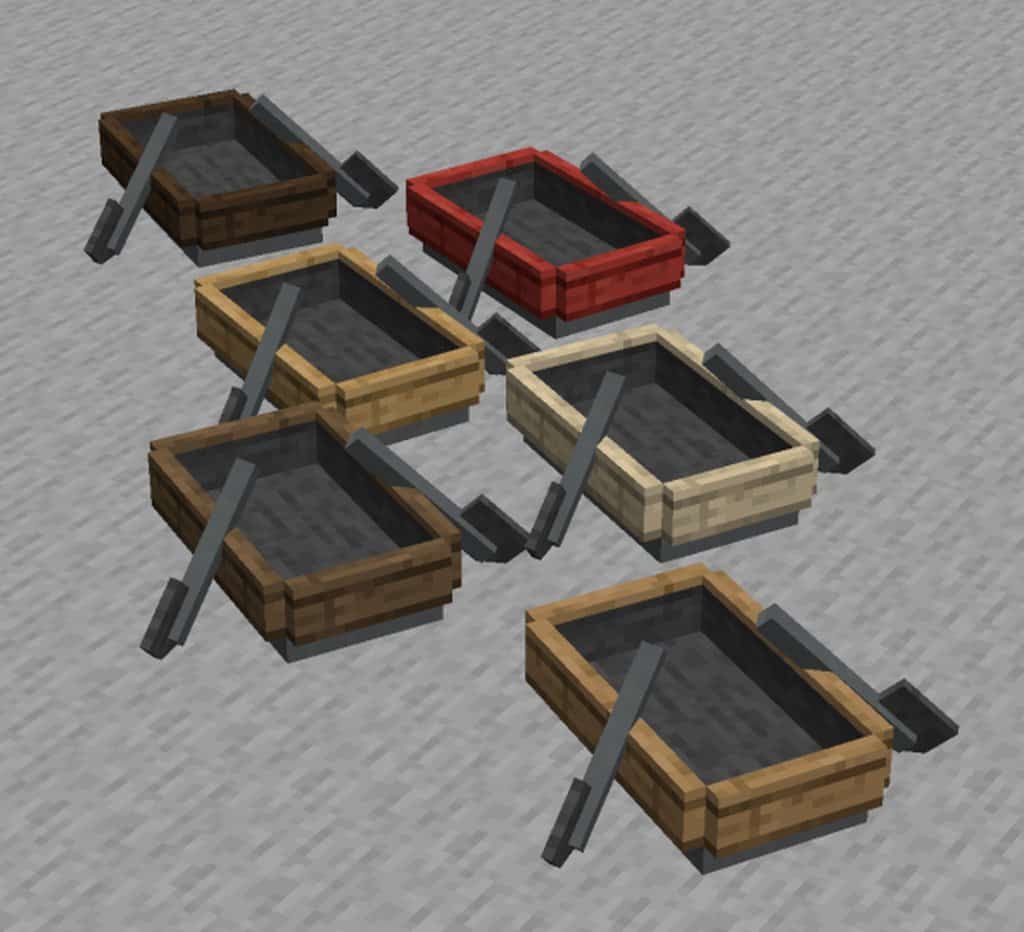
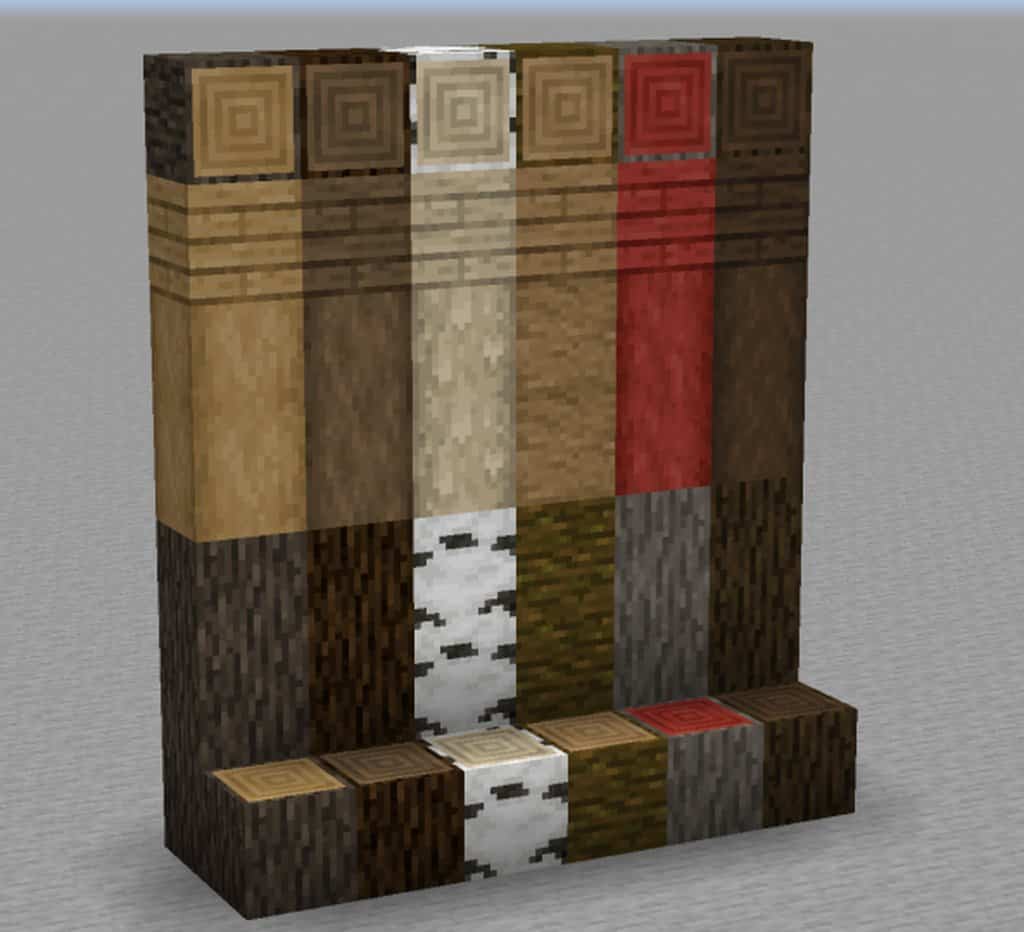
Hans-pack is a brand spanking new Minecraft resource pack, and honestly, a much better one too! It is an absolute godsend for transforming your current Minecraft world into a significantly nicer and much more realistic environment. However, it is also very important to take note that the Hans-pack resource pack is only an add-on, meaning it is not a complete resource pack, which is what it was tailor-made to be. I do not really mean that it cannot be used entirely on its own, as I bet that is what comes to mind first the moment I mention it is just an add-on. It certainly can be used by itself! But the catch is that most of Minecraft’s default textures will simply remain unchanged. This means it is definitely safest to use it alongside another complete resource pack, ideally one featuring a dystopian theme. That is when you can truly enjoy it to your absolute fill. Speaking a bit about its design, Hans-pack genuinely makes Minecraft look and sound so much more attractive.
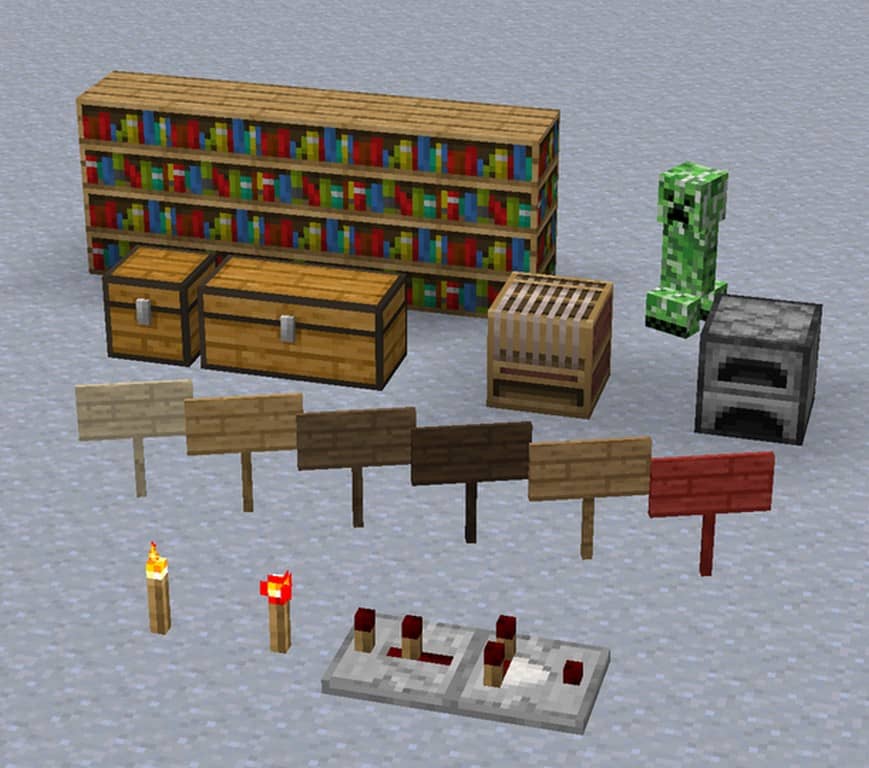
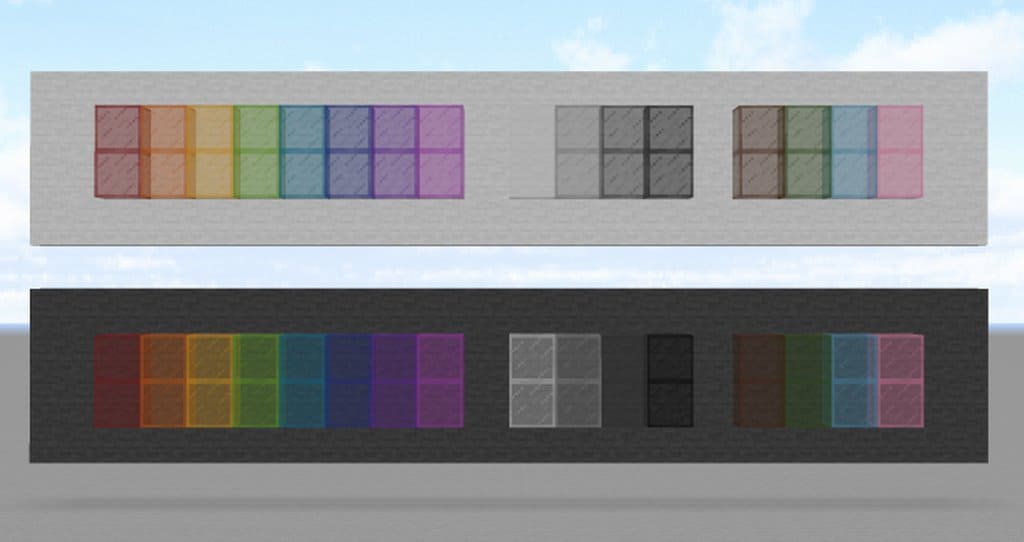
How does it accomplish this, you might ask? It achieves this through a wonderful combination of improvements. First of all, Hans-pack implements fantastic additional details into each of its textures. This has the brilliant impact of reducing the visual noise produced by textures during gameplay. This is a massive advantage to most Minecraft players, as texture noise is often right at the pinnacle of everyone’s pet-hate list! Secondly, it brilliantly enhances the colors to produce a much higher quality visual impression overall. Best of all, the Hans-Pack textures are built on the classic 16×16 standard Minecraft resolution. So, if you are playing the game on a computer that handles the vanilla version without even a single tiny snag, Hans-pack will run just as smoothly there. You can use it on modest hardware without causing a single hitch, and it will definitely run with remarkable stability. That is precisely why the Hans-Pack Minecraft resource pack receives so much praise, and it is honestly so worth it. Isn’t it? Of course it is!
Hans-Pack should be compatible with all of these Minecraft versions: 1.16.5 – 1.16.4 – 1.16.3 – 1.16.2 – 1.16.1 – 1.16 – 1.15.2 – 1.15.1 – 1.15 – 1.14.4 – 1.14.3 – 1.14.2 – 1.14 – 1.13.2 – 1.13.1 – 1.13 – 1.12.2 – 1.12 – 1.11.2 – 1.11
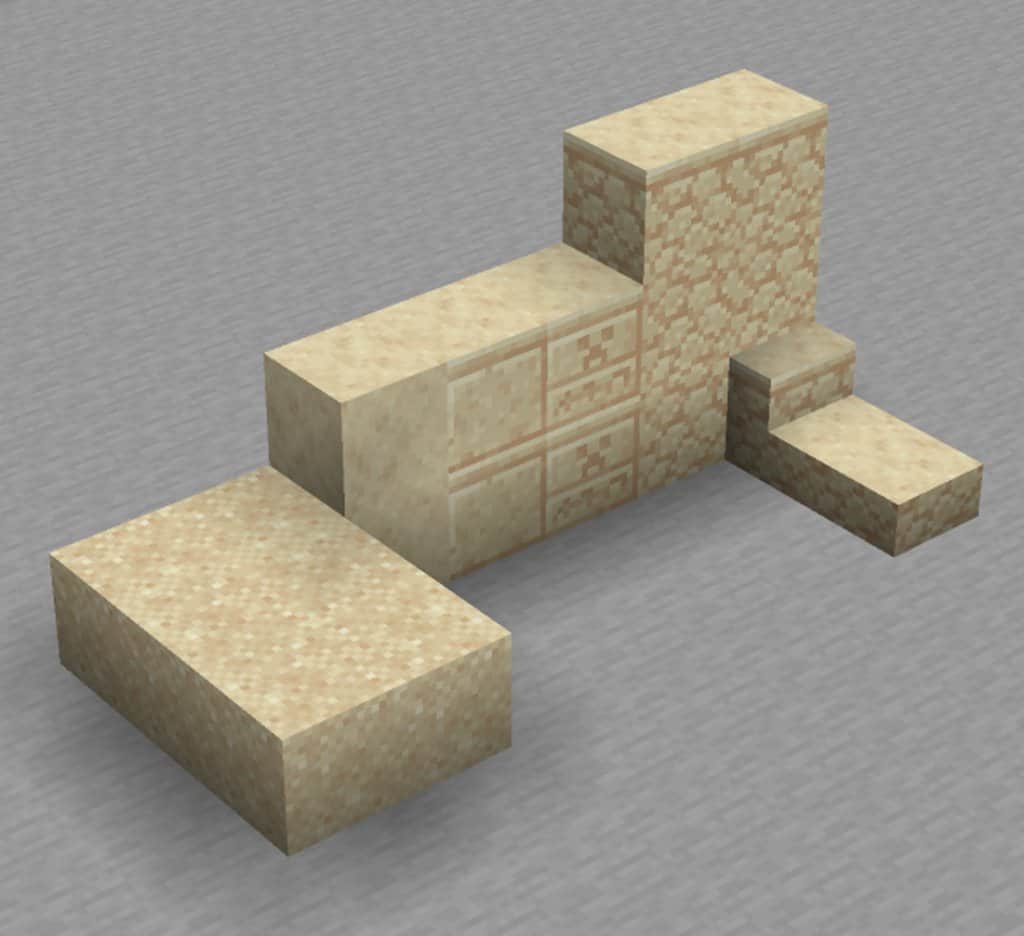
Screenshots
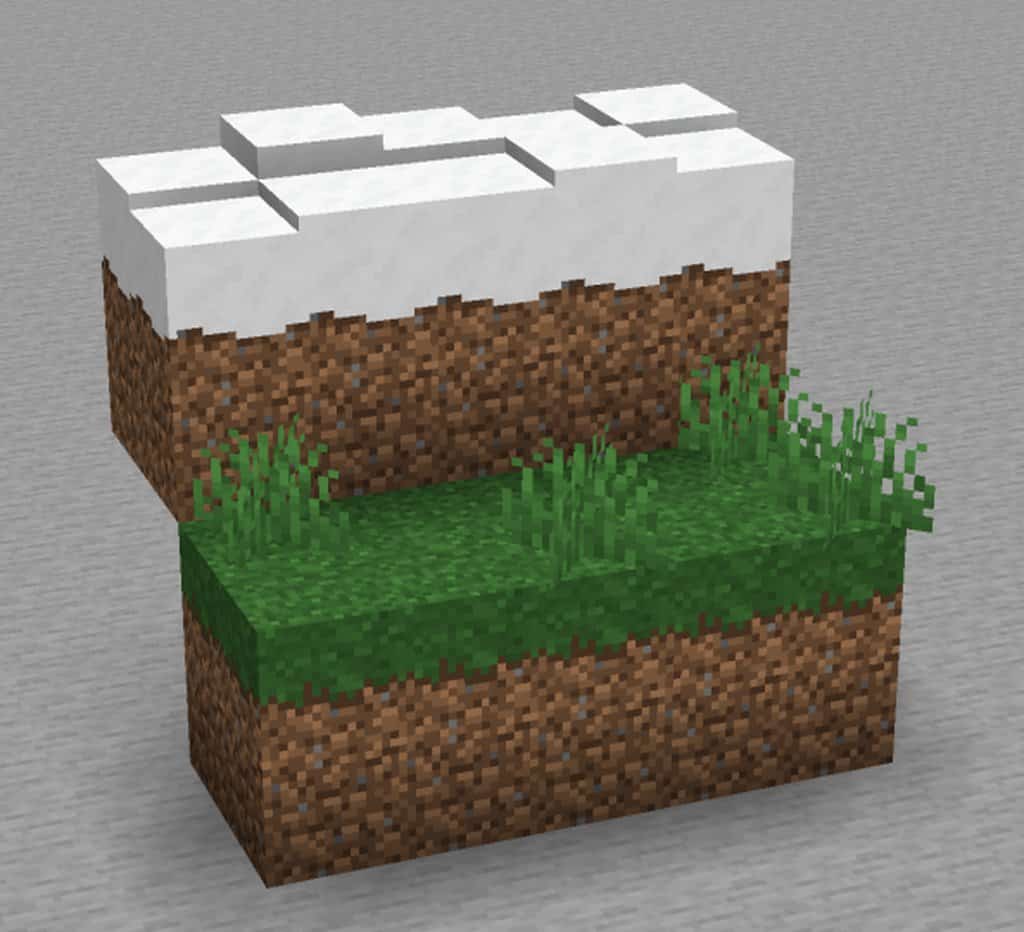
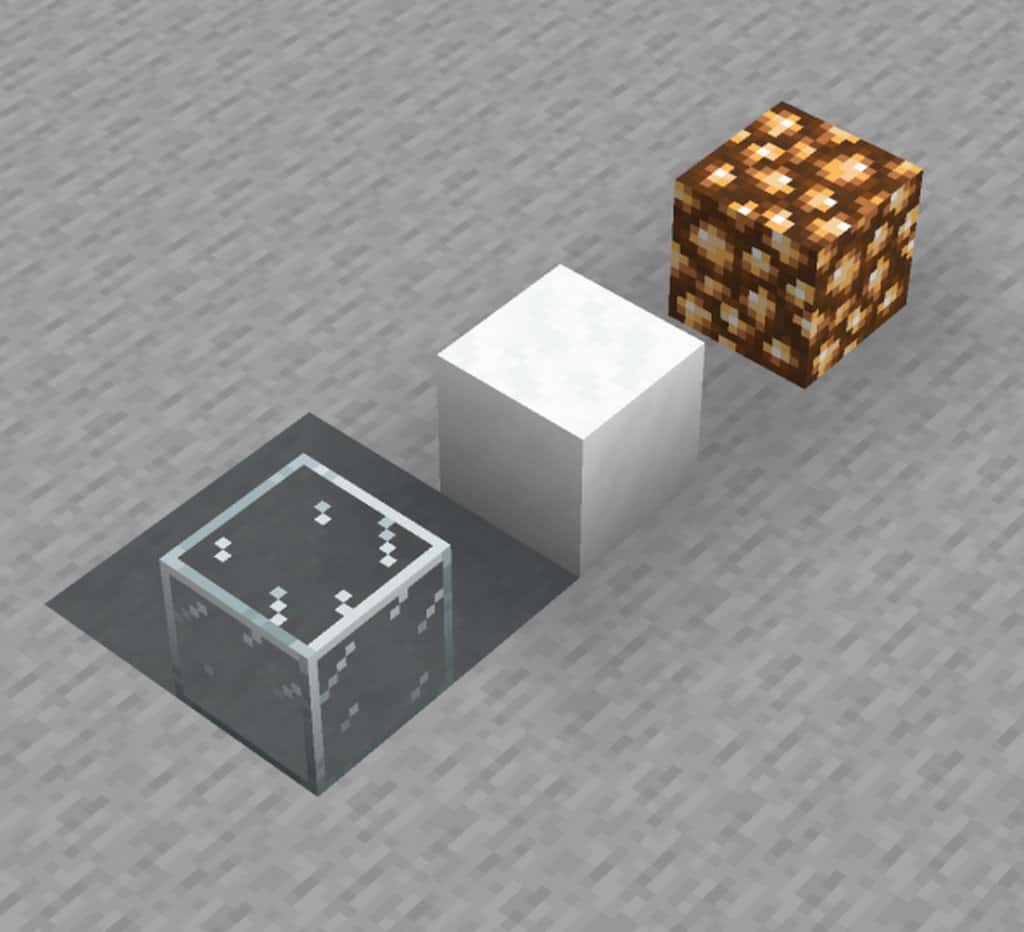
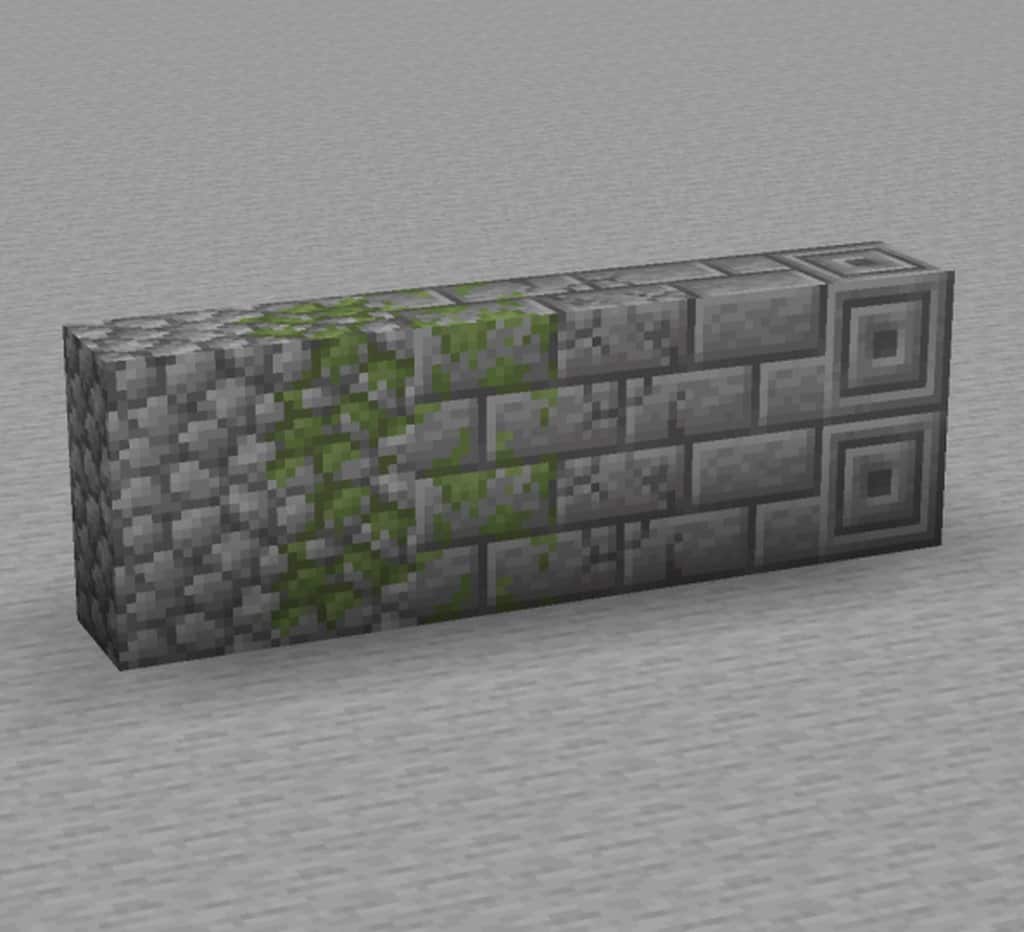
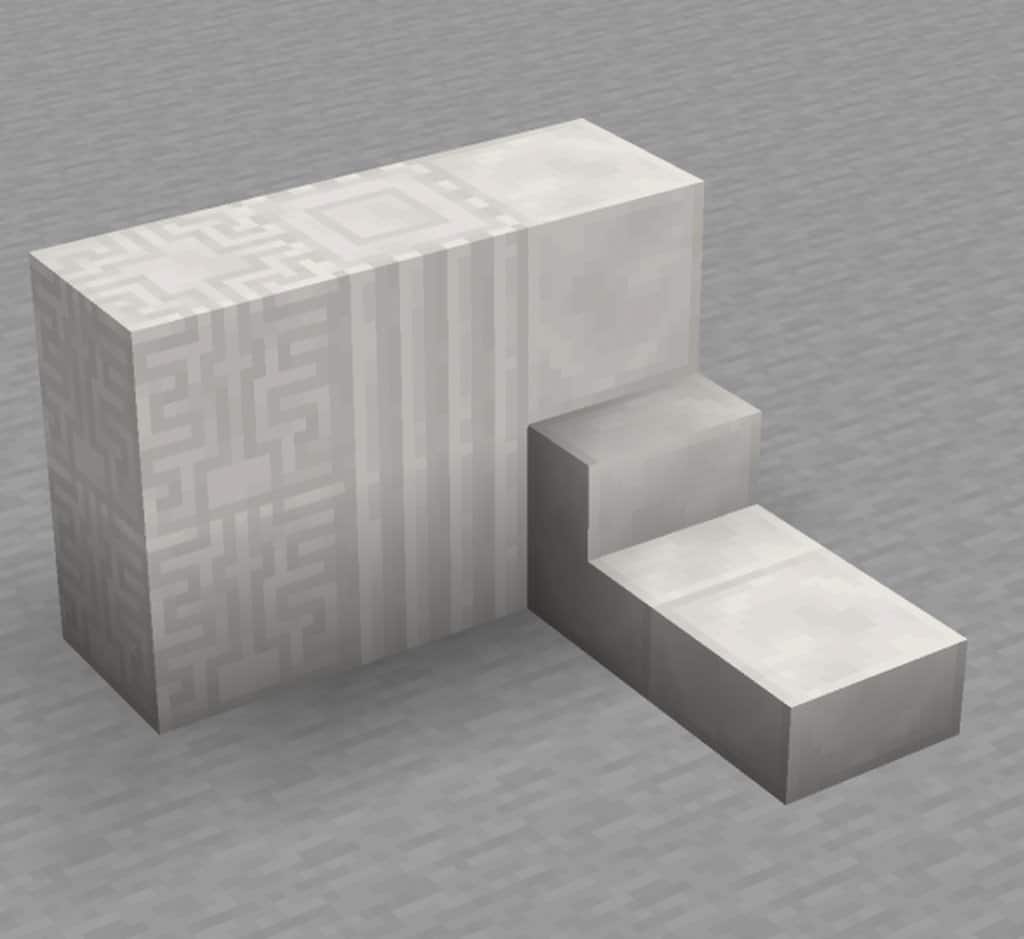

How to Install Texture Pack (Simple 10 Steps)
- Download OptiFine: Most of the texture packs and shaders need OptiFine. That’s why, first download and install OptiFine for the version of Minecraft you want to play.
- Download the Texture Pack: Get the texture pack you want from the download section. Choose the version that works with your Minecraft and your PC’s performance.
- Open Minecraft Launcher: Start Minecraft using the official game launcher — or even TLauncher, if you use that.
- Go to Options: From the main menu, click on the “Options” button.
- Open Resource Packs: Inside Options, click on “Resource Packs…”.
- Open the Resource Pack Folder: Click on “Open Resource Pack Folder” — this will open a folder named “resourcepacks”.
- Move the Pack File: Copy or move the .zip file you downloaded into that “resourcepacks” folder. (Don’t unzip the file — Minecraft uses it as-is!)
- Go Back and Refresh: Close the folder and click “Done”, then go back into “Resource Packs…” again.
- Activate the Pack: You’ll see the pack on the left side. Hover over it and click the arrow to move it to the right (active side).
Tip: If you get a message that the pack is for a different version, just click “Yes” — it usually works fine. - Click Done and Enjoy: Click “Done” again. Now your pack is ready to use in-game. It’s that easy!
Credits
This resource pack was created by HS20. We do not claim ownership of this content, nor do we modify the files. All rights remain with the original creator. We strongly encourage you to support HS20 by downloading the pack through the official links provided.
Download Links
Java Edition
Download Instructions
Curseforge: download starts automatically after a few seconds;
Mediafire: click the big blue button with the text “DOWNLOAD”;
Google Drive: in the top right corner you will see a small download icon (down arrow), click it and the download should start;


