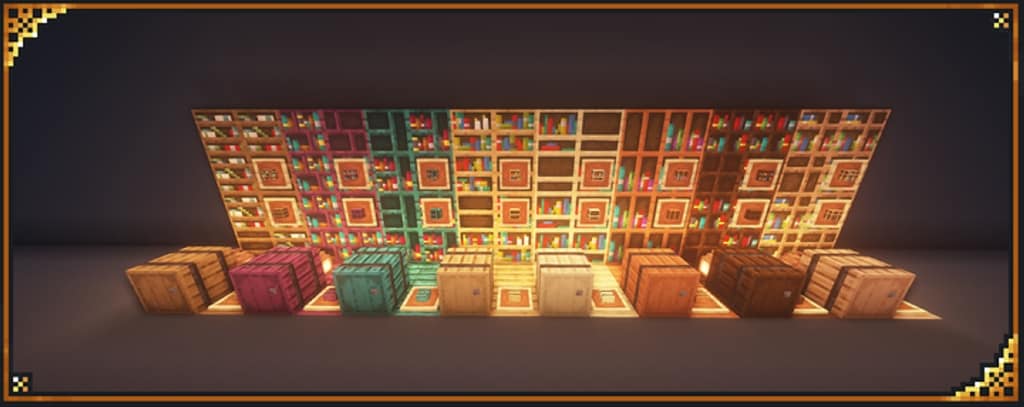
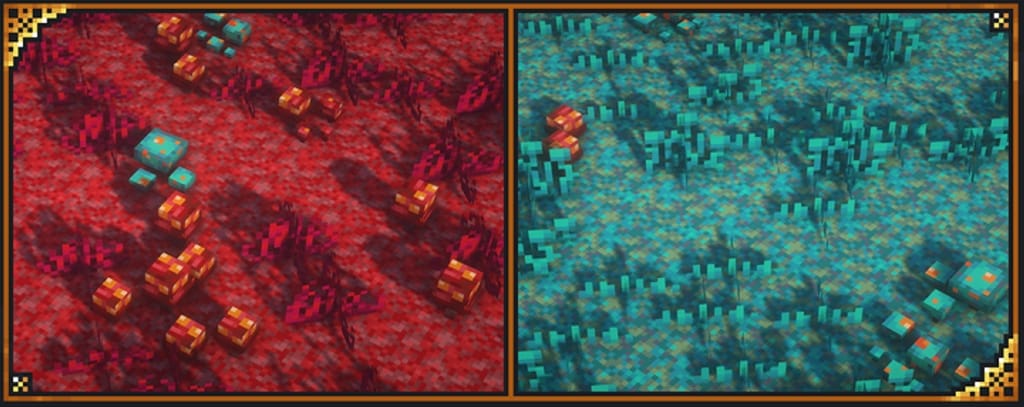
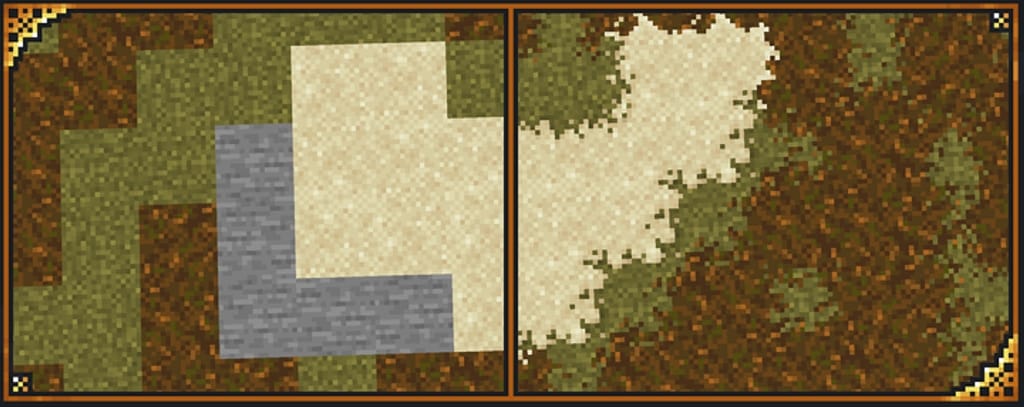
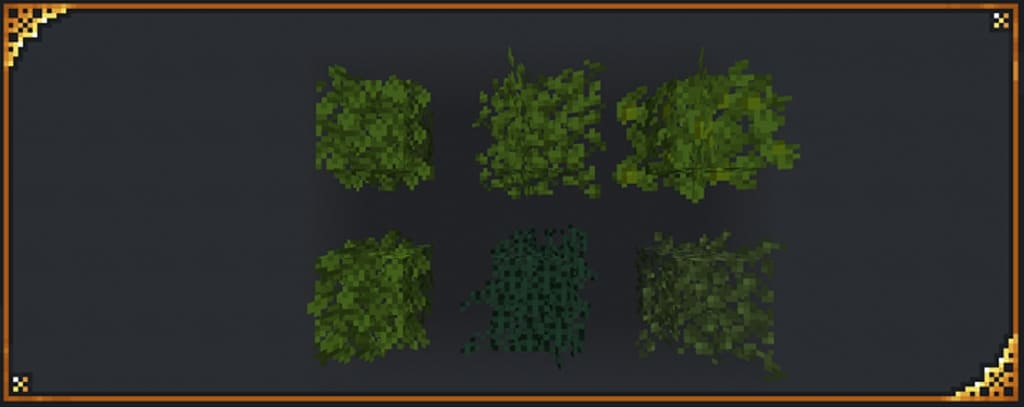
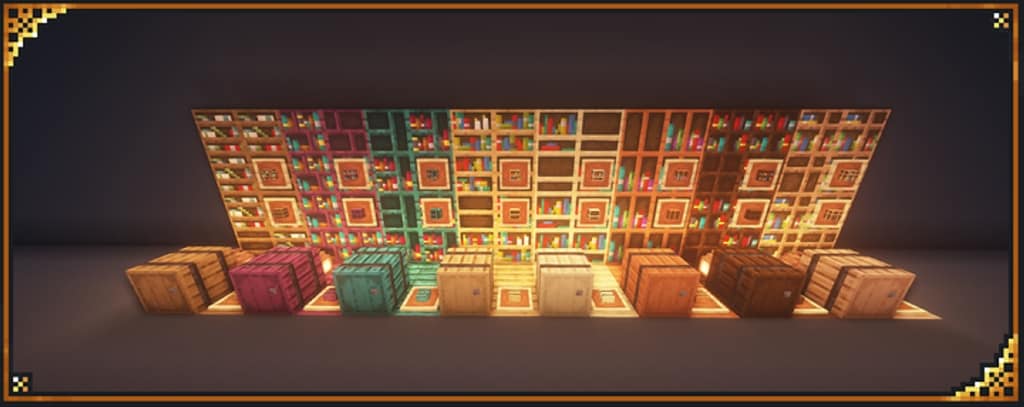
Are you a Minecraft fan who is looking for new and different ways to enhance your experience? If your response to that question is ‘yes’, then we have exceptionally good news for you! I recently tested the Just Upgrade It resource pack, and it is a very new, very intriguing, recently released top-tier Minecraft texture pack created by xalixilax. After nearly a decade of playing Minecraft, the author decided to take their experience and extensive knowledge of the game and use it to design this amazing resource pack that I found greatly improves the overall visuals of the game. Just Upgrade It is perfect for you if you are among those who would like a more captivating experience while still enjoying the unique charm and style we have all come to know and love that is Minecraft. In my gameplay, I noticed this particular resource pack is excellent because while it greatly enhances the visuals, it does so in a way that ensures the game’s unique style remains completely intact.
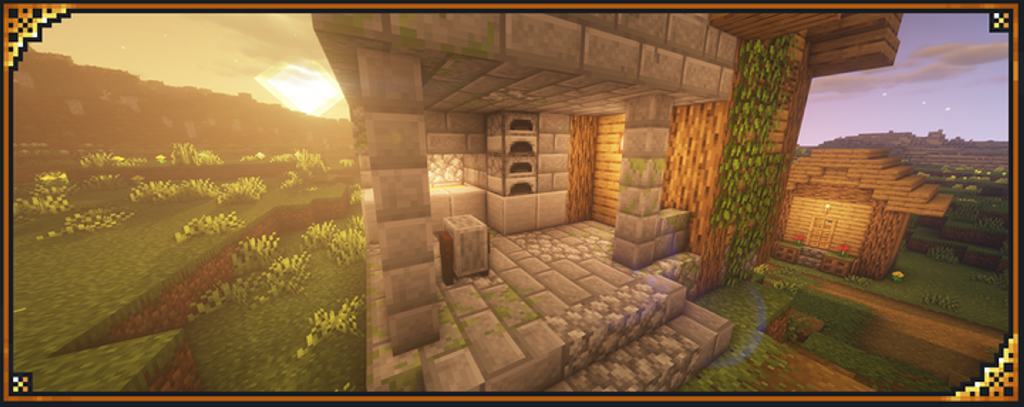
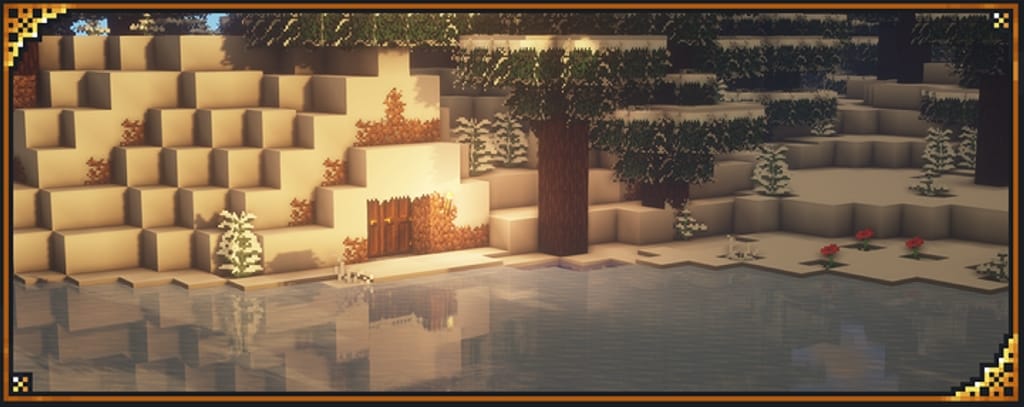
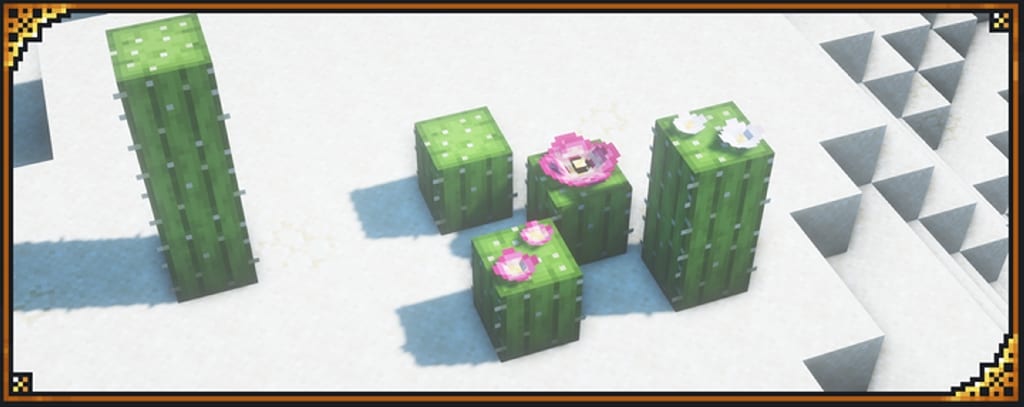
How does it work? This captivating resource pack makes the Minecraft world feel a lot less rigid and blocky looking when you explore it. It creates a much more natural effect by utilizing connected textures along with other features offered in Optifine, which completely transformed my builds. In addition to this, it also changes the color palette to bring you a vibrantly colorful, immersive experience that I personally fell in love with. Because Just Upgrade It uses the standard 16×16 resolution, I was able to apply it smoothly without worrying about running into any major performance problems. So, if your system can handle vanilla Minecraft without running into frame-rate related issues, simply install Optifine and you will be on your way to an even greater Minecraft experience just like I was! What are you waiting for? I definitely recommend trying Just Upgrade It today so you can enjoy for yourself the awesomeness of this new resource pack which brings you the essence of Minecraft in a bright new way!
Just Upgrade It should be compatible with all of these Minecraft versions: 1.16.5 – 1.16.4 – 1.16.3 – 1.16.2 – 1.16.1 – 1.16 – 1.15.2 – 1.15.1 – 1.15 – 1.14.4 – 1.14.3 – 1.14.2 – 1.14 – 1.13.2 – 1.13.1 – 1.13
Screenshots


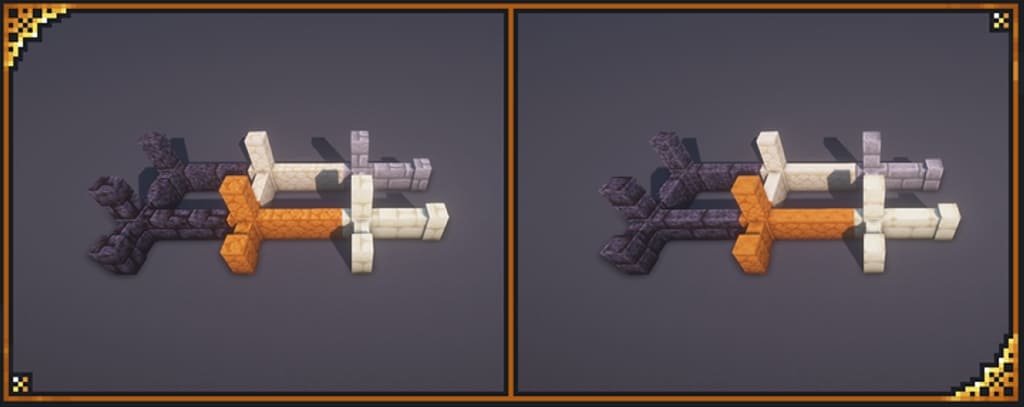
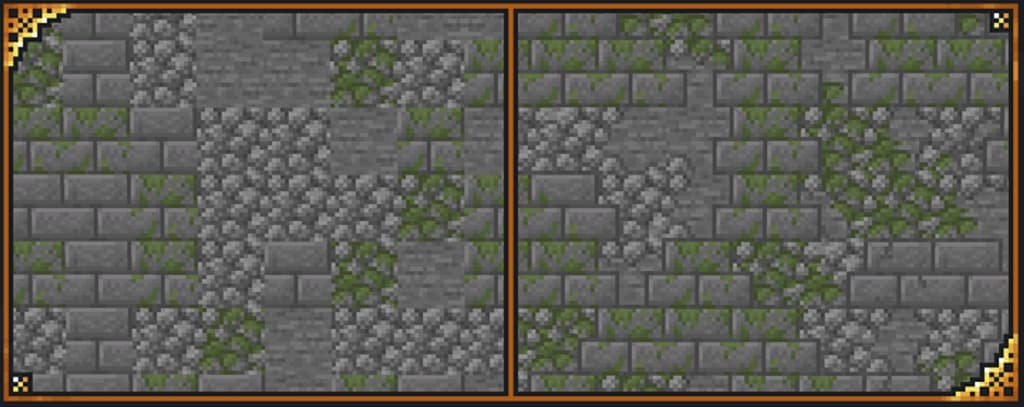
How to Install Texture Pack (Simple 10 Steps)
- Download OptiFine: Most of the texture packs and shaders need OptiFine. That’s why, first download and install OptiFine for the version of Minecraft you want to play.
- Download the Texture Pack: Get the texture pack you want from the download section. Choose the version that works with your Minecraft and your PC’s performance.
- Open Minecraft Launcher: Start Minecraft using the official game launcher — or even TLauncher, if you use that.
- Go to Options: From the main menu, click on the “Options” button.
- Open Resource Packs: Inside Options, click on “Resource Packs…”.
- Open the Resource Pack Folder: Click on “Open Resource Pack Folder” — this will open a folder named “resourcepacks”.
- Move the Pack File: Copy or move the .zip file you downloaded into that “resourcepacks” folder. (Don’t unzip the file — Minecraft uses it as-is!)
- Go Back and Refresh: Close the folder and click “Done”, then go back into “Resource Packs…” again.
- Activate the Pack: You’ll see the pack on the left side. Hover over it and click the arrow to move it to the right (active side).
Tip: If you get a message that the pack is for a different version, just click “Yes” — it usually works fine. - Click Done and Enjoy: Click “Done” again. Now your pack is ready to use in-game. It’s that easy!
Credits
This resource pack was created by xalixilax. We do not claim ownership of this content, nor do we host or modify the official files. All rights and intellectual property remain with the original author. We strongly encourage supporting xalixilax through their official channels and community pages.
Download Links
Java Edition
Download Instructions
Curseforge: download starts automatically after a few seconds;
Mediafire: click the big blue button with the text “DOWNLOAD”;
Google Drive: in the top right corner you will see a small download icon (down arrow), click it and the download should start;


