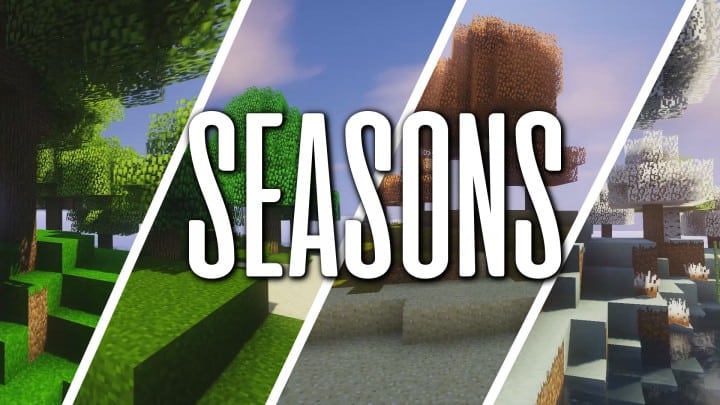
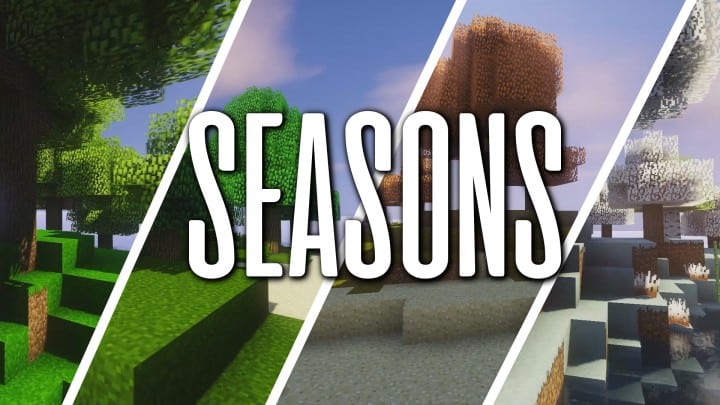
Minecraft has proudly maintained its spot as an absolute favorite among gamers for years, largely thanks to continuous updates and incredible community creations. The Seasons in Minecraft resource pack is a fantastic addition that genuinely breathes fresh air into our favorite blocky world. Instead of forcing a total overhaul of the base game, the creators thoughtfully introduced a dynamic seasonal visual system that makes exploring the world so much more immersive. As the name suggests, this pack brings all four traditional seasons—summer, winter, spring, and autumn—directly into your gameplay. Each season shifts cyclically, meaning the weather and landscape transform on a regular daily basis so you never feel stuck staring at the exact same scenery for too long.
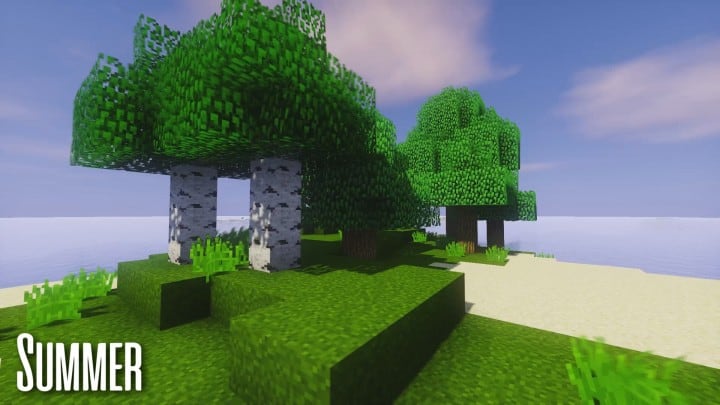
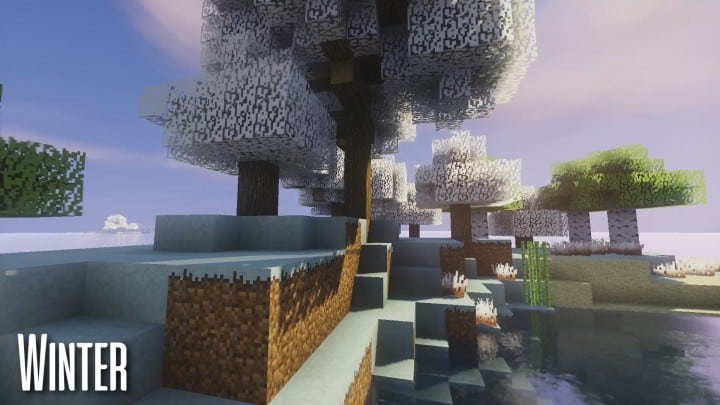
The visual transformations for each season are remarkably well-crafted and completely refresh the atmosphere the moment a transition occurs. The lush, vibrant green of spring gracefully gives way to the stark, snowy white of winter, while autumn welcomes you with warm, cozy brown and orange tones. The overall texture artistry shines through in every season, creating a genuinely cozy vibe whenever you log in to play. Even subtler details are expertly handled, such as a notably brighter, sunnier sky during summer compared to spring, despite both sharing green as a primary color. All in all, the Seasons in Minecraft resource pack is an absolute must-try addition that keeps your favorite mods running smoothly while adding an incredible layer of visual depth. Best of all, featuring a friendly 16x resolution, you can easily enjoy these gorgeous seasonal changes without worrying about performance on lower-end systems.
Seasons in Minecraft should be compatible with all of these Minecraft versions: 1.16.2 – 1.16.1 – 1.16 – 1.15.2 – 1.15.1 – 1.15 – 1.14.4 – 1.14.3 – 1.14.2 – 1.14 – 1.13.2 – 1.13.1 – 1.13 – 1.12 – 1.11.2 – 1.11
Screenshots


How to Install Texture Pack (Simple 10 Steps)
- Download OptiFine: Most of the texture packs and shaders need OptiFine. That’s why, first download and install OptiFine for the version of Minecraft you want to play.
- Download the Texture Pack: Get the texture pack you want from the download section. Choose the version that works with your Minecraft and your PC’s performance.
- Open Minecraft Launcher: Start Minecraft using the official game launcher — or even TLauncher, if you use that.
- Go to Options: From the main menu, click on the “Options” button.
- Open Resource Packs: Inside Options, click on “Resource Packs…”.
- Open the Resource Pack Folder: Click on “Open Resource Pack Folder” — this will open a folder named “resourcepacks”.
- Move the Pack File: Copy or move the .zip file you downloaded into that “resourcepacks” folder. (Don’t unzip the file — Minecraft uses it as-is!)
- Go Back and Refresh: Close the folder and click “Done”, then go back into “Resource Packs…” again.
- Activate the Pack: You’ll see the pack on the left side. Hover over it and click the arrow to move it to the right (active side).
Tip: If you get a message that the pack is for a different version, just click “Yes” — it usually works fine. - Click Done and Enjoy: Click “Done” again. Now your pack is ready to use in-game. It’s that easy!
Credits
This content was originally created and published by creatorLabs. We do not claim ownership of this resource pack, nor have we modified the original files. All rights and credits belong entirely to the original creator. We strongly encourage you to support creatorLabs by downloading the pack from their official channels.
Download Instructions
Curseforge: download starts automatically after a few seconds;
Mediafire: click the big blue button with the text “DOWNLOAD”;
Google Drive: in the top right corner you will see a small download icon (down arrow), click it and the download should start;