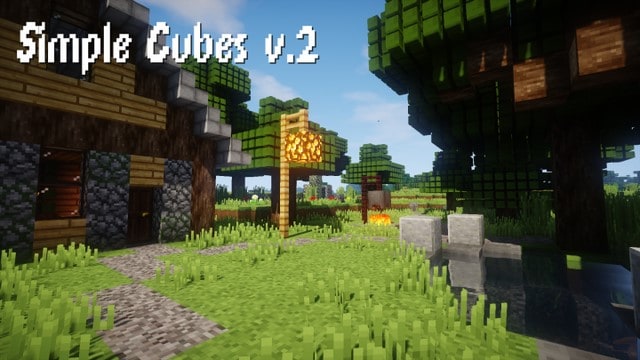
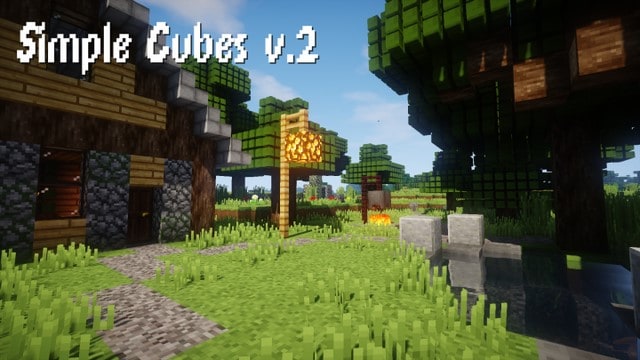
Over the past few years, we have seen an incredible surge in Minecraft resource packs focusing heavily on introducing fresh 3D models to the game. Even though the sheer quantity of these texture packs has been nothing short of staggering, a huge number of them tend to fluctuate in performance while running. Many entries in the 3D pack category suffer from frustrating defects that completely stop them from functioning to perfection. Thankfully, it really looks like the Simple Cubes resource pack has successfully counteracted these pesky flaws that normally lead to annoying FPS drops. The main objective of almost every single 3D resource pack out there is to significantly enhance the vividness and overall practicality of the Minecraft gaming world, but a lot of packs struggle immensely to the point of completely missing the core essence of this feature, thereby failing to achieve that ultimate goal. This shortfall consistently prevents them from meeting the high standards expected by players after all the initial hype has faded away.
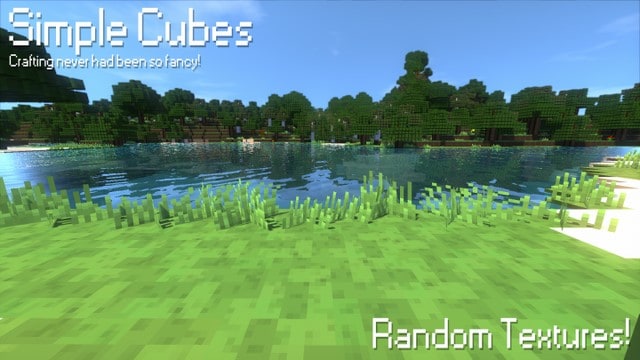
Thankfully, Simple Cubes! manages to completely breathe new life into these textures, blessing them with a wonderfully vivid color palette while also introducing truly unique designs that we simply have not seen in any similar resource packs over the last couple of years. It is an absolute breath of fresh air as a resource pack packed with incredible potential, and we genuinely recommend checking it out if you are on the hunt for a world-class 3D resource pack that seamlessly plays nice with the latest versions of Minecraft. There are countless reasons why Simple Cubes! stands a clear step above most competing packs, and perhaps the most vital factor is that it delivers genuinely unbeatable realistic textures. The textures packed inside Simple Cubes! are built in a crisp 16x resolution, which brilliantly guarantees that players can easily and smoothly run the pack even on lower-end computers without any sweat. That being said, it is definitely worth keeping in mind that Simple Cubes is still relatively fresh and is actively being worked on to streamline and ease everything. Even so, giving it a try right now is an absolute joy, and you will quickly appreciate the incredible care poured into its design.
Simple Cubes! should be compatible with all of these Minecraft versions: 1.14.4 – 1.14.3 – 1.14.2 – 1.14 – 1.13.2 – 1.13.1 – 1.13 – 1.12.2 – 1.12
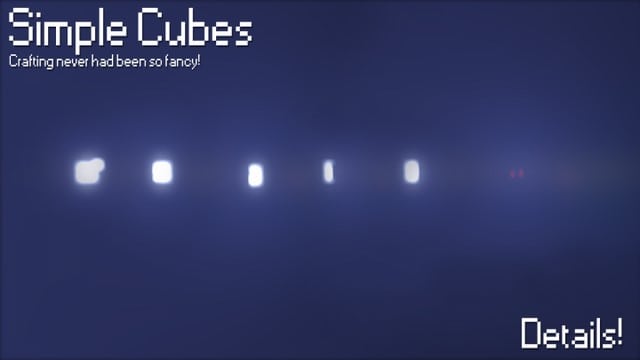
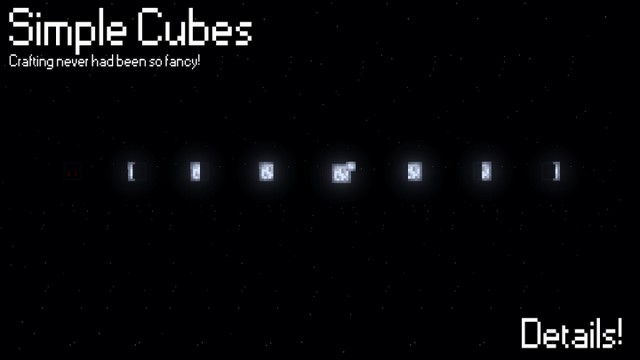
Screenshots
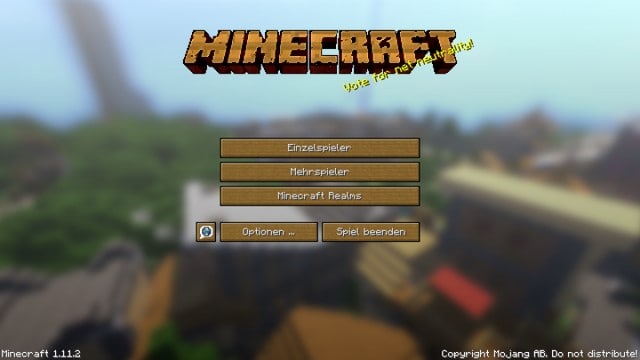
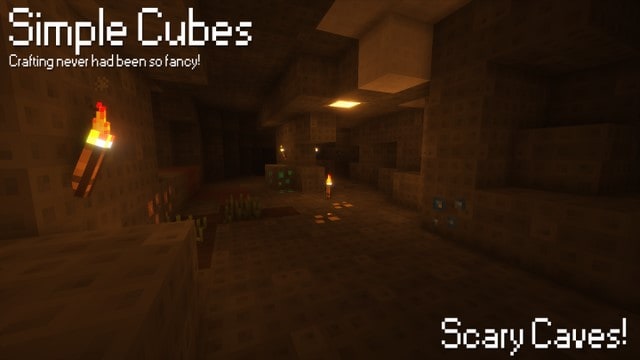
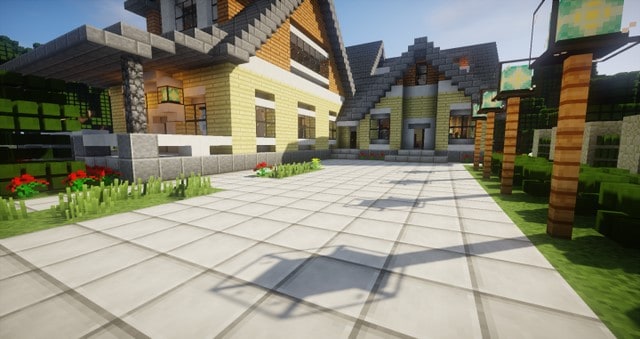
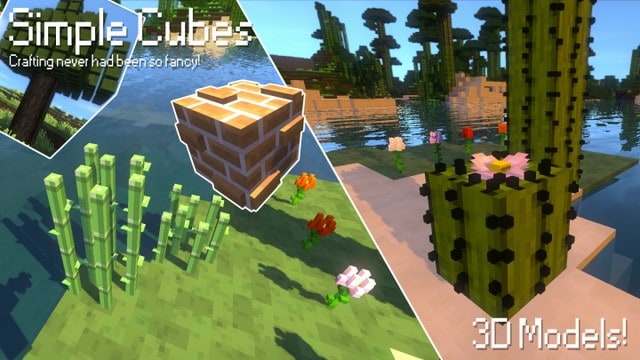
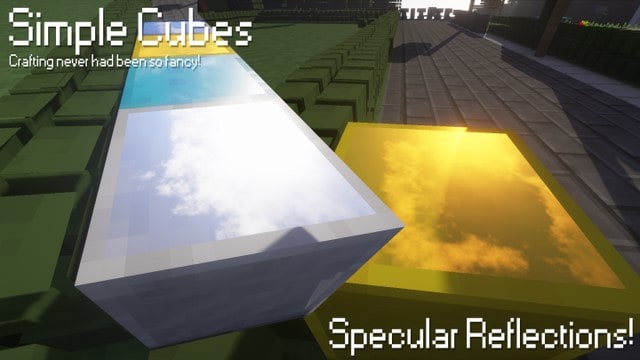
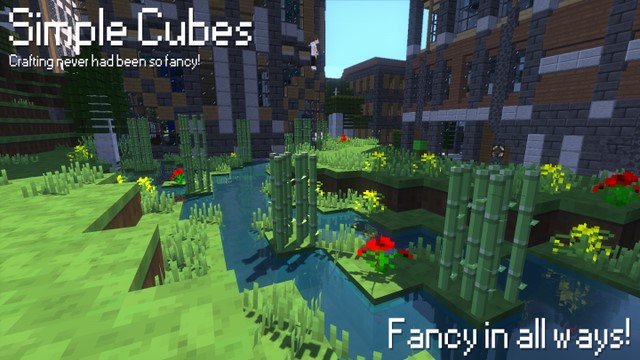
How to Install Texture Pack (Simple 10 Steps)
- Download OptiFine: Most of the texture packs and shaders need OptiFine. That’s why, first download and install OptiFine for the version of Minecraft you want to play.
- Download the Texture Pack: Get the texture pack you want from the download section. Choose the version that works with your Minecraft and your PC’s performance.
- Open Minecraft Launcher: Start Minecraft using the official game launcher — or even TLauncher, if you use that.
- Go to Options: From the main menu, click on the “Options” button.
- Open Resource Packs: Inside Options, click on “Resource Packs…”.
- Open the Resource Pack Folder: Click on “Open Resource Pack Folder” — this will open a folder named “resourcepacks”.
- Move the Pack File: Copy or move the .zip file you downloaded into that “resourcepacks” folder. (Don’t unzip the file — Minecraft uses it as-is!)
- Go Back and Refresh: Close the folder and click “Done”, then go back into “Resource Packs…” again.
- Activate the Pack: You’ll see the pack on the left side. Hover over it and click the arrow to move it to the right (active side).
Tip: If you get a message that the pack is for a different version, just click “Yes” — it usually works fine. - Click Done and Enjoy: Click “Done” again. Now your pack is ready to use in-game. It’s that easy!
Credits
This resource pack was originally created by Hiccupix3. We do not claim ownership of this content, nor do we host modified versions of these files. We strongly encourage players to support the original creator by utilizing their official download links.
Download Instructions
Curseforge: download starts automatically after a few seconds;
Mediafire: click the big blue button with the text “DOWNLOAD”;
Google Drive: in the top right corner you will see a small download icon (down arrow), click it and the download should start;


