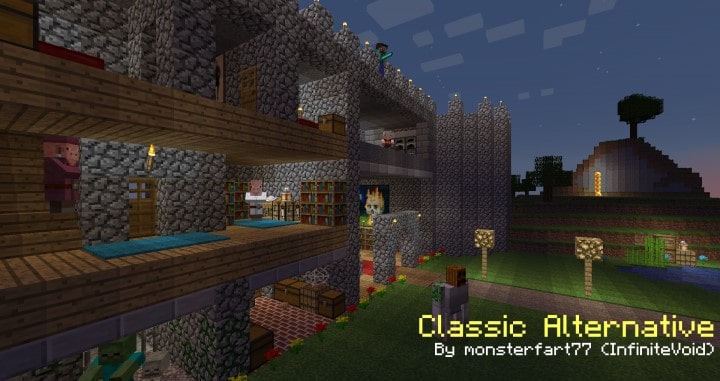
Minecraft is undeniably one of the most popular games out there, earning countless awards since its release and sitting firmly as second only to Tetris in global sales. Because of this massive demand, developers and programmers worldwide constantly build add-ons, mods, plugins, and texture packs to elevate the gameplay even further. Even though Minecraft has transformed tremendously over the years, Mojang has replaced several classic features that many players grew up loving. The Classic Alternative resource pack gathers all of these retro features so we can easily enjoy them today. If you have been missing specific visuals from older versions of Minecraft and want to bring them into the modern game, I found that this pack gives you that exact freedom with zero hassle.
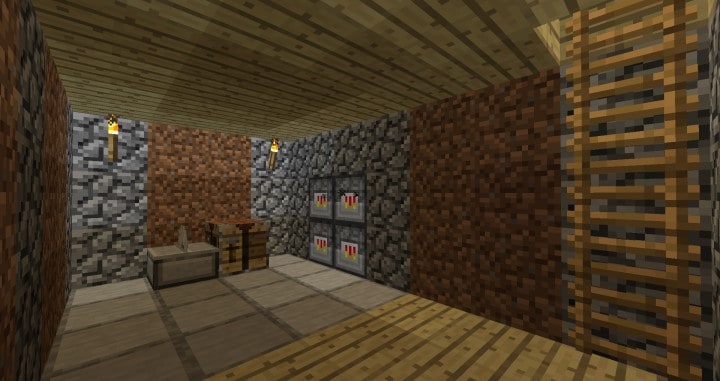
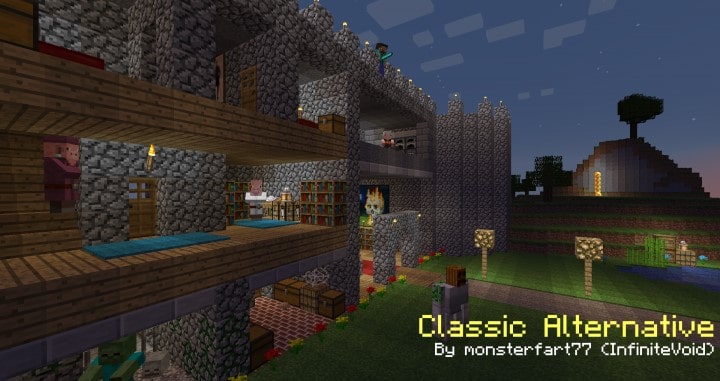
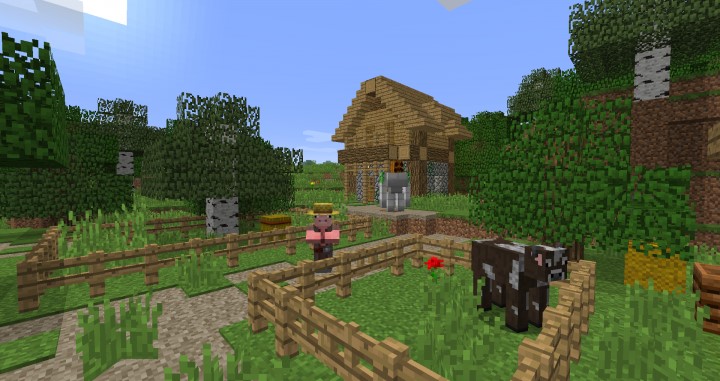
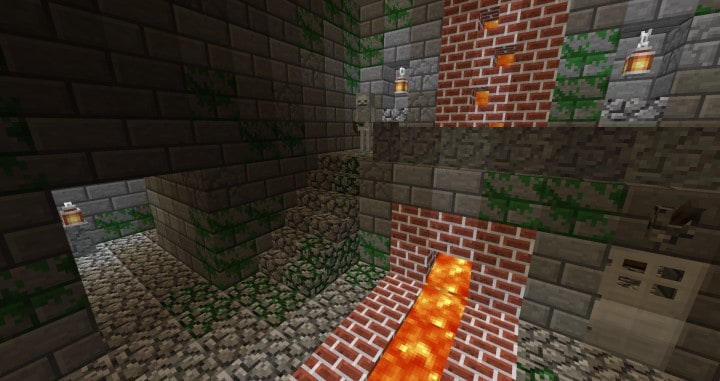
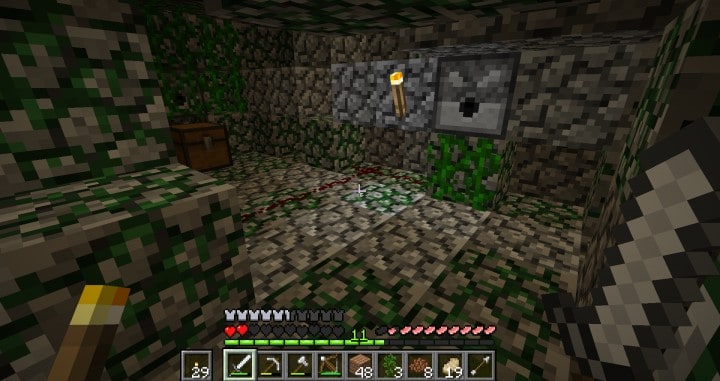
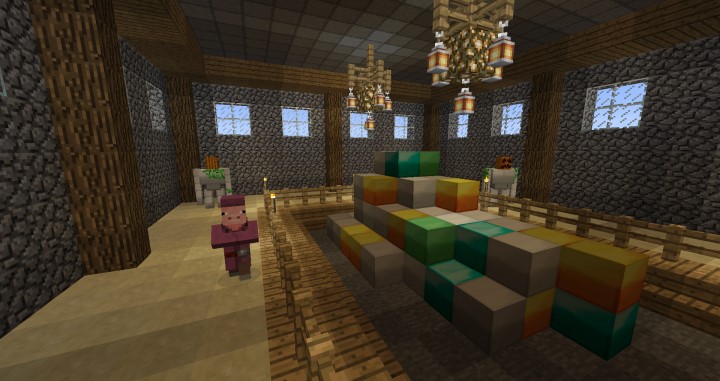
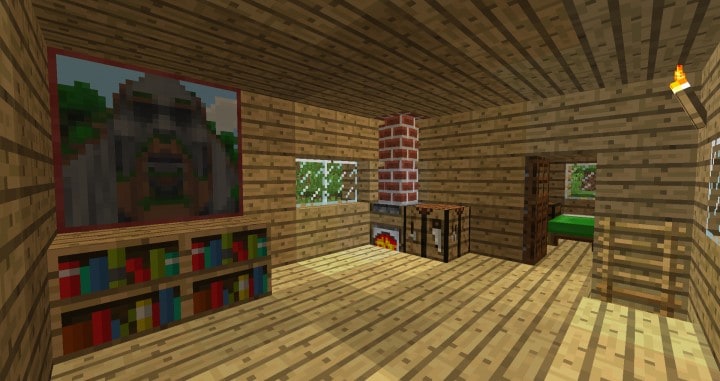
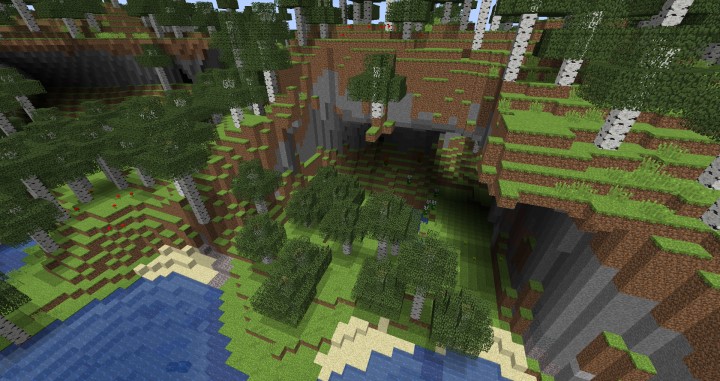
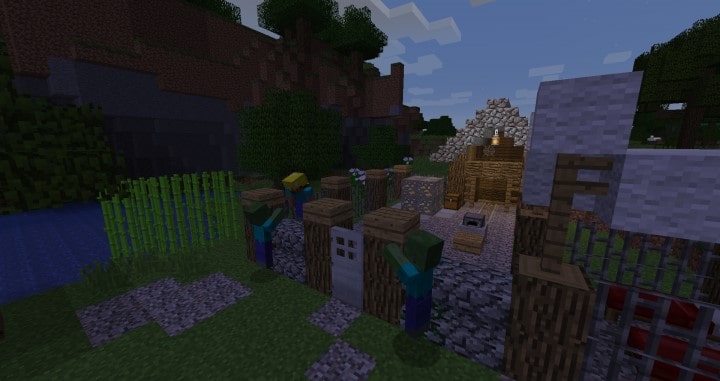
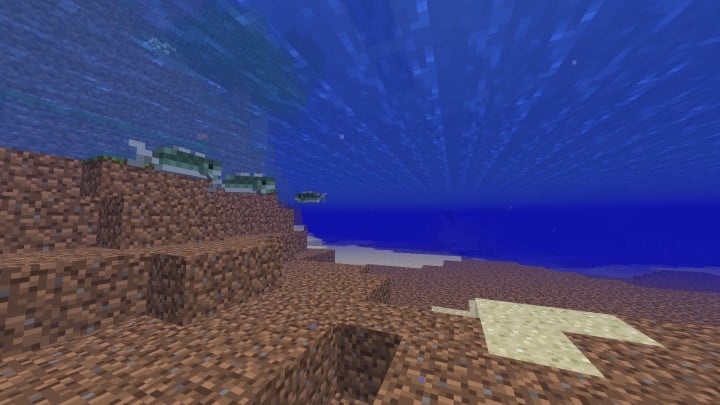
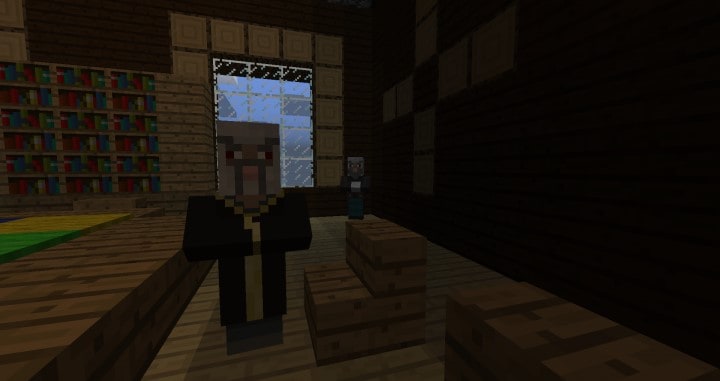
The Classic Alternative resource pack lets you experience authentic vintage Minecraft textures right inside the newest versions of the game. It brings back numerous iconic textures like gold, iron, diamond, brick, and many others. What I love most about this resource pack is that you can swap out specific selected textures while leaving everything else unchanged, and the visual blend is impressively smooth. Operating at a standard 16×16 resolution, the Classic Alternative pack runs effortlessly on virtually any computer that can already handle vanilla Minecraft at stable frame rates. Since Minecraft has gone through countless updates and redesigns, many beloved old-school textures unfortunately got phased out. If you are nostalgic for the aesthetic of earlier Minecraft eras, I genuinely believe the Classic Alternative pack is the absolute best pick for you, letting you enjoy all the modern game mechanics alongside your favorite classic looks.
Classic Alternative should be compatible with all of these Minecraft versions: 1.16.5 – 1.16.4 – 1.16.3 – 1.16.2 – 1.16.1 – 1.16 – 1.15.2 – 1.15.1 – 1.15 – 1.14.4 – 1.14.3 – 1.14.2 – 1.14 – 1.13.2 – 1.13.1 – 1.13 – 1.12.2 – 1.12
Screenshots
How to Install Texture Pack (Simple 10 Steps)
- Download OptiFine: Most of the texture packs and shaders need OptiFine. That’s why, first download and install OptiFine for the version of Minecraft you want to play.
- Download the Texture Pack: Get the texture pack you want from the download section. Choose the version that works with your Minecraft and your PC’s performance.
- Open Minecraft Launcher: Start Minecraft using the official game launcher — or even TLauncher, if you use that.
- Go to Options: From the main menu, click on the “Options” button.
- Open Resource Packs: Inside Options, click on “Resource Packs…”.
- Open the Resource Pack Folder: Click on “Open Resource Pack Folder” — this will open a folder named “resourcepacks”.
- Move the Pack File: Copy or move the .zip file you downloaded into that “resourcepacks” folder. (Don’t unzip the file — Minecraft uses it as-is!)
- Go Back and Refresh: Close the folder and click “Done”, then go back into “Resource Packs…” again.
- Activate the Pack: You’ll see the pack on the left side. Hover over it and click the arrow to move it to the right (active side).
Tip: If you get a message that the pack is for a different version, just click “Yes” — it usually works fine. - Click Done and Enjoy: Click “Done” again. Now your pack is ready to use in-game. It’s that easy!
Credits
This resource pack was created by monsterfart77. We do not claim ownership of this content, and we do not host or modify any files on our servers. All rights and credits belong entirely to the original creator. We strongly encourage you to visit and support the author via their official platforms.
Download Links
Java Edition
Download Instructions
Curseforge: download starts automatically after a few seconds;
Mediafire: click the big blue button with the text “DOWNLOAD”;
Google Drive: in the top right corner you will see a small download icon (down arrow), click it and the download should start;


