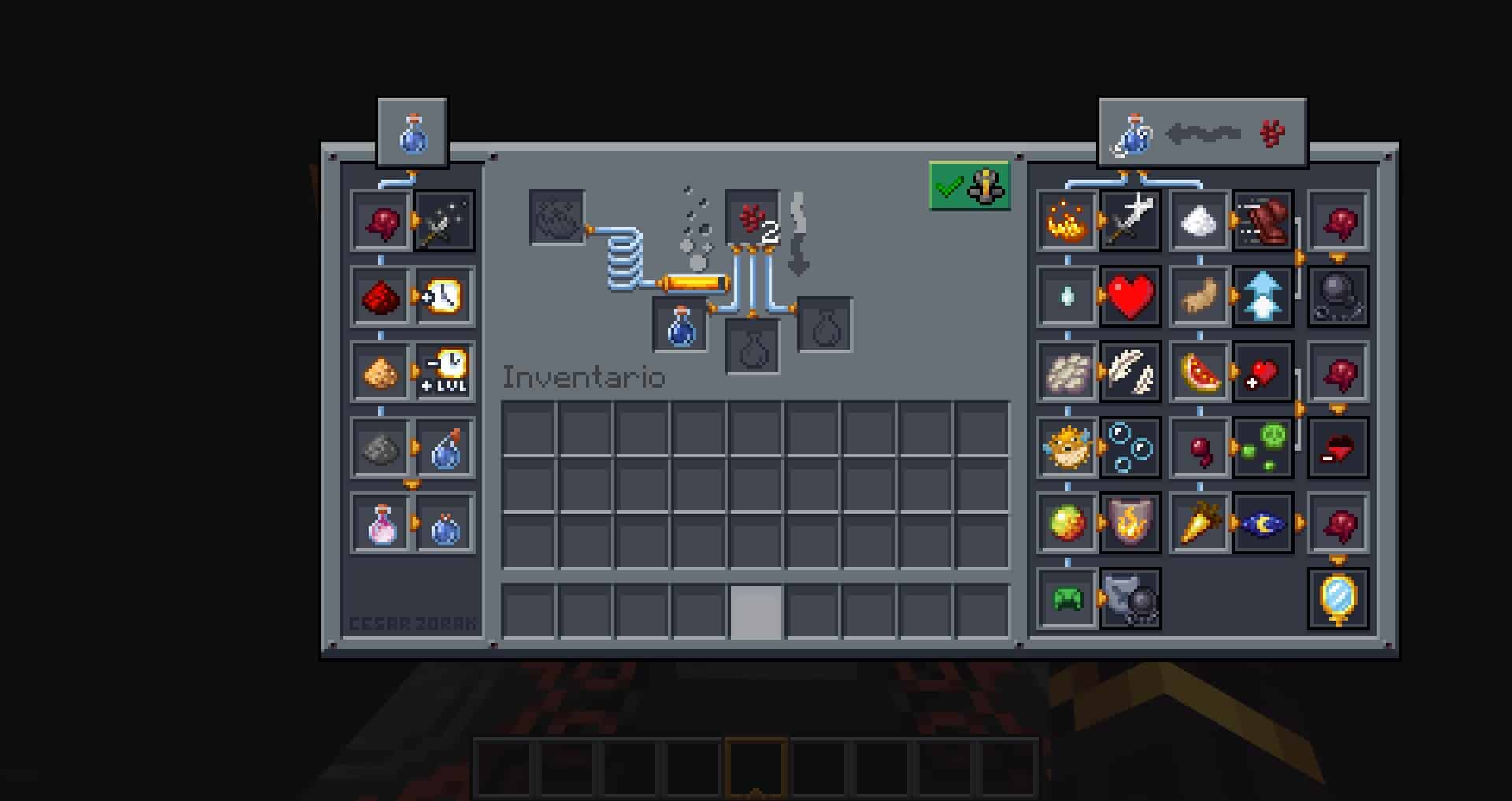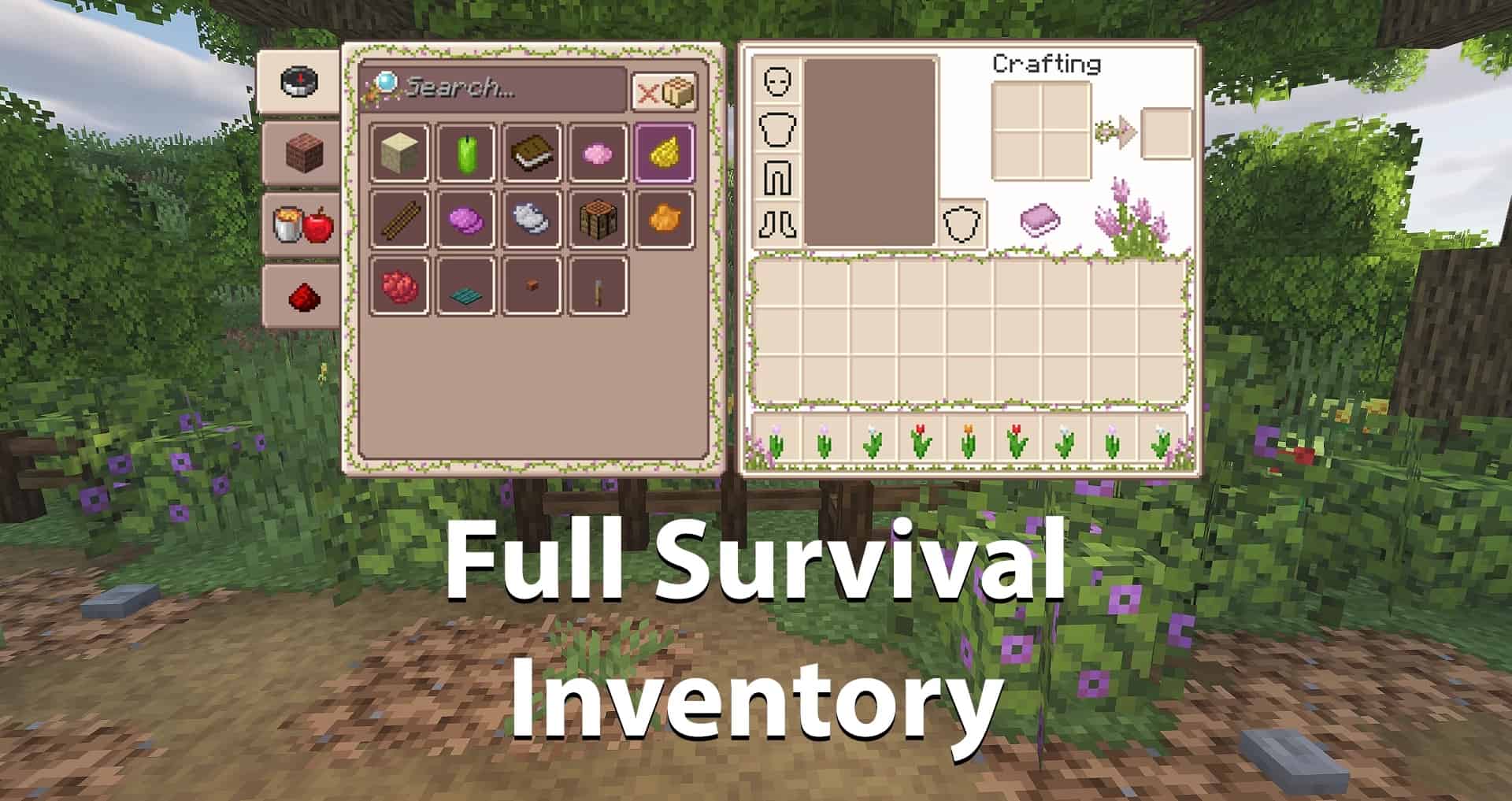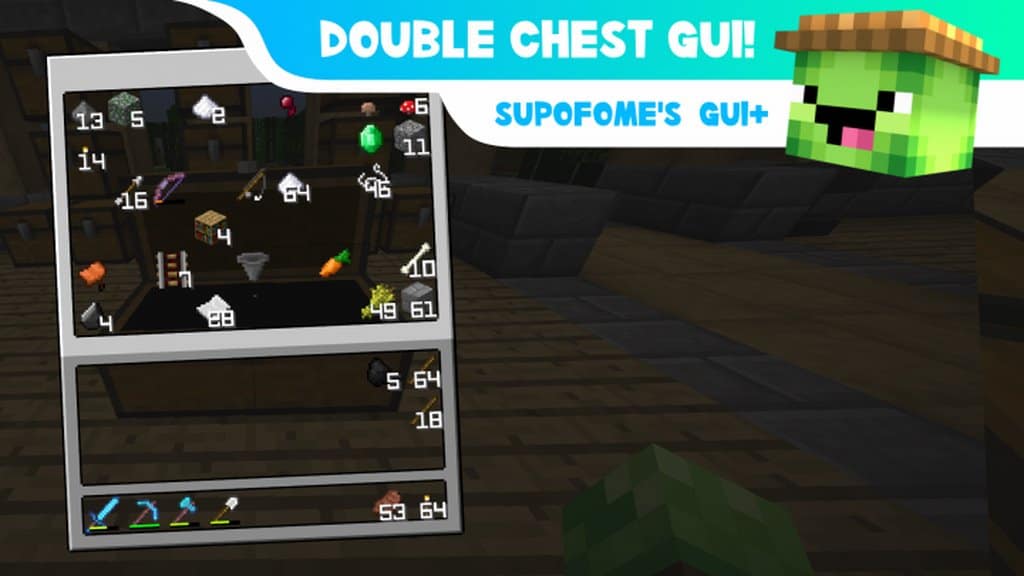
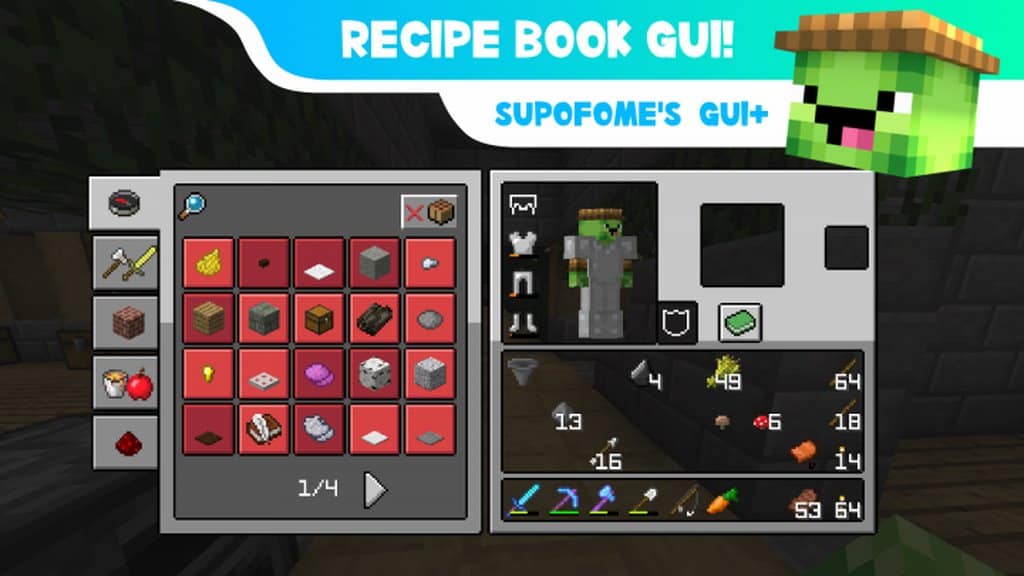
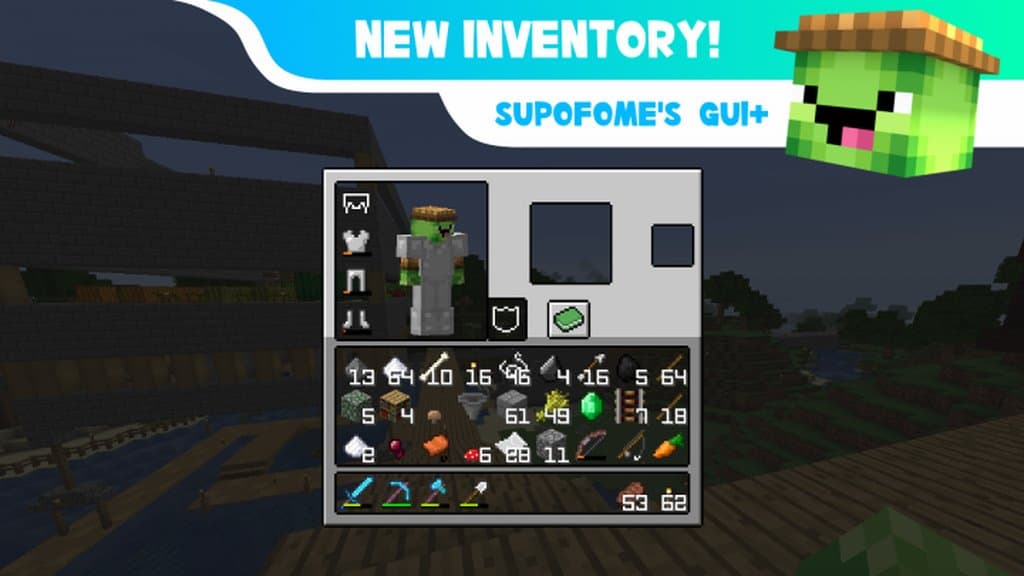
Hey everyone! If you have ever felt like Minecraft’s user interface needed a serious makeover, you are going to love Supofome’s New GUI+. This resource pack is designed entirely around upgrading Minecraft’s user interface, which was desperately needed because a clunky or plain UI can really break your immersion during gameplay. We tested it out, and this pack completely replaces the old vanilla interfaces to give you a much more customized and visually pleasing layout. Honestly, while vanilla Minecraft does a lot of things right, its default GUI has always been a major shortcoming that dulls the overall experience. Even when settings are cranked to maximum, the standard interface feels bland and uninspired, but thanks to Supofome’s New GUI+, that is an issue you can officially put behind you.
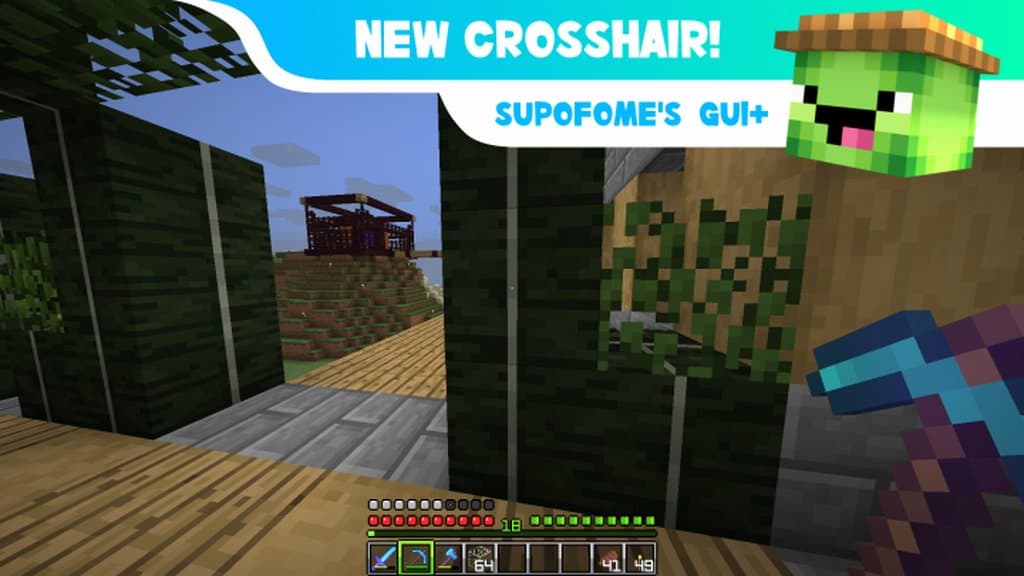
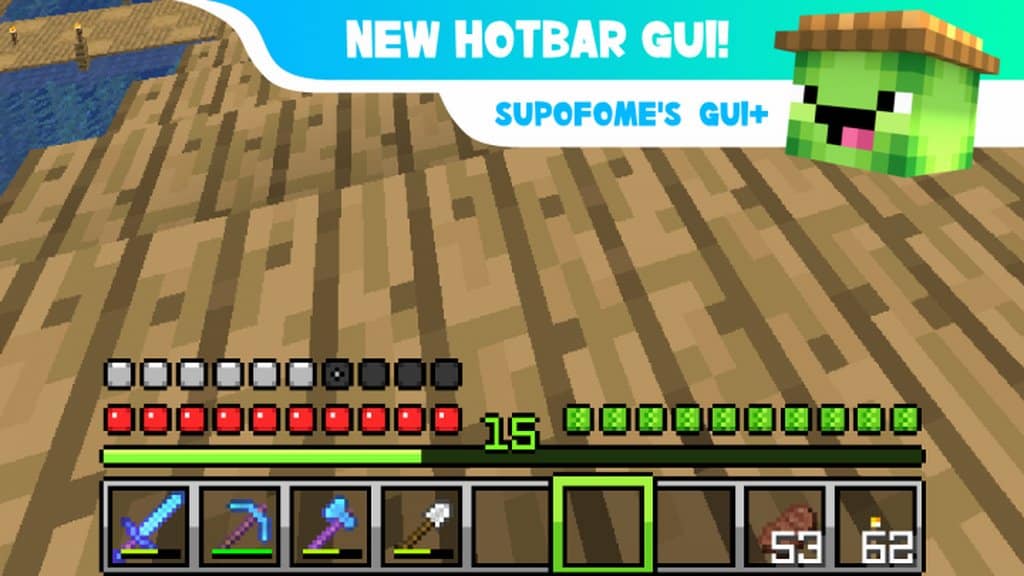
What is great about Supofome’s New GUI+ is that it focuses on specific elements while introducing incredible creative changes. It gives Minecraft’s UI a much-needed facelift that stands out from the ordinary look we are all used to. You will find fantastic new components like high-quality fonts that blend into the game’s visuals much more smoothly. On top of that, it adds a brand-new crosshair that actually makes aiming easier, fresh new colors for all the menu buttons, a neat leaf-style hunger bar, and several other cool additions. Best of all, the textures stick to the standard 16×16 resolution. Because it keeps these original specifications and only makes minimal interface adjustments without messing with block or item textures, you do not have to worry about performance drops at all. Frame rates stay completely stable and smooth when you put it to the test, making it an absolute joy to use in your everyday survival or creative worlds!
Supofome’s New GUI+ should be compatible with all of these Minecraft versions: 1.14.4 – 1.14.3 – 1.14.2 – 1.14 – 1.13.2 – 1.13.1 – 1.13
Screenshots

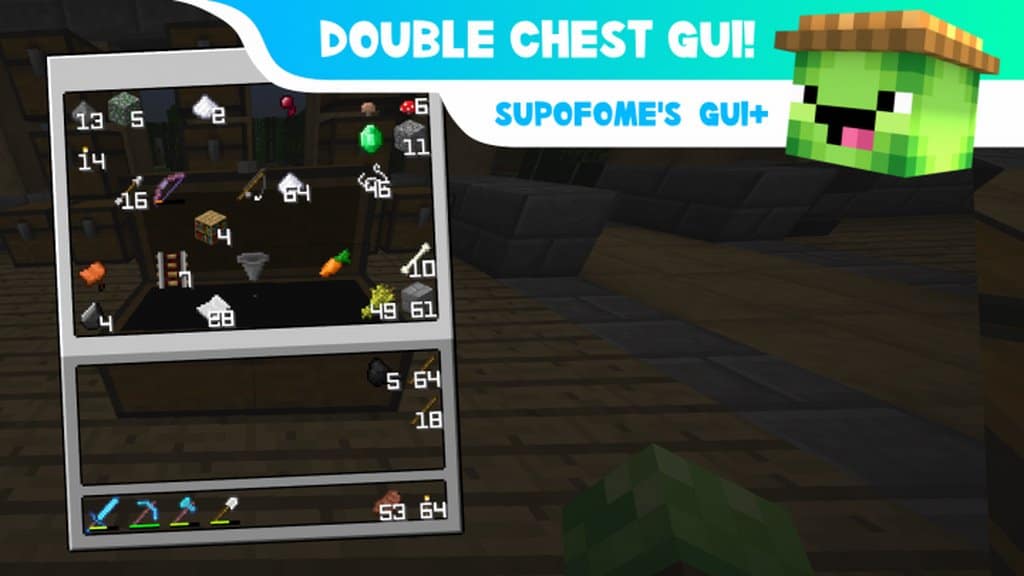
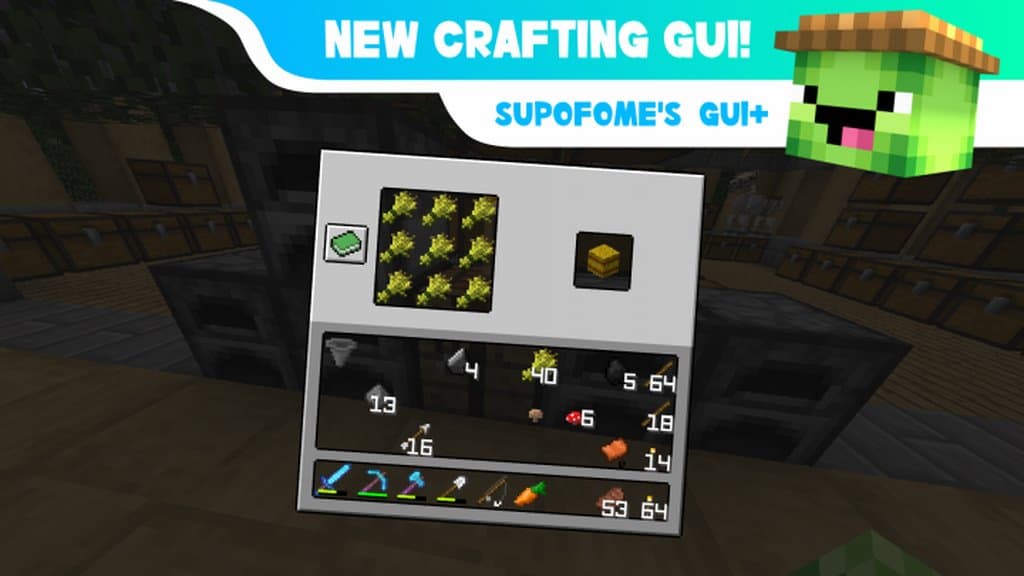
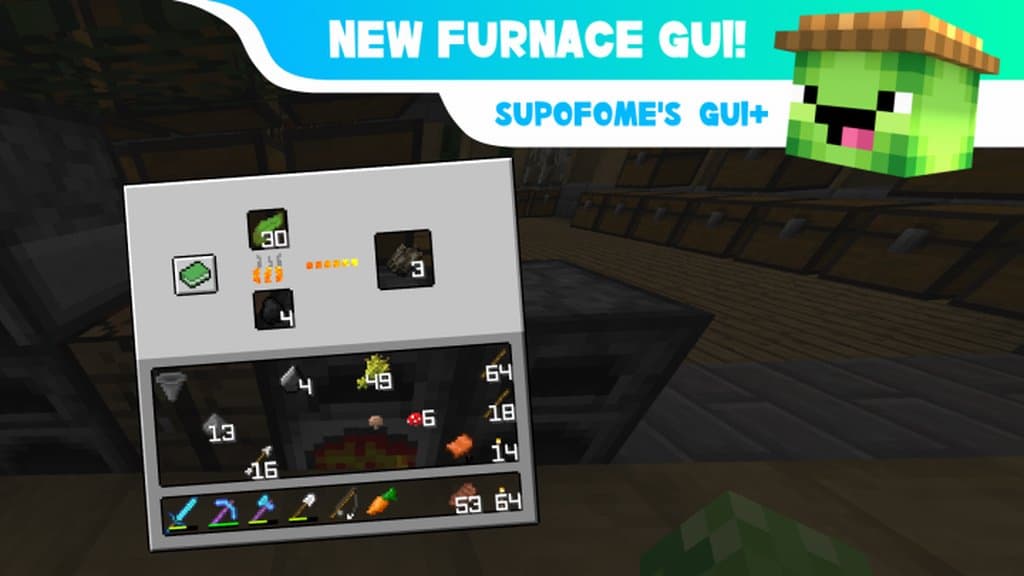
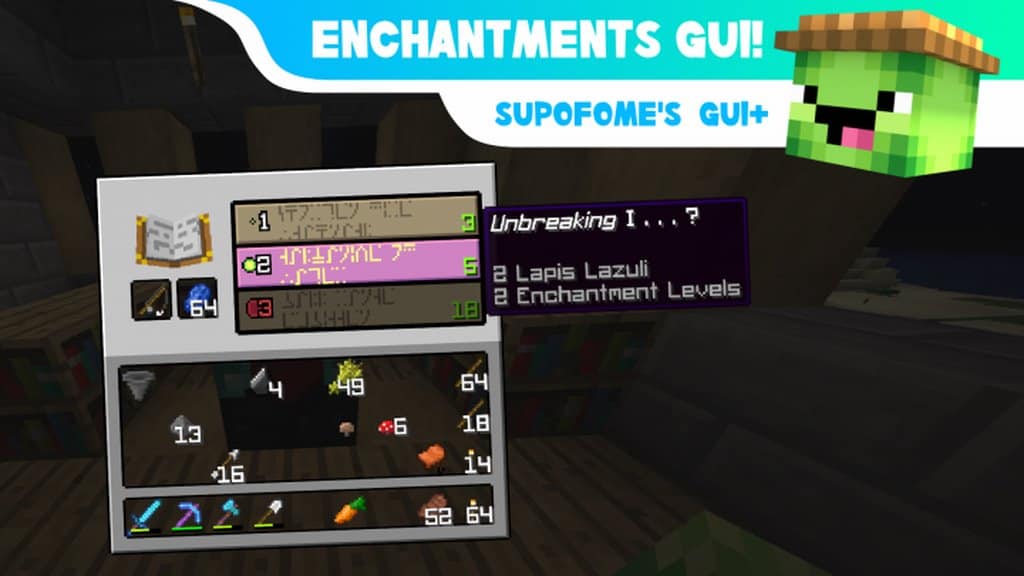
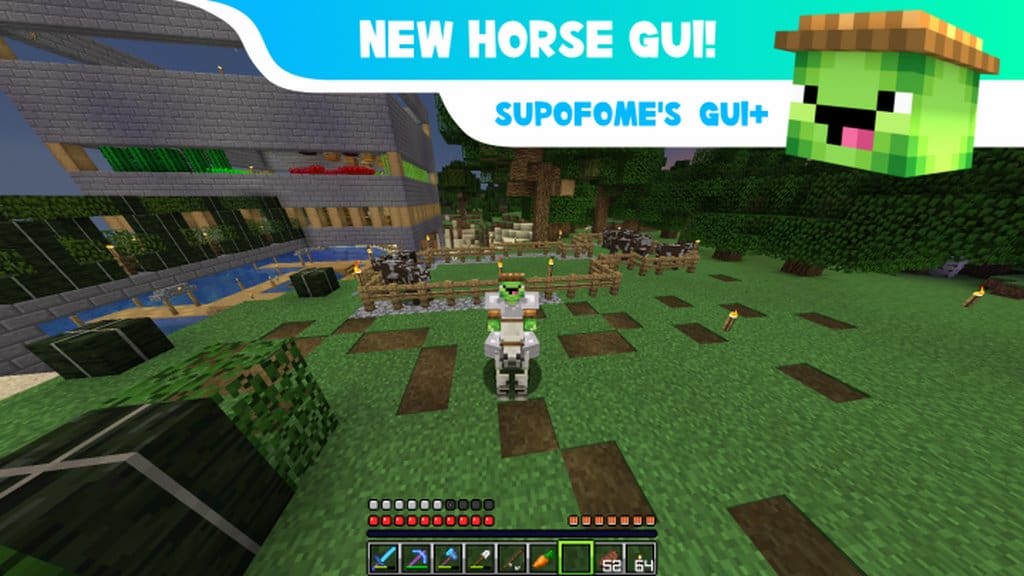
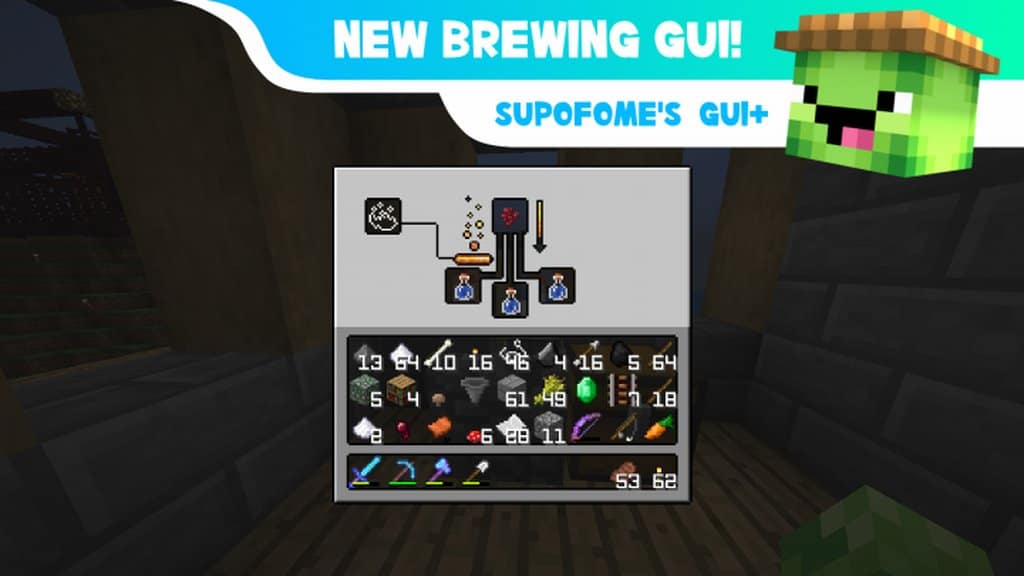
How to Install Texture Pack (Simple 10 Steps)
- Download OptiFine: Most of the texture packs and shaders need OptiFine. That’s why, first download and install OptiFine for the version of Minecraft you want to play.
- Download the Texture Pack: Get the texture pack you want from the download section. Choose the version that works with your Minecraft and your PC’s performance.
- Open Minecraft Launcher: Start Minecraft using the official game launcher — or even TLauncher, if you use that.
- Go to Options: From the main menu, click on the “Options” button.
- Open Resource Packs: Inside Options, click on “Resource Packs…”.
- Open the Resource Pack Folder: Click on “Open Resource Pack Folder” — this will open a folder named “resourcepacks”.
- Move the Pack File: Copy or move the .zip file you downloaded into that “resourcepacks” folder. (Don’t unzip the file — Minecraft uses it as-is!)
- Go Back and Refresh: Close the folder and click “Done”, then go back into “Resource Packs…” again.
- Activate the Pack: You’ll see the pack on the left side. Hover over it and click the arrow to move it to the right (active side).
Tip: If you get a message that the pack is for a different version, just click “Yes” — it usually works fine. - Click Done and Enjoy: Click “Done” again. Now your pack is ready to use in-game. It’s that easy!
Credits
This resource pack was created by supofomeYT. We do not own or modify the pack files, and all rights belong to the original creator. We highly recommend visiting the official sources to support supofomeYT.
Download Instructions
Curseforge: download starts automatically after a few seconds;
Mediafire: click the big blue button with the text “DOWNLOAD”;
Google Drive: in the top right corner you will see a small download icon (down arrow), click it and the download should start;