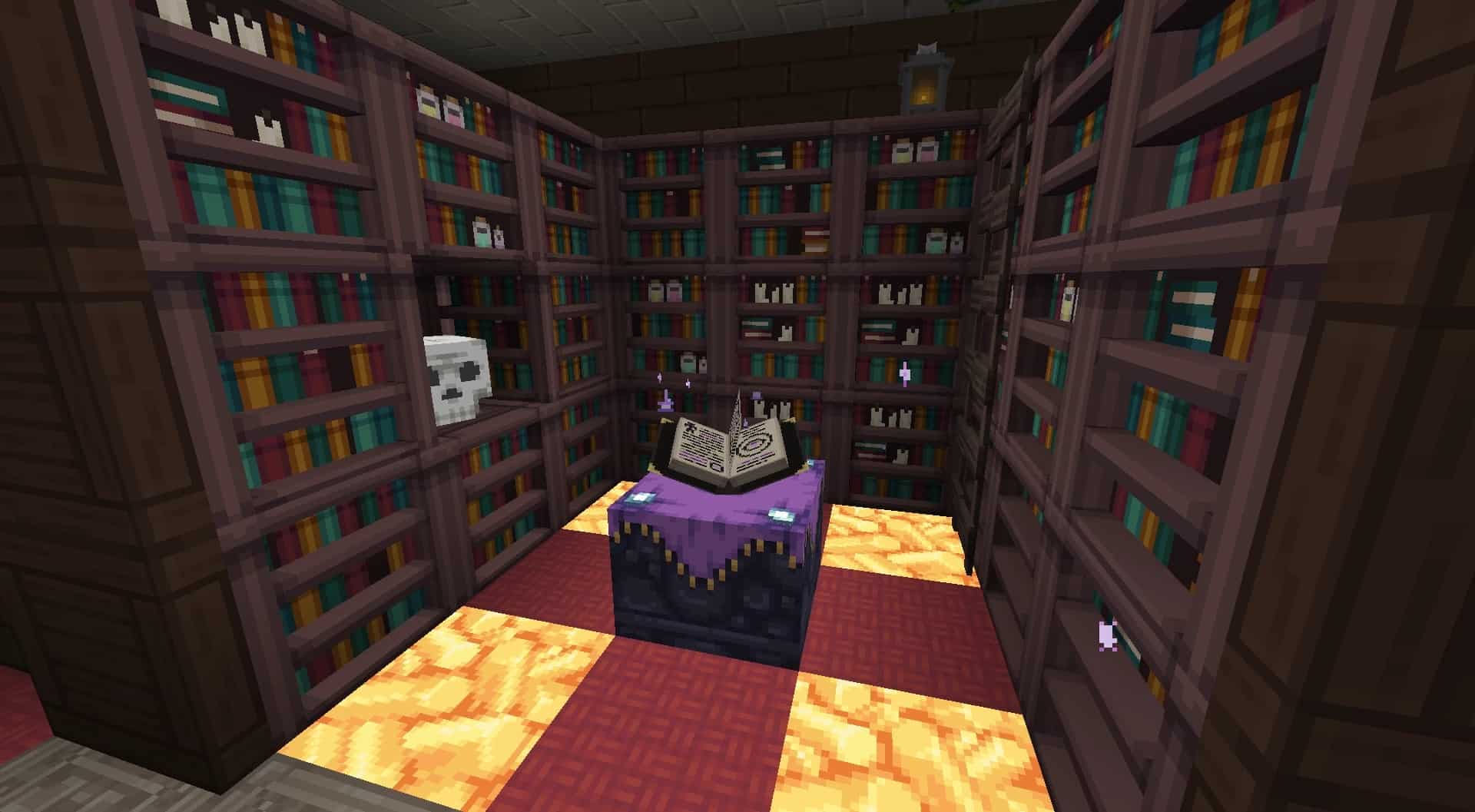
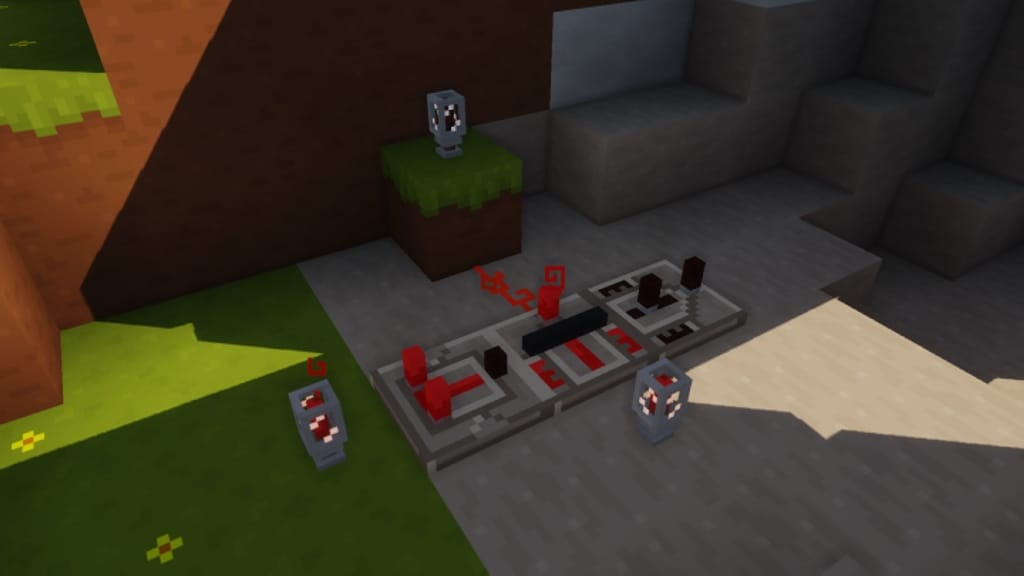
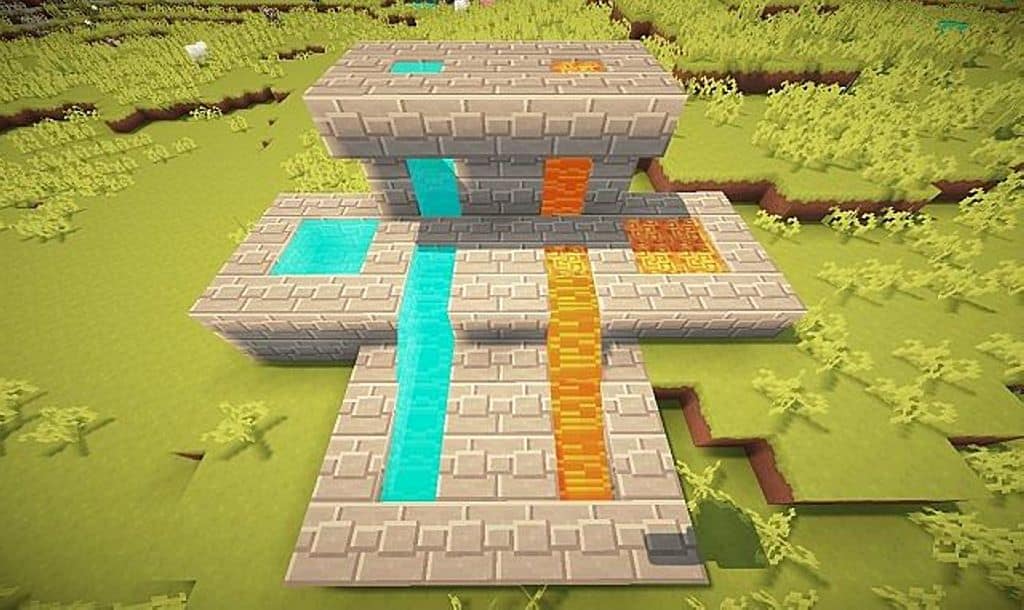
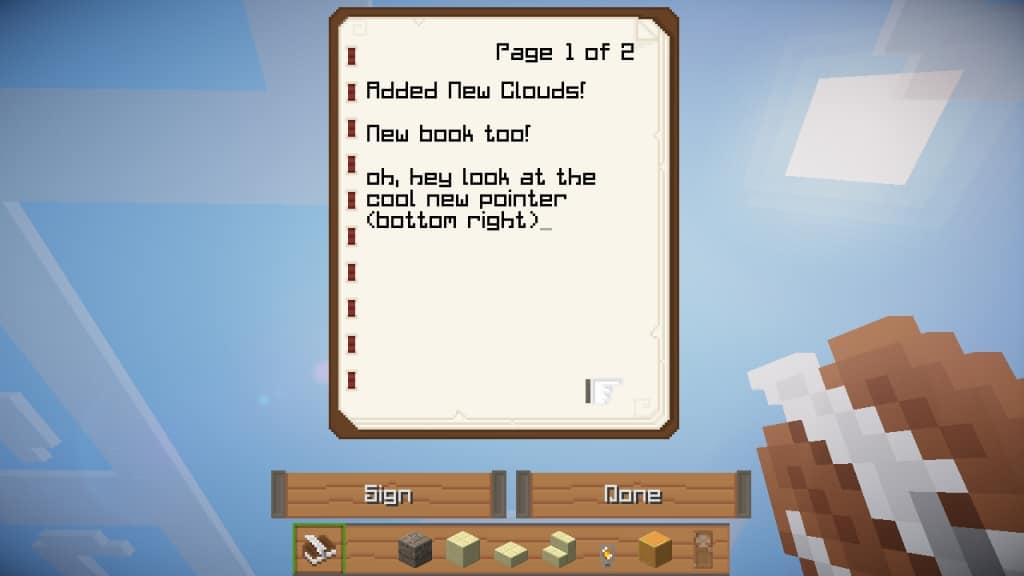
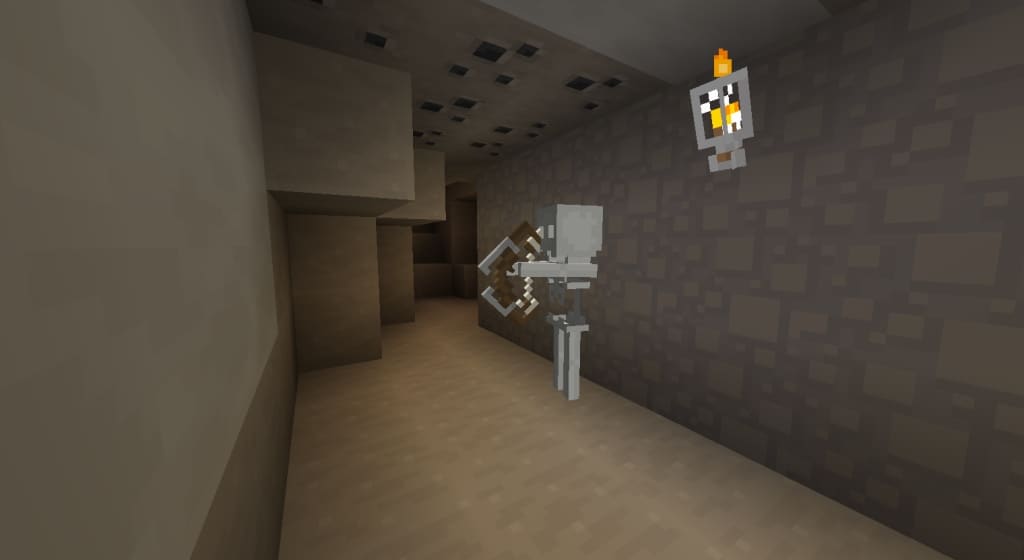
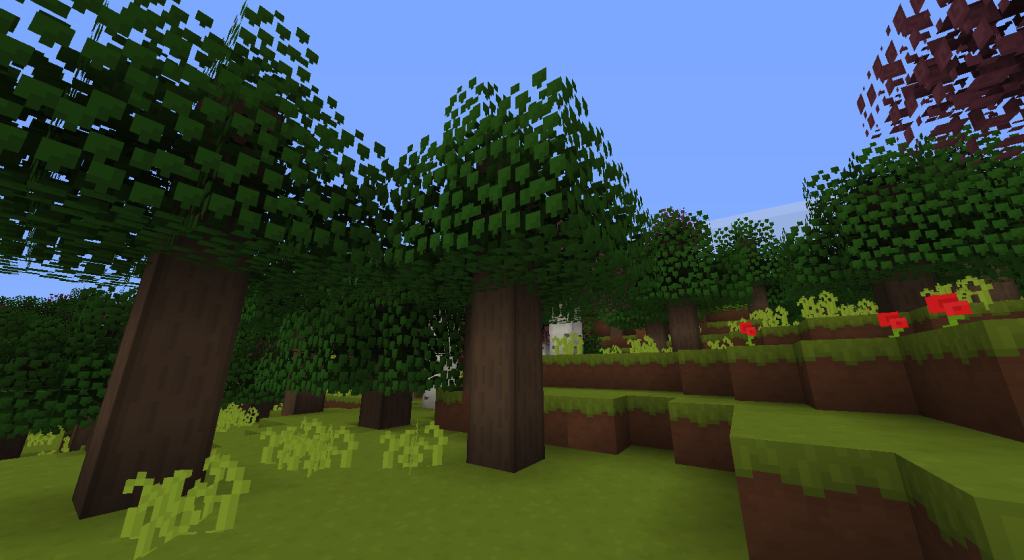
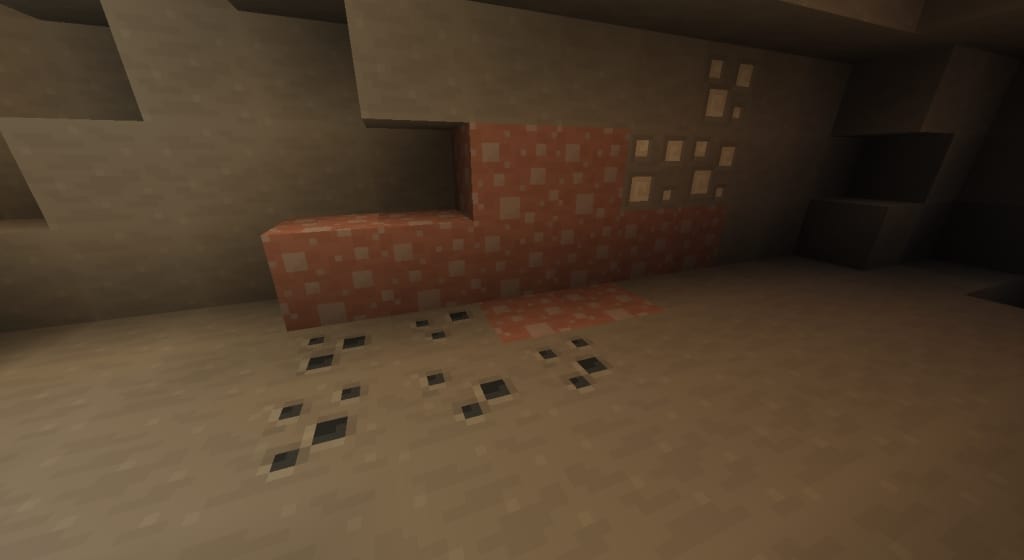
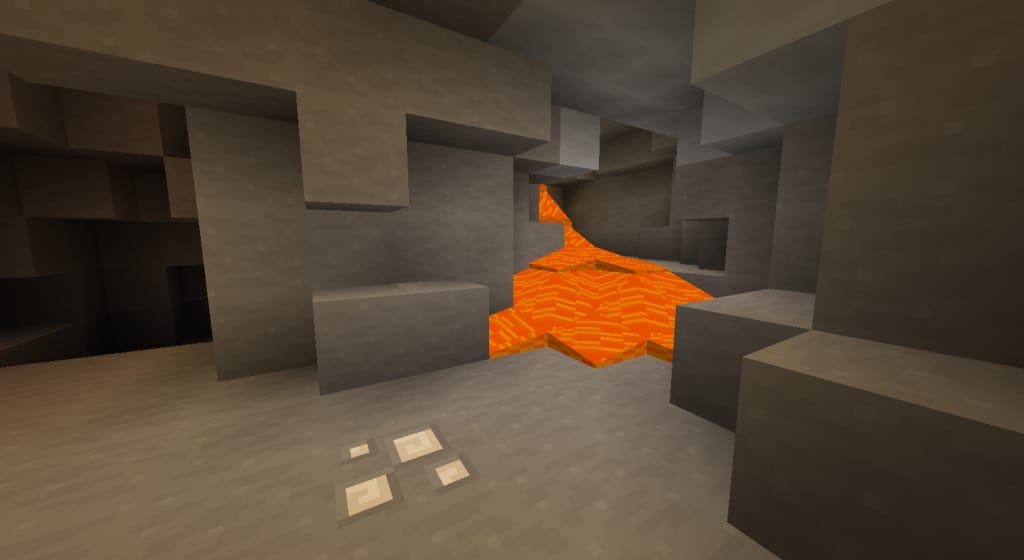
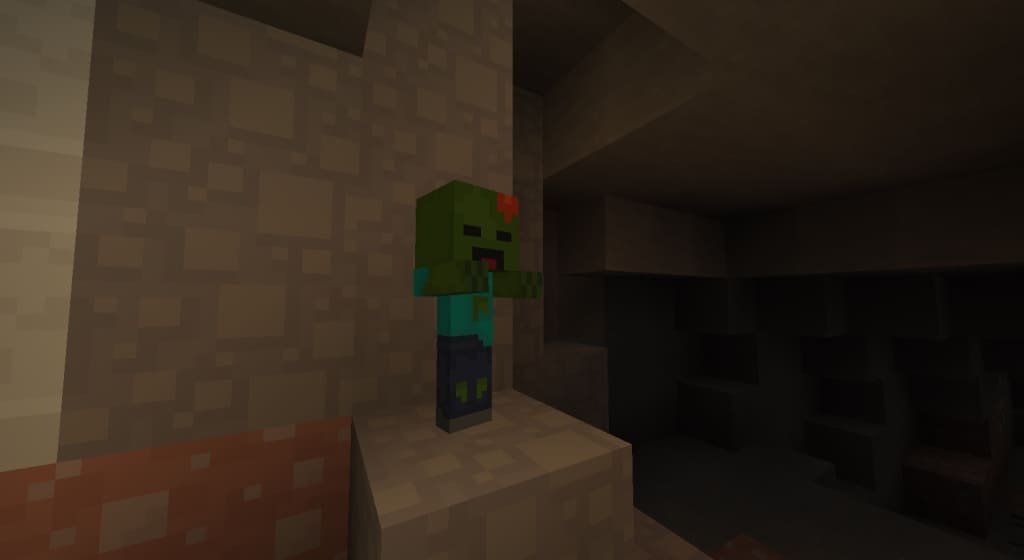
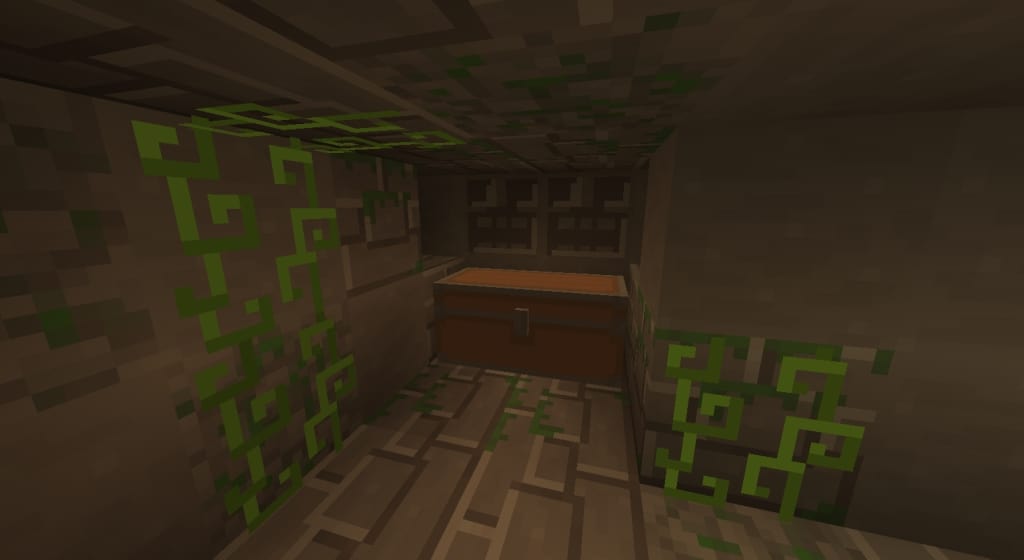
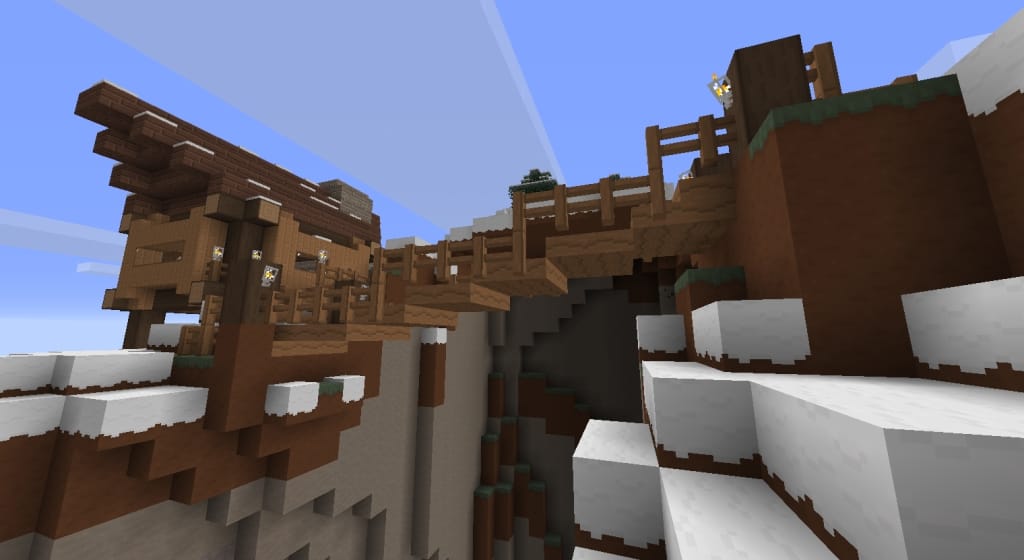
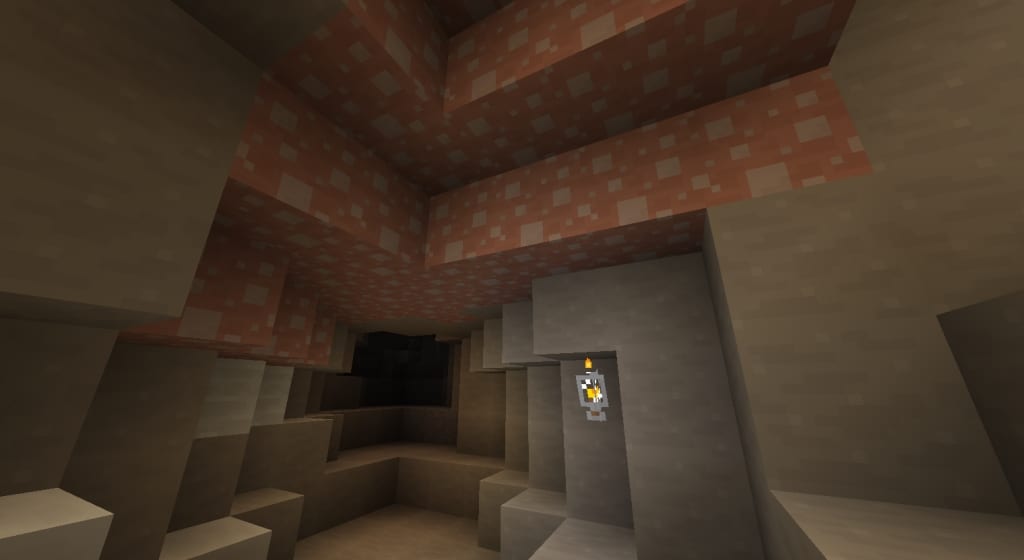
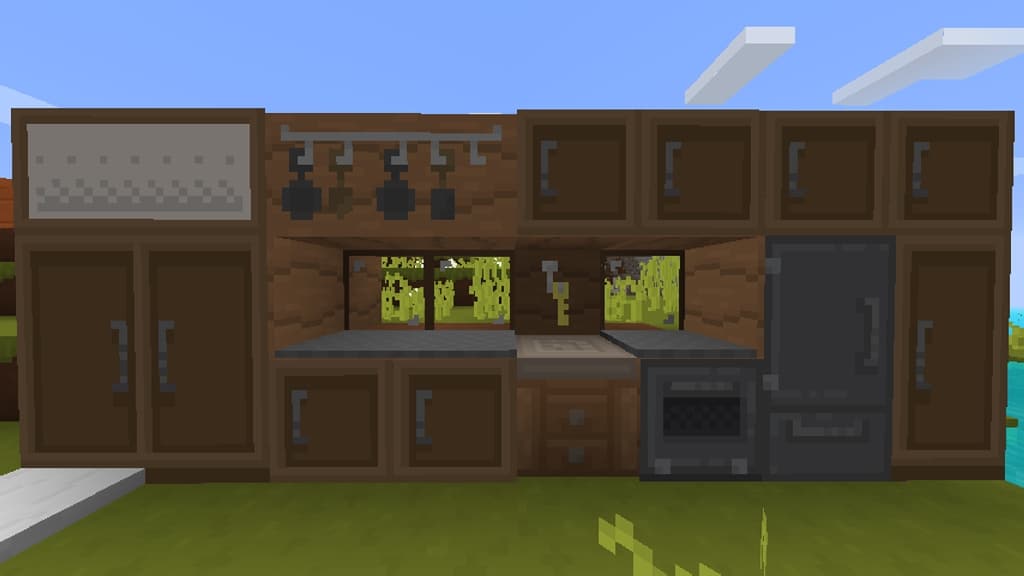
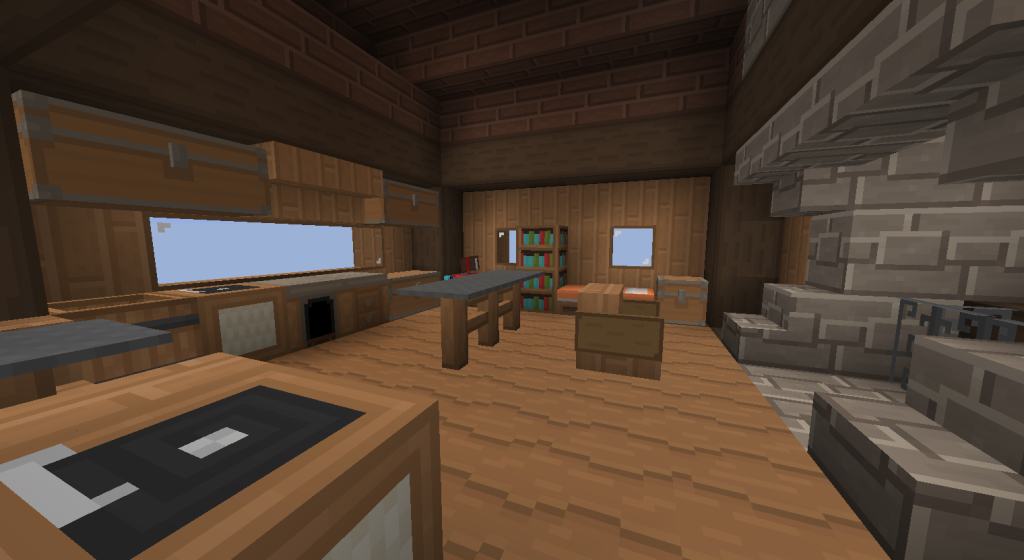
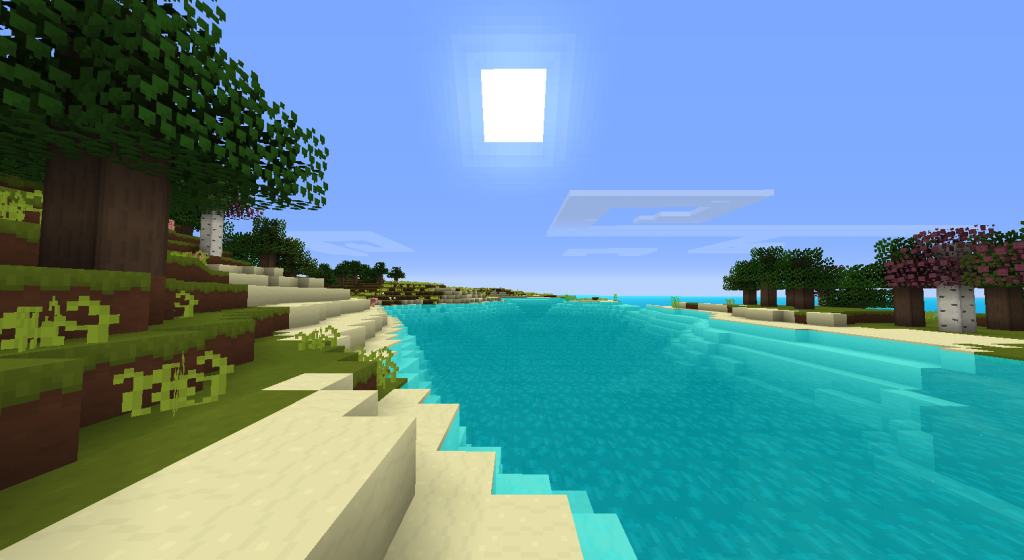
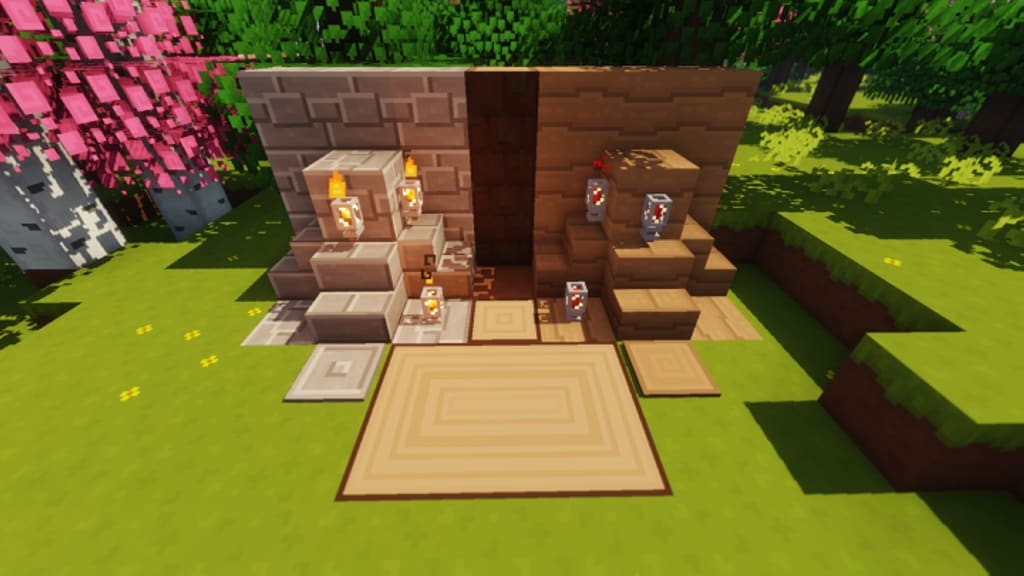
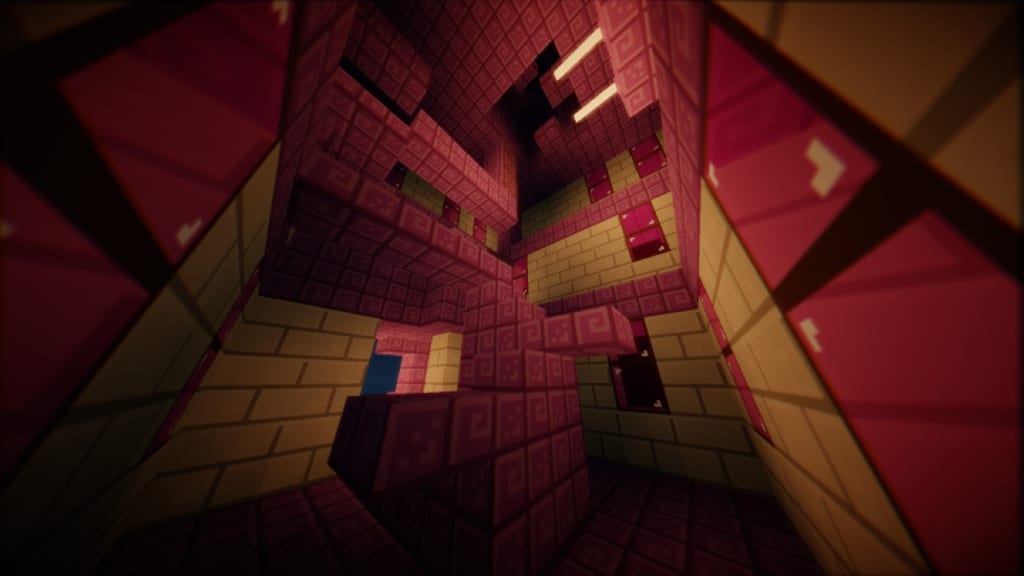
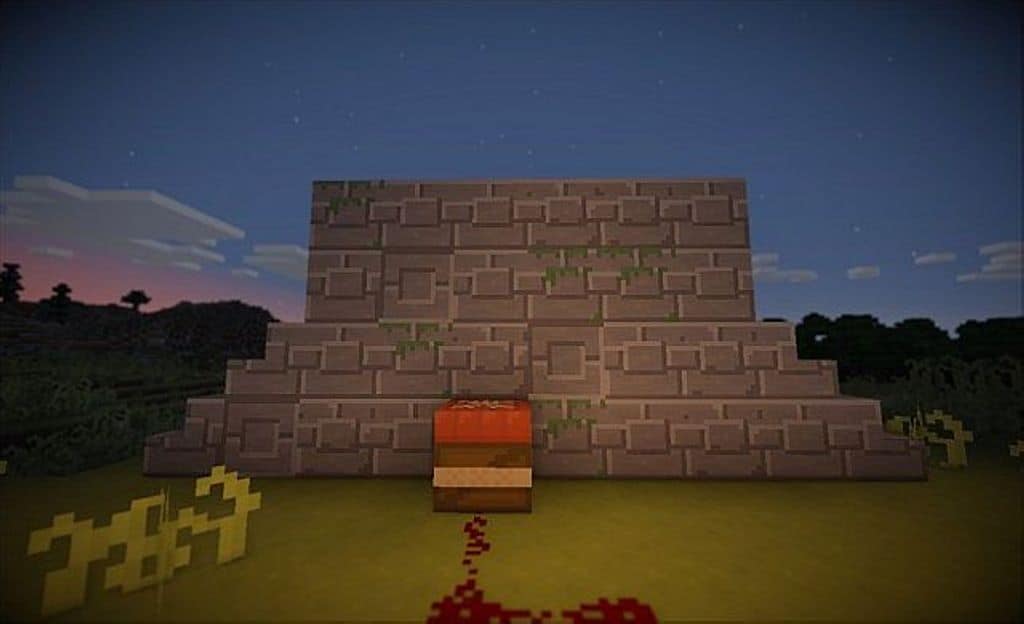
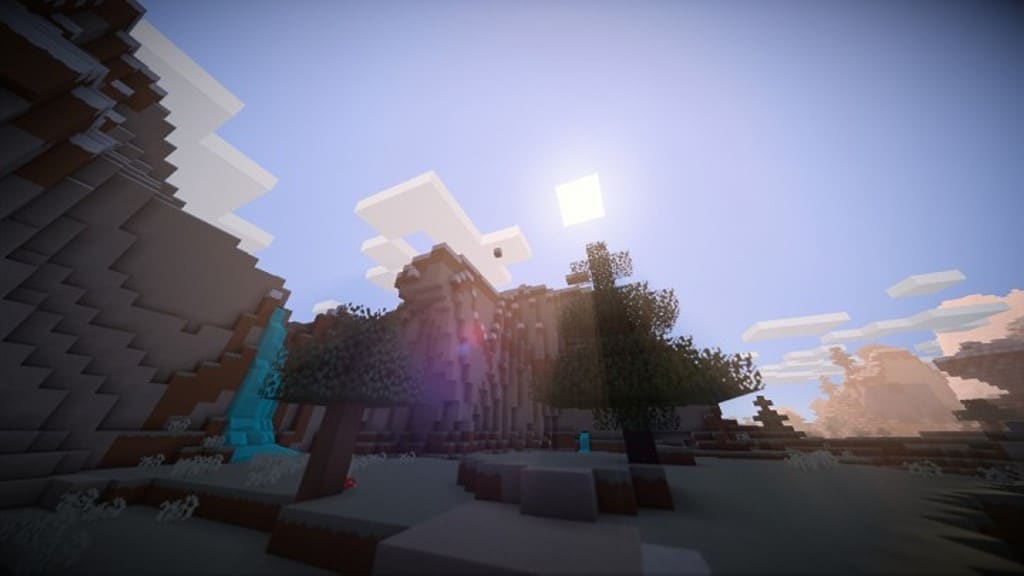
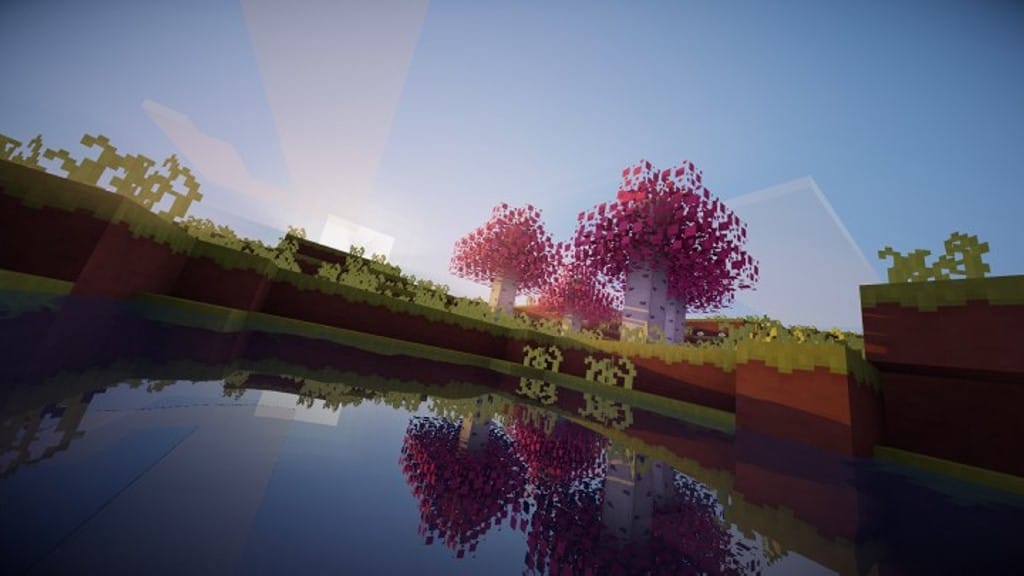
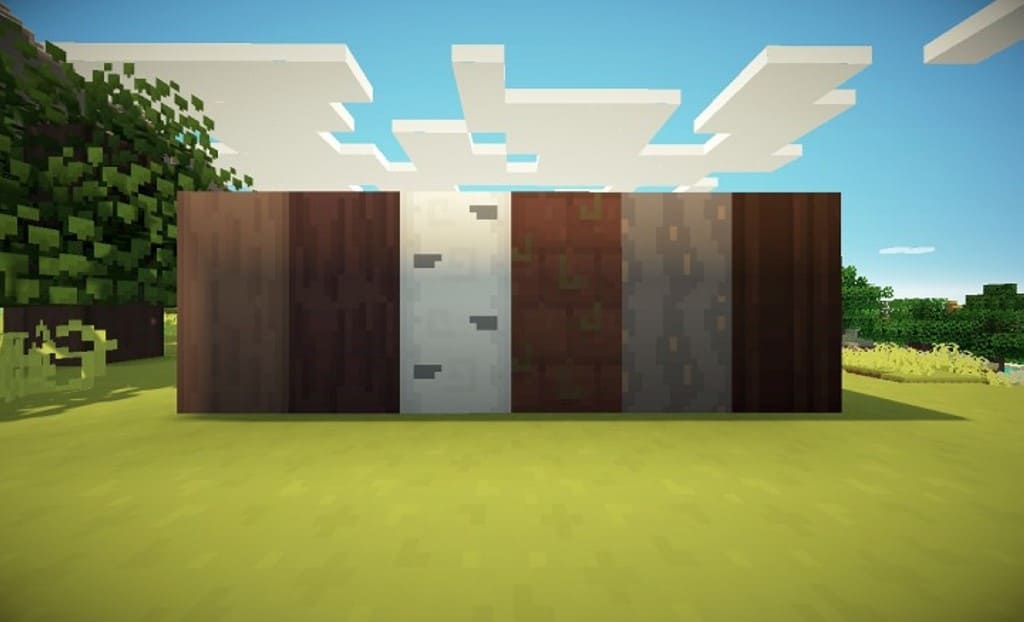
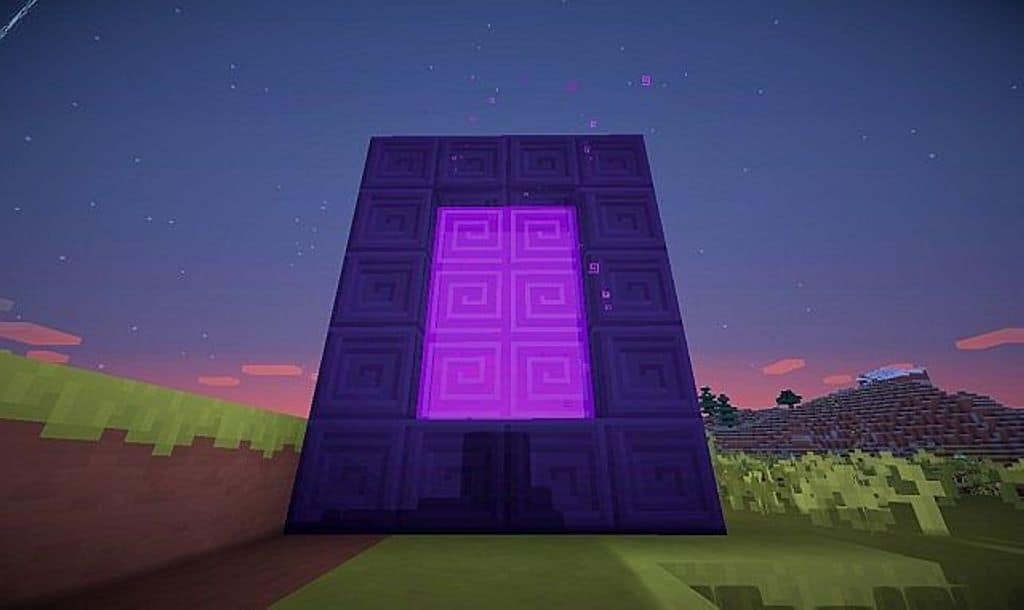
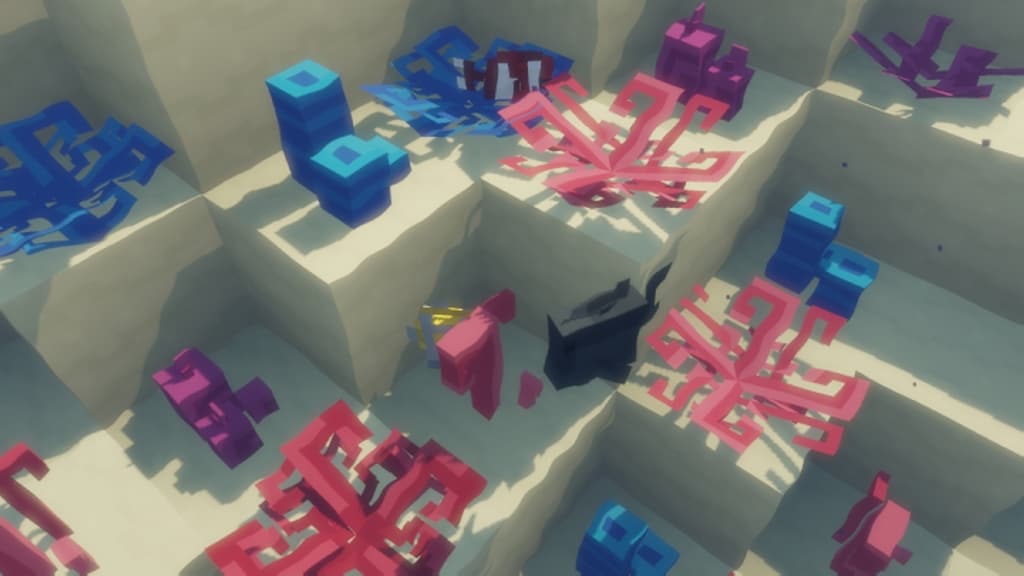
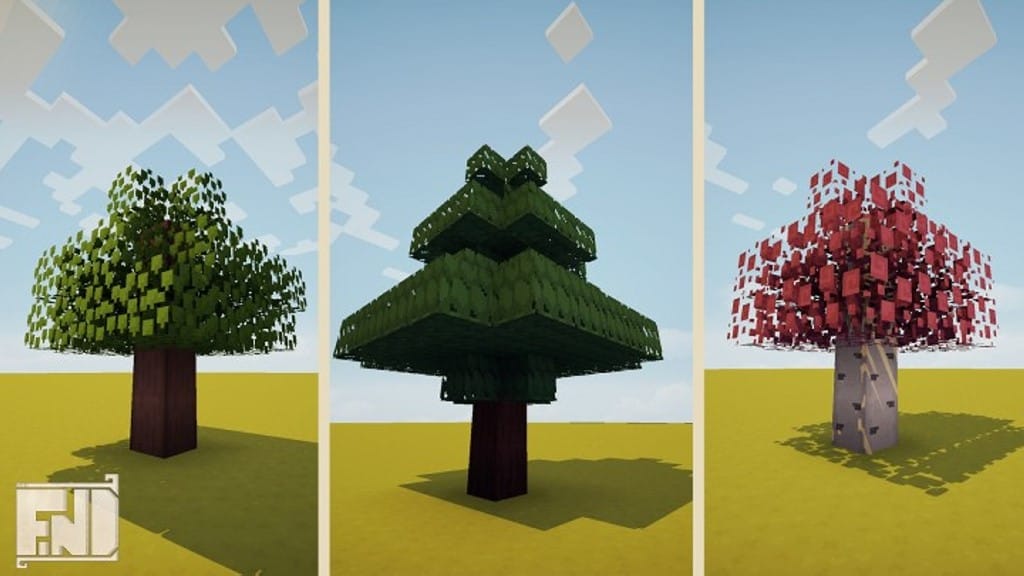
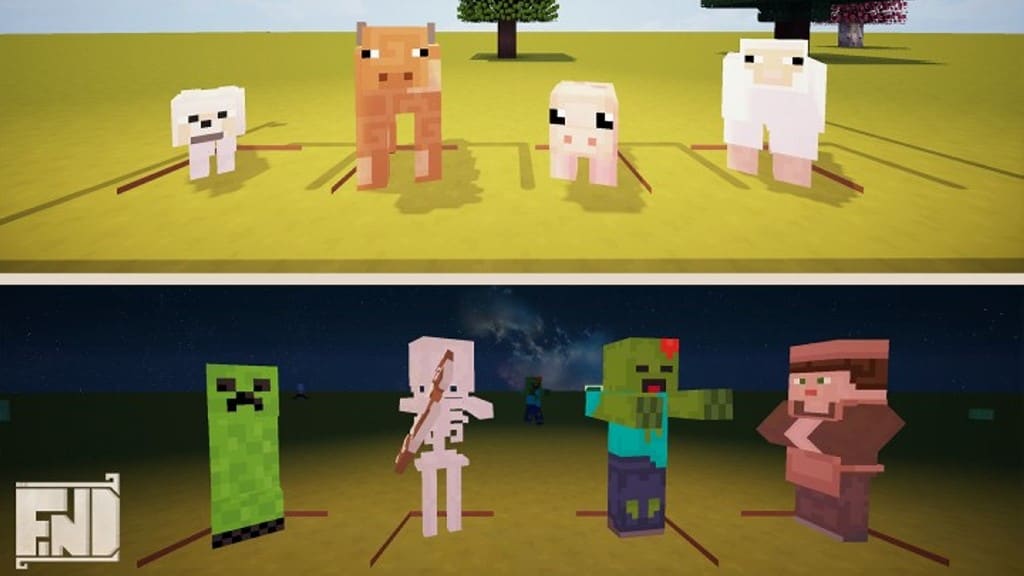
The idea behind any resource pack in Minecraft is always to make your Minecraft world experience more unique and personalized. While the vanilla Minecraft experience may be our first love, that does not mean it can’t be improved upon! I found that The Find is one resource pack that has successfully taken the vanilla Minecraft experience and greatly enhanced it. The Find resource pack offers you a variety of custom designs, new liquid animations, and other improved features. You will notice even the sun and moon are custom designed in The Find, which I think is a wonderful touch. The Find overhauls your entire Minecraft world with very little recycled vanilla Minecraft textures. The Find is sure to stand out among the crowd when it comes to custom resource packs, and you will love exploring with it. The Find will also replace some of your farming visuals; baby animals are much cuter, and their big adorable eyes will definitely have your heart melting every time you check your pens!
The Find texture pack does an amazing job of making sure that all of the new visuals and textures fit seamlessly together. Your blocks, furnaces, crafting tables, chests, and absolutely everything look like it all belongs together in this resource pack. Unlike some other resource packs that can sometimes feel like a jumbled and clumsy mess, The Find is carefully created to make your whole world look and feel like it is in complete harmony. I really enjoyed how The Find resource pack also pairs very well with a good shader pack, making the light effects really pop. The Find resource pack even upgrades the look of common textures like cobblestone or dirt, making sure that your entire Minecraft world looks refreshing and new. Best of all, The Find resource pack is 100% complete! You won’t need to deal with any annoying updates to fix missing textures or bugs, and it is fully optimized and compatible with the latest version of the Minecraft game client. You won’t need to worry about having to use older versions of the game to enjoy The Find and its awesome enhanced visuals.
The Find! should be compatible with all of these Minecraft versions: 1.14.4 – 1.14.3 – 1.14.2 – 1.14 – 1.13.2 – 1.13.1 – 1.13 – 1.12.2 – 1.12 – 1.11.2 – 1.11 – 1.10.2 – 1.10 – 1.9.4 – 1.9 – 1.8.8 – 1.8.1 – 1.8.6 – 1.8
Screenshots



How to Install Texture Pack (Simple 10 Steps)
- Download OptiFine: Most of the texture packs and shaders need OptiFine. That’s why, first download and install OptiFine for the version of Minecraft you want to play.
- Download the Texture Pack: Get the texture pack you want from the download section. Choose the version that works with your Minecraft and your PC’s performance.
- Open Minecraft Launcher: Start Minecraft using the official game launcher — or even TLauncher, if you use that.
- Go to Options: From the main menu, click on the “Options” button.
- Open Resource Packs: Inside Options, click on “Resource Packs…”.
- Open the Resource Pack Folder: Click on “Open Resource Pack Folder” — this will open a folder named “resourcepacks”.
- Move the Pack File: Copy or move the .zip file you downloaded into that “resourcepacks” folder. (Don’t unzip the file — Minecraft uses it as-is!)
- Go Back and Refresh: Close the folder and click “Done”, then go back into “Resource Packs…” again.
- Activate the Pack: You’ll see the pack on the left side. Hover over it and click the arrow to move it to the right (active side).
Tip: If you get a message that the pack is for a different version, just click “Yes” — it usually works fine. - Click Done and Enjoy: Click “Done” again. Now your pack is ready to use in-game. It’s that easy!
Credits
This resource pack was originally created by Spiffyj. We do not claim ownership of this content, nor have we modified the original files. All rights remain with the original creator, and we highly recommend supporting Spiffyj by visiting their official source and download pages.
Download Links
Java Edition
Download Instructions
Curseforge: download starts automatically after a few seconds;
Mediafire: click the big blue button with the text “DOWNLOAD”;
Google Drive: in the top right corner you will see a small download icon (down arrow), click it and the download should start;