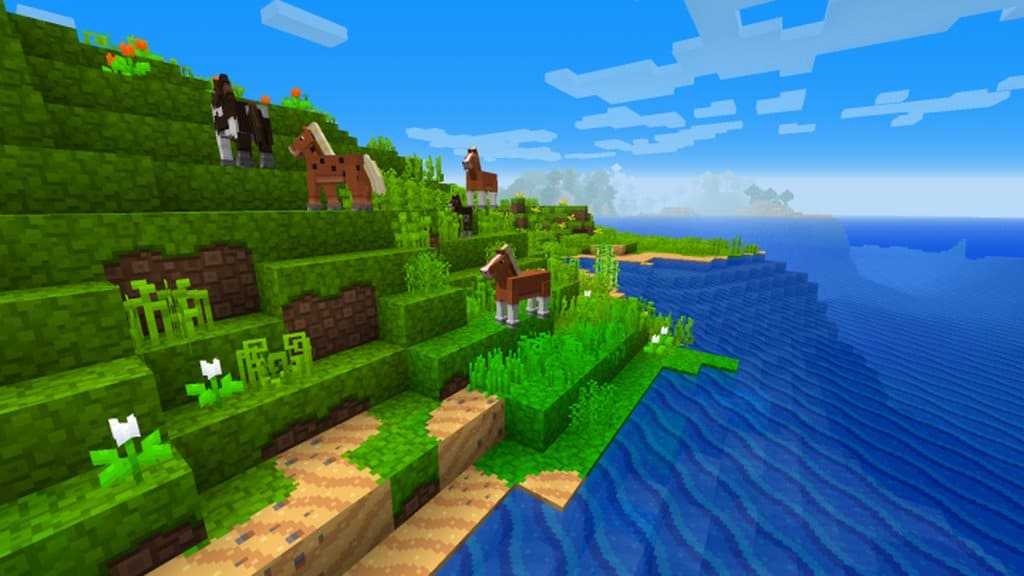
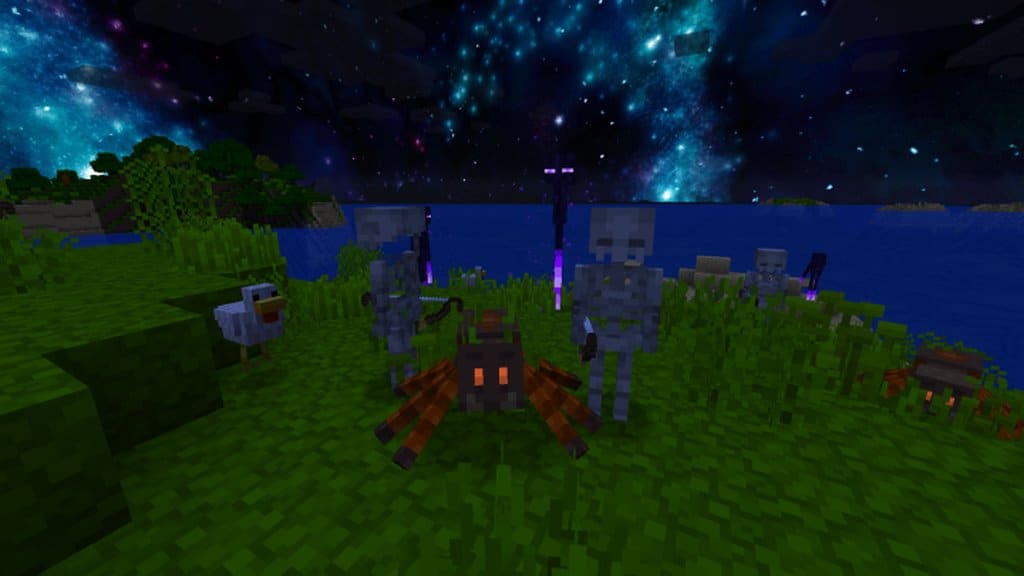
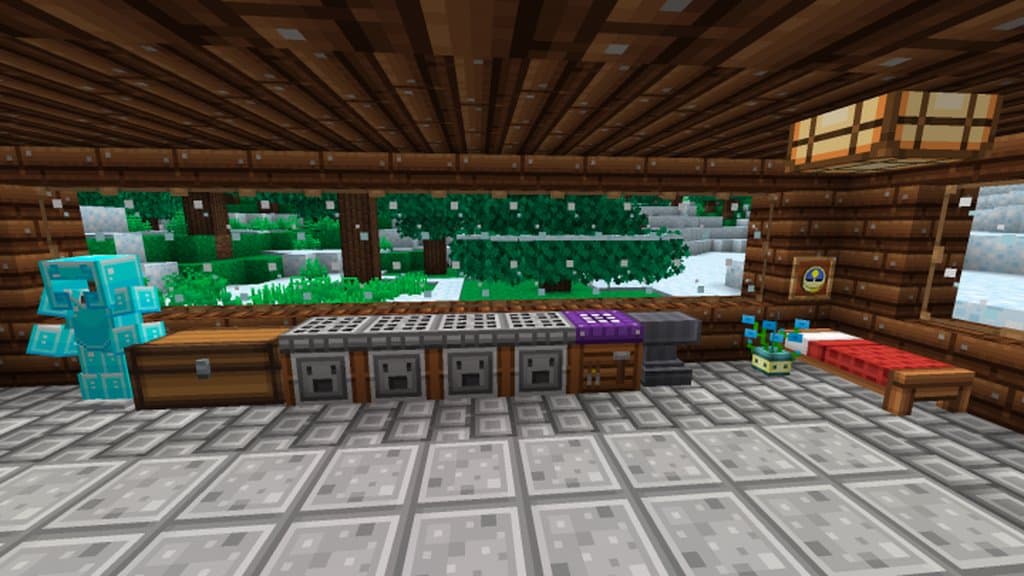
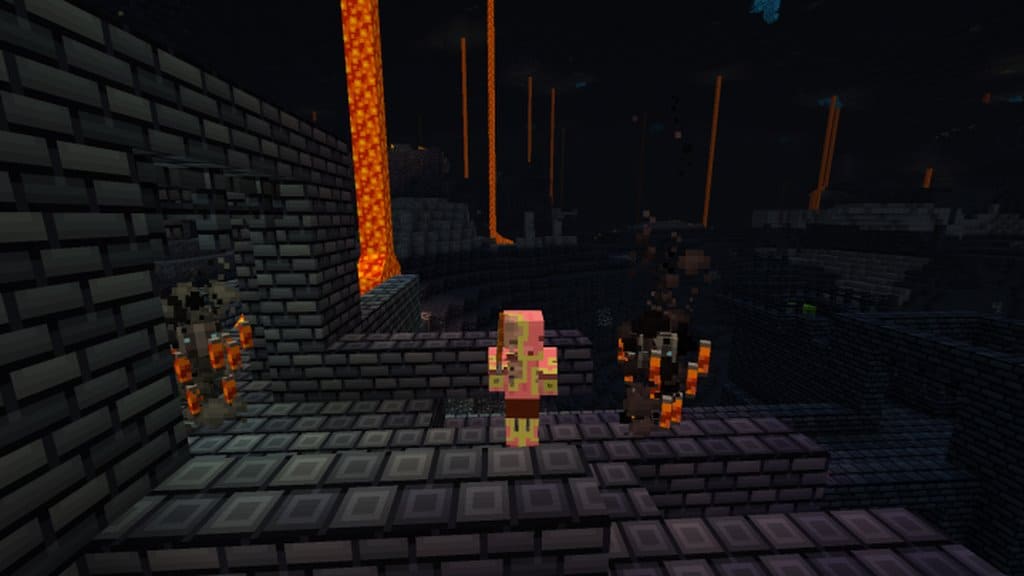
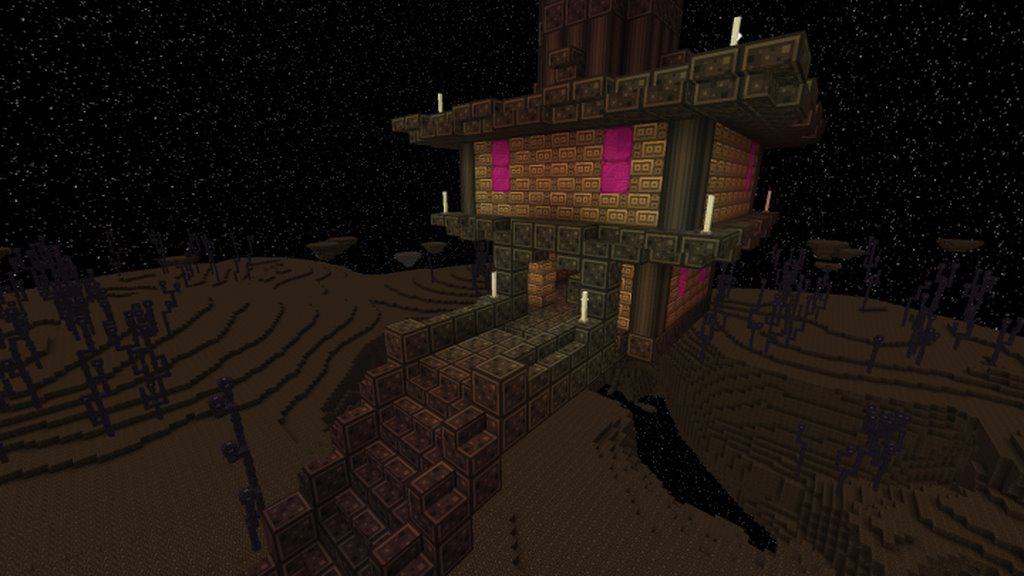
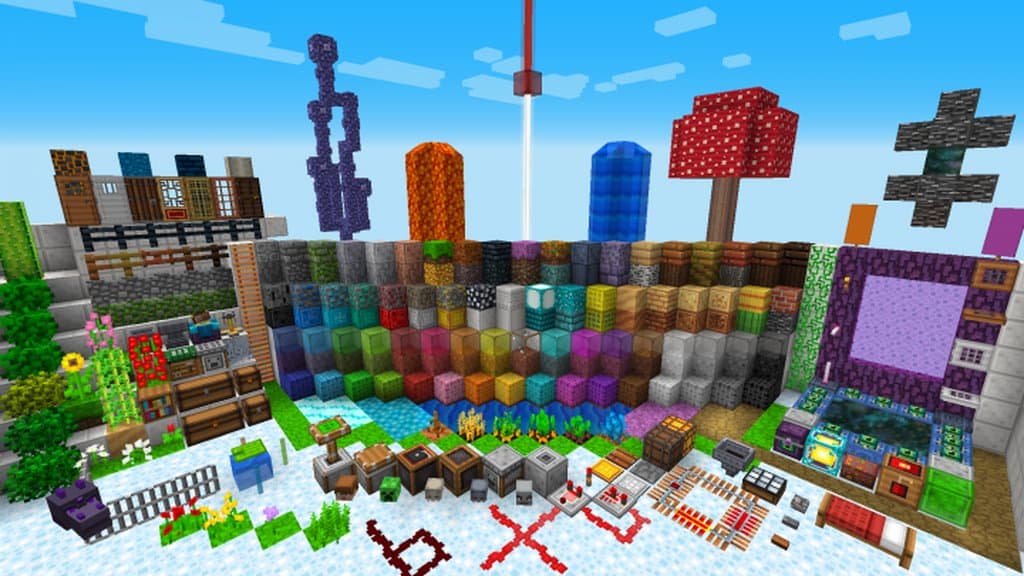
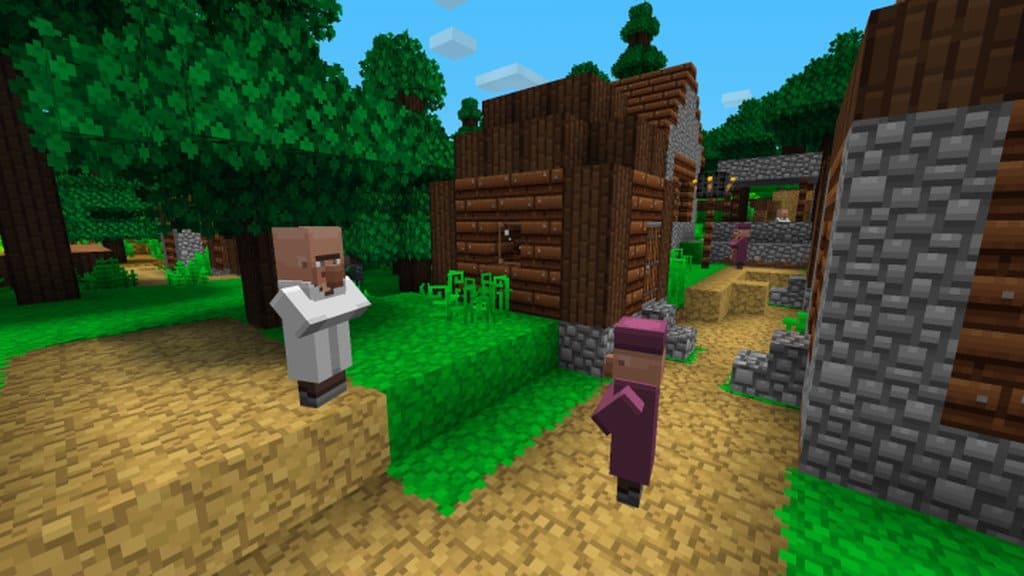
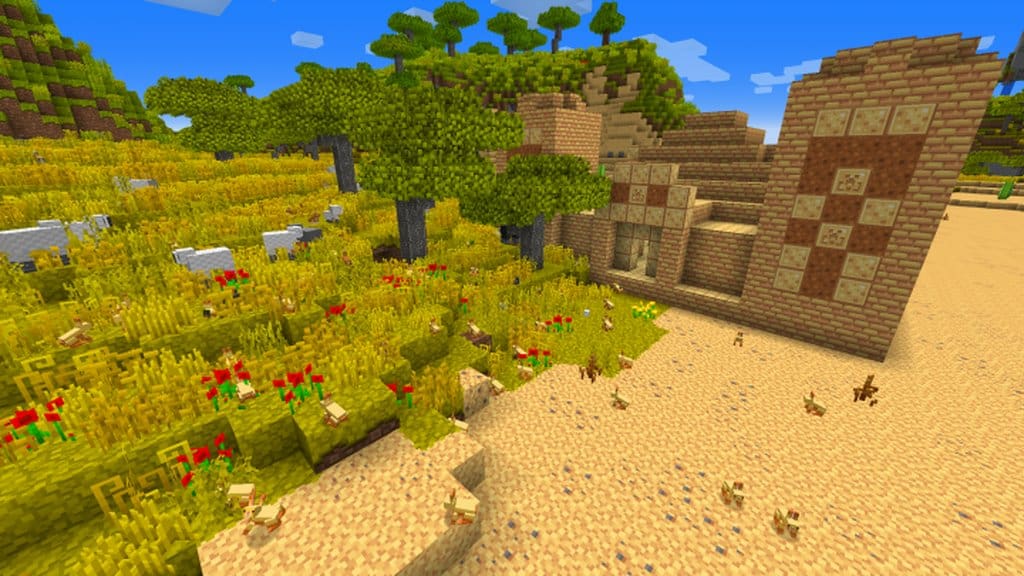
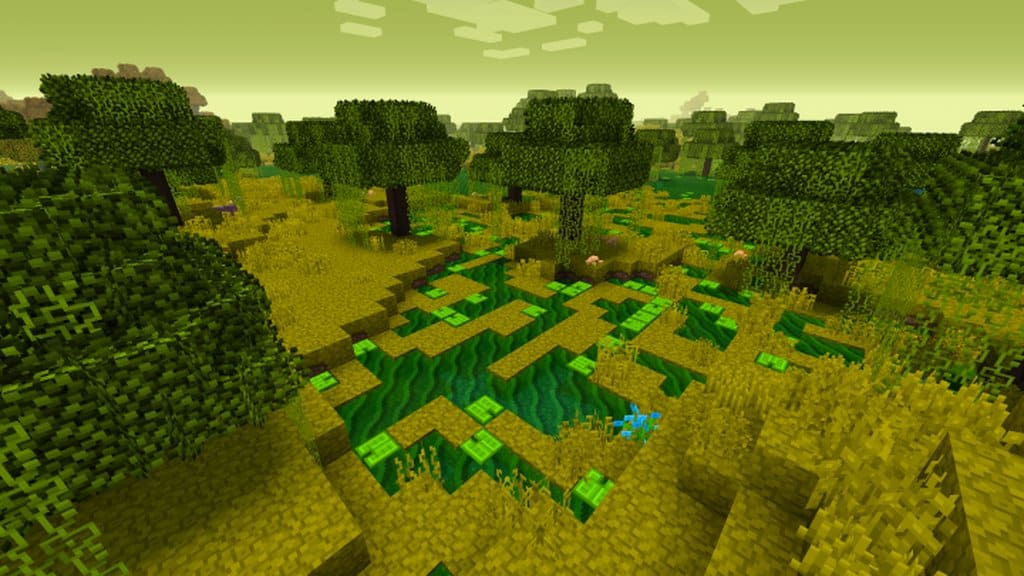
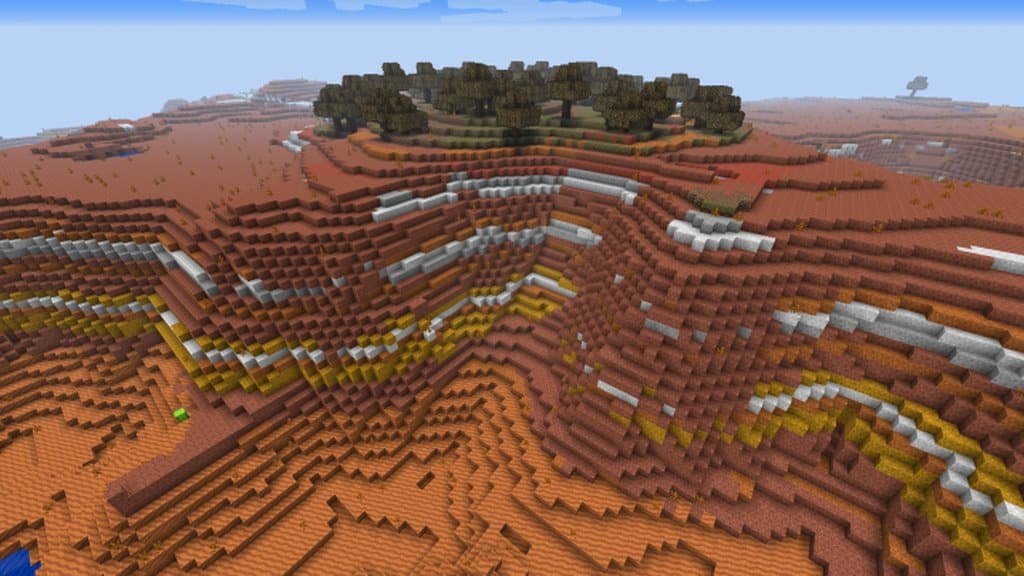
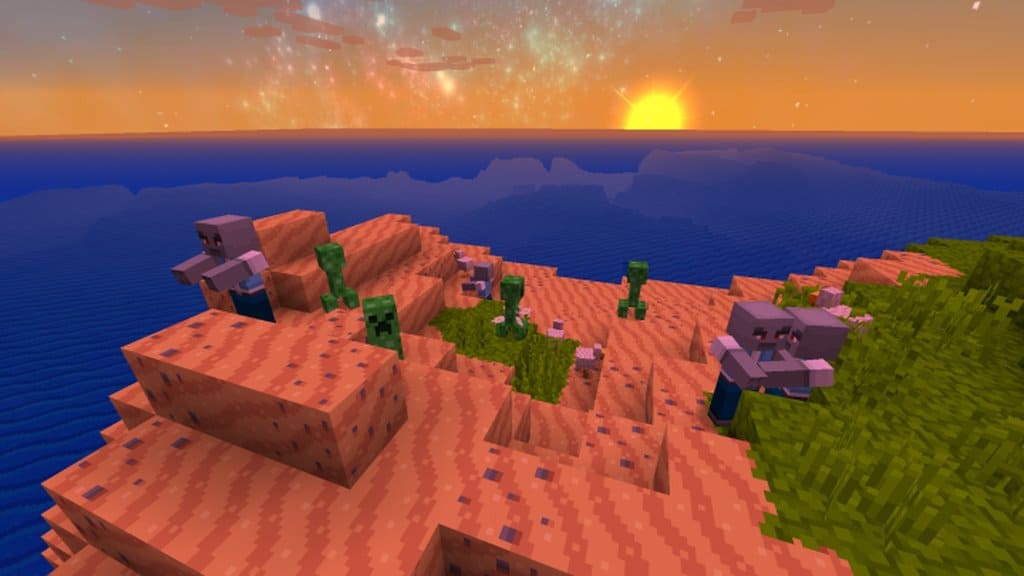
Everybody simply loves images that are easy on the eye, and if you are currently looking for a texture pack that can take your Minecraft vanilla textures and make them radiate even more, the Radiant Pixels resource pack is honestly your absolute best bet! The coolest thing about Radiant Pixels is that it does not make too many drastic changes to those classic vanilla-style visuals that have always been Minecraft’s strongest selling point. Although this pack definitely makes some refined adjustments to the initial image textures, it carefully keeps them as similar as possible to the way they originally were in vanilla. The fact that it took nearly 15 months to develop this pack should honestly tell you a lot about the incredible meticulousness of the process of creating it, and its exceptionally high quality proves that the wait was worth every single minute since the development of the pack first started back in January 2015.
I was amazed to find that the pack comes with textures that not only have an extremely simplistic design but also exude such a wonderful vibe that simply looking at them is an absolute delight. You truly will not find a better and much more vibrant color palette than that of Radiant Pixels! Besides all of these great qualities, Radiant Pixels features a user interface that is delightfully minimalistic and exceptionally clean, which is easily one of the best features of the Radiant Pixels Resource Pack in my opinion. It stands proudly apart from the many resource packs that introduce new GUIs which are almost always overly cluttered and not appealing at all. Far from it, the Radiant Pixel user interface is genuinely pleasing to look at and never feels all over the screen. Best of all, sticking faithfully to Minecraft’s standard resolution, this pack’s resolution is 16x, meaning you will find absolutely no trouble getting it to run smoothly even on the slowest PCs.
Radiant Pixels should be compatible with all of these Minecraft versions: 1.17.1 – 1.17 – 1.16.5 – 1.16.4 – 1.16.3 – 1.16.2 – 1.16.1 – 1.16 – 1.15.2 – 1.15.1 – 1.15 – 1.14.4 – 1.14.3 – 1.14.2 – 1.14 – 1.13.2 – 1.13.1 – 1.13 – 1.12.2 – 1.12 – 1.11.2 – 1.11 – 1.10.2 – 1.10 – 1.9.4 – 1.9
Screenshots

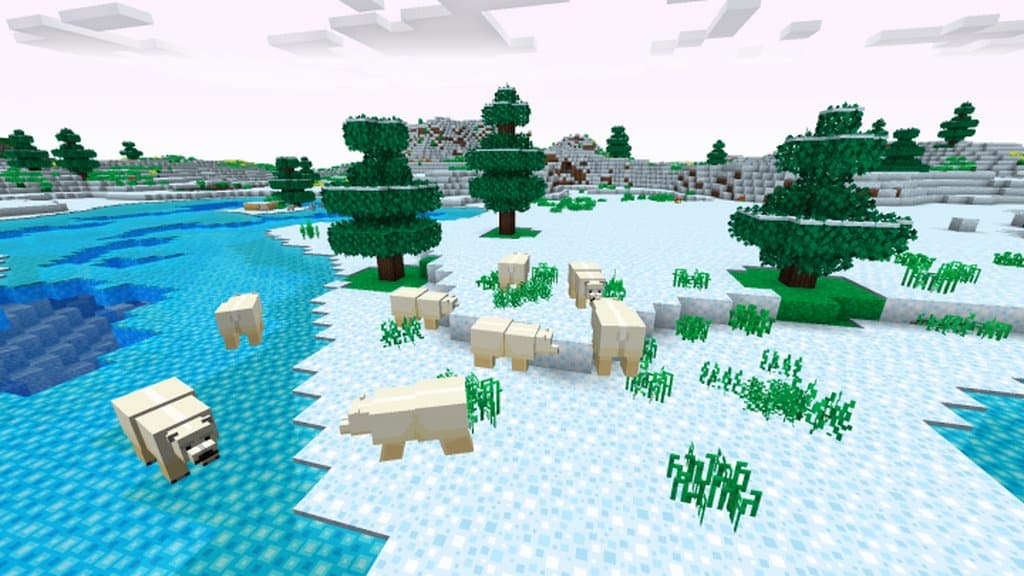
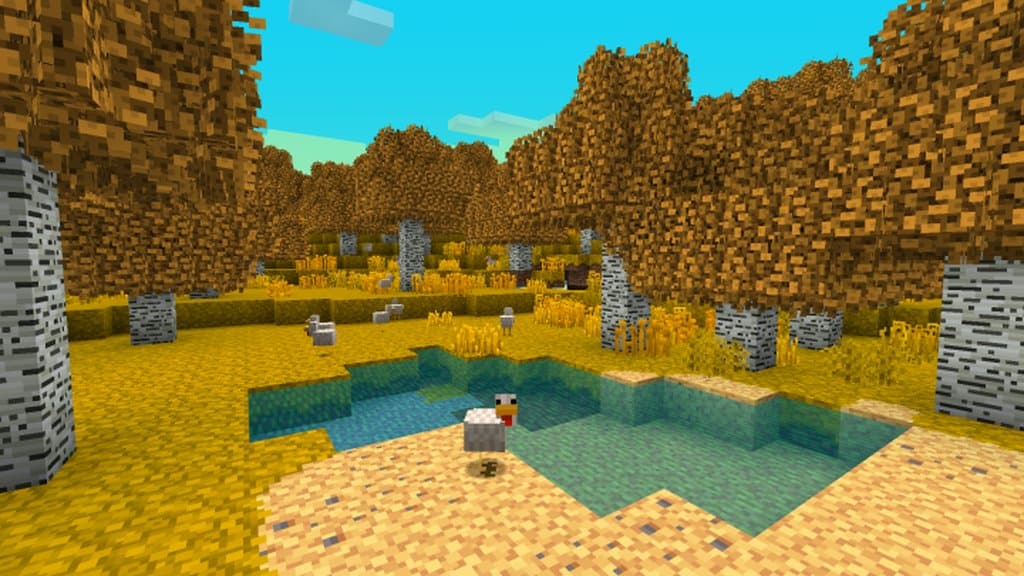
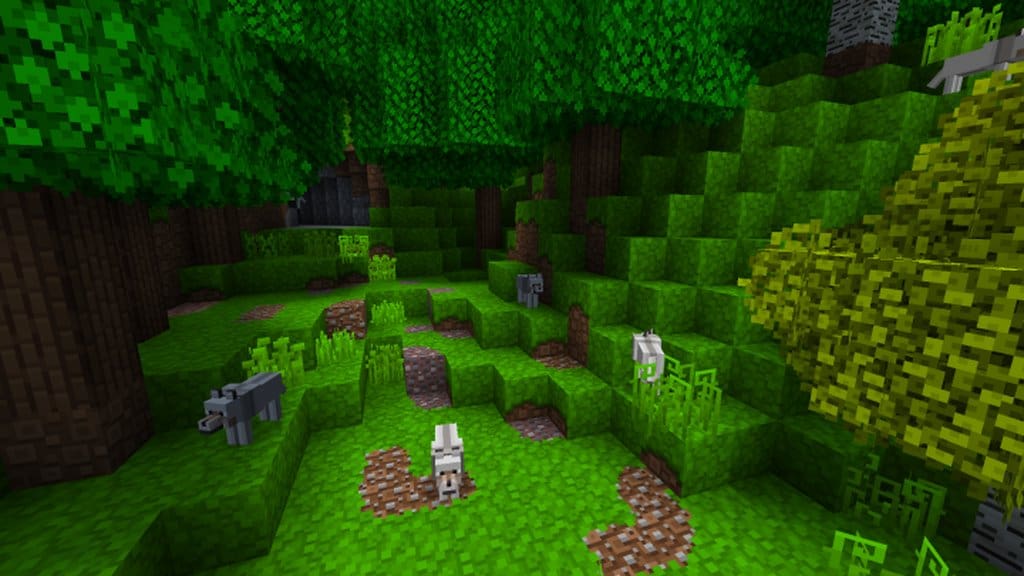
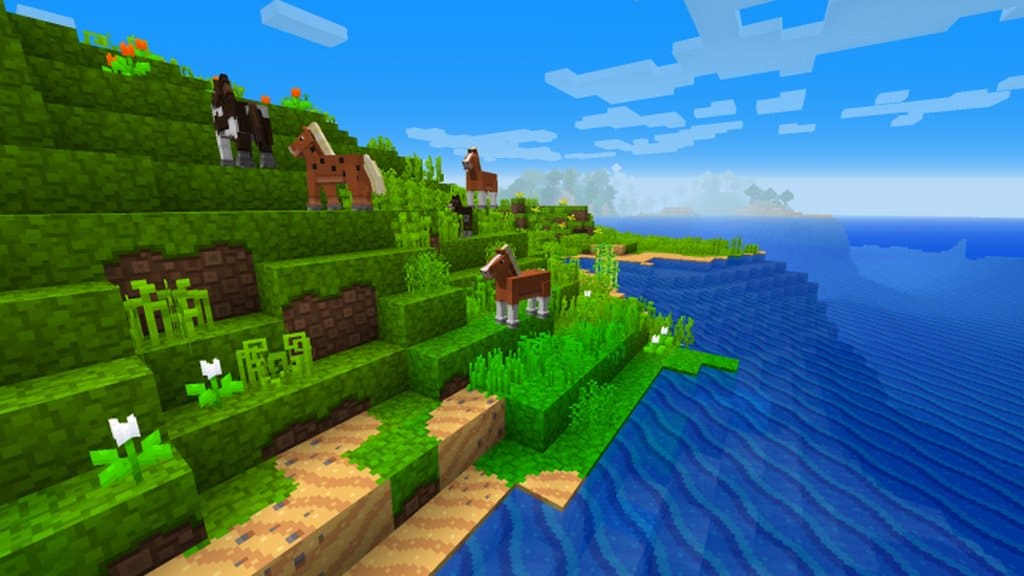
How to Install Texture Pack (Simple 10 Steps)
- Download OptiFine: Most of the texture packs and shaders need OptiFine. That’s why, first download and install OptiFine for the version of Minecraft you want to play.
- Download the Texture Pack: Get the texture pack you want from the download section. Choose the version that works with your Minecraft and your PC’s performance.
- Open Minecraft Launcher: Start Minecraft using the official game launcher — or even TLauncher, if you use that.
- Go to Options: From the main menu, click on the “Options” button.
- Open Resource Packs: Inside Options, click on “Resource Packs…”.
- Open the Resource Pack Folder: Click on “Open Resource Pack Folder” — this will open a folder named “resourcepacks”.
- Move the Pack File: Copy or move the .zip file you downloaded into that “resourcepacks” folder. (Don’t unzip the file — Minecraft uses it as-is!)
- Go Back and Refresh: Close the folder and click “Done”, then go back into “Resource Packs…” again.
- Activate the Pack: You’ll see the pack on the left side. Hover over it and click the arrow to move it to the right (active side).
Tip: If you get a message that the pack is for a different version, just click “Yes” — it usually works fine. - Click Done and Enjoy: Click “Done” again. Now your pack is ready to use in-game. It’s that easy!
Credits
Credits to Aurum_32 as the original creator of Radiant Pixels. We do not claim ownership of this content and do not modify the original files. Please support the creator by downloading from their official links.
Download Links
Java Edition
Download Instructions
Curseforge: download starts automatically after a few seconds;
Mediafire: click the big blue button with the text “DOWNLOAD”;
Google Drive: in the top right corner you will see a small download icon (down arrow), click it and the download should start;


