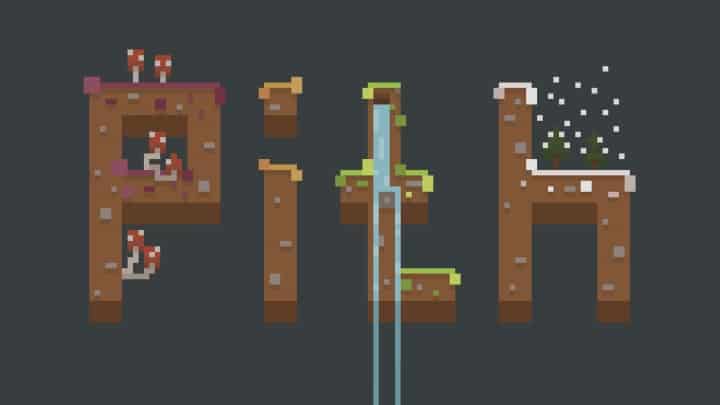
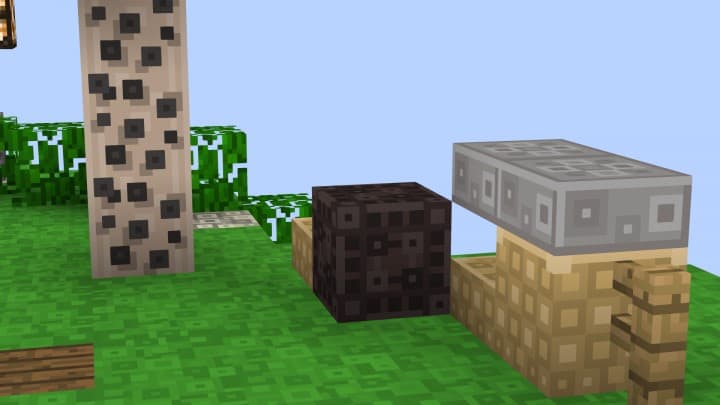
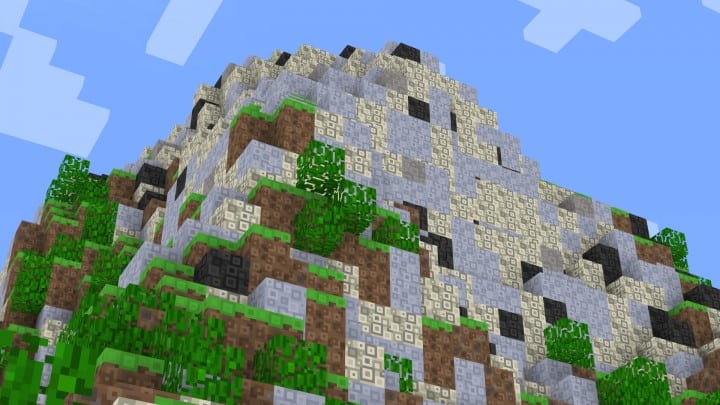
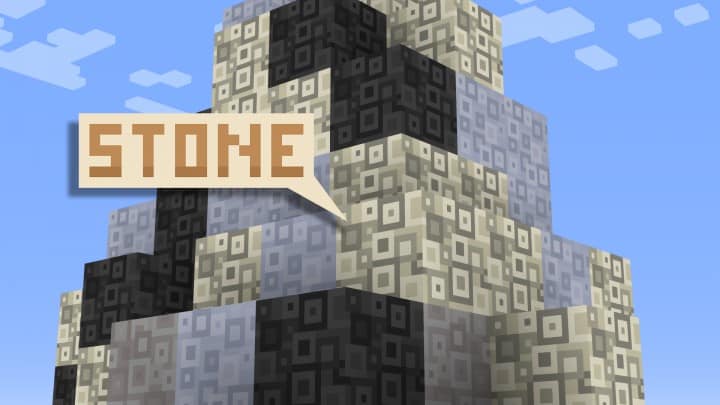
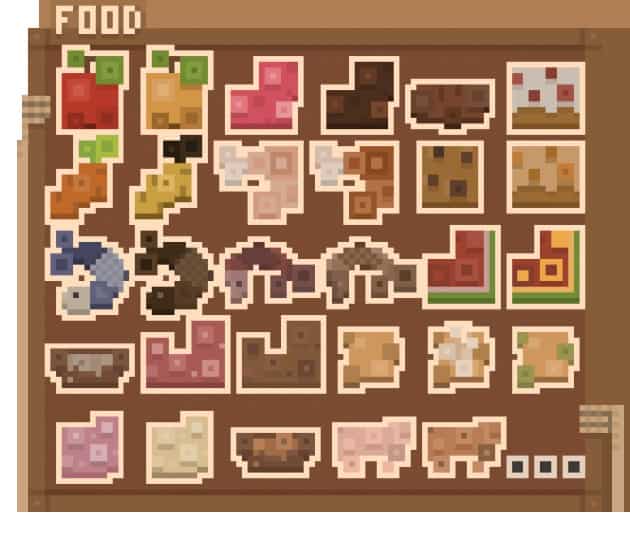
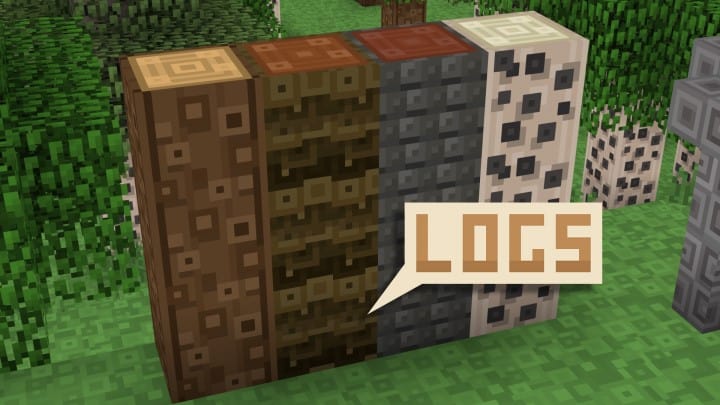
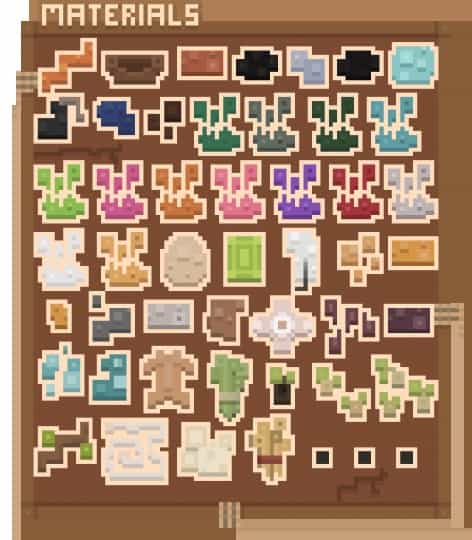
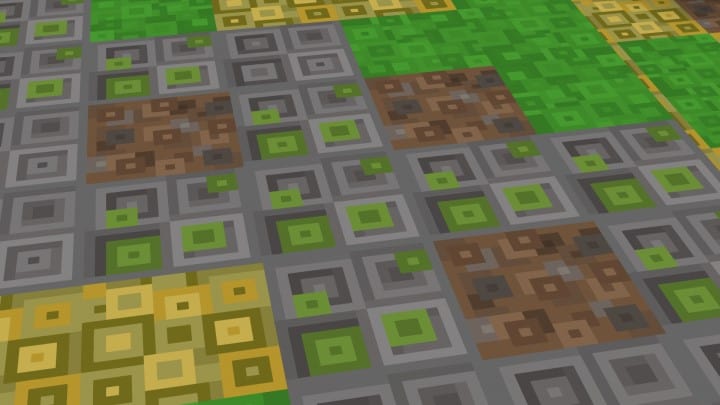
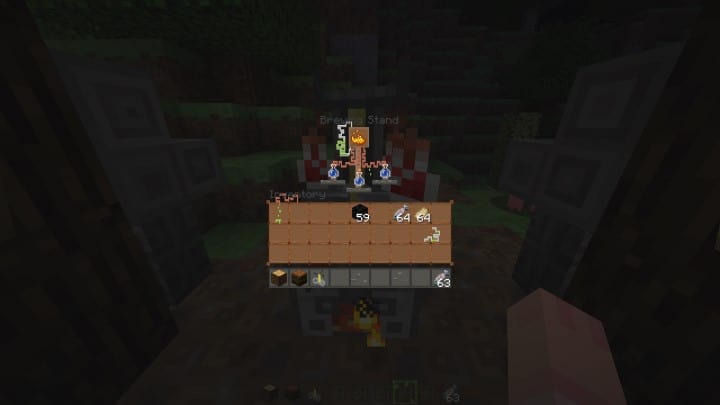
Storiie is a truly legendary resource pack creator who consistently delivers brilliant designs, firmly placing them at the absolute top of the resource pack creation ladder. One of their most recent masterpieces is known as Pith, and just like all of Storiie’s previous works, this pack is exceptionally unique and bound to be heavily sought after by passionate players everywhere. It is worth noting, however, that Pith is not necessarily designed for a broad general audience; instead, it is carefully crafted to cater to a very specific niche of players. Even so, Pith remains an incredible pack that is definitely worth trying out in your own worlds. Featuring an art style that appears pleasantly pale and simple, Pith utilizes clever design techniques to grant Minecraft not only a wonderfully immersive look, but a truly cinematic appearance as well.
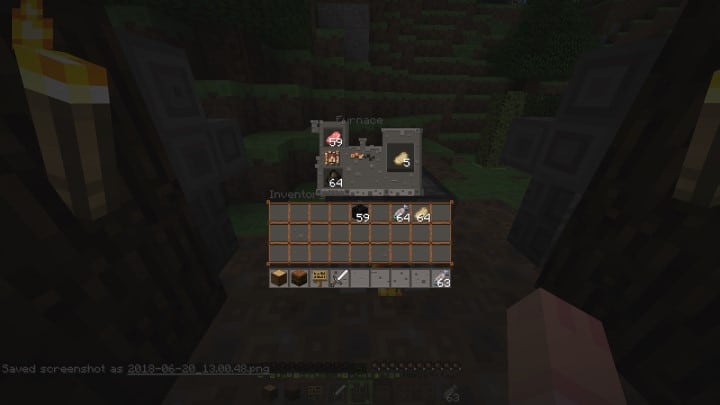
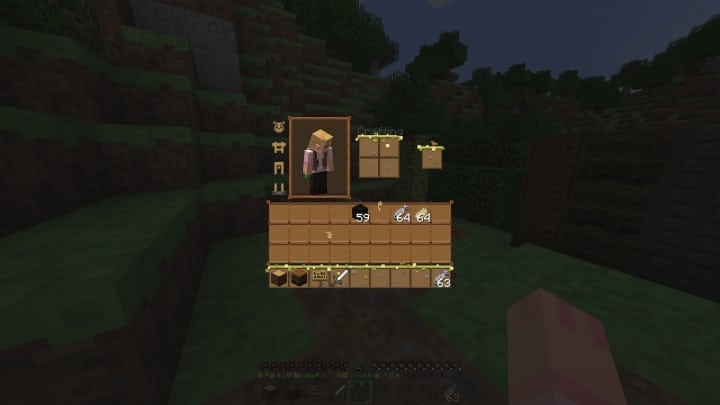
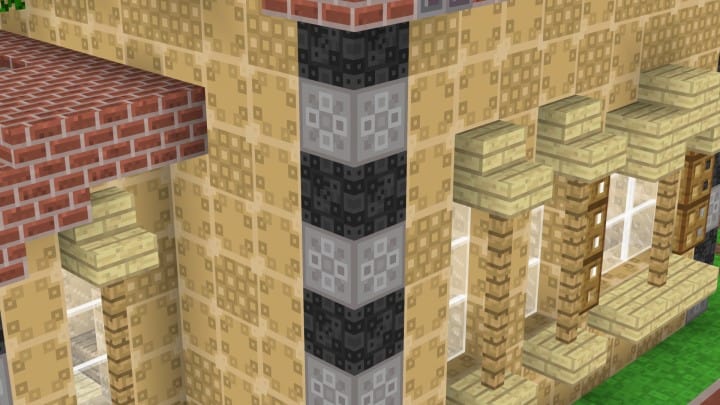
Players who deeply appreciate cinematic visuals and clean simplicity in Minecraft will thoroughly enjoy using Pith, particularly because there are so few resource packs out there that manage to capture this cinematic vibe so well. The Pith resource pack offers a distinctive visual experience that is second to none, complemented by great animations, excellent item and block textures, and outstanding originality. Best of all, Pith runs smoothly even on lower-end computers while maintaining a remarkably stable frame rate, thanks to its optimized 16×16 resolution. While Pith might initially look plain and minimalist, it features uniquely chosen colors that perfectly support its simple textures alongside exceptionally thoughtful designs. Finally, this streamlined simplicity makes Pith wonderfully suited for the PvP community, as the clean textures ensure you will never miss crucial visual cues during intense combat encounters.
Pith should be compatible with all of these Minecraft versions: 1.8.9 – 1.8.8 – 1.8.1 – 1.8.6 – 1.8
Screenshots
How to Install Texture Pack (Simple 10 Steps)
- Download OptiFine: Most of the texture packs and shaders need OptiFine. That’s why, first download and install OptiFine for the version of Minecraft you want to play.
- Download the Texture Pack: Get the texture pack you want from the download section. Choose the version that works with your Minecraft and your PC’s performance.
- Open Minecraft Launcher: Start Minecraft using the official game launcher — or even TLauncher, if you use that.
- Go to Options: From the main menu, click on the “Options” button.
- Open Resource Packs: Inside Options, click on “Resource Packs…”.
- Open the Resource Pack Folder: Click on “Open Resource Pack Folder” — this will open a folder named “resourcepacks”.
- Move the Pack File: Copy or move the .zip file you downloaded into that “resourcepacks” folder. (Don’t unzip the file — Minecraft uses it as-is!)
- Go Back and Refresh: Close the folder and click “Done”, then go back into “Resource Packs…” again.
- Activate the Pack: You’ll see the pack on the left side. Hover over it and click the arrow to move it to the right (active side).
Tip: If you get a message that the pack is for a different version, just click “Yes” — it usually works fine. - Click Done and Enjoy: Click “Done” again. Now your pack is ready to use in-game. It’s that easy!
Credits
This project was created by Storiie (Story). We do not own or claim ownership of this content, nor have we modified the original files. All rights and intellectual property belong strictly to the original creator. We highly recommend supporting Storiie and checking out their official channels for more amazing creations.
Download Instructions
Curseforge: download starts automatically after a few seconds;
Mediafire: click the big blue button with the text “DOWNLOAD”;
Google Drive: in the top right corner you will see a small download icon (down arrow), click it and the download should start;


