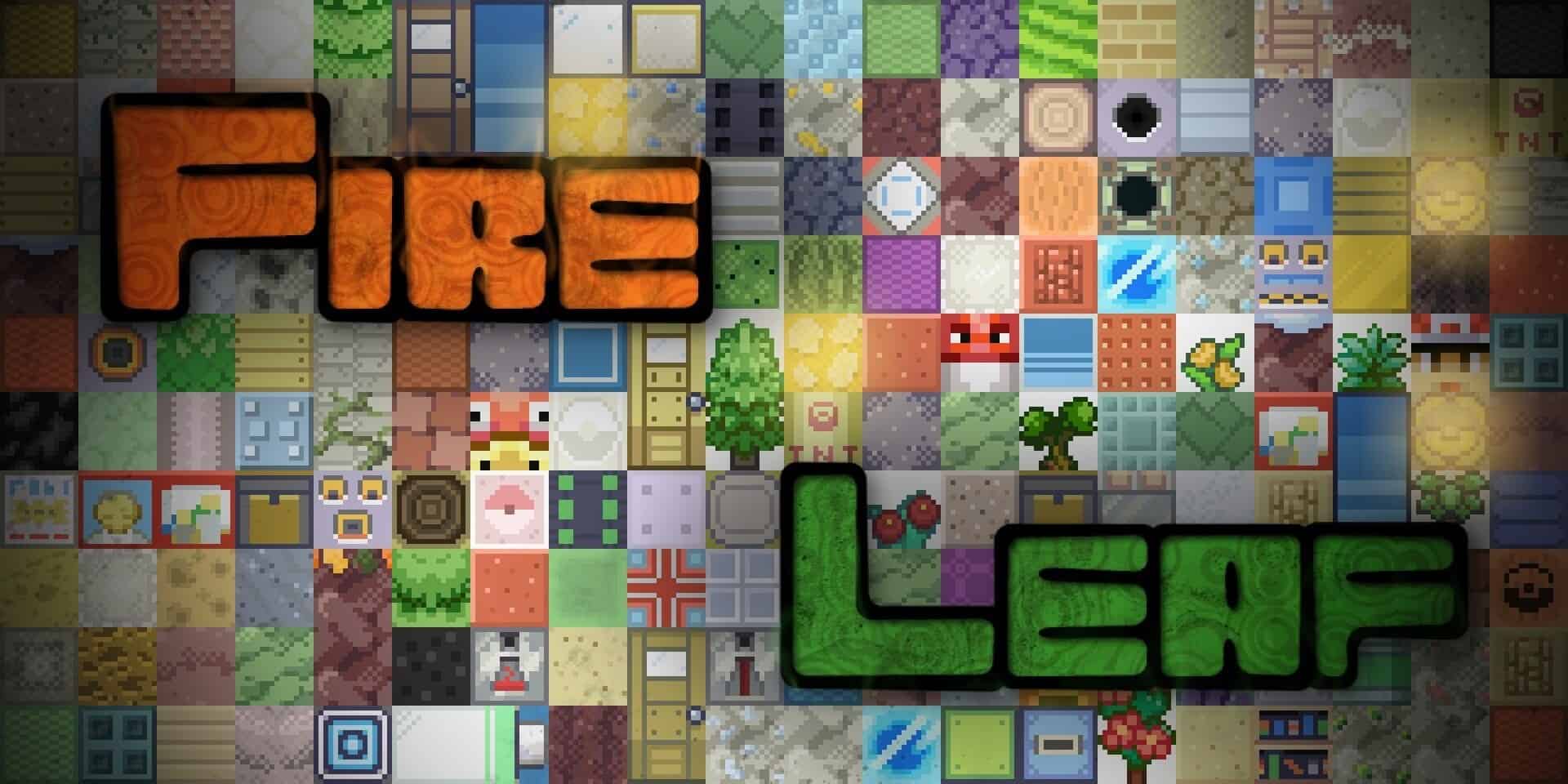
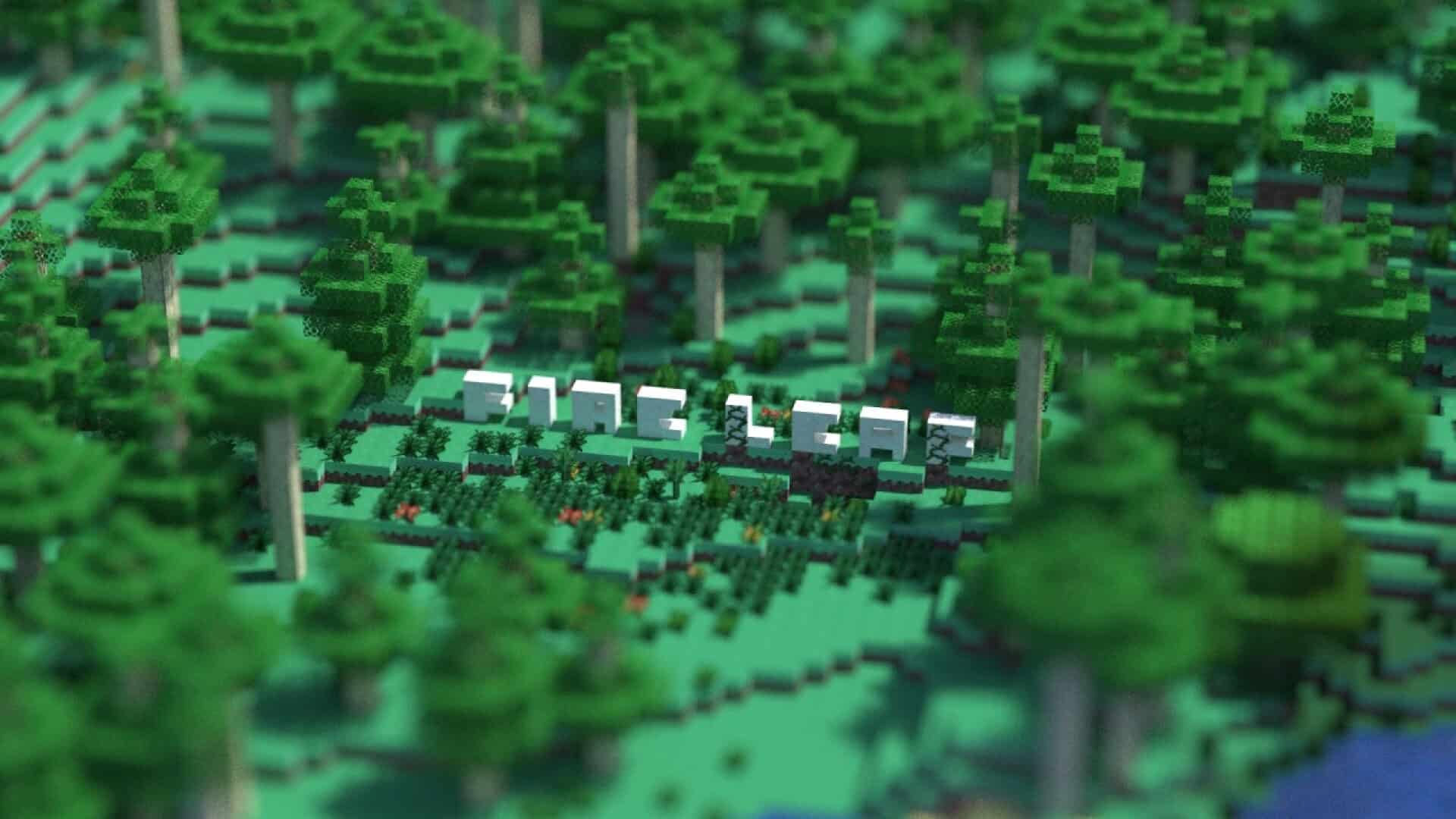
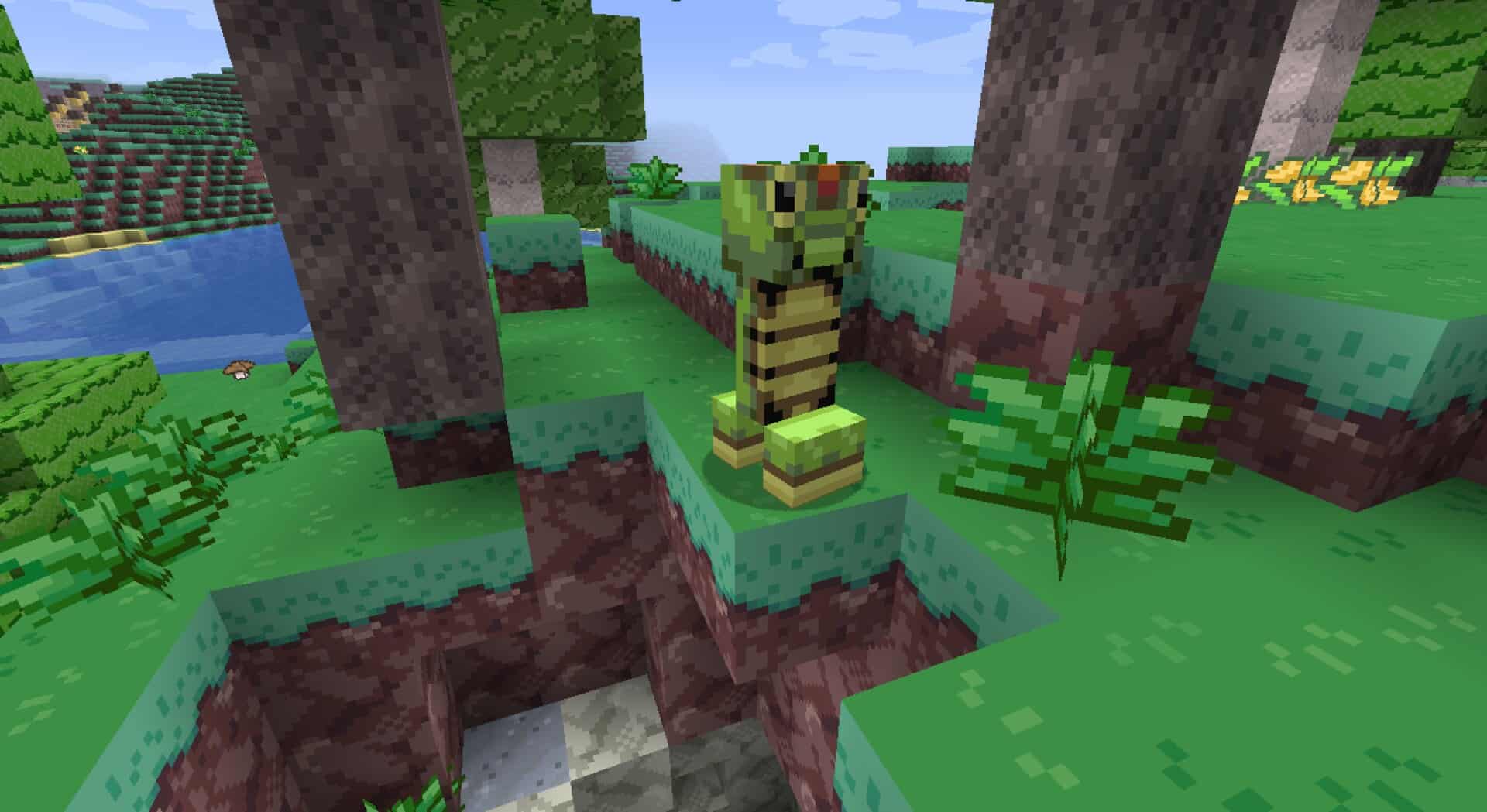
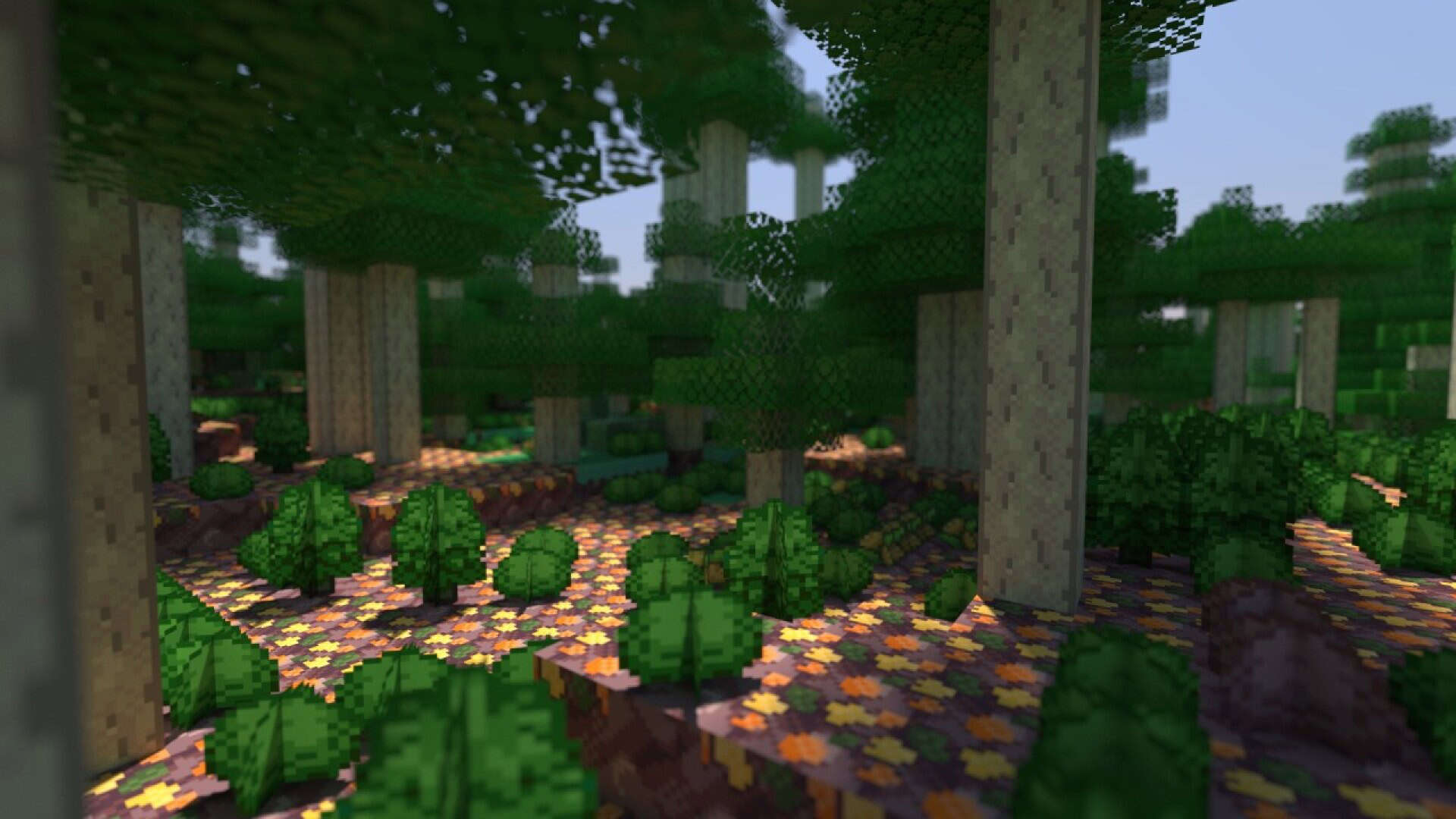
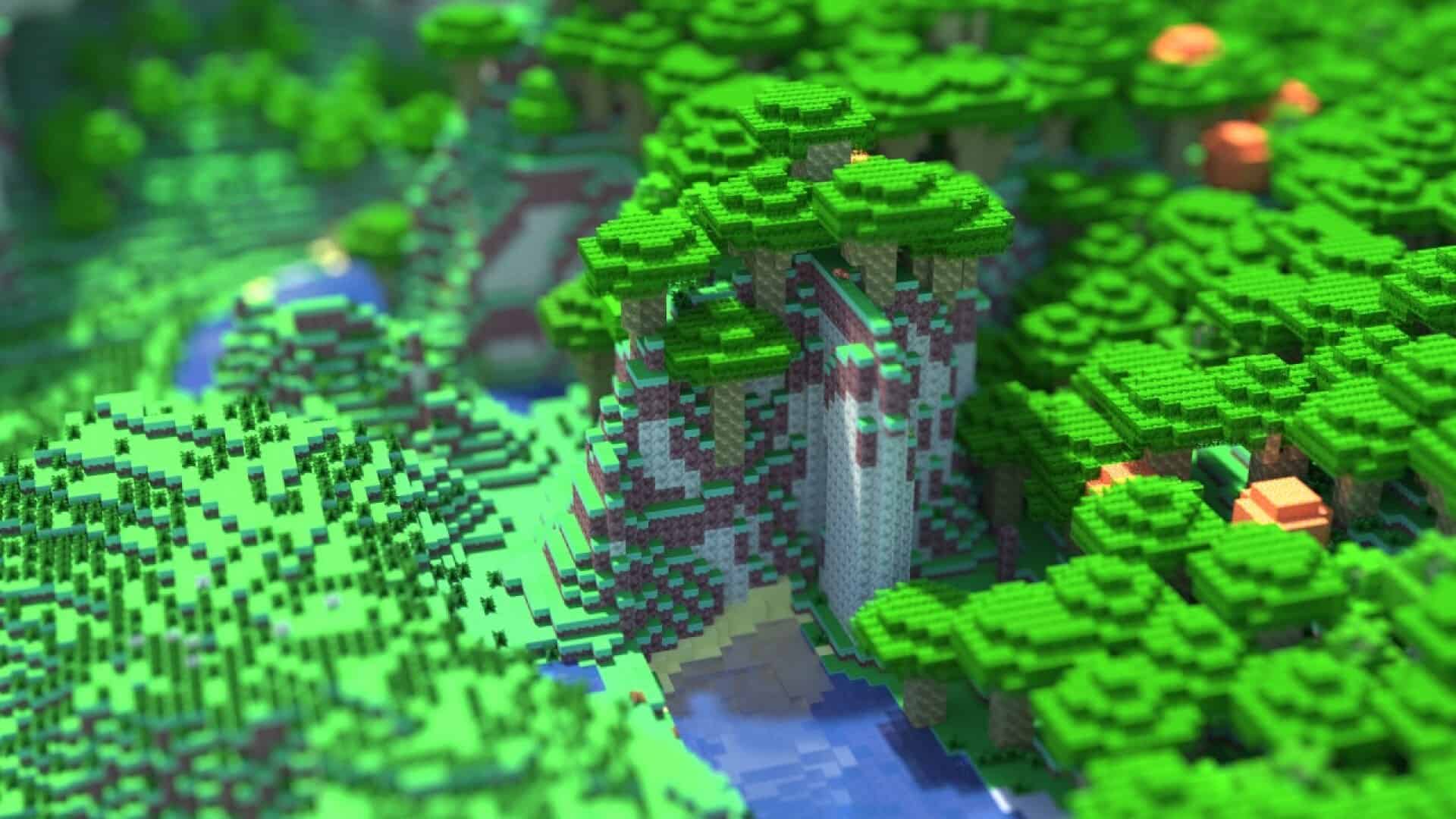
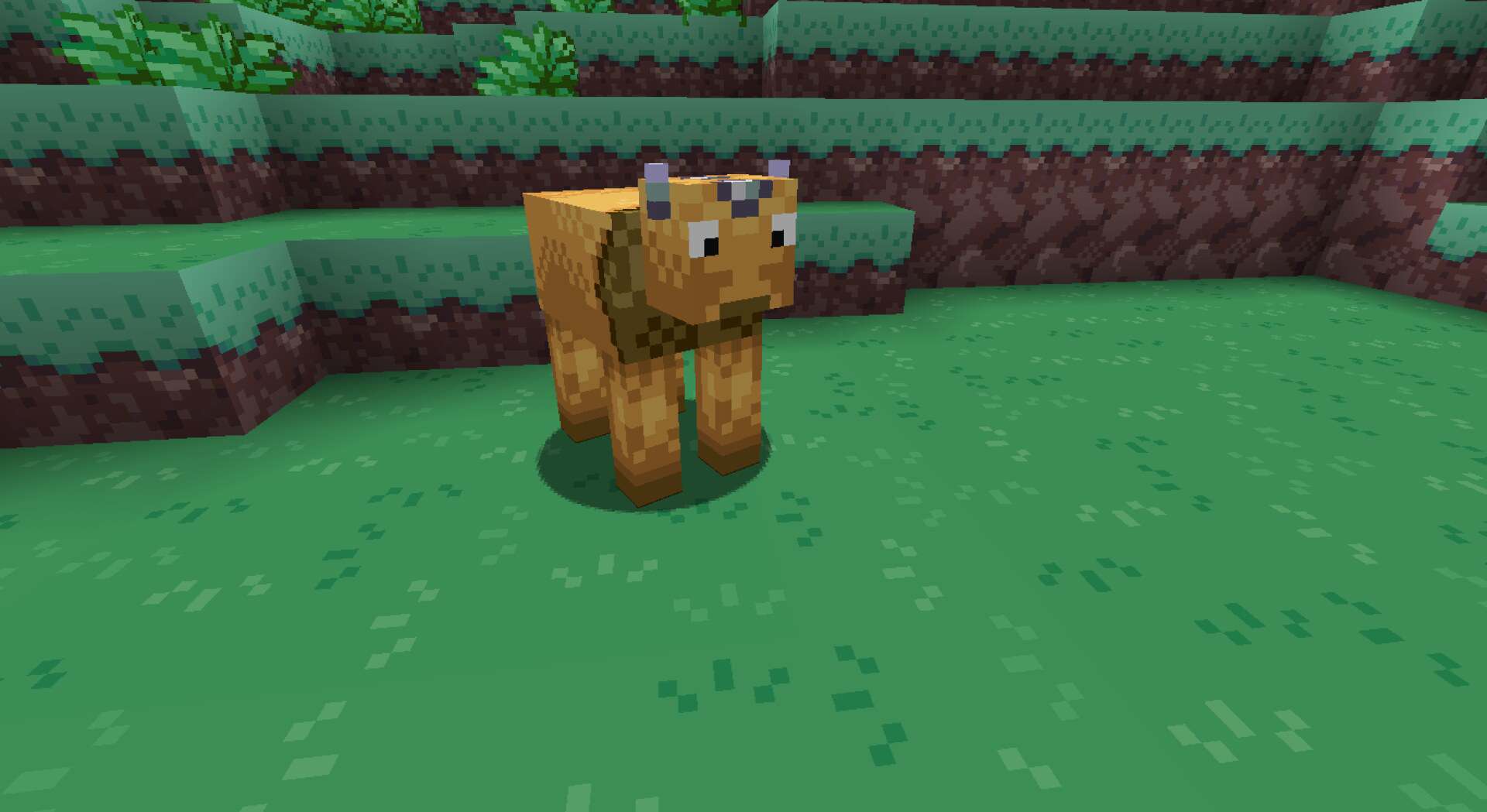
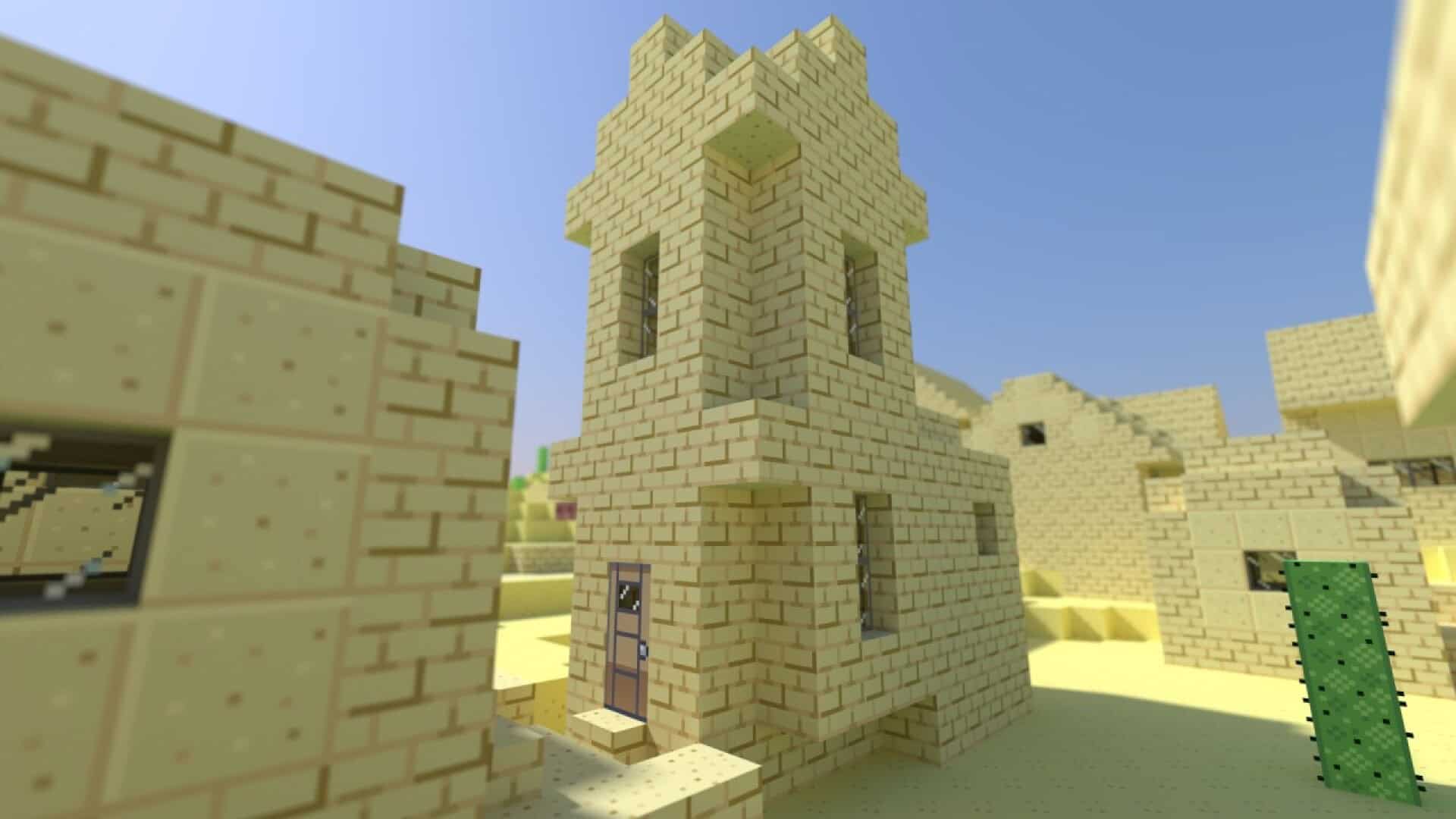
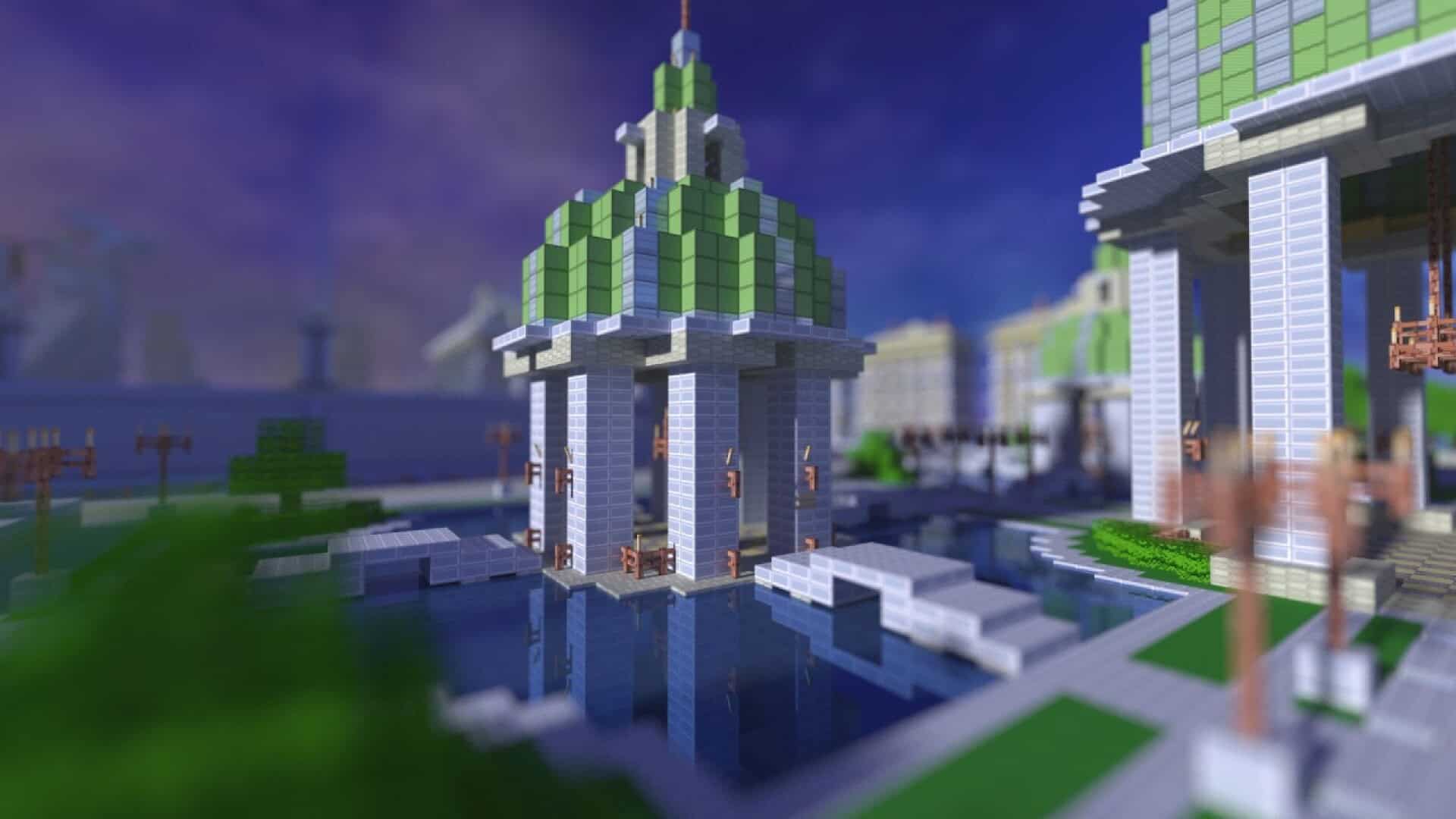
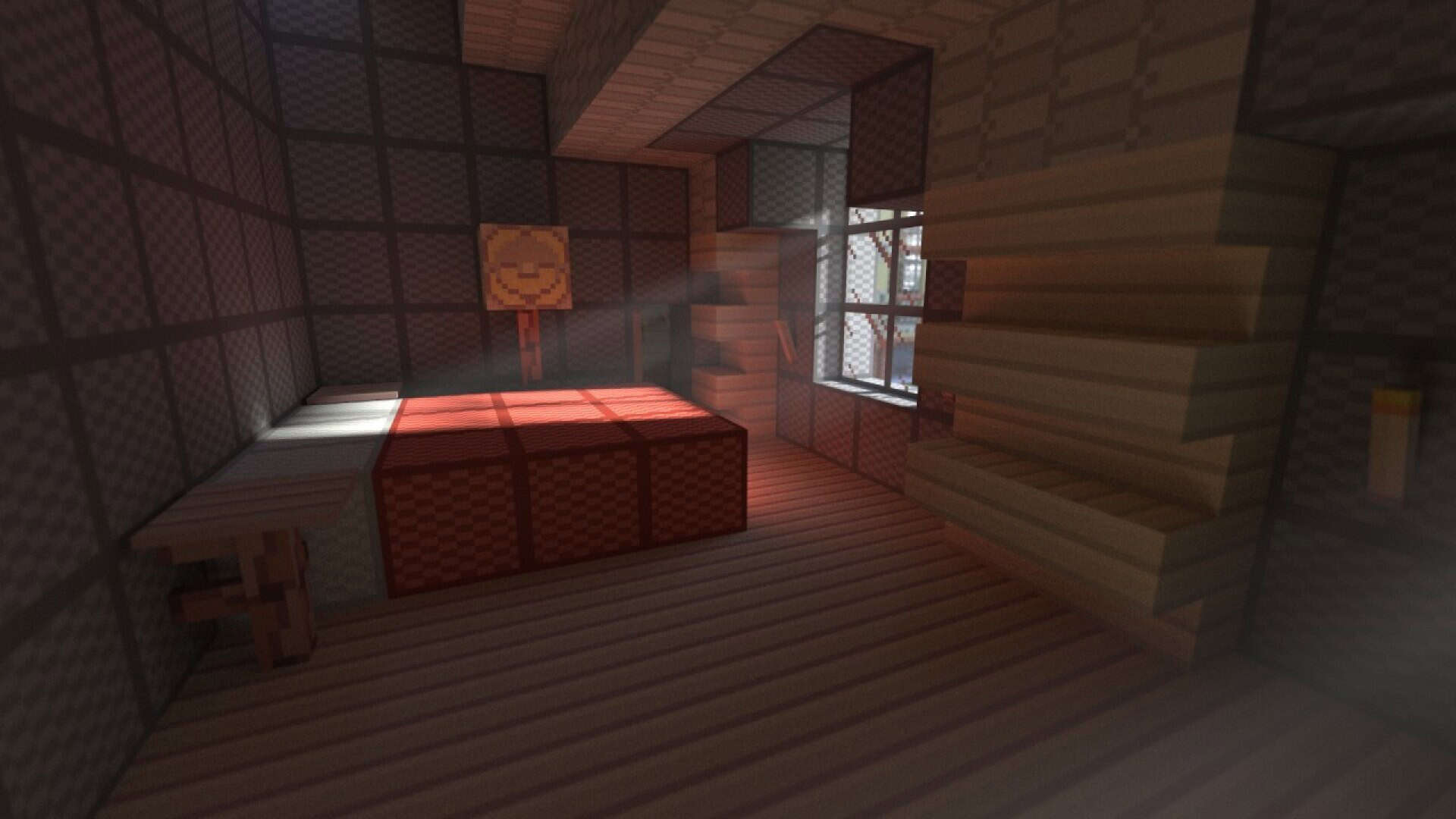
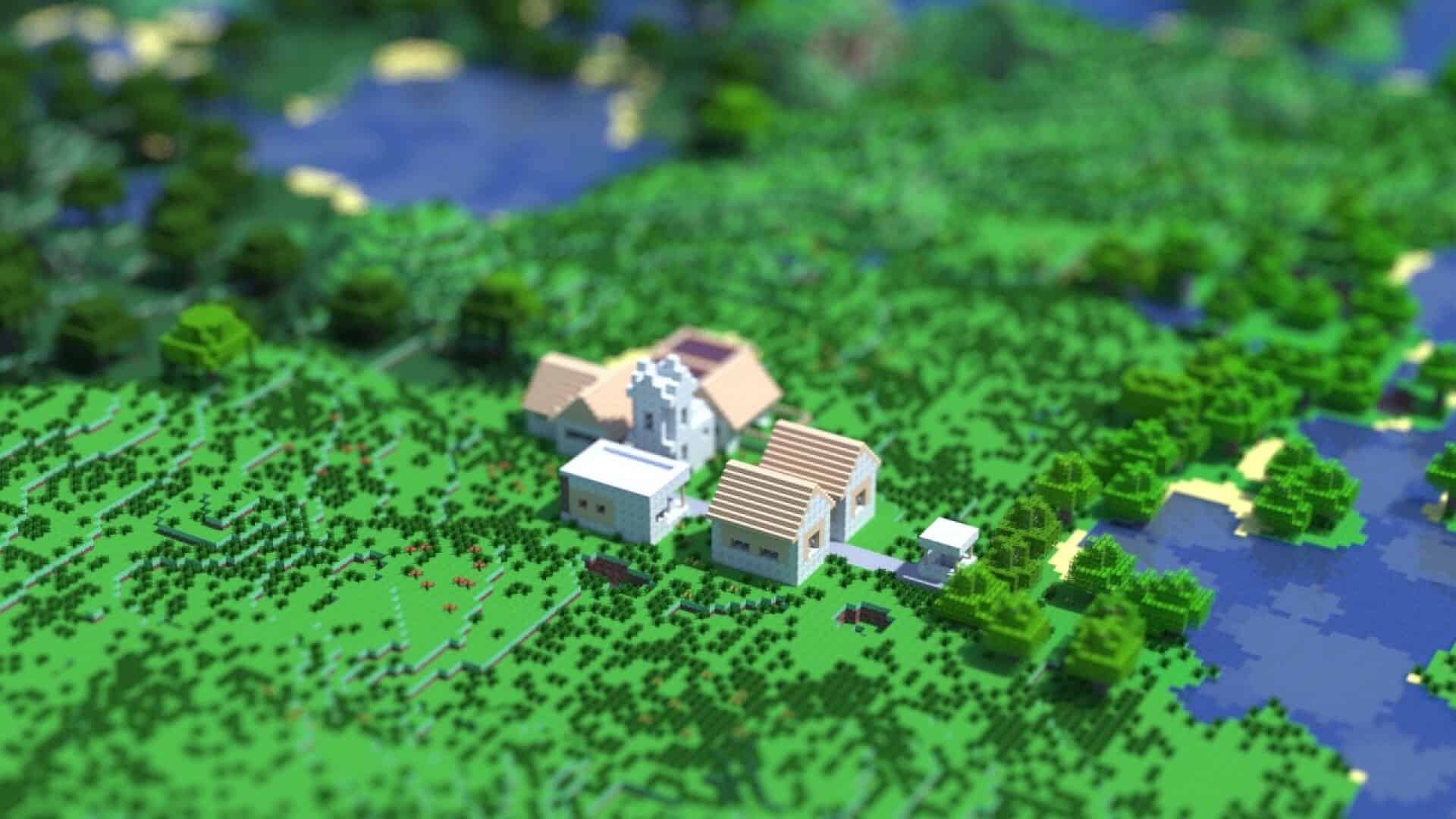
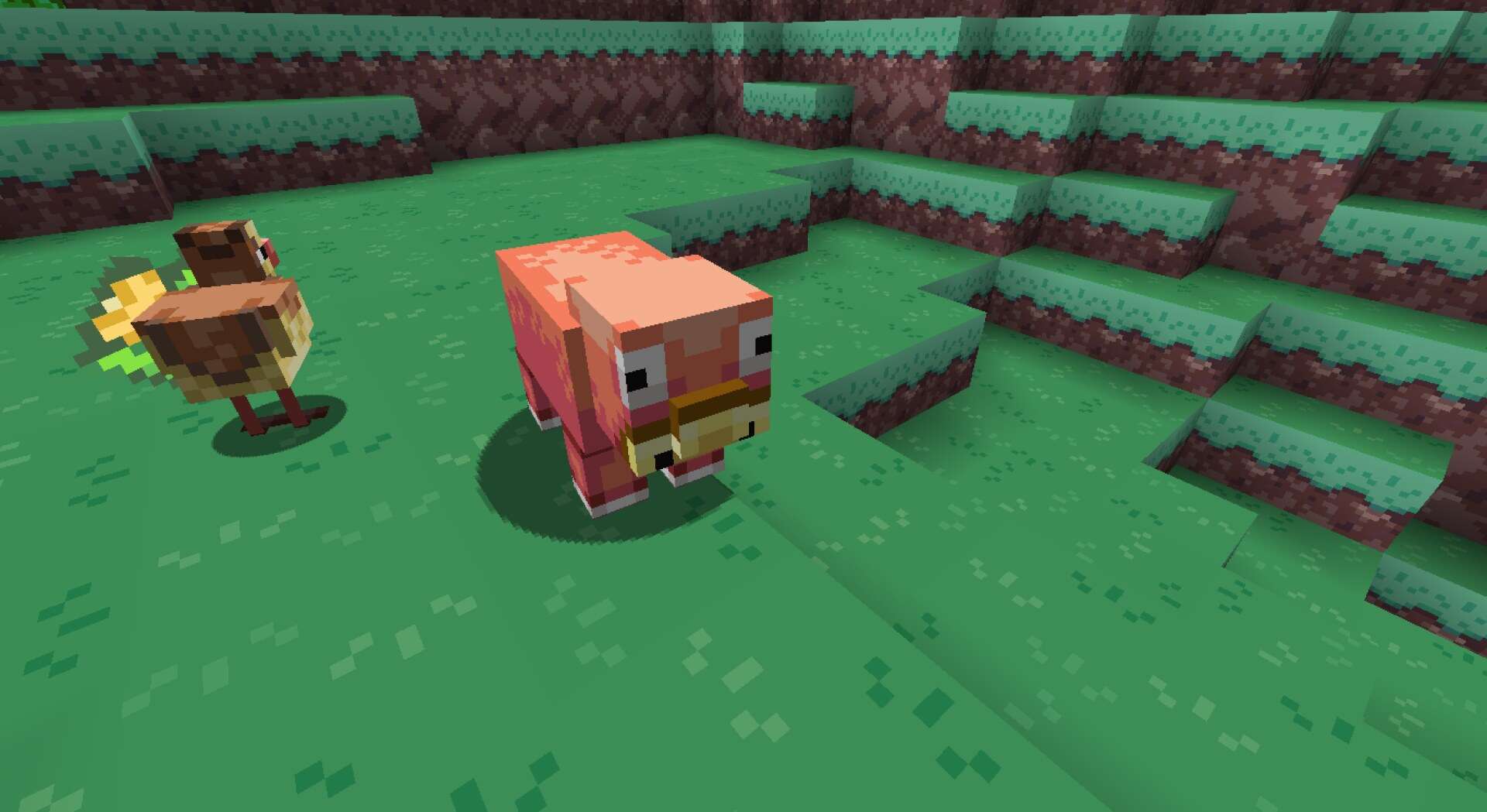
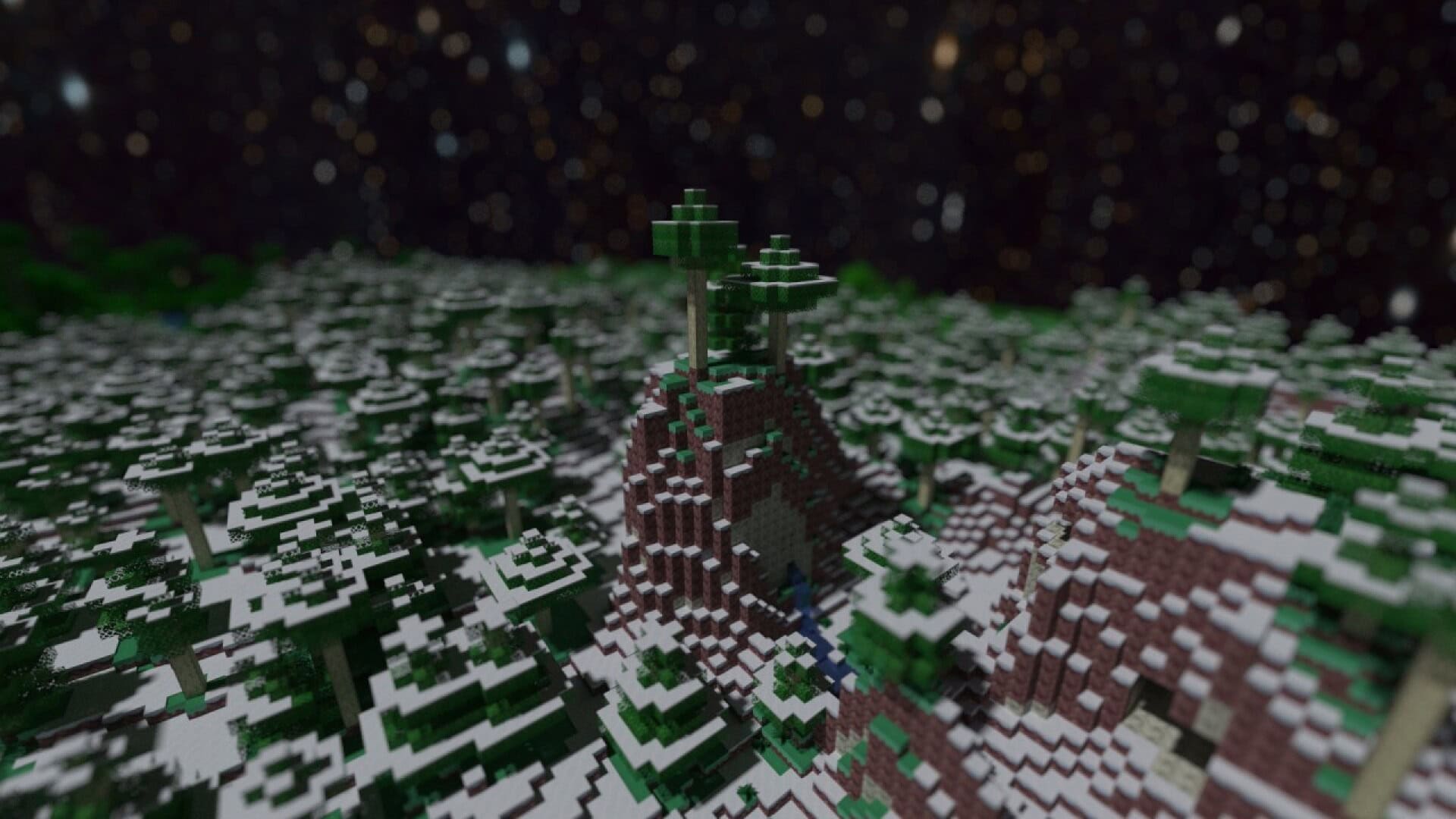
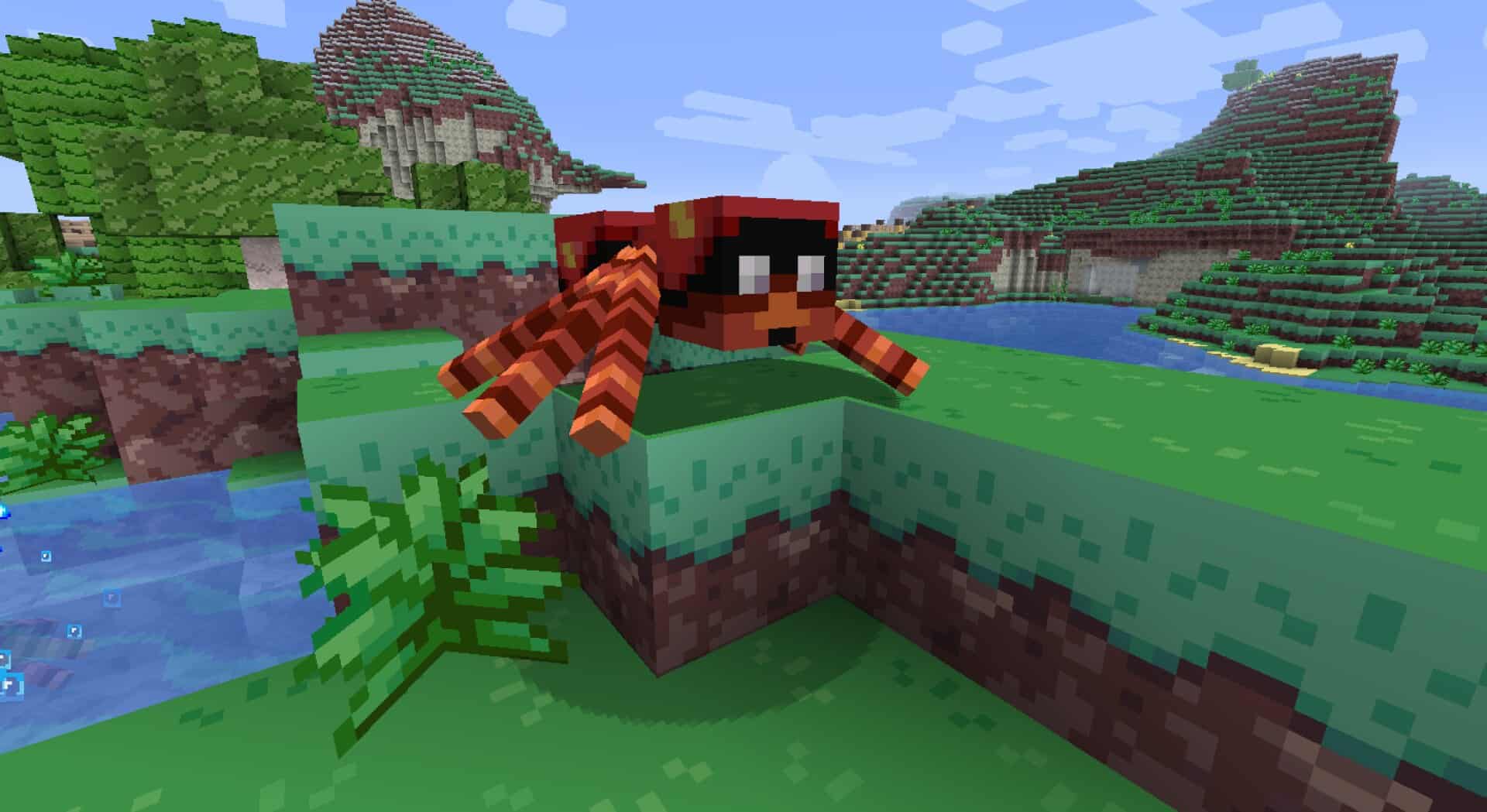
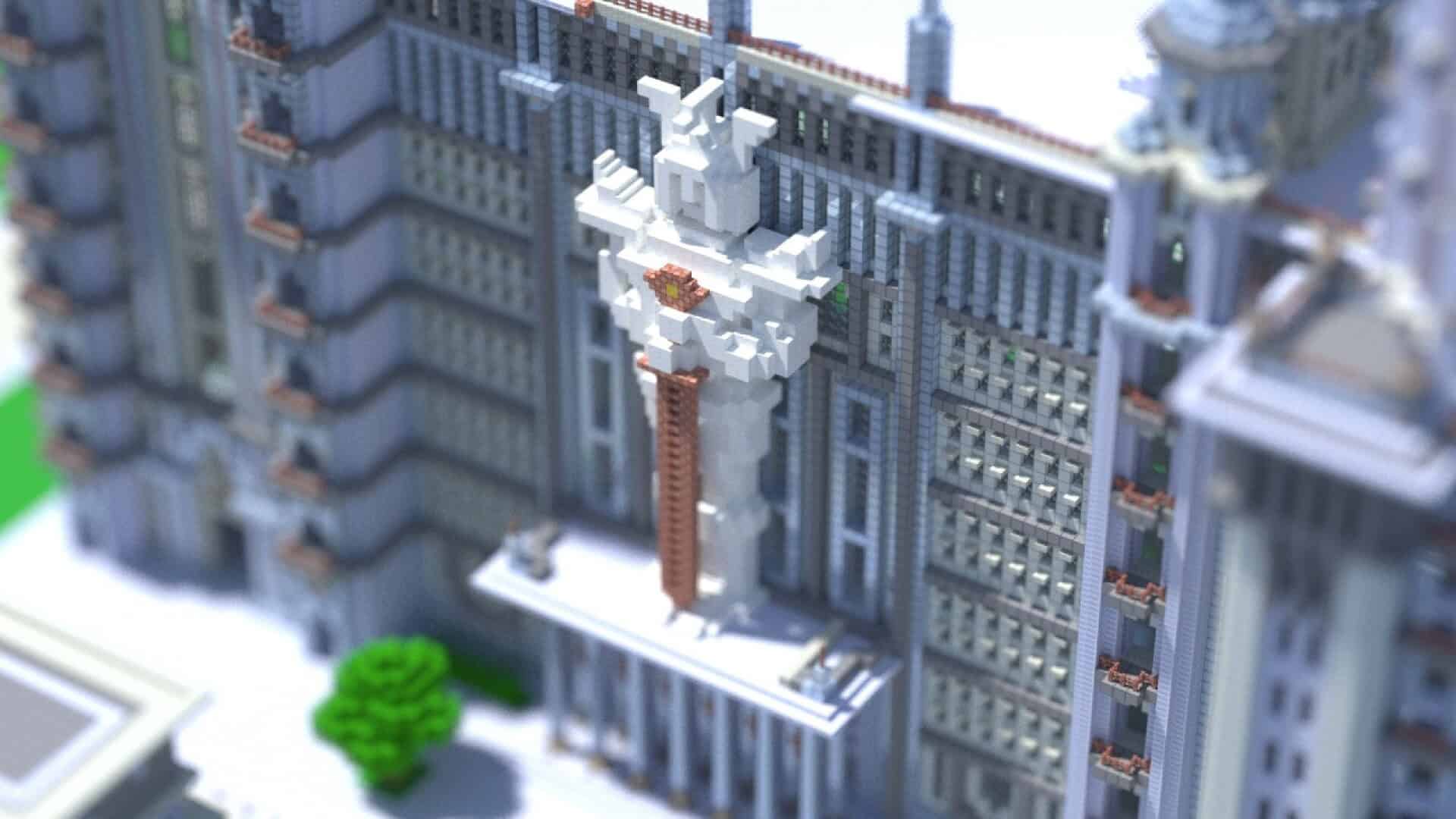
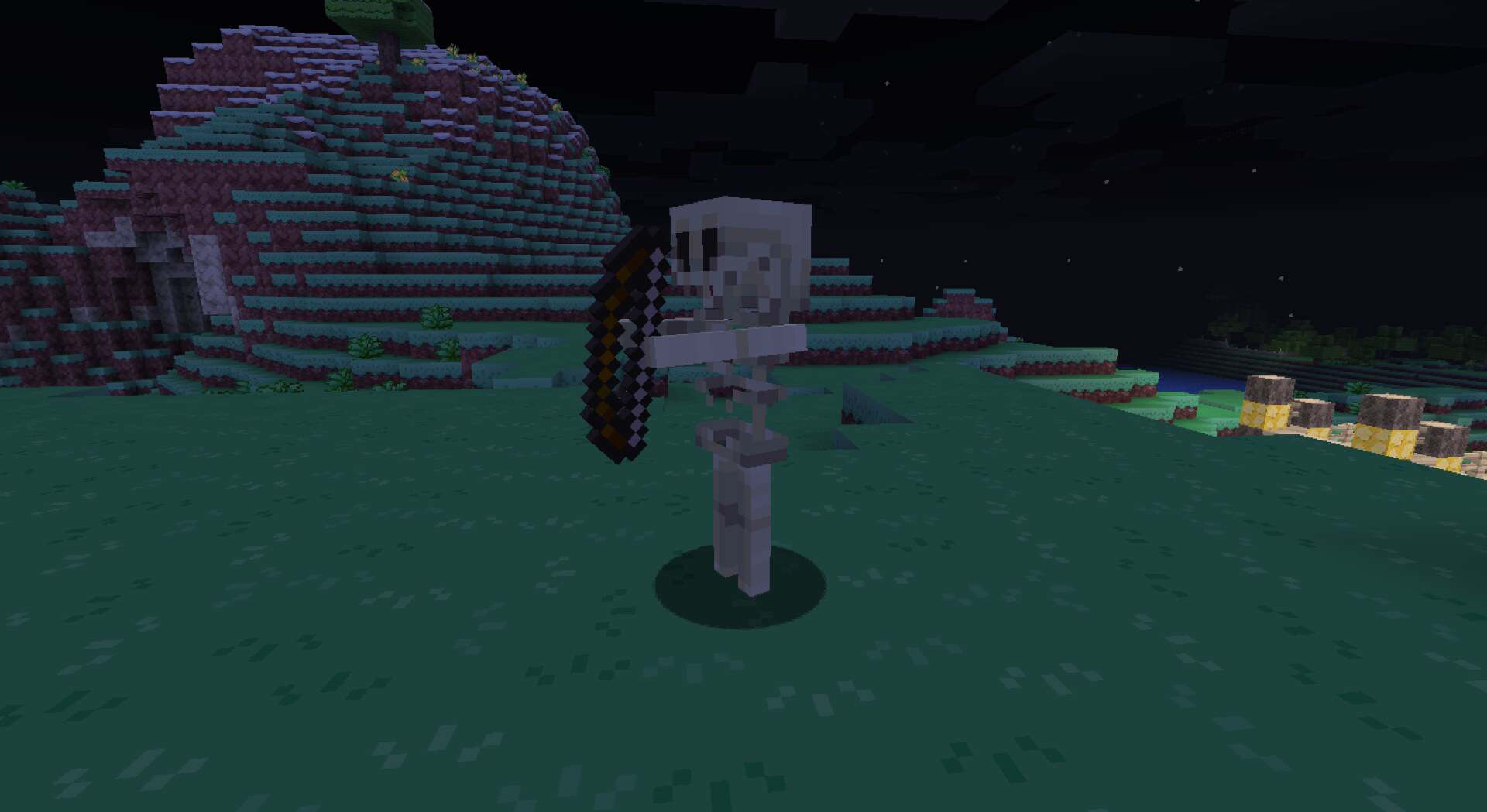
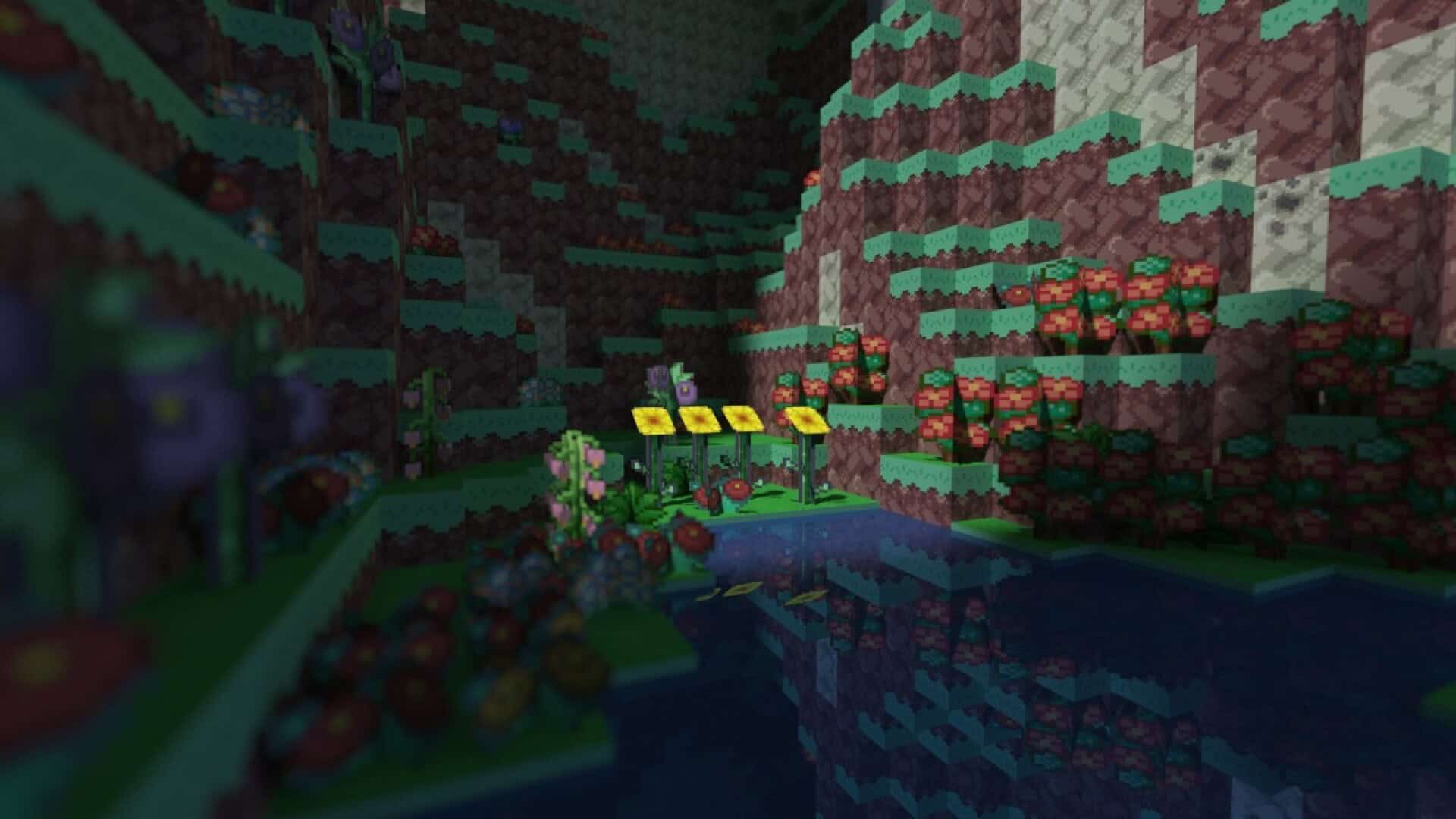
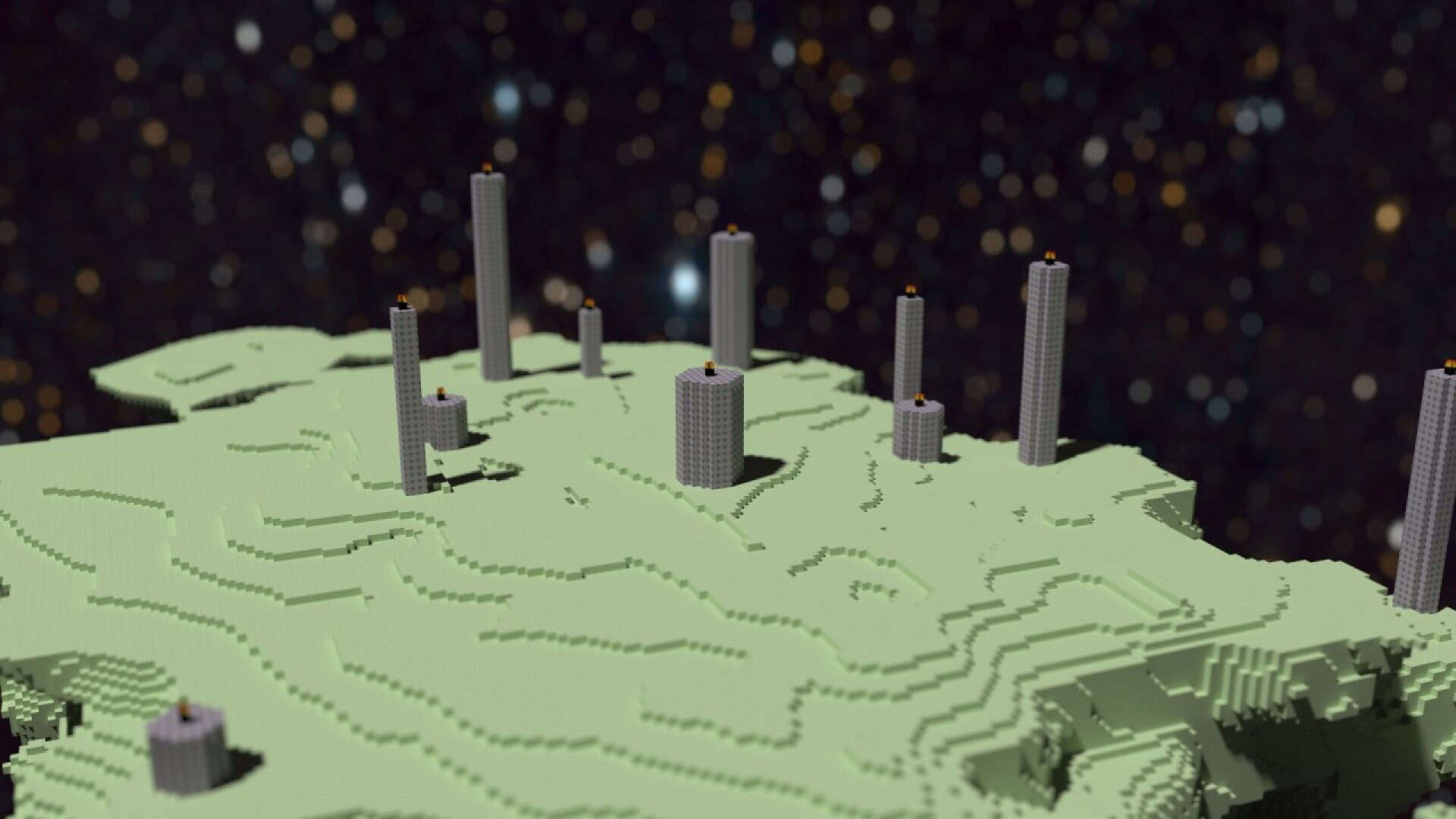
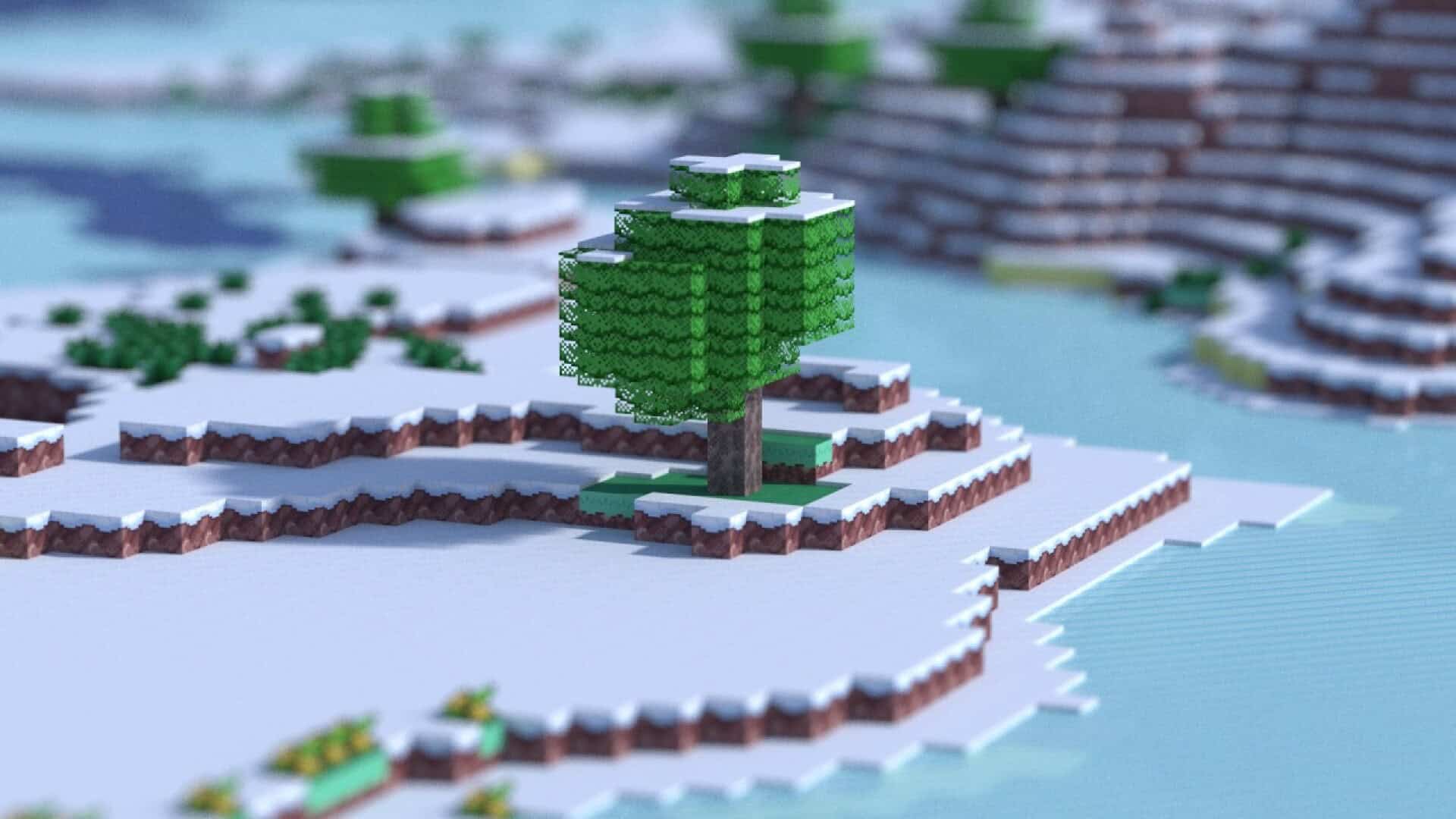
The Fire Leaf resource pack brilliantly blends the familiar Minecraft look with the nostalgia of classic Pokemon games from the Game Boy Advance era. It does not try to make the game look real, and it does not aim for a flat minimal style. Instead, it keeps a remarkably clean and colorful look that fits a Pokemon-inspired world while still feeling like genuine Minecraft. You can easily use it in a long survival save, and it can also serve as a fantastic base for adventure maps, towns, and roleplay builds that chase a retro monster-catching mood. The pack draws most of its identity from Pokemon FireRed and Pokemon LeafGreen. Many textures look bright and game-like, with crisp edges and simple detail. The palette stays wonderfully cohesive, so biomes feel much more unified and significantly less noisy. Most textures stay subtle and unique, with only a small set of items and blocks leaning into clear references. A major practical strength of the pack is its common 16x resolution. That keeps it lightweight compared to high-resolution sets, and I really appreciate how it helps performance on older machines while leaving plenty of room if you already run heavy mods. Completeness depends on the version you use and the content you touch, as the author describes the project as not fully complete. If you play far beyond the target range, you may occasionally see some missing textures on newer blocks, but many players easily get around this problem by using this pack in combination with other packs. Fire Leaf also sits closely alongside Pixelmon and other Pokemon-themed Minecraft projects. If you are creating a completely Pokemon-inspired map, be sure to use the Fire Leaf texture pack because it truly shines in builds that benefit from steady color and friendly detail. It remains wonderfully lightweight, holds a cohesive look across many common blocks, and works best for projects where nostalgia and world-building matter just as much as your daily survival routine.
Fire Leaf should be compatible with all of these Minecraft versions: 1.12.2 – 1.12 – 1.8.9 – 1.8.8 – 1.8.1 – 1.8.6 – 1.8 – 1.7.10 – 1.7.9 – 1.7.4 – 1.7
Screenshots
How to Install Texture Pack (Simple 10 Steps)
- Download OptiFine: Most of the texture packs and shaders need OptiFine. That’s why, first download and install OptiFine for the version of Minecraft you want to play.
- Download the Texture Pack: Get the texture pack you want from the download section. Choose the version that works with your Minecraft and your PC’s performance.
- Open Minecraft Launcher: Start Minecraft using the official game launcher — or even TLauncher, if you use that.
- Go to Options: From the main menu, click on the “Options” button.
- Open Resource Packs: Inside Options, click on “Resource Packs…”.
- Open the Resource Pack Folder: Click on “Open Resource Pack Folder” — this will open a folder named “resourcepacks”.
- Move the Pack File: Copy or move the .zip file you downloaded into that “resourcepacks” folder. (Don’t unzip the file — Minecraft uses it as-is!)
- Go Back and Refresh: Close the folder and click “Done”, then go back into “Resource Packs…” again.
- Activate the Pack: You’ll see the pack on the left side. Hover over it and click the arrow to move it to the right (active side).
Tip: If you get a message that the pack is for a different version, just click “Yes” — it usually works fine. - Click Done and Enjoy: Click “Done” again. Now your pack is ready to use in-game. It’s that easy!
Credits
This resource pack was created by Zitzabis. We do not claim ownership of this content, and we do not modify the files. All rights and intellectual property remain with the original author. We strongly encourage you to support Zitzabis by downloading the project from the official links provided.
Download Instructions
Curseforge: download starts automatically after a few seconds;
Mediafire: click the big blue button with the text “DOWNLOAD”;
Google Drive: in the top right corner you will see a small download icon (down arrow), click it and the download should start;