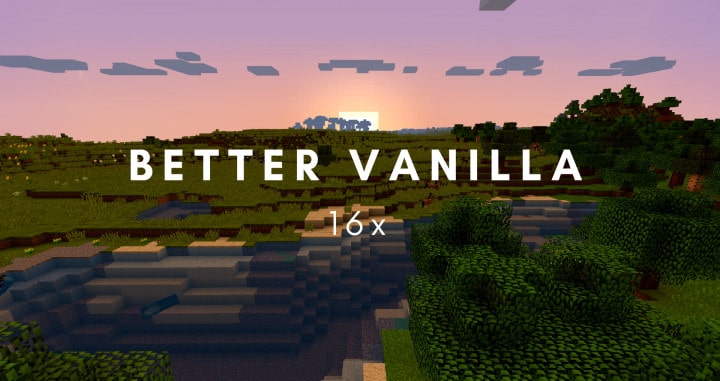
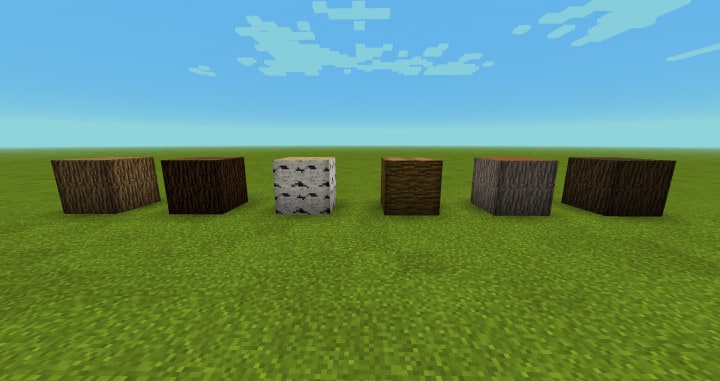
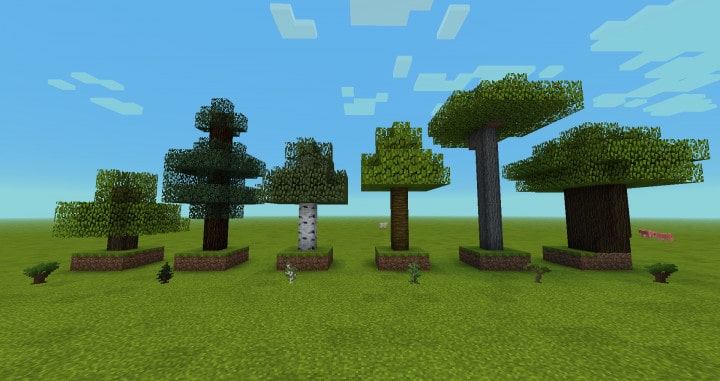
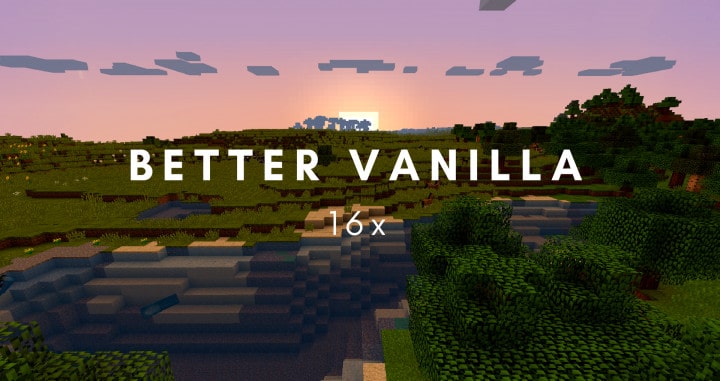
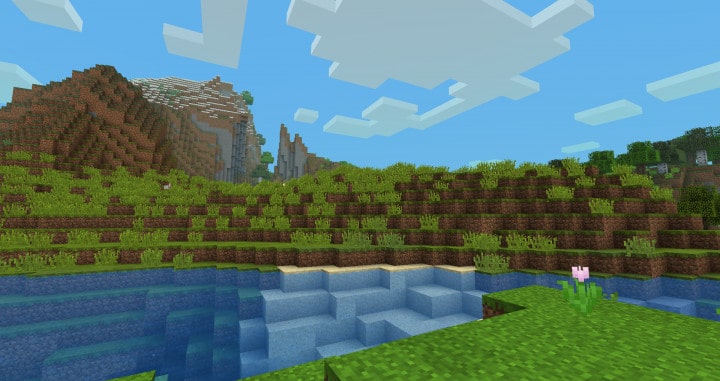
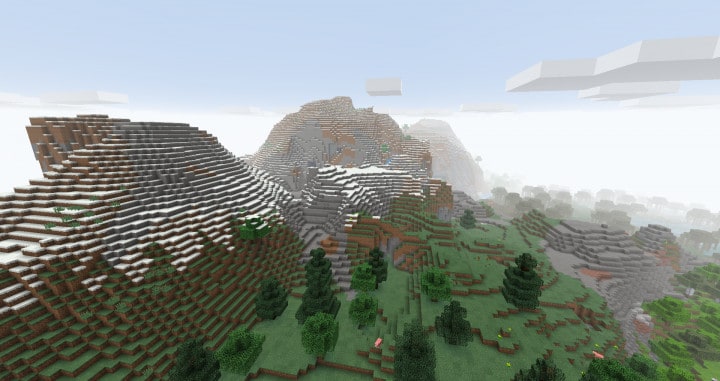
When you dive into the Better Vanilla resource pack, the title alone gives you a clear idea of its ultimate purpose, which is entirely centered around the pleasure and satisfaction of the player. Honestly, even though Minecraft seems like a fantastic game right from the start, after exploring for a while, you genuinely start to discover that it can feel a bit boring and somewhat repetitive. Visually speaking, there are definitely a couple of flaws to be found, such as the excessively brightly colored palette and the noisy textures. The great news, however, is that the Better Vanilla resource pack does a commendable job of resolving all of these traditional Vanilla Minecraft issues so that you can have an immersive and exhilarating experience that you will not soon forget. One of the absolute first things you will notice after installing the Better Vanilla resource pack is the remarkably smooth textures that it comes packed with.
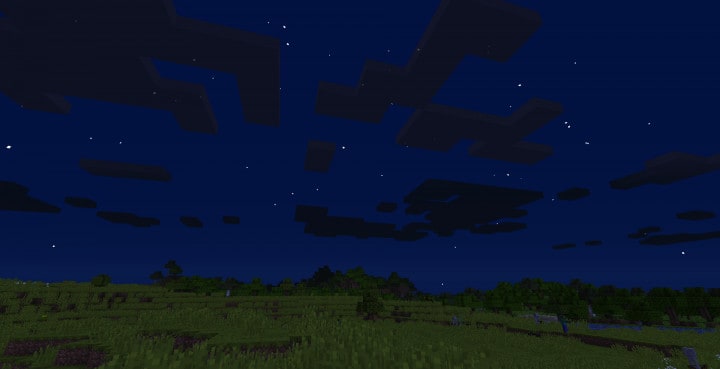
In fact, I would say the pack does an almost perfect job of completely eliminating the visual noise that usually clutters up the game’s textures. The final product is a remarkably smooth-looking world that I am certain you will thoroughly enjoy exploring. Moreover, the pack has the brilliant capability to darken the game’s color palette, and even though these moodier, darker tones might take a moment to get used to for some, they truly provide a wonderful change of pace by making the entire world appear significantly cleaner and more cohesive. The Better Vanilla resource pack comes with a classic 16x resolution, which is chosen specifically to elevate Vanilla Minecraft’s visual setup beautifully without requiring any drastic performance-heavy changes. I should also mention that you definitely need Optifine for this pack to work properly, so make sure to install it beforehand to ensure that all of the fantastic features function precisely as intended.
Better Vanilla should be compatible with all of these Minecraft versions: 1.13.2 – 1.13.1 – 1.13 – 1.12.2 – 1.12 – 1.11.2 – 1.11
Screenshots
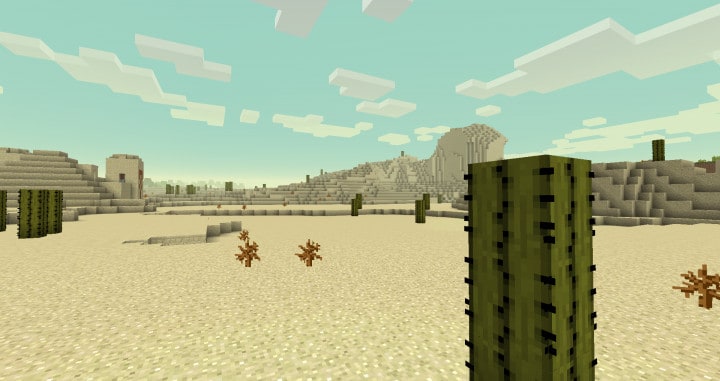
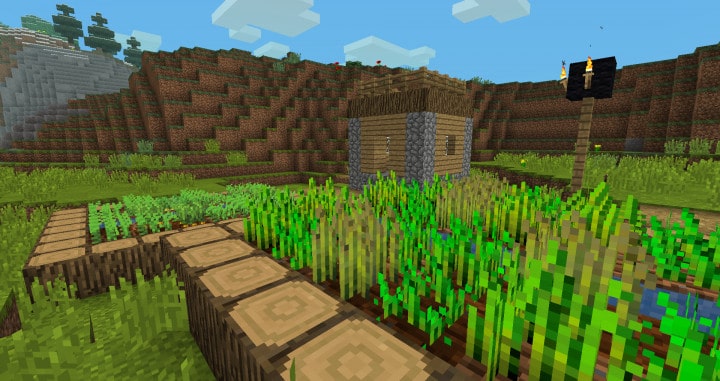
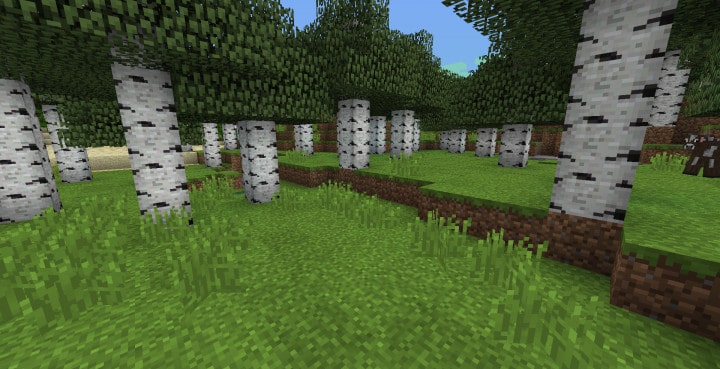
How to Install Texture Pack (Simple 10 Steps)
- Download OptiFine: Most of the texture packs and shaders need OptiFine. That’s why, first download and install OptiFine for the version of Minecraft you want to play.
- Download the Texture Pack: Get the texture pack you want from the download section. Choose the version that works with your Minecraft and your PC’s performance.
- Open Minecraft Launcher: Start Minecraft using the official game launcher — or even TLauncher, if you use that.
- Go to Options: From the main menu, click on the “Options” button.
- Open Resource Packs: Inside Options, click on “Resource Packs…”.
- Open the Resource Pack Folder: Click on “Open Resource Pack Folder” — this will open a folder named “resourcepacks”.
- Move the Pack File: Copy or move the .zip file you downloaded into that “resourcepacks” folder. (Don’t unzip the file — Minecraft uses it as-is!)
- Go Back and Refresh: Close the folder and click “Done”, then go back into “Resource Packs…” again.
- Activate the Pack: You’ll see the pack on the left side. Hover over it and click the arrow to move it to the right (active side).
Tip: If you get a message that the pack is for a different version, just click “Yes” — it usually works fine. - Click Done and Enjoy: Click “Done” again. Now your pack is ready to use in-game. It’s that easy!
Credits
This resource pack was originally created and developed by fisher521. We do not claim ownership of this creation and do not host modified versions of the files. All rights remain with the original author. We strongly recommend visiting the official sources to download and support fisher521.
Download Links
Java Edition
Download Instructions
Curseforge: download starts automatically after a few seconds;
Mediafire: click the big blue button with the text “DOWNLOAD”;
Google Drive: in the top right corner you will see a small download icon (down arrow), click it and the download should start;


