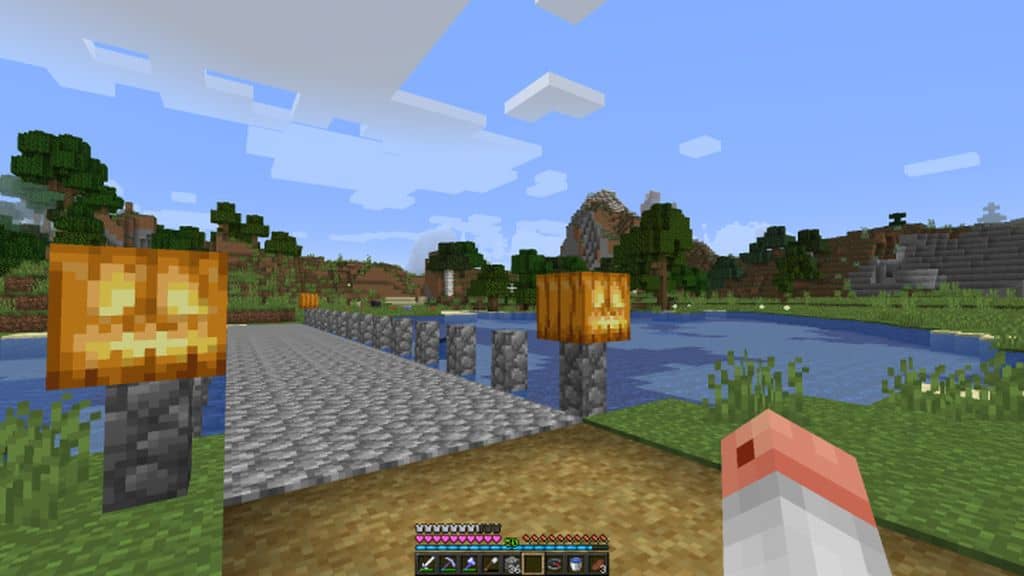
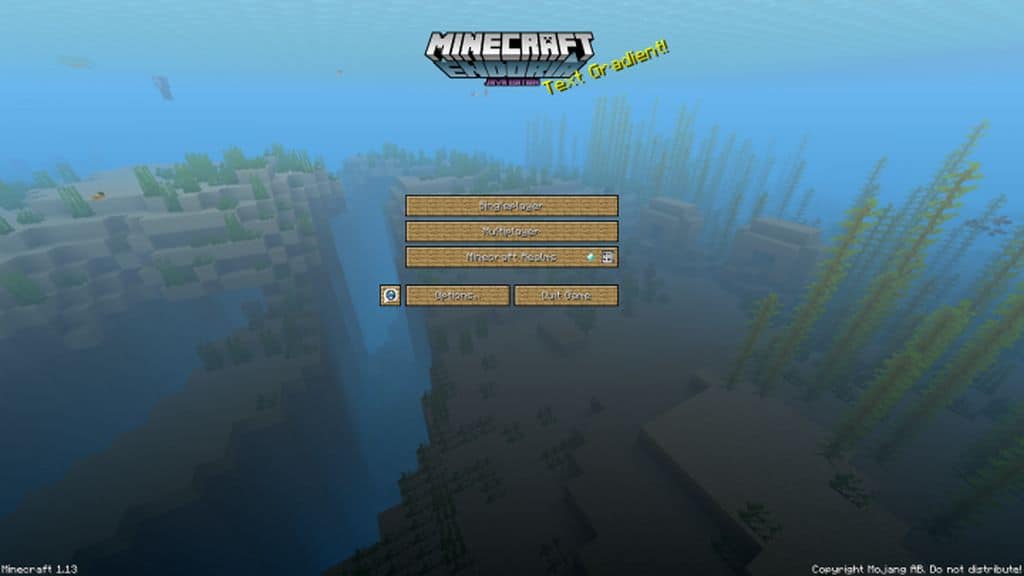
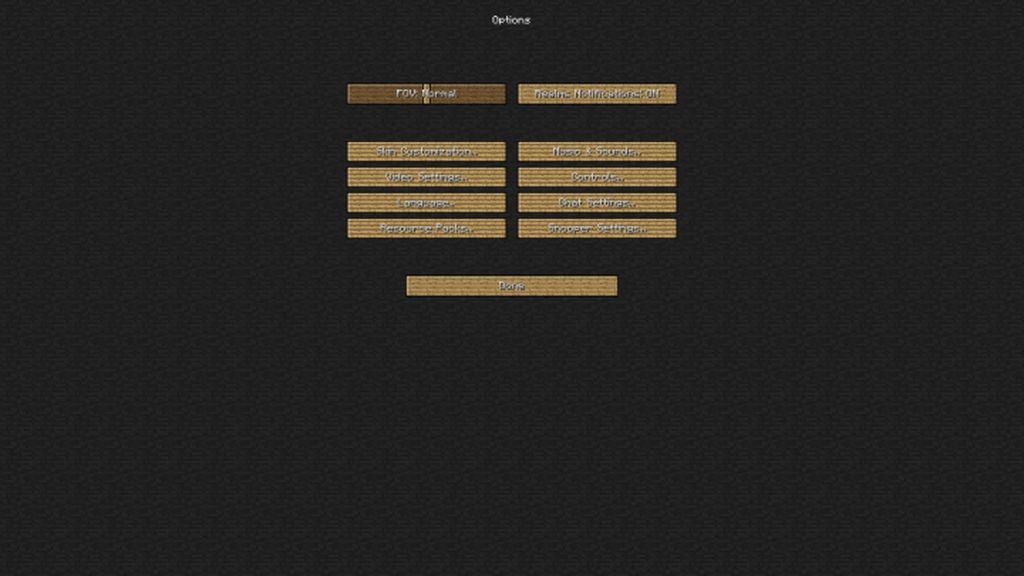
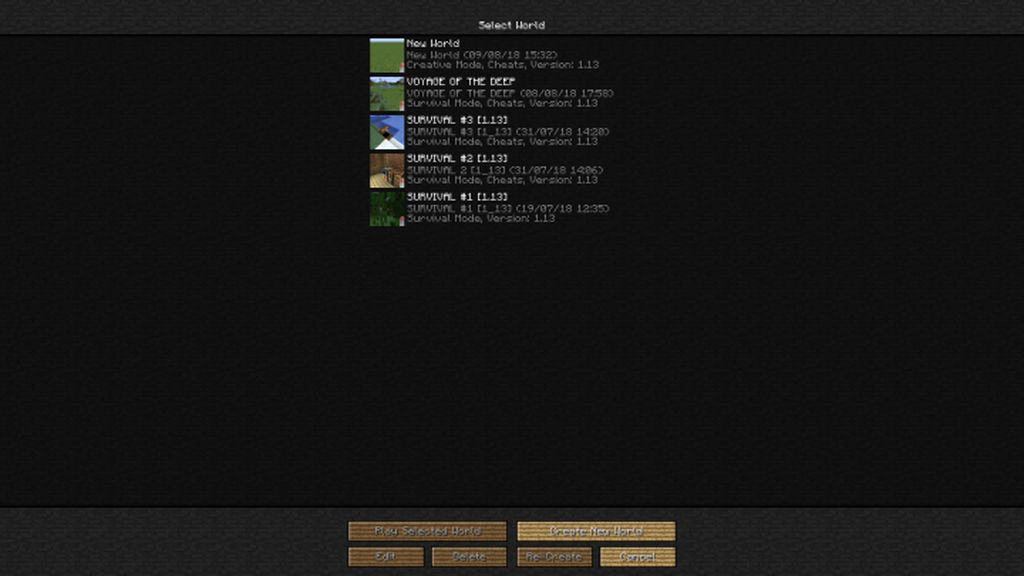
Endoria is an incredible resource pack that feels tailor-made for those of us who genuinely love Minecraft’s classic default art style, yet still crave a little extra polish and visual charm. Honestly, it lets you elevate your game’s graphics gracefully without ever losing that core aesthetic that defines what Minecraft is all about. When you dive in and try it out, you won’t be hit by jarring or radical overhauls; instead, you are treated to a series of ultra-fine, thoughtful visual tweaks that somehow manage to make the entire world feel significantly more immersive and alive than usual. First off, you will immediately notice that one of the standout features of the Endoria resource pack is its astounding ability to completely refurbish the user interface, making everything look infinitely smoother compared to vanilla Minecraft.
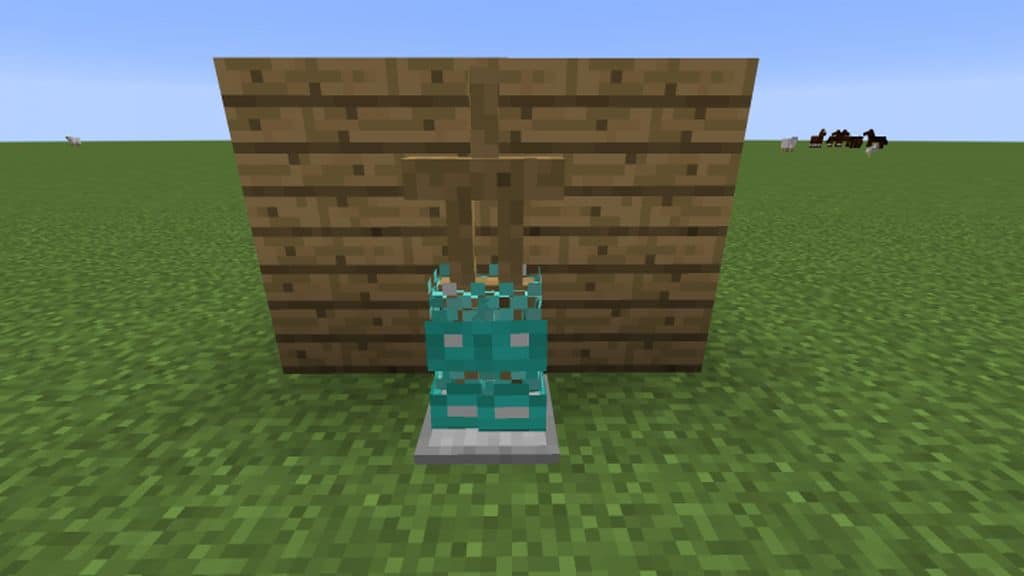
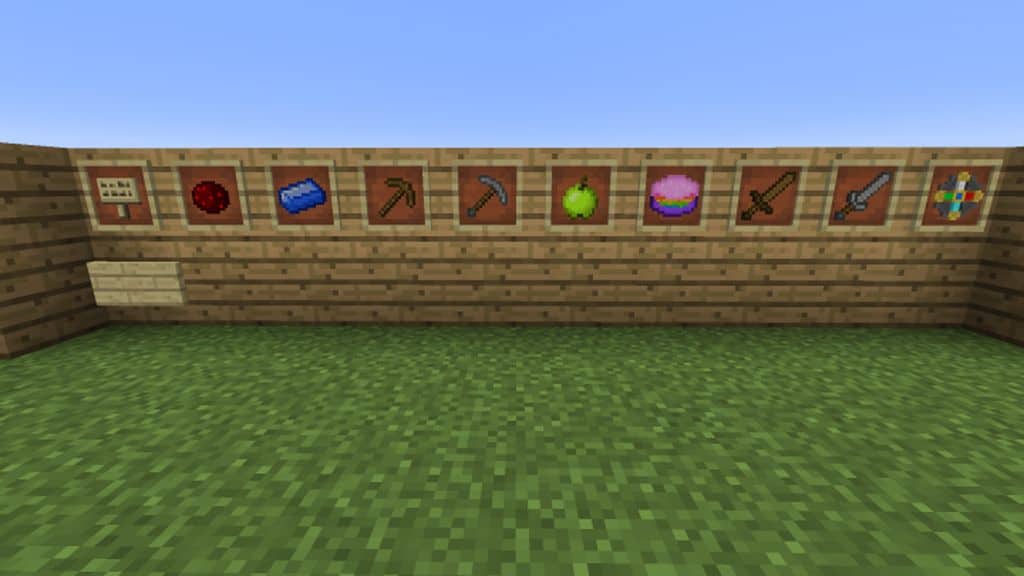
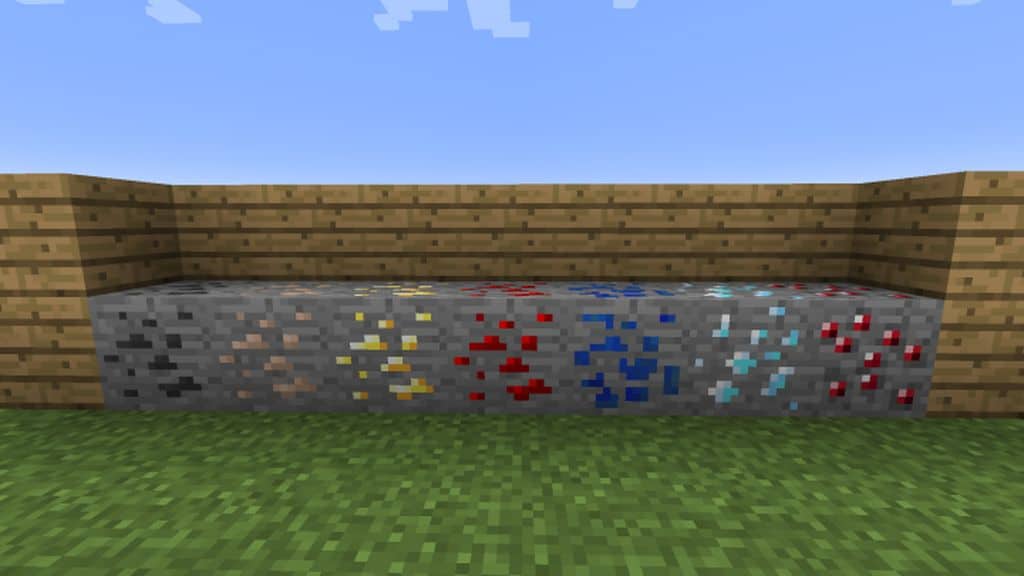
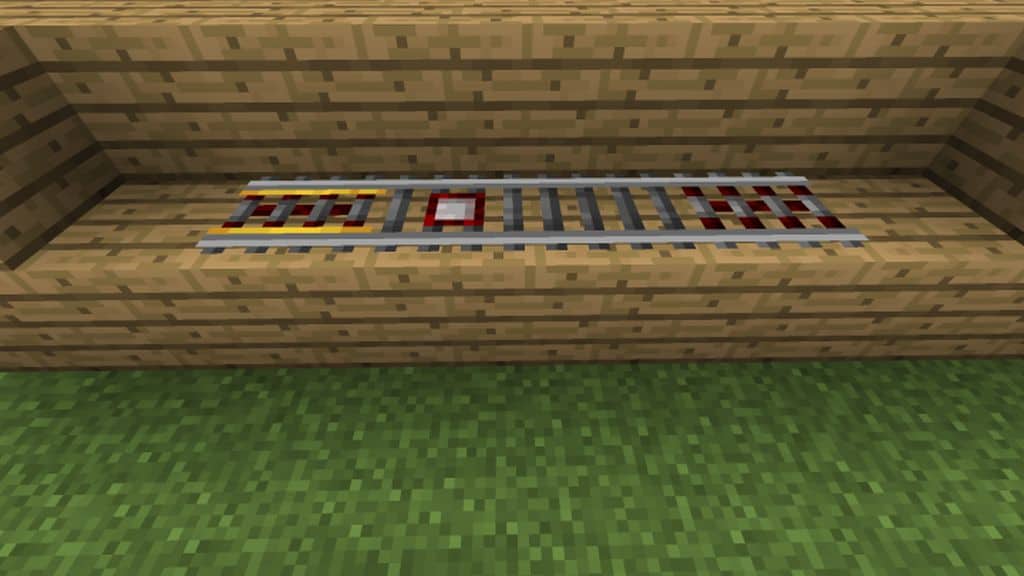
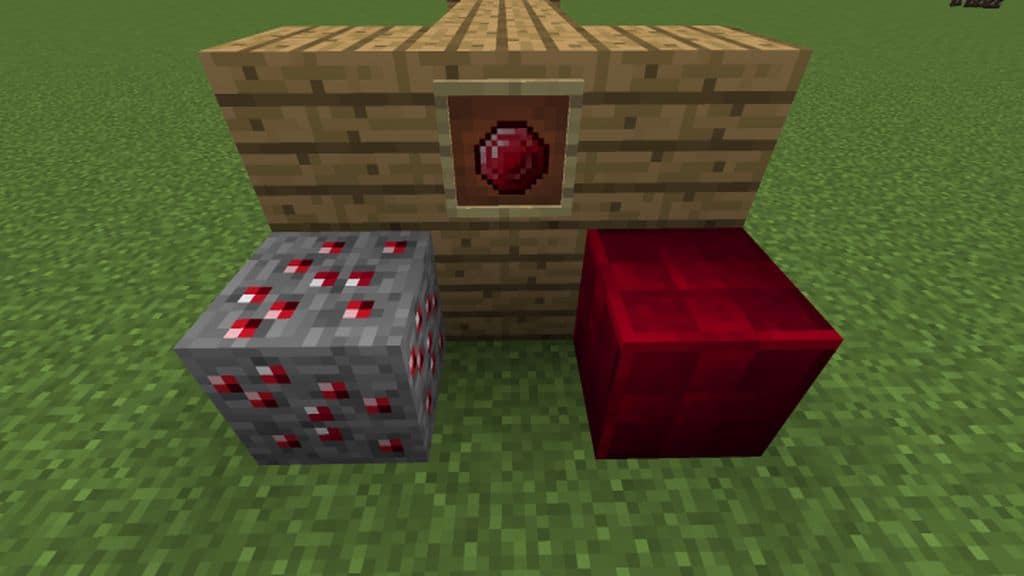
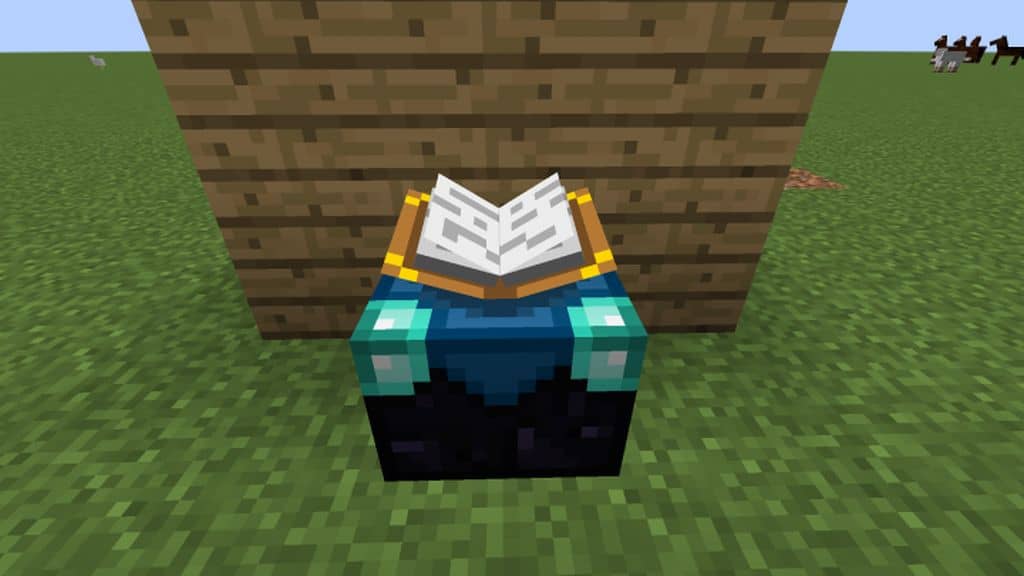
A brand new GUI takes center stage here, beautifully accented with a cozy wooden touch that simply looks incredible and is an absolute joy to use every time you open your inventory. Beyond this stunning interface, your everyday items have been carefully redesigned to appear much more attractive in hand. Certain gems have received brilliant visual updates, and a good number of the ore patterns hidden deep within the world have been modified to look far more appealing and distinct than their vanilla counterparts. Built entirely under the standard Minecraft resolution of 16x, the Endoria pack ensures that you can enjoy all of these gorgeous enhancements smoothly without running into annoying frame rate drops, provided your computer can already handle vanilla Minecraft without any trouble.
Endoria should be compatible with all of these Minecraft versions: 1.13.2 – 1.13.1 – 1.13 – 1.12.2 – 1.12
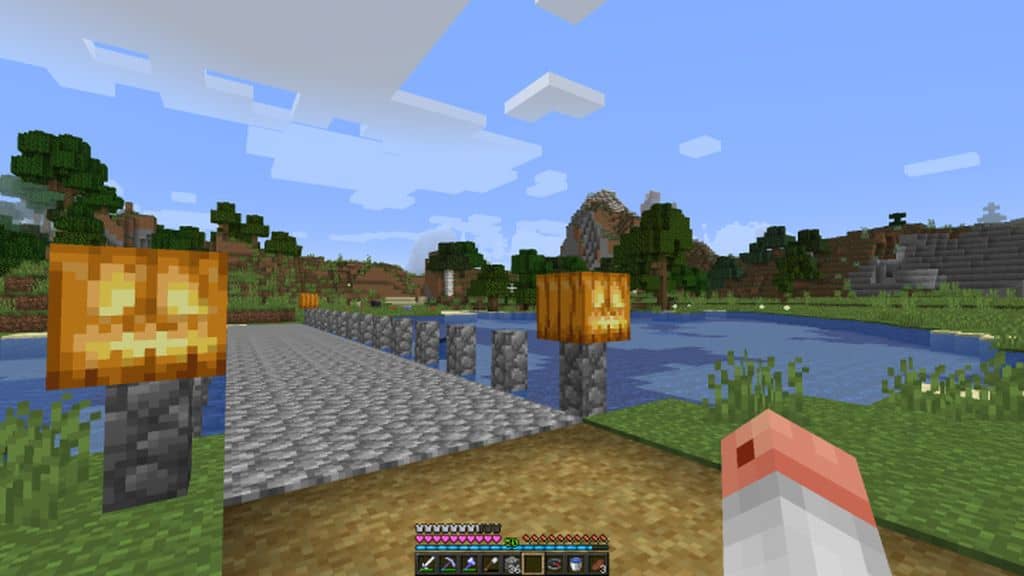
Screenshots
How to Install Texture Pack (Simple 10 Steps)
- Download OptiFine: Most of the texture packs and shaders need OptiFine. That’s why, first download and install OptiFine for the version of Minecraft you want to play.
- Download the Texture Pack: Get the texture pack you want from the download section. Choose the version that works with your Minecraft and your PC’s performance.
- Open Minecraft Launcher: Start Minecraft using the official game launcher — or even TLauncher, if you use that.
- Go to Options: From the main menu, click on the “Options” button.
- Open Resource Packs: Inside Options, click on “Resource Packs…”.
- Open the Resource Pack Folder: Click on “Open Resource Pack Folder” — this will open a folder named “resourcepacks”.
- Move the Pack File: Copy or move the .zip file you downloaded into that “resourcepacks” folder. (Don’t unzip the file — Minecraft uses it as-is!)
- Go Back and Refresh: Close the folder and click “Done”, then go back into “Resource Packs…” again.
- Activate the Pack: You’ll see the pack on the left side. Hover over it and click the arrow to move it to the right (active side).
Tip: If you get a message that the pack is for a different version, just click “Yes” — it usually works fine. - Click Done and Enjoy: Click “Done” again. Now your pack is ready to use in-game. It’s that easy!
Credits
The Endoria resource pack was originally created by Spartan_D1994. We do not claim ownership of this modification, nor have we altered the original files. We strongly encourage supporting the creator by visiting their official download and release pages.
Download Instructions
Curseforge: download starts automatically after a few seconds;
Mediafire: click the big blue button with the text “DOWNLOAD”;
Google Drive: in the top right corner you will see a small download icon (down arrow), click it and the download should start;


