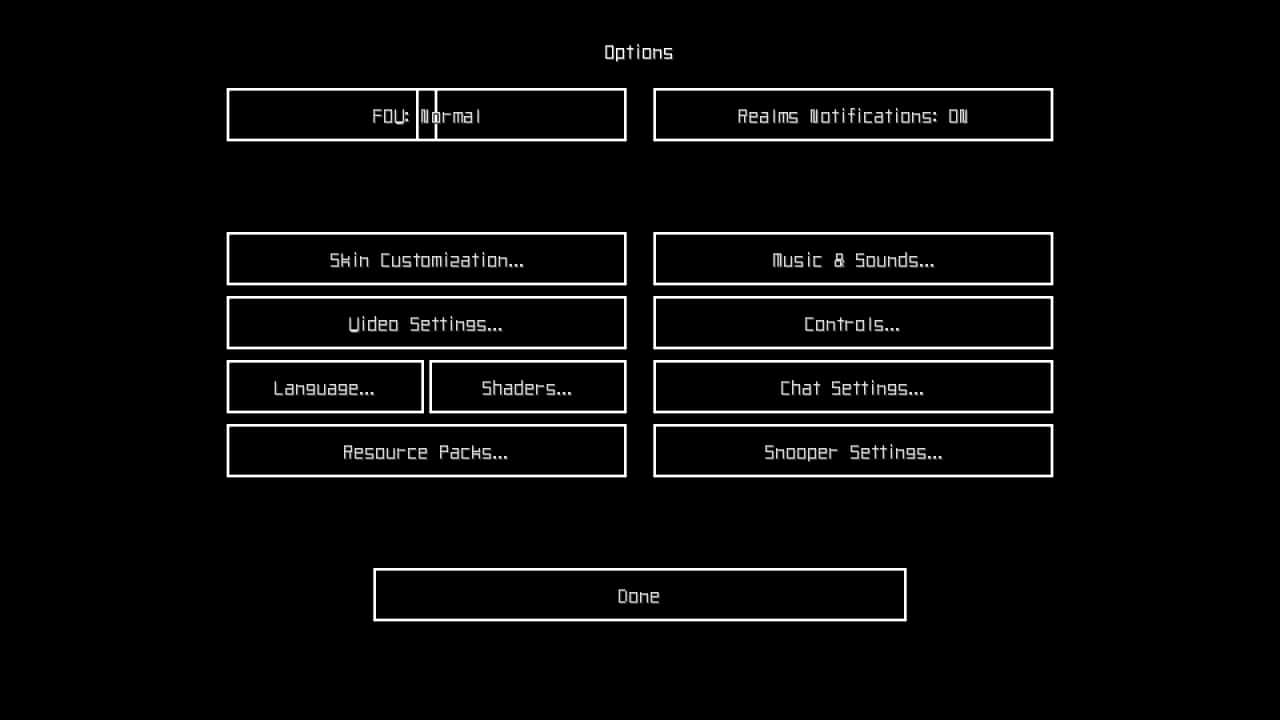
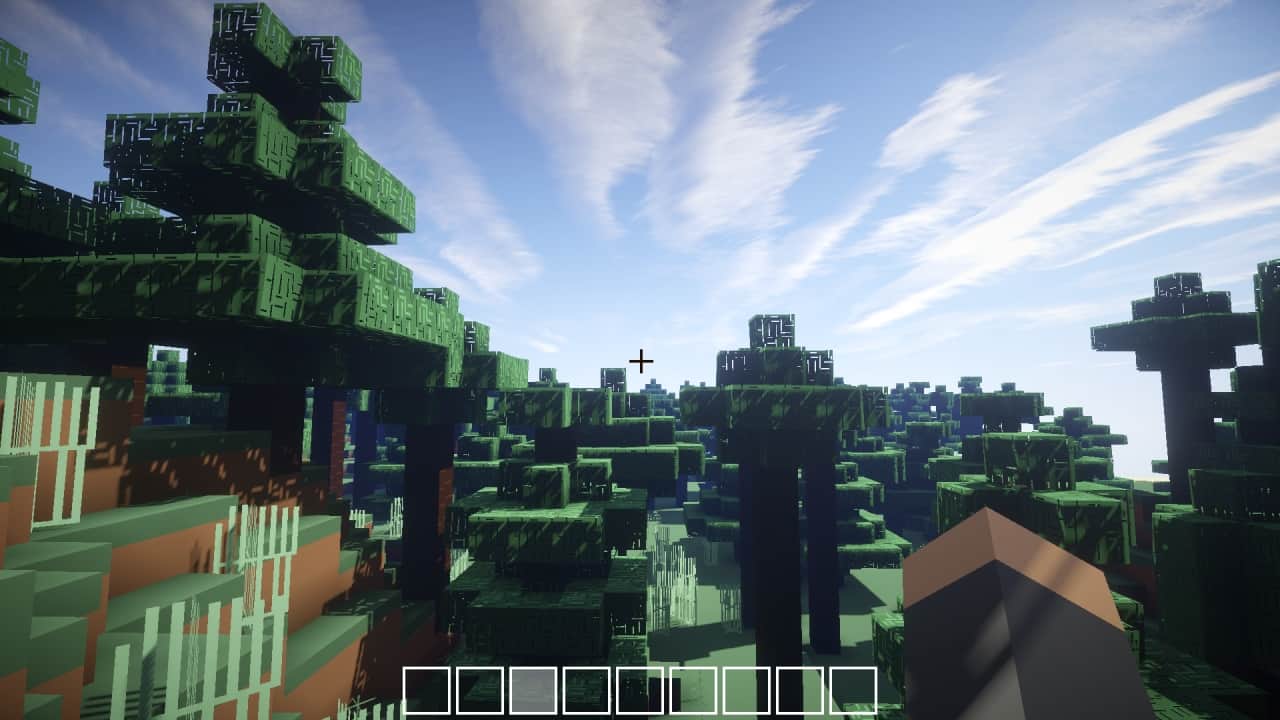
When it comes to simple resource packs that advertise simplicity, I totally understand why anyone would be skeptical at first. Vanilla Minecraft is already pretty simple in its visual style, and the basic 16x texture resolution makes adding intricate details a massive challenge since you can only fit so much into those tiny pixels. When you hear that a resource pack wants to make textures even simpler, you honestly do not expect much to come out of it. The Simply Modern resource pack completely falls into this category by aiming for a cleaner, ultra-simplistic look, but I was genuinely surprised by how amazingly it manages to make so many aspects of the game feel better where countless other packs have completely stumbled. Launched back in early 2014 after a lengthy development period, the brilliant original creator Harvey Coe, also known as Coevex, carefully crafted this pack to enhance Minecraft without ever upscaling the traditional texture resolutions. The ultimate goal was always to elevate the visual experience while keeping performance buttery smooth so gameplay never takes a hit. Even though updates eventually stopped after a couple of solid years, I love that it still functions wonderfully with older versions of Minecraft, and despite glowing community feedback, it remains an underrated gem with around one hundred thousand total downloads across various hosting sites. The absolute first thing you will notice the moment you load up Simply Modern is how cleanly stripped down the textures are, with nearly every single asset redone to be so much simpler, making everyday elements like leaves, grass, and terrain types remarkably easy on the eyes and a breeze to tell apart.
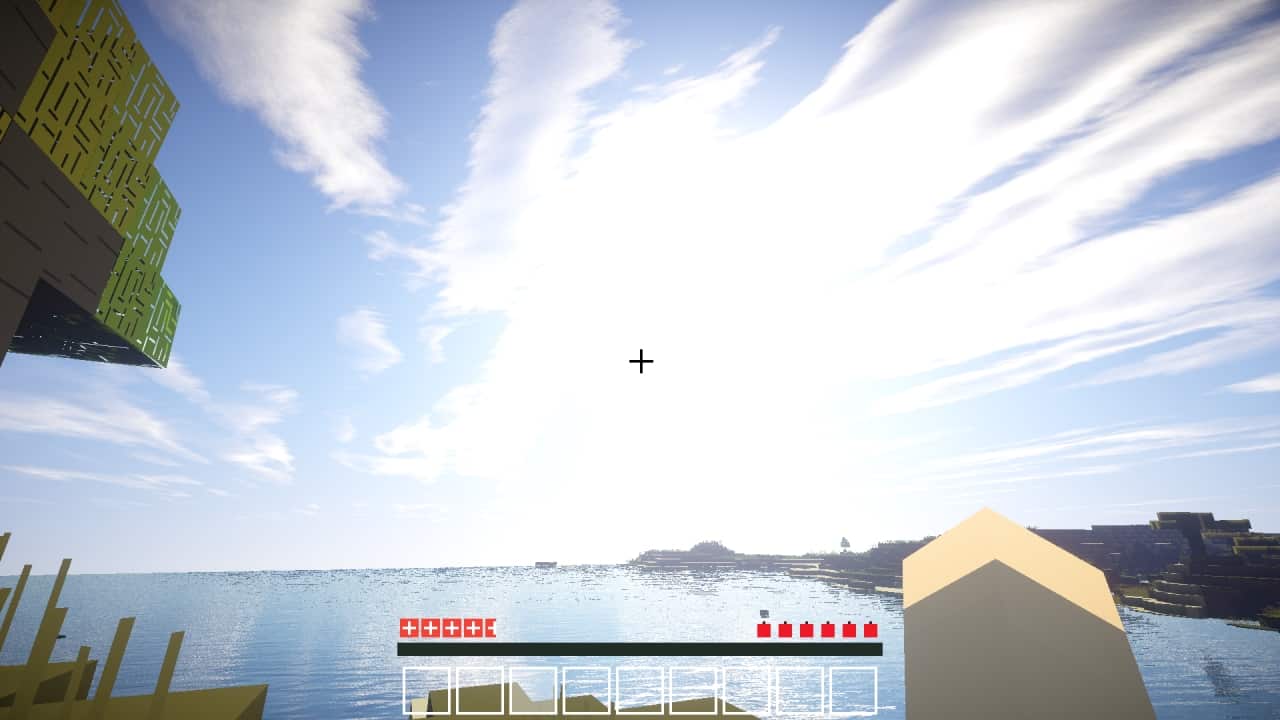
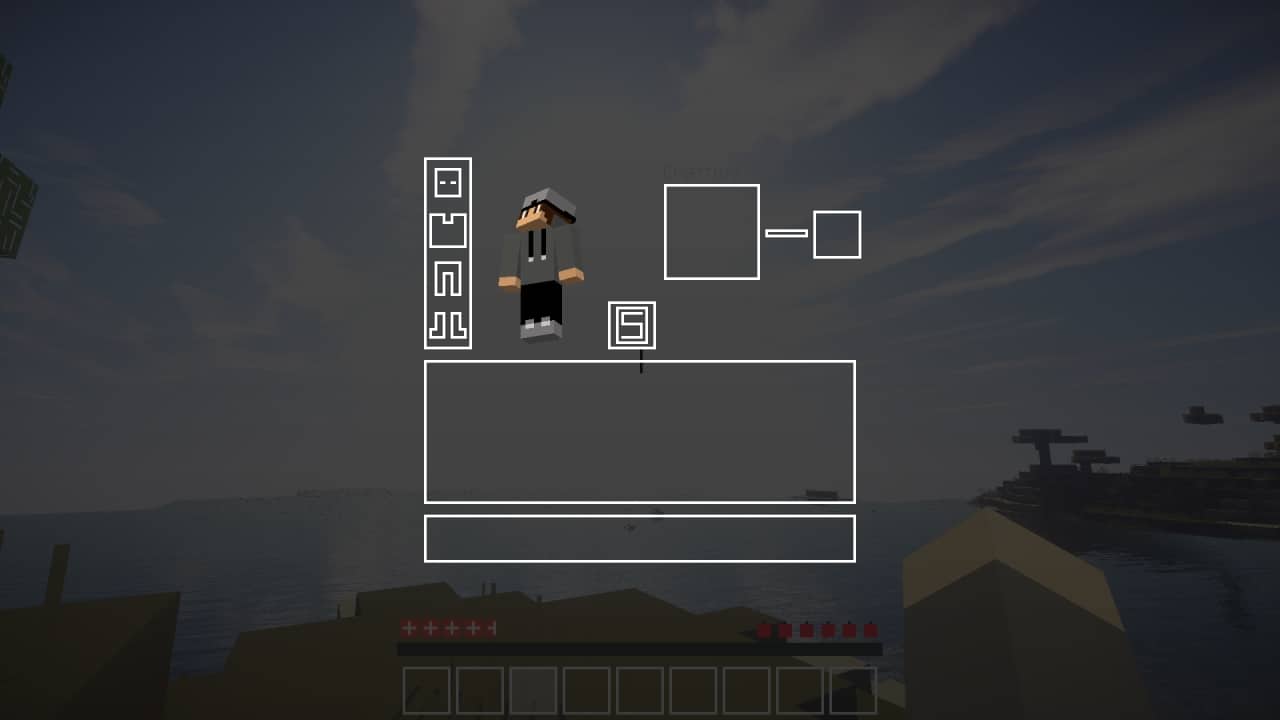
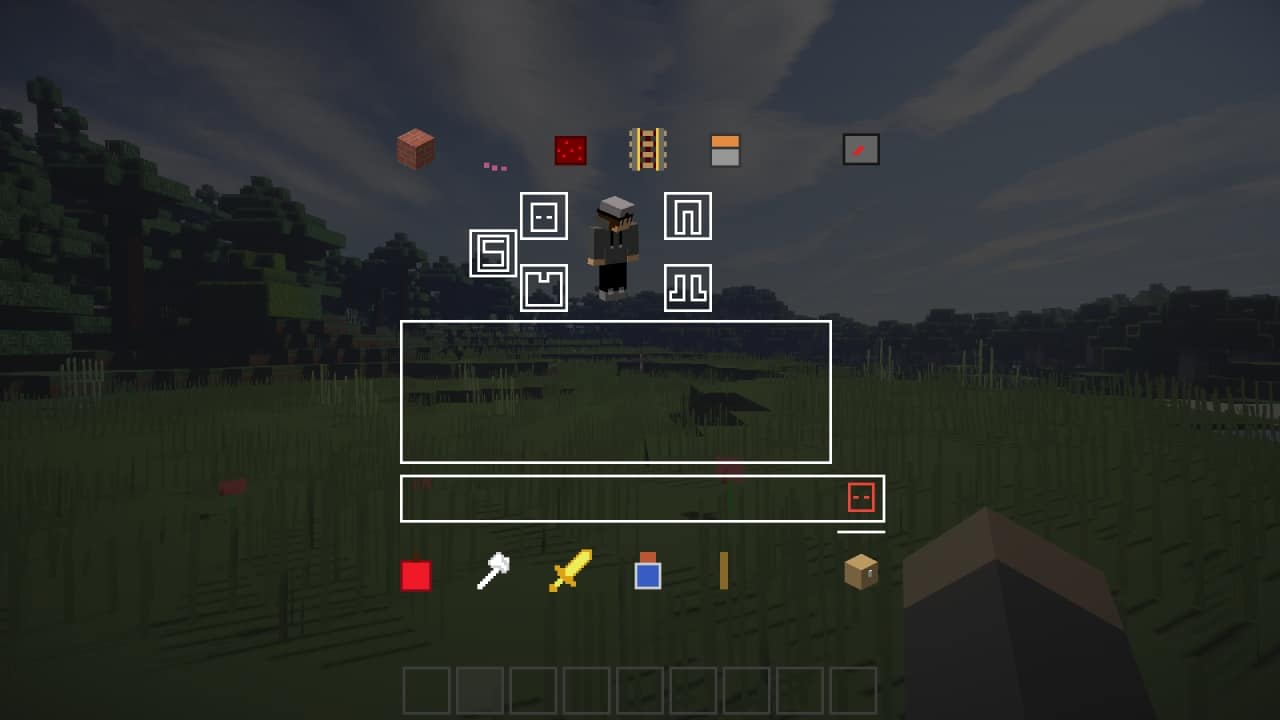
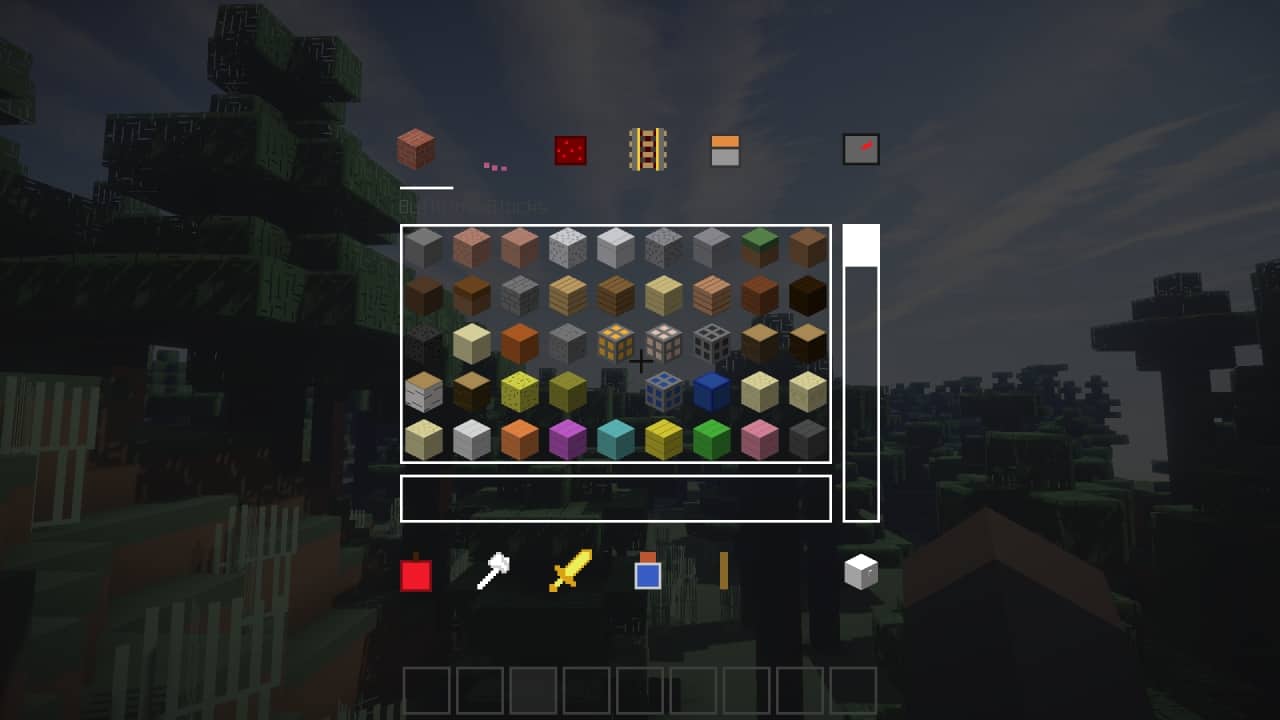
Every single terrain block, block type, and item features carefully hand-picked colors that make sorting and identifying things in your world a total joy. Beyond the gorgeous world textures, Simply Modern completely overhauls the user interface and menus, giving the inventory a wonderfully minimalistic yet modern layout where everything feels ultra-organized and easy to manage. The player HUD gets the exact same treatment, making health hearts and vital stats super clear at a glance while keeping the hotbar item slots delightfully minimal. To perfectly match this fresh inventory and HUD style, all the icons have been completely redesigned to mirror the new minimalist aesthetic across ores, blocks, food items, crafting materials, weapons, armor, and everything in between. Even the player textures got a fun makeover, transforming characters into sleek, brightly colored robotic figures which I found incredibly helpful for spotting targets during intense PvP matches. The sky and water textures are left untouched, giving you total freedom to mix and match with your favorite shader packs if you want to push the visuals even further. Performance is always the biggest worry for us PvP enthusiasts who dread sudden framerate drops or choppy gameplay, but I am thrilled to report that Simply Modern is featherlight on your system because it avoids heavy upscaling and complex dynamic features, keeping your frames sky-high. While it is the ultimate performance-friendly choice for competitive play, you can always pair it with a gorgeous shader pack for casual exploration, though that will definitely give your FPS a workout. Getting everything running is a total breeze since Simply Modern installs easily using the traditional manual method.
Simply Modern should be compatible with all of these Minecraft versions: 1.11.2 – 1.11 – 1.10.2 – 1.10 – 1.9.4 – 1.9
Screenshots
How to Install Texture Pack (Simple 10 Steps)
- Download OptiFine: Most of the texture packs and shaders need OptiFine. That’s why, first download and install OptiFine for the version of Minecraft you want to play.
- Download the Texture Pack: Get the texture pack you want from the download section. Choose the version that works with your Minecraft and your PC’s performance.
- Open Minecraft Launcher: Start Minecraft using the official game launcher — or even TLauncher, if you use that.
- Go to Options: From the main menu, click on the “Options” button.
- Open Resource Packs: Inside Options, click on “Resource Packs…”.
- Open the Resource Pack Folder: Click on “Open Resource Pack Folder” — this will open a folder named “resourcepacks”.
- Move the Pack File: Copy or move the .zip file you downloaded into that “resourcepacks” folder. (Don’t unzip the file — Minecraft uses it as-is!)
- Go Back and Refresh: Close the folder and click “Done”, then go back into “Resource Packs…” again.
- Activate the Pack: You’ll see the pack on the left side. Hover over it and click the arrow to move it to the right (active side).
Tip: If you get a message that the pack is for a different version, just click “Yes” — it usually works fine. - Click Done and Enjoy: Click “Done” again. Now your pack is ready to use in-game. It’s that easy!
Credits
This resource pack was originally created by Harvey Coe. We are not the owners or authors of this content, and we do not host or modify any files on our servers. All rights and intellectual property belong strictly to the original creator. We highly recommend supporting Harvey Coe by checking out their official download links and community pages.
Download Links
Java Edition
Bedrock Edition
Download Instructions
Curseforge: download starts automatically after a few seconds;
Mediafire: click the big blue button with the text “DOWNLOAD”;
Google Drive: in the top right corner you will see a small download icon (down arrow), click it and the download should start;


