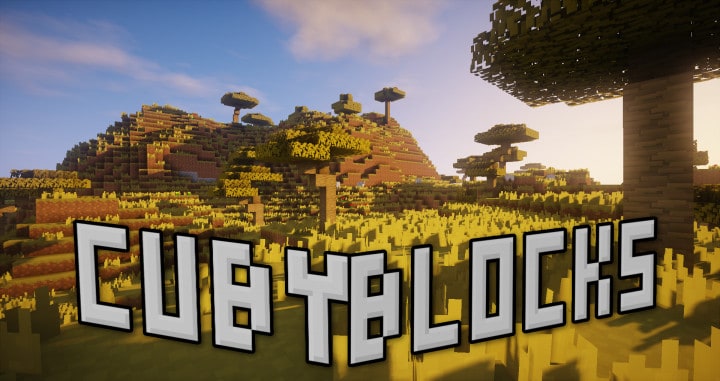
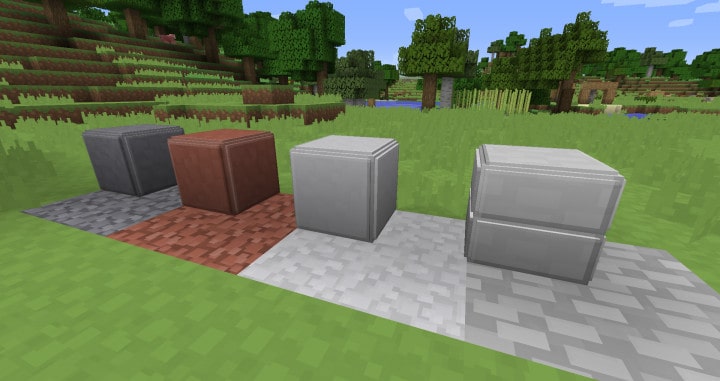
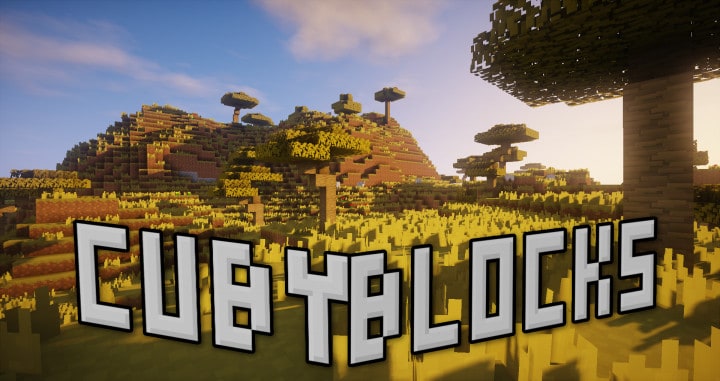
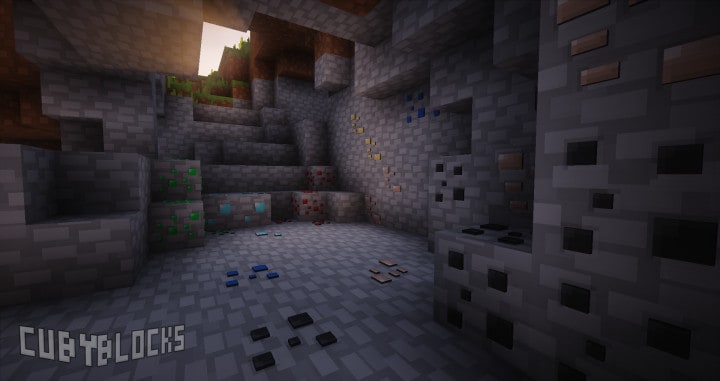
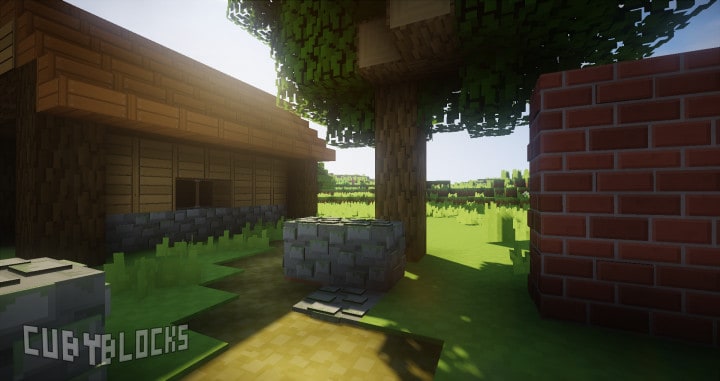
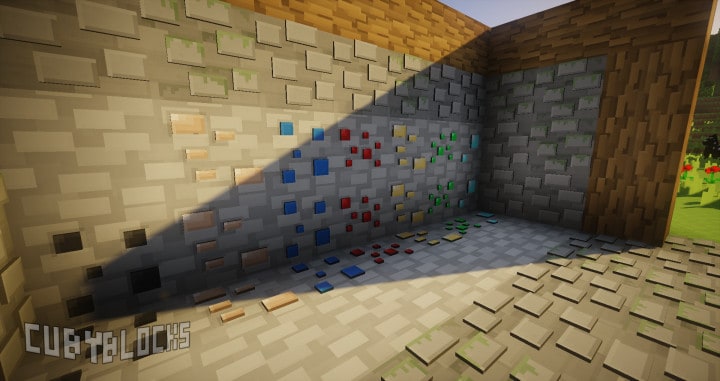
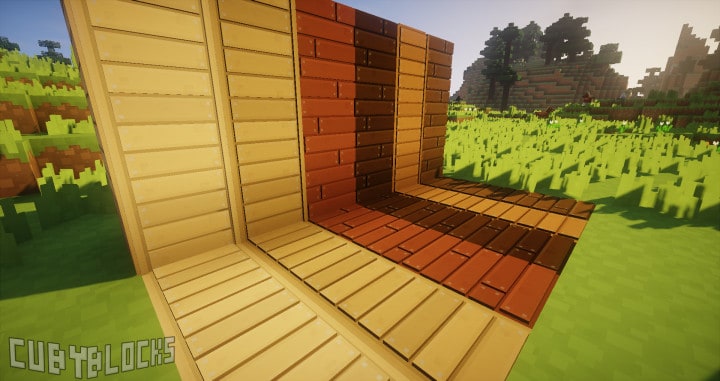
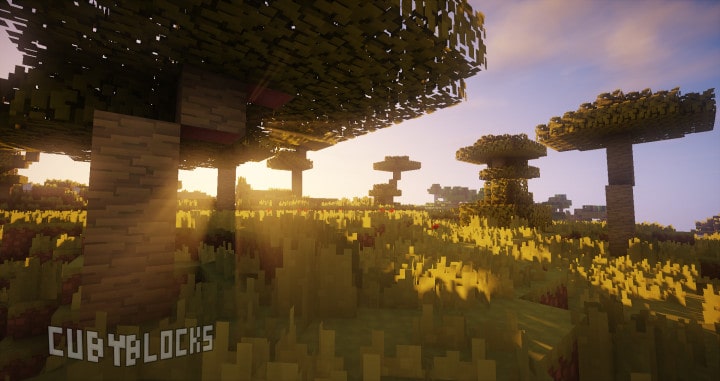
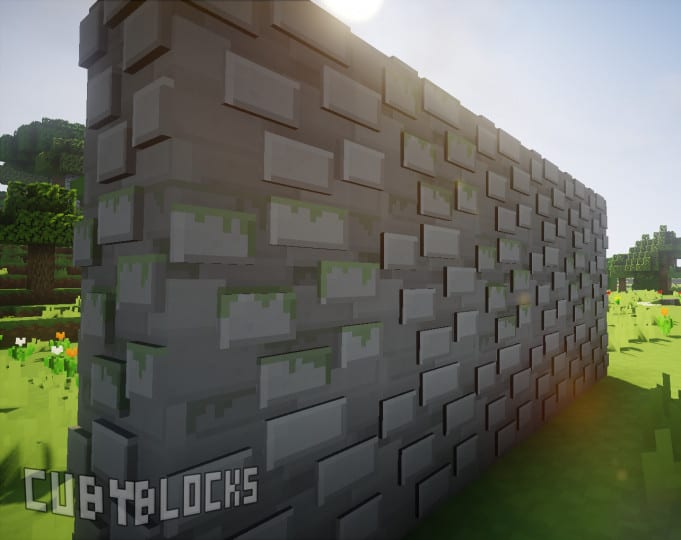
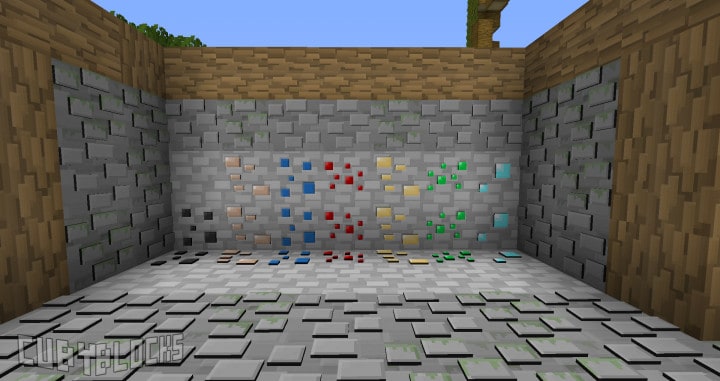
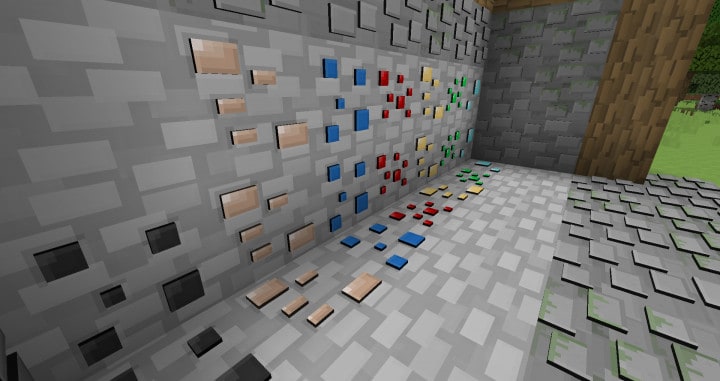
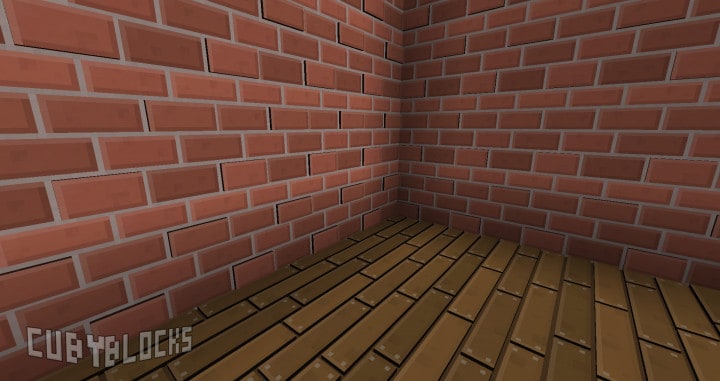
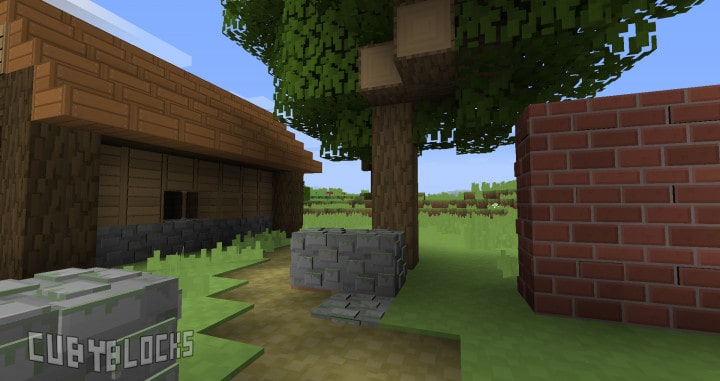
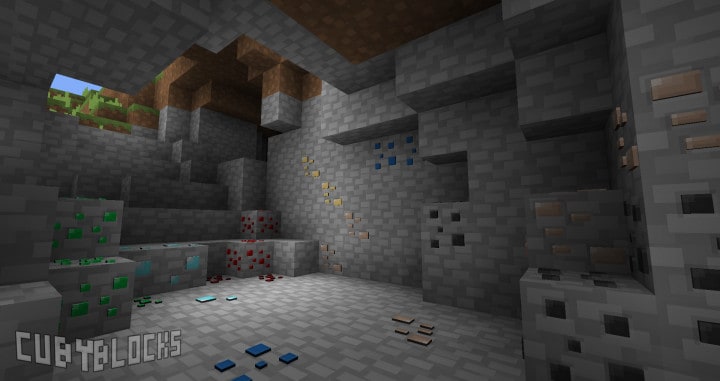
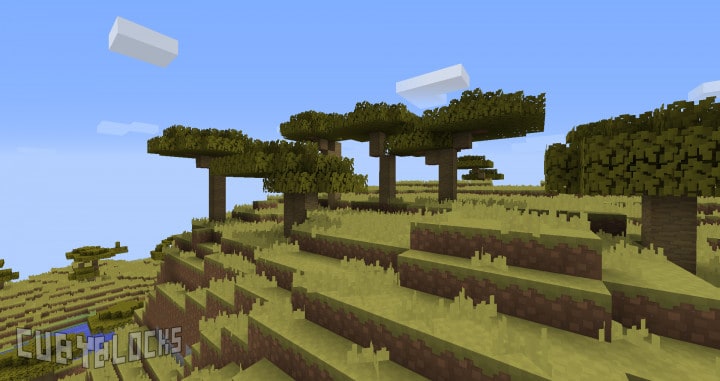
CubyBlocks3D truly stands out as the latest and one of the most visually striking minecraft packages among the multitude of 3D resource packs currently available for your Minecraft world. 3D packs are the absolute hottest trend nowadays, with a new option launching almost every day, and most of them boast appreciably high quality to deliver superior visual fidelity than ever before. Although many of these recent 3D packs are pretty solid, if you truly want to introduce a bunch of significant improvements to the overall visuals of your Minecraft gameplay, I can definitely recommend giving the CubyBlocks3D resource pack a try since it is brilliantly designed with super high-quality models. One major issue that CubyBlocks3D has successfully addressed, which instantly places it way ahead of other competing packs on the market, is that while many other options feel somewhat half-hearted due to featuring only a handful of models and colors, this resource pack comes thoroughly loaded with an incredible abundance of diverse 3D models.
Even though it is technically still a work in progress, there are already more than sufficient models included to drive a myriad of exciting changes across the entire playing field. Each individual model in the pack features spectacularly high-quality textures, and every single one is crafted with precise, eye-catching detail. You also get access to a fantastic host of vibrant colors to choose from, granting you the wonderful ability to make your Minecraft world look significantly more lively and realistic. Therefore, with this amazing 3D pack, you no longer have to worry about the typical lack of variety or quality concerning models, as you are given hundreds of distinct designs and colors to make your selection from. You can easily say goodbye to that old, flat blocky look in your Minecraft sessions by utilizing this stunning 3D resource pack. Better yet, CubyBlock3D takes things a step above standard x16 packs by delivering a crisp x32 higher resolution. But there is no need to panic if your PC struggles to run vanilla Minecraft smoothly, because the author thoughtfully provided a Lite edition of this resource pack which includes fewer 3D models. If your computer happens to struggle with the standard edition of CubyBlocks3D, you should definitely try out the Lite version for a smoother experience.
CubyBlocks3D should be compatible with all of these Minecraft versions: 1.12.2 – 1.12
Screenshots

How to Install Texture Pack (Simple 10 Steps)
- Download OptiFine: Most of the texture packs and shaders need OptiFine. That’s why, first download and install OptiFine for the version of Minecraft you want to play.
- Download the Texture Pack: Get the texture pack you want from the download section. Choose the version that works with your Minecraft and your PC’s performance.
- Open Minecraft Launcher: Start Minecraft using the official game launcher — or even TLauncher, if you use that.
- Go to Options: From the main menu, click on the “Options” button.
- Open Resource Packs: Inside Options, click on “Resource Packs…”.
- Open the Resource Pack Folder: Click on “Open Resource Pack Folder” — this will open a folder named “resourcepacks”.
- Move the Pack File: Copy or move the .zip file you downloaded into that “resourcepacks” folder. (Don’t unzip the file — Minecraft uses it as-is!)
- Go Back and Refresh: Close the folder and click “Done”, then go back into “Resource Packs…” again.
- Activate the Pack: You’ll see the pack on the left side. Hover over it and click the arrow to move it to the right (active side).
Tip: If you get a message that the pack is for a different version, just click “Yes” — it usually works fine. - Click Done and Enjoy: Click “Done” again. Now your pack is ready to use in-game. It’s that easy!
Credits
This resource pack was created by _LoKi_. We do not claim ownership of this modification, and all rights remain with the original author. We host these links as a convenience and strongly encourage supporting the creator by checking out their official download sources and community pages.
Download Links
Java Edition
Download Instructions
Curseforge: download starts automatically after a few seconds;
Mediafire: click the big blue button with the text “DOWNLOAD”;
Google Drive: in the top right corner you will see a small download icon (down arrow), click it and the download should start;


