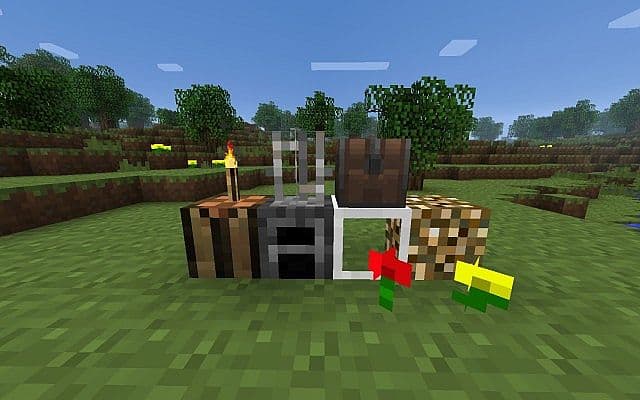
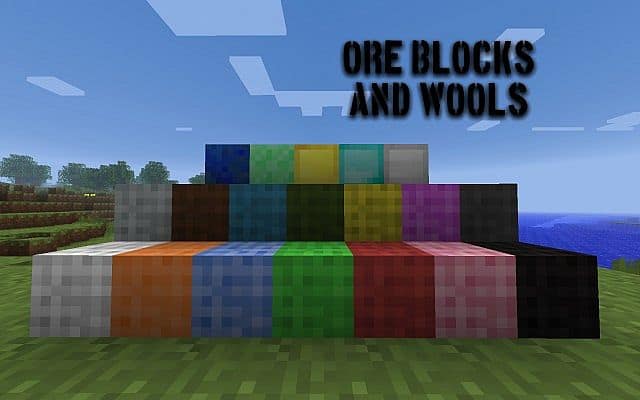
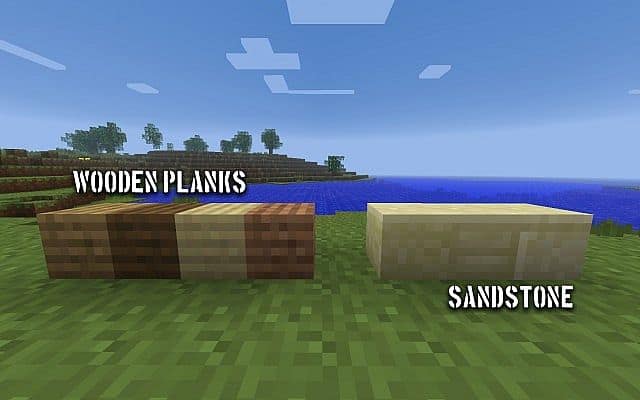
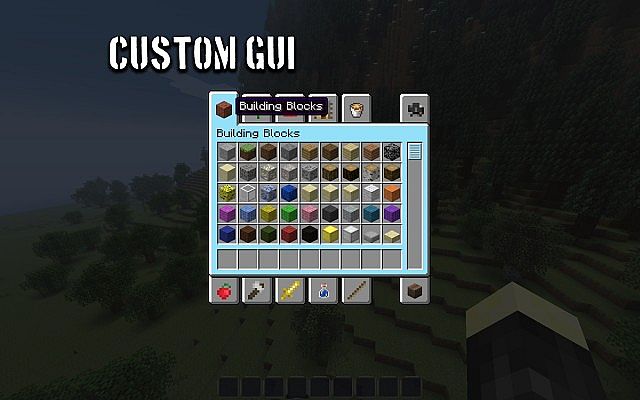
MagiCraft 8-Bit is an absolute joy to use; it is a thoughtfully designed 8×8 pixel resource pack that stays wonderfully true to the essence of vanilla Minecraft. I tested it out and found that while retaining the charming familiarity of the original textures, it introduces genuinely impressive performance enhancements tailored to boost your in-game FPS. Even though Minecraft’s default 16x resolution textures are already quite modest by modern standards, especially when compared to absurdly high-resolution packs running at 1024x, I completely realize that not everyone has the high-end hardware to handle such demanding files smoothly. For many of us players out there, finding efficient and accessible optimization alternatives is key to enjoying our sessions without lag.
This is precisely where the MagiCraft resource pack shines the brightest. By cleverly halving the resolution of the default textures down to an 8×8 grid, it delivers remarkably smoother gameplay without ever compromising the visual integrity of Minecraft’s beloved aesthetic. The changes feel subtle yet impactful, offering that exact same familiar experience with fewer pixels and substantially improved performance overall. If you deeply value high FPS but prefer not to stray far from the classic Minecraft look, I think MagiCraft is simply the perfect choice. Whether you happen to be playing on a budget setup or you just want a much more streamlined, optimized experience, MagiCraft 8-Bit offers an exceptionally elegant solution. It is a wonderfully simple and efficient way to enhance your gameplay without sacrificing a single drop of the core essence that makes Minecraft so special.
MagiCraft 8 Bit should be compatible with all of these Minecraft versions: 1.8.9 – 1.8.8 – 1.8.1 – 1.8.6 – 1.8 – 1.7.10 – 1.7.9 – 1.7.4 – 1.7 – 1.6.4 – 1.6.2
Screenshots
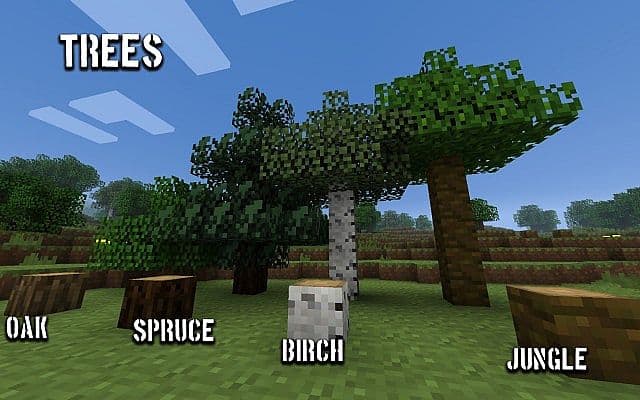
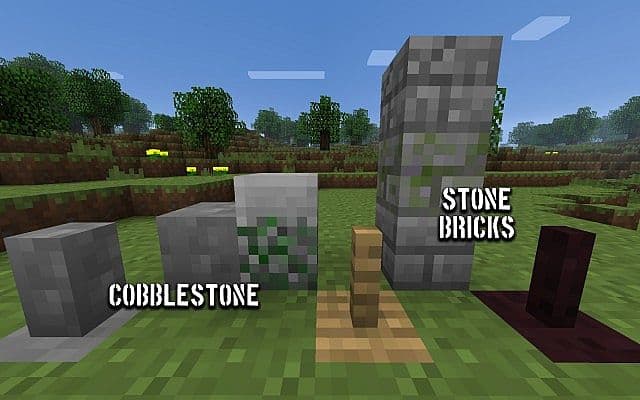
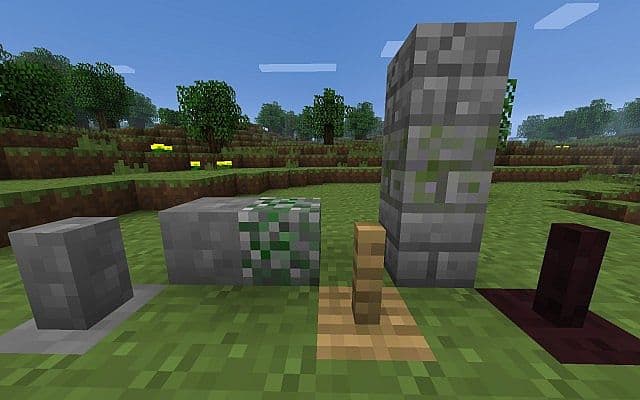
How to Install Texture Pack (Simple 10 Steps)
- Download OptiFine: Most of the texture packs and shaders need OptiFine. That’s why, first download and install OptiFine for the version of Minecraft you want to play.
- Download the Texture Pack: Get the texture pack you want from the download section. Choose the version that works with your Minecraft and your PC’s performance.
- Open Minecraft Launcher: Start Minecraft using the official game launcher — or even TLauncher, if you use that.
- Go to Options: From the main menu, click on the “Options” button.
- Open Resource Packs: Inside Options, click on “Resource Packs…”.
- Open the Resource Pack Folder: Click on “Open Resource Pack Folder” — this will open a folder named “resourcepacks”.
- Move the Pack File: Copy or move the .zip file you downloaded into that “resourcepacks” folder. (Don’t unzip the file — Minecraft uses it as-is!)
- Go Back and Refresh: Close the folder and click “Done”, then go back into “Resource Packs…” again.
- Activate the Pack: You’ll see the pack on the left side. Hover over it and click the arrow to move it to the right (active side).
Tip: If you get a message that the pack is for a different version, just click “Yes” — it usually works fine. - Click Done and Enjoy: Click “Done” again. Now your pack is ready to use in-game. It’s that easy!
Credits
This resource pack was created by Magicman88999. We acknowledge that the creator holds all original ownership rights to this intellectual property. We do not own, host, or modify any files on our servers. We strongly encourage all users to support the original creator by utilizing their official download links and channels.
Download Instructions
Curseforge: download starts automatically after a few seconds;
Mediafire: click the big blue button with the text “DOWNLOAD”;
Google Drive: in the top right corner you will see a small download icon (down arrow), click it and the download should start;


