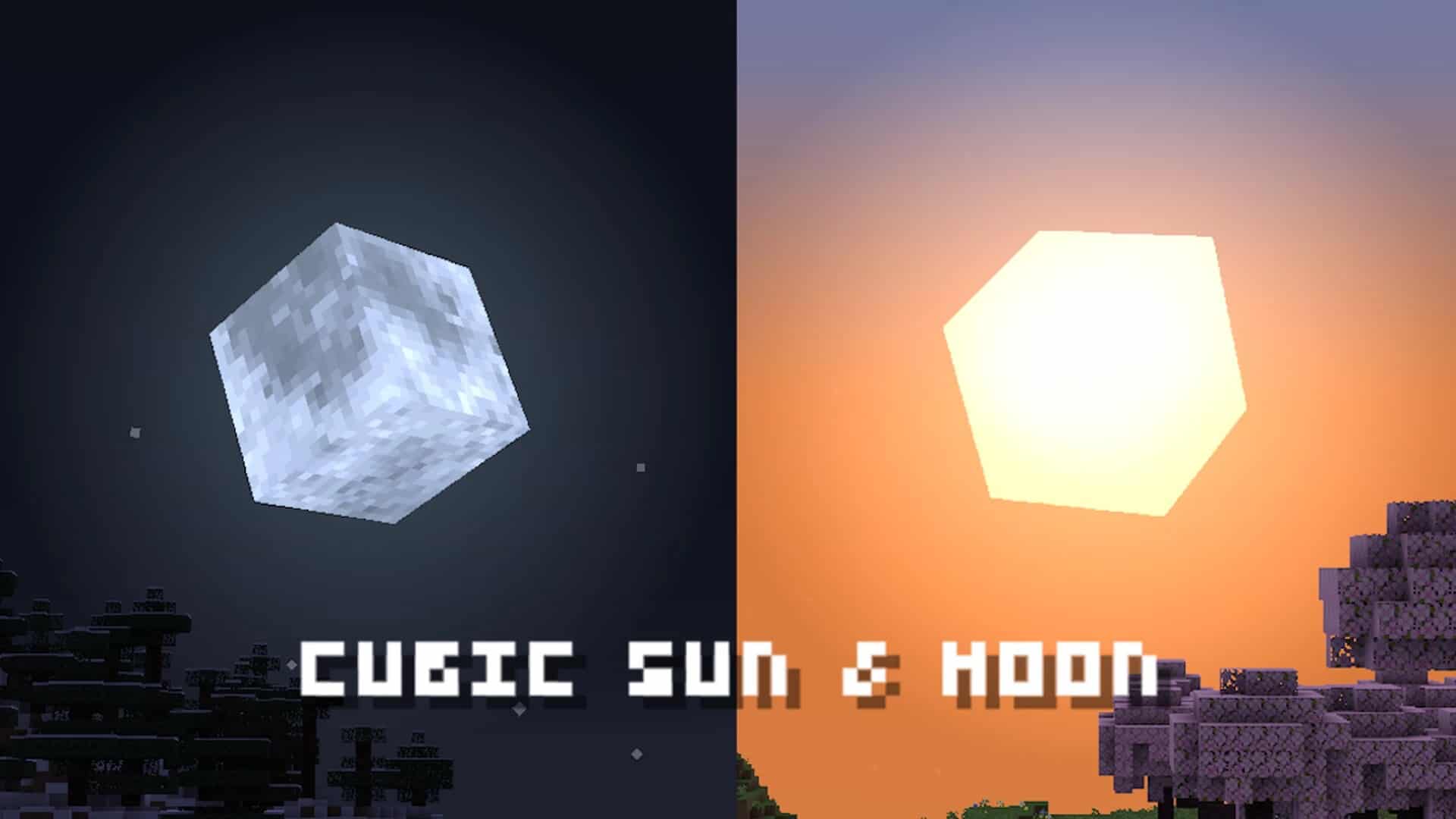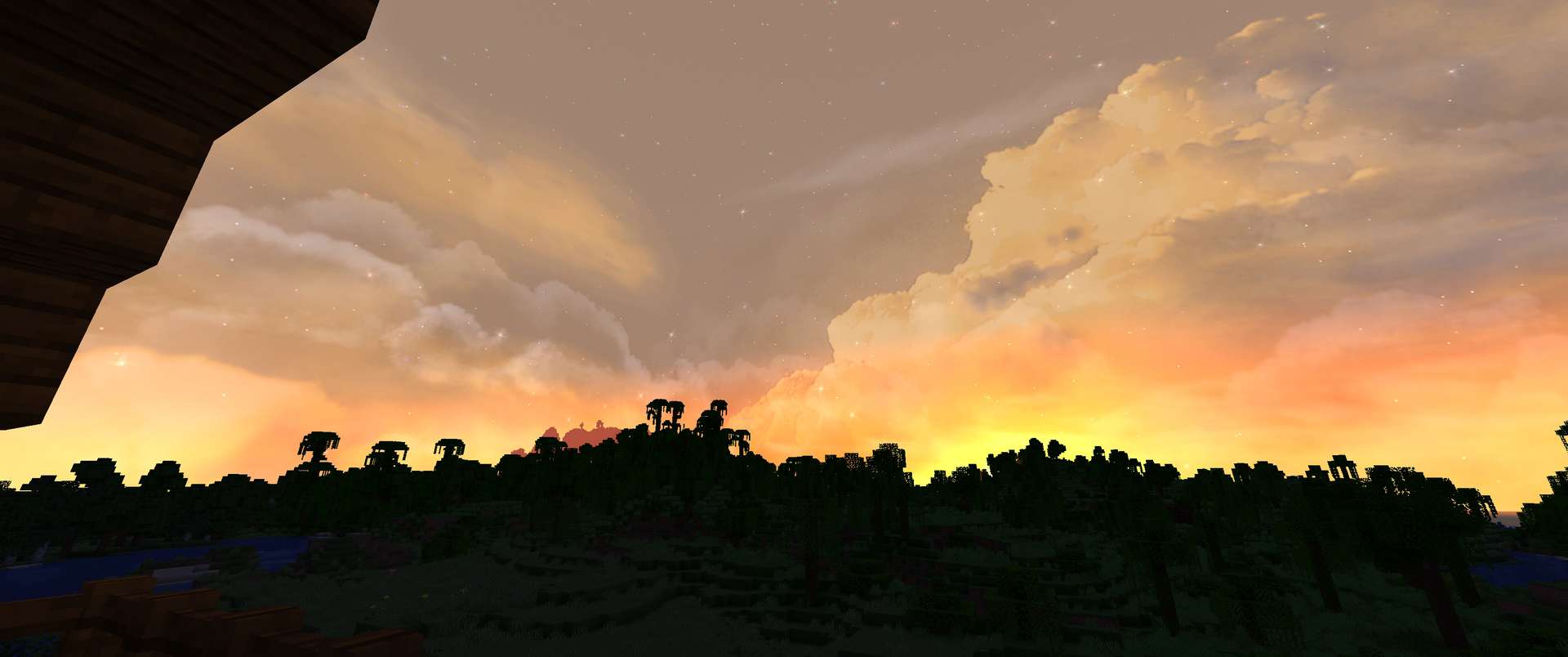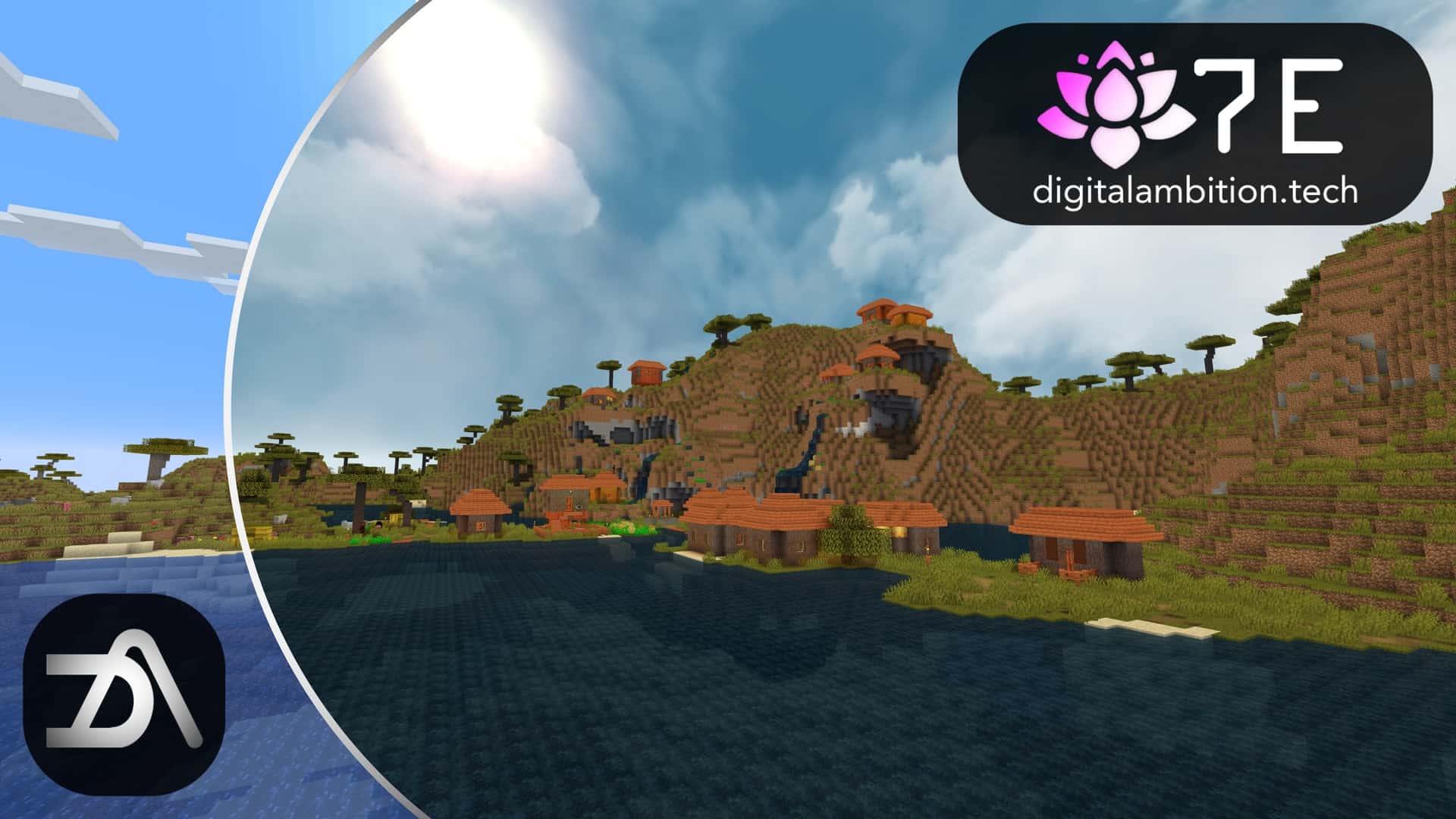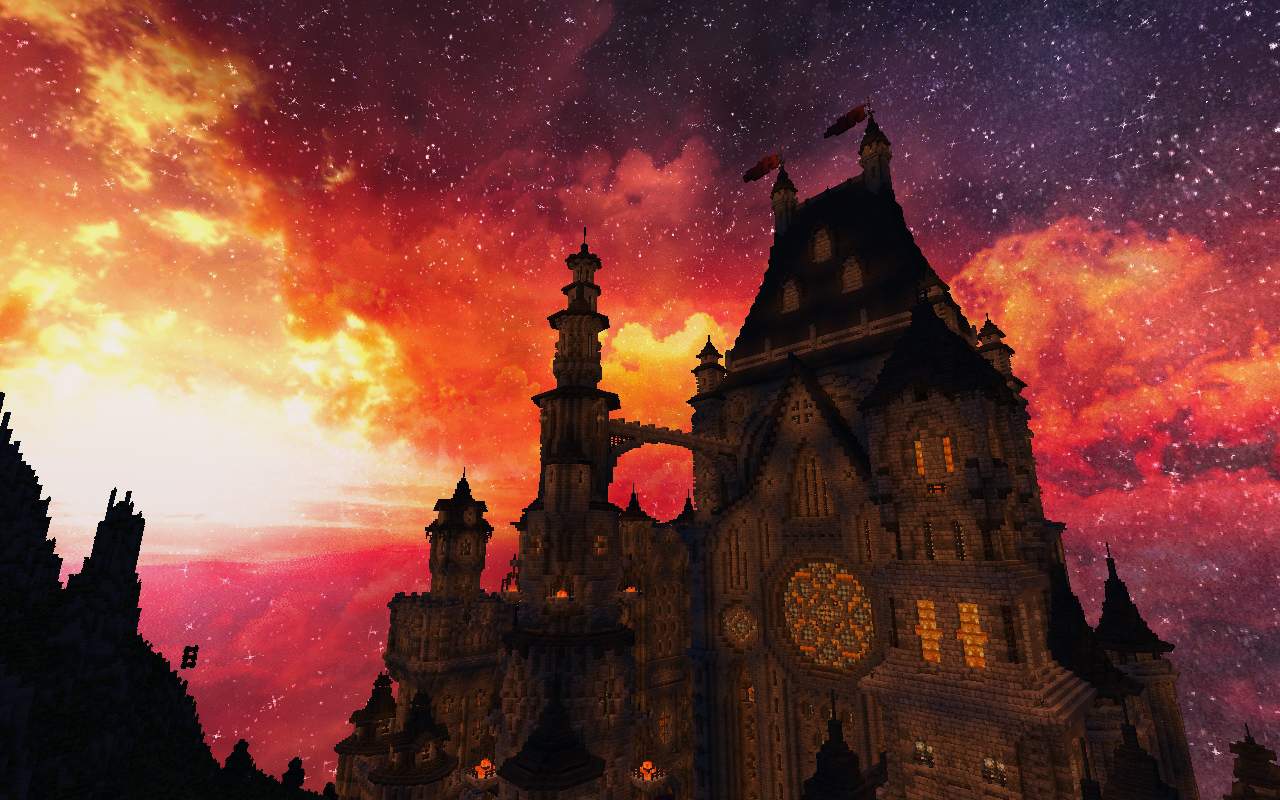
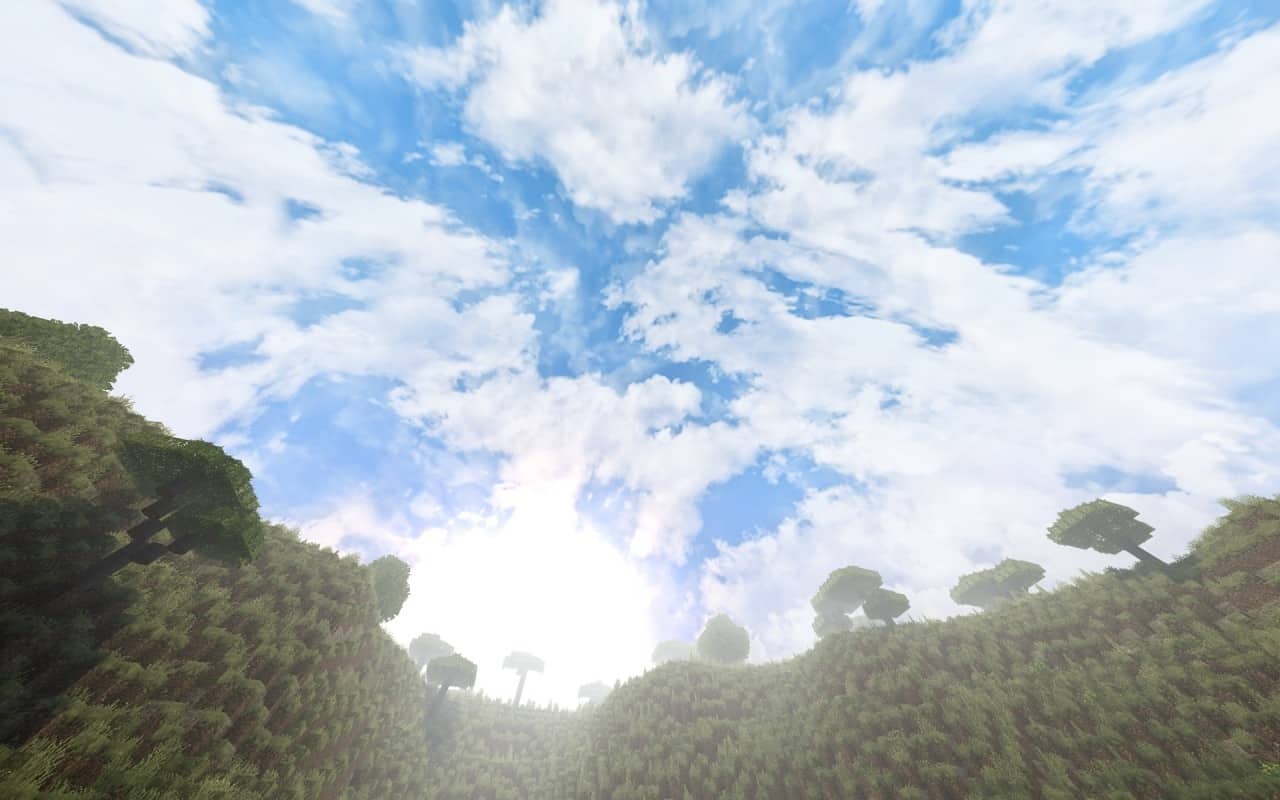
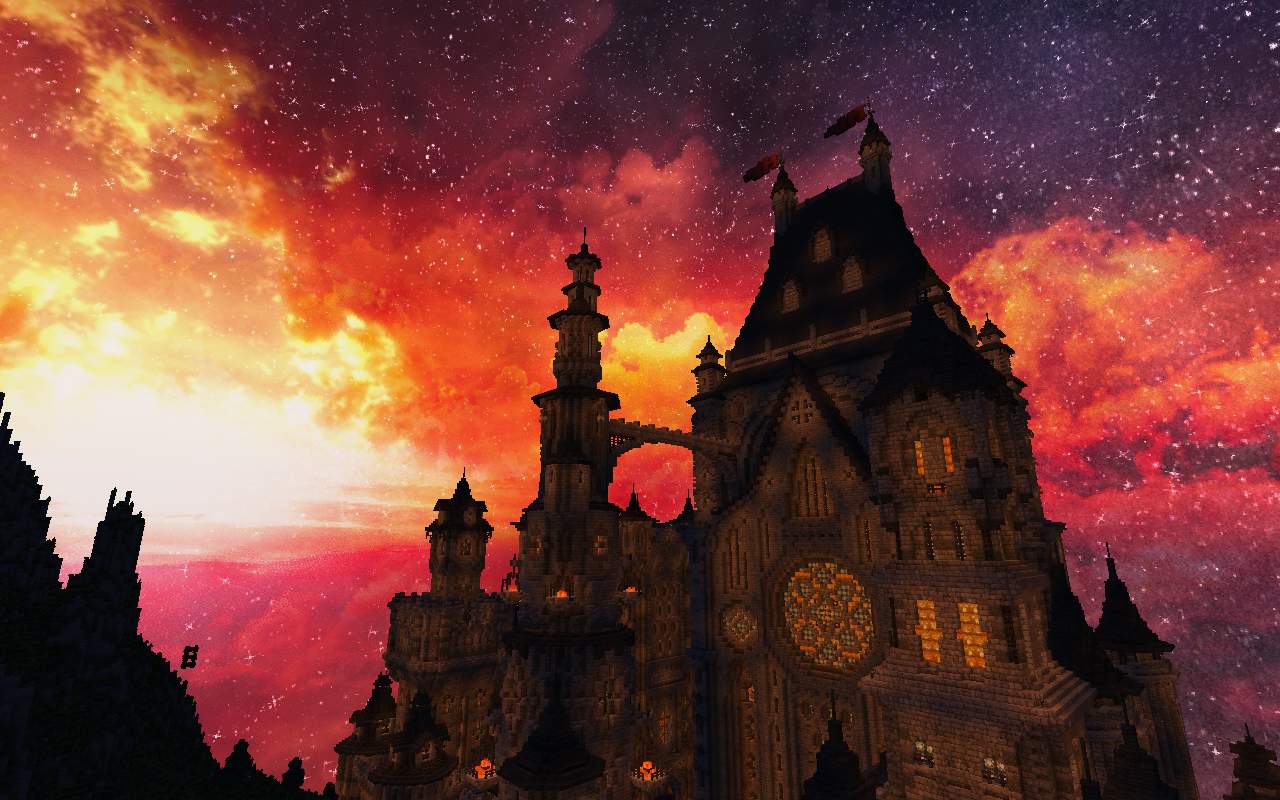
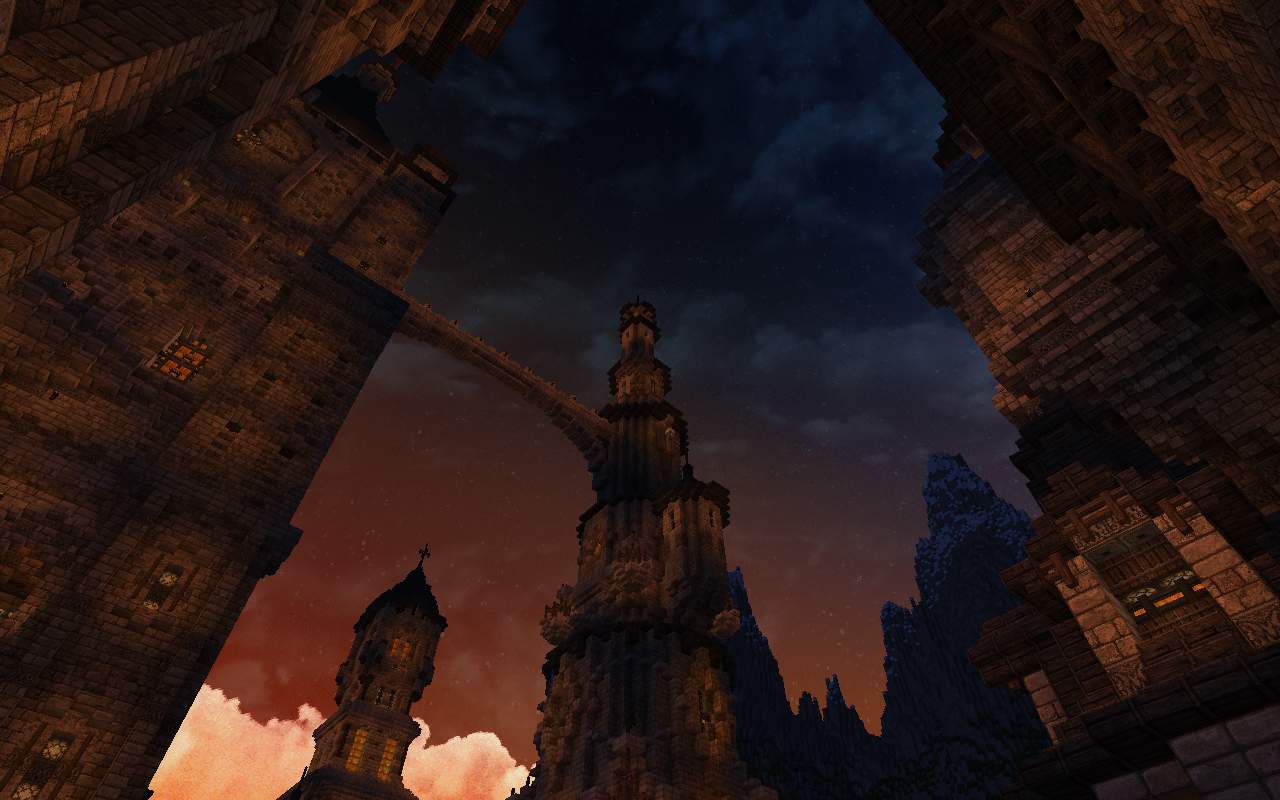
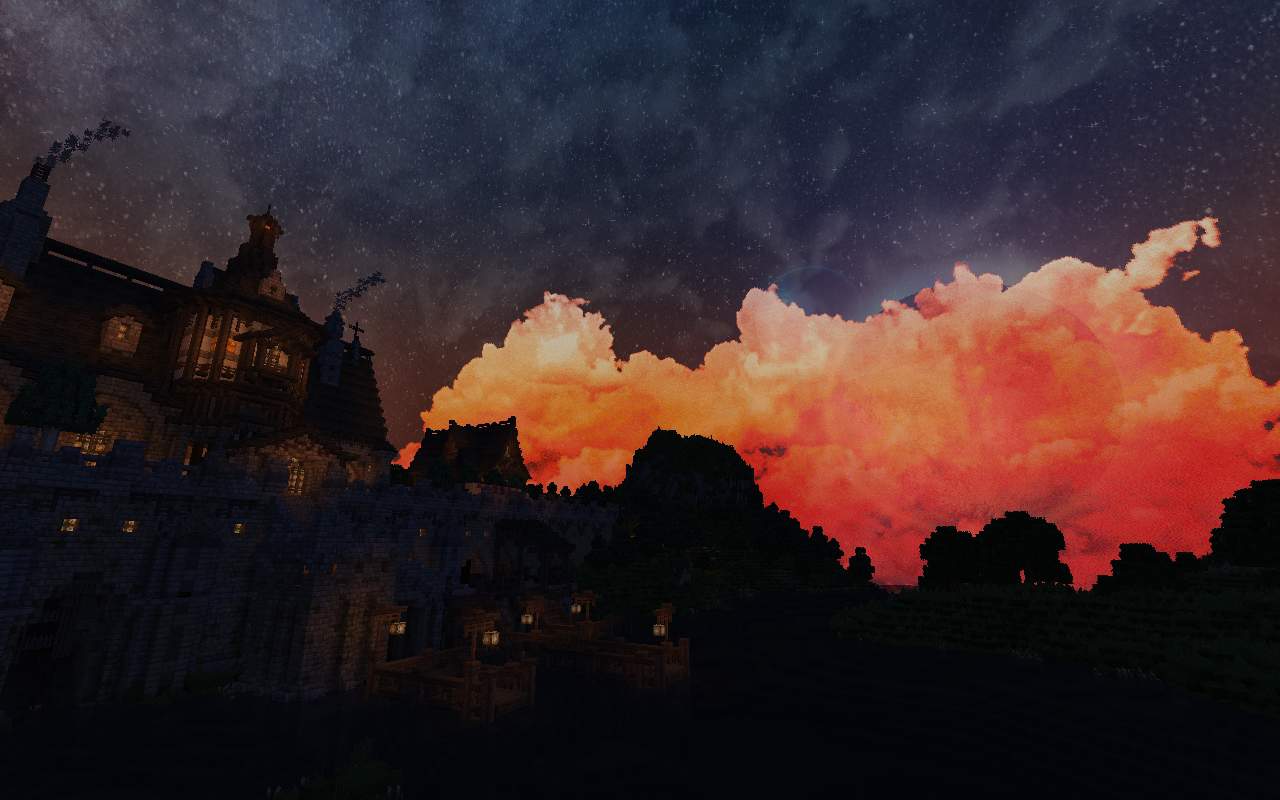
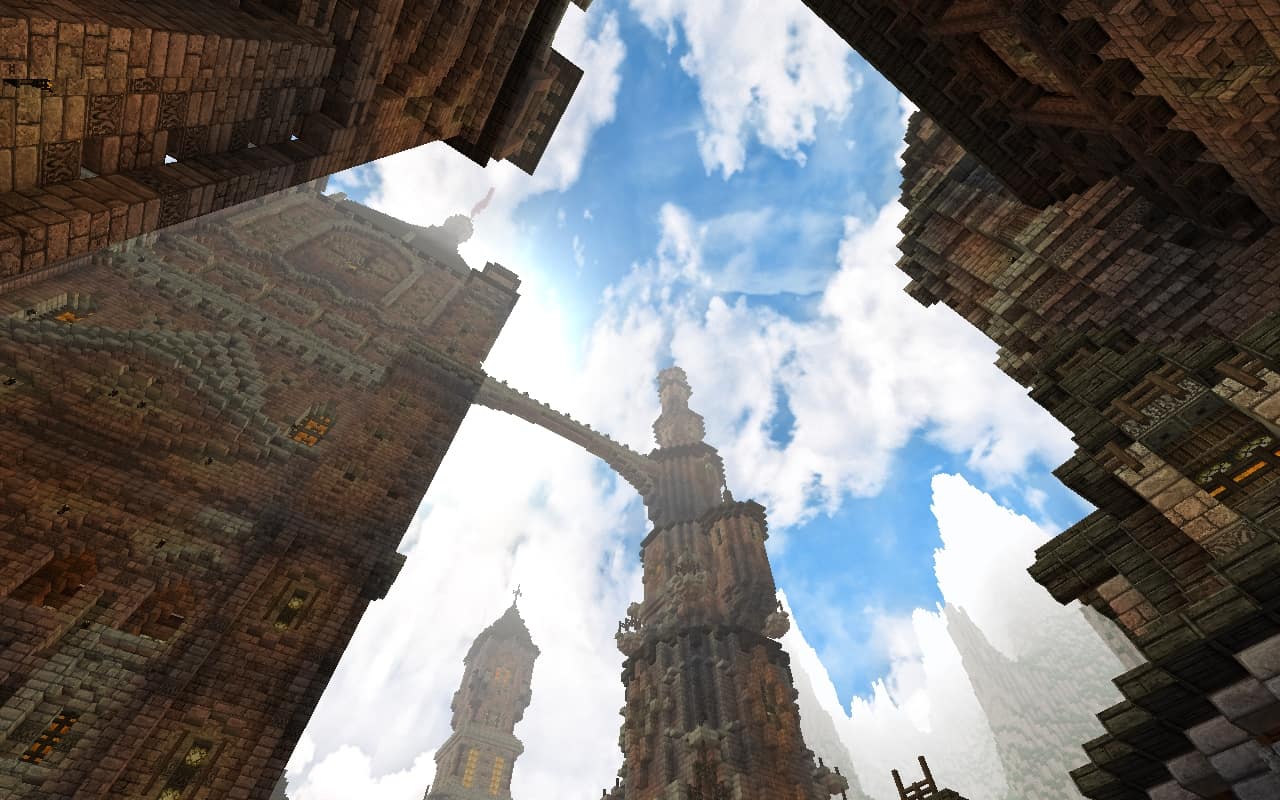
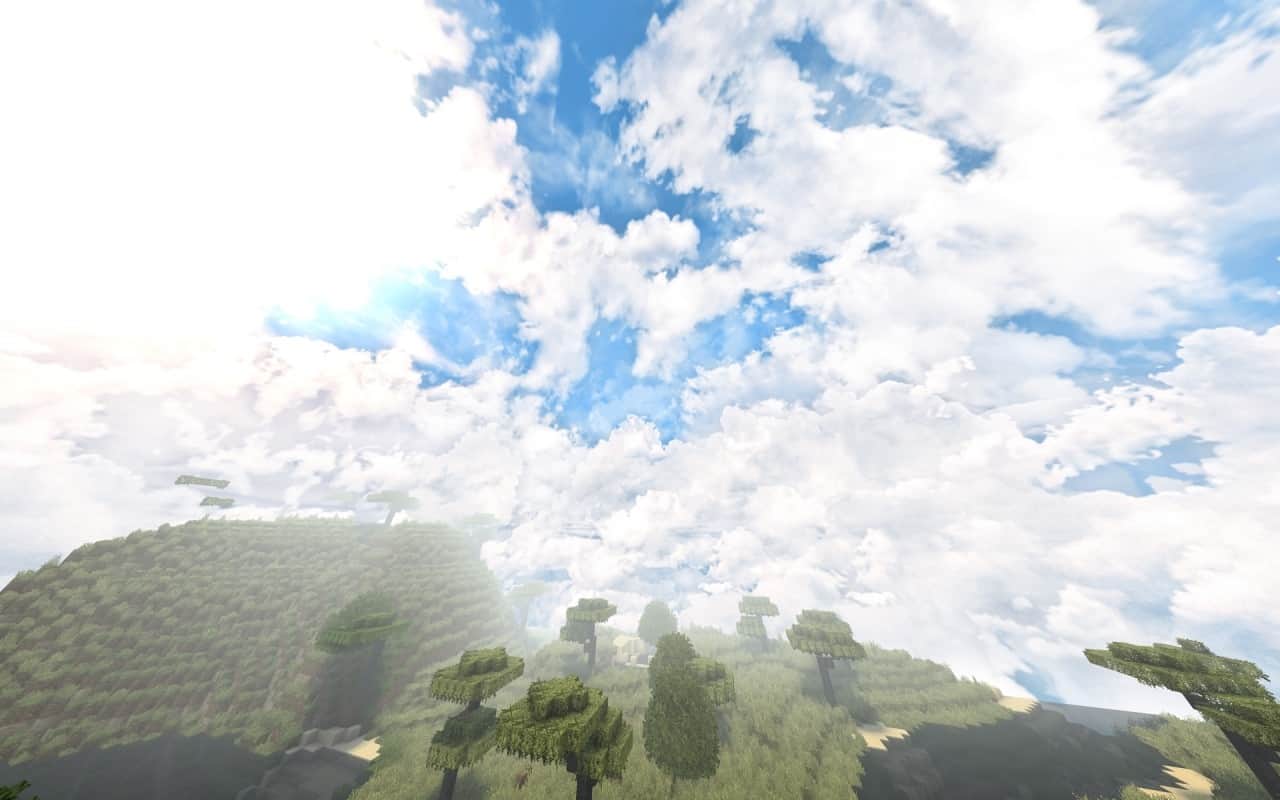
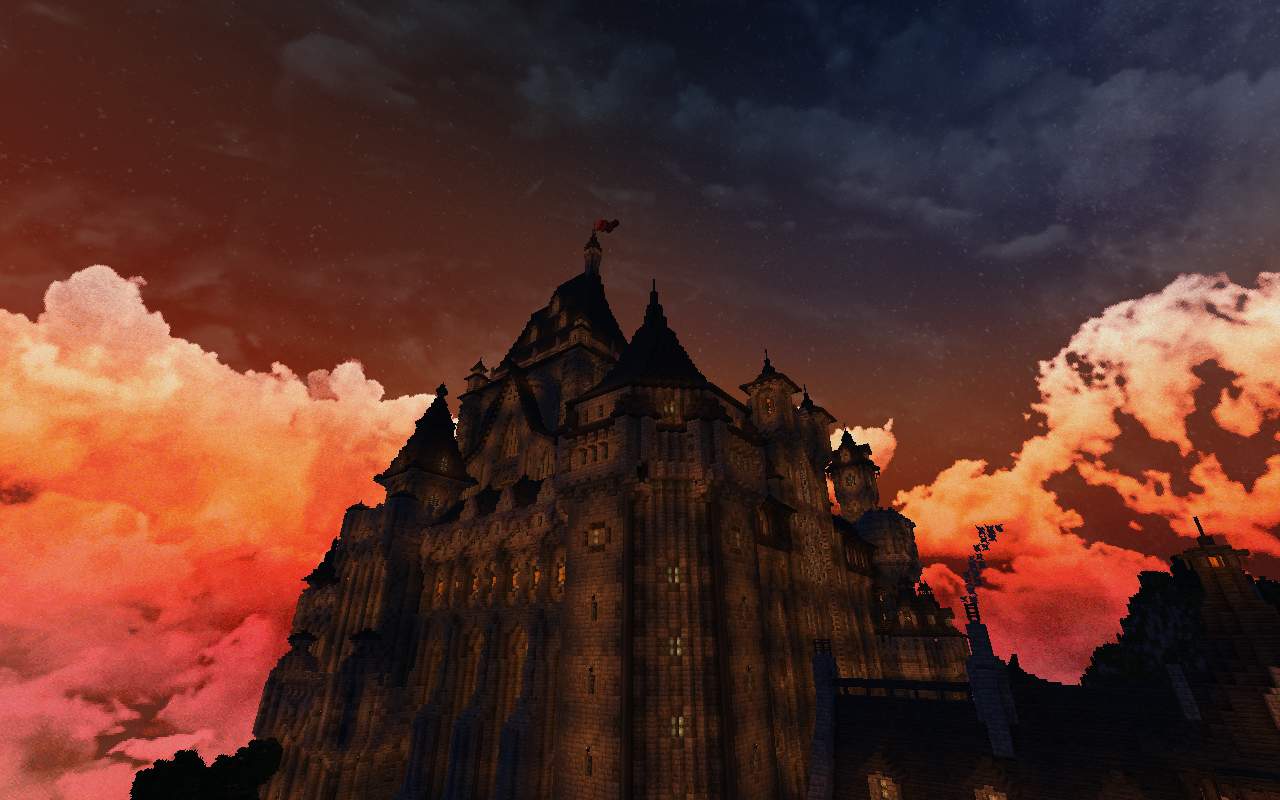
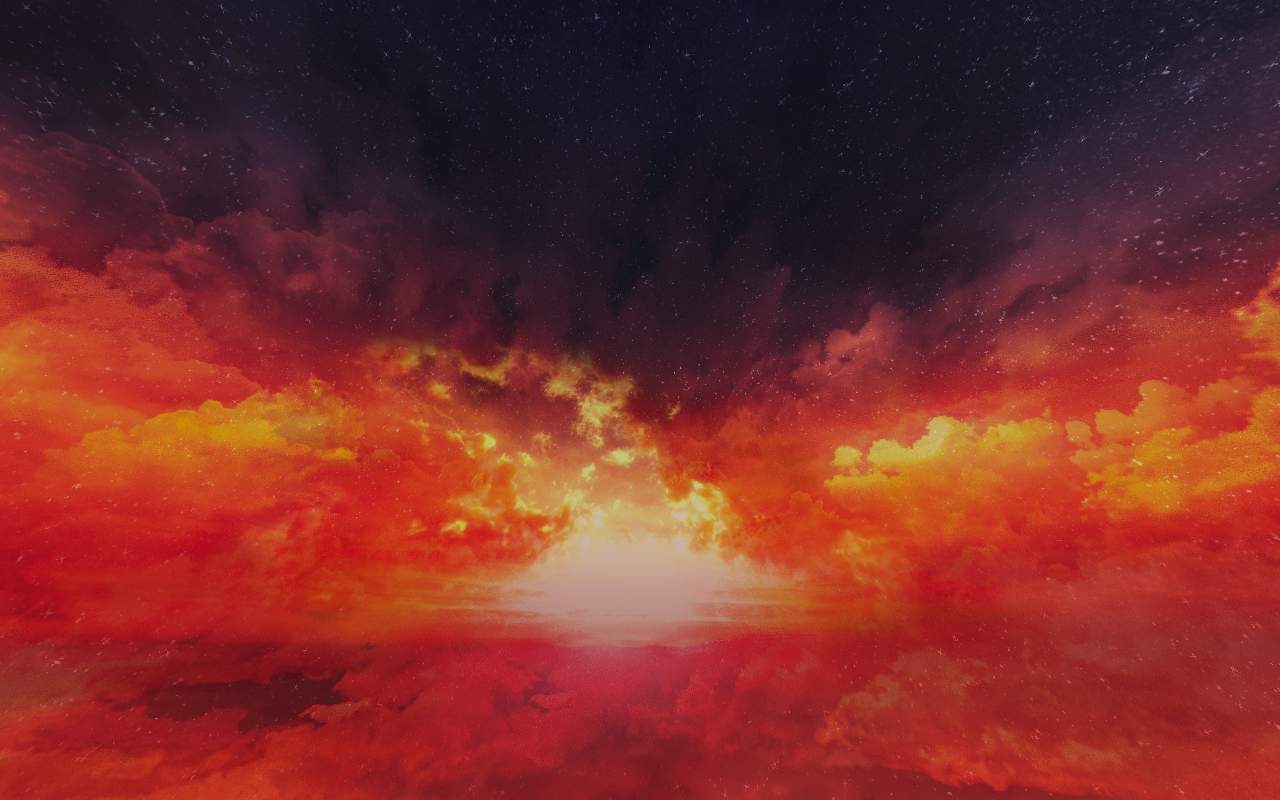
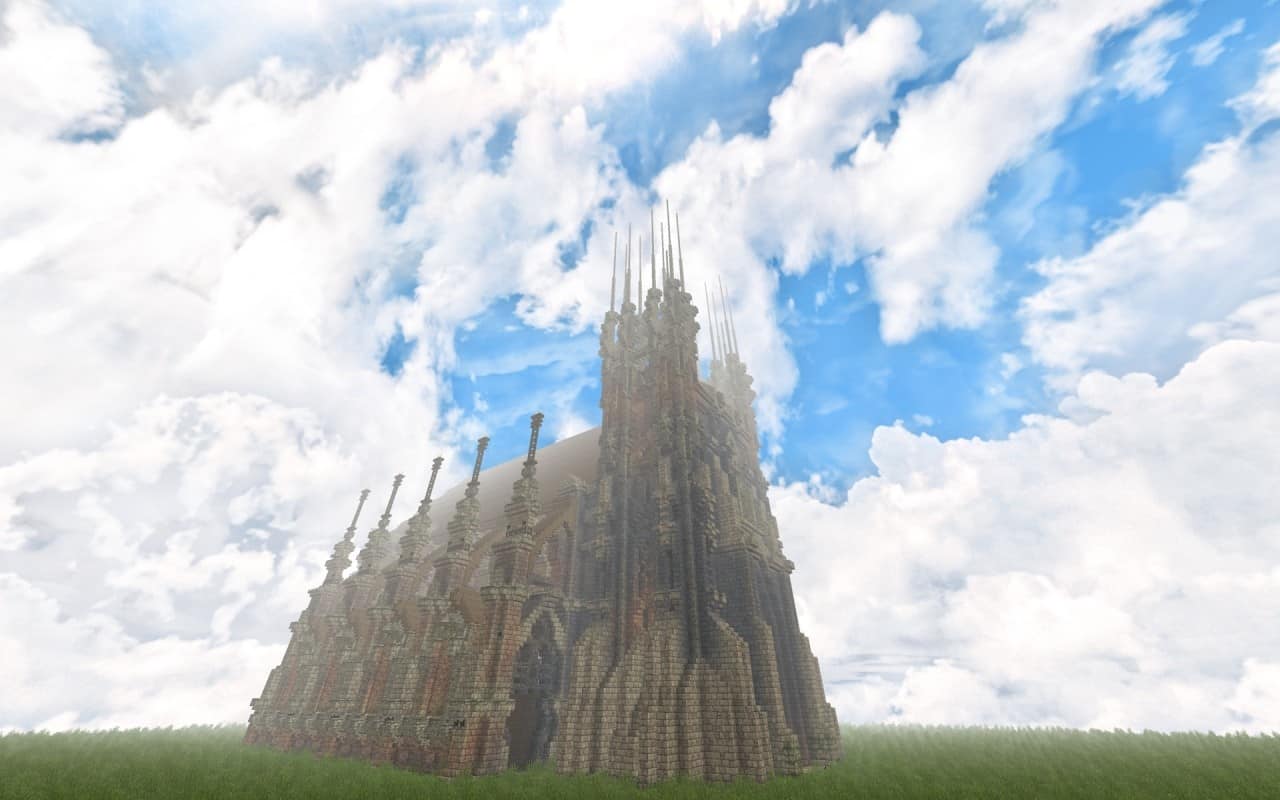
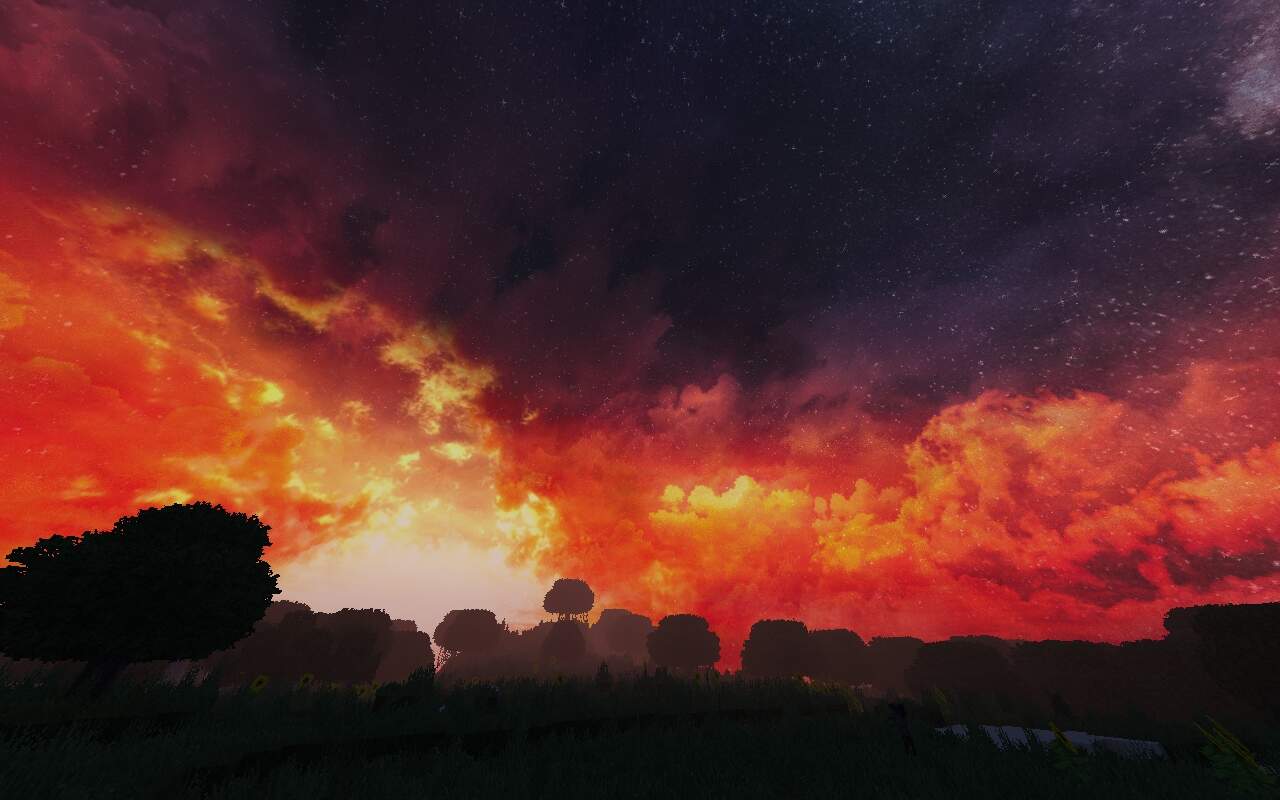
Minecraft’s sky is usually just a still image that shifts colors depending on the time of day, but I was blown away to find that the Epic Horizon texture pack treats players to a dynamically changeable and fully fledged sky to gaze at. Also known as the Revived Space resource pack, it actually makes the sky change over time while you go about your business, creating a stunning backdrop to the scenery and introducing cool new weather events to spice up the usual routine of rain, sun, and snow. The Epic Horizon pack aims to totally overhaul Minecraft’s in-game sky by making it look far more realistic and extraordinary. What makes this pack unique is that it focuses entirely on the sky. Even though many resource and texture packs try to enhance Minecraft’s visuals or graphics, most of them only change the environment while leaving the sky untouched, save for maybe a few sun rays. The Revived Space resource pack tackles this issue head-on and gets rid of it completely once installed! Before diving into the nitty-gritty details of the Epic Horizon texture pack, I should mention that it only alters the appearance of the sky and nothing else. The terrain and blocks will look exactly as they always did, so I definitely recommend pairing it with another pack if you want a complete ground-level overhaul. For instance, Norzeteus Space works great if you want futuristic textures, while OzoCraft is fantastic if you want something a bit more realistic that still stays close to vanilla Minecraft.
Using the pack by itself is still an incredible experience offering a breathtaking horizon and diverse weather changes, so it works wonderfully as a solo pack if you prefer not to install anything else. With that said, exploring all the features of the Revived Space texture pack is an absolute treat. From the breathtaking visuals to the high-resolution details, this pack is truly designed to wow you. It features high-definition textures that make the sky and clouds look super realistic, dynamic changes, bright and exciting colors, and other aspects that seriously elevate the Minecraft sky. The creator spent several months crafting and designing this pack, which completely shows in its remarkable quality. This impressiveness comes with massive 1024×1024 textures, meaning you will definitely need a high-end PC to run it smoothly without running into FPS issues. If you love Minecraft’s default textures but want some top-tier upgrades, this pack is right up your alley. It introduces something fresh to explore while massively improving the overall aesthetic of the game. Just remember that you must install Optifine to enable all of the pack’s features, since custom skies aren’t accessible in vanilla Minecraft. If you try using this pack without Optifine, the skies will remain entirely default. But once you install Optifine and turn on the Custom Sky option in your video settings, you can enjoy the gorgeous fluffy clouds and stunning night sky to your heart’s content. It is an experience I wholeheartedly recommend to everyone!
Revived Space (formerly Epic Horizon) should be compatible with all of these Minecraft versions: 1.19.2 – 1.19.1 – 1.19 – 1.18.2 – 1.18.1 – 1.18 – 1.17.1 – 1.17 – 1.16.5 – 1.16.4 – 1.16.3 – 1.16.2 – 1.16.1 – 1.16 – 1.15.2 – 1.15.1 – 1.15 – 1.14.4 – 1.14.3 – 1.14.2 – 1.14 – 1.13.2 – 1.13.1 – 1.13 – 1.11.2 – 1.11 – 1.10.2 – 1.10 – 1.9.4 – 1.9
Screenshots




How to Install Texture Pack (Simple 10 Steps)
- Download OptiFine: Most of the texture packs and shaders need OptiFine. That’s why, first download and install OptiFine for the version of Minecraft you want to play.
- Download the Texture Pack: Get the texture pack you want from the download section. Choose the version that works with your Minecraft and your PC’s performance.
- Open Minecraft Launcher: Start Minecraft using the official game launcher — or even TLauncher, if you use that.
- Go to Options: From the main menu, click on the “Options” button.
- Open Resource Packs: Inside Options, click on “Resource Packs…”.
- Open the Resource Pack Folder: Click on “Open Resource Pack Folder” — this will open a folder named “resourcepacks”.
- Move the Pack File: Copy or move the .zip file you downloaded into that “resourcepacks” folder. (Don’t unzip the file — Minecraft uses it as-is!)
- Go Back and Refresh: Close the folder and click “Done”, then go back into “Resource Packs…” again.
- Activate the Pack: You’ll see the pack on the left side. Hover over it and click the arrow to move it to the right (active side).
Tip: If you get a message that the pack is for a different version, just click “Yes” — it usually works fine. - Click Done and Enjoy: Click “Done” again. Now your pack is ready to use in-game. It’s that easy!
Credits
This resource pack was created by Aetheris-ex. We do not claim ownership of this content, nor have we modified the original files. All rights belong to the original creator. We strongly encourage you to support Aetheris-ex and their future projects through their official release channels.
Download Instructions
Curseforge: download starts automatically after a few seconds;
Mediafire: click the big blue button with the text “DOWNLOAD”;
Google Drive: in the top right corner you will see a small download icon (down arrow), click it and the download should start;