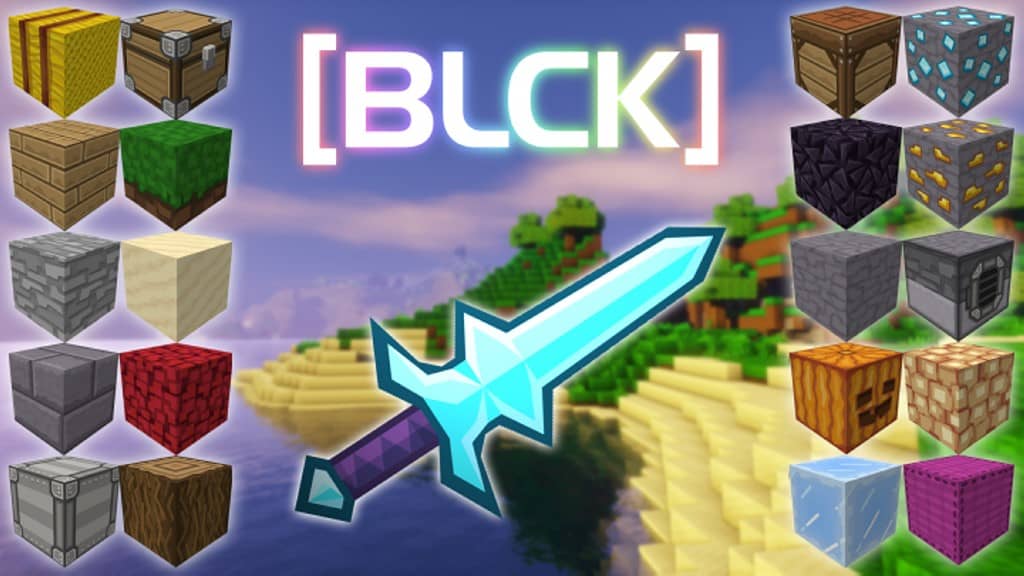
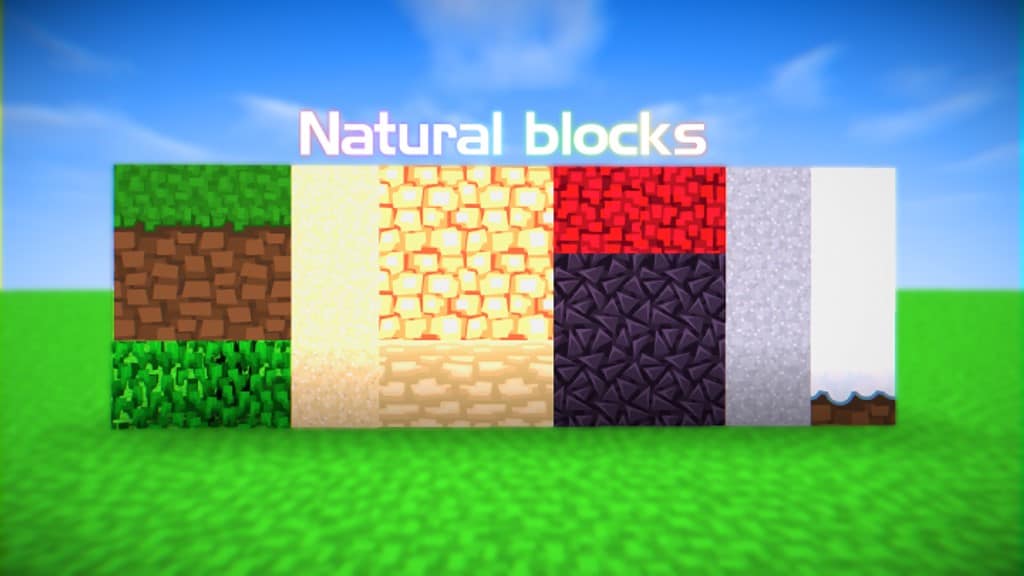
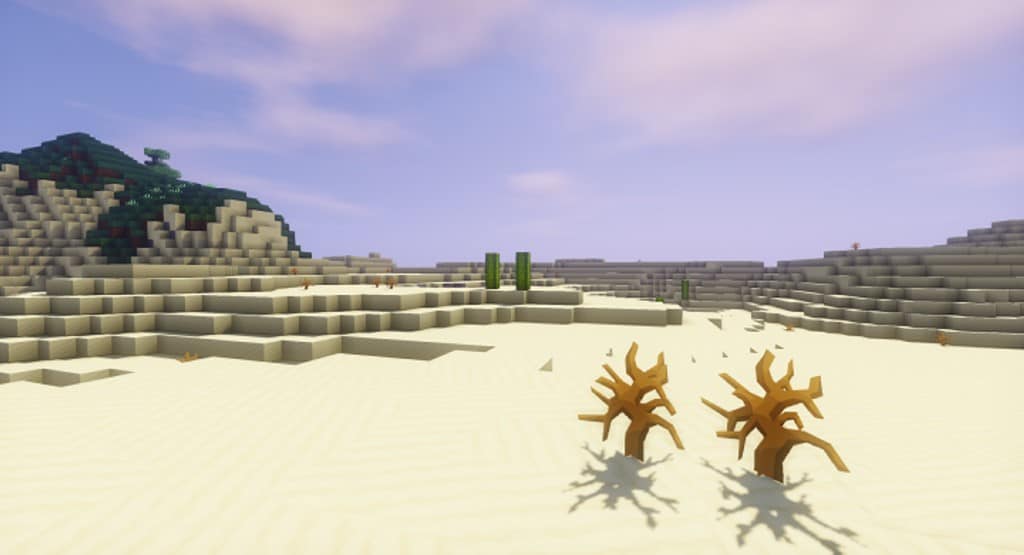
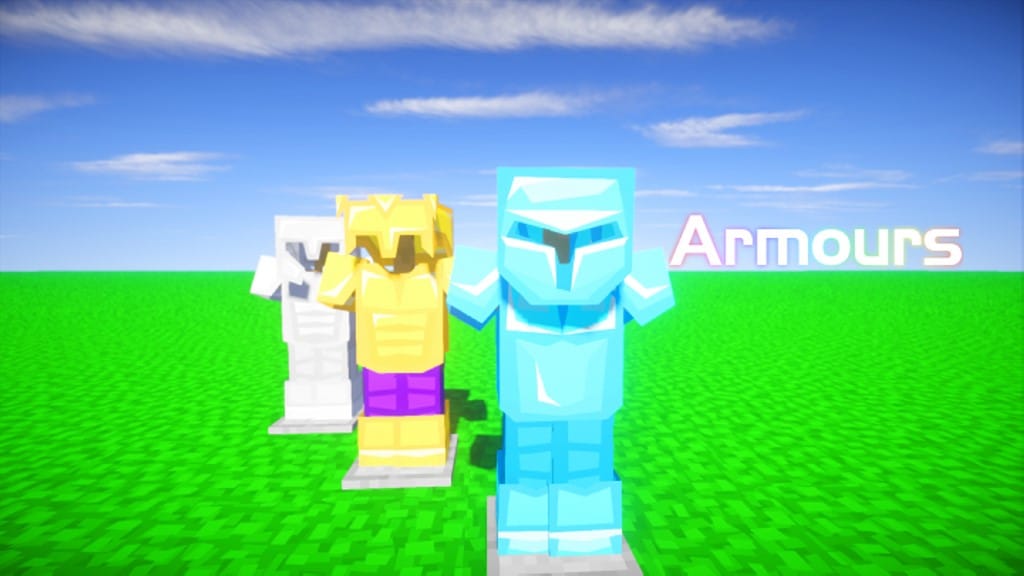
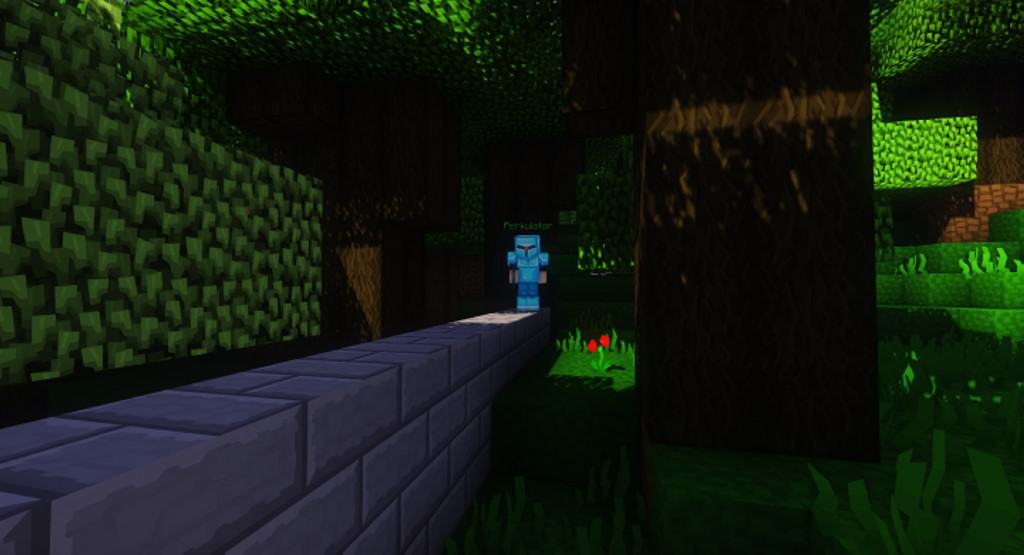
If you have been looking for a truly unique take on a cartoonish Minecraft feel, I think the BLCK resource pack might just be for you! Many similar attempts by the likes of Sphax go overboard with their overhauls, which can completely ruin the game for those of us that still enjoy Minecraft’s original formula. The BLCK resource pack won’t leave you wondering whether you’re playing another game; it brilliantly manages to provide a fresh experience while staying wonderfully true to the game’s original, blocky integrity. It is important to note that the resource pack is still a work-in-progress, with a lot more segments that haven’t yet been redone. However, I found that the developer’s slower pace with the pack’s development is due to their extreme attention to detail. From blocks and particles to items and mobs, I am excited to see that every single texture is going to undergo a complete redesign.
Still, the BLCK resource pack’s main goal is to remain fairly simplistic in order to accommodate all types of users, which is why you won’t be overwhelmed by flashy textures and overdone animations once you load up a new world. This definitely doesn’t mean that it lacks in quality, as I noticed quite the contrary! It emphasizes impressive sharpness, smoothness, and high details. Another great thing that you will likely notice is that the BLCK texture pack makes the Minecraft world a little bit brighter. That is because the grass and most of the plants have increased saturation to give the game a bit more vibrant life. Even though this resource pack isn’t even halfway done yet, I love that there are multiple resolution options available, including: 32x, 64x, 128x, 256x, and 512x. The highest-quality version is surely going to leave you stunned, but be prepared for significant performance drops unless you have a high-end PC. Thankfully, the creator thought of that too, so you can easily try any of the other low-res variants until you find the perfect balance between performance and aesthetics.
[BLCK] should be compatible with all of these Minecraft versions: 1.11.2 – 1.11 – 1.10.2 – 1.10 – 1.9.4 – 1.9 – 1.8.9 – 1.8.8 – 1.8.1 – 1.8.6 – 1.8
Screenshots
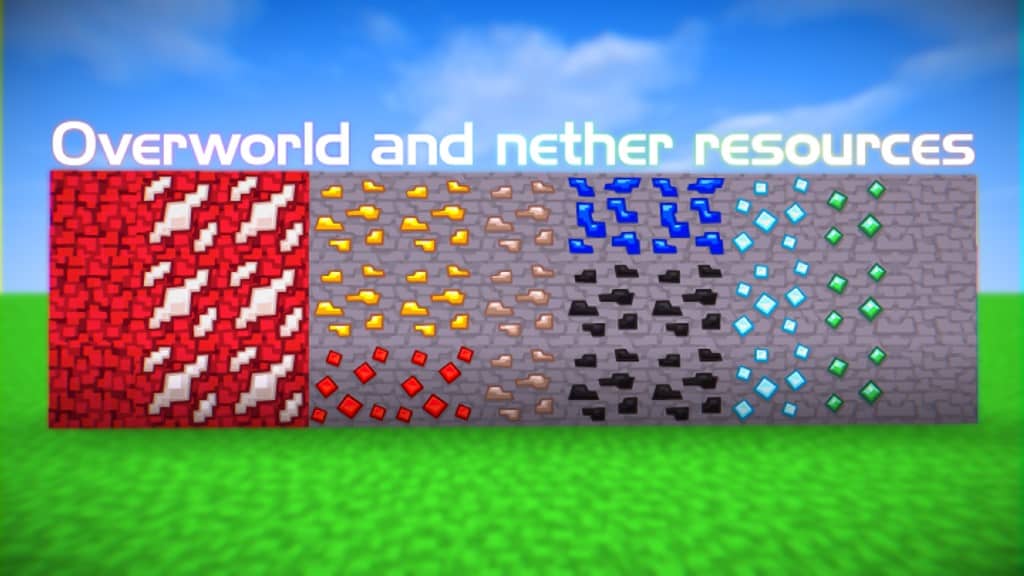

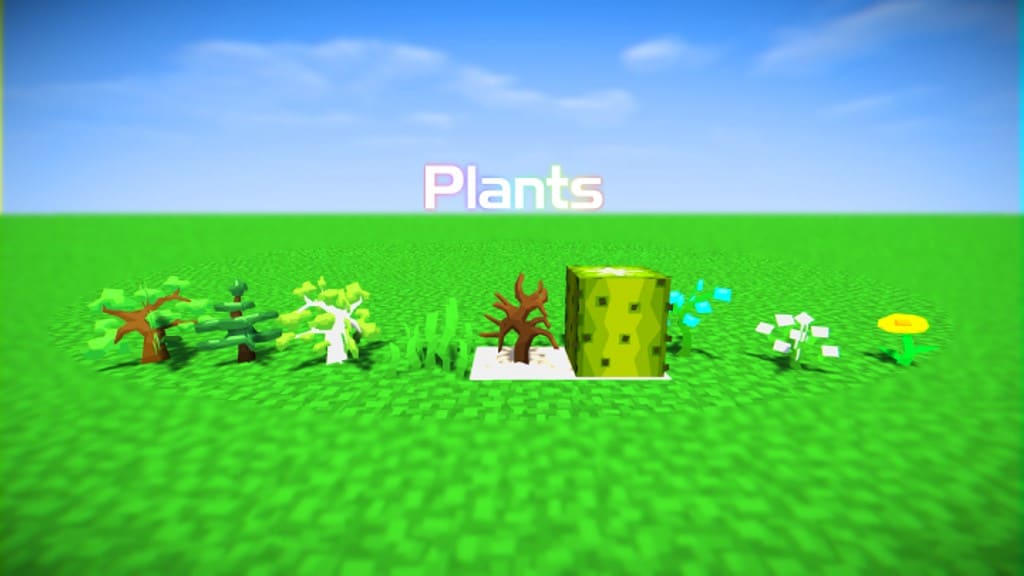
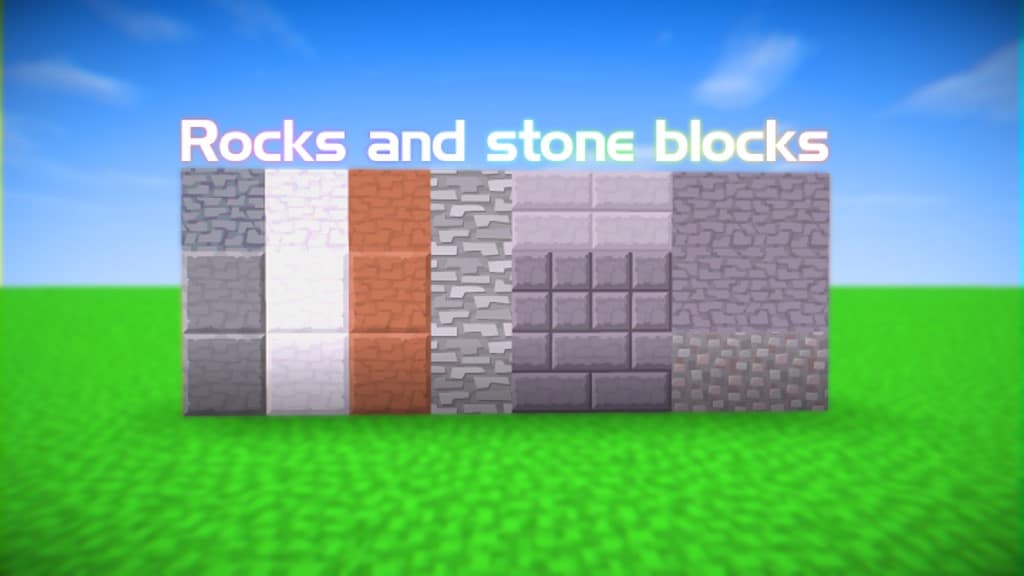
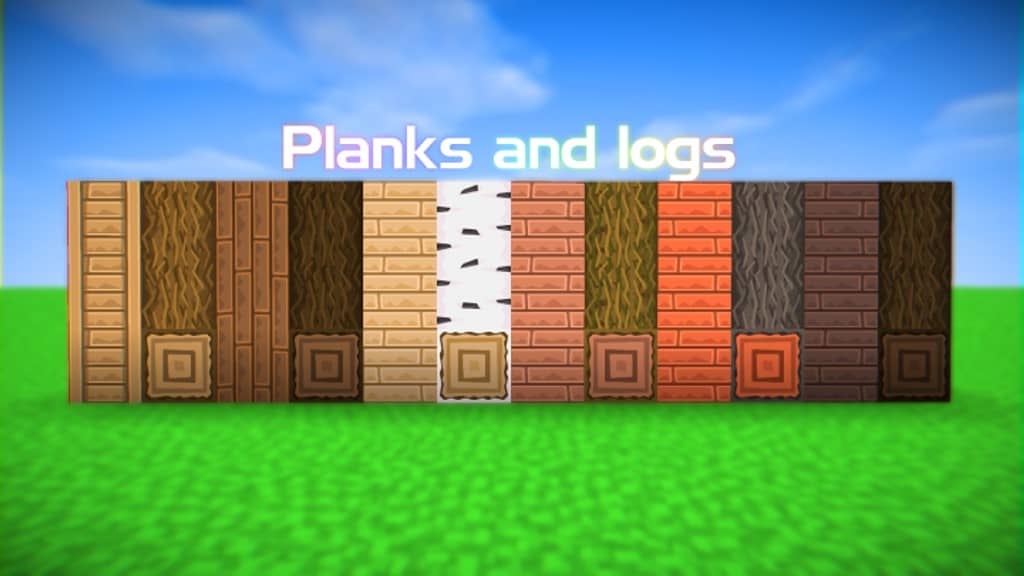

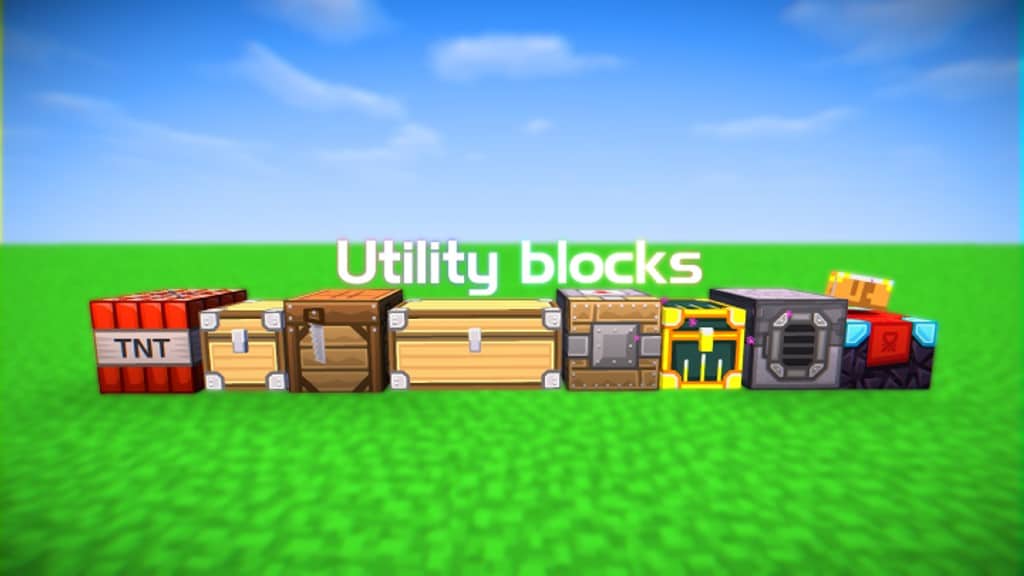
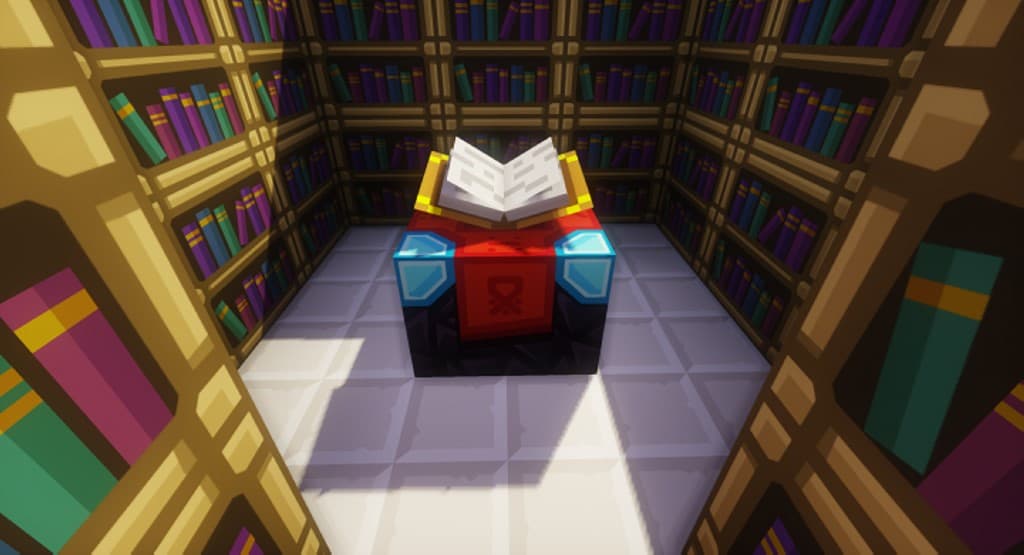
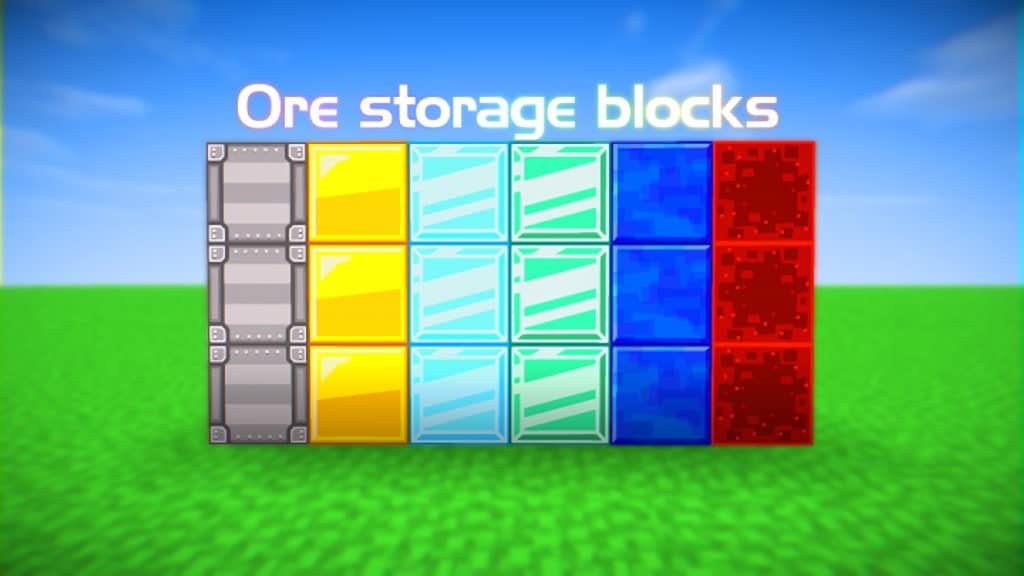
How to Install Texture Pack (Simple 10 Steps)
- Download OptiFine: Most of the texture packs and shaders need OptiFine. That’s why, first download and install OptiFine for the version of Minecraft you want to play.
- Download the Texture Pack: Get the texture pack you want from the download section. Choose the version that works with your Minecraft and your PC’s performance.
- Open Minecraft Launcher: Start Minecraft using the official game launcher — or even TLauncher, if you use that.
- Go to Options: From the main menu, click on the “Options” button.
- Open Resource Packs: Inside Options, click on “Resource Packs…”.
- Open the Resource Pack Folder: Click on “Open Resource Pack Folder” — this will open a folder named “resourcepacks”.
- Move the Pack File: Copy or move the .zip file you downloaded into that “resourcepacks” folder. (Don’t unzip the file — Minecraft uses it as-is!)
- Go Back and Refresh: Close the folder and click “Done”, then go back into “Resource Packs…” again.
- Activate the Pack: You’ll see the pack on the left side. Hover over it and click the arrow to move it to the right (active side).
Tip: If you get a message that the pack is for a different version, just click “Yes” — it usually works fine. - Click Done and Enjoy: Click “Done” again. Now your pack is ready to use in-game. It’s that easy!
Credits
This resource pack was created by The Guineapig. We do not own or claim ownership of this content, and no modifications have been made to the original files. All rights and credit belong entirely to the original creator. We highly recommend supporting The Guineapig by downloading the pack from their official links and checking out their future projects.
Download Links
Java Edition
Download Instructions
Curseforge: download starts automatically after a few seconds;
Mediafire: click the big blue button with the text “DOWNLOAD”;
Google Drive: in the top right corner you will see a small download icon (down arrow), click it and the download should start;