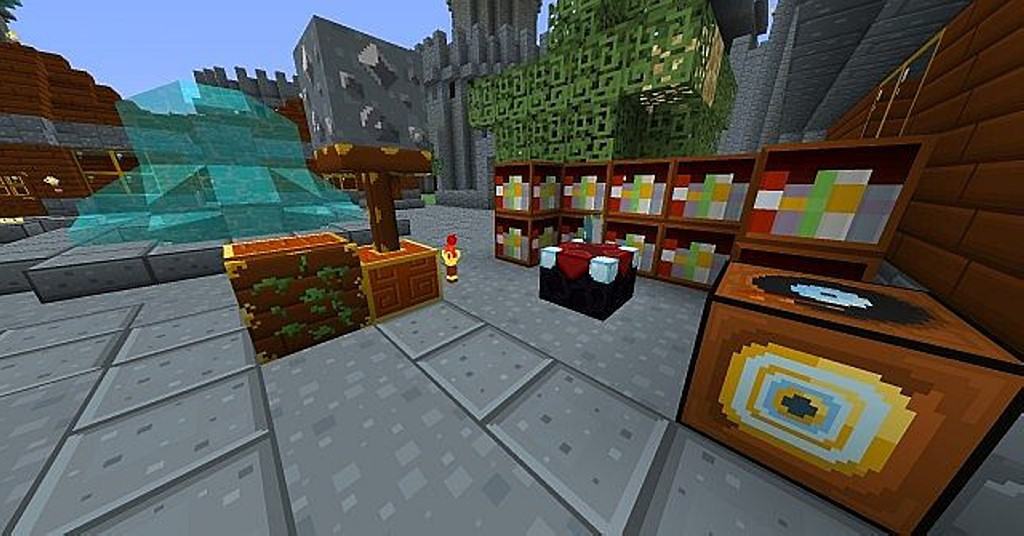
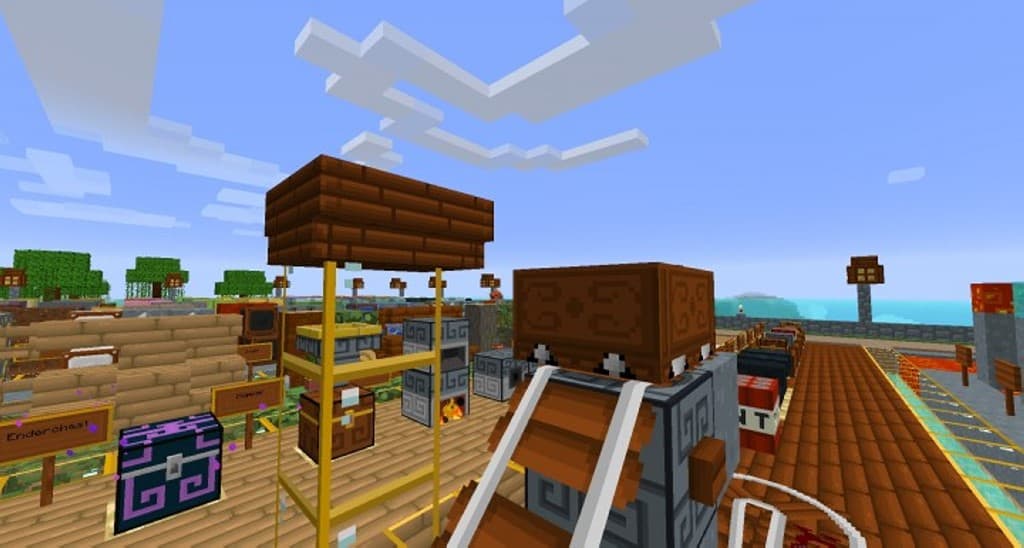
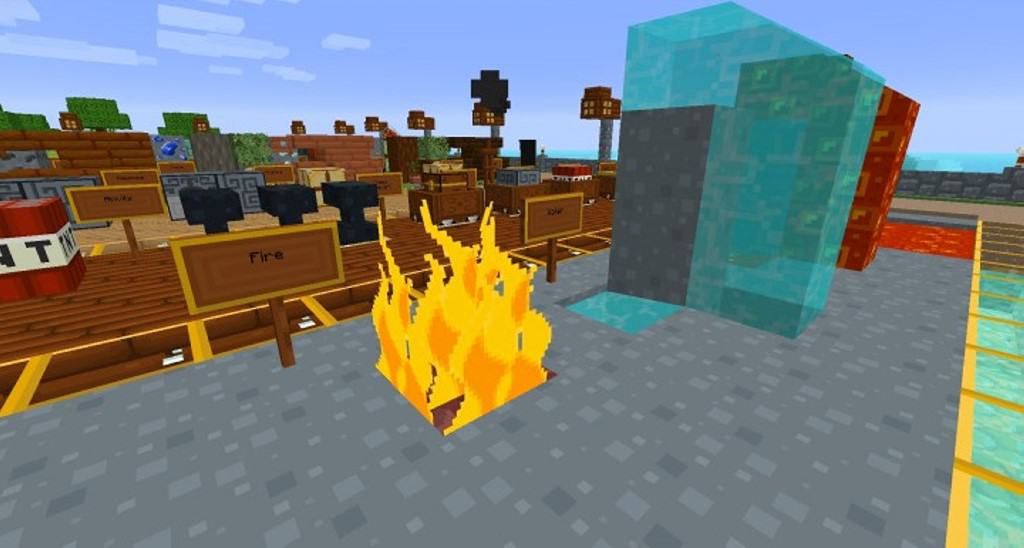
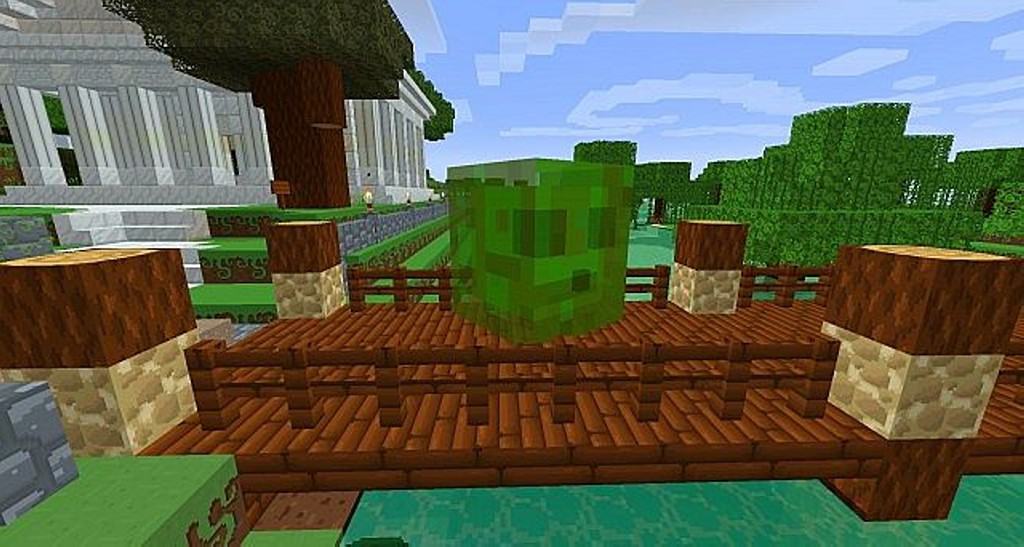
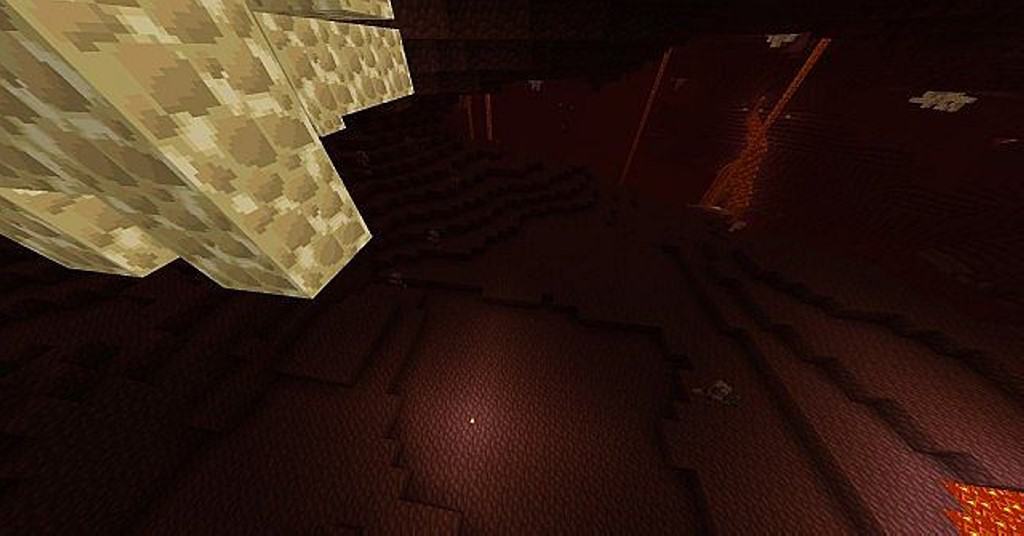
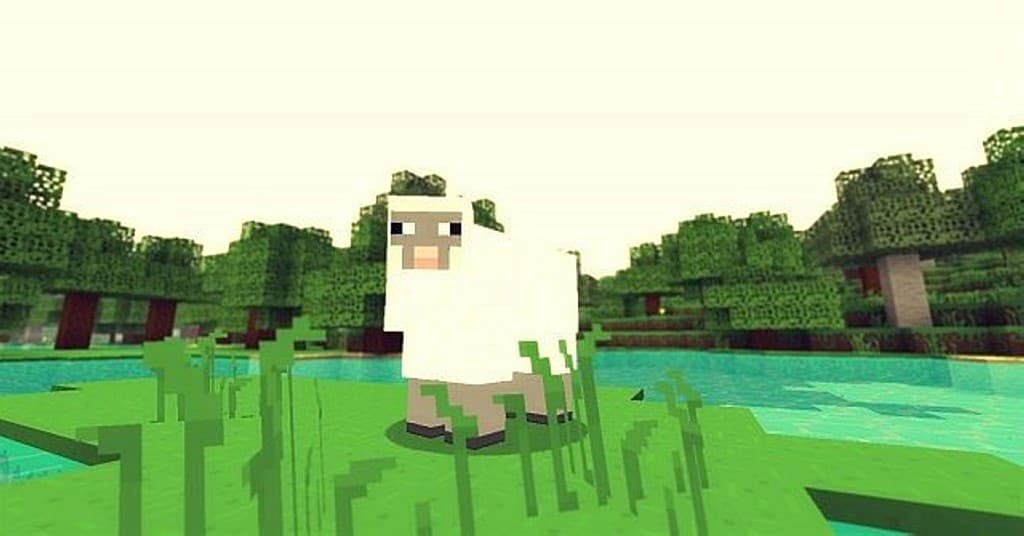
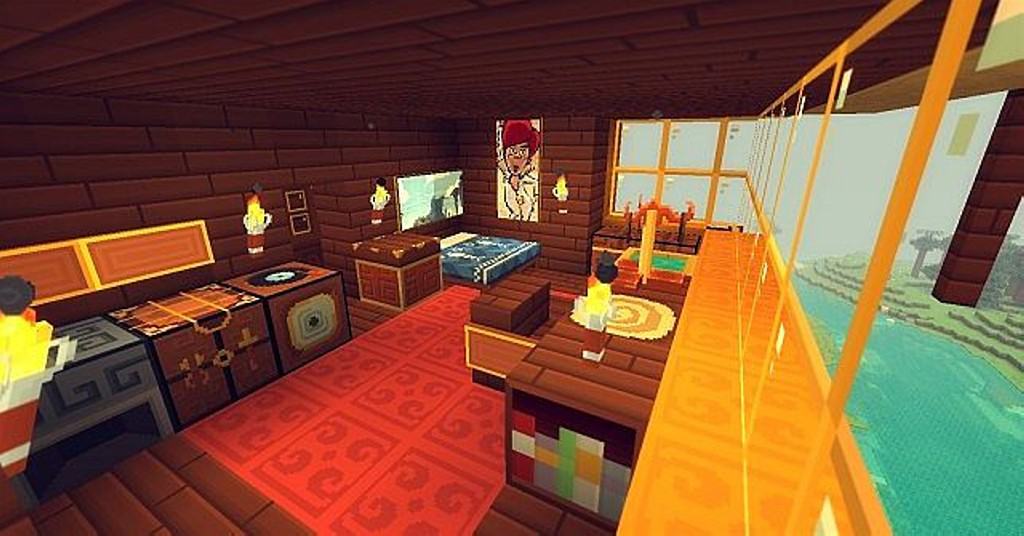
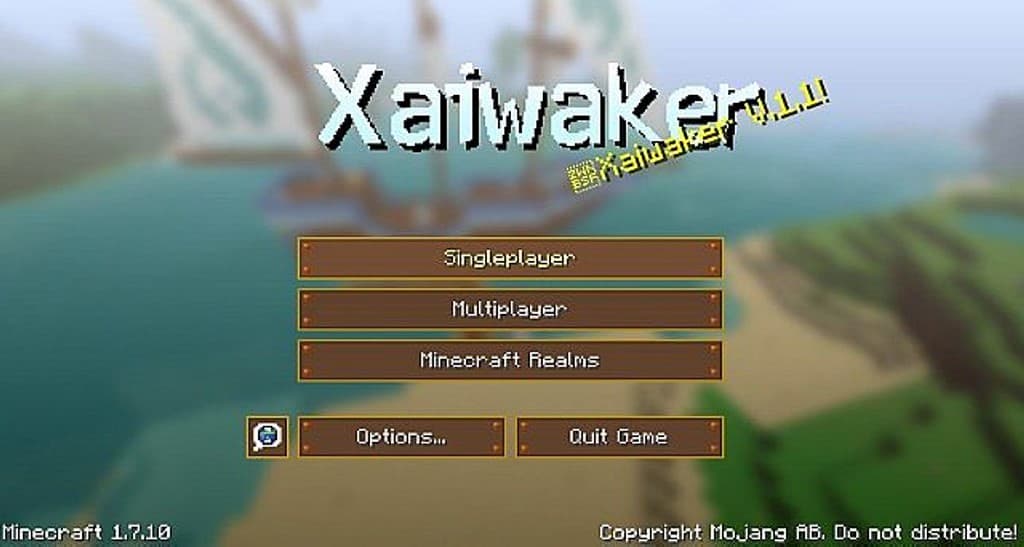
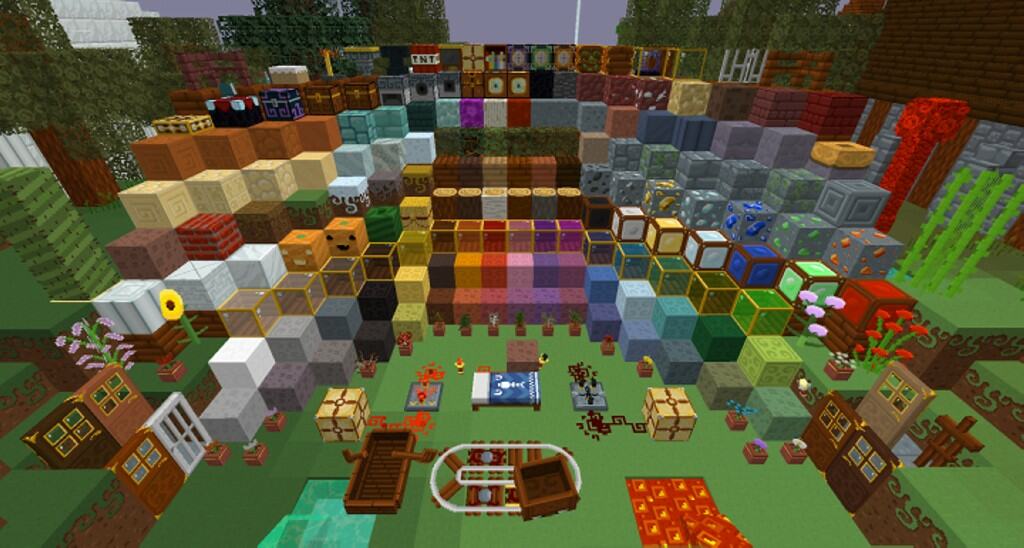
After the first Xaiwaker resource pack became open source, I was thrilled to see kyctarniq take everything one step further by creating the Xaiwaker Swirly resource pack. Believe it or not, this resource pack does share a lot with the original version, but it also brings a unique twist of its own that you will soon find out, one that most Minecraft players haven’t experienced yet. Simply put, Xaiwaker Swirly can only be described as a Xaiwaker tweaked and refined, a resource pack with a lot of finesse to show to the average Minecraft player. If you’re a fan of kyctarniq’s long line of work, you’re going to absolutely love this project. It is, quite probably, the best resource pack released so far by him. Perhaps the best feature this project has is a distinctive and defining aesthetic that will bring a freshening element to most players. You can expect something similar to classic videogames such as Zelda or more recent ones like Animal Crossing.
I really enjoy how this resource pack is full of bright colors and immersive textures. Even though this pack brings textures similar to other games and packs, this is a unique experience—one that no other resource pack has been able to create. Most veteran players who want something new will find what they are looking for in the Xaiwaker Swirly texture pack. The Xaiwaker Swirly pack is available in x16 and x32 versions. This presents a perfect opportunity for both gamers with low-end and high-end computers. Minecraft players with a low-end computer can choose to play with the x16 version with no trouble at all, while gamers with a high-end computer will enjoy the x32 version. Either way, this resource pack brings enough change for anyone to enjoy! The resource pack is also compatible with Minecraft 1.12.x, something that certain players will love to know.
Xaiwaker Swirly should be compatible with all of these Minecraft versions: 1.17.1 – 1.17 – 1.12.2 – 1.12 – 1.11.2 – 1.11 – 1.10.2 – 1.10 – 1.9.4 – 1.9 – 1.8.9 – 1.8.8 – 1.8.1 – 1.8.6 – 1.8 – 1.7.10 – 1.7.9 – 1.7.4 – 1.7 – 1.6.4 – 1.6.2
Screenshots
How to Install Texture Pack (Simple 10 Steps)
- Download OptiFine: Most of the texture packs and shaders need OptiFine. That’s why, first download and install OptiFine for the version of Minecraft you want to play.
- Download the Texture Pack: Get the texture pack you want from the download section. Choose the version that works with your Minecraft and your PC’s performance.
- Open Minecraft Launcher: Start Minecraft using the official game launcher — or even TLauncher, if you use that.
- Go to Options: From the main menu, click on the “Options” button.
- Open Resource Packs: Inside Options, click on “Resource Packs…”.
- Open the Resource Pack Folder: Click on “Open Resource Pack Folder” — this will open a folder named “resourcepacks”.
- Move the Pack File: Copy or move the .zip file you downloaded into that “resourcepacks” folder. (Don’t unzip the file — Minecraft uses it as-is!)
- Go Back and Refresh: Close the folder and click “Done”, then go back into “Resource Packs…” again.
- Activate the Pack: You’ll see the pack on the left side. Hover over it and click the arrow to move it to the right (active side).
Tip: If you get a message that the pack is for a different version, just click “Yes” — it usually works fine. - Click Done and Enjoy: Click “Done” again. Now your pack is ready to use in-game. It’s that easy!
Credits
This resource pack was originally created by Xaivern and further developed by kyctarniq. We do not own or modify the files provided, and we encourage you to support the original creators by downloading through their official channels.
Download Links
Java Edition
Download Instructions
Curseforge: download starts automatically after a few seconds;
Mediafire: click the big blue button with the text “DOWNLOAD”;
Google Drive: in the top right corner you will see a small download icon (down arrow), click it and the download should start;


