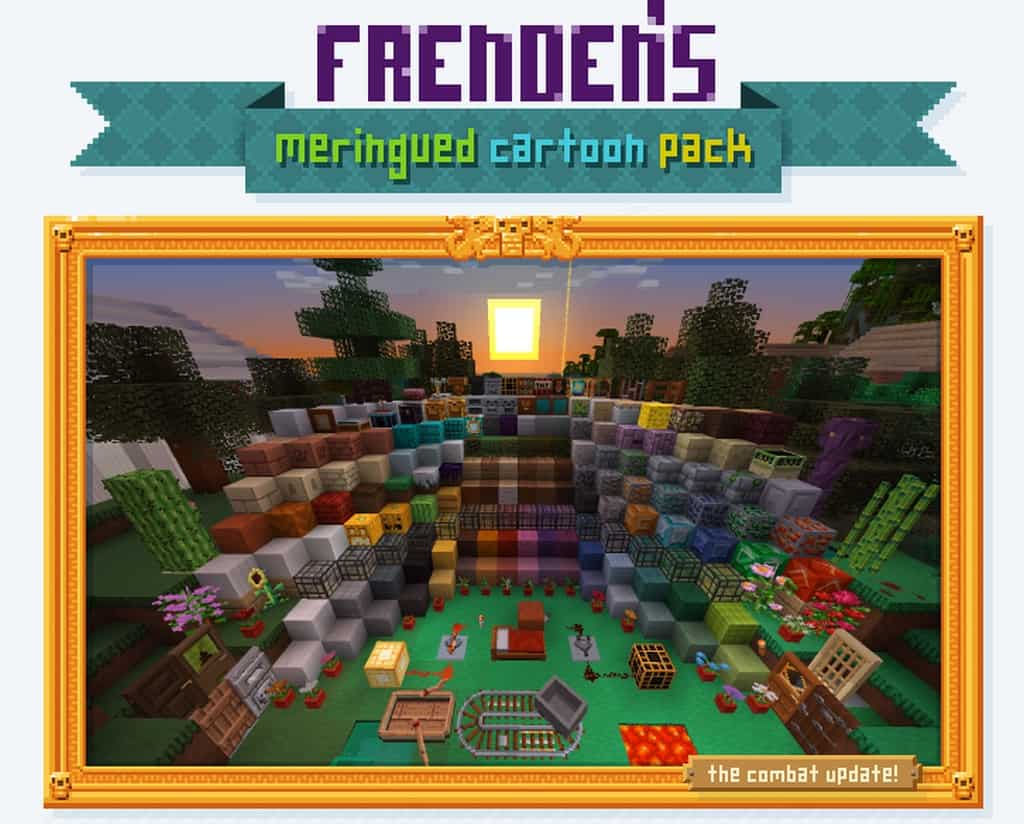
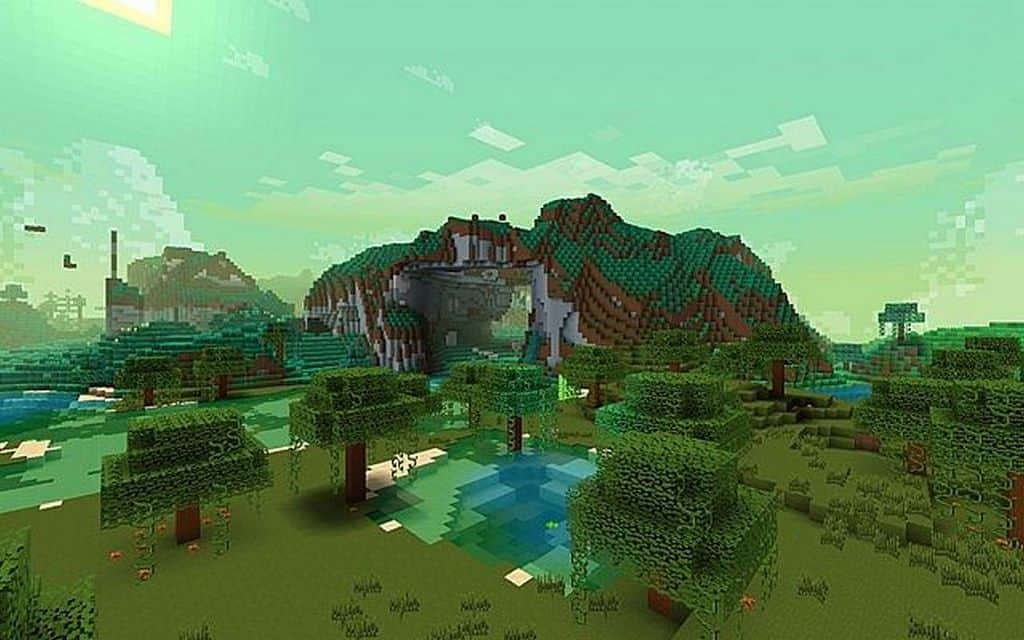
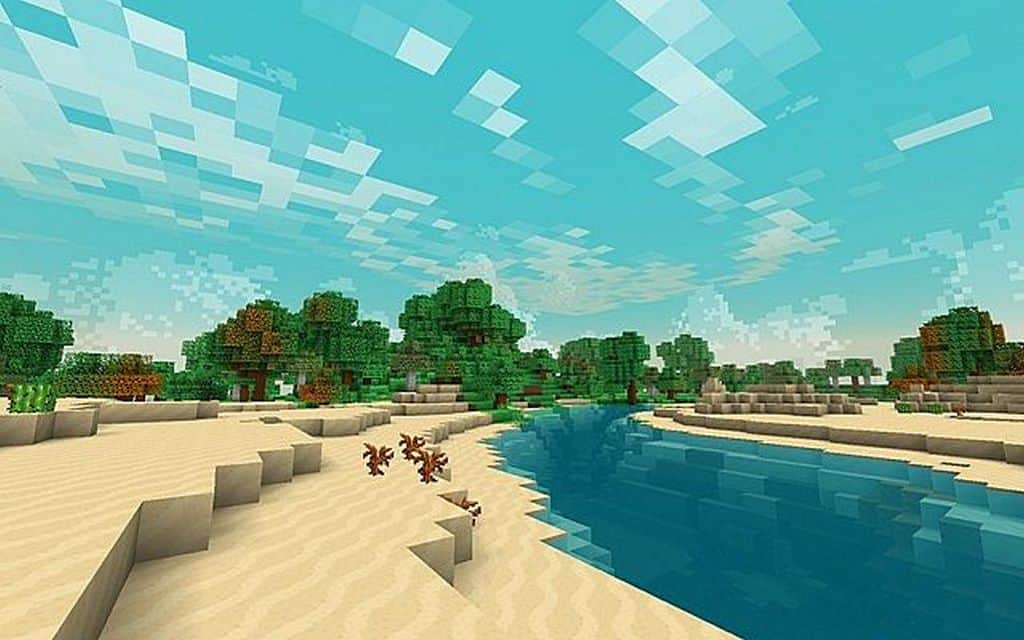
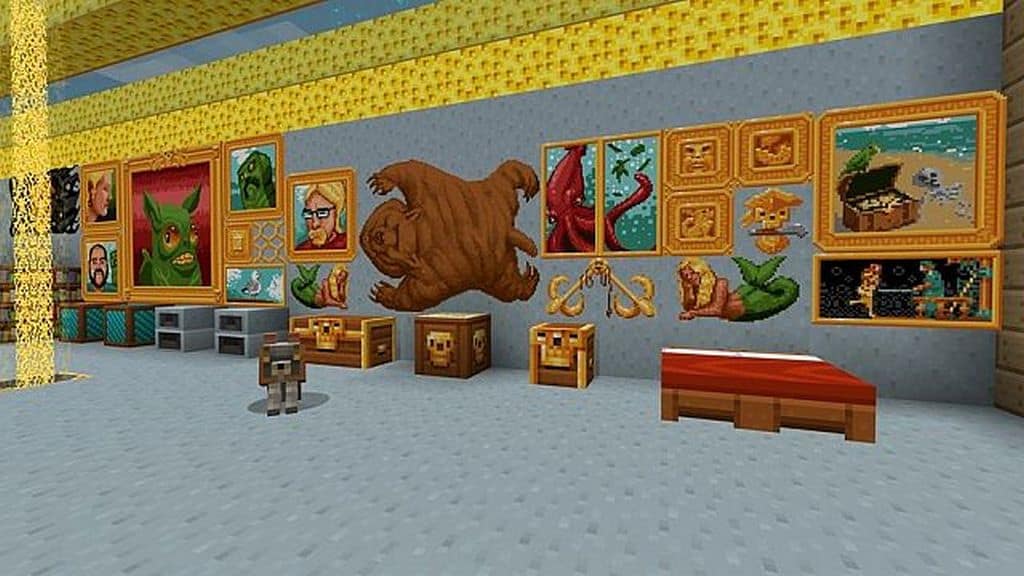
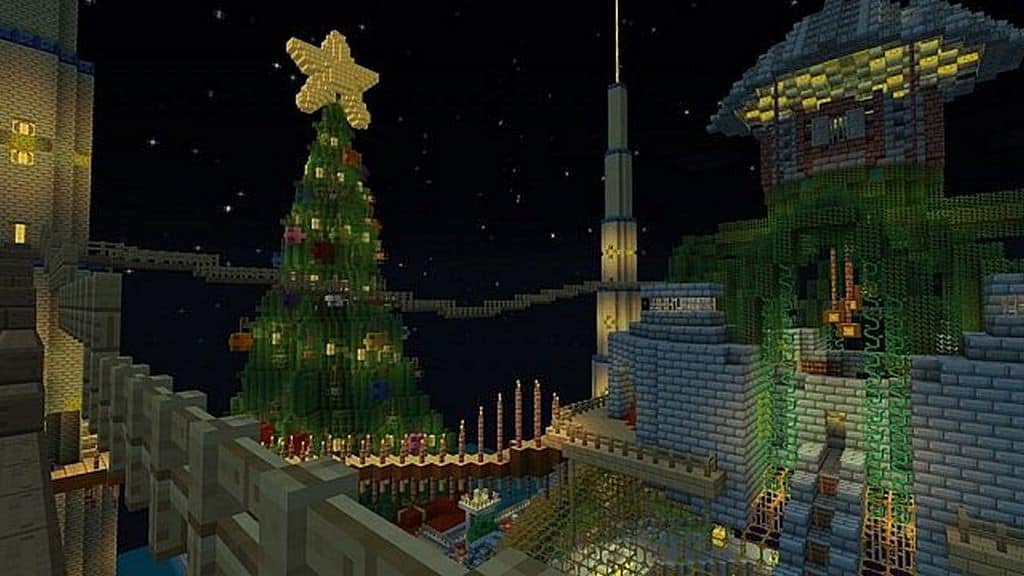
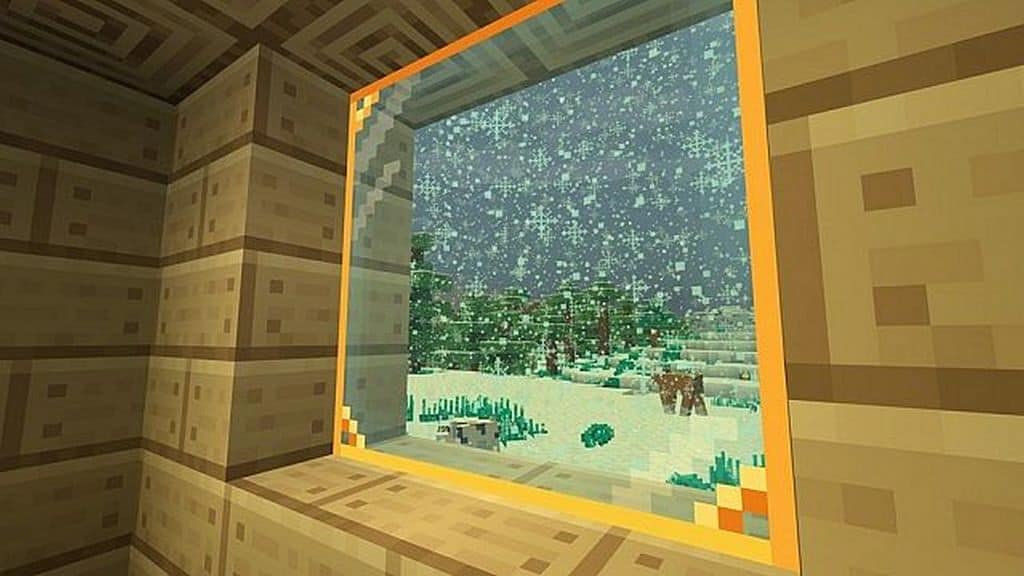
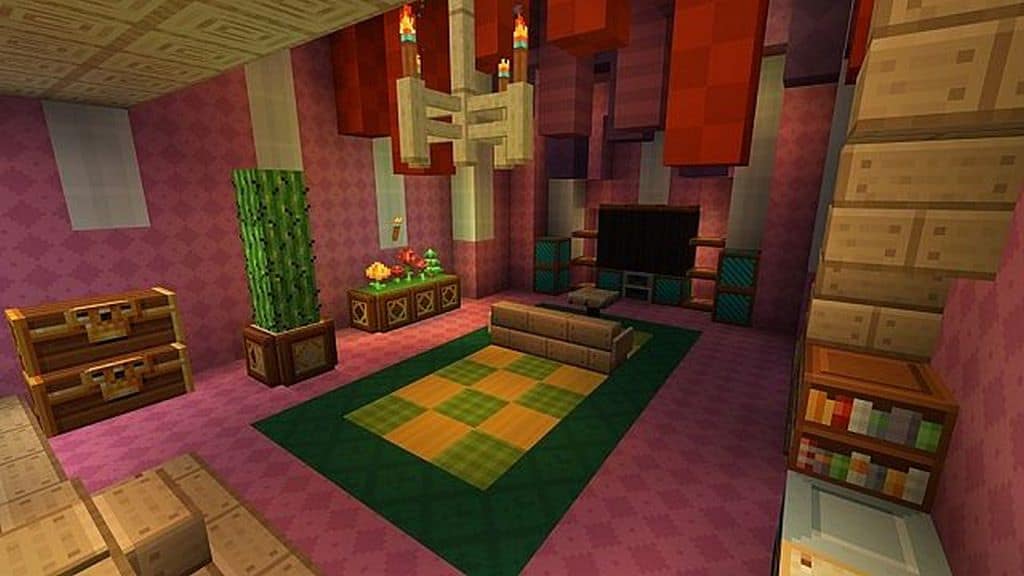
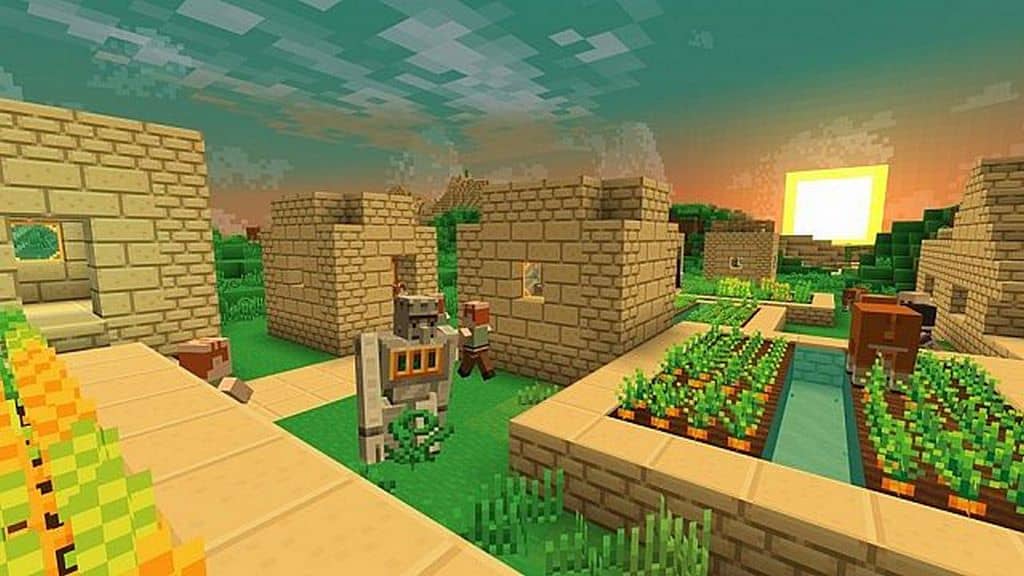
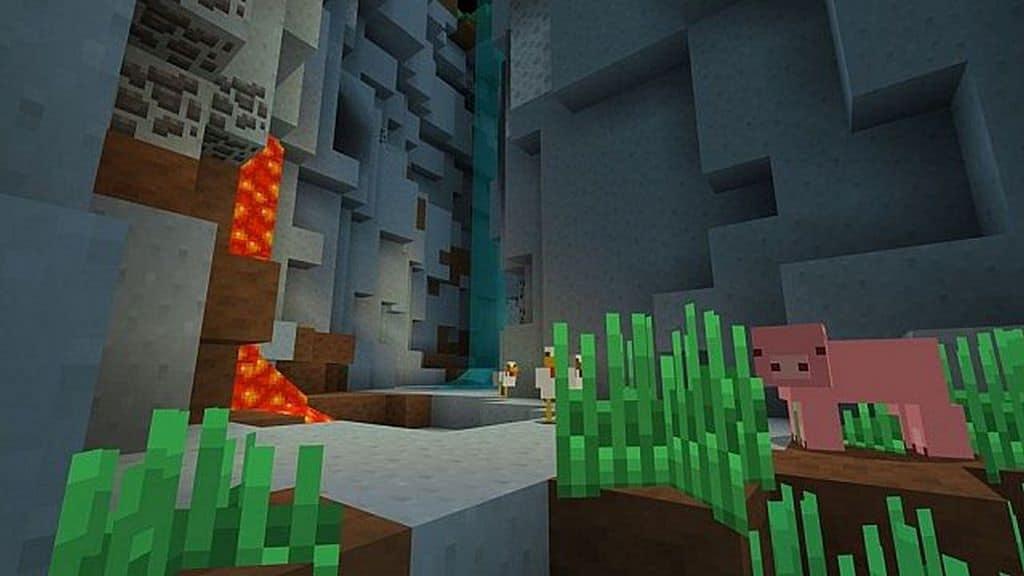
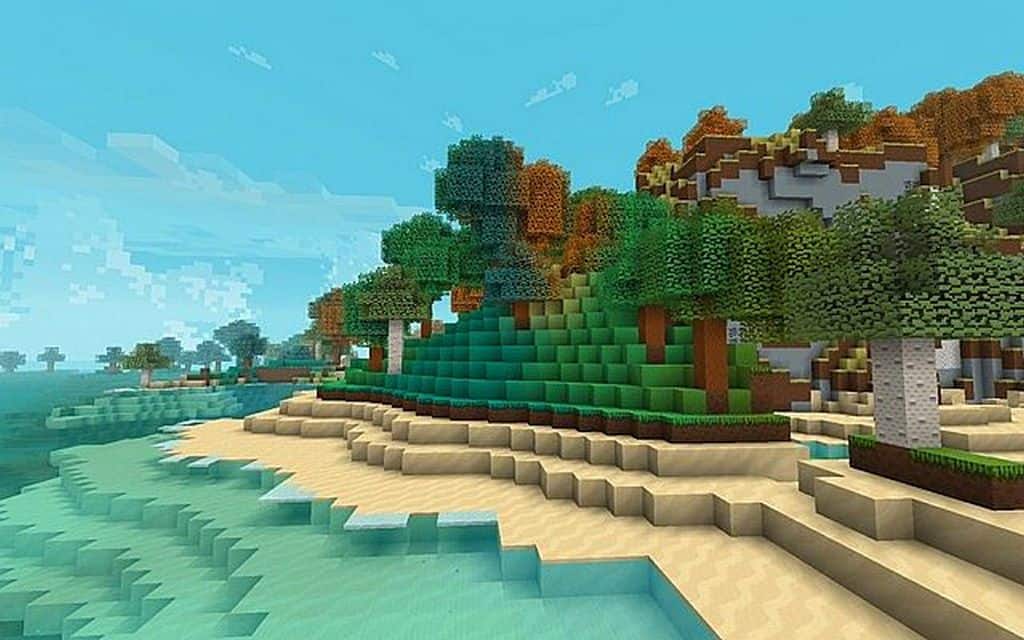
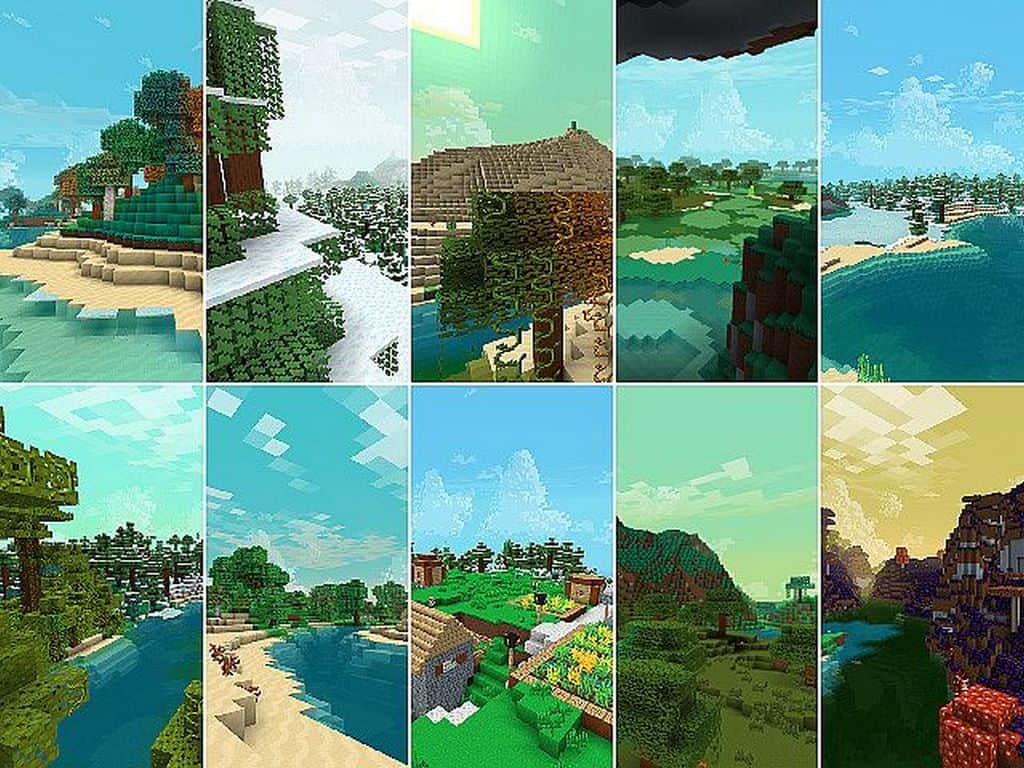
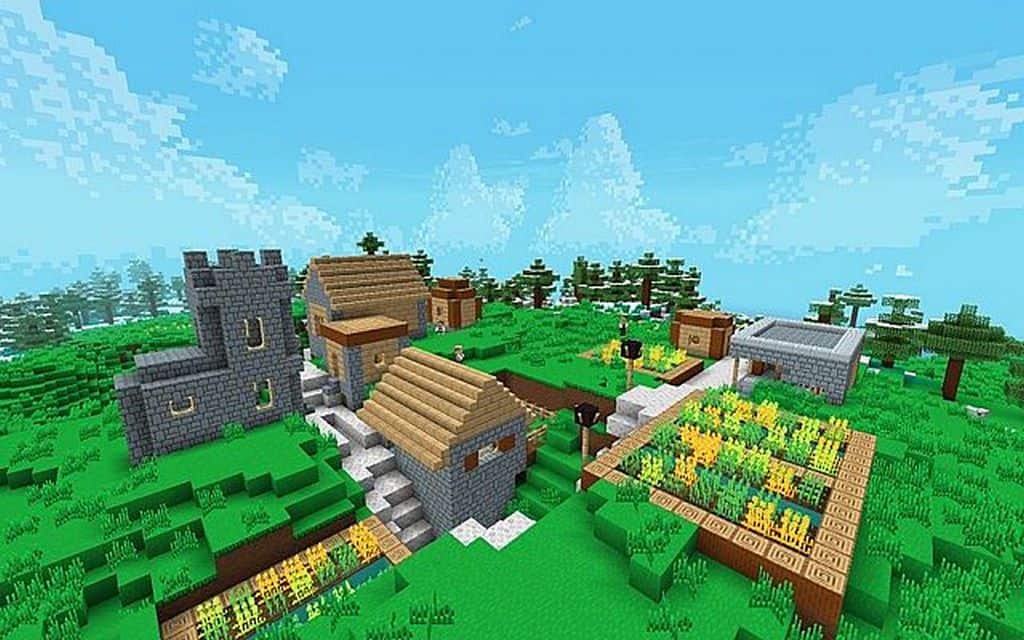
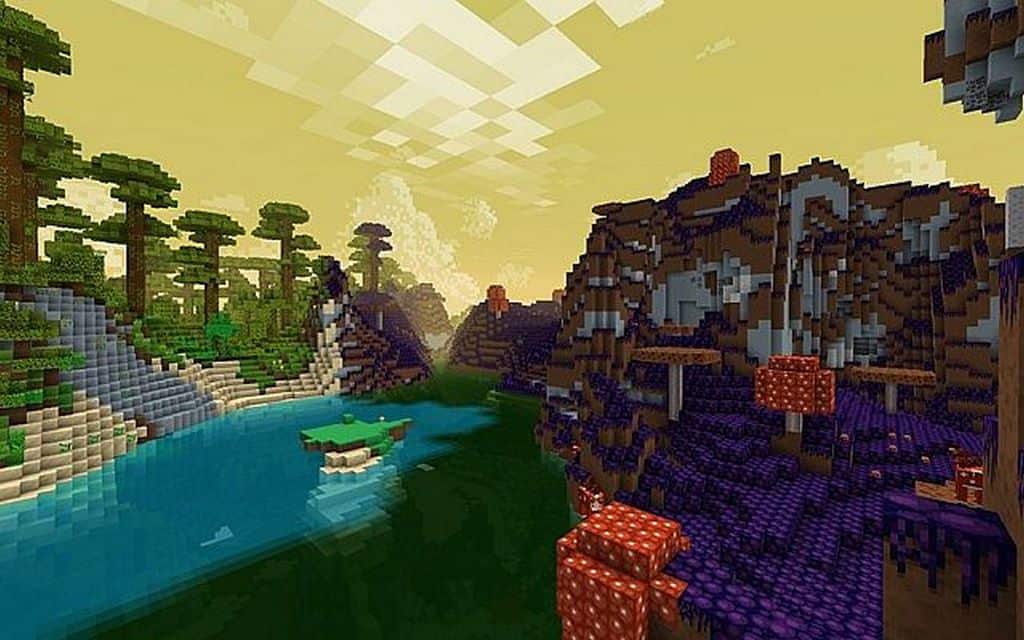
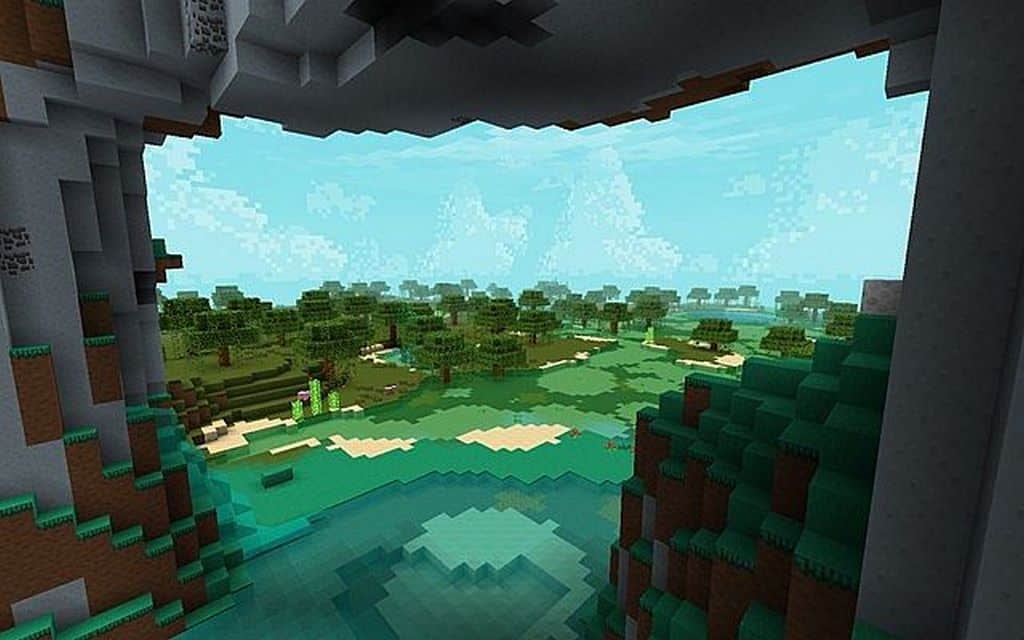
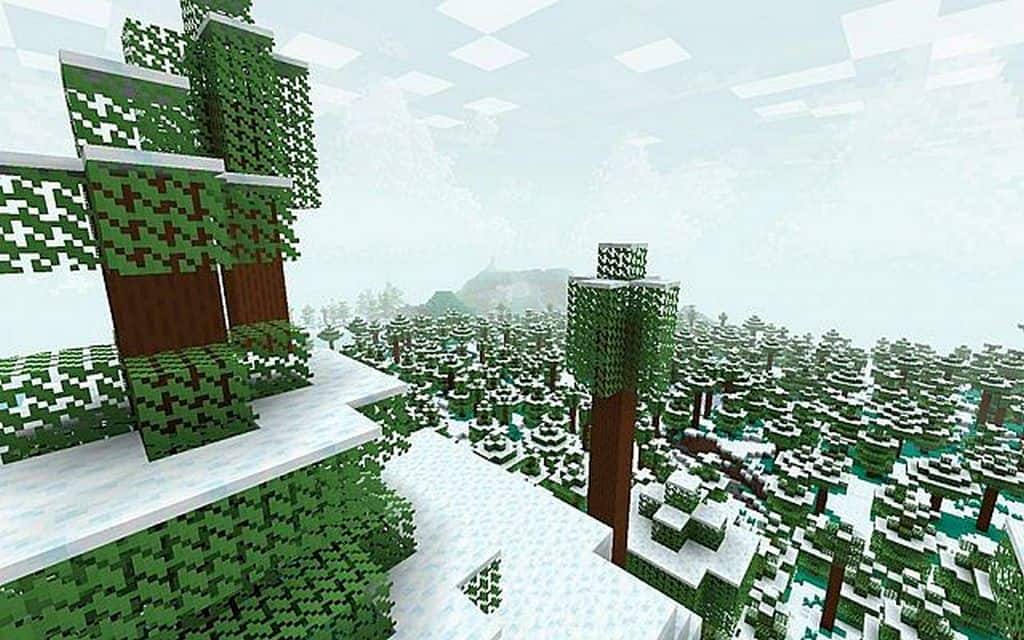
After such a long and highly anticipated wait, I am so thrilled to say that Frenden’s Meringued Cartoon resource pack has finally been released! Built lovingly on the incredible legacy left behind by Frenden’s original Cartoon Pack, this amazing resource pack brings a wonderfully fresh set of visuals that completely transforms Minecraft into a vibrant cartoonish style. The original pack unfortunately had its development halted despite being deeply appreciated by the community for its unique take on the game’s visuals. Picking up the torch after that original project stopped, the talented current developer, meringue, added their name to the pack while proudly preserving the legacy of the original creator. Meringue successfully continued the development work and brought countless improvements, shaping it into a fully playable state that we can all enjoy. This resource pack features a very distinct cartoonish style that is an absolute must-try for certain players, though if you are someone searching for a super realistic visual style, you might find that this is simply not for you.
This pack was tailor-made for players looking for a wonderfully colorful visual style with revamped animations and a totally fresh approach to color schemes that gives Minecraft a delightful cartoon look without altering the core gameplay experience. It thoughtfully replaces default armor, weapons, and potions alongside environmental textures to create a genuinely joyful, playable cartoon world. There is even a neat little medieval twist waiting to be discovered as you explore! Best of all, it sticks to a classic 16×16 resolution, meaning the textures remain super crisp while delivering an exceptionally joyful visual tone. Because it uses this low 16×16 resolution, the game demands far fewer system resources, allowing it to run smoothly even if you do not have a high-end PC. Its incredible optimization and wonderful compatibility across multiple versions of Minecraft are the main reasons why Frenden’s Meringued resource pack continues to remain so popular among players like us.
Frenden’s Meringued Cartoon Pack should be compatible with all of these Minecraft versions: 1.9.4 – 1.9 – 1.8.9 – 1.8.8 – 1.8.1 – 1.8.6 – 1.8 – 1.7.10 – 1.7.9 – 1.7.4 – 1.7 – 1.6.4 – 1.6.2
Screenshots
How to Install Texture Pack (Simple 10 Steps)
- Download OptiFine: Most of the texture packs and shaders need OptiFine. That’s why, first download and install OptiFine for the version of Minecraft you want to play.
- Download the Texture Pack: Get the texture pack you want from the download section. Choose the version that works with your Minecraft and your PC’s performance.
- Open Minecraft Launcher: Start Minecraft using the official game launcher — or even TLauncher, if you use that.
- Go to Options: From the main menu, click on the “Options” button.
- Open Resource Packs: Inside Options, click on “Resource Packs…”.
- Open the Resource Pack Folder: Click on “Open Resource Pack Folder” — this will open a folder named “resourcepacks”.
- Move the Pack File: Copy or move the .zip file you downloaded into that “resourcepacks” folder. (Don’t unzip the file — Minecraft uses it as-is!)
- Go Back and Refresh: Close the folder and click “Done”, then go back into “Resource Packs…” again.
- Activate the Pack: You’ll see the pack on the left side. Hover over it and click the arrow to move it to the right (active side).
Tip: If you get a message that the pack is for a different version, just click “Yes” — it usually works fine. - Click Done and Enjoy: Click “Done” again. Now your pack is ready to use in-game. It’s that easy!
Credits
This resource pack was created by meringue, continuing the original work by Frenden. We do not claim ownership of this modification and do not host any files on our servers. All rights and credits belong entirely to the original creators. Please support meringue and Frenden by downloading the pack from their official links.
Download Links
Java Edition
Download Instructions
Curseforge: download starts automatically after a few seconds;
Mediafire: click the big blue button with the text “DOWNLOAD”;
Google Drive: in the top right corner you will see a small download icon (down arrow), click it and the download should start;